
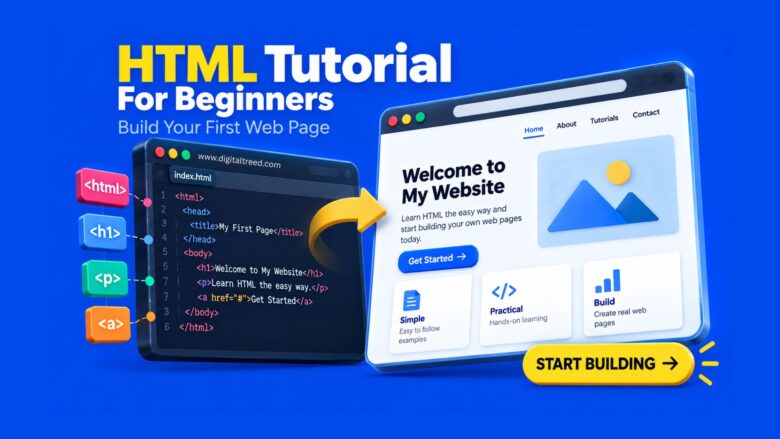
HTML stands for HyperText Markup Language, and it’s the code that structures every webpage on the internet, headings, paragraphs, links, images, and everything else you see in a browser. It is a markup language, not a programming language: it describes structure rather than logic, which is exactly why it’s one of the fastest technical skills to pick up. Most beginners can write a working webpage within a few hours. This tutorial covers what older beginner guides tend to skip entirely: an actual document structure example, the core tags with working code, and the semantic HTML5 elements that both browsers and search engines rely on today.
What HTML Actually Is (and Isn’t)
HTML is not a programming language. It has no logic, no variables, and no calculations, it simply marks up content so a browser knows what’s a heading versus a paragraph versus a link. That distinction matters for beginners specifically because it means you can’t “break” a webpage the way you might break a program; at worst, a missing tag renders incorrectly rather than crashing.
Web pages typically combine three separate technologies, each with its own job:
- HTML structures the content (this tutorial).
- CSS styles how it looks (colors, layout, spacing).
- JavaScript adds interactivity (button clicks, dynamic updates).
Learning HTML first, before CSS or JavaScript, is the standard and correct order, since both of the other two technologies act on the HTML structure you build first.
A Brief, Accurate History of HTML
HTML was created by Tim Berners-Lee, along with contributions from Robert Cailliau, starting in 1989 while working at CERN, originally to help researchers share scientific documents with embedded links between them, what we now call hypertext. HTML 2.0 became the first official standard specification in 1995, and HTML 4.01 followed as a major version in 1999. What many older tutorials leave out entirely is what came after: HTML5, finalized as a full W3C recommendation in 2014, introduced the semantic elements and multimedia support (<video>, <audio>, <canvas>) that define how modern HTML is actually written today. Any current HTML tutorial that stops its history at HTML 4.01 is missing the version actually in use right now.
The Basic Structure of an HTML Page
Every HTML document follows the same skeleton, and understanding this structure before individual tags is the part most “beginner” tutorials skip straight past:
<!DOCTYPE html>
<html lang="en">
<head>
  <meta charset="UTF-8">
  <meta name="viewport" content="width=device-width, initial-scale=1.0">
  <title>My First Web Page</title>
</head>
<body>
  <h1>Hello, World!</h1>
  <p>This is my first paragraph.</p>
</body>
</html>
Breaking that down:
<!DOCTYPE html>tells the browser this is an HTML5 document. It must be the very first line.<html lang="en">wraps the entire page and declares its language, which matters for both accessibility (screen readers) and search engines.<head>contains information about the page that isn’t displayed directly: character encoding, the responsive viewport setting, and the page<title>shown in the browser tab.<body>contains everything actually visible on the page.
The <meta name="viewport"> tag deserves a specific mention since older tutorials from the pre-mobile era don’t include it: without it, your page won’t scale correctly on phone screens, making it effectively broken for most of today’s traffic.
Essential HTML Tags Every Beginner Needs
Headings
HTML has six heading levels, <h1> through <h6>, used to indicate a content hierarchy, not just to make text bigger:
<h1>Main Page Title</h1>
<h2>A Major Section</h2>
<h3>A Subsection</h3>
Use exactly one <h1> per page for the main title, then move through <h2> and <h3> for subsections in order, rather than skipping levels purely for visual size.
Paragraphs
<p>This is a paragraph of text.</p>
Links
<a href="https://example.com">Visit Example</a>
The href attribute defines the destination. Attributes like this appear inside the opening tag and provide extra information the tag alone doesn’t carry.
Images
<img src="photo.jpg" alt="A description of the photo">
The alt attribute isn’t optional in any meaningful sense: it’s what screen readers announce for visually impaired users, what displays if the image fails to load, and a genuine ranking factor for image search. Skipping it is one of the most common beginner mistakes.
Lists
<ul>
  <li>Unordered item</li>
  <li>Another item</li>
</ul>

<ol>
  <li>First step</li>
  <li>Second step</li>
</ol>
<ul> creates a bulleted list, <ol> creates a numbered list, and <li> marks each individual item in either.
Text Formatting
<strong>Important text</strong>
<em>Emphasized text</em>
<strong> and <em> carry semantic meaning (importance and emphasis, read differently by screen readers), unlike the purely visual <b> and <i> tags, which is why they’re the current recommended choice.
Semantic HTML5: The Part Most Older Tutorials Skip
This is the single biggest gap in HTML tutorials written before HTML5 became standard. MDN’s own guide to structuring content emphasizes semantic elements specifically because they describe what their content actually is, rather than being a generic, meaningless container:
<header>
<nav>Navigation links go here</nav>
</header>
<main>
<article>
<h1>Article Title</h1>
<p>Article content...</p>
</article>
</main>
<footer>
<p>© 2026 My Website</p>
</footer>
Compare that to <div> and <span>, which tell a browser or screen reader nothing about their content’s purpose. Using <header>, <nav>, <main>, <article>, and <footer> instead of generic <div>s in the equivalent spots gives both search engines and assistive technology real structural information about your page, which is a meaningful factor in both accessibility and modern SEO.
Tables: A Quick Starting Point
Tables deserve their own dedicated coverage, since correct table markup, accessibility attributes, and modern CSS styling go well beyond what fits here. Our complete HTML tables tutorial covers <table>, <tr>, <td>, <th>, accessibility with the scope attribute, and responsive table techniques in full depth.
Putting It All Together: A Complete First Web Page
<!DOCTYPE html>
<html lang="en">
<head>
<meta charset="UTF-8">
<meta name="viewport" content="width=device-width, initial-scale=1.0">
<title>My First Website</title>
</head>
<body>
<header>
<h1>Welcome to My Website</h1>
<nav>
<a href="#about">About</a>
<a href="#contact">Contact</a>
</nav>
</header>
<main>
<section id="about">
<h2>About Me</h2>
<p>This is a short paragraph about who I am.</p>
<img src="profile.jpg" alt="Profile photo">
</section>
</main>
<footer>
<p>© 2026 My Website. All rights reserved.</p>
</footer>
</body>
</html>
This example combines document structure, semantic elements, headings, a paragraph, an image with proper alt text, and navigation links, everything covered above, into one working page you can copy directly into a .html file and open in a browser.
What to Learn Next
Once the fundamentals above feel comfortable, the standard next steps are:
- CSS to control colors, layout, and spacing.
- Responsive design so your pages work well on phones, not just desktops.
- JavaScript for interactivity, like buttons that actually do something. Our JavaScript tutorial for beginners picks up right where this one leaves off.
Two topics worth learning eventually but not required to get started: HTML forms (which need a basic understanding of how servers process submitted data to be genuinely useful) and deeper web accessibility standards like ARIA attributes, both better tackled once the fundamentals here are solid.
Common Beginner Mistakes Worth Avoiding Early
A few habits are worth building correctly from the start rather than unlearning later:
- Skipping the
altattribute on images. Covered above, but worth repeating: it’s not optional for accessibility or SEO, even for purely decorative images (which should usealt=""rather than omitting the attribute entirely). - Using
<div>for everything. A page built entirely from unstyled, generic<div>tags where semantic elements would fit (<nav>,<article>,<footer>) works visually but loses the structural meaning browsers, screen readers, and search engines all rely on. - Skipping more than one heading level. Jumping from
<h1>straight to<h4>purely because it “looks right” breaks the logical outline of the page for anyone navigating by heading structure, including screen reader users. - Forgetting the viewport meta tag. Without it, a page that looks fine on a laptop can be nearly unusable on a phone, which is where the majority of web traffic now happens.
- Using
<b>and<i>instead of<strong>and<em>. The visual result looks identical, but only the latter pair carries semantic meaning that assistive technology can interpret.
Frequently Asked Questions
Is HTML a programming language? No. HTML is a markup language: it structures content but has no logic, variables, or calculations. Programming languages like JavaScript add that logic on top of HTML’s structure.
How long does it take to learn HTML? Most beginners can write a basic, working webpage within a few hours of starting, and a solid grasp of core tags, attributes, and semantic HTML5 typically takes a few weeks of regular practice.
What’s the difference between HTML and HTML5? HTML5, finalized in 2014, is the current version of HTML. It added semantic elements like <header>, <nav>, and <article>, along with native multimedia support through <video> and <audio>, none of which existed in HTML 4.01.
Do I need to learn CSS and JavaScript too? Eventually, yes, for most real projects. HTML alone handles structure, but CSS handles visual styling and JavaScript handles interactivity. Learning HTML first is the correct starting point, since both other technologies build on top of it.
What is semantic HTML, and why does it matter? Semantic HTML uses elements that describe their actual content, like <article> or <nav>, instead of generic <div> containers for everything. It matters for accessibility (screen readers can interpret page structure correctly) and for SEO, since search engines use the same structural cues to understand your content.
Is HTML still worth learning in 2026? Yes. Every modern frontend framework, including React and Vue, ultimately compiles down to HTML in the browser, and understanding HTML structure is a prerequisite for effectively writing CSS, JavaScript, or any framework built on top of the web platform.
Conclusion
HTML remains the right place to start learning web development, and the fundamentals covered here, document structure, core tags, attributes, and semantic HTML5, haven’t meaningfully changed in years even as the web around them has. What has changed since older beginner tutorials were written is the expectation that a real tutorial shows working code rather than just describing HTML in the abstract, and that semantic HTML5 elements are treated as standard practice rather than an advanced afterthought. Copy the complete example above into a file, open it in your browser, and start changing things. That’s genuinely the fastest way to make any of this stick.

