

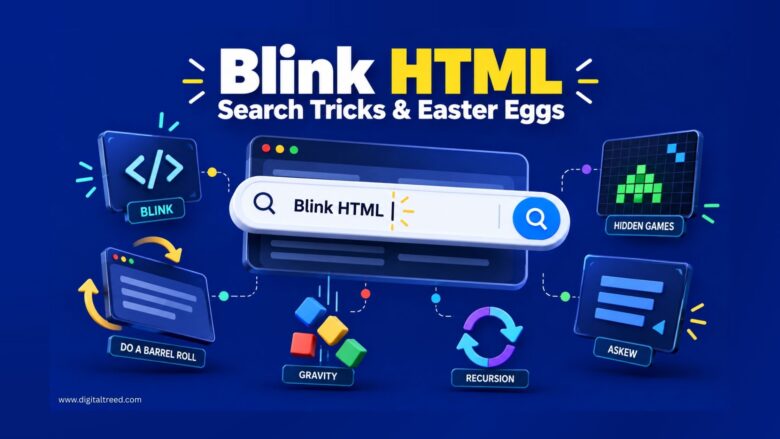
Yes, the Blink HTML Google trick still works in 2026: search “blink html” and the words “blink” and “HTML” will flash on and off in your search results, a throwback joke referencing the old HTML <blink> tag that no modern browser supports anymore. It’s one of dozens of hidden tricks, games, and visual effects Google has built into Search over the past two decades, though not everything from older roundup lists still works today. Below, everything is organized by how the tricks actually behave: visual text quirks like Blink HTML itself, screen-bending physics tricks, and interactive animations that need a click or two. Google Gravity and the Thanos snap trick, both commonly listed as “Google tricks,” are actually retired or were never official Google features at all, something most articles on this topic still get wrong. Here’s the accurate, current rundown.
What Is the Blink HTML Google Trick?
Google released the Blink HTML easter egg back in 2012, as a nod to the <blink> HTML tag, an early web design feature from the 1990s that made text flash continuously on a page. Browser makers eventually dropped support for the actual tag because it was widely considered more annoying than useful, but Google preserved it as an inside joke for anyone who remembers early HTML development.
The trick also works on query refinements: if you search “blink html” first and then run a follow-up search, the new query’s matching text blinks too, not just the original search terms.
How to See the Blink HTML Trick Yourself
- Go to Google Search.
- Type “blink html” (no quotation marks) and press Enter.
- Look at the search results page. The words “blink” and “HTML” appearing in the results will flash on and off.
- Try a follow-up search afterward. Text matching your new query should blink too, carrying the effect forward.
If it doesn’t trigger immediately, try a different browser. Some easter eggs render inconsistently depending on browser and device, and this one is old enough that Google could quietly retire it at any point without an announcement, as it has with several others below.
Visual Text Quirks (Like Blink HTML)
These tricks specifically alter how text itself displays, the same category Blink HTML belongs to.
Kerning. Search “kerning” and Google adds visible extra spacing between the letters of the word “kerning” every time it appears in your results, a small, self-referential joke since kerning is the actual typography term for adjusting space between letters.
Anagram. Search “anagram” and Google responds with “Did you mean: nag a ram,” which is itself a genuine anagram of the word “anagram.”
Recursion. Search “recursion” and Google will show a “did you mean: recursion” prompt, a self-referential joke for anyone who understands what recursion actually means in programming. Clicking the suggestion reloads the same prompt again, in an intentional loop.
A note on “Comic Sans.” Some lists claim searching “comic sans” changes your results page font to Comic Sans. Based on current research, that font-swap trick was actually tied to searching “doge meme,” not “comic sans” directly, and has since been removed entirely. Treat any current claim that a plain “comic sans” search changes your font with skepticism, since it doesn’t currently reproduce.
Screen-Bending Physics
These tricks change the physical layout or movement of the entire results page.
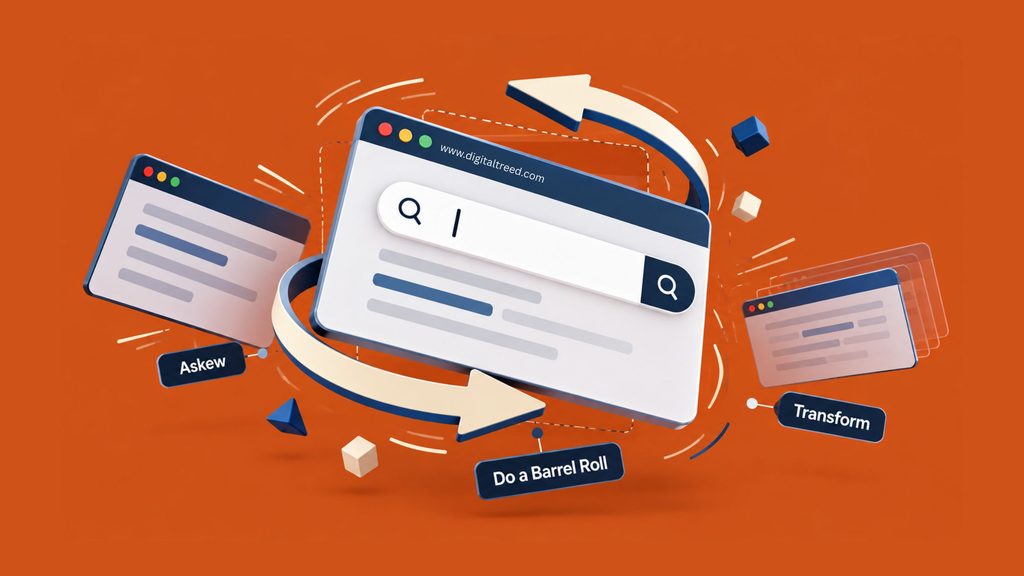
Do a barrel roll. Search this exact phrase and the entire results page performs a smooth 360-degree spin over about two seconds before settling back to normal. Google quietly released this one in November 2011, and a Google engineer later told ABC News the actual goal was to demonstrate the presentation capabilities of the then-new CSS3 styling language, wrapped in a fun reference rather than announced as a pure engineering demo. The phrase itself comes from Nintendo’s 1997 game Star Fox 64, where the character Peppy Hare repeatedly tells the player to “do a barrel roll” to dodge incoming enemy fire, a line that became one of gaming’s most quoted pieces of dialogue. The same spin also triggers if you search “z or r twice,” a direct reference to the actual button combination used to perform the maneuver in-game.
Askew. Search “askew” and the results page tilts a few degrees to one side, subtle enough that some people don’t immediately notice what changed. Unlike Do a Barrel Roll’s brief animated spin, Askew’s tilt is persistent: it stays crooked until you run a different search, at which point the page straightens back out. The word itself means “not straight” or “at an angle,” making this one of Google’s more literal, dictionary-definition-driven jokes.
67 (or “six-seven”). One of the newest additions, added after the phrase went viral on social media in 2025, a trend covered widely across search and marketing outlets as an example of Google reacting quickly to internet culture. Searching “67” or “6-7” makes the page briefly wobble and shake, and Google added it quickly enough to catch the trend while it was still peaking.
DVD screensaver. Search “dvd screensaver” and the Google logo bounces around your browser window and changes color each time it touches an edge, a direct recreation of the old DVD player logo screensaver that became an internet meme in its own right, largely because of how satisfying (and rare) it is to watch the logo hit a corner exactly.
Googly eyes. Search “googly eyes” and a pair of cartoon eyes slides onto the two O’s in the Google logo, tracking your cursor as you move it around the page. The same effect has occasionally been tied to other searches too, including cast members of certain films, showing up as a small bonus rather than a one-off trick limited to its own name.
Interactive Animations and Sound Triggers
These require a click or additional interaction beyond just searching, and several include sound or motion.
Cha Cha Slide. Search “cha cha slide” and a microphone icon appears next to a YouTube video result. Click it, and the entire results page dances along with the song, sliding left, sliding right, and hopping in sync with the lyrics.
Cat or Dog. Search “cat” or “dog” and a paw icon appears in the knowledge panel. Clicking anywhere on the page stamps an animated paw print onto the screen with a matching sound effect.
The Wizard of Oz. Search “wizard of oz” and a pair of ruby slippers appears in the results. Tap them and they click together three times while a voice line plays, then the page spins into a black-and-white, tornado-styled layout, referencing the film’s famous color-to-black-and-white transition. Tap the tornado icon to bring the color back.
Conway’s Game of Life. Search this phrase and small animated blue boxes appear and spread across the page edges in evolving patterns, referencing mathematician John Horton Conway’s 1970 cellular automaton simulation.
Related Throwback: Marquee HTML
If you enjoyed the Blink HTML trick specifically, there’s a close cousin worth trying: search “marquee html” and Google displays your search result count as scrolling marquee-style text, referencing another old HTML tag (<marquee>) that, like <blink>, browsers dropped support for decades ago. It’s a smaller, lesser-known trick, but it’s built on the exact same joke: reviving dead HTML tags as a nostalgia nod for anyone who coded websites in the late 1990s.
Tricks That Look Official But Actually Aren’t Anymore
This is the part most “Google tricks” articles, including older versions of this one, tend to get wrong, and it’s worth being accurate about.
Google Gravity was never an official Google feature. It was built by an outside developer, Mr. Doob, as an independent web experiment, not something Google’s own engineers created. It became so widely shared that the internet started treating it as a genuine Google easter egg, but it never lived on Google’s actual search results page. The instructions that circulate for it (search “Google Gravity,” then click the “I’m Feeling Lucky” button instead of the regular search button) route you to a third-party page, not a hidden Google feature, which is exactly why it doesn’t work if you just press Enter and stay on Google’s own results.
The Thanos snap trick has been retired. It used to let you click a gauntlet icon next to a search for “Thanos” and watch half the search results dissolve into dust. It no longer works directly on Google.
Both of these, along with a handful of other retired or never-official tricks, survive today only on elgooG, an unofficial fan-run archive that rebuilds and preserves retired or third-party Google-style easter eggs so people can still try them. Wikipedia’s actively maintained list of Google easter eggs tracks which tricks are currently live versus retired, and is a useful cross-check if a specific trick isn’t working for you. If an old “Google trick” article sends you to search directly on Google and it doesn’t work, that’s usually why: the trick either never lived on Google itself, or Google has since quietly removed it.
Playable Games Hidden Inside Google Search
Beyond visual effects, Google has built several fully playable games directly into the search results page, no download required, and most trace back to a specific doodle or milestone rather than being built purely as generic filler content.
Pac-Man. Search “pac-man” and click Play to load Google’s version of the arcade classic, controlled with the arrow keys. This one has real history behind it: it launched May 21, 2010, as Google’s tribute to Pac-Man’s 30th anniversary, and it was actually the first fully interactive Google Doodle ever made. The response was big enough that Google made it a permanent, always-accessible feature rather than a one-day tribute, and it’s since been played an estimated 500 million hours worldwide, a scale that set the template for every interactive Doodle that followed.
Snake. Search “snake game” for Google’s take on the classic mobile-phone game most people over 25 first played on a Nokia handset, controlled with arrow keys.
Tic Tac Toe. Search “tic tac toe” to play against Google or a friend locally, with adjustable difficulty ranging from Easy up to an “Impossible” AI setting that, true to its name, cannot actually be beaten.
Solitaire. Search “solitaire” for a polished Klondike Solitaire implementation with Easy and Hard modes, a browser-based nod to the version bundled with Microsoft Windows for over three decades that introduced an entire generation to the card game.
Minesweeper. Search “minesweeper” to play the classic logic puzzle Google added in 2018. The core gameplay is a faithful recreation of the original, created decades earlier by Microsoft employees Robert Donner and Curt Johnson, though Google swapped the traditional mine imagery for a gardening theme, a subtle nod to past controversy over mine-themed casual games.
Zerg Rush. Search this phrase and animated O’s begin falling from the top of the screen, multiplying and consuming your search results, referencing Blizzard’s real-time strategy game StarCraft, where a “Zerg rush” describes an early, overwhelming swarm attack. Click the O’s to destroy them before they take over the entire page. If the game doesn’t launch automatically from a normal search, look for a direct link to the doodle instead, since this one has occasionally shifted in how reliably it auto-triggers.
One that no longer works as it used to: Atari Breakout, once triggered by searching “atari breakout” in Google Images, has been removed and doesn’t reliably launch the way it did in earlier years.
Genuinely Useful Google Search Tricks
Not every hidden Google feature is just for fun. A few are legitimately useful shortcuts worth knowing even if you never care about the novelty ones above.
Timer. Search “timer” (optionally with a duration, like “timer 10 minutes”) and Google opens a functional countdown timer directly on the results page, complete with an audible alarm, no separate app or physical timer required.
Flip a coin. Search this exact phrase and Google runs an animated coin flip and gives you a heads-or-tails result, useful for genuinely random quick decisions rather than trusting your own bias toward one option.
Calculator. Typing any math expression directly into the search bar, from simple arithmetic to more advanced functions like square roots and trigonometry, triggers a fully interactive calculator widget you can keep typing into, functioning as a complete replacement for a separate calculator app for most everyday use.
I’m Feeling Curious. Search this exact phrase and Google surfaces a random trivia fact with a “Ask another question” button beneath it, letting you click through an essentially endless chain of unrelated facts, a genuinely effective way to kill a few minutes down a curiosity rabbit hole.
Frequently Asked Questions
Does the Blink HTML Google trick still work in 2026? Yes. Searching “blink html” still causes the matching text in your search results to flash, and the effect carries over to follow-up searches too.
Do I need to click “I’m Feeling Lucky” for the Blink HTML trick to work? No. The Blink HTML trick triggers with a normal search, just press Enter or click the regular Search button. “I’m Feeling Lucky” is a separate mechanism, required for tricks like Google Gravity, not Blink HTML.
Is Blink HTML the same trick as Askew? No, they’re two separate easter eggs that frequently get mentioned together in the same lists. “Blink html” makes matching text flash on and off, while “askew” tilts the entire results page at a slight angle. You don’t need to combine them; each works independently with its own search.
What does “blink html elgoog” mean? ElgooG is a separate, unofficial fan-run site that mirrors and preserves Google easter eggs, including some that Google itself has retired. The Blink HTML trick currently still works directly on Google, so you don’t need elgooG for this specific one, though it’s the right place to find older tricks Google has since removed, like the Thanos snap.
Is Google Gravity an official Google feature? No. Google Gravity was built by an independent developer, not Google itself, and never ran on Google’s actual search page. It survives today on fan-run mirror sites like elgooG.
Does the Thanos snap trick still work on Google? No, it has been retired from Google’s actual search results. It’s still preserved and playable on elgooG, an unofficial archive of retired and third-party Google-style easter eggs.
What is the newest Google search easter egg? The “67” (or “six-seven”) trick, which makes the page briefly wobble, is one of the newest additions, added after the phrase went viral on social media in 2025.
Are Google easter eggs safe to use? Yes, the ones that run directly on google.com are safe since they’re built by Google itself. Exercise normal caution with third-party mirror sites like elgooG, and stick to well-known, established ones.
Why doesn’t a Google trick from an old article work anymore? Google periodically retires easter eggs without formal announcement, and some tricks circulated in older articles, like Google Gravity, were never actually hosted on Google in the first place.
Does searching “comic sans” change Google’s font? Not currently. That font-swap effect was historically tied to searching “doge meme,” not “comic sans” directly, and has since been removed. Be skeptical of lists claiming a plain “comic sans” search still triggers it.
What’s the Wizard of Oz Google easter egg? Searching “wizard of oz” brings up a pair of ruby slippers in the results. Tapping them plays a voice line and spins the page into a black-and-white, tornado-themed layout, referencing the film’s iconic color transition.
Does searching “cat” or “dog” do anything special on Google? Yes. Both searches add a paw icon to the knowledge panel, and clicking anywhere on the page stamps an animated paw print with a sound effect.
Conclusion
The Blink HTML trick holds up well over a decade after Google first added it, still triggering exactly as described with a simple search. But a lot of the “Google tricks” lists circulating online, including earlier versions of guides like this one, mix in tricks that are either retired or were never truly built by Google to begin with, like Google Gravity and the Thanos snap. For anyone chasing the full nostalgia trip, elgooG keeps those alive; for what’s actually live on Google’s own search page right now, the barrel roll, askew, recursion, and the newer 67 wobble remain the most reliable ones to show a friend.
