

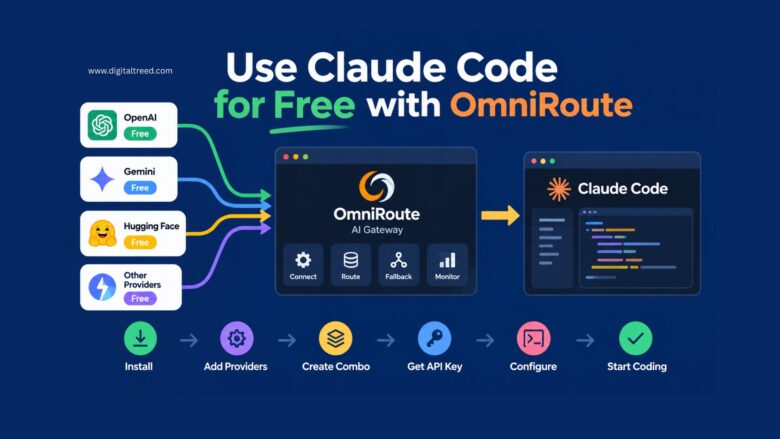
If you use Claude Code for development, one of the biggest limitations can be the amount of usage available through your existing plan or API setup. OmniRoute offers an alternative approach: instead of connecting Claude Code directly to a single AI provider, you can run OmniRoute as a local gateway and connect multiple providers through it.
This makes it possible to route coding requests through different available models and providers, including providers that offer free access.
In this guide, we’ll walk through the complete setup—from installing OmniRoute and connecting providers to creating a model combination and configuring Claude Code.
Important: “Free” does not mean unlimited guaranteed usage. Provider availability, quotas, rate limits, authentication requirements, model access and terms can change. OmniRoute provides the routing layer; the actual availability of free inference depends on the providers you connect.
The workflow below is based on the setup demonstrated in the accompanying tutorial, with current configuration details cross-checked against available OmniRoute and Claude Code documentation.
What Is OmniRoute?
OmniRoute is an open-source AI gateway that sits between your coding tools and AI providers.
Instead of configuring Claude Code, Cursor or another development tool separately for every provider, you can connect providers to OmniRoute and use a common gateway.
Its current provider documentation includes multiple provider categories, including free, no-auth, OAuth, API-key, local and other provider types. The provider catalog is generated from the project’s provider registry and changes over time.
You can then create combinations of models and use routing strategies to determine how requests are handled.
This is particularly useful when you want to experiment with different AI models without constantly changing the configuration of your coding tool.
Why Use OmniRoute With Claude Code?
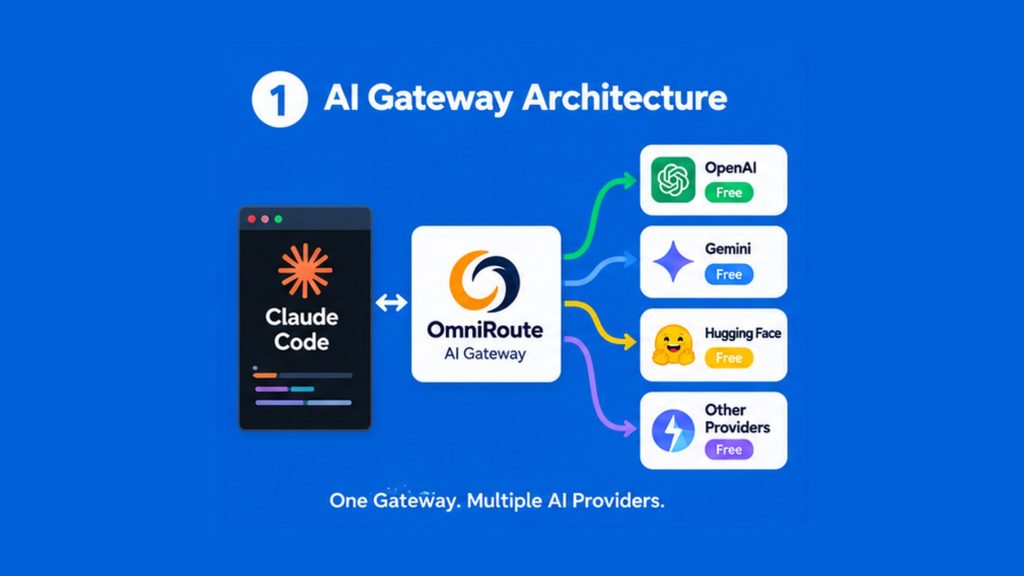
Claude Code can route requests through a custom API endpoint using environment variables such as ANTHROPIC_BASE_URL and ANTHROPIC_AUTH_TOKEN. Anthropic’s official documentation specifically supports using ANTHROPIC_BASE_URL to route requests through a proxy or gateway.
That creates a simple architecture:
Claude Code → OmniRoute → Selected AI Provider/Model
The advantage is that OmniRoute can act as the central routing layer. You can connect multiple providers, test which models are currently available, create a combination, and then point Claude Code toward OmniRoute.
What You Need Before Starting
Before following the tutorial, make sure you have:
- A computer with Node.js/npm available
- Claude Code installed
- VS Code or another terminal environment
- An internet connection
- At least one AI provider that you are authorized to use
- OmniRoute installed locally
You should also understand that free provider access is not permanent. Current OmniRoute documentation lists different providers and quotas, and some options may require an account, API key, OAuth authentication or acceptance of provider-specific terms.
Step 1: Install OmniRoute
The tutorial uses npm to install OmniRoute globally:
npm install -g omniroute
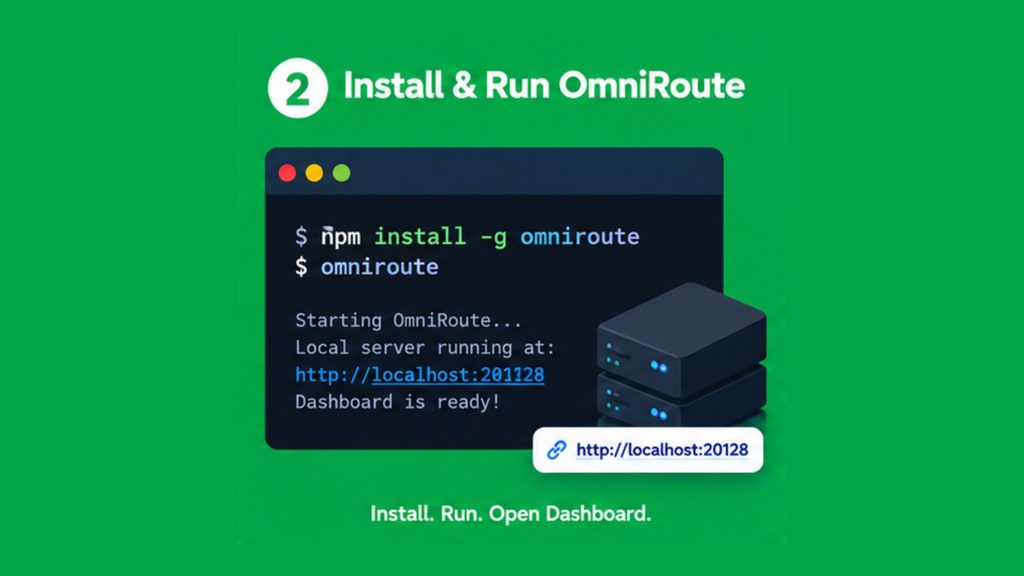
Installing it globally makes the omniroute command available from your terminal.
The current OmniRoute quick-start documentation continues to document npm as an installation method.
After installation, start OmniRoute:
omniroute
This starts the local OmniRoute server and makes its dashboard available through the local web interface. The documented default local port is 20128.
Keep the OmniRoute server running while you use the local gateway.
Step 2: Open the OmniRoute Dashboard
Once OmniRoute is running, open its dashboard in your browser.
The dashboard gives you access to areas such as:
- Omni Proxy
- Endpoints
- API keys
- Providers
- Analytics
- Usage
- Monitoring
- Routing and combinations
The tutorial uses the dashboard as the central place for configuring providers, creating a combo and generating an API key.
Change the default credentials
If your installation presents an initial/default password, change it immediately rather than leaving the default credential in place.
Do not publish or share your personal OmniRoute API keys in screenshots, articles or videos.
Step 3: Check the OmniRoute Endpoint
Open the Omni Proxy or endpoint section in the dashboard.
You should see the local endpoint that your applications can use.
The tutorial copies the endpoint shown in the dashboard and later uses it when configuring Claude Code.
There is an important difference between the generic OmniRoute API endpoint and Claude Code’s Anthropic-compatible configuration.
Claude Code’s current documentation states that ANTHROPIC_BASE_URL can be used to route requests through a gateway.
For the current OmniRoute Claude Code integration, its configuration documentation specifies using the gateway root URL for ANTHROPIC_BASE_URL, rather than manually adding /v1.
This distinction matters because different clients may expect different endpoint formats.
Step 4: Add a Free AI Provider
Now go to:
Providers → Add Provider
OmniRoute’s provider catalog changes over time, so don’t assume that the exact list shown in a video will remain unchanged.
The tutorial demonstrates adding several providers and filtering the list for free options.
Current OmniRoute documentation includes several free-access options, but their requirements and quotas differ. Some may be keyless, while others require an account, OAuth authentication or an API key.
Why connect more than one provider?
Using multiple providers is useful because:
- one provider may reach its quota;
- a model may temporarily be unavailable;
- a provider may experience an outage;
- a particular model may not work with your request;
- another provider may offer a better model for a specific task.
The tutorial demonstrates this approach by connecting three providers and then combining models from them.
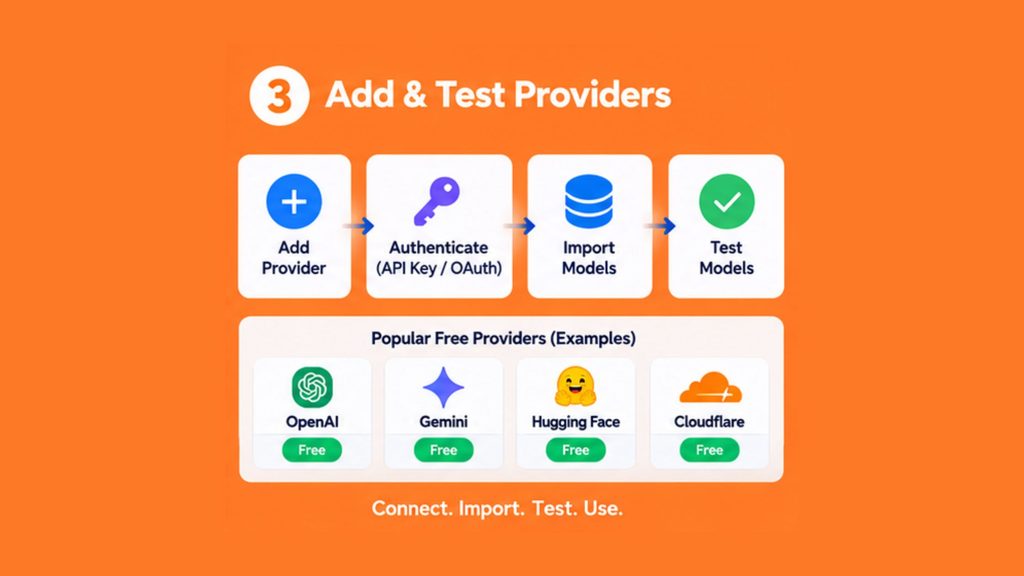
Step 5: Connect a Provider and Import Free Models
The exact connection process depends on the provider.
In the tutorial, a provider is selected, a connection is created, and the provider credentials are validated. The tutorial also demonstrates importing only free models and then testing those models.
A typical workflow looks like this:
- Open Providers.
- Select a provider.
- Click Add Connection.
- Authenticate or enter the required API key.
- Validate the connection.
- Import the available models.
- Filter for free models where applicable.
- Test the models.
If a provider offers a special free credential or authentication flow, follow that provider’s current terms rather than assuming that a value shown in an older tutorial will still work.
Step 6: Test the Available Models
After connecting a provider, use the model synchronization and testing features.
The tutorial uses:
Auto Sync → Free Only → Test All Models
This is an important part of the process because a model appearing in the provider catalog does not necessarily mean it will successfully respond to every request.
The video demonstrates that some models work while others fail, and notes that free model availability changes over time.
That’s why testing is better than simply assuming every listed model is usable.
Step 7: Add Additional Providers
For better fallback coverage, add additional providers.
The tutorial demonstrates adding providers through different authentication methods, including Google authorization and another provider’s sign-in flow.
The exact providers available in your dashboard may be different.
Current OmniRoute documentation lists categories including free, OAuth, no-auth, API-key and local providers, so the available choices can change as the project and provider ecosystem evolve.
Don’t choose providers simply because they are listed as free. Check:
- whether authentication is required;
- whether the provider permits your intended use;
- current quotas;
- rate limits;
- regional restrictions;
- model availability;
- provider terms of service.
Step 8: Test All Connected Providers
After adding another provider, repeat the model testing process.
The goal is to identify which models are actually responding successfully.
You may find that:
- Provider A has several working models.
- Provider B has a different selection.
- Provider C has additional models.
- Some models fail even though they appear in the catalog.
This is normal for a multi-provider setup.
OmniRoute’s free-tier documentation also warns that provider free access is dependent on individual provider policies and limits.
Step 9: Create an OmniRoute Combo
Once you have working models, go to the Combos section.
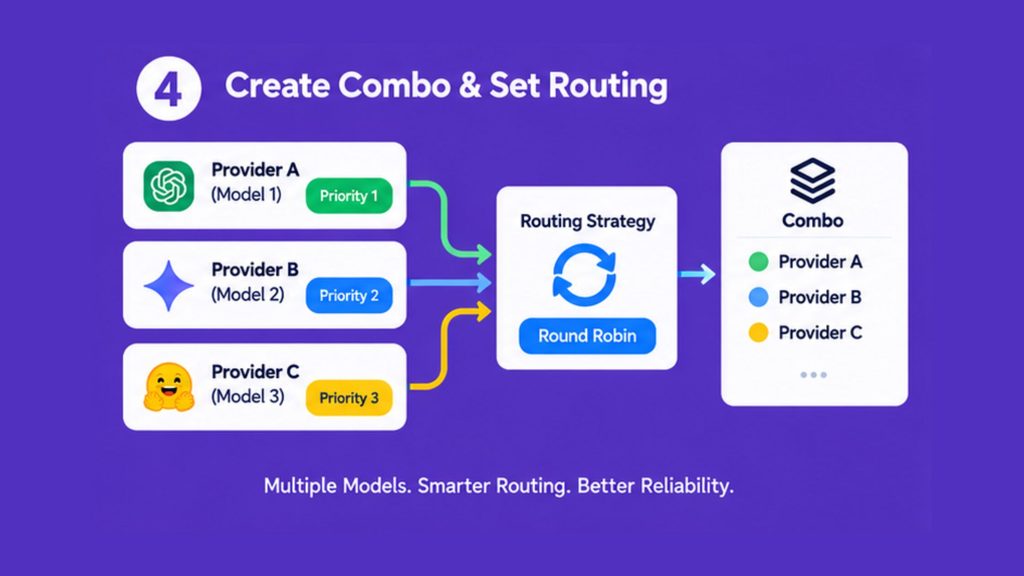
A combo allows you to group selected models/providers into a reusable routing configuration.
The tutorial creates a combo named:
OmniRoute Test
The name itself is not important—you can choose any descriptive name.
The video then adds models from the connected providers to the combo and assigns their priority.
For example, your combination could contain:
Provider A → Model 1
Provider B → Model 2
Provider C → Model 3
The exact models should be selected based on what is currently available and successfully tested.
Step 10: Choose a Routing Strategy
After selecting your models, configure the routing strategy.
The tutorial uses:
Round Robin
Round-robin routing distributes requests across the configured options rather than relying on a single model for every request.
Depending on the OmniRoute version and configuration, other routing approaches may also be available.
The important point is to understand what the selected strategy actually does before using it for production workloads.
Step 11: Create an API Key
After creating the combo, go to the API Keys section.
Create a new API key for the configuration.
For example:
Name: OmniRoute Test
Then generate the key and store it securely.
The tutorial creates an API key after creating the combo and uses that key for the subsequent Claude Code configuration.
Keep your API key private
Treat an OmniRoute API key like any other credential.
Don’t:
- commit it to Git;
- put it directly into public source code;
- publish it in screenshots;
- share it in a public tutorial;
- store it in a repository without appropriate secret protection.
Step 12: Connect Claude Code to OmniRoute
This is where the current setup differs from the older manual workflow shown in many tutorials.
Claude Code officially supports environment variables for custom API routing, including:
ANTHROPIC_BASE_URLANTHROPIC_AUTH_TOKENANTHROPIC_API_KEYANTHROPIC_MODEL
Anthropic documents ANTHROPIC_BASE_URL specifically for routing requests through a proxy or gateway.
The current OmniRoute Claude Code documentation also provides dedicated commands for configuring Claude Code, including:
omniroute setup-claude
and:
omniroute launch
The project documents omniroute launch as a way to launch Claude Code with the appropriate OmniRoute environment injected, while setup-claude can generate per-model profiles.
OmniRoute Claude Code Configuration Guide
Step 13: Recommended Current Claude Code Configuration
If you want to follow the current OmniRoute workflow, start with its dedicated Claude Code setup command:
omniroute setup-claude
You can then launch a generated profile using:
omniroute launch --profile <profile-name>
Alternatively, the simpler launch workflow is:
omniroute launch
According to the current OmniRoute documentation, the launcher resolves the active OmniRoute context and injects the required environment configuration when starting Claude Code.
This is preferable to blindly copying an old settings.json configuration from a video because both Claude Code and OmniRoute continue to evolve.
Step 14: Manual settings.json Configuration
If you need to configure Claude Code manually, you can use settings.json.
Claude Code supports environment variables inside the env section of settings.json. Anthropic’s documentation confirms that environment variables can be configured there.
A simplified example is:
{
  "env": {
    "ANTHROPIC_BASE_URL": "http://localhost:20128",
    "ANTHROPIC_AUTH_TOKEN": "YOUR_OMNIROUTE_API_KEY",
    "ANTHROPIC_MODEL": "YOUR_OMNIROUTE_MODEL"
  }
}
Do not copy this blindly. Replace the values with those appropriate for your current OmniRoute configuration.
The current OmniRoute Claude Code documentation specifically states that its gateway root should be used for ANTHROPIC_BASE_URL and that Claude Code appends the appropriate API path itself.
Step 15: Understanding ANTHROPIC_AUTH_TOKEN vs ANTHROPIC_API_KEY
This is another area where configuration details matter.
According to Claude Code’s official documentation:
ANTHROPIC_AUTH_TOKENis sent using theAuthorization: Bearer ...mechanism.ANTHROPIC_API_KEYis sent using thex-api-keyheader.ANTHROPIC_BASE_URLchanges the API endpoint used by Claude Code.ANTHROPIC_MODELdetermines the model configuration.
The current OmniRoute Claude Code guide recommends using ANTHROPIC_AUTH_TOKEN for the OmniRoute access token/API key in its launcher-based setup.
Step 16: Enable Gateway Model Discovery
Current Claude Code versions can discover models exposed by an Anthropic-compatible gateway.
Anthropic documents:
CLAUDE_CODE_ENABLE_GATEWAY_MODEL_DISCOVERY=1
When enabled, Claude Code can query the gateway’s /v1/models endpoint and expose compatible models through the model picker. This requires Claude Code v2.1.129 or later according to Anthropic’s current gateway documentation.
OmniRoute’s current Claude Code configuration also uses this mechanism in its generated profiles.
This means you don’t necessarily need to manually hard-code every model name into your Claude Code configuration.
Step 17: Restart Claude Code After Configuration Changes
If you manually change environment variables or configuration, restart Claude Code.
Environment variables are read when Claude Code starts, so changing them while a session is already running may not affect that session.
This is why restarting after configuration changes is an important troubleshooting step.
Step 18: Test the OmniRoute Model in Claude Code
Once the configuration is complete, launch Claude Code.
Use the model selector and check whether your OmniRoute configuration is available.
The original tutorial demonstrates selecting the created OmniRoute Test combo and sending a simple message to confirm that the connection works.
A simple test is enough to start:
Hi
If Claude Code returns a response, the basic connection is working.
For more reliable testing, use a small coding task instead of only a greeting.
Step 19: Test Claude Code With a Real Coding Task
The tutorial then creates a test directory and asks Claude Code to generate a simple YouTube-style landing page.
You can perform a similar test:
Create a simple YouTube-style landing page using HTML and CSS.
The purpose of this test isn’t to build a complete production website. It is to verify that:
- Claude Code can communicate with OmniRoute.
- The selected model can process a coding request.
- The provider can return a usable response.
- Claude Code can write the requested files.
The tutorial’s generated page includes elements such as a dark theme, navigation, search and video cards, but it is presented as a basic landing page rather than a fully functional YouTube application.
How Provider Fallback Helps
One of the most useful ideas behind a multi-provider OmniRoute setup is fallback.
Suppose you have several working providers:
Provider A
Provider B
Provider C
If the routing configuration supports fallback and Provider A becomes unavailable or reaches its applicable limit, OmniRoute can attempt another available route according to its routing configuration.
The tutorial demonstrates this concept by connecting multiple providers and explaining that work does not necessarily have to stop when one provider becomes unavailable.
However, don’t interpret this as a guarantee of uninterrupted or unlimited usage. Fallback only works when another usable route is actually available.
Monitor Usage in OmniRoute
After Claude Code is working through OmniRoute, the dashboard can help you understand what’s happening.
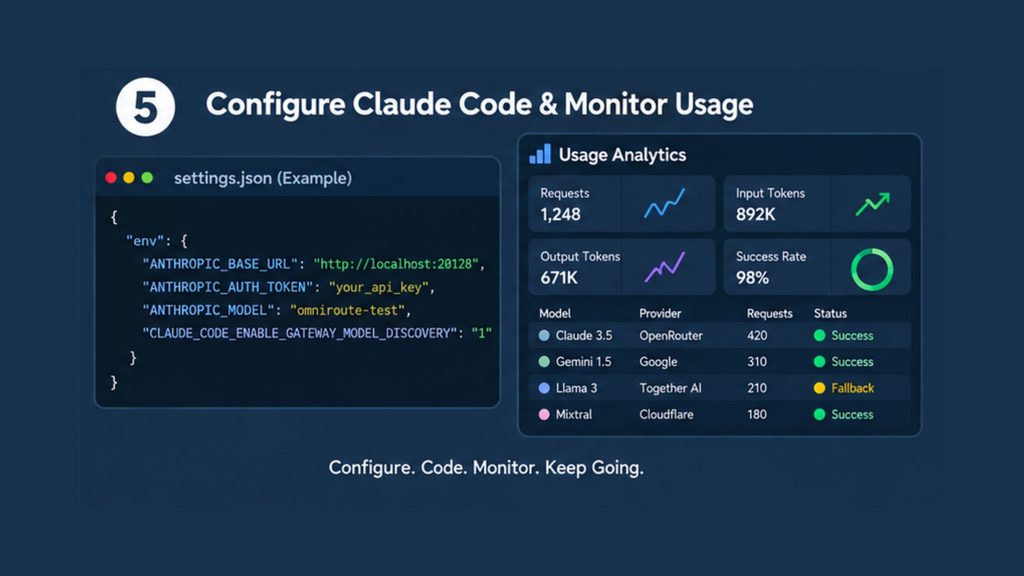
The tutorial checks the Analytics and Usage areas to inspect:
- daily usage;
- input tokens;
- output tokens;
- models used;
- utilization;
- provider health;
- request results.
It also demonstrates the audit log, where calls and success/failure information can be reviewed.
This is particularly useful when troubleshooting.
For example, if a request fails, you can determine whether the problem is related to:
- the selected model;
- provider availability;
- authentication;
- routing;
- quota;
- API response;
- local OmniRoute configuration.
Does OmniRoute Really Make Claude Code Unlimited and Free?
This is the most important question to answer accurately.
No—OmniRoute itself does not magically turn Claude Code into an unlimited paid service for $0.
What OmniRoute can do is provide a routing layer through which you can connect multiple providers and use their available free access.
That distinction matters.
Your actual usage depends on the providers you connect and their current:
- free quotas;
- rate limits;
- concurrency limits;
- model availability;
- account requirements;
- regional restrictions;
- terms of service.
OmniRoute’s own free-tier documentation describes free access as provider-dependent and notes that some options have specific account, API-key, KYC or terms requirements.
So the more accurate way to describe the setup is:
OmniRoute can help you use Claude Code with available free AI providers and route requests across multiple providers, but it does not guarantee unlimited free Claude usage.
This wording is much safer and more accurate than presenting “unlimited free Claude Code” as a permanent guarantee.
Why Free Models Can Stop Working
If a model works today and fails later, that does not necessarily mean your OmniRoute installation is broken.
Free AI services can change:
- quotas;
- model availability;
- authentication requirements;
- rate limits;
- API endpoints;
- regional availability;
- acceptable-use policies.
The tutorial itself demonstrates that not every listed free model works and notes that the available free models can change.
Therefore, always test the current models before relying on them for important development work.
Common Problems and Fixes
Claude Code is ignoring OmniRoute
Check whether ANTHROPIC_BASE_URL is actually configured.
If you’re using the manual method, verify the value and restart Claude Code.
Anthropic confirms that ANTHROPIC_BASE_URL is the variable used to route Claude Code through a proxy or gateway.
The model picker doesn’t show OmniRoute models
If you’re relying on gateway model discovery, check:
CLAUDE_CODE_ENABLE_GATEWAY_MODEL_DISCOVERY=1
Anthropic says gateway model discovery requires Claude Code v2.1.129 or later and applies to Anthropic Messages-compatible gateways.
Authentication errors
Check your OmniRoute API key/token.
Make sure you’re using the authentication method expected by the current OmniRoute configuration.
For manual Claude Code configuration, ANTHROPIC_AUTH_TOKEN and ANTHROPIC_API_KEY are not interchangeable headers; Claude Code handles them differently.
A free model appears but doesn’t work
Test the model directly through OmniRoute before assuming Claude Code is the problem.
The provider catalog can contain models that are unavailable, restricted or temporarily failing.
OmniRoute stops responding
Check whether the local OmniRoute process is still running.
If you close the process hosting the local gateway, applications configured to use that local endpoint will no longer be able to reach it.
One provider reaches its limit
Use a combo with additional providers/models and configure an appropriate routing strategy.
Remember, however, that fallback depends on another provider having usable capacity.
Security Tips
Because OmniRoute sits between your coding tool and AI providers, treat its credentials and configuration carefully.
Never expose API keys
Use environment variables, secure settings or a secrets manager where appropriate.
Don’t commit credentials to Git
Before committing a project, check that API keys are not stored inside:
settings.json
.env
source files
configuration files
Review provider terms
A provider being listed as “free” does not automatically mean every possible usage pattern is permitted.
Some free-access options have specific requirements or restrictions. OmniRoute’s free-tier documentation explicitly flags provider-specific terms and limitations.
Don’t assume a free tier is permanent
Free access can disappear or change without your local OmniRoute installation changing.
Current OmniRoute Workflow at a Glance
The complete process can be summarized as:
Install OmniRoute
       ↓
Start local gateway
       ↓
Open dashboard
       ↓
Connect providers
       ↓
Import/test available models
       ↓
Create combo
       ↓
Select routing strategy
       ↓
Generate OmniRoute API key
       ↓
Configure Claude Code
       ↓
Launch/restart Claude Code
       ↓
Test model
       ↓
Monitor usage and requests
The original tutorial follows essentially this same progression, from installation through provider configuration, combo creation, Claude Code integration and analytics.
Frequently Asked Questions
Is OmniRoute free?
OmniRoute is an open-source project. However, the AI services you connect through it may be free or paid depending on the provider and your usage. Current OmniRoute documentation distinguishes between different provider types and free-access arrangements.
Can I use Claude Code with OmniRoute?
Yes. Claude Code supports routing through custom gateways using ANTHROPIC_BASE_URL, and OmniRoute provides dedicated Claude Code integration commands.
Do I need a paid Claude subscription?
The OmniRoute setup described here routes Claude Code through a separate gateway/provider configuration. Whether you need a particular Claude subscription depends on how you authenticate and configure Claude Code and which provider you’re using.
You should not assume that connecting OmniRoute automatically transfers the benefits of a Claude subscription to third-party providers.
Can I use multiple providers?
Yes. OmniRoute is designed to connect multiple providers and route requests among configured models.
Are all free models actually free forever?
No. Free access depends on the individual provider’s current terms, quotas and availability.
Can I use OmniRoute with VS Code?
Yes. The tutorial demonstrates using Claude Code from VS Code, and the OmniRoute project provides integrations for Claude Code and other development tools.
What happens when one provider stops working?
If your routing configuration contains other usable providers, OmniRoute can route requests according to the configured strategy and fallback behavior. But there is no guarantee that another provider will always have available capacity.
Should I manually edit settings.json?
You can, but the current OmniRoute documentation provides setup-claude and launch commands that can simplify the process. For a new installation, checking the current OmniRoute documentation before manually copying an older configuration is recommended.
Final Thoughts
OmniRoute provides an interesting way to bring multiple AI providers behind a single gateway and use that gateway with development tools such as Claude Code.
The setup involves four main ideas:
- Connect providers
- Find and test usable models
- Create a routing combination
- Point Claude Code toward OmniRoute
The tutorial demonstrates that workflow from installation through a real Claude Code coding task and dashboard monitoring.
The biggest thing to remember is that OmniRoute is the routing layer—not the source of unlimited AI capacity. Free usage comes from the individual providers, and their limits and policies can change.
For that reason, the best long-term setup is not to depend on one supposedly “unlimited” provider. Instead, keep multiple legitimate provider options available, test them regularly, and monitor your usage through OmniRoute.
