WhatsApp is one of the most widely used messaging apps on Android smartphones. You can easily send or receive text messages, photos, voice notes, documents, and other media files using WhatsApp. However, sometimes issues such as accidental deletion, device formatting, or virus attacks can lead to the deletion of WhatsApp messages on your Android phone.
Thankfully, under many circumstances, deleted WhatsApp messages can be easily recovered. In this guide, we’ll explore different methods to recover deleted WhatsApp messages on Android. Just go with the following methods one by one to restore your lost WhatsApp messages. Let’s dive in.
How WhatsApp Backup Works on Android?
Before you apply any method to recover deleted WhatsApp messages on Android, it’s important to understand how WhatsApp backup actually works. WhatsApp provides two different backup options:
Google Drive Backup
If you’ve linked your Android device to Google Drive, it’ll automatically back up your chats and media to the linked account. This is the most common and reliable method for recovering deleted messages.
- You can set daily, weekly, or monthly backups.
- Backup includes text messages and media files
- Requires a Google account linked in WhatsApp settings
Local Backup
WhatsApp also creates a local backup on your phone’s storage (internal or SD card). This backup is created daily at around 2–3 AM, and WhatsApp keeps the last 7 days’ worth of these files.
Local backups are especially useful if your Google Drive backup doesn’t contain the deleted messages, or if Google Drive backups are not enabled on your PC.
How do I Recover Deleted WhatsApp Messages? [With Backups]
If you’ve enabled any of the aforementioned backup options on your Android smartphone before message deletion, recovery is quite simple. Let’s discuss each of these options in detail:
Method 01: Recover Messages Using Google Drive Backup
If your deleted WhatsApp messages are backed up using Google Drive, it is the easiest and safest way to recover them on Android. This option allows you to restore all the messages backed up before deletion in just a few minutes after app reinstallation. To recover deleted messages using Google Drive Backup:
- Launch the WhatsApp app on your Android phone, go to Settings > Chats > Chat backup and check the last backup date.

- Now, uninstall the WhatsApp application from your Android phone.
- Reinstall WhatsApp from the Google Play Store.
- Open WhatsApp and verify the phone number for which you need to restore chats.
- When asked, click Restore to recover chats from Google Drive.
- Wait for the process to complete and finish the setup.
Method 02: Recover Lost WhatsApp Messages Using Local Backups
If Google Drive backup isn’t available, Android devices automatically store local WhatsApp backups, which can help you recover lost or deleted messages. WhatsApp creates a local backup once every day, usually during early morning hours, and saves it to your phone’s internal storage or SD card.
Follow the below steps to restore deleted WhatsApp Messages on an Android phone using previously created local backups:
- Firstly, open File Manager, go to WhatsApp > Databases and find the backup from before the messages were deleted.
- Rename the current backup msgstore.db.crypt14 to msgstore-latest.db.crypt14 and rename the older backup to msgstore.db.crypt14.
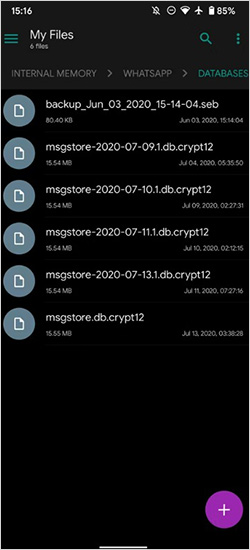
- Now, uninstall WhatsApp from your phone, reinstall it and verify your phone number.
When prompted, tap Restore to recover messages from the local backup.
How to Recover Deleted WhatsApp Messages Without Backups?
If you don’t have any of the aforementioned backups of your deleted WhatsApp messages, use third-party software to perform Android data recovery such as Stellar Data Recovery for Android. This all-in-one recovery tool performs a thorough scan of your device’s internal memory to locate and restore deleted WhatsApp chats and attachments. This software supports the recovery of deleted files of various types, including photos, videos, documents, WhatsApp chats, attachments, and more.
The Stellar Data Recovery for Android software is known for several amazing features, including:
- It allows you to restore deleted messages and other files from your Android device without rooting it.
- It supports Android 6.0 and above, including popular brands like Samsung, OnePlus, Xiaomi, and more.
- The preview feature lets you preview the recoverable files before saving them to your computer.
- Besides WhatsApp, it retrieves photos, videos, messages, and other types of files.
- This Android data recovery software supports the recovery of files deleted due to accidental deletion, OS crashes, malware, or device issues.
Steps to Recover Deleted WhatsApp Messages Using this Android Data Recovery Software:
Step 1: Firstly, download and install the Stellar Data Recovery for Android software from its official website on your computer. Also, connect your Android smartphone to that PC using a USB cable.
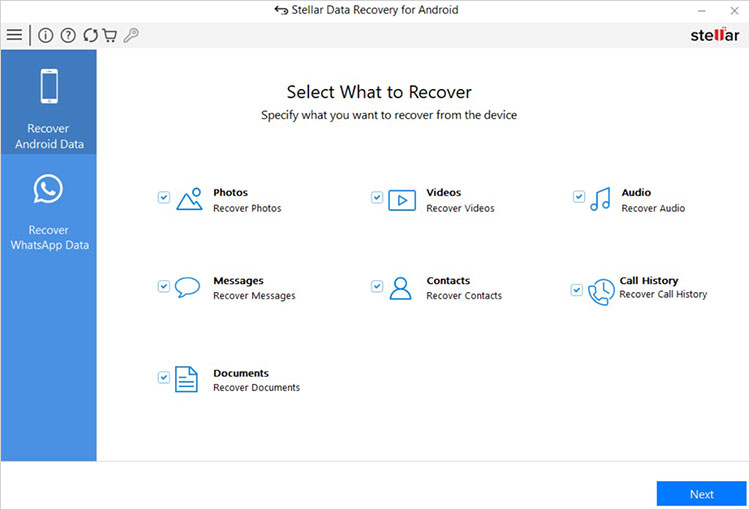
Step 2: Launch the software and select the Recover WhatsApp Data option.
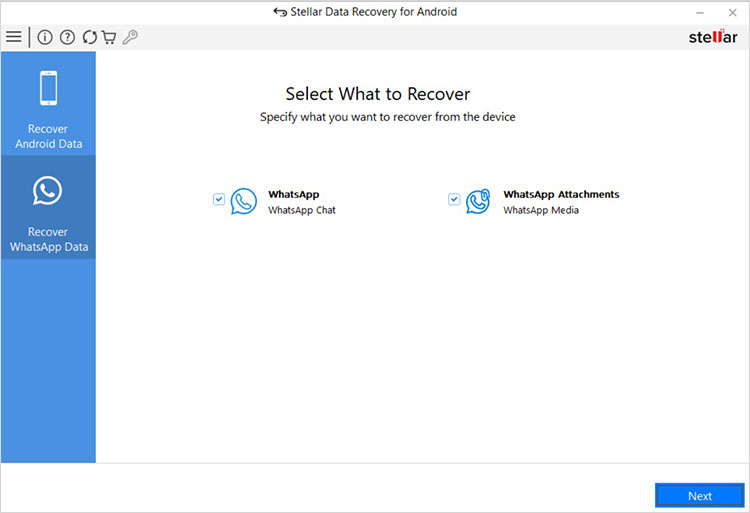
Step 3: Now, choose whether you want to recover WhatsApp messages or attachments (or even both) and click Next.
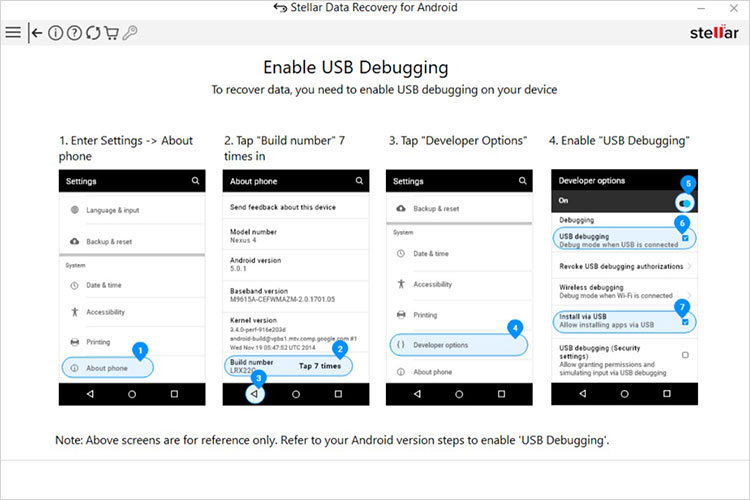
Step 4: Follow the below steps to Enable USB debugging on your device.
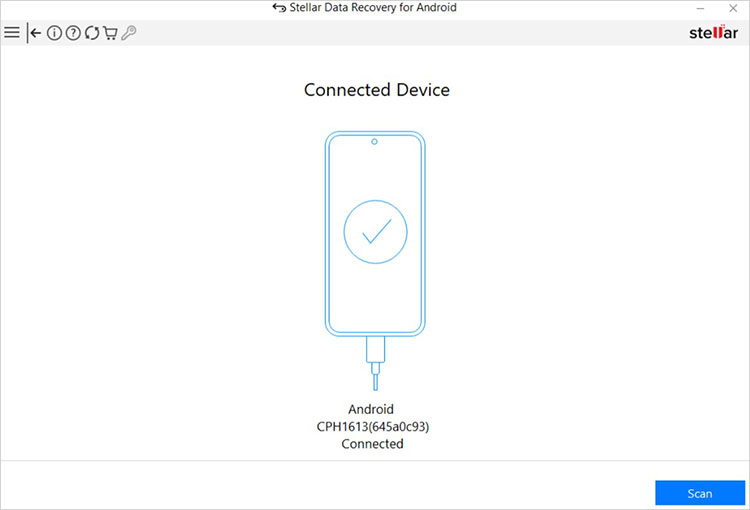
Step 5: Once completed, select your Android phone from the Connected Device screen and click Scan to initiate the scanning process.
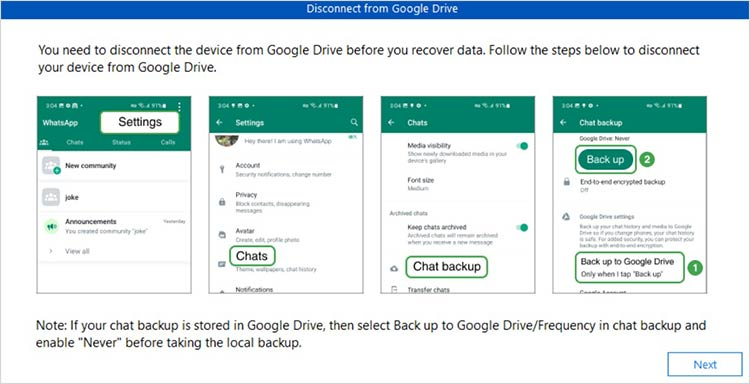
Step 6: From the Disconnect from Google Drive screen that appears, follow the instructions to take your latest local chat backup and disconnect the device from Google Drive. Click Next to continue.
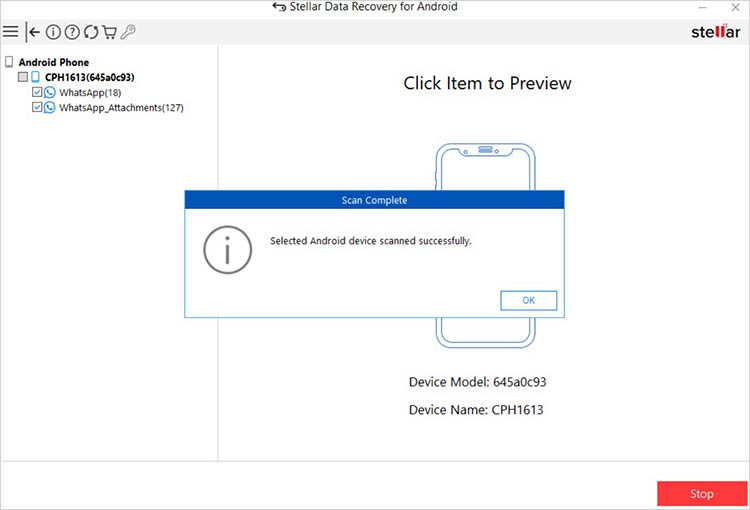
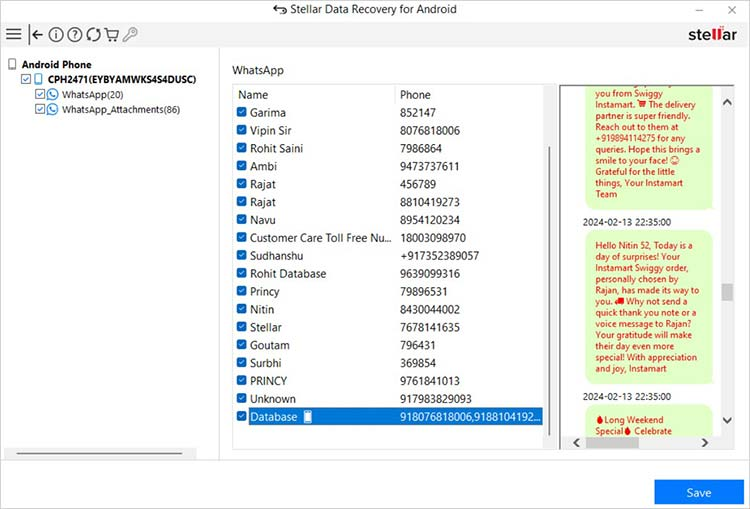
Step 7: Once the scan is completed, click OK to proceed. Preview the recovered files from the left pane and select all that you need to restore.
Step 8: Click Save to save selected files at the desired location on your device.
Wrapping Up
Recovering lost WhatsApp messages may seem like a challenging task, but the aforementioned methods can help you restore lost messages easily. Whether you have backup or not, the above methods allow restoring deleted WhatsApp messages of any type, including texts, photos, videos, and many more in one go. Without a backup, recovery becomes more difficult and may require third-party Android data recovery software such as Stellar Data Recovery for Android. The key takeaway is to maintain regular backups and act quickly – the sooner you act, the easier it will be to restore deleted messages and files.