
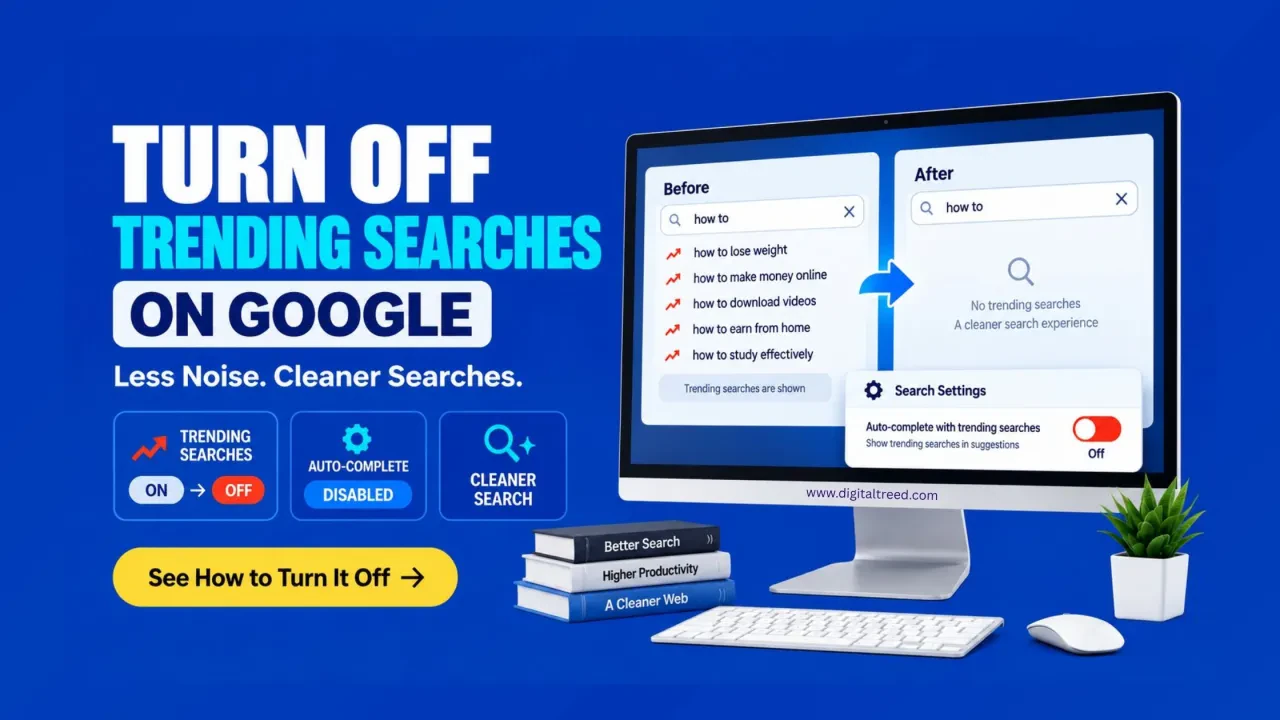
Quick Answer
To turn off Google's trending searches: go to google.com, tap your profile picture in the top right, select More settings, then Other settings, and turn off "Autocomplete with trending searches." This single path now works the same way across Chrome, Safari, Firefox, and Edge, on both desktop and mobile. It's a different setting from personalized predictions based on your own search history, which you turn off separately under Search customization in the Google app.
What Are Google's Trending Searches, and Why Do You See Them?
Trending searches are the list of currently popular topics Google shows in the search box before you've typed anything, or as suggestions while you type. Google pulls this from real-time search activity, news coverage, and social media buzz, so if something major happens (an election, a viral moment, breaking news) it tends to show up there quickly.
Google surfaces them for a straightforward reason: it keeps people searching and clicking longer, and for genuinely breaking news, it can be useful. But if you're just trying to search for something specific and unrelated topics keep interrupting that, it's easy to see why plenty of people turn it off.
Trending Searches vs. Personalized Predictions: They're Not the Same Setting
This is worth clearing up directly, since a lot of guides on this topic blur the two together. Trending searches show what's popular globally or in your region, unrelated to your own search history. Search personalization (sometimes called personalized predictions) is a separate feature. It suggests searches based on your own past activity. Search gym workouts a lot, and you might start seeing fitness-related suggestions that have nothing to do with trending topics at all.
Turning off trending searches doesn't touch personalized predictions, and vice versa. If your goal is a cleaner, less "Google knows too much about me" search box, you likely want to turn off both, using two different settings covered below.
How to Turn Off Trending Searches (Current 2026 Steps)
This is the official path confirmed directly by Google's own Search Help documentation, and it now works the same way across every major browser, a change from a few years ago when Chrome, Safari, and the Google app each had a slightly different route.
On any browser (Chrome, Safari, Firefox, Edge), desktop or mobile:
- Go to google.com.
- Tap or click your profile picture or initial in the top right corner.
- Select More settings.
- Select Other settings.
- Turn off Autocomplete with trending searches.
Google saves the change automatically, no separate save button needed on the current version of this settings page.
How to Turn Off Personalized Search Predictions
This is the second, separate setting worth turning off if trending topics based on your own history are the actual annoyance, confirmed in Google's Android search help documentation:
- Open the Google app on your phone.
- Tap your profile picture in the top right corner.
- Go to Settings, then Privacy & Safety.
- Tap Search customization.
- Turn off Search customization.
With this off, Google stops tailoring suggestions to your personal search history, though you'll still see generic trending topics unless you've also disabled that setting above.
If the Toggle Doesn't Stay Off (Troubleshooting)
A genuinely common complaint: the setting reverts, or trending searches keep appearing even after you've turned the toggle off. A few things to try, in order:
- Restart your browser completely after changing the setting, closing it fully rather than just the tab.
- Make sure you're signed into the same Google account you were using when you changed the setting; if you're signed out or using a different account, the old setting won't apply.
- Clear your browser cache, since a cached version of the search page can sometimes keep showing the old behavior.
- Update your browser to the latest version if you haven't recently, since outdated versions occasionally have display bugs with this specific setting.
A Note on Privacy
Turning off trending searches doesn't stop Google from tracking what you actually search for, it only removes the suggestion display. If your real concern is privacy rather than just visual clutter, disabling Search customization (covered above) is closer to what you want. Pair that with periodically clearing your search history, or using Incognito Mode for anything sensitive, to cover the gap this setting alone doesn't.
Frequently Asked Questions
How do I turn off trending searches on Google? Go to google.com, tap your profile picture, select More settings, then Other settings, and turn off Autocomplete with trending searches. This path now works the same across Chrome, Safari, Firefox, and Edge.
Is turning off trending searches the same as turning off personalized suggestions? No. Trending searches show globally or regionally popular topics unrelated to you. Personalized predictions are based on your own search history and are turned off separately through Search customization in the Google app.
Does turning off trending searches stop Google from tracking my searches? No. It only removes the suggestion display. Google continues recording your search activity unless you separately clear your history or use Incognito Mode.
Why does the trending searches setting keep turning back on? This usually happens if you're not signed into the same Google account you used when changing the setting, or if your browser cache needs clearing. Restarting the browser fully after the change also helps it stick.
Does disabling trending searches affect my actual search results? No. It only removes the suggestion list shown before or while you type. The quality and relevance of your actual search results stay the same.
Bottom Line
Google's trending searches setting has consolidated into a single, consistent path across every major browser in 2026, which makes it genuinely simpler to turn off than it used to be, you don't need separate instructions per browser anymore. The bigger thing worth understanding is that it's only one of two related settings. Trending searches and personalized predictions are separate toggles. If you want a genuinely quiet, distraction-free search box, turning off both is what actually gets you there.
Read Also: How to Delete a Facebook Business Page (Without Any Confusion)


Comments
No comments yet. Start the conversation below.