
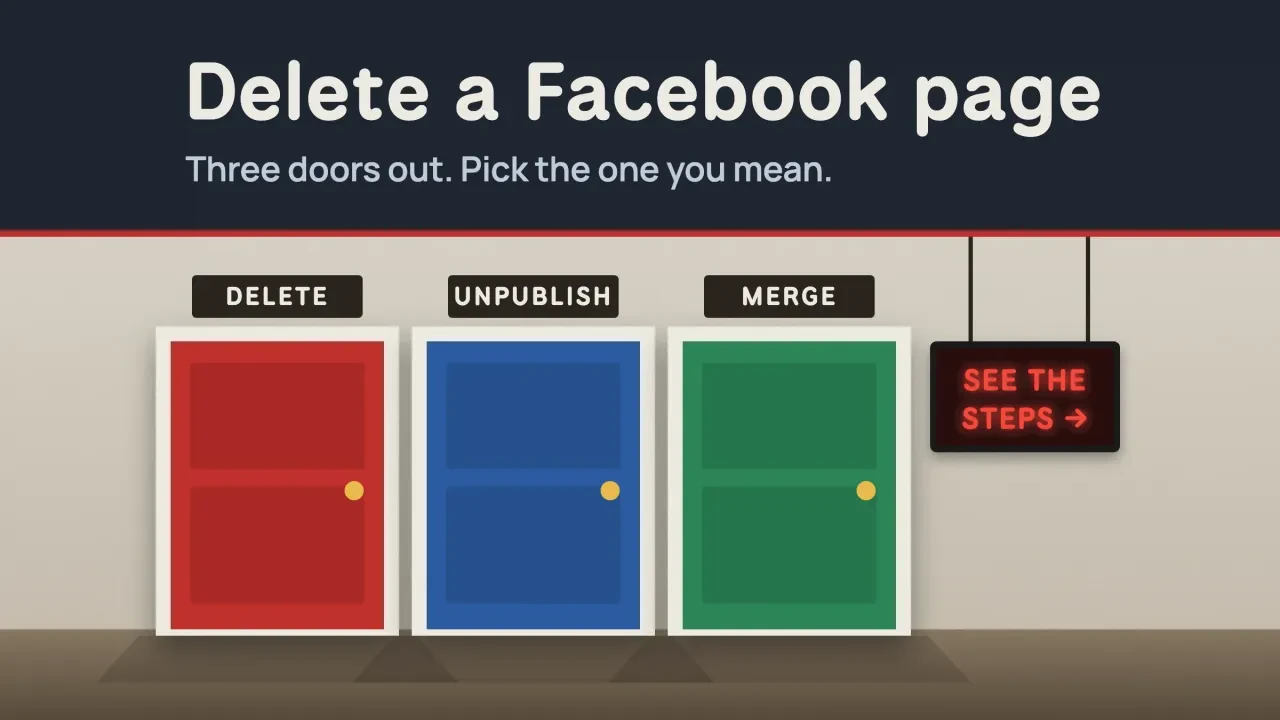
Quick answer
To delete a Facebook business page, switch into the Page, then go to Settings & privacy > Settings > Access and control > Delete Page > Continue. Meta hides the Page right away and deletes it for good after 14 days, not 30. You need full control of the Page, and your personal profile stays as it is.
The 14-day figure comes straight from Meta’s help article on deleting a Page, which we read and screenshotted on October 24, 2026.
Not sure you want it gone forever?
You can hide a Page instead and bring it back later. Unpublishing and deactivating are both covered below, along with what to save before you click anything.
Key takeaways
- A deleted Page can be restored for 14 days, then it is gone.
- Only someone with Facebook access with full control can delete a Page.
- Download a copy of the Page first; the download link expires after 4 days.
- Removing a Page from Meta Business Suite does not delete it.
- You can cancel a deletion only from your personal profile, under Reactivate a Page.
Deleting a Page starts a 14-day countdown
That countdown is the part most guides get wrong. Meta’s wording is plain: when you ask it to delete your Page, it will "deactivate your Page immediately, but it won’t be permanently deleted until 14 days have passed."
So on day 0 the public can’t see the Page anymore.
For the next 14 days you can still cancel.
After that, it’s gone.
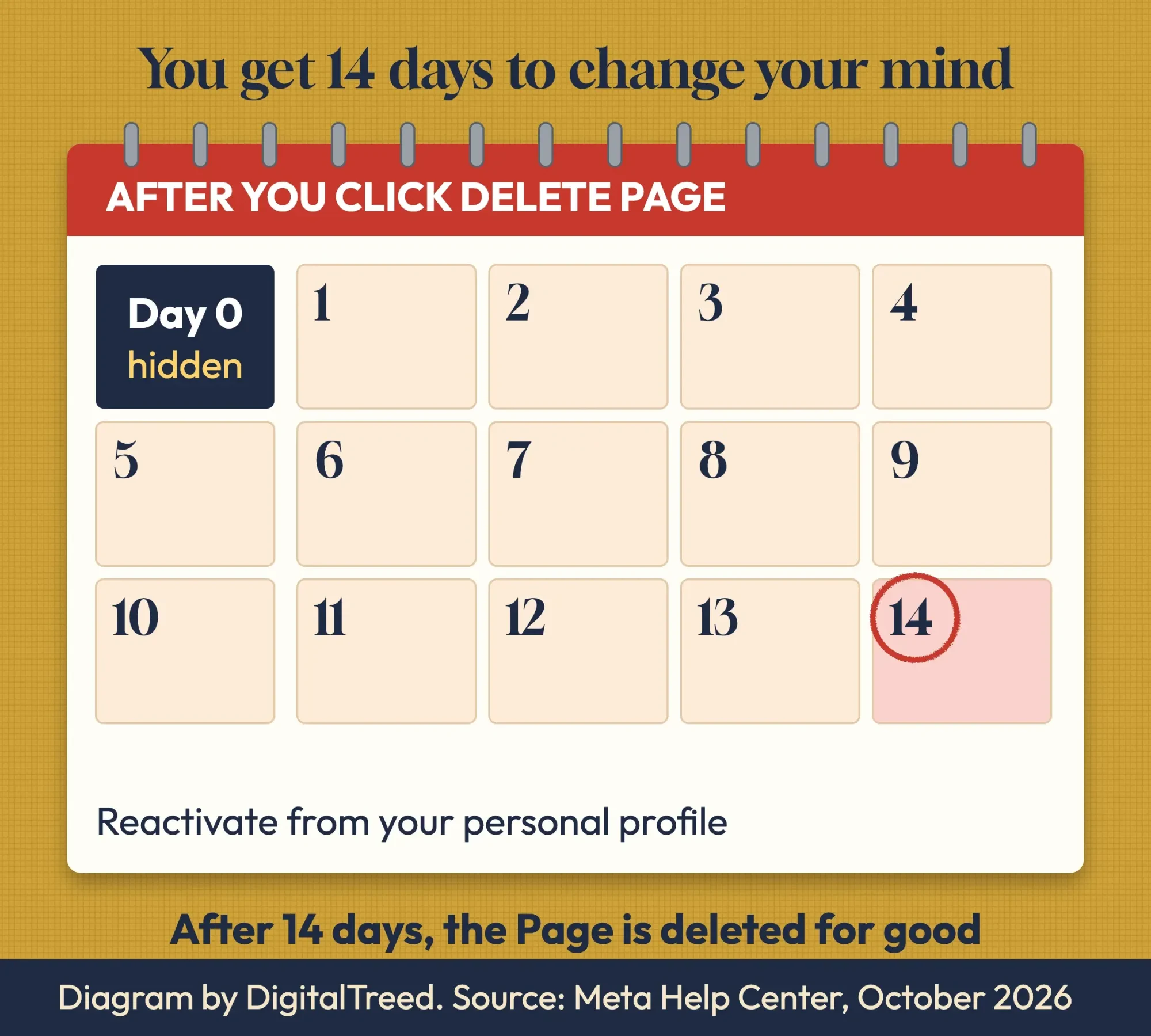 Diagram by DigitalTreed, based on Meta Help Center, read October 2026.
Our comparison is dated October 23, 2026: we read the 7 guides that ranked for "how to delete a facebook business page" in DuckDuckGo’s US results, side by side with Meta’s help pages. Three of the 7 still mentioned a 30-day window, and one of those gave both 14 and 30 in different places. Only 2 used Meta’s current menu name, Access and control. Two still sent readers to "General," "Remove Page" or "Page Visibility," which belong to the old Pages layout.
If you follow a 30-day guide, you could miss your chance to undo it by more than two weeks.
One more thing the countdown doesn’t touch: your own account. Deleting a Page removes the Page only, and Meta’s article sends people who want to close their personal account to a separate page.
Four things to do before you delete
Those 14 days let you undo the delete, but they’re a poor time to start saving things. Do these four first, in this order.
1. Check that you have full control
Only someone with "Facebook access with full control" can delete a Page. Meta’s Page access article lists deleting the Page among the settings that need it.
To check yours, switch into the Page and open Settings & privacy > Settings > Page setup > Page access, as Meta’s role guide shows.
Task access isn’t enough.
People with task access manage the Page from tools like Meta Business Suite or Ads Manager, and they can’t switch into the Page on Facebook at all.
2. Download a copy of the Page
Meta lets anyone with full control download a copy of a Page: Settings > Download your information, then pick the format, media quality, date range and categories, and click Request a download.
Grab the file quickly.
Meta says the link expires after 4 days.
3. Stop or move your ads
We couldn’t find a Meta page saying running ads block a delete, so we won’t claim that. We still turn ads off or point them at another Page first, because a paid ad sending people to a Page that’s about to vanish is wasted money.
Running a giveaway? Announce the winners and close it out before the Page disappears; our Facebook giveaway rules guide covers what you owe entrants. Closing for good? A last post telling followers where to find you now costs nothing.
4. Disconnect Instagram and other linked accounts
If an Instagram account is linked, unlink it from the Page side. Meta’s Instagram connection article gives the path: Settings, then Linked accounts under Permissions, then Instagram, Disconnect account and Yes, disconnect.
Read the warning on that page, though.
Meta says an active Meta Verified subscription "may be canceled" when you disconnect a subscribed Page and Instagram account.
If you disconnect assets in a business portfolio, Meta says you may also need to turn off features enabled through connected business assets, such as multi-placement ads and Meta Verified.
Removing the Page from Meta Business Suite doesn’t delete it
This trips people up.
Taking a Page out of your business portfolio in Business Suite only unhooks it, and Meta’s portfolio help page says it outright: "If you want to delete the Facebook Page, then you must delete it on Facebook."
Removing it is still useful when you’re selling a business, because another company can then add the Page to its own portfolio.
If you aren’t the admin
Maybe a former employee or an agency set the Page up. Meta’s answer is to ask someone who has full control to give you access; if you once had access and lost it, Meta notes that another manager may have removed you.
Be careful with the reverse, too.
Meta’s delete article warns that a Page with no one holding full control "will be automatically deactivated and scheduled for deletion." So don’t remove the last full-control person by accident. If someone else should run the Page instead of you, give them full control and then step away.
Still unsure the Page should go at all? Our social media strategy guide can help you decide which channels are worth keeping.
The steps in today’s Pages menus
Once those four are done, the delete itself is short. These are Meta’s computer steps, as listed on its help page when we read it on October 24, 2026:
- Log in to Facebook and click your profile photo in the top right.
- Click See all profiles, then pick the Page you want to switch into.
- Click your Page photo in the top right.
- Click Settings & privacy, then Settings.
- Click Access and control in the left menu.
- Select Delete Page, click Continue and follow the steps.
You may be asked for your password again.
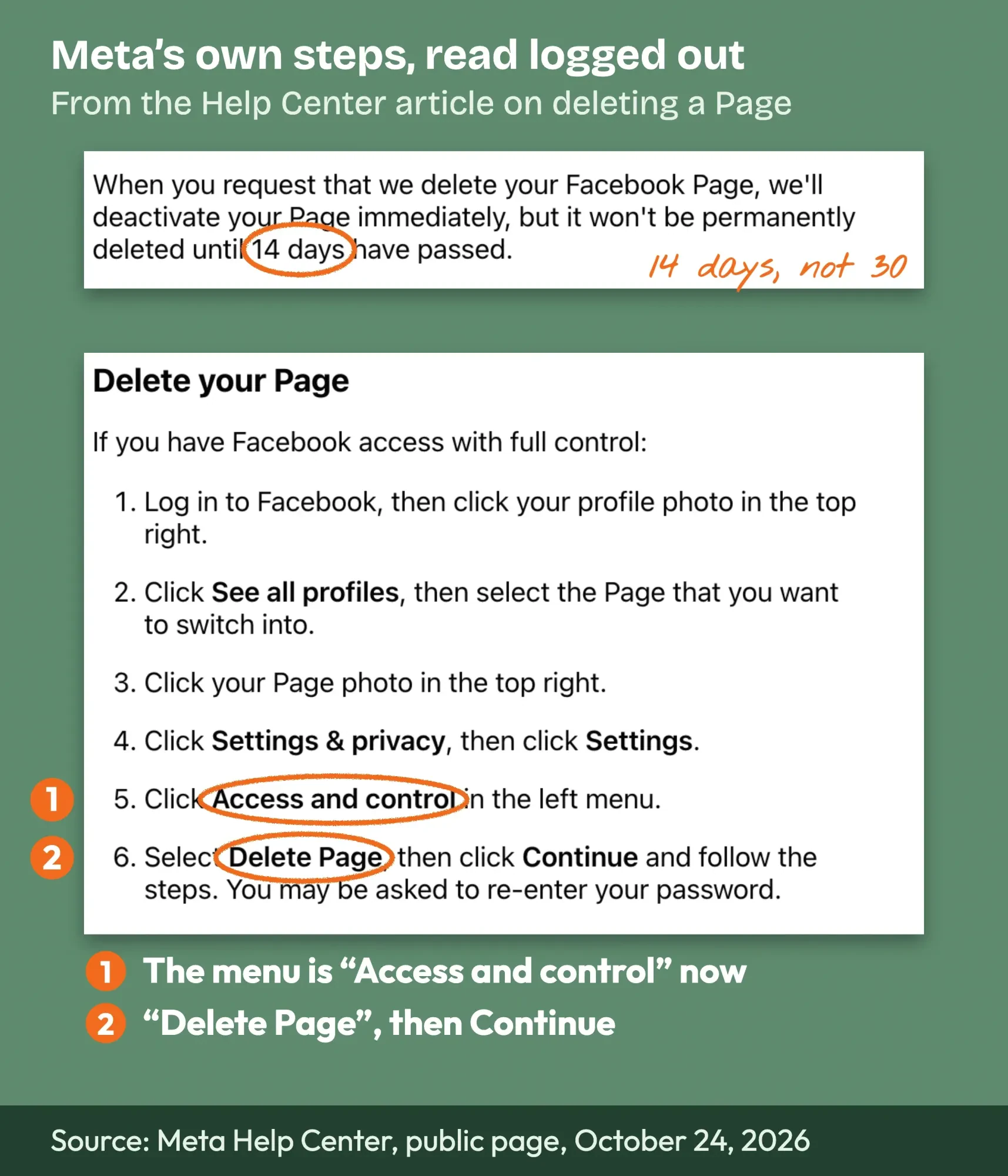 Screenshot: Meta Help Center article “Delete or cancel deletion of your Facebook Page”, public page read logged out on October 24, 2026 (UK English wording), annotated by DigitalTreed.
That screenshot is Meta’s public help page, not a logged-in account, so the menu names come from Meta itself.
On the iPhone and Android apps, the app version of the same article starts differently. Tap Menu, tap Options and pick the Page to switch into. Then open Menu > Settings & privacy > Settings > Access and control > Delete Page > Continue.
Why can’t I see Delete Page?
Almost always, it’s access.
Meta’s own note says that if the option is missing, check that you have Facebook access with full control of the Page.
The other common cause is an old guide. If yours mentions "General" or "Page Visibility," it was written for the classic Pages layout.
Unpublish or deactivate if you might come back
A delete is final after 14 days, and plenty of owners only want a break. Meta offers two softer options in the same Access and control menu.
Unpublishing hides the Page from everyone without Facebook access, but you can still edit it. Meta’s unpublish article adds that you can’t start new ad campaigns and "any existing campaigns will be paused." To do it, open Settings > Access and control > Unpublish Page > Continue > Confirm. Publish Page in the same spot turns it back on.
Deactivating goes a step further. Meta’s deactivate article says it hides the Page "from the public, including people who follow it," and you can’t edit it until you reactivate. It also needs full control.
Neither one deletes anything.
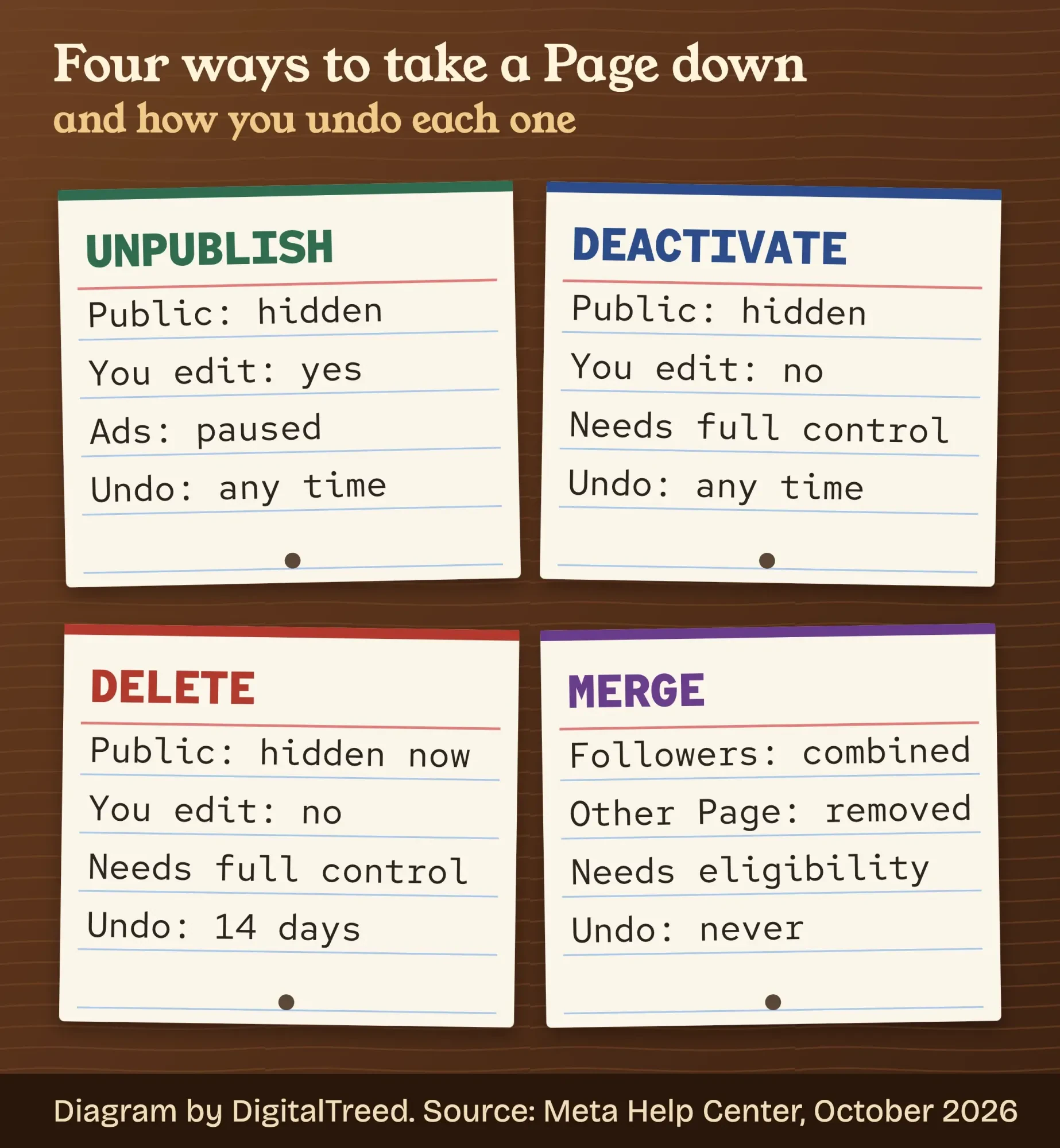 Diagram by DigitalTreed, based on Meta Help Center articles on unpublishing, deactivating, deleting and merging Pages, read October 2026.
Have store location Pages under a main brand Page? Meta says deactivating or unpublishing a parent Page does the same to its child Pages.
When you do come back, recheck your Page’s action button before you post again; our Facebook call to action guide walks through the options. Then pick your posting slots with our notes on Facebook posting times.
Two Pages for one business? Merge them instead
Duplicate Pages are another common reason owners reach for Delete, and deleting one throws away followers you could keep. Meta has a merge tool for exactly this case.
Its merge article sets the rules. Both Pages need the same name, represent the same thing, have the same address if they have a physical location, and sit under the same Business Manager account. The Page you merge from can’t be that account’s primary Page, global Pages can’t be merged, and a verified Page can’t merge into an unverified one. Meta also warns that merging "may not currently be available to all users," and task access isn’t enough.
Here’s the trade.
Followers and check-ins from the Page you merge move into the Page you keep. Posts, photos, reviews, ratings and the username on the merged Page are deleted, and Meta says you "won’t be able to unmerge it."
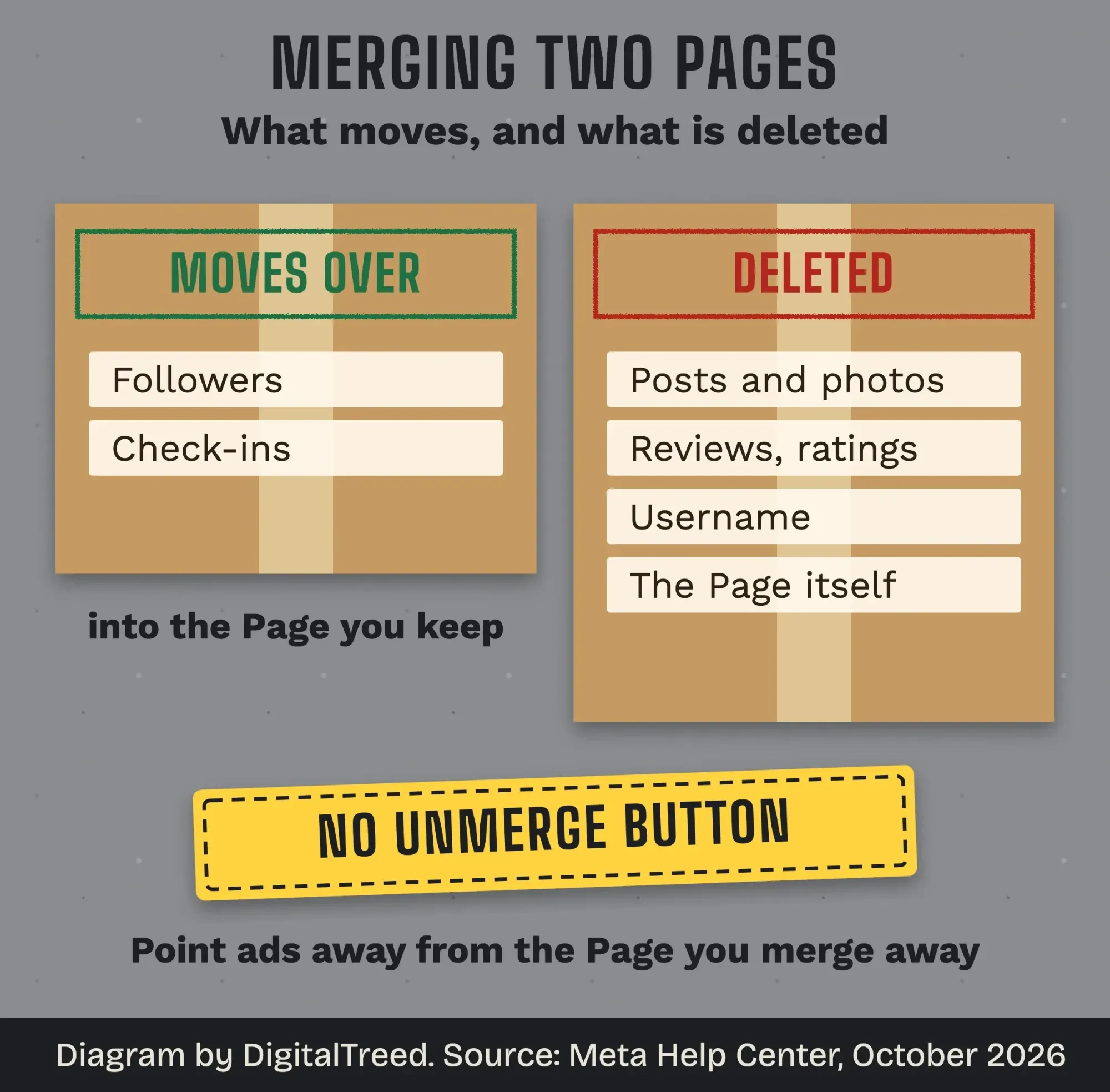 Diagram by DigitalTreed, based on Meta Help Center, “Merge 2 Facebook Pages”, read October 2026.
To start, switch into one of the two Pages. Then go to Settings & privacy > Settings > Page setup, click View next to Merge Pages and Start request next to Merge multiple Pages. Move any ad campaigns off the Page that will be deleted; Meta asks for that too. If Merge Pages doesn’t appear, Meta says the Pages aren’t eligible.
Example: a dog grooming shop in Chattanooga, Tennessee, finds two Pages with its name and address. A former manager made the second one years ago, and both sit in the shop’s business portfolio. The owner switches into the main Page and merges the second one into it. Its followers join the main Page, while its old posts and reviews go. Deleting it instead would have thrown those followers away.
Our take: if two Pages describe the same business and the merge option shows up for you, merge. Delete only the Pages that have nothing worth keeping.
After the Page is gone, fix the links that point to it
Whether you merged or deleted, the old Facebook address now leads nowhere. That link is probably in more places than you remember.
Start with your Business Profile on Google, if it shows a Facebook link (Google says social links are available only in select regions). Google’s help page gives the steps: open your Business Profile, select Edit profile > Contact, select Edit next to Social profiles, and select Delete next to the one you’re removing, then Save.
There’s a catch.
Google says some profiles show social links automatically, and if Google added the link itself, you may need to contact Google to remove it.
Our Google Business Profile listing guide and the longer Google Business Profile guide cover the rest of that listing, and our local SEO explainer shows why consistent links matter there.
Then work through the rest:
- the Facebook icon in your website header or footer (our free broken link checker can flag pages that still link to the old address)
- your link-in-bio page (our Linktree guide shows where links live)
- your email signature and newsletter footer
- printed menus, signs and business cards, at the next reprint
- other directory listings that show social links
If you’ve sold the business, check your sale agreement before deleting anything; a Page can count as part of what the buyer paid for, and that’s a question for your lawyer, not for us.
How to cancel during the 14 days
Changed your mind inside those 14 days? You can reactivate the Page, but only from your personal profile, not from the Page.
Meta’s delete article is firm about it: "You cannot reactivate a Page from the Page’s business settings. It can only be reactivated from a personal Facebook profile." On a computer:
- From your main profile, click your profile photo in the top right.
- Select Settings & privacy, then Settings.
- Below Your activity, click Reactivate a Page.
- Find the Page and click Reactivate.
On the app, it’s Menu > Settings & privacy > Settings, then scroll to Pages and tap View next to Reactivate Your Pages.
The same Reactivate a Page screen brings back a Page you only deactivated.
And if the Page went offline without you doing anything, Meta may have unpublished it for policy reasons. Page Status under Settings > Page setup shows whether that’s what happened.
A note on our interest: DigitalTreed sells social media management to small businesses.
If you’d rather someone else clean up duplicate Pages, merges and old links, the social media team at DigitalTreed can take it on.
How we made this guide: Eram N. and the DigitalTreed team checked every step against Meta’s Help Center and Google’s Business Profile help in two passes, dated October 23, 2026 and October 24, 2026. We read each help page logged out, captured the delete article as a screenshot, and compared it with the 7 guides that ranked in a US search. Nobody signed in to any account, and no Page was changed. Every Meta and Google help article behind a claim gets its own link, placed beside that claim.
First published March 2025. Rewritten October 24, 2026: the old post said 30 days and used menus Meta has replaced. New: Meta’s 14-day rule, the current Access and control steps, app steps, unpublish and deactivate, merging, and fixing links after the Page is gone.
Frequently asked
What if my Facebook Page was hacked and I can't delete it?
Get the Page back first with Meta's Page recovery form, which only works if you lost access recently. Meta says it replies by email and aims to respond within a day. If you can't log in, visit facebook.com/hacked on a device you've used before, per Meta's hacked Page article as of October 2026.
How do I delete my personal Facebook account too?
That is a separate step under Settings, then Meta Account, Personal details, Account ownership and control, and Deactivation or deletion. The window to cancel is 30 days, not the 14 days a Page gets. Meta says removing everything you posted can take up to 90 days, per its delete profile article as of October 2026.
Can I rename my Facebook Page instead of deleting it?
Yes, if a rebrand is the reason. Switch into the Page, then go to Settings, Page setup and Name, and select Edit next to the Page name. People with only task access can't request the change, and the username stays the same, per Meta's Page name article as of October 2026.
Sources
- Meta Help Center: Delete or cancel deletion of your Facebook Page
- Meta Help Center: Delete or cancel deletion of your Facebook Page (iPhone app)
- Meta Help Center: Deactivate or reactivate your Facebook Page
- Meta Help Center: Unpublish and republish a Page
- Meta Help Center: About Facebook Page access
- Meta Help Center: See your Facebook Page role or access
- Meta Help Center: Request Facebook access to a Page
- Meta Help Center: Give, edit or remove Facebook Page access
- Meta Help Center: Download a copy of your Facebook Page
- Meta Help Center: Merge 2 Facebook Pages
- Meta Help Center: Connect or disconnect an Instagram account and your Page
- Meta Help Center: About Facebook Page Status
- Meta Business Help Center: Remove a Page from your business portfolio
- Meta Business Help Center: About connected business assets
- Google Business Profile Help: Manage your social media links


Comments
No comments yet. Start the conversation below.