
Quick answer
To stop an app running in the background on Android, go to Settings, Battery, Battery usage, tap the app and limit its background use (Pixel, as of October 29, 2026). On a Samsung Galaxy, add it to Deep sleeping apps. From Android 13, apps you haven't opened in 8 days already drop to the Restricted bucket, so restrict only the top drainers.
If your Android phone sat on a desk all morning and still lost a third of its charge, something kept working with the screen off. A background app is an app that keeps doing work, like syncing or checking location, after you leave its screen. We'd find the one app doing far more than its share and restrict just that one.
First, we show which apps are running in the background and why swiping apps away doesn't help. Then come Restricted, Optimized and Unrestricted on a Pixel, Samsung Galaxy sleeping apps, how Android limits idle apps, Developer options, and an app that keeps draining.
Key takeaways
- Restrict one heavy app from the battery list, not every app.
- Google says open apps won't make you run out of battery.
- Restricted stops an app's background jobs, alarms and foreground services.
- From Android 13, apps unused for 8 days go in the Restricted bucket.
- Samsung's Never sleeping apps list can add background battery use.
Which apps are running in the background?
The battery list answers that. Start there instead of guessing. On a Pixel, Google's battery level help page lists the steps: open Settings, tap Battery, then Battery usage, and tap View by apps. The chart above the list shows the battery level since the last full charge.
Tap any app name in that list to see how much power it used and to change how it's allowed to run while you're not looking at it.
Read the list with your own day in mind, because a video app near the top after an hour of streaming is simply doing the job you asked of it. A game you haven't opened since the weekend, sitting in second place above your email and maps apps, is exactly the kind of app we'd restrict first. Google adds that rounding can keep the listed amounts from adding up to 100%, so don't hunt for a missing 2%.
Samsung puts the same view in a different menu on Galaxy phones. Its US battery optimization page says to open Battery and device care in Settings, tap Battery, then tap the battery graph.
Tapping Optimize now on the main Battery and device care screen checks for apps with high background battery use, though Samsung says that depends on the app.
There's a third list most people never open. Google's Task Manager guide for developers covers it. From Android 13, Active apps in the notification drawer shows each app running a foreground service, with a Stop button beside each name. A music app that's still playing can appear there, since Stop also ends media playback. After a Stop, the app stays in your recent history, and its ongoing notification disappears. If you set up Phone Link with our aka.ms/YourPC Phone Link guide, the phone-side app that talks to your PC is one more you may see in these lists.
Swiping apps away doesn't stop background drain
Clearing your recent apps feels tidy. Google says it isn't needed. Its Android Help page on closing apps shows how to swipe up on an app or tap Clear all. Then it adds a tip: "Even if you don't close apps, you won't run out of memory or battery." Android manages both on its own.
Force stop goes further than a swipe. Google's Pixel battery drain page lists it as step 2, after restricting apps. The same page warns that force stopping some essential apps or services means your phone won't work correctly. Android 15 made a force stop stick harder, too. The Android 15 behavior changes page says a force-stopped app stays stopped until you open it again. Until then, the system cancels its pending intents and grays out its home screen widgets. That's fine for an app that's frozen right now, but it's a poor daily habit. The drain comes back the moment you reopen the app, and you've lost the widget in the meantime.
Restricted, Optimized and Unrestricted on a Pixel
A battery setting stays put instead. It lives on each app's battery page, and Android gives it three choices. The Android Developers background optimization guide describes them like this:
- Unrestricted: allows all background work, which might use more battery.
- Optimized: the default, which adjusts background work to how you use the app.
- Restricted: fully prevents the app from running in the background, so it may not work as expected.
On a Pixel with Android 14 or later, Google's Adaptive Battery page gives the path. Open Settings, Apps, See all apps, tap the app, then App battery usage and Allow background usage. Google's battery level page recommends keeping battery optimization on for all apps.
Restricted suits an app you want nothing from while it's closed, like a game you only play on weekends or a store app you opened once for a coupon.
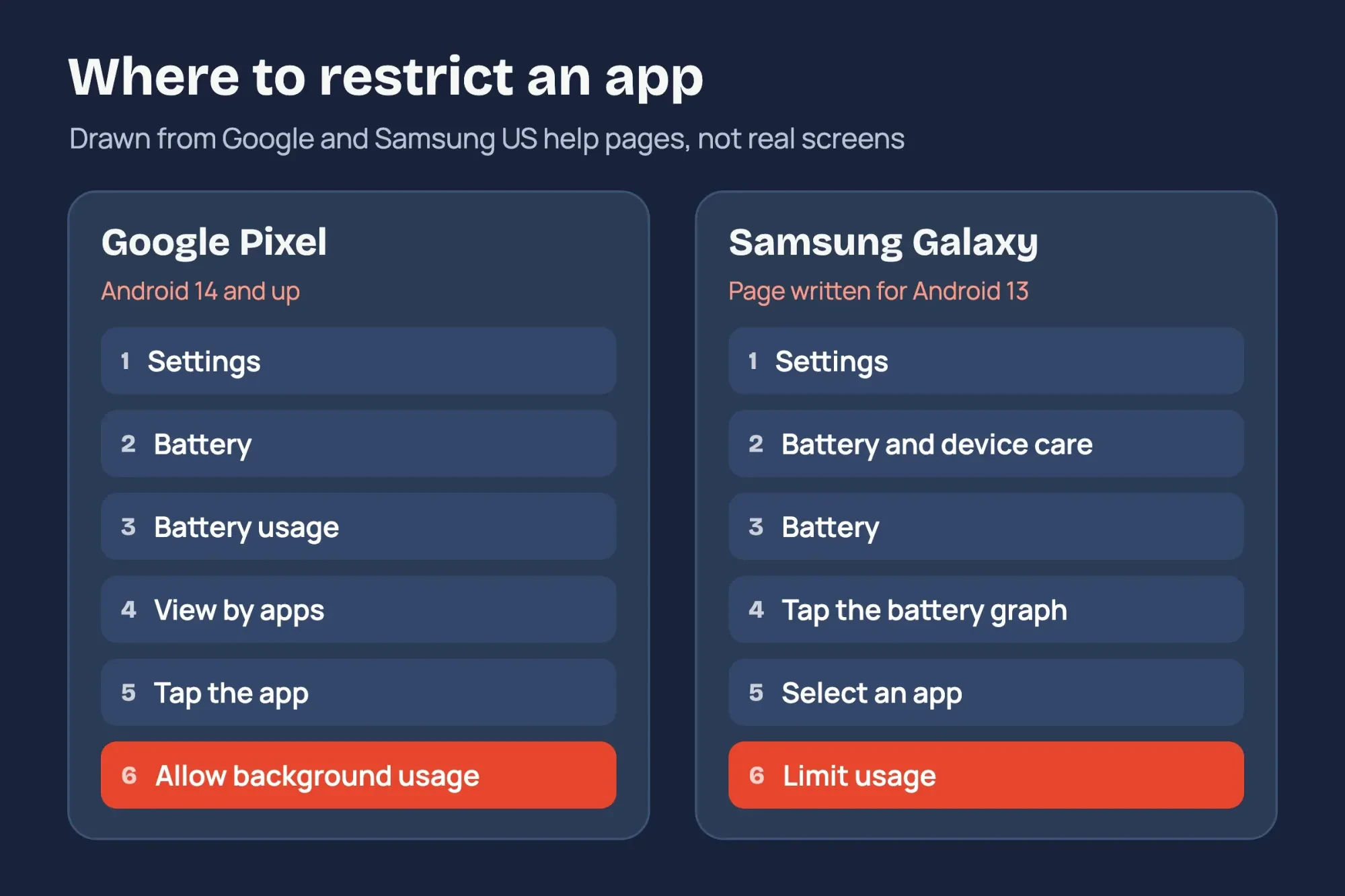 Drawn by us. Menu names copied from Google Pixel Help and Samsung US on October 29, 2026; drawn cards, not phone screens.
Restricted is stronger than most people expect from a setting a few menus deep. The same developer guide covers Android 9 and later builds from the Android Open Source Project. There, a restricted app in the background can't launch foreground services, its alarms aren't triggered and its jobs don't run. On Android 13 and later, a restricted app built for that version isn't even told the phone has restarted until you open it. Phone makers set the exact limits, so a Galaxy may differ.
You don't lose the app, though. Open a restricted app and Android treats it as unrestricted while you use it. Switch away, and it's restricted again. That makes Restricted safe to try on a game or a shopping app, since you can switch it back to Optimized on the same screen at any time. Leave apps you need alerts from on Optimized, like the ones in our video call apps for small business roundup. Backup apps belong there too, such as the services in our cloud storage for small business comparison, because a restricted app's jobs don't run.
Samsung Galaxy: sleeping and deep sleeping apps
Galaxy phones add their own layer on top of those Android settings, with different names and menus, so a Pixel guide won't match what you see on a Samsung screen. Samsung's US page, written for Android 13, calls it Background usage limits. It has three lists: Sleeping apps, Deep sleeping apps and Never sleeping apps, and the page aims the first two at rarely used apps. To limit one app, open Battery and device care in Settings, tap Battery and then the battery graph, select the app, and tap Limit usage. Choose Put to sleep or Put in deep sleep.
For several apps, open Background usage limits under Battery and pick Sleeping apps or Deep sleeping apps. Tap the plus sign, choose the apps and tap Add. Samsung notes the option isn't available for every app.
Never sleeping apps does the opposite. Samsung warns that apps on it don't go to sleep or deep sleep automatically, "which may cause additional battery usage in the background." If the phone came from someone else or was set up by your workplace, open that list and check it for an old entry nobody remembers adding. Power saving is the blunt option, and it hits every app at once. Samsung says that once it's on, background apps lose Wi-Fi and mobile data and Always On Display turns off. That helps for one long day, not as a fix for a single app.
How Android limits idle apps on its own
That's partly because Android already holds back idle apps by itself, which is why so few need restricting by hand. The Android Developers App Standby Buckets page says that since Android 9, each app sits in one of five priority buckets. They're active, working set, frequent, rare and restricted, and the bucket sets how often an app's jobs and alarms can run.
Google's examples make them easy to picture. A social app you open almost daily is likely in the working set. A workout tracker you use at the gym is likely in frequent, while a hotel app you only open on a trip is likely in rare. From Android 13, an app you haven't touched for 8 days goes into the restricted bucket unless it qualifies for an exemption. On Android 12 and 12L, the same rule waited 45 days before it kicked in. Time with the phone switched off doesn't count toward those days, so a phone left powered down in a drawer won't push its apps there any faster.
Google's page gives the 8-day rule but not the shorter steps, so we read those out of the code. Android's open-source AppStandbyController code sets the defaults. An unused app drops to working set after 12 hours, frequent after 24, rare after 48 and restricted after 8 days. The last three steps also need 1, 2 and 6 hours of screen-on time, though a newer flag in the code can skip that check.
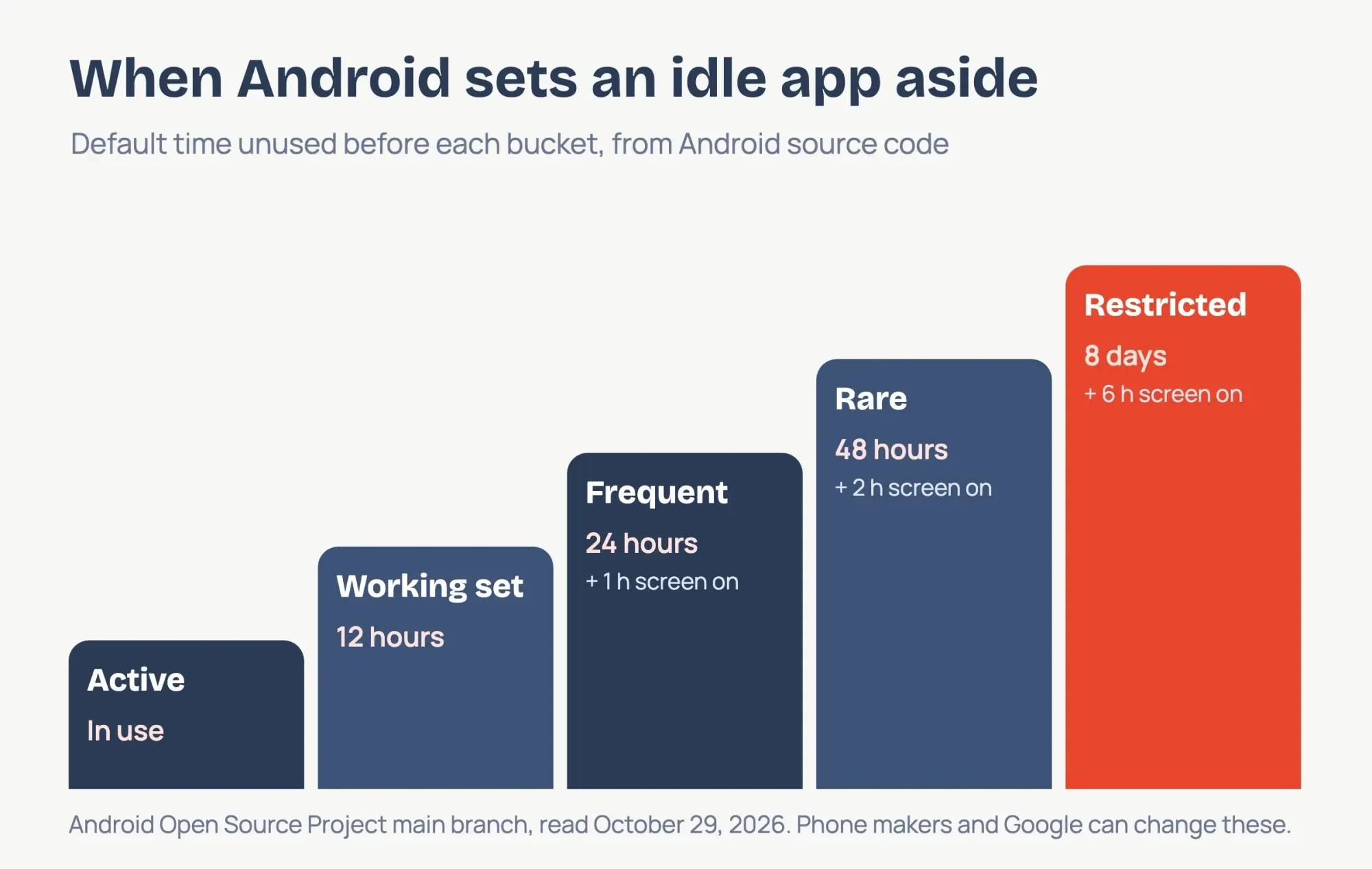 Diagram by DigitalTreed. Default timings from Android Open Source Project code, read October 29, 2026.
The bucket then sets a budget. Google's Power management resource limits table gives regular jobs in the working set up to 10 minutes per rolling 4 hours. Frequent gets 10 minutes per 12 hours, and rare gets 10 minutes per 24 hours. A restricted app runs jobs once a day for up to 10 minutes. We turned each row into minutes per day with one formula, minutes per window x 1,440 / window minutes, because a rolling window is hard to picture otherwise.
| Bucket | Unused before it applies (default) | Regular jobs per day | Alarms per day (docs) |
| Active | In use | 480 min | No limit |
| Working set | 12 hours | 60 min | 240 |
| Frequent | 24 hours | 20 min | 48 |
| Rare | 48 hours | 10 min | 24 |
| Restricted | 8 days | 10 min, once | 1 |
So a working-set app gets 60 minutes of background jobs a day, and a rare one gets 10. Alarms shrink the same way, from 10 an hour (240 a day) to one a day once restricted.
Doze adds a second layer. Google's Doze and App Standby guide says a phone left unplugged, still and with the screen off enters Doze. Apps then wait for short maintenance windows to do deferred work.
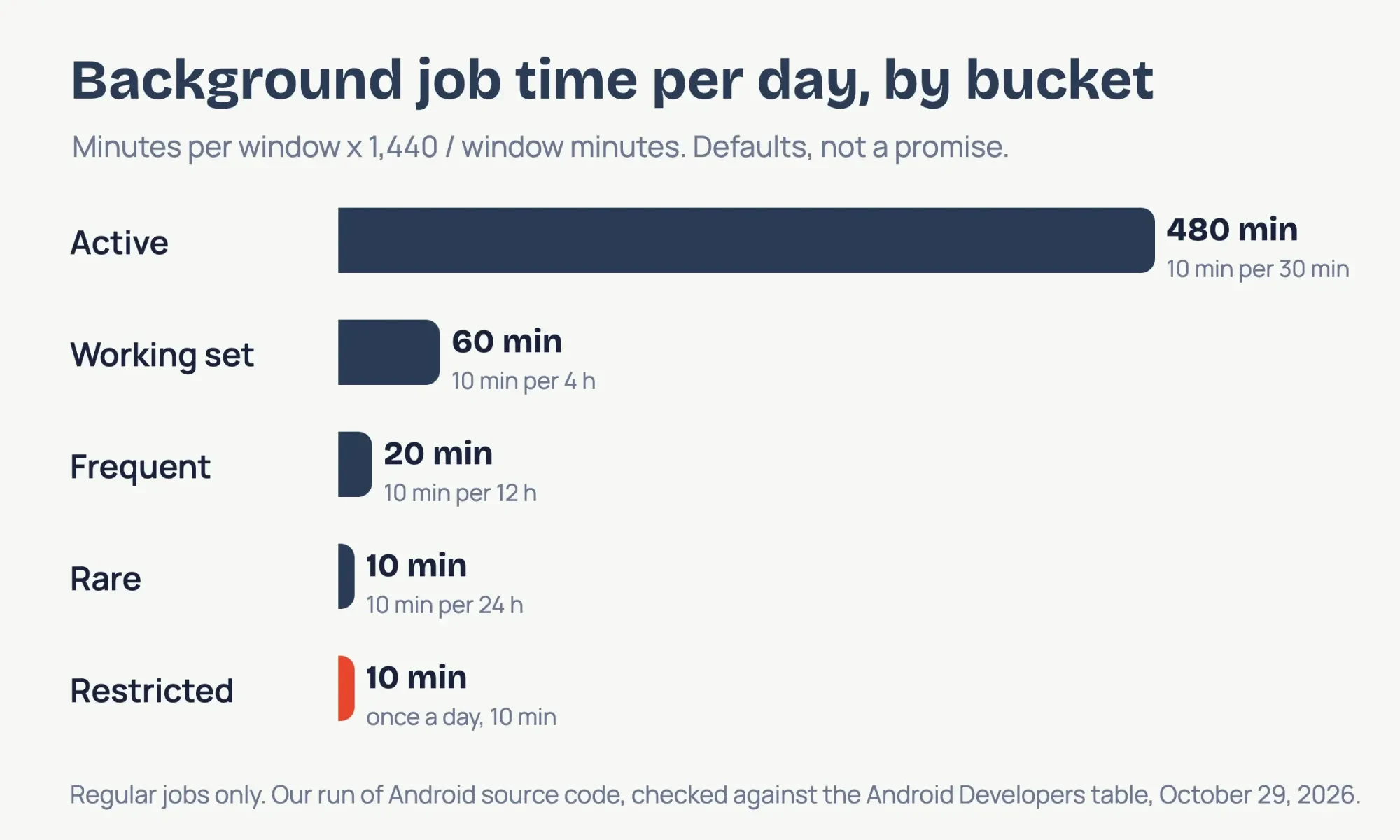 Diagram by DigitalTreed. Our calculation from Android source code, checked against the Android Developers table, October 29, 2026.
What we tested
We didn't use a phone. A Python script on a Mac compared three Android source files with our saved copy of Google's limits table. All five daily totals matched, as the code block below shows. The active bucket's window differs: the QuotaController code allows 10 minutes per 30, the docs 20 per 60, and both make 480 a day.
python3 extract.py
Summary (minutes of regular jobs per day): bucket, source, docs, same
Active 480 480 yes
Working set 60 60 yes
Frequent 20 20 yes
Rare 10 10 yes
Restricted 10 10 yes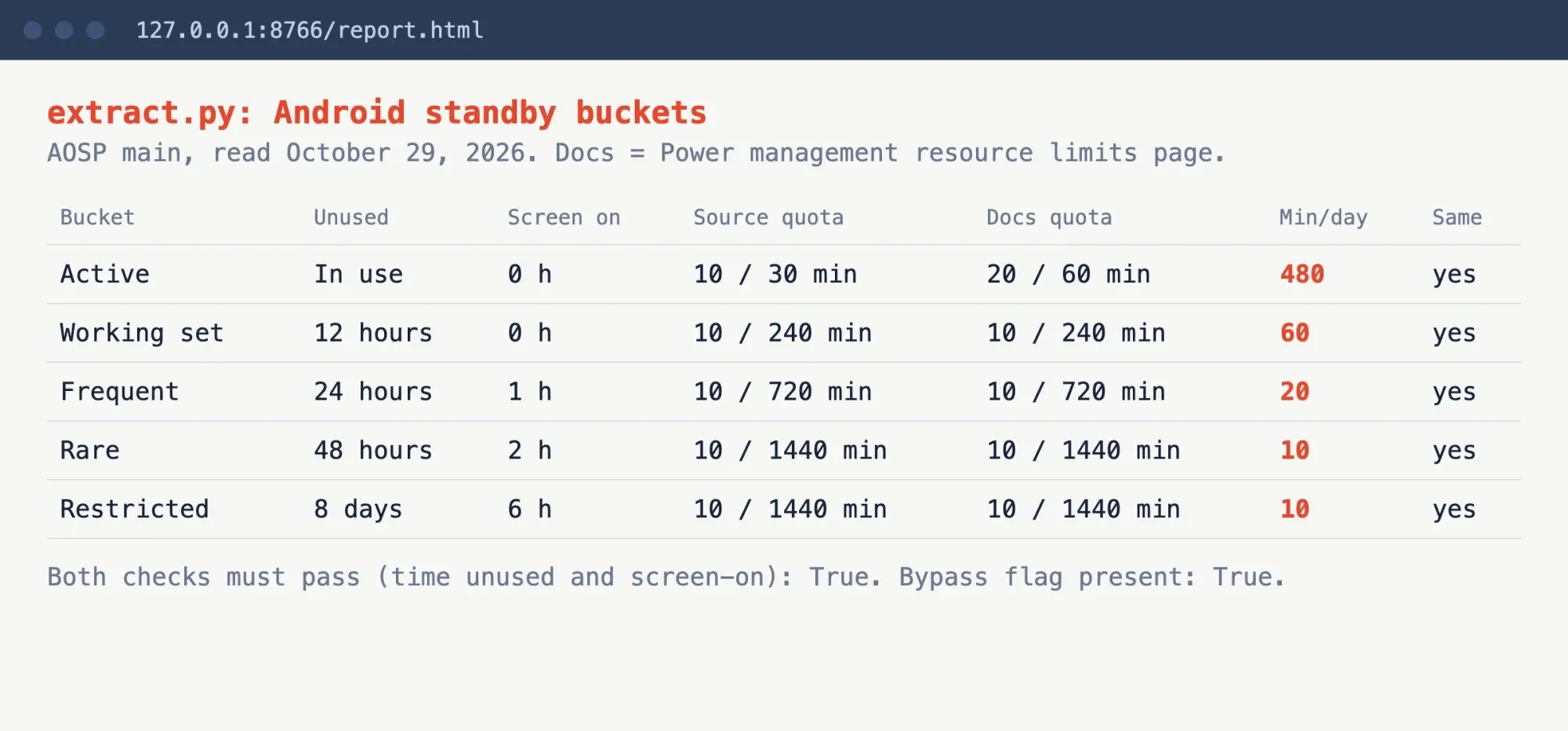 Screenshot: our extract.py report on 127.0.0.1, October 29, 2026.
These are main-branch defaults, and the code reads overrides from device config, so your phone can differ. The run doesn't measure any app's battery use.
Developer options limits are testing tools
Plenty of older advice sends you into Developer options next, and we wouldn't go there for battery life. Google's developer options guide explains how to make that screen appear: find Build number and tap it seven times. On a Pixel it's under Settings, About phone, and on a Galaxy S8 or later it's under About phone, then Software information, according to the same page.
Two settings there show up in battery tips. Background process limit sets how many processes can run in the background at one time. Google's page does say Don't keep activities can increase battery life. It gets there by destroying every activity as soon as you leave its main view, though, and it doesn't single out the app that's draining. Google files both under app options, meant to help developers see how their own app operates on a device. On a phone you rely on every day, leave them off; they belong on a test device, next to the emulator from our guide to installing Android Studio on Ubuntu.
When an app keeps draining the battery
If a restricted app still leads the list, work through Google's own order. Its Pixel battery drain steps start with Battery diagnostics on a Pixel 6 or later: Settings, Battery, Battery diagnostics, then Battery draining too quickly. Google also says a little extra drain is normal for a few days after a software update. If the drain lasts past that, restart the phone, check for an Android update under System, and update your apps from Manage apps & devices in the Play Store. A company Pixel enrolled in Pixel for Business Support has its own route, and Google's page sends those users to that team.
Next, look at the app itself. Google's Pixel app troubleshooting page suggests clearing its cache under Storage & cache, which removes temporary files that build up again over time. If an app crashes rather than drains, our Instagram keeps stopping guide covers the same cache and update fixes.
Uninstall any app near the head of the list that you don't recognize. If it came through a link in a text or email, our phishing link guide covers the next checks.
Some names you can't remove, and that's expected. Google says you can't force stop or uninstall Google Play services, because it's built into Android.
When the phone just has to last until evening, use Battery Saver. Google's Battery Saver page says Extreme Battery Saver on a Pixel 3 or later pauses most apps, except the essential ones you pick.
Our take: restrict the one app that's clearly out of line, keep Google's Optimized default everywhere else, and let Android's buckets handle the apps you rarely open.
Android background apps FAQ
Frequently asked
Does Battery Saver stop background apps?
Partly. Android Help's battery life page says Battery Saver limits or turns off background activity, so some apps may be delayed.
Will restricting an app delay its notifications?
It can. Google's Adaptive Battery page says Adaptive Battery may delay notifications to extend battery life.
Why does my battery drain more after a reset?
Google's Pixel battery life page says optimization may take a few weeks to take full effect after a new set-up or a factory reset.
Does stopping an app in Active apps cancel its alarms?
No. Google's Task Manager guide says scheduled jobs and alarms still run at their set times after you tap Stop.
How we made this guide: This guide rests on 18 Google, Samsung and Android source pages, each linked at the claim it backs. On a Mac, without a phone, we compared Android's default limits with Google's table. Facts checked by the DigitalTreed team on October 29, 2026.
First published February 2025 as a brief list of ways to close background apps. Rewritten October 29, 2026 into a Pixel and Samsung how-to with Android's own limits, checked against its source code.
Sources
- Google Pixel Help: Check battery level on your Pixel phone
- Google Pixel Help: Fix battery drain problem
- Google Pixel Help: Keep Adaptive Battery and battery optimization on
- Google Pixel Help: Get the most life from your Pixel phone battery
- Google Pixel Help: Use Battery Saver on a Pixel phone
- Google Pixel Help: Fix an installed app that isn't working
- Android Help: Find, open and close apps on Android
- Android Help: Get the most life from your Android device's battery
- Samsung US: Galaxy Battery, Optimization
- Android Developers: Background optimization
- Android Developers: App Standby Buckets
- Android Developers: Power management resource limits
- Android Developers: Optimize for Doze and App Standby
- Android Developers: Handle user-initiated stopping of apps running foreground services
- Android Developers: Android 15 behavior changes for all apps
- Android Developers: Configure on-device developer options
- Android Open Source Project: AppStandbyController.java
- Android Open Source Project: QuotaController.java


Comments
No comments yet. Start the conversation below.