
Quick answer
On Ubuntu 24.04, run sudo snap install android-studio --classic, which gave Android Studio Rabbit 2 (2026.2.2.8) on the stable channel as of October 29, 2026. Want Google's own build instead? Unpack its 1.6 GB tarball into /opt, which carries the same release. Then finish the Setup Wizard and turn on KVM before the first emulator run.
Say you've just moved your Android work to an Ubuntu 24.04 laptop, and the guide you remember still adds a Java 8 PPA. You won't need that any more. Android Studio is the official IDE for Android development, per Google’s release notes, and it now ships with its own Java runtime. If your app is simple enough for a drag-and-drop builder, our low-code platforms comparison may save you the whole set-up.
First up is what your PC needs and whether Ubuntu 26.04 is supported, then a choice of route. Next come the snap install, Google's tarball, the 32-bit library line that names a package 24.04 lacks, and JetBrains Toolbox. After that: the bundled JDK, the Setup Wizard and SDK, KVM for the emulator, and a USB phone with adb. We'd pick the snap.
Key takeaways
- Google's 32-bit library command names libncurses5, which Ubuntu 24.04 doesn't carry.
- The snap and Google's tarball both offered Rabbit 2 on October 29, 2026.
- Android Studio bundles its own JDK, so skip installing Java first.
- Ubuntu 26.04 ships glibc 2.43, above Google's 2.31 minimum.
- Run emulator -accel-check after set-up to confirm KVM works.
What your PC needs before the install
Start with the hardware, because two of Google's limits rule some laptops out completely. The Linux system requirements ask for a 64-bit distribution running GNOME, KDE or Unity, with GNU C Library (glibc) 2.31 or later. Google also notes that Linux machines with ARM-based CPUs aren't currently supported.
Memory is the next wall. Google lists 8 GB of RAM for Studio alone and 16 GB for Studio plus the emulator. Its recommended column goes further, asking for 32 GB of RAM, a solid state drive with 32 GB or more, and a GPU with 8 GB of video memory. Disk space follows the same split, at 8 GB free for Studio and 16 GB with the emulator. The CPU needs Intel VT-x or AMD-V turned on in the BIOS, and Google says Intel Core N-Series and U-Series chips aren't recommended because of performance. The screen has a floor too, at 1280 x 800, with 1920 x 1080 recommended.
So a 16 GB machine with a recent Core i5 or Ryzen 5 is a sensible floor if you plan to run virtual devices. With 8 GB, you can still write code and test on a real phone over USB, which the last section covers. Before buying RAM, run free -h and lscpu in a terminal on the laptop you have. They report the memory and the processor, and a 64-bit x86 machine with 16 GB is ready for everything below. Anything with an ARM chip, or 8 GB and no upgrade path, means planning around a USB phone from the start.
Does Android Studio support Ubuntu 26.04?
That's a yes on paper, though Google doesn't name 26.04, or 24.04 either. Its requirements list no Ubuntu release at all, only the glibc floor and the desktop. Ubuntu 26.04 LTS, codenamed Resolute Raccoon on the Ubuntu releases page, came out in April 2026. Our archive check found glibc 2.39 in 24.04 and 2.43 in 26.04, so both clear Google's 2.31 line.
The other routes differ. The Snap Store listing asks only for Ubuntu 16.04 or later. JetBrains lists Ubuntu 22.04 and 24.04 LTS as the supported distributions for its Toolbox App, and 26.04 isn't on that list as of October 29, 2026. We didn't run Android Studio on either release, so treat 26.04 as meeting Google's written requirements, not as tested by us.
Support windows matter too if this is a work machine. Ubuntu's release cycle page gives 24.04 standard security maintenance until May 2029 and 26.04 until May 2031, two years longer.
If you need Toolbox, stay on 24.04 for now; for the snap or the tarball, 26.04 is a fair choice.
Snap, tarball or Toolbox: pick one route
All three routes end with the same IDE, but they differ in who packages it and how it updates. Here's how they compared when we read each source on October 29, 2026:
| Route | Who packages it | Version on October 29, 2026 | How it updates | Size listed |
|---|---|---|---|---|
| Snap (snap install) | Snapcrafters community | Rabbit 2, 2026.2.2.8 (stable) | snapd checks 4 times a day | 1.7 GB |
| Google's tarball | Rabbit 2, 2026.2.2 | Help > Check for Update | 1.6 GB | |
| JetBrains Toolbox | JetBrains app, Google build | Not checked (needs the app) | Through the Toolbox App | Not listed |
The snap row needs one note. The listing says the snap is maintained by the Snapcrafters community and isn't necessarily endorsed by the upstream developers, so Google doesn't publish it. That's fine for most single-user laptops, because snapd pulls new revisions on its own schedule and you never fetch a 1.6 GB file by hand. Pick the tarball when your team wants Google's file with a checksum, or one copy in /opt for several users. Pick Toolbox if you already manage other JetBrains IDEs with it. Whichever you choose, keep to one route per machine, so you never have two copies of the IDE updating on different schedules.
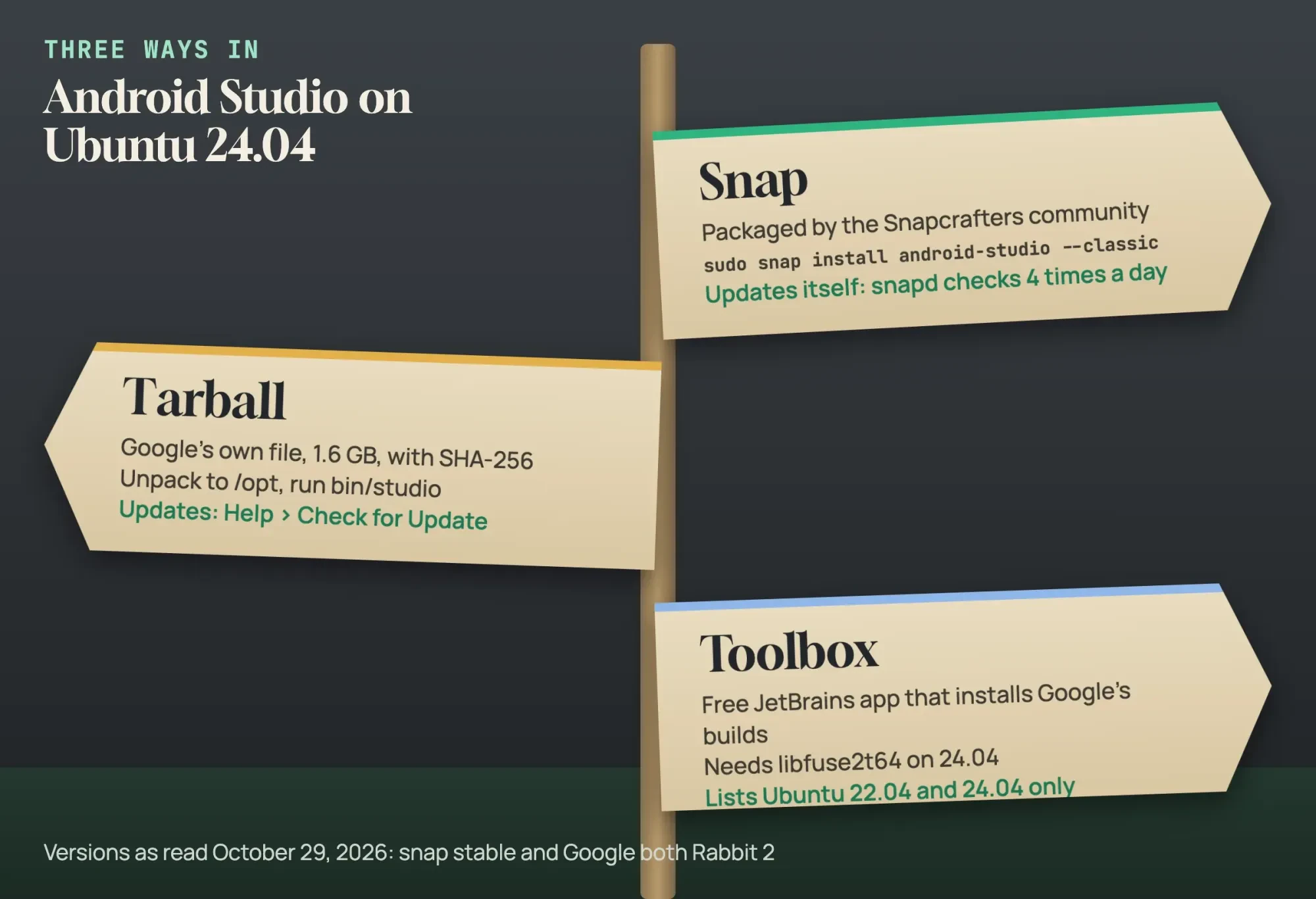 Diagram by DigitalTreed, from the Snap Store listing, Google’s download page and JetBrains docs read October 29, 2026
Install the snap and choose its channel
Once the route is picked, the snap is one command. It needs the --classic flag. Classic confinement allows access to the system’s resources much like a traditional package, and Snapcraft says a classic snap needs that argument to install:
sudo snap install android-studio --classic
android-studio
The second line starts the IDE. In the snapcrafters recipe, the app is named android-studio and runs Google's bin/studio.sh script, built for amd64 only. The recipe also ships an android-studio.desktop file, so the IDE shows up in your app list too.
Snaps come in channels. Snapcraft names four risk levels: stable, candidate, beta and edge, and you pick one with --channel=candidate or similar. We read the listing twice, and the gap between the two reads is the clearest picture we have of how stable trails Google's own download page. Late on October 28, stable held Rabbit 1 (2026.2.1.8) from October 2, while Rabbit 2 waited in candidate. By 10:54 UTC on October 29, stable carried Rabbit 2, revision 248. So the stable channel can trail Google's download page for a while, and candidate gets a new release first. Both reads showed classic confinement on every channel, so switching channels changes the version, not what the snap can reach.
Updates arrive without asking. If a refresh lands in the middle of a release week, Snapcraft's update docs show how to postpone it with snap refresh --hold:
snap refresh --hold=24h android-studioWhen the release is out, the same docs show snap refresh --unhold android-studio to lift the hold early, so updates resume without waiting out the 24 hours.
Unpack Google's tarball into /opt
But if you'd rather run Google's own file, the Android Studio download page lists android-studio-rabbit2-linux.tar.gz at 1.6 GB with a SHA-256 checksum. You'll agree to Google's terms before the download starts. Check the file against the published checksum, then unpack it.
sha256sum android-studio-rabbit2-linux.tar.gz
# compare with the SHA-256 on the download page
sudo tar -xzf android-studio-rabbit2-linux.tar.gz -C /opt
/opt/android-studio/bin/studio
Google's install steps suggest /usr/local/ for your user profile or /opt/ for shared users, then running the studio script from the android-studio/bin/ folder you just unpacked. To get an app-list icon, choose Tools > Create Desktop Entry from the menu bar. Updates come through Help > Check for Update, per the same page. Studio also shows a dialog when new tools and APIs are out, though no background service swaps in a new release the way snapd does.
Google's 32-bit library line names a package 24.04 lacks
Google's Linux steps include one more command, and one of its package names is missing from 24.04.
On 64-bit Ubuntu, the page says, you need some 32-bit libraries. It gives one apt line for them:
sudo apt-get install libc6:i386 libncurses5:i386 libstdc++6:i386 lib32z1 libbz2-1.0:i386We checked every package name in that line against Ubuntu's archive. Four of the five exist in both 24.04 and 26.04. But libncurses5:i386 isn't in either release. So the line asks for a package that 24.04 doesn't have.
| Package | From | Ubuntu 24.04 | Ubuntu 26.04 |
|---|---|---|---|
| libc6:i386 | Google's 32-bit line | 2.39-0ubuntu8 | 2.43-2ubuntu2 |
| libncurses5:i386 | Google's 32-bit line | Not found | Not found |
| libstdc++6:i386 | Google's 32-bit line | 14-20240412-0ubuntu1 | 16-20260322-1ubuntu1 |
| lib32z1 | Google's 32-bit line | 1:1.3.dfsg-3.1ubuntu2 | 1:1.3.dfsg+really1.3.1-1ubuntu3 |
| libbz2-1.0:i386 | Google's 32-bit line | 1.0.8-5.1 | 1.0.8-6build2 |
| qemu-kvm | Google's KVM line | Not found (provided name) | Not found (provided name) |
| libfuse2 | JetBrains Toolbox | Not found | Not found |
| libfuse2t64 | Our check | 2.9.9-8.1build1 | 2.9.9-9build1 |
| libncurses6:i386 | Our check | 6.4+20240113-1ubuntu2 | 6.6+20251231-1 |
The fix is short: drop libncurses5:i386 and run the other four. The archive does carry libncurses6:i386 in both releases, but that's a newer library, not a stand-in for version 5. Google's known issues page says the native debugger can quit with exit code 127 on Linux when a library is missing, and that the missing one is typically ncurses5. If that happens while you debug C or C++ code, run bin/lldb/bin/LLDBFrontend --version from the Android Studio folder to see which library it wants.
What we tested
On October 29, 2026, our bash script sent 17 read-only lookups from a Mac to Canonical's madison archive tool. They covered the package names in this guide's commands, the 64-bit glibc, snapd and three possible replacements. Of 34 checks across 24.04 and 26.04, 28 were found and 6 weren't: libncurses5, qemu-kvm and libfuse2, in both releases. Madison looks up real package names only, so a name that another package provides, like qemu-kvm, shows up as missing. No Ubuntu machine was used.
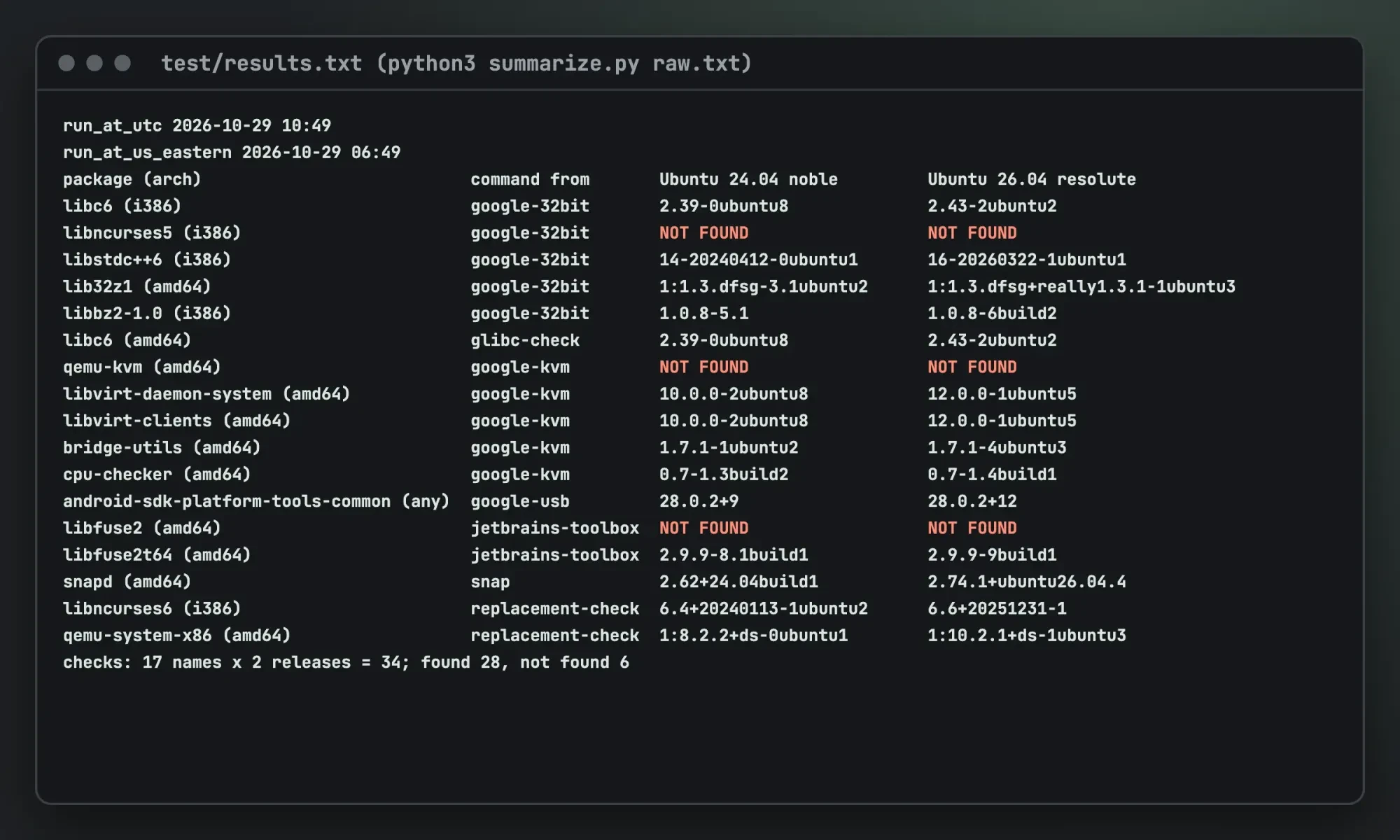 Source: our test output from test/results.txt, shown in a terminal window, October 29, 2026
Add Android Studio through JetBrains Toolbox
That leaves the third route, which suits people who already live in JetBrains IDEs. The Toolbox App page says it's free, and that Google's Android Studio releases and Canary builds can be installed and updated through it. JetBrains' installation guide gives the Linux steps:
tar -xvf jetbrains-toolbox-<version>.tar.gz -C <installation-directory>
cd <installation-directory>
./bin/jetbrains-toolbox
The same guide says the app is packaged as an AppImage that needs FUSE, and its fix is sudo apt install libfuse2. Our archive check found no libfuse2 in 24.04 or 26.04, only libfuse2t64, so on either release ask apt for libfuse2t64 instead of the name in JetBrains' guide. Once Toolbox opens, Android Studio is among the tools it can install and keep updated.
Skip the Java install: the JDK is bundled
Whichever route you took, Java came with it. Google's JDK guide calls the JetBrains Runtime (JBR) an enhanced JDK distributed with Android Studio, and recommends using it to run the IDE. It also says to leave the STUDIO_JDK environment variable unset, since that variable sits first in the search order and would override the bundled runtime on every launch. The startup scripts look for a Java runtime in this order:
- the STUDIO_JDK environment variable
- the studio.jdk folder inside the Android Studio files
- the jbr folder (JetBrains Runtime), which Google recommends
- the JDK_HOME environment variable
- the JAVA_HOME environment variable
- any java on your PATH
So an old JAVA_HOME left over from a Java 8 set-up won't hijack the IDE, because the bundled jbr folder sits ahead of it in that search order. Gradle is where versions still bite. Google's example is that Android Gradle Plugin 8.x requires JDK 17, and the release notes list AGP 7.1 to 9.5 as supported by Rabbit 2. If you're still deciding between Kotlin and Java for the app itself, our guide to programming languages by goal covers that choice.
Run the Setup Wizard and find your SDK
First launch opens the Setup Wizard. Google's install page says you'll choose whether to import old settings, then complete the wizard, which downloads the Android SDK components you need. Let it finish before you open a project. Where does the SDK land? Google's own Linux example on the emulator acceleration page runs the emulator from ~/Android/Sdk, and that's the folder to look in. Many command-line tools read ANDROID_HOME to find the SDK, per Google's environment variables page, so add it to ~/.bashrc:
export ANDROID_HOME=$HOME/Android/Sdk
export PATH=$PATH:$ANDROID_HOME/platform-tools:$ANDROID_HOME/emulator
Open a new terminal afterwards, and adb and emulator will run from any folder.
Inside that folder you'll see platform-tools (where adb lives), emulator, system-images and build-tools. If you add the command-line tools package, Google's sdkmanager page puts the tool at cmdline-tools/latest/bin/sdkmanager, and sdkmanager --list shows what's installed and what's available.
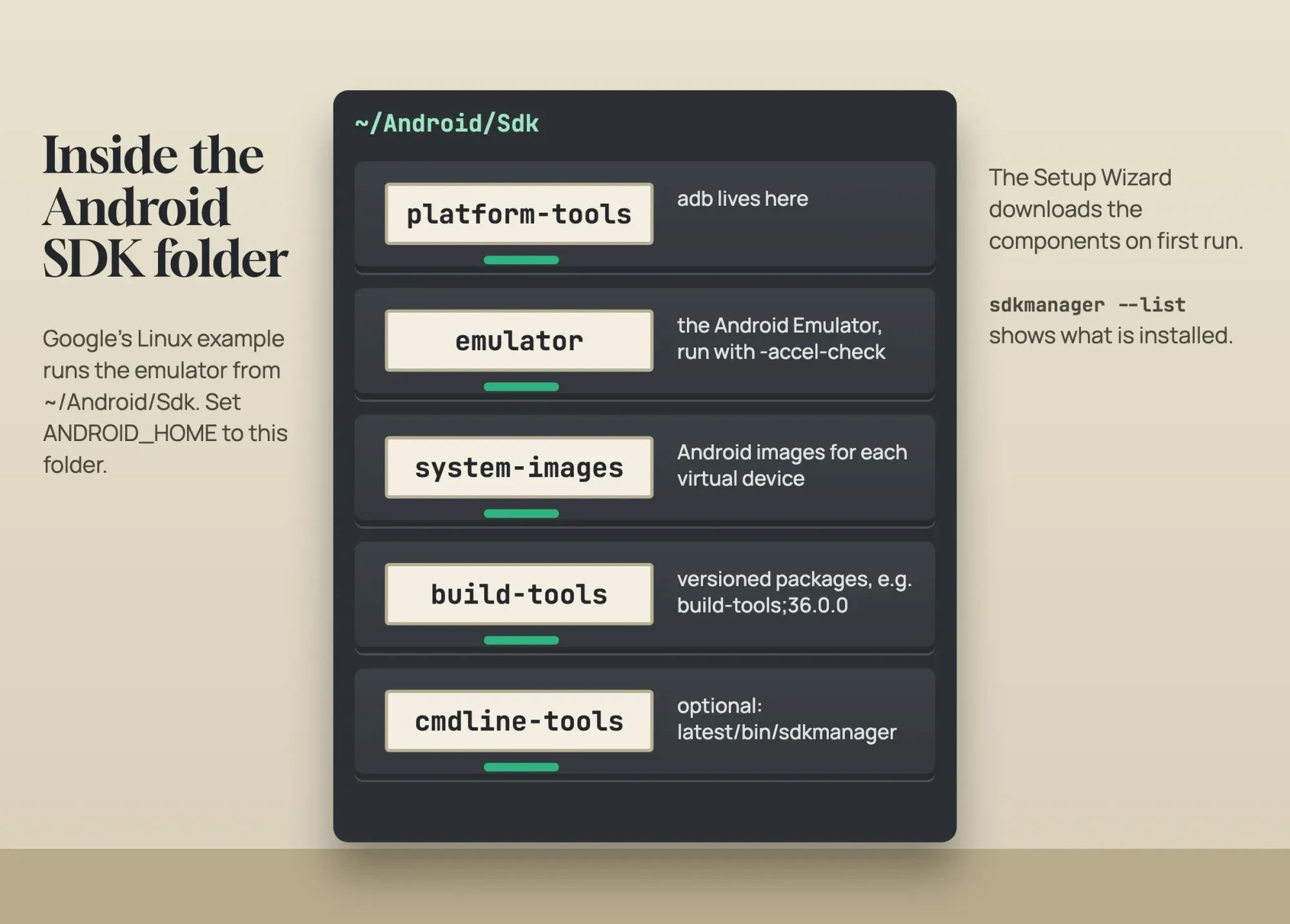 Drawn by us: the SDK folders named in Google’s sdkmanager, emulator and acceleration docs, October 29, 2026
Turn on KVM so the emulator runs at full speed
The emulator is the part of the set-up that depends most on your hardware, and KVM is how Linux speeds it up. Google's acceleration guide says Linux gets VM acceleration through the KVM package. Check the CPU first: an output of 1 or more from the egrep line means hardware virtualization is supported, and 0 means it isn't:
egrep -c '(vmx|svm)' /proc/cpuinfo
sudo apt-get install cpu-checker
sudo kvm-ok
A good kvm-ok result says that /dev/kvm exists and that KVM acceleration can be used. If it says your CPU doesn't support KVM extensions, the emulator still runs, only slower. Ubuntu's libvirt guide notes that many computers need a BIOS option turned on before hardware virtualization works, so check the firmware settings before you reinstall anything.
Next come the packages. Google's line for 18.10 and later is sudo apt-get install qemu-kvm libvirt-daemon-system libvirt-clients bridge-utils. Our archive check found no real package named qemu-kvm in 24.04 or 26.04, but it did find qemu-system-x86, the package that holds the KVM-enabled emulator. Today qemu-kvm is a name that qemu-system-x86 provides, which is why that same Ubuntu guide still uses sudo apt install qemu-kvm libvirt-daemon-system. We didn't run apt ourselves, so if it refuses the name, ask for qemu-system-x86 instead. Our check found it in both releases, at version 8.2.2 on 24.04 and 10.2.1 on 26.04. The other three packages exist in both releases.
Permissions are the last step. Ubuntu's libvirt guide adds your user with sudo adduser $USER libvirt, and its QEMU page notes that running QEMU yourself may need membership in the kvm group. Log out and back in, then ask the emulator itself:
sudo adduser $USER kvm
~/Android/Sdk/emulator/emulator -accel-check
Google's sample output for a working Linux set-up ends with the line that KVM is installed and usable. If you see that, create a virtual device in Device Manager and run your app.
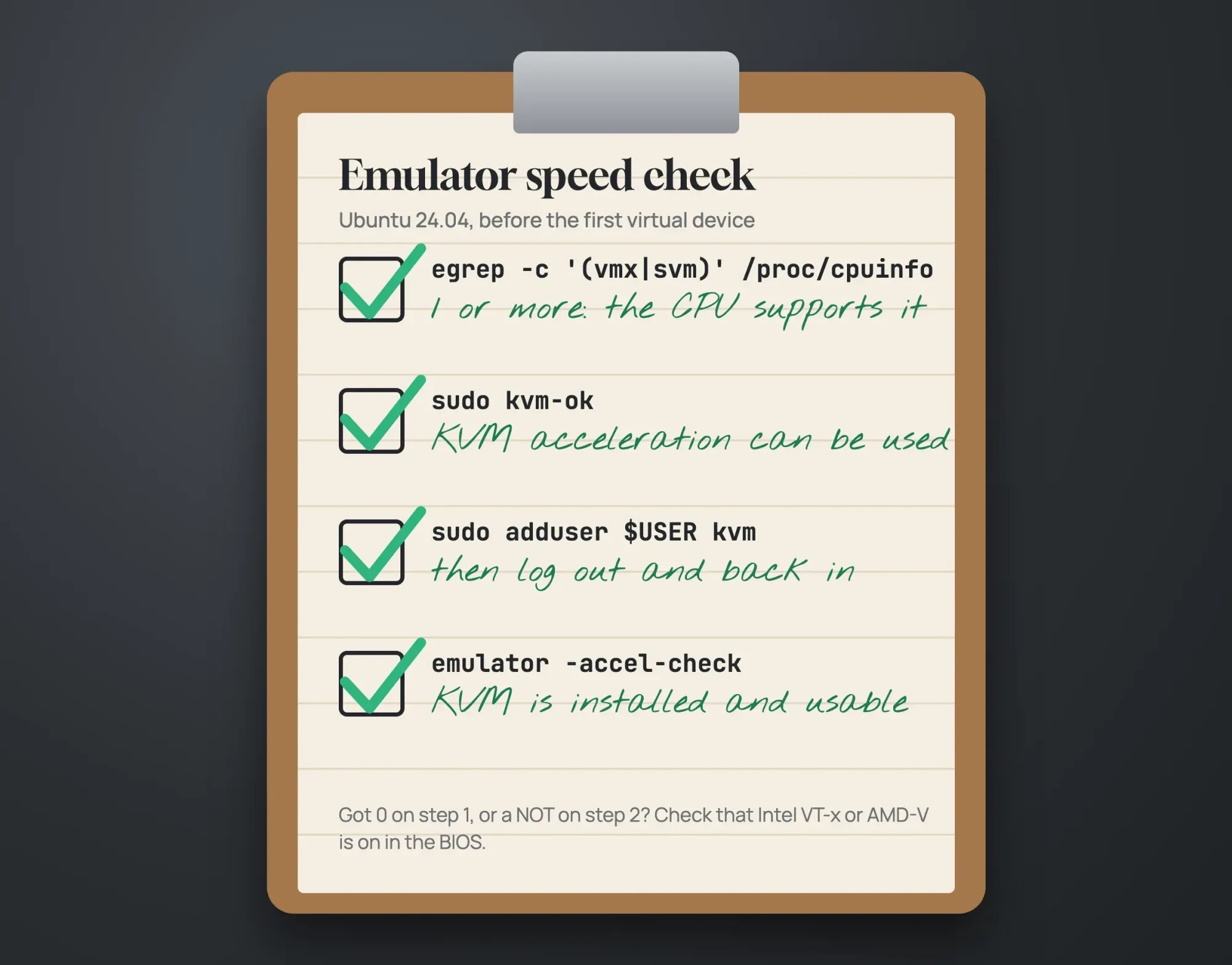 Diagram by DigitalTreed, from Google’s emulator acceleration page and Ubuntu’s QEMU and libvirt docs, October 29, 2026
Let a USB phone talk to adb
A real phone skips the emulator's memory cost, and Ubuntu needs two things for it. Google's hardware device page says each user of adb must be in the plugdev group, and the system needs udev rules that cover the device:
sudo usermod -aG plugdev $LOGNAME
sudo apt-get install android-sdk-platform-tools-common
Groups update only at login, so log out once and back in, then run id and check that plugdev appears in the list of groups it prints. The udev package is community-maintained, and our check found it in the universe section of both 24.04 and 26.04.
Our take: use the snap on a personal 24.04 laptop, drop libncurses5 from Google's 32-bit line, and check KVM before you blame the emulator. Once the app builds, our CI/CD tools comparison shows how to run those builds on every push. If the app talks to a web backend, our web app deployment walk-through covers getting that server live. For the iPhone side, our Flutter vs React Native comparison weighs one codebase for both. Our in-demand tech skills ranking shows where mobile work sits in US job data.
App builds are part of what our web and app design team sells, so this next bit is self-interested. Handing off the whole project makes sense when nobody on staff wants to own a Linux build machine. Get at least two quotes either way.
Frequently asked
Can I install the Android SDK without Android Studio?
Yes. Google's download page offers the command-line tools alone for Linux, a 181.8 MB zip as of October 29, 2026, and you add other SDK packages with sdkmanager.
Which JDK runs Gradle in a new project?
New projects default to GRADLE_LOCAL_JAVA_HOME, which points to the JetBrains Runtime unless you change it, per Google's JDK guide.
How much RAM does the Android emulator need on Linux?
Google's emulator page asks for at least 16 GB of RAM and 16 GB of disk space. It warns that higher API levels and larger screens may need more.
Is there a .deb package of Android Studio for Ubuntu?
Not for Ubuntu. Google's install page offers a DEB package only for ChromeOS, installed with sudo apt install and placed in /opt/android-studio.
How we made this guide: The commands come from Google, Snapcraft, JetBrains and Ubuntu docs, linked inline. From a Mac, we read the Snap Store listing twice and checked 17 package names in Ubuntu's archive. Nothing was installed. Facts checked by the DigitalTreed team on October 29, 2026.
First published August 2020. Rewritten October 29, 2026 for Ubuntu 24.04, replacing the old Java 8 and PPA steps.
Sources
- Android Developers: Install Android Studio
- Android Developers: Download Android Studio
- Android Developers: Android Studio release notes
- Android Developers: Java versions in Android builds
- Android Developers: Configure hardware acceleration for the Android Emulator
- Android Developers: Run apps on the Android Emulator
- Android Developers: Run apps on a hardware device
- Android Developers: sdkmanager
- Android Developers: Environment variables
- Android Developers: Create and manage virtual devices
- Android Developers: Known issues with Android Studio
- Snap Store: Android Studio
- Snapcrafters: android-studio snapcraft.yaml
- Snapcraft docs: Snap confinement
- Snapcraft docs: Channels and tracks
- Snapcraft docs: Manage updates
- JetBrains: Toolbox App
- JetBrains: Toolbox App installation
- Ubuntu Wiki: Releases
- Ubuntu: Release cycle
- Ubuntu Server docs: Libvirt
- Ubuntu Server docs: QEMU
- Canonical: madison archive tool


Comments
No comments yet. Start the conversation below.