
Quick answer
getUserMedia is the browser's camera API. Call navigator.mediaDevices.getUserMedia({ video: true }) on an HTTPS or localhost page, and once the visitor allows it, you get a live stream for a video element. Draw a frame on a canvas for the photo and upload it with fetch(). We ran every sample in Chrome 155.
That's the whole camera API in JavaScript. There's no camera endpoint to call with GET or POST, and no server to install first. The getUserMedia() method on MDN is a plain JavaScript call that asks permission and hands back a stream.
We built the page below and ran it on October 25, 2026, with Chrome's fake camera. A real webcam was never switched on.
Key takeaways
- getUserMedia is a JavaScript method, not an HTTP camera endpoint.
- It only works on HTTPS pages, localhost and local files.
- Ask for ideal sizes, because exact, min and max can throw OverconstrainedError.
- Copy a frame to a canvas, call toBlob, then POST it with FormData.
- Call stop() on every track, then run your clean-up code yourself.
The camera API is getUserMedia, not an HTTP request
So where does HTTP come in? Only at the end. getUserMedia is a JavaScript method that opens a camera or microphone after the visitor says yes and returns a MediaStream, as the W3C's Media Capture and Streams specification defines it.
The HTTP request shows up once you've got a photo to send. That's a normal fetch() POST to your own server, like any form upload.
Keep the two jobs apart and most old tutorials stop being confusing.
Browser support is wide. MDN's compatibility data lists getUserMedia in Chrome 53, Firefox 36 and Safari 11, and phones follow their desktop versions.
Old code may still call navigator.getUserMedia or webkitGetUserMedia. Swap both for navigator.mediaDevices.getUserMedia.
A tested page that previews, snaps and uploads
Here's the page we ran: a live preview, a photo button, an upload and an off switch, in two files.
<!doctype html>
<html lang="en">
<head>
  <meta charset="utf-8">
  <meta name="viewport" content="width=device-width, initial-scale=1">
  <title>Camera test</title>
  <style>body{font:16px system-ui;margin:16px}video,canvas{width:320px;background:#111;border-radius:6px}</style>
</head>
<body>
  <video id="preview" autoplay playsinline muted></video>
  <canvas id="photo" hidden></canvas>
  <p>
    <button id="start">Start camera</button>
    <button id="snap" disabled>Take photo</button>
    <button id="stop" disabled>Stop camera</button>
  </p>
  <p id="status"></p>
  <script src="camera.js"></script>
</body>
</html>
The script does the work. If async and await are new to you, our JavaScript tutorial for beginners walks through them. Our HTML tutorial explains the page skeleton.
const video = document.getElementById('preview');
const canvas = document.getElementById('photo');
const status = document.getElementById('status');
const buttons = {
  start: document.getElementById('start'),
  snap: document.getElementById('snap'),
  stop: document.getElementById('stop'),
};
let stream = null;

function explain(err) {
  switch (err.name) {
    case 'NotAllowedError':
      return 'Camera blocked. Allow it in the address bar, then try again.';
    case 'NotFoundError':
      return 'No camera found on this device.';
    case 'NotReadableError':
      return 'The camera is busy in another app or tab.';
    case 'OverconstrainedError':
      return `No camera matches the ${err.constraint} you asked for.`;
    default:
      return `Camera error: ${err.name}`;
  }
}

async function startCamera() {
  if (!navigator.mediaDevices?.getUserMedia) {
    status.textContent = 'This page needs HTTPS (or localhost) to use the camera.';
    return;
  }
  try {
    stream = await navigator.mediaDevices.getUserMedia({
      video: {
        facingMode: 'user',
        width: { ideal: 1280 },
        height: { ideal: 720 },
      },
      audio: false,
    });
    video.srcObject = stream;
    buttons.snap.disabled = false;
    buttons.stop.disabled = false;
    const { width, height } = stream.getVideoTracks()[0].getSettings();
    status.textContent = `Camera on: ${width} x ${height}`;
  } catch (err) {
    status.textContent = explain(err);
  }
}

async function takePhoto() {
  canvas.width = video.videoWidth;
  canvas.height = video.videoHeight;
  canvas.getContext('2d').drawImage(video, 0, 0);
  const blob = await new Promise((resolve) =>
    canvas.toBlob(resolve, 'image/jpeg', 0.9)
  );
  const form = new FormData();
  form.append('photo', blob, 'photo.jpg');
  const res = await fetch('/upload', { method: 'POST', body: form });
  if (!res.ok) {
    status.textContent = `Upload failed: HTTP ${res.status}`;
    return;
  }
  status.textContent = `Uploaded ${blob.size} bytes (HTTP ${res.status})`;
}

function stopCamera() {
  if (stream) stream.getTracks().forEach((track) => track.stop());
  video.srcObject = null;
  stream = null;
  buttons.snap.disabled = true;
  buttons.stop.disabled = true;
  status.textContent = 'Camera off.';
}

buttons.start.addEventListener('click', startCamera);
buttons.snap.addEventListener('click', takePhoto);
buttons.stop.addEventListener('click', stopCamera);
We served both files from Python's built-in web server on localhost and drove headless Chrome 155.0.8059.85 with its fake camera flags. A click on Start camera printed "Camera on: 1280 x 720". Take photo sent the frame to our test server, which answered HTTP 201, and the page printed "Uploaded 15226 bytes (HTTP 201)". Stop camera ended the track. Then we broke the page on purpose, one failure at a time, and wrote down every error name and message Chrome gave back, which is where the table further down comes from.
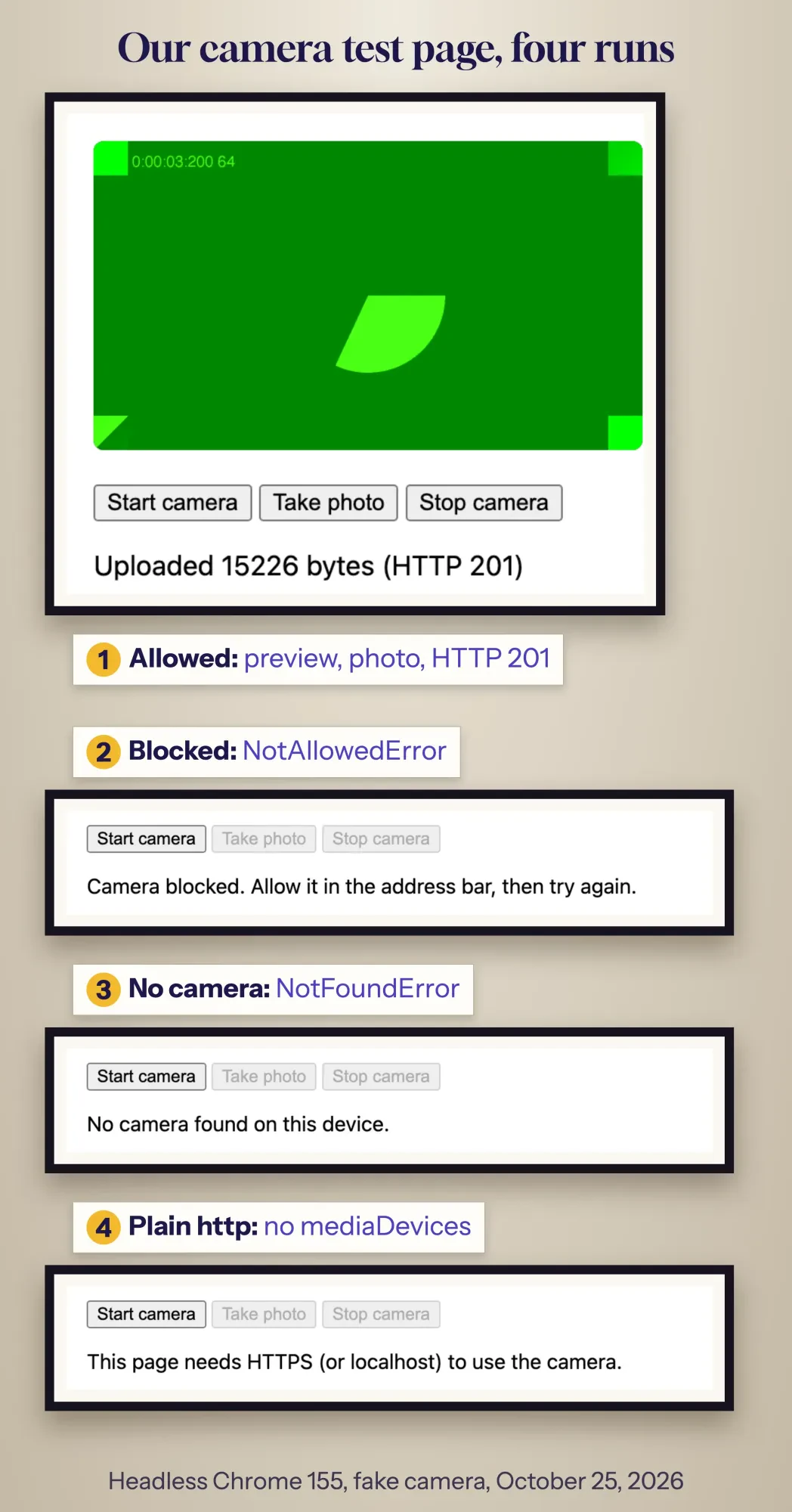 Screenshot: our test page in headless Chrome 155 with Chrome’s fake camera, captured October 25, 2026 on a Mac; four runs stacked, labels by DigitalTreed; run 1 is cropped to the live preview.
Each failure gets its fix below, starting with the one that breaks the most pages.
Why does getUserMedia need HTTPS or localhost?
The rule that breaks most camera pages is the secure context. getUserMedia only works in secure contexts: HTTPS pages, localhost and local files.
Anywhere else, navigator.mediaDevices isn't there.
That's by design. The spec marks the property SecureContext, so the browser never creates it on plain http.
We checked what that looks like. We pointed a made-up host name at our own machine and loaded the page over plain http. Chrome reported isSecureContext false and threw "TypeError: Cannot read properties of undefined (reading 'getUserMedia')".
Note the name: TypeError, not NotAllowedError.
MDN's NotAllowedError entry also mentions insecure pages, but its TypeError entry matches what Chrome did, so check for the missing property first.
This bites hardest on phones.
Open http://192.168.1.20:8000 on an iPhone to test, and the camera never appears, because that address isn't localhost.
Two fixes work while you build. Google's web.dev recommends running your local site on HTTPS with mkcert, a small tool that makes a certificate your own browser trusts for https://localhost or a custom local host name. For a quick look in Chrome only, the --unsafely-treat-insecure-origin-as-secure flag made our mapped host work in a throwaway profile.
Never ask customers to use that flag.
On the live site, the certificate has to be valid, not just present. Run your domain through our free SSL checker after launch and after each renewal; our post on why a business site needs SSL explains what else HTTPS protects.
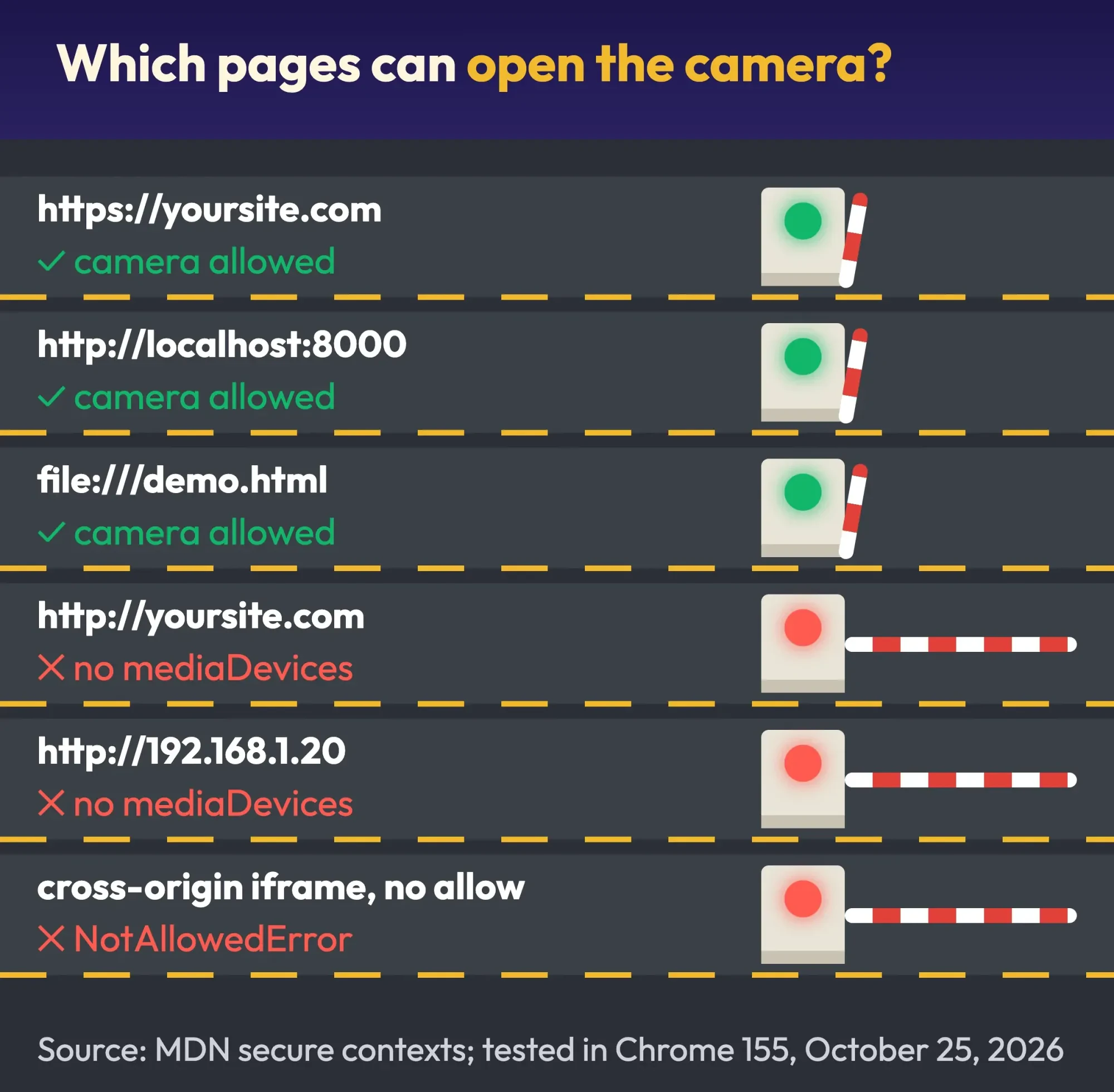 Diagram by DigitalTreed from MDN’s secure contexts page and our Chrome 155 test, October 25, 2026.
Ask for an ideal size, because exact sizes fail
Once the page is secure, the next surprise is the picture size. A plain value or ideal is a wish, while exact, min and max are demands that end in OverconstrainedError when no camera can meet them.
That error can fire before the visitor even sees a prompt.
Our fake camera showed both sides.
With no size at all, it gave 640 x 480 at 20 frames a second. An ideal 1280 x 720 gave exactly that, and an ideal 1920 x 1080 gave full HD.
Even an ideal width of 9999 worked: Chrome picked the closest mode, 3840 x 2160.
Change ideal to exact and it's a different story. An exact width of 9999, or a minimum of 5000, threw OverconstrainedError with its constraint property set to "width" and an empty message.
So ask for ideal values, then read what you got with getSettings(), as camera.js does.
Front or back camera: facingMode is a preference unless you say exact
Choosing a camera follows the same rule. The facingMode constraint takes "user" for the front, selfie camera and "environment" for the rear one.
As a plain value it's only a preference, so a laptop with one webcam still opens it.
Wrap it in exact and you've made it a demand. On our one-camera setup, { facingMode: { exact: "environment" } } failed with OverconstrainedError and constraint "facingMode", which is what a desktop visitor with one webcam is likely to hit.
To switch cameras on a phone, stop the current tracks and ask again. We tested this function on our demo page:
async function switchCamera(facing) {
  if (stream) stream.getTracks().forEach((track) => track.stop());
  stream = await navigator.mediaDevices.getUserMedia({
    video: { facingMode: facing }, // 'user' or 'environment'
  });
  video.srcObject = stream;
}
Want a camera dropdown instead? enumerateDevices() lists every device. Keep the ones whose kind is "videoinput" with filter(), as our guide to removing items from a JavaScript array shows.
Ask for permission first, though.
Before it, Chrome gave us one entry per device type with an empty label and an empty deviceId.
Take the photo with a canvas and toBlob
With the right camera on screen, a photo is one frame copied onto a canvas. Set the canvas to the video's videoWidth and videoHeight, call drawImage(video, 0, 0), then turn the canvas into a file. MDN's still photo tutorial uses the same drawImage step.
Pick toBlob() over toDataURL().
A Blob is a real file you can upload, while a data URL is a text string about a third bigger. MDN notes that browsers must support PNG, that many add JPEG and WebP, and that an unsupported type falls back to PNG.
Here's what one 1280 x 720 frame of Chrome's test pattern weighed in our run:
- JPEG at quality 0.9: 19,149 bytes
- PNG: 29,289 bytes
- WebP at quality 0.9: 9,682 bytes
- the same JPEG as a data URL: 25,555 characters
A real photo with detail will be bigger, since our test pattern is mostly flat green.
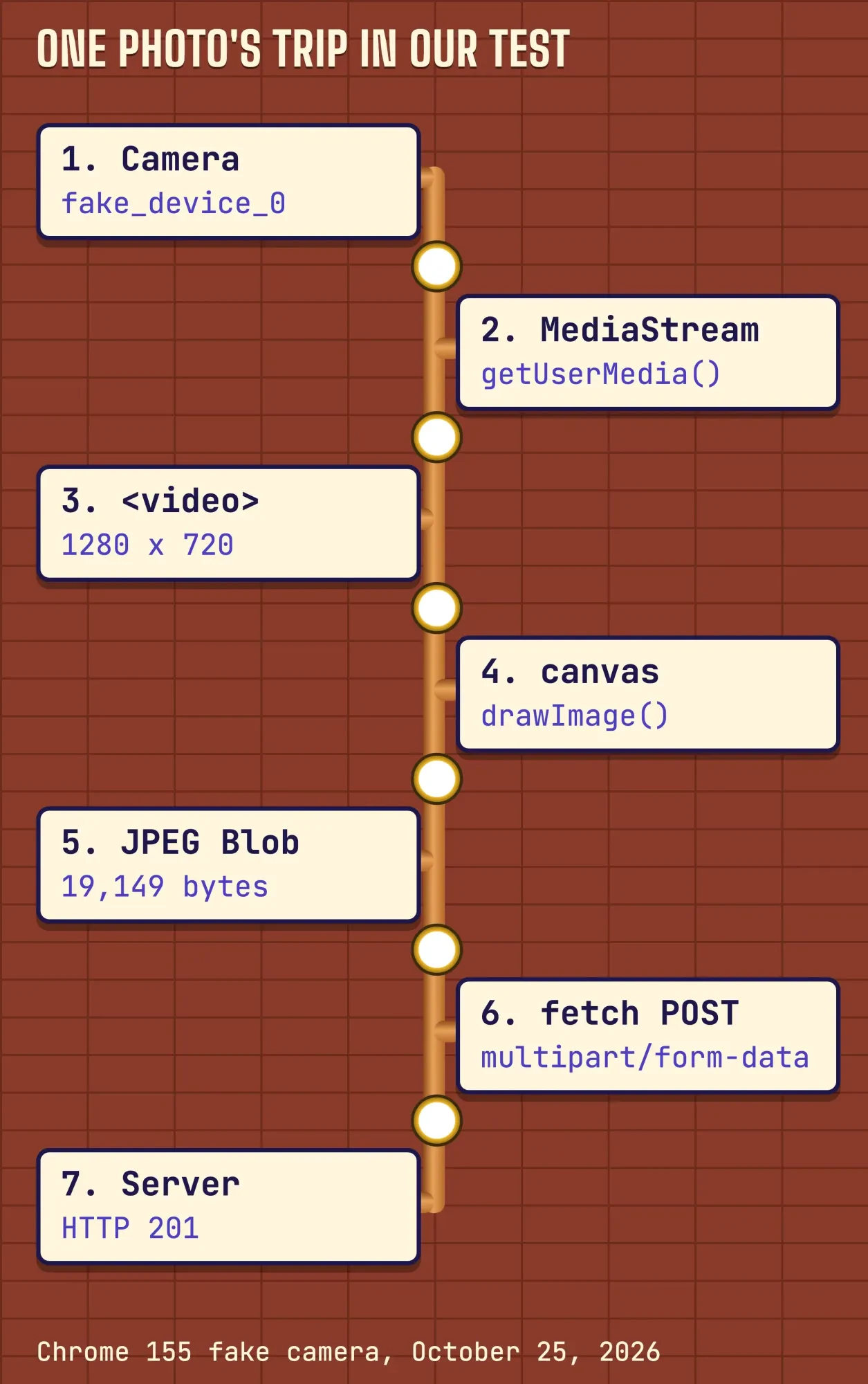 Diagram by DigitalTreed of our Chrome 155 test run, October 25, 2026; sizes are from Chrome’s fake camera test pattern.
There's also an ImageCapture API with a takePhoto() method, but support is patchier. The canvas route works wherever getUserMedia does, so it's the one we use.
Send it to your server with fetch and FormData
Now the HTTP part. Put the Blob in a FormData object and pass it as the body of a fetch() POST; MDN's Using Fetch guide lists both FormData and Blob as bodies fetch accepts.
Don't set the Content-Type header yourself.
The Fetch standard has the browser write the multipart/form-data type and its boundary. A hand-written header loses that boundary, and the server can't split the parts.
Our test server logged exactly what arrived: a multipart/form-data request with a boundary starting ----WebKitFormBoundary and one part named "photo". It was photo.jpg, type image/jpeg, 15,226 bytes (a different frame from the size test above), opening with the bytes FF D8 FF that start every JPEG. PHP, Node or any other back end sees it as a normal file upload.
That's where people lose an afternoon: uploading to a different origin.
We posted a small FormData upload with a 308-byte test JPEG from localhost to 127.0.0.1, which counts as another origin, at a server that sent no CORS headers. Our server log shows the upload arrived. The page still can't read the reply. Under the Fetch standard, a response without an Access-Control-Allow-Origin header fails the CORS check. The browser treats that as a network error, and fetch() rejects with a TypeError. So don't trust the page's error alone: check the server log, and send that header before your script needs the answer.
Sending the raw Blob with Content-Type: image/jpeg is worse across origins. Only three form types are CORS-safelisted, so image/jpeg triggers a preflight request first.
In our test that preflight failed, and the photo didn't reach the server.
Two more snags we see a lot. If you split camera.js into modules and the console complains, our fix for "Cannot use import statement outside a module" has the script-tag rule. And if visitors keep running yesterday's camera.js after a deploy, our guide to location.reload(true) and stale files shows how to change the file's URL.
Turn the camera off with track.stop()
After the upload, give the camera back. Call stop() on every track and clear the video's srcObject, as the stopCamera() function does.
In our run, each track's readyState turned "ended" and the stream's active flag went false at once.
One trap: stop() doesn't fire the track's ended event.
MDN says so, and our listener stayed silent.
So run your clean-up code yourself right after stop(), instead of waiting for an event that never comes, or the camera button and status line will stay stuck in the wrong state.
The camera light can stay on while any other tab still holds a track, so check those too.
Error names and the messages Chrome 155 gave us
Even a perfect page will fail for some visitors, so branch on err.name, never on the message. Messages differ by browser, and some were empty in our test. Here's every failure we produced in Chrome 155.0.8059.85.
| Error name | How we caused it | Message Chrome showed | What to tell the visitor |
|---|---|---|---|
| NotAllowedError | Permission refused (no fake UI, and with --deny-permission-prompts) | Permission denied | Allow the camera from the address bar, then retry |
| NotAllowedError | Cross-origin iframe without allow="camera"; page header Permissions-Policy: camera=() | Permission denied | Site setup issue: fix the iframe or header |
| NotFoundError | No camera (--use-fake-device-for-media-stream=device-count=0) | Requested device not found | No camera found on this device |
| OverconstrainedError | exact width 9999, exact facingMode "environment", unknown deviceId | (empty); constraint = width, facingMode or deviceId | Retry with ideal values |
| TypeError | getUserMedia({}) with no audio or video | Failed to execute 'getUserMedia' on 'MediaDevices': At least one of audio and video must be requested | Code bug: ask for video |
| TypeError | Plain http page on a non-local host | Cannot read properties of undefined (reading 'getUserMedia') | Serve the page over HTTPS |
| NotReadableError | Not reproduced (needs a real camera in use) | not tested | Close other apps using the camera |
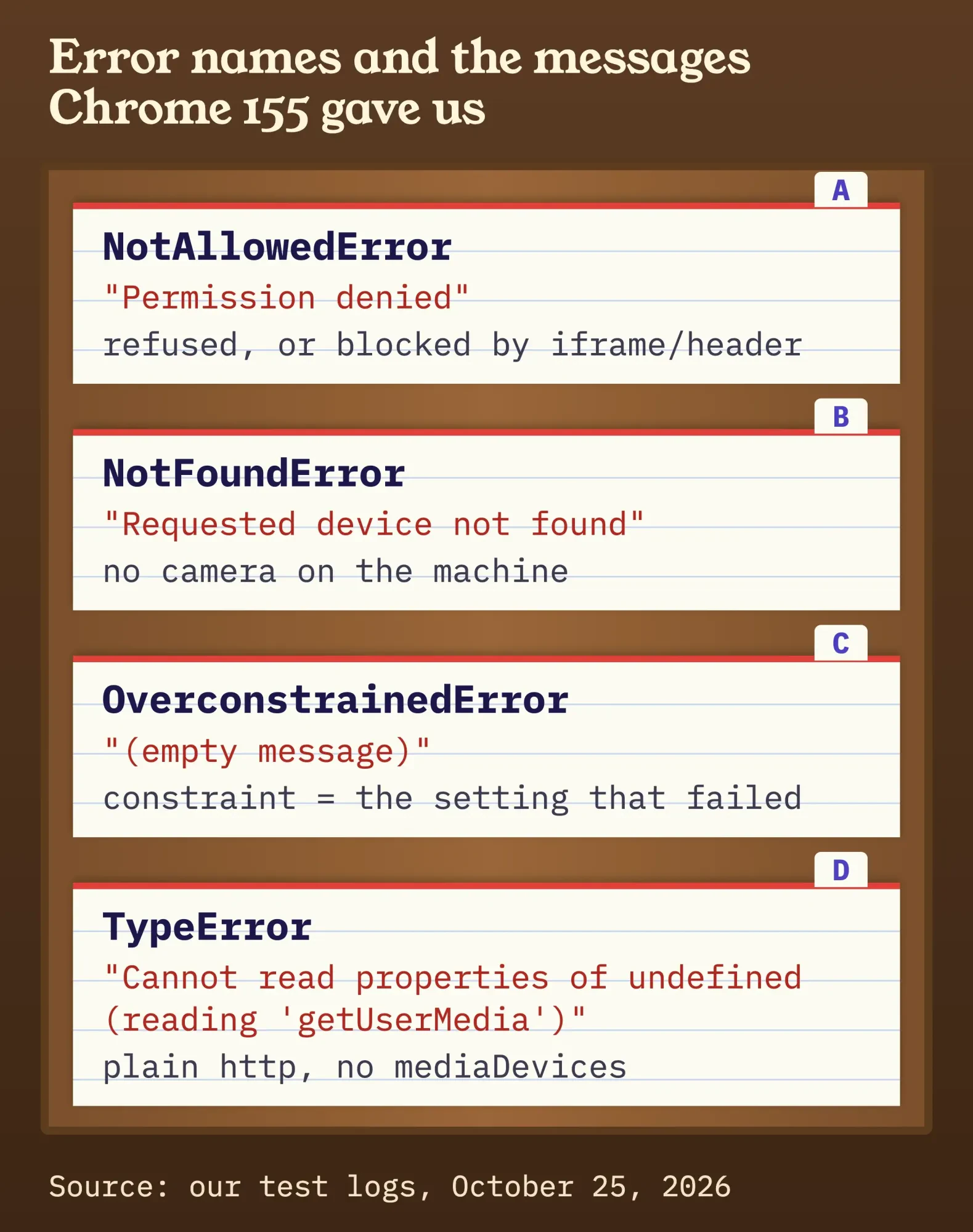 Diagram by DigitalTreed from our Chrome 155 test logs, October 25, 2026.
NotReadableError is the one we couldn't reproduce safely. MDN describes it as a hardware error at the operating system, browser, or page level after permission was granted. Addpipe, a video-recording vendor, writes that it shows up most on Windows when another app already holds the webcam.
The iframe rows matter if your camera page sits inside another site, such as a booking widget. A cross-origin iframe needs allow="camera", and the Permissions-Policy camera directive defaults to self.
You can check what your server sends with our HTTP header checker. The other headers worth checking at launch are in the security chapter of our website build guide.
When a visitor has blocked the camera, send them to the right switch. Chrome's help puts it under Settings > Privacy and security > Site settings > Camera.
On a Mac, macOS can also block Chrome as a whole until the camera is turned on for it in System Settings.
On phones, add playsinline or use a file input
Phones add one rule for the preview. On iPhone, WebKit says a video without playsinline requires fullscreen mode for playback, so the preview jumps fullscreen or seems stuck.
MDN's autoplay guide calls the attribute required for autoplay in Safari. That's why our video tag carries autoplay playsinline muted.
Muted is safe everywhere: Chrome's policy says muted autoplay is always allowed.
Sometimes you don't need a live preview at all.
A file input with the capture attribute opens the phone's own camera app and returns a file. MDN's data lists support in Safari on iOS 10 and Chrome on Android 25, while desktop browsers ignore it and show a normal file picker.
<input type="file" name="photo" accept="image/*" capture="environment">Example: Bluestem Tree Care, a made-up tree service in Grand Junction, Colorado, wants a photo of the leaning tree with each quote request. On phones, the file input above is enough and needs no camera code. On desktops, the getUserMedia page lets someone at a laptop use the webcam. Both send the same multipart upload, so the server code doesn't change.
Test it without a camera
You don't need a webcam to test any of this, even in CI. The WebRTC project's testing page lists the two Chrome flags we used: one feeds a test pattern instead of a live camera, and the other skips the permission prompt.
Chromium's own source describes the first as a fake device to "replace actual camera and microphone".
Use a separate profile so your everyday browser keeps its real settings. On a Mac, this is the command shape we used:
"/Applications/Google Chrome.app/Contents/MacOS/Google Chrome" \
  --user-data-dir=/tmp/camtest-profile \
  --use-fake-device-for-media-stream \
  --use-fake-ui-for-media-stream \
  http://localhost:8765/demo.html
Drop the fake UI flag to test the blocked case.
For a computer with no camera, add =device-count=0 to the fake device flag. That gave us NotFoundError.
You'll know the page works when four things are true:
- The status line shows real dimensions from getSettings().
- Your server log shows a multipart request with a part named photo and a JPEG that starts FF D8 FF.
- After Stop camera, every track reads "ended" and, on a real webcam, the light goes off.
- Each error in the table shows your own message, not a blank screen.
Safari keeps its version in a menu rather than a flag. WebKit's 2017 notes describe a "Use Mock Capture Devices" option in Develop > WebRTC, next to "Allow Media Capture on Insecure Sites".
We didn't test Safari or Firefox for this guide, so try the page on a real iPhone before launch.
When to hand it to a developer
A camera button is a small feature until it touches money or private data.
Then the upload needs size limits, file-type checks on the server, storage rules and a privacy note that tells customers what you keep and for how long, and someone has to watch the error log after launch.
Our take: if all you need is "send us a photo with your quote request", start with the file input. Add the live camera only when people really use it on laptops.
Want it built and tested for you? Our developers build upload features like this for small-business sites. It's our own paid service, so weigh it against doing it yourself from the code above, and use the quote form if you'd like a price.
Frequently asked
Can a website turn on my camera without asking?
No. The specification requires permission before any camera opens, and MDN notes browsers must show an indicator that a camera is in use, beyond any hardware light. Without a yes, the page gets NotAllowedError.
Does getUserMedia work in Safari on iPhone?
Yes, since iOS 11, when WebKit added WebRTC to Safari 11. The page must be on HTTPS, and the video tag needs playsinline. We didn't test an iPhone for this guide.
How we made this guide: on October 25, 2026, we wrote the two files above and ran them on a Mac in headless Chrome 155.0.8059.85, with Chrome’s fake camera and a throwaway profile. Every result, size and error message here comes from those runs, and the raw logs sit with the article files. We didn’t test Safari, Firefox, a real webcam or a phone. Facts from MDN, the W3C, WHATWG and WebKit link to their source in the text. Before publication, Eram N. checks and signs off on this rewrite.
First published January 2024. Rewritten October 25, 2026: the old post described the camera API as a set of HTTP methods and had no code. It's now a tested how-to with a working page, HTTPS and permission rules, front and back cameras, photo capture, upload with fetch, error messages and phone notes.
Sources
- MDN: MediaDevices getUserMedia() method
- W3C: Media Capture and Streams (Candidate Recommendation Draft, October 9, 2025)
- MDN: Secure contexts
- MDN browser-compat-data: MediaDevices
- MDN: facingMode constraint
- MDN: enumerateDevices()
- MDN: Taking still photos with getUserMedia()
- MDN: HTMLCanvasElement toBlob()
- MDN: ImageCapture
- MDN: Using the Fetch API
- WHATWG Fetch Standard: extracting a body
- WHATWG Fetch Standard: CORS-safelisted request-header
- MDN: MediaStreamTrack stop()
- MDN: HTMLMediaElement srcObject
- MDN: Permissions-Policy camera
- Google Chrome Help: Use your camera and microphone in Chrome
- Addpipe blog: Common getUserMedia() errors (vendor)
- WebKit blog: New video policies for iOS (2016)
- MDN: Autoplay guide for media and Web Audio APIs
- Chrome for Developers: Autoplay policy in Chrome
- MDN: HTML capture attribute
- MDN browser-compat-data: input element
- web.dev: How to use HTTPS for local development
- WebRTC project: Testing
- Chromium source: media_switches.cc
- WebKit blog: A closer look into WebRTC (2017)


Comments
No comments yet. Start the conversation below.