
Quick answer
JavaScript is the language that makes a web page react, like a button that works or a total that updates. You need only Chrome and a plain text editor. Open the console with Cmd + Option + J (Ctrl + Shift + J on Windows), then link one script file to a page. Skip old samples that use document.write.
This JavaScript tutorial for beginners is the first hour we'd give a friend who runs a small business or wants to learn to code. You'll run a line in the browser, put one script on a real page, and meet the four ideas behind nearly every small script: variables, functions, events and the console.
We ran every sample here ourselves on October 25, 2026, in Node.js v26.10.0 and Google Chrome 155 on a Mac.
So the outputs and error messages below come from that run, not from another tutorial.
Our running Example is a made-up shop, Prairie Stitch Upholstery in Topeka, Kansas. It wants one small feature on its site: type how many dining chairs you have, click, and see a rough price.
Key takeaways
- You need only Chrome and a plain text editor to start.
- Open Chrome's console with Cmd+Option+J on a Mac or Ctrl+Shift+J on Windows.
- Start with const, and switch to let only when the value changes.
- Wrap a typed value in Number() before doing any math with it.
- When the button does nothing, read the red text in the console first.
JavaScript is the part of a web page that reacts
JavaScript is a programming language that runs inside every major web browser and makes pages respond to what you do. MDN Web Docs, the reference most web developers use, calls it "the third layer of the layer cake of standard web technologies," after HTML and CSS.
Here's the everyday picture. HTML is the content of the upholstery shop's page: the heading, the number box and the button. CSS is the paint, meaning fonts, colors and spacing. JavaScript is the behavior. When someone clicks Show my estimate, a few lines of JavaScript read the box, do the math and write the answer onto the page, without loading a new one.
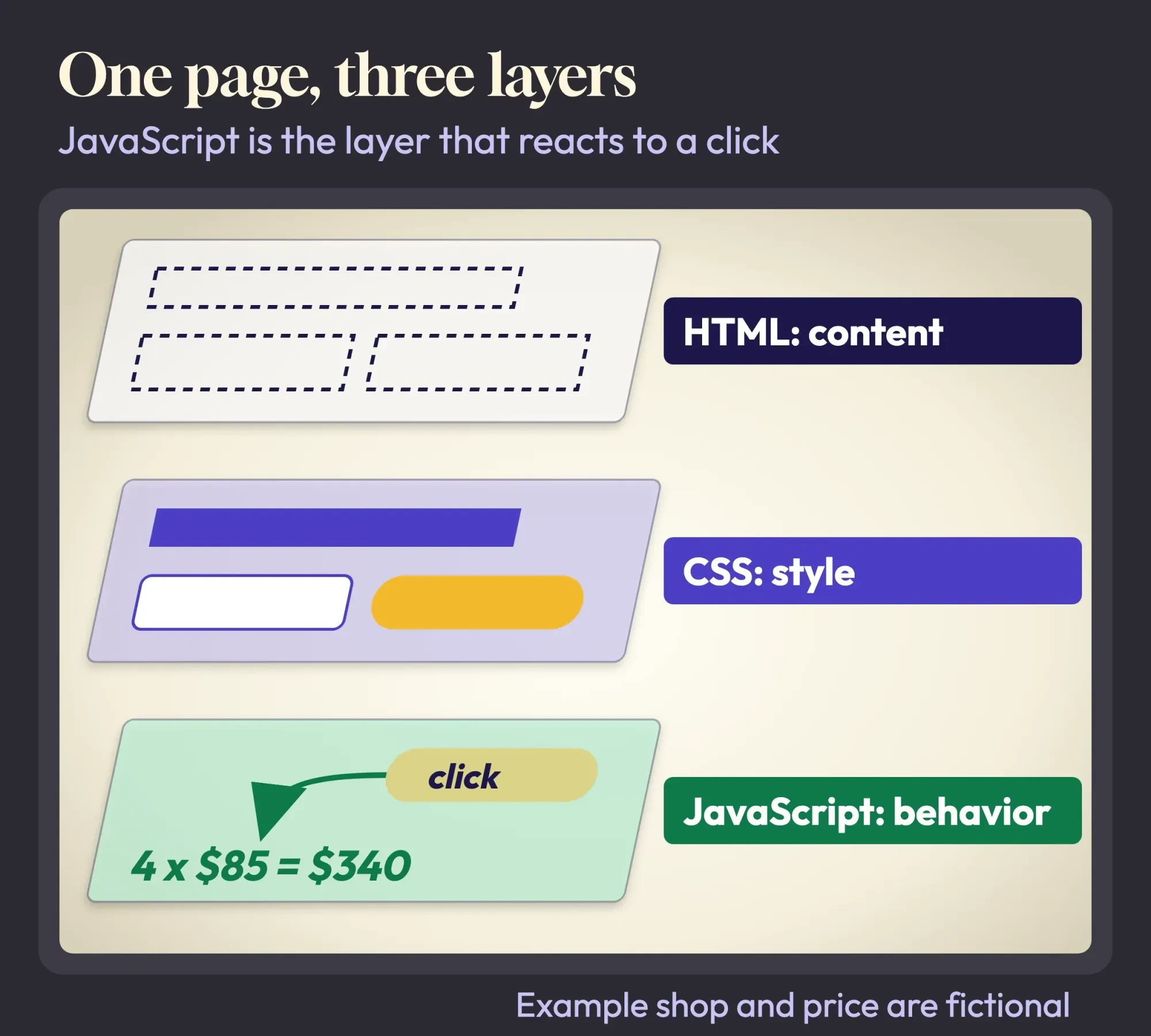 Diagram by DigitalTreed: the three layers of one web page, using our fictional Example shop. Layer idea from MDN Web Docs.
The name trips people up, so let's settle it once. JavaScript isn't Java. Google's web.dev course says JavaScript "is only related to Java in that the two share a few syntactic similarities." It first shipped under the name "LiveScript" in a 1995 beta of Netscape Navigator.
The language's official standard is called ECMAScript. The current edition is ECMAScript 2026, the 17th edition of ECMA-262, and a new edition has come out every year since 2015. You don't need to read the standard to learn. It matters only when two tutorials disagree, because the newer one is usually following a newer edition.
You'll also run into it everywhere. In the Stack Overflow Developer Survey 2026, 62% of the 14,099 people who answered said they'd done extensive work in JavaScript in the past year, the top answer for the 12th year in a row. W3Techs, a company that surveys websites daily, reports JavaScript on 98.9% of the sites it tracks (vendor data, as of October 25, 2026).
So if your website does anything when you click, JavaScript is almost certainly why.
Open the console and run your first line
Theory only goes so far, and the fastest way past it is to type something. Every desktop browser has a console, a panel where you type a line of JavaScript and see the result straight away.
There's nothing to install and nothing to sign up for.
In Chrome, press Cmd + Option + J on a Mac or Ctrl + Shift + J on Windows. Those shortcuts come from Google's Chrome DevTools documentation, and they open the Console panel directly. Click the line at the bottom, type 2 + 2 and press Enter.
You'll get 4. We did too, and that's your first line of JavaScript.
Then try a message. Type console.log("Hello from Topeka") and press Enter, and the text appears in the panel. That one command, console.log, is how you'll check your work for years.
To type more than one line, hold Shift while you press Enter. MDN’s introduction to the JavaScript guide adds that an unfinished line, such as one ending in an open curly brace, also makes Enter start a new line instead of running the code.
Treat the console as a scratchpad, though. Close the tab and your code is gone.
You'll see Node.js in plenty of tutorials too. Node.js is "an open-source and cross-platform JavaScript runtime environment" that runs Chrome's V8 engine outside the browser, so the same language can run on a server or your own computer. We used it to double-check every sample that doesn't need a web page, but you don't need it for this guide. Chrome is enough.
Build a first page with a text editor and one script file
Now make it stick. A real website keeps its JavaScript in a file, and the page loads that file with a script tag. Any plain text editor works: TextEdit on a Mac (choose Format, then Make Plain Text), Notepad on Windows, or a free code editor. Our roundup of free HTML editors compares a few.
- Make a folder called first-script on your desktop.
- Save the HTML below in it as index.html.
- Save the JavaScript below that as script.js, in the same folder.
- Double-click index.html. It opens in your browser.
- Open the console (Cmd + Option + J, or Ctrl + Shift + J) to see what the script logged.
Here's the page. If HTML is new to you, our HTML tutorial for beginners explains every tag in it.
<!DOCTYPE html>
<html lang="en">
<head>
  <meta charset="utf-8">
  <title>My first script</title>
</head>
<body>
  <h1>Prairie Stitch Upholstery</h1>
  <label for="chairs">How many dining chairs?</label>
  <input id="chairs" type="number" value="4" min="1">
  <button id="quote">Show my estimate</button>
  <p id="result"></p>

  <script src="script.js"></script>
</body>
</html>
And here's script.js. Don't worry about every line yet; the next three sections take it apart.
const pricePerChair = 85;
let clicks = 0;
function estimate(chairs) {
return chairs * pricePerChair;
}
const button = document.querySelector("#quote");
button.addEventListener("click", function () {
clicks = clicks + 1;
const chairs = Number(document.querySelector("#chairs").value);
const total = estimate(chairs);
document.querySelector("#result").textContent =
chairs + " chairs: about $" + total;
console.log("Button clicked", clicks, "times. Total:", total);
});
console.log("script.js loaded");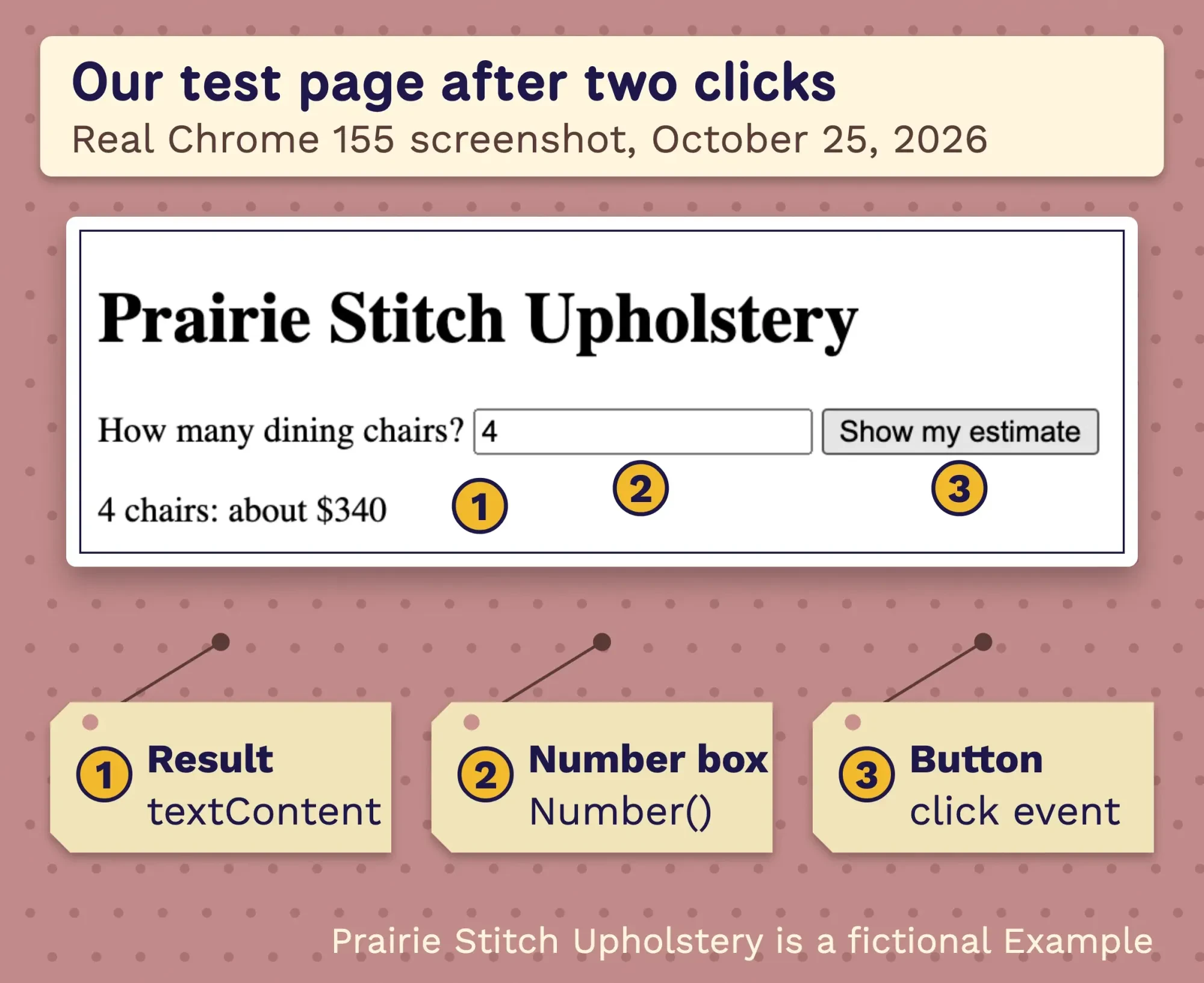 Screenshot: our test page in Chrome 155 after two clicks, October 25, 2026. Prairie Stitch Upholstery is a fictional Example and $85 a chair is a made-up price.
That's our page after two clicks. The console showed three lines: script.js loaded, then one line per click with the total, 340.
Notice where the script tag sits: at the very end of the body, after the button. That's on purpose. The browser reads a page from top to bottom and runs a script as soon as it reaches it, so the button has to exist first. If you'd rather keep scripts in the head, add defer to the tag that loads script.js. It does nothing on code written inside the tag itself. MDN’s page on the script element says a deferred script is meant to run "after the document has been parsed." We tried both versions, and both gave the same result.
One warning before you copy samples from older tutorials, including the first version of this page. Many still print with document.write(), and MDN’s reference now says its use "is strongly discouraged." Called after a page has loaded, it can clear the whole page. Use console.log to check values and textContent to put text on the page, as our script does.
Try three small changes, saving and reloading (Cmd + R or Ctrl + R) after each. Change 85 to 95, change the button's words in the HTML, and add a console.log that prints the number of chairs. If the page stops working, the console will tell you why, and the mistakes section below decodes what it says.
Variables hold the words and numbers your script works with
Look at the top of script.js and you'll find two variables. MDN describes a variable as "a container for a value." Our first container holds the price per chair, and the second counts clicks.
const pricePerChair = 85;   // a value that won't change
let clicks = 0;             // a value that will
clicks = clicks + 1;        // now 1
Modern JavaScript gives you two words for making one. Use const when the value stays put and let when you'll change it. MDN's reference calls let "re-assignable, block-scoped," while a const "can't be changed through reassignment." You'll still see var in older code. It works, but it escapes the curly braces you put it in. We confirmed that in Node: a var declared inside a block was still there after it, and a let wasn't.
Our rule for beginners: start with const, and switch to let only when you need to change the value.
Names are case sensitive, so pricePerChair and priceperchair are two different variables. The usual style is lower camel case, where the first word is lowercase and each word after it starts with a capital.
Every value also has a type, and the typeof operator tells you which. In our Node run it returned string for the shop name, number for the chair count, boolean for true and undefined for undefined. It also said object for null, a quirk MDN says has stood "since the beginning of JavaScript."
Types matter most when a number arrives as text, and anything typed into a box on a web page reaches your script as text. Add 2 to the text "4" and JavaScript glues them together:
console.log("4" + 2);             // 42  (text glued together)
console.log(Number("4") + 2);     // 6
console.log("4" * 2);             // 8   (* converts, + doesn't)
console.log("4" == 4, "4" === 4); // true false
No error appears, which is what makes this one sneaky.
In Chrome, our page printed 42 without a word of complaint. That's why our script wraps the box's value in Number() before doing any math. Multiplying would have converted it anyway, but the day you add a delivery fee with +, it won't. The last line shows the matching habit for comparisons: == converts types first and === doesn't, so use === unless you have a reason not to.
Functions turn one calculation into something you can reuse
So far the price math lives in one spot. A function gives it a name so you can use it anywhere, and MDN’s lesson on functions describes them as "reusable blocks of code that can be called wherever needed."
function estimate(chairs) {
  return chairs * 85;
}

console.log(estimate(4));        // 340

const estimateArrow = (chairs) => chairs * 85;
console.log(estimateArrow(6));   // 510
Here, chairs is the parameter, a placeholder for whatever number you pass in. The word return hands the answer back to the code that called the function. Call estimate(4) and you get 340; we got exactly that in Node and in Chrome.
That second version is an arrow function, a shorter way to write the same thing. You'll meet both styles in tutorials and in your site's existing code, and neither is more correct for a beginner. Pick the one you can read.
If you catch yourself pasting the same three lines twice, that's your cue to write a function.
Events make the page answer a click
Once you've written a function, something has to start it, and that's an event. MDN defines events as "things that happen in the system you are programming, which the system tells you about so your code can react to them." A click is an event. So is a key press, a form being sent or the page finishing loading.
To react to one, you find the element on the page and attach a listener to it. This is the part of our script that does that:
const button = document.querySelector("#quote");

button.addEventListener("click", function () {
  clicks = clicks + 1;
  const chairs = Number(document.querySelector("#chairs").value);
  const total = estimate(chairs);
  document.querySelector("#result").textContent =
    chairs + " chairs: about $" + total;
  console.log("Button clicked", clicks, "times. Total:", total);
});
Read it top to bottom. querySelector returns the first element that matches a CSS selector, here the one with the id quote. If nothing matches, it returns null. addEventListener then sets up a function that runs every time that button is clicked. Inside it, we read the box, call estimate and put the answer in the empty paragraph through textContent, which holds an element's text.
Inside the listener, the console.log line is our safety net. Each click printed a line, so we could see that the listener really ran and what total it worked out, before even looking at the page.
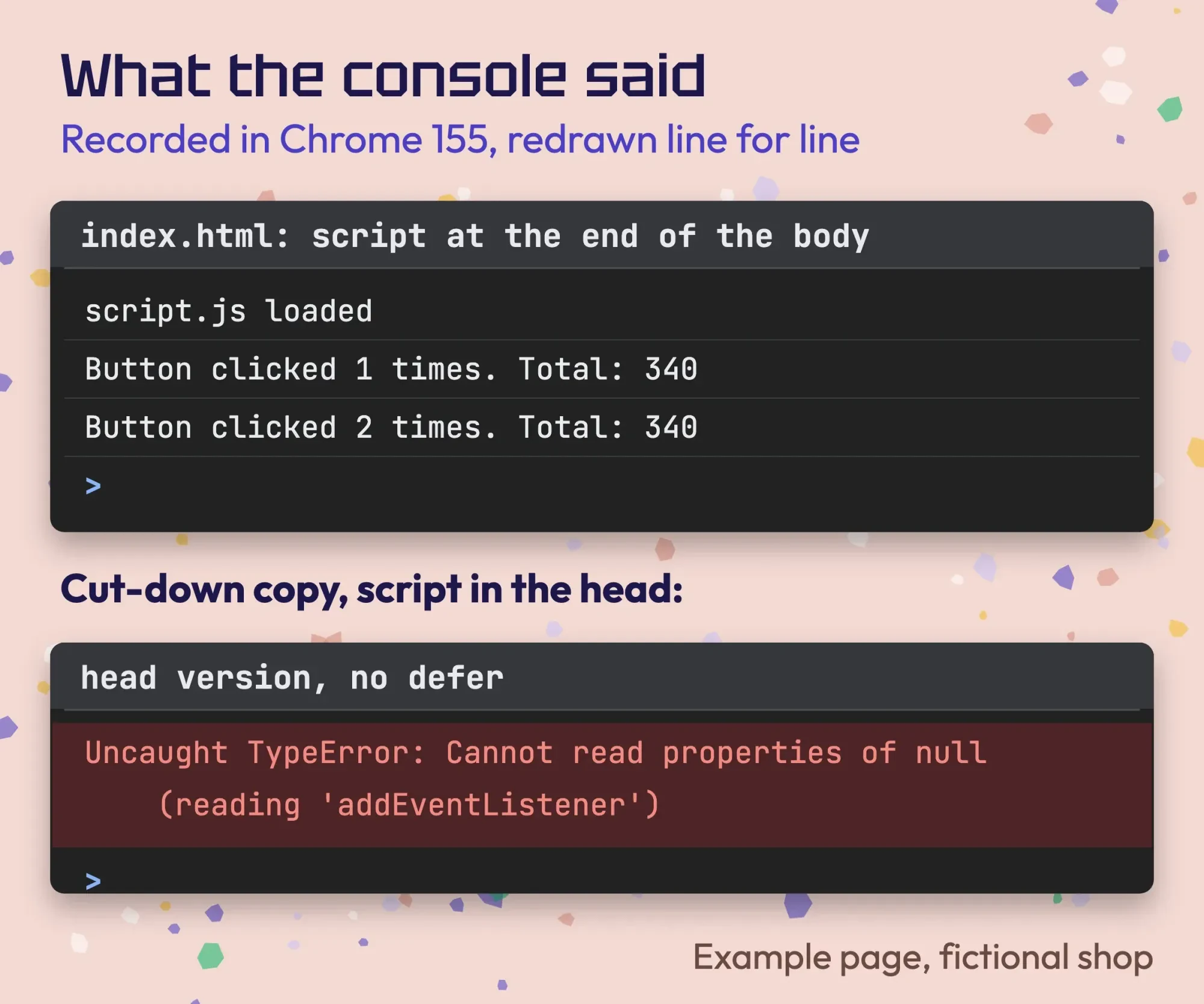 Drawn by us: console lines recorded from Chrome 155 on October 25, 2026, redrawn line for line, for our page and for a cut-down copy with the script in the head. The Example shop is fictional.
Above is the console from our run, redrawn from the recorded log, with the broken head version below it. The first line comes from the last line of script.js, which runs once when the page loads. The other two appear only when someone clicks, and if they don't, you know the listener never fired.
Eight first mistakes and the exact message Chrome shows
Even a tidy listener fails sometimes, so here's what to do when the button does nothing. We built a cut-down copy of our page with the button code written in a script tag in the head, the way many beginners write it, and loaded it in Chrome. The button did nothing at all. The console had one red line: "Uncaught TypeError: Cannot read properties of null (reading 'addEventListener')." Nothing was wrong with the listener. The script had run before the browser reached the button, so querySelector found nothing and returned null.
Moving those lines into script.js and loading it in the head with defer fixed it on the next reload. Typing defer into the inline tag wouldn't have helped: MDN says defer has no effect on a script without a src, and our recheck threw the same error.
That's the pattern for nearly all first errors: open the console, read the red text, and it names the problem and the line. These are the 8 mistakes we made on purpose in Chrome 155, with the wording it printed (DevTools adds "Uncaught" in front of the thrown ones).
| What Chrome printed | What happened | The fix |
|---|---|---|
| TypeError: Cannot read properties of null (reading 'addEventListener') | The script ran before the element existed, or the id is misspelled | Move the script to the end of the body, or load it from a file with defer; check the id |
| ReferenceError: consol is not defined | A misspelled name | Fix the spelling; names are case sensitive |
| TypeError: Assignment to constant variable. | A const was given a new value | Use let for values that change |
| SyntaxError: missing ) after argument list | A missing bracket or quote | Fix that line; the whole script was skipped |
| SyntaxError: Cannot use import statement outside a module | import in a plain script tag | Add type="module" to the script tag |
| ... has been blocked by CORS policy, then net::ERR_FAILED | A module script opened from a double-clicked file | Open the folder through a local web server |
| TypeError: document.querySelectorAll(...).addEventListener is not a function | querySelectorAll returns a list, not one element | Use querySelector, or forEach over the list |
| No error: "4" + 2 printed 42 | A number arrived as text | Wrap it in Number() |
One row deserves a second look: the missing bracket. In our test page, a console.log placed above the broken line never ran, because a syntax error stops the browser from running any of that script. MDN keeps a page for each message, including not defined, reading properties of null or undefined, assignment to a constant, the missing parenthesis and is not a function. Firefox and Safari word several of them differently; Safari, for instance, says "Can't find variable: x" where Chrome says "x is not defined."
For the list error, NodeList.forEach runs your function once for each item, and our test page attached a listener to both of its buttons that way. Rows 5 and 6 catch people who paste modern code into a plain HTML file. Our fix guide for Cannot use import statement outside a module covers that error in Node.js, Jest and TypeScript as well as the browser. When we served the same folder with a local server (Python's built-in one), the module loaded without the CORS error.
Some problems aren't a first-hour lesson, though. If your live site throws errors you can't trace, or a plugin and a theme fight over the same button, our web developers can find and fix it. That's our own service, so we have an interest.
What should you learn after the basics?
Learn the DOM next, then arrays and loops, then fetch. That order matches what a small site does every day: change the page, handle a list of things and load data from somewhere else. The DOM is the browser's live model of your page, and MDN’s DOM scripting lesson covers the built-in tools for changing it. You've already used two of them, querySelector and textContent.
Arrays hold lists, such as menu items, booking slots or product names. Soon you'll want to take something out of one, and our tested walkthrough on removing an item from an array in JavaScript shows splice and filter. Loops come right after, because a list is only useful when you can go through it.
Then fetch, which loads data without reloading the page, and modules, which split a big script into files. When a script changes something on the server, you'll be tempted to reload the page from code, and our test of location.reload(true) shows why that true does nothing in Chrome.
The three courses we'd point you to are all free.
MDN’s Dynamic scripting with JavaScript module goes from first steps to debugging. web.dev’s Learn JavaScript is "an in-depth course on the basics of JavaScript," and javascript.info is a deep, well-organized reference once you're comfortable.
Our take: build one tiny feature for a page you care about, like the estimate box, before you start a long course. You'll remember what you needed, and the course will make far more sense.
Not sure JavaScript fits what you want to build? Our guide to programming languages to learn by goal compares it with Python and the rest.
Frequently asked
Is TypeScript the same as JavaScript?
Not quite. The TypeScript home page calls it "JavaScript with syntax for types." Its code converts to plain JavaScript, so it runs anywhere JavaScript runs. Learn JavaScript first, since every TypeScript file ends up as JavaScript.
What happens if a visitor turns JavaScript off?
Your script simply doesn't run, so the button does nothing. MDN's noscript reference says this element holds HTML that shows only when scripting is off or unsupported. Put a short note there, such as a phone number for a quote.
Which Node.js version should I install?
Pick an LTS version. The Node.js releases page says production apps should use only Active LTS or Maintenance LTS releases. As of October 2026, it lists v24 and v22 as LTS and v26 as Current. You don't need Node.js at all for scripts that run in the browser.
Your scripts also decide how fast your site feels and what Google reads
All this matters for a business site because every script is code each visitor downloads and runs. The HTTP Archive Web Almanac 2024 measured a median of 613 KB of JavaScript on desktop pages and 558 KB on mobile in 2024. In 2019 the figures were 391 KB and 359 KB.
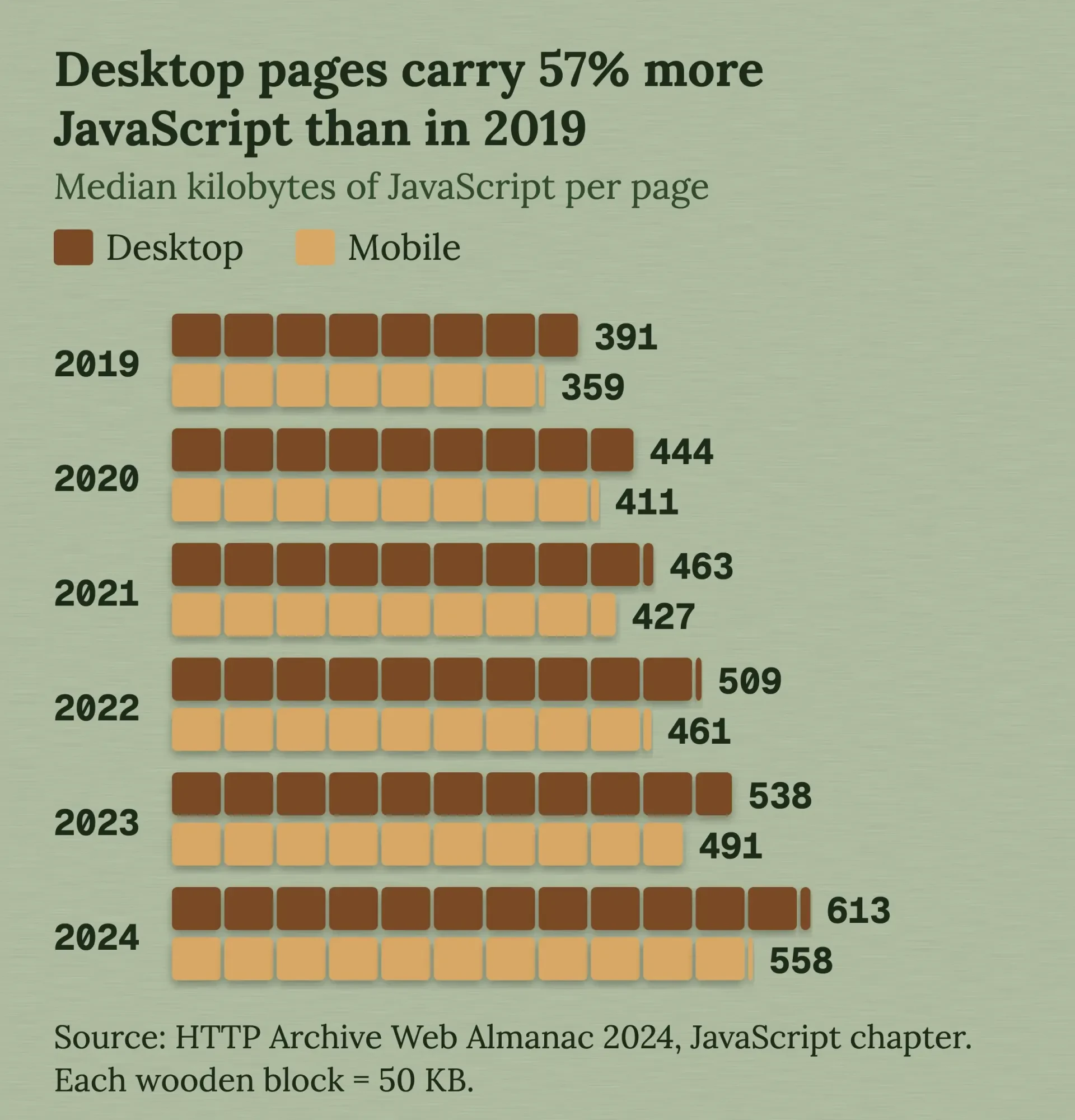 Source: HTTP Archive Web Almanac 2024, JavaScript chapter (medians, kilobytes per page). Chart drawn by us.
Your own estimate box weighs well under a kilobyte.
Most of the weight comes from what gets added over the years: chat widgets, sliders, trackers and page builders.
Scripts also change what search engines read. Google’s JavaScript SEO basics say that once resources allow, "a headless Chromium renders the page and executes the JavaScript," and Google indexes that rendered result. Our rendered HTML checker compares a page's raw HTML with the version after scripts run, and our advanced SEO guide's chapter on rendering and JavaScript SEO explains what to fix when they differ.
A price box like Prairie Stitch's is a fine first project. A booking calendar, a payment form or anything that stores customer details isn't, because it needs testing, security and someone on call when it breaks. If you're at that point, describe the job on our quote page and we'll send a straight estimate. We sell that work, and you should know that when you read our advice.
How we made this guide: The DigitalTreed team wrote and ran every sample on October 25, 2026, using Node.js v26.10.0 and Google Chrome 155.0.8059.85 on macOS 27.0.1, in a throwaway folder we removed once the run was over. Chrome ran headless and its console output was recorded through the DevTools Protocol, with real clicks on the button. The screenshot is from that run; the console image redraws the recorded lines. We didn't test Firefox or Safari, so their wording comes from MDN. Sources are linked where each fact appears.
First published July 2020. Rewritten October 25, 2026: the old page followed another site's 2020 tutorial and taught document.write. New: a tested first page, the console, variables, functions and events with our outputs, 8 real error messages with fixes, what to learn next, and what scripts mean for site speed and search.
Sources
- MDN Web Docs: What is JavaScript?
- MDN Web Docs: JavaScript Guide, Introduction
- MDN Web Docs: Storing the information you need, variables
- MDN Web Docs: Functions, reusable blocks of code
- MDN Web Docs: Introduction to events
- MDN Web Docs: DOM scripting introduction
- MDN Web Docs: Dynamic scripting with JavaScript
- MDN Web Docs: let
- MDN Web Docs: const
- MDN Web Docs: var
- MDN Web Docs: typeof
- MDN Web Docs: The script element
- MDN Web Docs: Document.write()
- MDN Web Docs: Document.querySelector()
- MDN Web Docs: EventTarget.addEventListener()
- MDN Web Docs: Node.textContent
- MDN Web Docs: NodeList.forEach()
- MDN Web Docs: ReferenceError, "x" is not defined
- MDN Web Docs: TypeError, "x" is (not) "y"
- MDN Web Docs: TypeError, invalid assignment to const
- MDN Web Docs: SyntaxError, missing ) after argument list
- MDN Web Docs: TypeError, "x" is not a function
- Chrome for Developers: Open Chrome DevTools
- Ecma International: ECMA-262, ECMAScript 2026 language specification
- web.dev: Learn JavaScript, Introduction
- web.dev: Learn JavaScript course
- javascript.info: The Modern JavaScript Tutorial
- Node.js: Introduction to Node.js
- Stack Overflow Developer Survey 2026: Programming, scripting and markup languages
- W3Techs: Usage statistics of JavaScript (vendor data)
- HTTP Archive Web Almanac 2024: JavaScript
- Google Search Central: Understand JavaScript SEO basics

Comments
No comments yet. Start the conversation below.