
Quick answer
The computer shortcuts students use most are copy, paste, undo and find, per Microsoft, Apple and Google's own shortcut lists as of October 29, 2026. They start with Ctrl on Windows and Chromebook, and with Command on a Mac. Start with the table of seven everyday keys below, then add the editing keys.
If you write papers on a school Chromebook, finish them on a family Windows laptop and print from a campus Mac, you know the problem. The keys you learned on one machine don't quite work on the next. A keyboard shortcut is a key combination that runs a menu command in one move, like Ctrl+C for copy. This list of computer shortcuts for students sticks to keys that Microsoft, Apple and Google document themselves, and we'd learn the seven everyday ones first.
This guide starts with the Ctrl and Command question, then the copy, paste and undo table. Next come the essay editing keys and our test of them, screenshots, split screen and switching apps, and the browser and Google Docs keys for research. It ends with study set-up tricks for backups, clipboard history and PDFs.
Key takeaways
- On a Mac, swap Ctrl for Command in copy, paste, undo and find.
- Option-Delete on a Mac erased a whole word in one press.
- Ctrl+Backspace deletes the previous word on Windows and Chromebook.
- Windows clipboard history keeps 25 items; a restart clears all but pinned ones.
- Chromebook screenshots go to Downloads and the clipboard together.
What is the Ctrl key on a Mac?
Most of the confusion comes down to one key. On Windows and on a Chromebook, the everyday shortcuts start with Ctrl. On a Mac, they start with Command, the key with the cloverleaf symbol beside the space bar. Apple's Mac keyboard shortcuts page lists Command-C for copy and Command-V for paste. Microsoft's Windows shortcut list gives Ctrl+C and Ctrl+V for the same jobs. A Mac still has a Control key. It just does other work. Adding Control to a Mac screenshot shortcut, for example, copies the picture instead of saving a file. So when a handout says Ctrl+Z, press Command-Z.
Chromebooks add their own twist. Google's Chromebook shortcut page uses a Search or Launcher key where a Windows keyboard has the Windows key, and it says both names mean the same key. You'll meet it below in screenshots, line jumps and locking the screen.
Copy, paste and undo work almost the same everywhere
Once you know which modifier to press, the letters barely change. These seven jobs cover most of a paper, a slide deck or a lab sheet. Only redo uses a different letter on one system:
| Job | Windows | Mac | Chromebook |
| Copy | Ctrl+C | Command-C | Ctrl + c |
| Cut | Ctrl+X | Command-X | Ctrl + x |
| Paste | Ctrl+V | Command-V | Ctrl + v |
| Undo | Ctrl+Z | Command-Z | Ctrl + z |
| Redo | Ctrl+Y | Shift-Command-Z | Ctrl + Shift + z |
| Select all | Ctrl+A | Command-A | Ctrl + a |
| Find | Ctrl+F | Command-F | Ctrl + f |
Redo is the one to watch. Windows uses Ctrl+Y, while the Mac and the Chromebook both add Shift to the undo key, so the Windows redo key isn't the one Google lists for a Chromebook. Apple's page also lists Command-G for the next match after a Find. That's handy when you're hunting for every use of a word in a long reading, like each mention of one court case in a 30-page history chapter.
Learn undo first. Apple notes that some apps undo several commands in a row, so a few presses of Command-Z can walk back a botched edit.
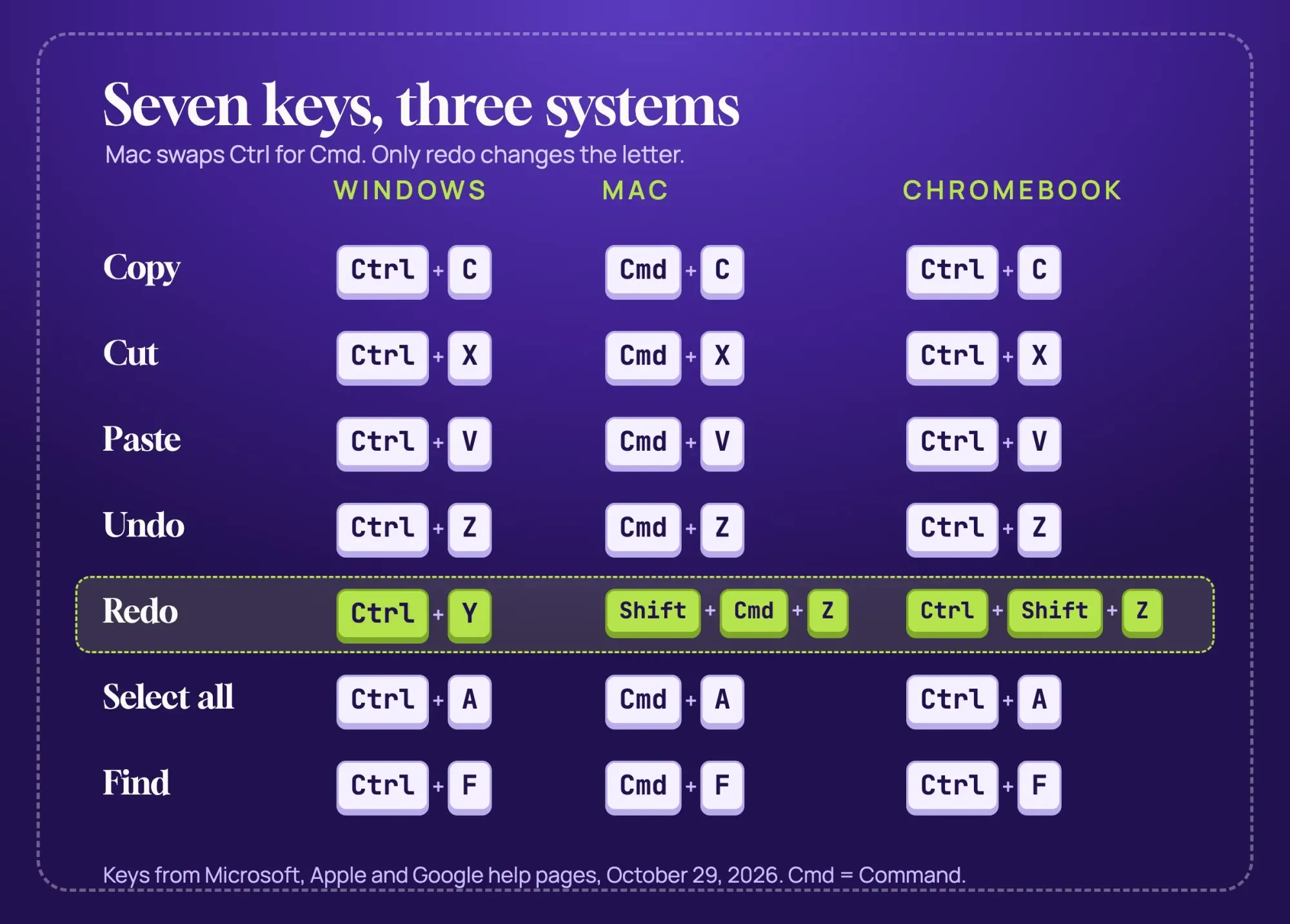 Diagram by DigitalTreed. Keys from the Microsoft, Apple and Google shortcut pages, read October 29, 2026.
Essay editing keys that skip the mouse
Those seven keys move text around, but editing a draft is mostly moving the cursor. Every system has keys that jump by a word or a whole line. In our test below, a word jump moved the cursor 5 or 6 characters per press instead of 1.
Jump and delete by word
Windows jumps by word with Ctrl. Microsoft lists Ctrl+Left arrow and Ctrl+Right arrow to reach the previous or next word. Ctrl+Backspace deletes words to the left of the cursor. A Chromebook uses the same three keys, per Google's page. On a Mac, the word key is Option: Option-Left Arrow jumps back a word, and Option-Delete deletes the word to the left.
Jump to the ends of a line or the document
Line jumps differ more. Windows uses Home and End for the line, and Ctrl+Home or Ctrl+End for the whole document. On a Chromebook, Google lists Search + Left arrow and Search + Right arrow for the start and end of a line instead of Home and End. On a Mac, Command-Left Arrow goes to the start of the line, while Command-Up Arrow goes to the very top of the document.
Add Shift to select instead of move
Hold Shift with any of these and the cursor selects as it moves. Microsoft says Ctrl+Shift with an arrow key selects a block of text, and Shift+End selects through the line's last character. On a Mac, Shift-Command-Left Arrow selects back to the line's start, and Option-Shift-Left Arrow grows the selection a word at a time. Select a sentence this way, cut it, and paste it two paragraphs down. You never touched the trackpad.
Eight Mac presses covered 241 characters
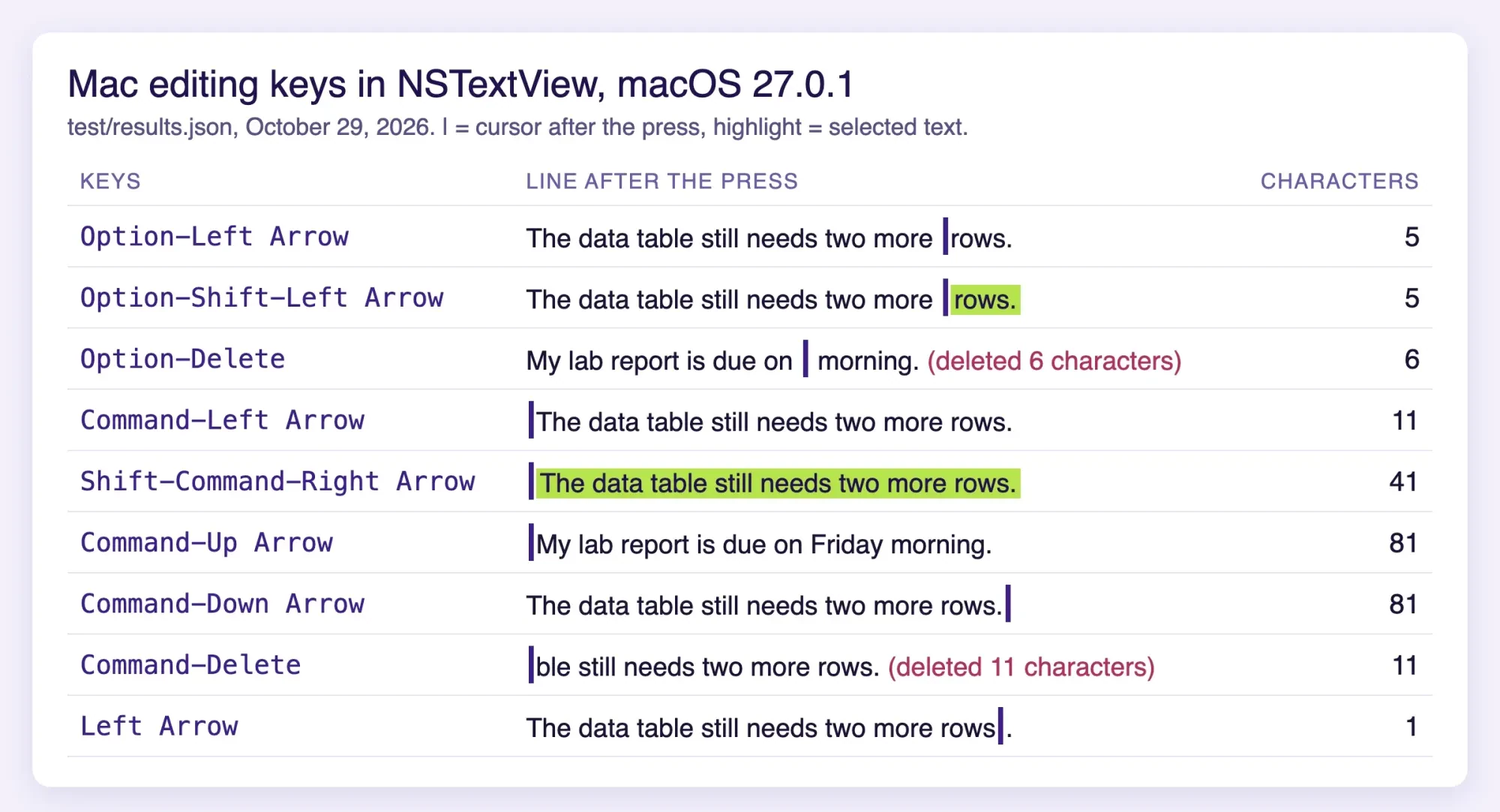
We wanted to see those Mac keys work, not only read about them. So we ran them in Apple's own text control on a two-line made-up sample and logged where the cursor landed:
| Keys (Mac) | Starting point | What happened | Characters covered |
| Option-Left Arrow | End of line 2 | Cursor jumped to the start of "rows." | 5 |
| Option-Shift-Left Arrow | End of line 2 | Selected "rows." | 5 |
| Option-Delete | Right after "Friday" | Deleted "Friday" | 6 |
| Command-Left Arrow | Middle of line 2 | Cursor jumped to the start of line 2 | 11 |
| Shift-Command-Right Arrow | Start of line 2 | Selected the whole line | 41 |
| Command-Up Arrow | End of the text | Cursor jumped to the very top | 81 |
| Command-Down Arrow | Start of the text | Cursor jumped to the very end | 81 |
| Command-Delete | Middle of line 2 | Deleted back to the start of the line | 11 |
| Left Arrow (plain) | End of line 2 | Cursor moved one character | 1 |
 Screenshot: the shortcut test report, served from 127.0.0.1 on October 29, 2026. Sample sentences are made up.
All nine presses did what Apple's page describes. The eight shortcuts covered 241 characters in 8 presses, and the plain arrow moved 1 character per press. Moving one character at a time would take 241 presses (5 + 5 + 6 + 11 + 41 + 81 + 81 + 11). That's about 30 times as many. The two document jumps flatter the count, though, since Up Arrow would reach the top of a two-line sample in a few presses.
One result went past Apple's list. Command-Delete isn't among its document shortcuts, yet it erased 11 characters back to the start of the line. We only tested Apple's text control, though. Apps with their own editor, like Google Docs in a browser, may handle a key differently, so try it on a spare line first.
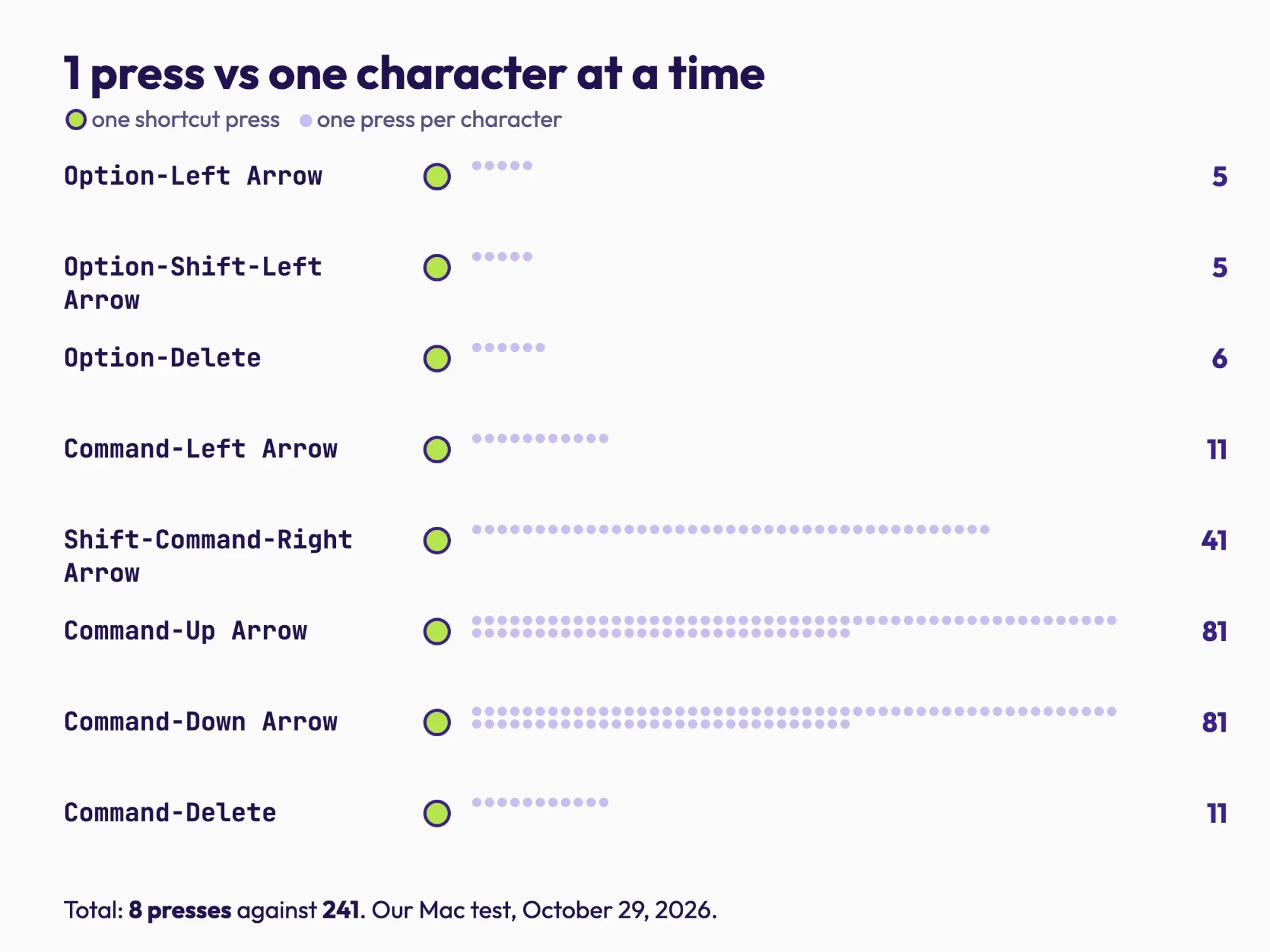 Diagram by DigitalTreed. Each dot is one press, from the nine-key run on our Mac on October 29, 2026.
What we tested
On October 29, 2026, on a Mac with macOS 27.0.1, we wrote a short Swift program (test/keys.swift). It builds each key press in memory and hands it to Apple's text control, so nothing touched the screen. Apple's key map file behind that control, StandardKeyBinding.dict, holds 105 active bindings, so our nine keys are a small sample.
swiftc -O keys.swift -o keys
./keys > results.json
Screenshots for notes and lab reports
After editing keys, the shortcut most students reach for is the screenshot. It grabs a lecture slide, a graph or an error message to send a teacher. Each system has a quick version and a menu version, and they don't save to the same place.
On Windows, Microsoft's list says Windows logo key+Shift+S lets you select a region of the screen and copies it to the clipboard. The same list gives the PrtScn key that job too. Then paste it straight into your notes, a Google Doc or an email to your teacher with Ctrl+V, and there's no file to hunt for later. On a Mac, Apple's screenshot guide gives Shift-Command-3 for the whole screen, Shift-Command-4 for a portion, and Shift-Command-5 for the Screenshot app. Those files land on the desktop unless you add Control, which sends the shot to the clipboard so you can paste it into a lab report right away.
A Chromebook does both at once. Its shortcut page lists Ctrl + Show windows for a full screenshot, and Google's Chromebook screenshot help says Shift + Ctrl + Show windows opens the capture menu. On an external keyboard without that key, Google says to press Ctrl + Shift + F5. Google also says each screenshot goes to Downloads and is copied to your clipboard automatically, so you get a file and a picture to paste. Google's help page adds that you can pick a different folder in Settings if Downloads isn't where you'd look. If you collect a week of lab screenshots into one PDF and it's too big for the class portal, our PDF compressor shrinks it in your browser.
Need the words in a screenshot rather than the picture? Our guide to converting a scanned PDF to editable text covers pulling quotable words out of a screenshot.
Split the screen and switch apps while you research
Each system has one key to flip between open windows and one to put two windows side by side, so a source and your draft can share the screen.
Switching is the easy part. Alt+Tab moves between open windows on Windows and on a Chromebook, and Command-Tab switches between recent apps on a Mac. Splitting takes one more key. Microsoft's Snap your windows page says Windows logo key + Arrow snaps the window you're in, and Windows key + Z opens snap layouts. Google lists Alt + [ and Alt + ] to dock a Chromebook window left or right. Apple's window tiling shortcut guide for macOS 27 lists Fn-Control-Left Arrow for the left half of the screen and Fn-Control-Right Arrow for the right. If those don't work, check which macOS version you're on.
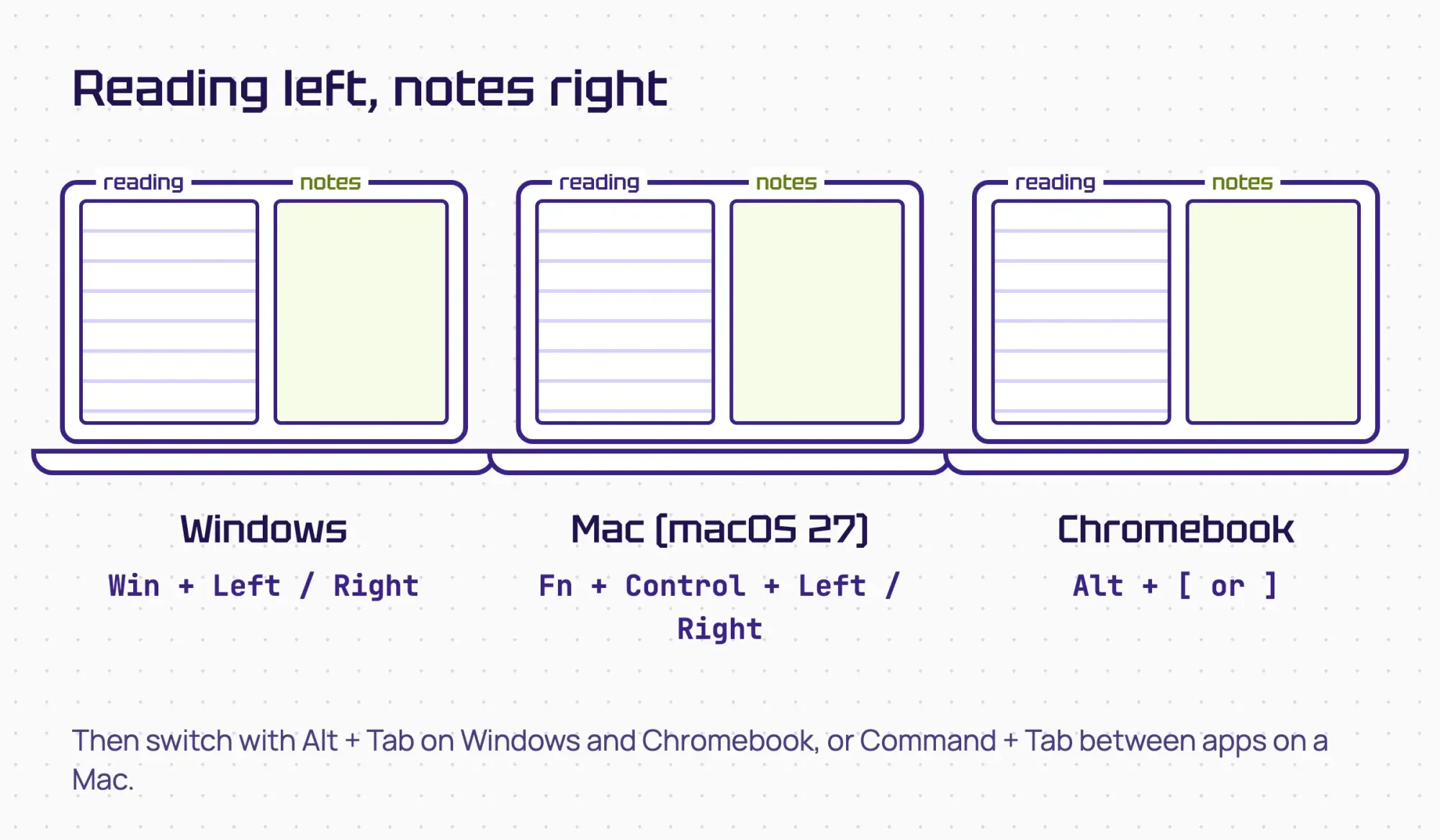 Drawn by us. Keys from the Microsoft, Apple and Google pages, read October 29, 2026.
The habit is the same on all three: source on the left, doc on the right, and the switch key only for a third window.
Browser and Google Docs keys for research papers
If your research lives in a browser tab and a Google Doc, a few keys there pay off fast during a late session with 20 sources open. Google's Chrome shortcut list gives Ctrl + Shift + t to reopen closed tabs, or Command + Shift + t on a Mac. It brings back a source you closed by mistake. Ctrl + t opens a new tab, and Ctrl + l jumps to the address bar, so you can start a fresh search without reaching for the mouse at all.
Inside a doc, Google's Google Docs shortcut page lists these, with Command in place of Ctrl on a Mac:
- Word count: Ctrl + Shift + c, for checking a 1,500-word limit without the menu
- Paste without formatting: Ctrl + Shift + v, so a quote takes your font instead of the website font
- Insert or edit a link: Ctrl + k, for citing an online source in the text
- Insert a comment: Ctrl + Alt + m, for notes on a group project
- Show common shortcuts: Ctrl + /, when you forget the rest
Paste without formatting is the one we'd learn first. A quote pasted the normal way can drag in the website's font and color, and fixing it by hand takes longer than the shortcut. For drafts written outside Docs, our word counter counts words in the browser.
Study set-up tricks that save a lost assignment
The keys above speed up writing, but a dead laptop or a lost quote costs more than any shortcut saves, and three free settings guard against that.
Keep class files in a cloud folder
A laptop that dies the night before a deadline is a bad time to learn about backups, and a class folder that syncs costs nothing. Google One's storage page puts the free allowance at up to 15 GB per Google Account. Your Gmail and Google Photos draw on that same 15 GB as your Drive files. Apple's iCloud+ plans page says iCloud comes with 5 GB free. Google Docs also keeps old drafts: its version history help explains restoring an earlier version from Last edit. For how paid cloud plans compare, see our cloud storage comparison.
Turn on clipboard history
Copying five quotes from five sources means five trips back and forth. Microsoft's clipboard page says Windows logo key + V opens clipboard history once you turn it on, and it keeps 25 copied entries. The history clears each time you restart, except for items you've pinned, so pin the quotes you'll cite before a restart.
On a Chromebook, Google's shortcut page puts the clipboard menu on Search + v.
Put handouts into one PDF
Course packets often arrive as a pile of separate PDFs. On a Mac, Apple's Preview guide combines them: drag page thumbnails from one PDF's sidebar into the other's. On any system, our merge PDF tool joins files in your browser in the order you pick, so a week of reading becomes one file to annotate.
Data entry, one of the gigs in our list of freelance jobs for college students, is mostly the copy, paste and select keys above. Our list of in-demand tech skills covers what to learn after them.
Our take: learn the seven everyday keys this week. Then add one editing key a day until your hand stops reaching for the trackpad.
Questions about computer shortcuts for students
Frequently asked
How do I see every shortcut on a Chromebook?
Press Ctrl + Search + s. Google's Chromebook shortcut page lists it as the way to see all keyboard shortcuts on the device.
How do I lock my screen quickly in a lab or library?
Microsoft lists Windows logo key+L, Google lists Search + l for a Chromebook, and Apple's Mac list gives Control-Command-Q to lock your screen.
What do I do when a program freezes?
On Windows, Ctrl+Shift+Esc opens Task Manager, per Microsoft's shortcut list. On a Mac, Apple lists Option-Command-Esc to force quit an app.
Can I type with my voice in Google Docs?
Yes. Google's Docs shortcut page lists Ctrl + Shift + s to start voice typing, and notes that it works in Chrome.
How we made this guide: every key in the tables was matched against the shortcut lists that Microsoft, Apple and Google publish, each linked inline. The Mac editing keys ran in Apple's text control on a local Mac, with nothing uploaded or installed. Facts checked by the DigitalTreed team on October 29, 2026.
First published April 2020 as general computer tips for students. Rewritten October 29, 2026: now a side-by-side shortcut guide for Windows, Mac and Chromebook, with a local test of the Mac editing keys.
Sources
- Microsoft Support: Keyboard shortcuts in Windows
- Microsoft Support: Snap your windows
- Microsoft Support: Using the clipboard
- Apple Support: Mac keyboard shortcuts
- Apple Support: Take a screenshot on Mac
- Apple Support: Mac window tiling icons and keyboard shortcuts
- Apple Support: Combine PDFs in Preview on Mac
- Apple Support: iCloud+ plans and pricing
- Chromebook Help: Chromebook keyboard shortcuts
- Chromebook Help: Take a screenshot or record your screen
- Google Docs Editors Help: Keyboard shortcuts for Google Docs
- Google Docs Editors Help: Find what's changed in a file
- Google Chrome Help: Chrome keyboard shortcuts
- Google One Help: How your Google storage works
Comments
No comments yet. Start the conversation below.