
Quick answer
To convert a scanned PDF to text for free, open it with Google Docs from Google Drive. Drive takes files of 2 MB or smaller (as of October 28, 2026). Don't upload private files. We ran Apple's Vision text recognizer through a short script on a Mac. It got 99.9% of characters right on our clean 300 dpi scan. Then proofread every number.
Say you run the office for a small supplier, and a vendor just sent a signed order as a scanned PDF. You need its item codes in your own system, but the file won't let you highlight a word. A scanner saves a photo of the page, not the letters. Optical character recognition (OCR) is a process that reads the shapes in that photo and turns them back into text you can edit. We'd try Google Drive first for an ordinary file, and we'd keep anything private off the upload routes.
This guide starts with why you can't select text in a scanned PDF. Then it walks through Google Drive, Microsoft Word, Adobe Acrobat online and the phone and Mac options with no upload step. After that come our accuracy test on three scans and how to proofread the numbers. It ends with what online OCR means for a sensitive document, and which route to use for which file.
Key takeaways
- Google Drive converts scanned PDFs of 2 MB or smaller into editable Google Docs.
- Accurate mode read all 116 words of our 150 dpi tilted scan.
- Fast OCR mode found only 19 of 116 words on that same scan.
- Check every digit by eye, since fast mode misread 1 as l and I.
- HIPAA covered entities need a BAA before patient files reach a cloud tool.
Why can't you select text in a scanned PDF?
A scanned PDF holds a picture of each page, so there's nothing in it for your cursor to grab. You can check yours in ten seconds. Drag across a line, or press Ctrl+F (Command+F on a Mac) and search for a word you can plainly see. If nothing highlights and the search comes up empty, the file has no text layer. Each of our three test PDFs reported 0 selectable characters before OCR, even though every page plainly showed a full purchase order with prices, dates and a phone number.
Microsoft sees the same thing from Word's side. Its Opening PDFs in Word page warns that a PDF of mostly graphics can open with the whole page as one image, and then the text can't be edited.
A phone photo of a page is no different, whether it's saved as a JPG or a PDF. So the fix is always the same: run OCR, then check what it gave you.
Not every stuck PDF is a scan, though. Apple's Preview guide for PDFs that won't copy points out that some PDFs need a password before you can select or copy anything. OCR won't help there. If a search finds words but copying fails, ask the sender for an unlocked copy.
Google Drive turns a scan into a Google Doc
That OCR step is built into Google Drive, the route most people already have, since it only needs a free Google account. Google's Convert PDF and photo files to text help page gives the steps. Upload the PDF and right-click it in Drive. Choose Open with, then Google Docs.
Drive saves the result as a new Google Doc, and you can edit and copy the text from there like any other document.
The limits matter more than the steps. As of October 28, 2026, Google says the file should be 2 MB or smaller, and the text should be at least 10 pixels high. The page has to be right-side up, so rotate a sideways scan before you upload it. Common fonts like Arial and Times New Roman read best, and Google asks for sharp images with even lighting. Don't expect a perfect layout, though. Google says bold, italics, font size and line breaks "are likely to be retained," but lists, tables, columns, footnotes and endnotes probably won't be detected. A one-page letter comes through nearly ready to use. A price table comes back as loose lines you'll rebuild by hand.
If the file is over 2 MB, shrink it before you give up on Drive. Our free PDF compressor runs in your browser, and its page says the file is never uploaded.
Microsoft Word opens a PDF as an editable copy
Word is the next stop, but it's only free if you already have it on your computer. Microsoft's Edit a PDF training page keeps the steps short. Go to File, then Open. Pick the PDF. Word then says it'll make a copy and convert the contents into something it can display.
Microsoft says Word makes a copy of the PDF to convert, so the scan you have stays as it was and trying it costs you a minute.
The catch is what Word does with a page that's really a picture. Microsoft says converting "works best with files that are mostly text," and that pages which look like a copier manuscript won't be formatted well. The two Microsoft pages we read don't mention OCR or scans by name, so we can't promise a scan comes back as editable text. Word's own list of trouble spots includes tables with cell spacing, frames, endnotes and footnotes that run across pages.
So try Word first on a scan that's mostly plain paragraphs, like a letter or a memo, and keep Drive or Acrobat ready as the backup. Microsoft lists the feature for Word for Microsoft 365, Word 2024, 2021, 2019 and 2016.
If Word shows the page as one big image, move on to Drive or Acrobat; Word won't read that page for you.
Adobe Acrobat online makes a searchable PDF or a Word file
That OCR step is what Adobe's two free web pages do, and they give you different results. The Acrobat online OCR tool recognizes the text and hands back a searchable PDF. The page still looks exactly like the scan, but you can now search it, select a line and copy the words into an email or a spreadsheet. It's the better pick when you need to find things in a long scan rather than rewrite it.
The Acrobat PDF to Word converter goes a step further. Adobe says Acrobat can detect text in scanned or image-based PDFs and export it as a .docx file you can edit. As of October 28, 2026, that page says daily conversion limits apply, and repeat users may be asked to sign in to download. The OCR page asks everyone to sign in before downloading the searchable PDF.
Neither page states a file size limit, so Acrobat is worth a try when Drive turns a file down for being over 2 MB.
There's a storage side too. Both pages also say your file is handled by Adobe's servers and deleted unless you sign in to save it. They don't say how long.
Keep that in mind before you drop a contract or a medical form into either one.
Got a scan split across several PDFs? Our merge PDF tool joins them in your browser first, so you upload one file instead of five.
Phone and Mac options with no upload step
Unlike the web tools, your phone may do the job without any upload. On an iPhone, Apple's Notes scanning guide shows two choices inside a note. Scan Text drops the words from a page straight into the note, while Scan Documents saves the page as a PDF. If you just need a paragraph or a phone number off a page, Scan Text is quicker, since the words land in the note without a separate copy step.
Live Text skips the note entirely. Apple's Live Text guide says to point the iPhone camera at the text, tap the Live Text button once a yellow frame appears, and copy what you need. On a Mac, Preview's Live Text page does the same for an open image: drag across the words and choose Copy Text.
Apple adds that Live Text isn't available in all regions or languages, so check your settings if the button never shows up.
Google's phone app works differently. Its Drive scanning guide for Android says scans are saved as searchable PDFs on your Google Drive. That's handy. It also puts the page in your Google account, not just on your phone. Whichever app you use, give it the sharpest page you can. Hold the phone flat over the page, in even light, with no shadow across the lines. In our test below, the low-resolution, tilted scans were the ones that broke the fast mode. If you then need several photos in one PDF for your records, our JPG to PDF tool builds it in your browser.
How accurate OCR was on three test scans
Scan quality is easy to measure, and none of the vendor pages we read gives an accuracy figure. So we measured one engine ourselves. We typed a one-page purchase order for a made-up business, Hollyford Hardware, and turned it into three image-only PDFs of falling quality. Apple's Vision text recognizer read each one in both of its modes on a Mac.
A short script then compared every output with the original text, character by character and word by word, and saved the scores with the raw output.
| Test scan | Mode | Characters right | Words found (of 116) | Key values exact (of 20) |
| 300 dpi, straight | accurate | 99.9% | 115 | 20 |
| 300 dpi, straight | fast | 95.7% | 104 | 17 |
| 150 dpi, 1.5 degree tilt | accurate | 91.2% | 116 | 20 |
| 150 dpi, 1.5 degree tilt | fast | 20.4% | 19 | 7 |
| 100 dpi, 3 degree tilt, heavy noise | accurate | 91.8% | 113 | 20 |
| 100 dpi, 3 degree tilt, heavy noise | fast | 54.4% | 33 | 5 |
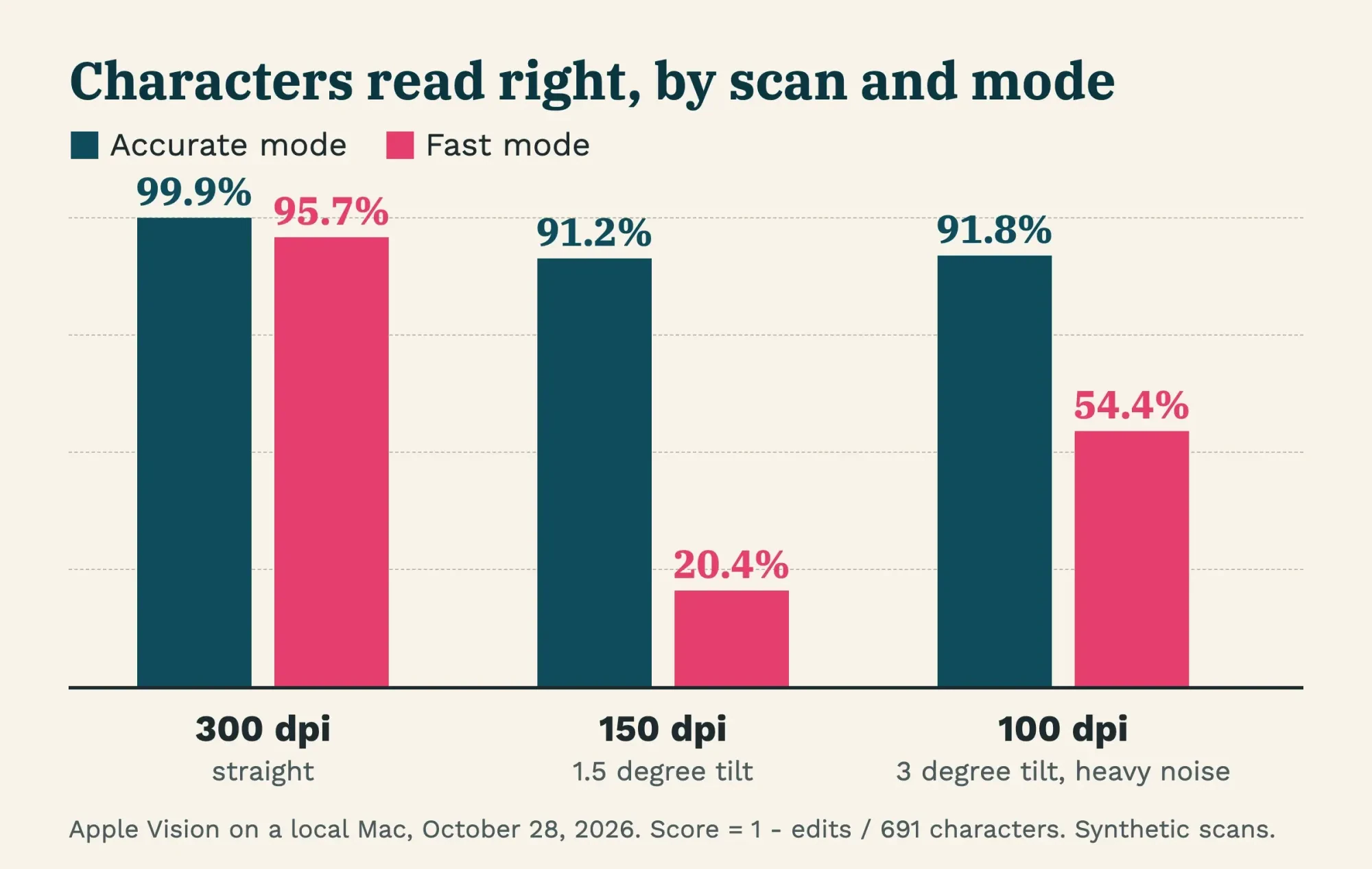 Diagram by DigitalTreed. Our test on a local Mac, October 28, 2026; synthetic scans of a made-up order.
In our test, accurate mode was the one to trust. It found all 20 key values on all three scans, from the order number HH-20417 to the $856.55 subtotal. Its only slip on the clean scan was one capital W read as lowercase. On the 100 dpi scan it read "Qty" as "oty" and a size L as I, and it caught 113 of 116 words.
The words were fine. But our own line-grouping script put that page's rows back together wrong. The wrench's 12 and $14.85 landed up among the header lines, so the wrench got the screws' 40 and $6.29. Each row below took the next row's values, and the gloves row ended with none. Three pairs of lines also merged into one, such as the date and the ship-to address. Our key-value score only checks that each value appears, so it can't see a shifted row.
So check every row by eye, whatever the score says.
Fast mode did worse on both lower-quality scans, and worst on the 150 dpi page, not the 100 dpi one. On the tilted 150 dpi page it found only 19 of 116 words and 7 of the 20 key values. We wouldn't use it for business paperwork. Apple's recognition level reference says fast mode trades accuracy for speed. Speed wasn't the issue for either mode: each run in our log took 0.07 to 0.22 seconds per page, though one accurate run took 27.18 seconds. That run came from a first pass we redid and didn't keep in the log.
Character scores dropped for a second reason that has nothing to do with reading letters. On the 150 dpi scan, our own line-grouping script split each table row in two, with the item code on a line of its own. On the 100 dpi scan, quantities and prices slid one row up. Every word was still there on the 150 dpi page, yet the score fell to 91.2%. That layout step was ours, not Apple's. But it's the same kind of table loss Google and Microsoft warn about, and it's why a table always gets a manual pass after OCR, however clean the words look.
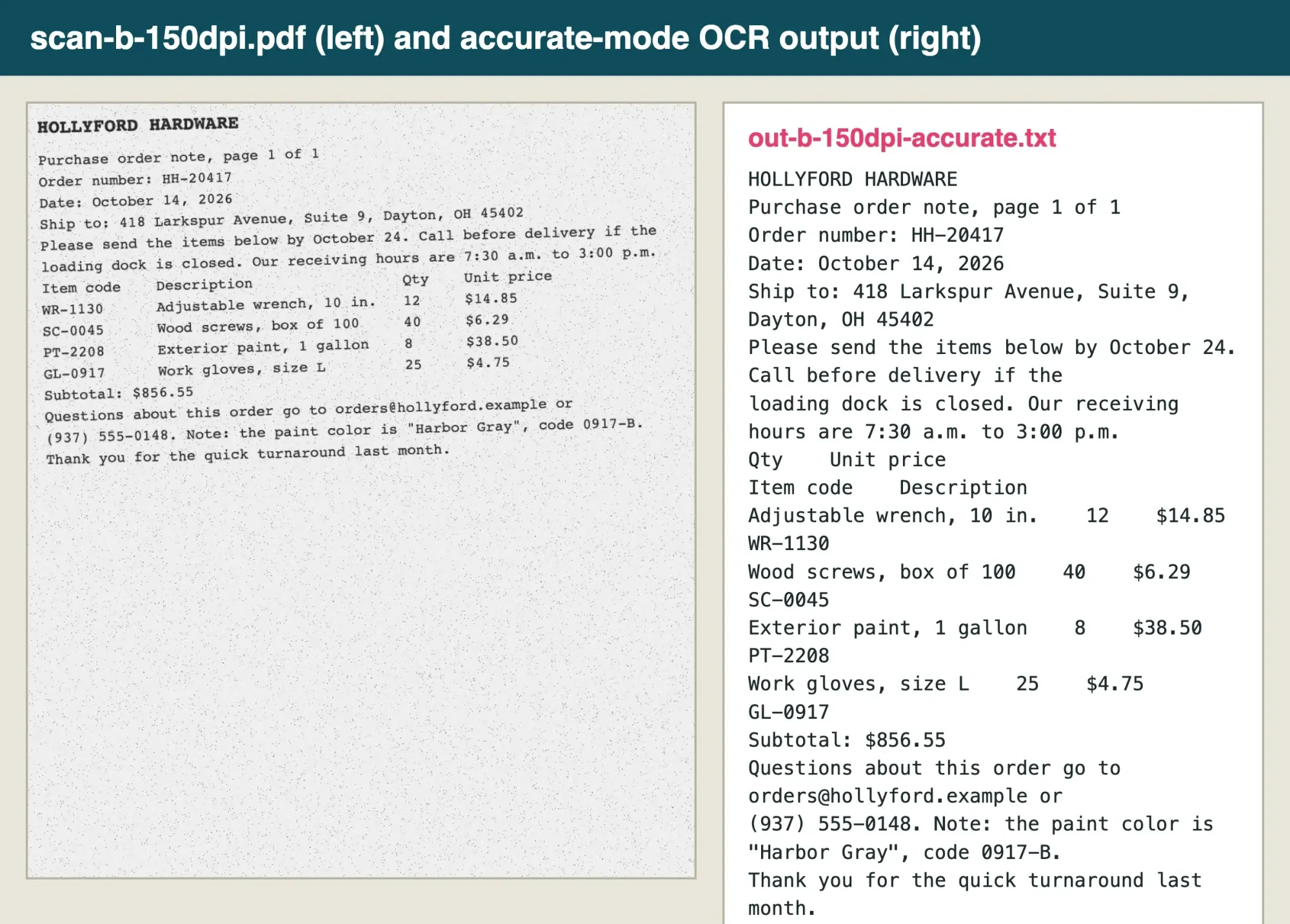 Screenshot: our 150 dpi test scan and its OCR output, shown on 127.0.0.1, October 28, 2026. Hollyford Hardware is made up.
What we tested
Everything happened on one Mac with macOS 27.0.1 and Swift 6.4, using only tools already installed. The engine was Apple's Vision framework (VNRecognizeTextRequest, US English, language correction on). PDFKit drew each page at 300 dpi before Vision read it. So the 100 and 150 dpi scans were enlarged first. Tesseract, OCRmyPDF and pdftotext weren't on the machine, so they weren't used, and we didn't run Drive, Word, Acrobat or Live Text.
Each step down changed resolution, tilt, noise and JPEG quality together, so the test can't say which one mattered most. Our scans used Courier at 11 points, a clean computer font, which is easier than real paper, handwriting or a phone photo. These commands built a scan, ran OCR and scored it:
swiftc -O make_scan.swift -o make_scan
./make_scan known.txt scan-b-150dpi.pdf 150 1.5 0.6 0.6
swiftc -O ocr.swift -o ocr
./ocr scan-b-150dpi.pdf accurate > out-b-150dpi-accurate.txt
python3 score.py   # 1 - edits / 691 characters; words found of 116
Characters right is 1 minus the edits needed to match the original, divided by its 691 characters, and no file left the computer.
Proofread the numbers before you trust the text
That split table points to the habit that saves the most trouble: compare each figure with the scan. A wrong word usually looks wrong when you read it, because your eye stops on a spelling that doesn't fit the sentence. A wrong digit doesn't. In fast mode, our clean 300 dpi page came back with "page l of I" instead of "page 1 of 1," and with a space inside a street number.
Put the scan and the text side by side and go line by line through anything with digits, starting with the spots where our outputs went wrong:
- Order numbers and item codes, which our 100 dpi fast run turned into HH-7.0417 and SC-9045
- Prices and totals, especially when a table row has split in two
- Email addresses and phone numbers, which fast mode broke on both tilted scans
- Dates, where our outputs picked up stray periods and an L for a 1
- Table rows, which may need rebuilding by hand
A quick math check catches the rest. Our order's four line totals add up to $856.55: 12 x $14.85 + 40 x $6.29 + 8 x $38.50 + 25 x $4.75. One misread price would show up as a mismatch. In accurate mode, ours added up. If the scan itself is faded or torn, fix the picture before you run OCR again. Our guide to restoring old photos starts with how to scan a print well, and the same care helps with a text page.
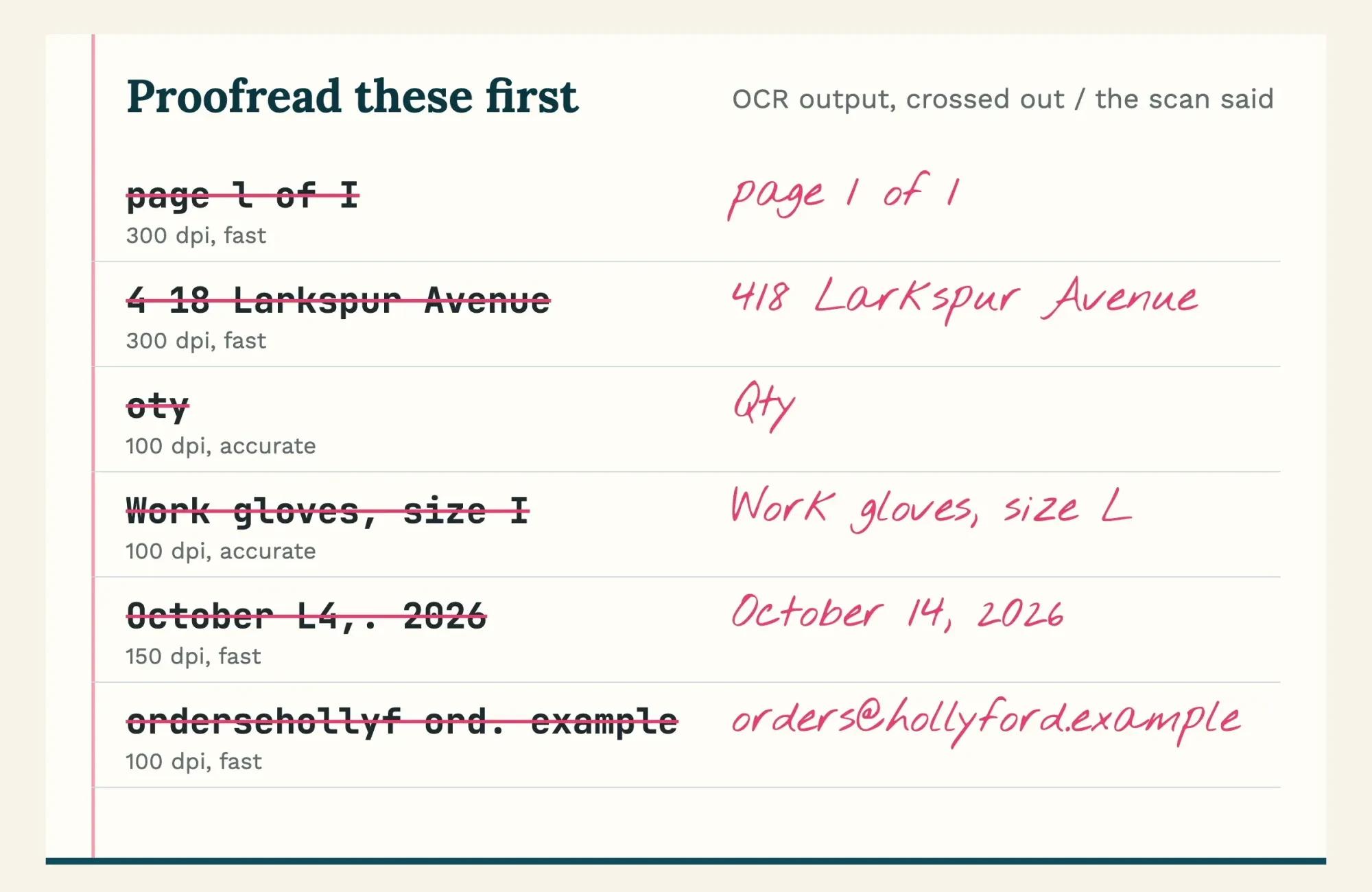 Diagram by DigitalTreed. Misreads taken from our test outputs, October 28, 2026.
Once the numbers check out, paste the text where it needs to go. If you'd rather fix the PDF itself, say to fill a blank or cover a line, our browser PDF editor does it without an upload.
What online OCR means for a sensitive document
Before any upload, though, there's a bigger question than accuracy. Online OCR means a copy of your file goes to someone else's computer to be read. That's fine for a menu. It's a real decision for a tax form, a signed contract, a payroll list or a patient record.
Google and Adobe are fairly clear about what happens next. Google's Drive privacy page says "Drive does not use your information for advertising purposes" and that files are encrypted in transit and at rest. It also says Drive processes your files for spam filtering and virus detection. Adobe's privacy policy says cloud content may be scanned automatically for illegal or abusive content, and that people may review it when it's flagged. Read both pages first.
Health records come with a legal rule. HHS's HIPAA cloud computing guidance says a cloud service that handles patient data for a covered entity counts as a business associate. Using one is allowed only with a business associate agreement (BAA) in place. Neither free OCR page we read mentions a BAA, so a clinic, or a billing service working for one, shouldn't send patient files through either page.
Other private data deserves the same care. The FTC's guide to protecting personal information tells businesses to put their security expectations in writing in contracts with service providers. A free web tool gives you no such contract.
We'd keep Social Security numbers, bank details and signed agreements off the upload routes, or simply retype a short page. It's often faster.
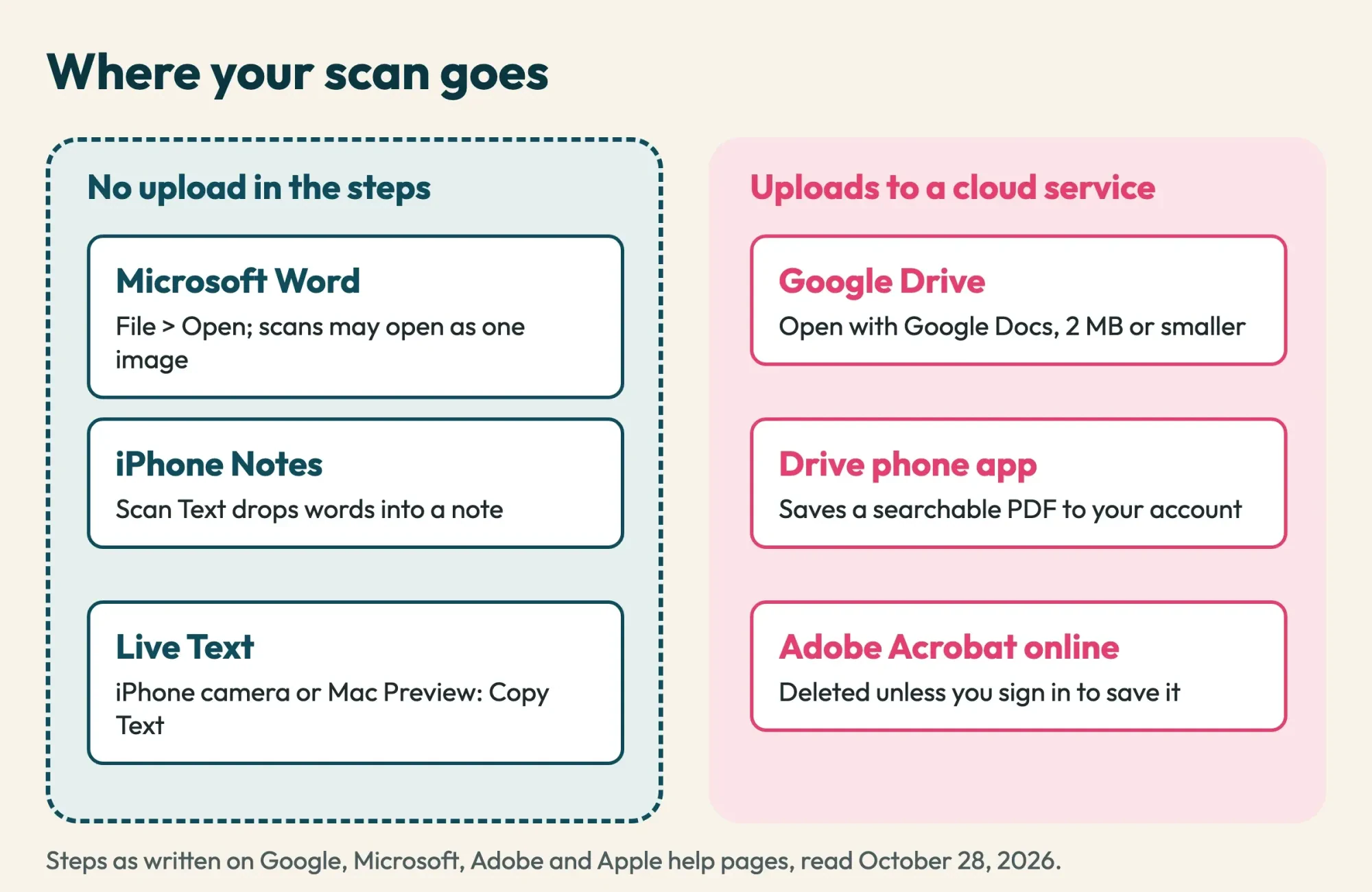 Drawn by us. Routes and storage notes from Google, Microsoft, Adobe and Apple help pages, read October 28, 2026.
Which route to use for which file
So the right route depends on size, layout and who should see the file, as this table shows from each vendor's pages as of October 28, 2026:
| Route | What you get | Limits on the vendor page | Where the file goes, per the steps |
| Google Drive, Open with Google Docs | An editable Google Doc | 2 MB or smaller; text 10 pixels high; tables not likely detected | Your Google account |
| Microsoft Word, File > Open | An editable Word copy; a scan may open as one image | Best on mostly text; no OCR named for scans | No upload in the steps |
| Adobe Acrobat online | A searchable PDF or a .docx | Daily limits; sign-in to download | Adobe's servers, deleted unless saved |
| iPhone Notes, Live Text or Mac Preview | Copied or inserted text | Not in all regions or languages | No upload in the steps |
Our take: start with Google Drive for an everyday scan under 2 MB, and use Acrobat online when the file's bigger or you want a searchable PDF. Anything with personal, financial or health data stays on a route whose steps don't upload it. Check whether your notes app syncs to a cloud account, too. Whichever you pick, give the digits a second look.
Need the typeface rather than the words? See find a font from an image. To crop or brighten the page photo first, try our free photo editors roundup.
Questions about converting scanned PDFs
Frequently asked
How big a file can Google Drive convert to text?
Up to 2 MB, per Google's conversion help page. It accepts PDFs and .jpeg, .png and .gif photos, and it detects the language for you.
Can I make a scanned PDF searchable without turning it into Word?
Yes. Adobe's free OCR page returns a searchable PDF for PDF files. Making PNG, JPG or TIFF files searchable needs an Acrobat Pro trial, per the same page.
Why does my converted table come out as loose lines?
A PDF rarely records where a table starts. Microsoft's PDF help page says most PDFs "don't include information about structural content elements, such as paragraphs, tables, or columns."
Can I turn off Live Text on my iPhone camera?
Yes. Apple's Live Text guide says to go to Settings, then Camera, and turn off Show Detected Text.
How we made this guide: We read 16 help, developer and policy pages from Google, Microsoft, Adobe, Apple, HHS and the FTC, each cited inline. We built three test scans and ran OCR on a local Mac; no file was uploaded. Facts checked by the DigitalTreed team on October 28, 2026.
First published December 2023 as a general explainer on free online OCR. Rewritten October 28, 2026: now a step-by-step guide to four routes, with a local accuracy test and privacy notes.
Sources
- Google Drive Help: Convert PDF and photo files to text
- Google Drive Help: Scan documents
- Google Drive Help: How Drive protects your privacy
- Microsoft Support: Opening PDFs in Word
- Microsoft Support: Edit a PDF
- Adobe Acrobat: Free OCR for PDF
- Adobe Acrobat: Convert PDF to Word
- Adobe Privacy Policy
- Apple Support: Scan text and documents in Notes
- Apple Support: Use Live Text with your iPhone camera
- Apple Support: Live Text in Preview on Mac
- Apple Support: If you can't select or copy text in a PDF in Preview
- Apple Developer: VNRecognizeTextRequest
- Apple Developer: VNRequestTextRecognitionLevel
- HHS: Guidance on HIPAA and cloud computing
- FTC: Protecting Personal Information, a guide for business
Comments
No comments yet. Start the conversation below.