
Quick answer
Messages not transferring to new iPhone? Start with one switch on the old phone, Messages in iCloud. When it's off, Apple Support names only a backup as the way your threads travel, as of October 29, 2026; its Quick Start page doesn't list Messages. When it's on, they download to the new phone after you sign in with the same Apple Account. Check that switch first, then pick a route.
You set up the new iPhone, opened Messages, and the conversation list is short, or empty, or starts last week. For many small business owners that list is the customer file: quotes, addresses, photos of finished jobs. Messages in iCloud is a setting that stores your threads with your Apple Account instead of only on the phone. We'd check it before tapping anything on the new phone, and we'd leave the old phone untouched until the threads are back.
First come why messages aren't transferring and where your threads live right now. Then come Quick Start, how Messages in iCloud refills a new phone, and how to restore a backup when sync was off. Photos and attachments follow, with our route check. After that, iCloud storage and the 21 days Apple lends. It ends with threads still missing after the move and the checks before you wipe the old phone.
Key takeaways
- Check Messages in iCloud on the old phone before choosing a route.
- With sync on, threads download after sign-in, not from the backup.
- An iPad backup restores no messages to an iPhone unless sync was on.
- Keep Messages set to 30 Days removes older threads before any move.
- Apple lends new buyers iCloud backup space for 21 days.
Why are messages not transferring to my new iPhone?
Most of the time the threads aren't lost. They're waiting somewhere you haven't pointed the new phone at. Apple's page on what iCloud backs up says that without Messages in iCloud, your iMessage, SMS and MMS messages go into iCloud Backup. With it on, they sync to iCloud and stay out of the daily backup. Timing plays a part too. Apple's page on missing information after a restore says messages download in the background, and you should stay on Wi-Fi until that's done. A list that looks short ten minutes after setup can be complete an hour later.
That split explains the usual surprises. Set the new phone up as new with sync off, and no old thread can arrive, because nothing was restored or synced (row H below).
Restore a backup while sync was on, and the backup has no messages in it, because they're expected from iCloud after you sign in. Both cases come down to one question that only the old phone can answer: where are your threads stored today?
Find out where your threads live right now
That answer is on the old phone, so don't erase or trade it in yet. Apple's Messages in iCloud setup guide gives the path for iOS 17.2 or later: Settings, your name, iCloud, See All (or Show All), then Messages in iCloud. Look at the switch labeled Use on this iPhone. When it's on, your threads are in iCloud, and the new phone needs only the same Apple Account with the same setting on. When it's off, the threads exist on that phone and in whatever backups it made. Apple's guide also lists two-factor authentication and iCloud Keychain as requirements, and our notes on basic online security steps explain why two-factor is worth turning on anyway.
Next, check when the last backup ran. Apple's iCloud backup steps say the date and time of your last backup appear under Back Up Now, at Settings, your name, iCloud, iCloud Backup.
A backup from last spring holds last spring's threads. If yours is old, tap Back Up Now on Wi-Fi and let it finish before you go further.
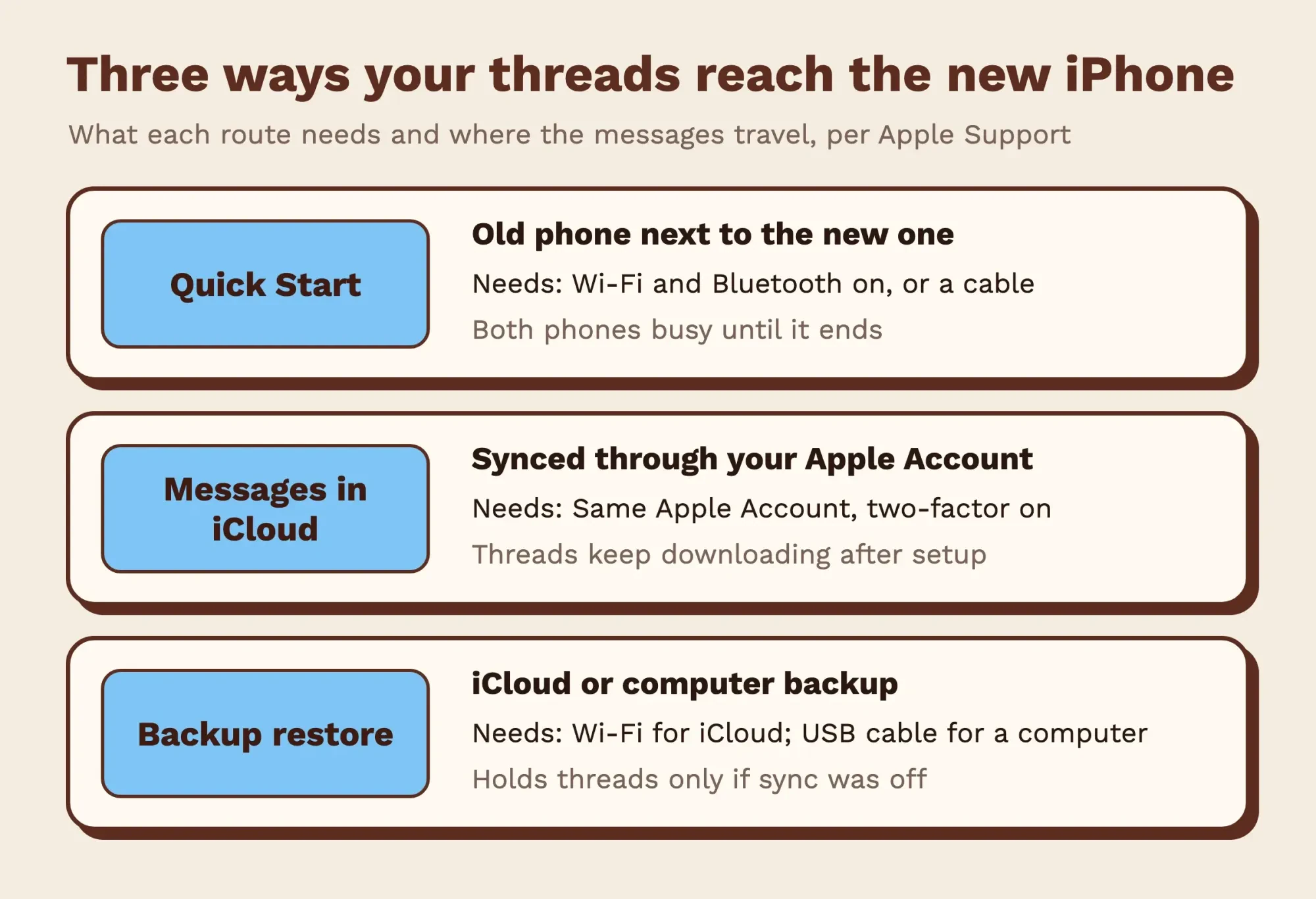 Diagram by DigitalTreed of the three transfer routes. Each requirement comes from the Apple Support page linked in its section, checked October 29, 2026.
Quick Start copies the old phone straight across
Quick Start is the route Apple puts first while the old phone still works, and its Quick Start page says that phone needs iOS 11 or later. Put the new phone next to it with Wi-Fi and Bluetooth on, wake the old one to its Home Screen, and follow the prompts. Both phones are tied up for several minutes or longer, so pick a quiet time.
Partway through, you choose how the data moves. If you download from iCloud, your apps and data arrive in the background and you can use the new phone right away. Transfer directly from the previous device instead, and you wait until both phones finish, with Apple asking you to keep them close together and plugged in.
Apple says transfer times vary with network conditions and the amount of data. Choose the iCloud download, and your threads follow the sync and backup rules in the next two sections.
Here's the catch for messages. Apple's Quick Start page talks about your data but never lists Messages by name, so our route check marks a direct transfer with sync off as Not named. There's a wired option too. Apple's wired transfer page says two iPhone 15 or later models connect with a USB-C Charge Cable. From an iPhone 14 or earlier to an iPhone 15 or later, it's a USB-C to Lightning Cable. One more limit: a new phone enrolled in Apple Business or Apple School Manager can't use Quick Start to pull data from your current device.
Messages in iCloud refills threads after setup
When the old phone had sync on, the route matters much less. Apple's text message forwarding page says that with Messages in iCloud, your whole history stays current across your devices, "even when you set up a new device." That covers SMS, MMS and RCS texts as well as iMessage. On the new phone, sign in with the same Apple Account and turn on the same switch. Apple's setup guide says messages already in iCloud then show up on the device. The first sync can take a while. You can still send and receive meanwhile.
Before you rely on it, know the side effects. Apple's overview of iCloud and Messages says a message you delete on one device is deleted everywhere. It also says your messages, photos and other attachments count toward your iCloud storage. That's why a busy business phone can fill the free tier faster than you'd guess, which the storage section below works through. If the new phone shows threads but your sent texts come out green, that's a settings problem, not a missing-thread one. Apple's green bubbles page lists updating your Messages settings after you set up a new device as one cause. Our guide on why iPhone audio messages fail to send walks through those settings.
Restore a backup when sync was off
With sync off, the backup is where your threads are, so restoring it is the move. Apple's restore guide has you turn on the new phone and follow setup until Transfer Your Apps & Data. Tap From iCloud Backup, sign in, review each backup's date and size, and choose the most recent, then keep the phone on Wi-Fi and power until the bar finishes. Already set the phone up as new? You'll need to erase it and start setup again to reach that screen. Apple says setting up as new creates iCloud backups that replace your saved ones, so restore soon. Its restore help page adds that a restore can't run over cellular, only Wi-Fi.
Have a computer backup instead? The steps are similar. Apple's Mac backup steps use the Finder on macOS Catalina 10.15 or later, with Back Up Now on the connected phone. To restore, pick Restore Backup in the Finder, or in the Apple Devices app on a Windows 10 or later PC, then choose the newest backup.
An encrypted backup asks for its password. Apple's encrypted backup page says it can include saved passwords, Wi-Fi settings, website history, Health data and call history, which an unencrypted backup doesn't.
Watch which device made the backup. Apple's backup methods page says a backup from another kind of device won't bring over Messages and their attachments, unless you sync messages with iCloud. Restore an iPhone from an iPad backup, and the threads stay behind.
Which route keeps photos and attachments?
Attachments follow the texts. The photos, voice notes and PDFs inside a thread travel with it, and our route check treats them the same way in every situation below. Apple's missing-information page says that with sync off, texts and attachments save in the next iCloud backup and download when you restore. With sync on, Apple's overview counts them in your iCloud storage instead. To see every case side by side, we wrote Apple's rules into a short script and ran nine move situations through it. Each answer cites the Apple page behind it. This table is the result, with the route on the new phone and the old phone's settings:
| Situation | Route on the new phone | Old phone settings | Threads and attachments arrive? |
| A | Quick Start, direct | Sync on | Yes, from iCloud after sign-in |
| B | Quick Start, direct | Sync off | Not named on Apple's Quick Start page |
| C | iCloud backup restore | Sync off | Yes, inside the backup |
| D | iCloud backup restore | Sync on | Yes, from iCloud, not the backup |
| E | Computer backup restore | Sync off | Yes, inside the backup |
| F | Computer backup restore | Sync on | Yes, from iCloud, not the backup |
| G | iCloud backup restore | Sync off, iPad backup | No |
| H | Set up as new | Sync off | No, only new messages |
| I | iCloud backup restore | Sync off, Keep Messages 30 Days | Only the last 30 days |
Six of the nine end with every thread back, and the two No rows share a cause: the threads were never where the new phone looked. In G the only backup came from an iPad, which can't carry Messages to an iPhone, and in H nothing was restored at all.
Row I fails without any error. The old phone had already removed every conversation older than 30 days, attachments included, so the backup never held them.
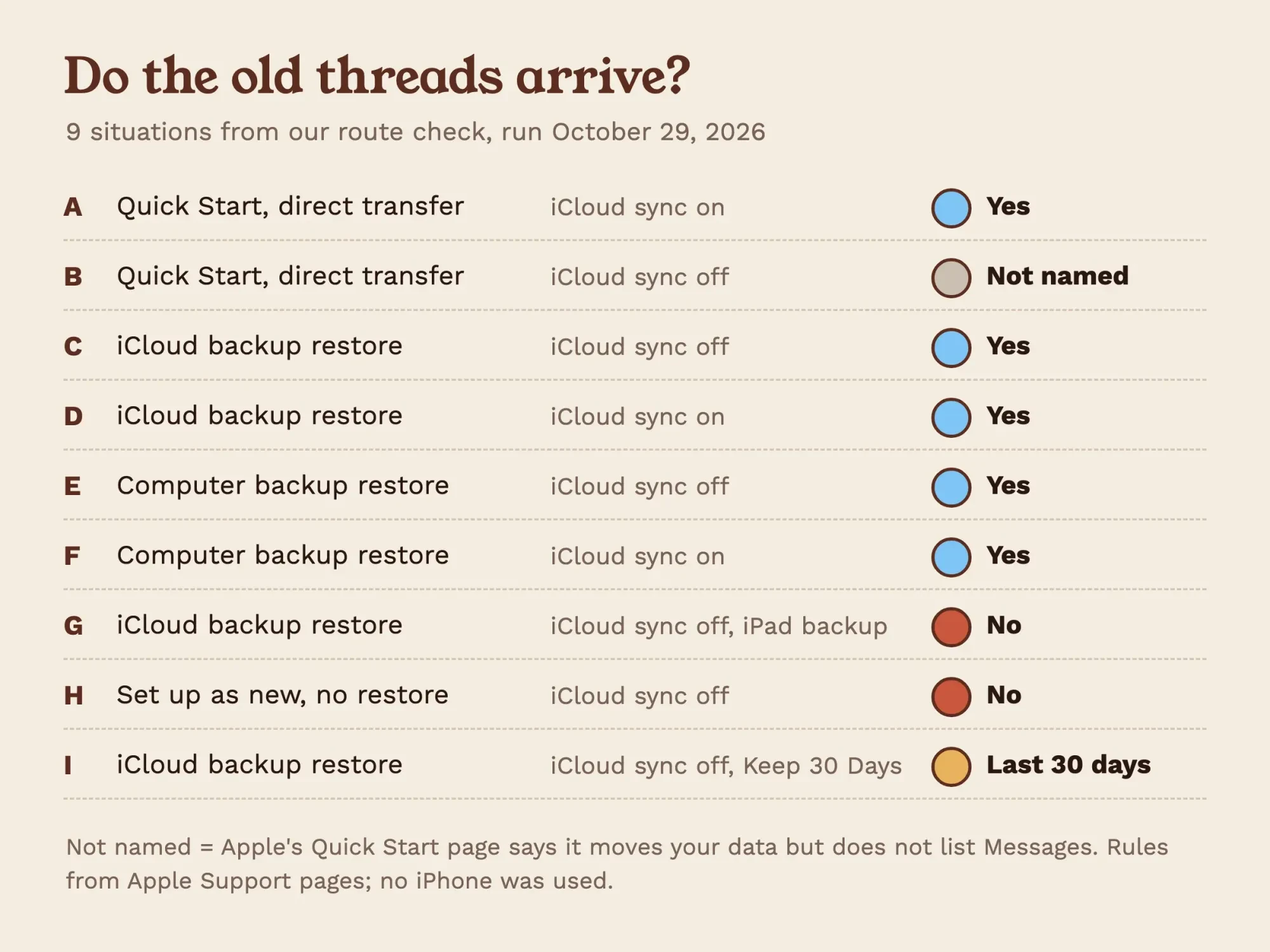 Diagram by DigitalTreed. Results of our route check in test/results.json, run October 29, 2026.
What we tested
We didn't move a real phone. On a Mac, we wrote Apple's published rules as small Python functions in test/routes.py, ran nine situations and saved run-log.txt and results.json. Row E is our reading of Apple's backup methods page: a computer backup holds almost all data, and messages aren't on its exclusion list unless they sync with iCloud.
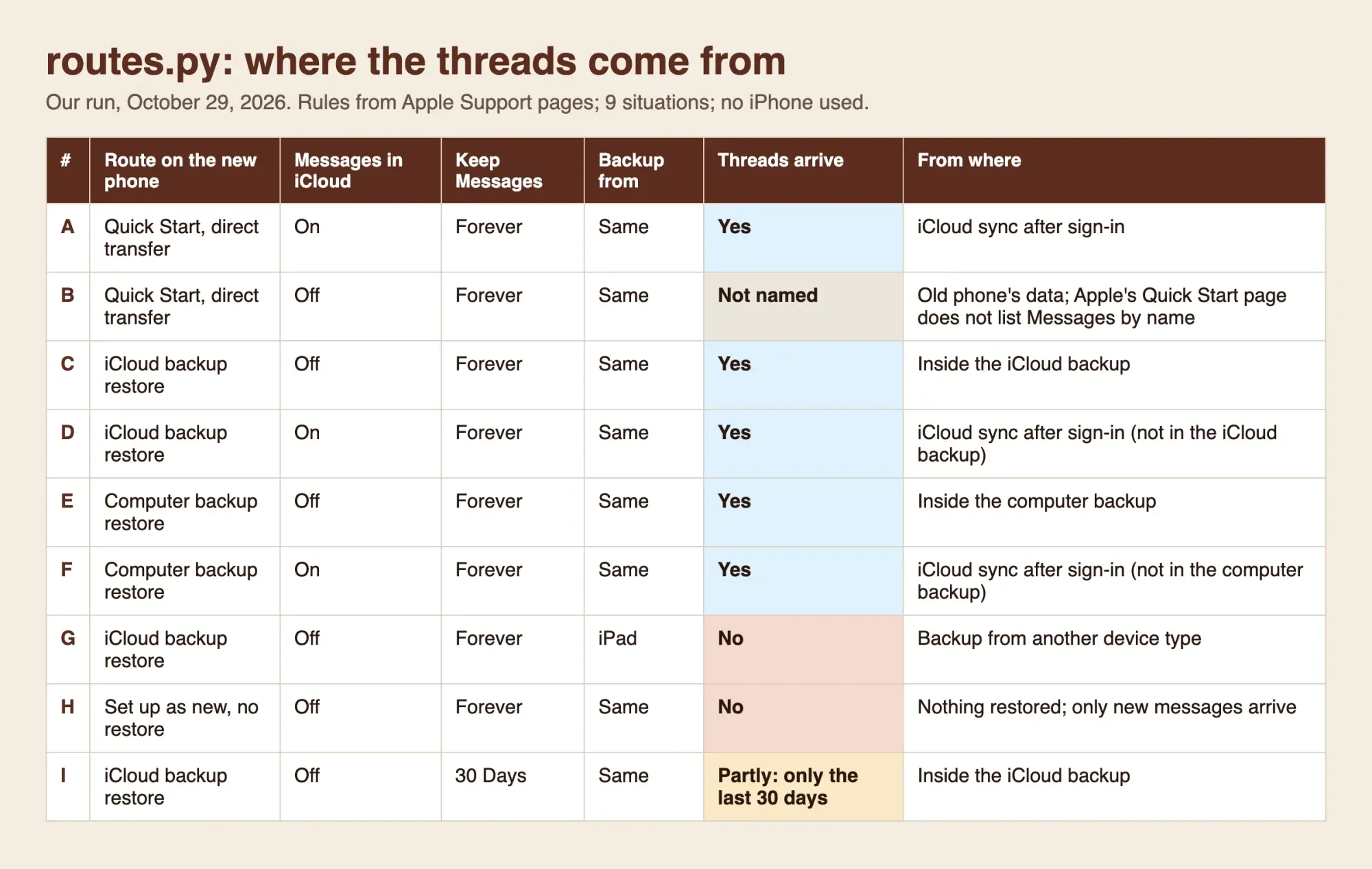 Screenshot: our route check report (test/report.html) opened in headless Chrome at 127.0.0.1, October 29, 2026.
Paying for iCloud storage, or borrowing it for 21 days
Storage is where many moves stall. An iCloud backup only runs if it fits, and Apple's iCloud+ plans and pricing page says every account gets 5 GB free. As of October 29, 2026, it lists these US prices, billed monthly, with tax added in some states:
- 50 GB for $0.99 a month
- 200 GB for $2.99 a month
- 2 TB for $9.99 a month
- 6 TB for $29.99 a month
- 12 TB for $59.99 a month
Here's how our script matched three example sizes to a plan, using monthly price times 12 and Apple's US prices as of October 2026. Example 1: 3.1 GB already in iCloud plus a 1.4 GB backup is 4.5 GB, which fits the free 5 GB. Example 2: 3.1 GB plus 18 GB of synced messages is 21.1 GB, which needs 50 GB, or $0.99 x 12 = $11.88 a year. Example 3: 46 GB plus 18 GB is 64 GB, which needs 200 GB, or $2.99 x 12 = $35.88 a year.
Need the space only for the move? Then you may not have to pay at all. Apple's temporary iCloud storage page says new iPhone buyers who lack room for a backup can get temporary storage. On the old phone, open Settings, General, Transfer or Reset iPhone, and tap Get Started under Prepare for New iPhone. You get 21 days to restore that backup, plus another 21 with Keep My Backup Longer if the new phone hasn't arrived by then. Apple is blunt about the order: don't erase the current phone until the temporary backup is on the new one. After that, the copy stays 7 days before it's deleted.
Apple deletes a temporary backup 7 days after the restore, so business records in your threads deserve a copy you control. Our comparison of cloud storage for small business lists the options, and this piece on cloud backup for a business covers why one copy isn't enough.
Old threads still missing after the move
Say the route was right and threads are still missing: the cause usually sits on the old phone. Apple's guide to deleting messages describes Keep Messages, under Settings, Apps, Messages, below Message History. Any choice other than Forever means your conversations, including all attachments, are automatically removed after that time. A phone set to 1 Year can't hand over a thread from three years ago, because it no longer has it.
Change that setting to Forever on the new phone today. Then the next move starts with every thread you have.
Deleted threads have a short way back. Apple's recover deleted messages guide says you can recover texts deleted on your iPhone for up to 30 days, from Recently Deleted in the conversation list. With Messages in iCloud on, recovering a thread on one device recovers it on all of them. Apple also says audio messages that expire before being saved can't be recovered.
Last, try another backup. Apple's missing-information page suggests restoring from a different backup in iCloud or on your computer, after backing up what's on the new phone.
Old backups also linger. Apple's iCloud storage page says iCloud backups stay 180 days after you turn off or stop using iCloud Backup, so an old phone's backup may still be there.
Checks before you wipe the old phone
Once the threads look right, a few minutes of checking beats any recovery trick, so we'd go through this list with both phones side by side:
- Open your oldest important thread on the new phone and scroll to its first message
- Tap a few photos and PDFs inside threads and make sure they load
- Confirm the last backup date on the old phone, then make one more
- Set Keep Messages to Forever on the new phone
- If you used temporary iCloud storage, confirm the restore finished first
When everything checks out, follow Apple's steps before you sell or trade in an iPhone. Sign out of iCloud, then erase. Apple's factory reset steps run through Settings, General, Transfer or Reset iPhone, then Erase All Content and Settings. Apple's sell page says erasing turns off iMessage on that phone, and your content isn't deleted from iCloud. Moving to Android instead? Apple's sell page says to deregister iMessage first, and its deregister iMessage page has you turn off iMessage and FaceTime on the iPhone. Skip it, and the new phone may not get RCS or SMS/MMS messages. Our guide on controlling Android background apps helps once you're on the other side.
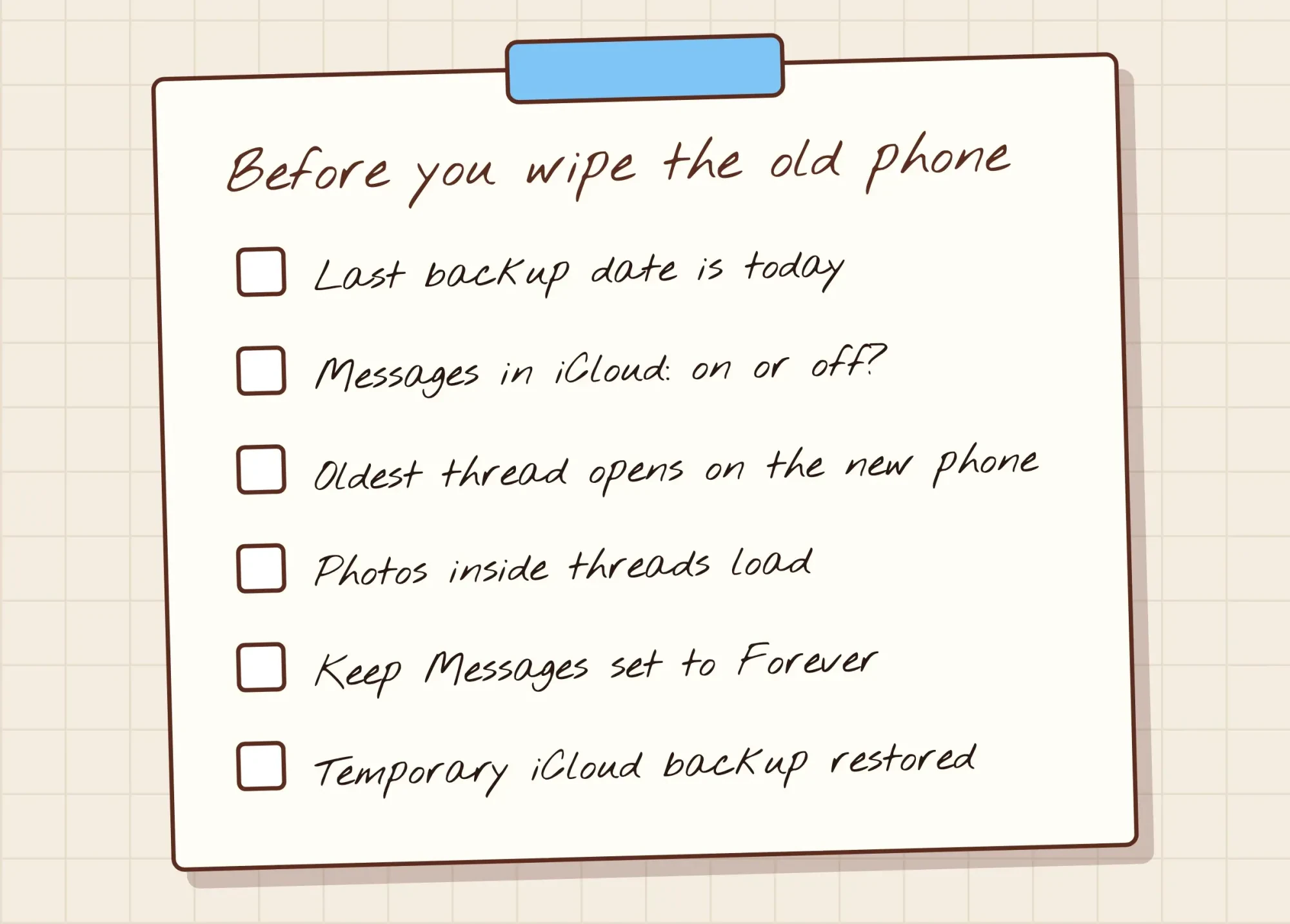 Drawn by us. Checks taken from Apple Support pages on backups, Keep Messages and temporary iCloud storage, read October 29, 2026.
Our take: for a phone that holds customer conversations, turn on Messages in iCloud before the move and keep a fresh backup as well. With sync on, the backup holds your app data and settings, not your messages.
Two things can still stall the last steps. A forgotten Screen Time passcode can stop you changing settings on the old phone, and our Screen Time passcode guide lists the safe ways back in. Customer files saved outside Messages need their own home, which our file management tips for small businesses cover.
Questions about moving messages to a new iPhone
Frequently asked
Can I transfer messages to a new iPhone without iCloud?
Yes, with a computer backup. Apple's backup methods page says a computer backup's storage depends on your Mac's or PC's free space, and encryption is off by default.
How long until old messages show up on a new iPhone?
Apple gives no fixed time. Its restore guide says restore time varies with the backup size and your network speed, and photos and apps keep downloading after setup.
Do I need the same SIM card to move my messages?
Apple's transfer checklist says to move your SIM or eSIM and have your Apple Account password ready before you begin. If the new phone needs a different SIM card, Apple says to contact your carrier.
Will Text Message Forwarding copy my old texts?
No. Apple's forwarding page says it shows SMS, MMS and RCS messages on your other devices, and it's built into Messages in iCloud.
How we made this guide: Apple's own rules came first. We saved 23 Apple Support and user guide pages as text, then encoded the transfer and backup rules in routes.py and ran nine situations through it. No iPhone, Apple Account or real backup was used, and each source sits inline at its claim. Facts checked by the DigitalTreed team on October 29, 2026.
First published February 2025, when it was a short iCloud backup walkthrough. Rewritten October 29, 2026 to explain why threads go missing and to add all three routes, attachments, iCloud storage math and a route check.
Sources
- Apple Support: Use Quick Start to transfer data to a new iPhone or iPad
- Apple Support: Use a wired connection to transfer data to a new iPhone or iPad
- Apple Support: Transfer data from your previous iOS or iPadOS device
- Apple Support: Restore your iPhone, iPad, or iPod touch from a backup
- Apple Support: If restore from iCloud backup failed
- Apple Support: If you're missing information after you restore with iCloud Backup
- Apple Support: What does iCloud back up?
- Apple Support: Backup methods for iPhone or iPad
- Apple Support: About encrypted backups
- Apple Support: How to back up your iPhone or iPad with your Mac
- Apple Support: How to back up your iPhone or iPad with iCloud
- Apple Support: Get temporary iCloud storage when you buy a new iPhone or iPad
- Apple Support: iCloud+ plans and pricing
- Apple Support: Manage your iCloud storage
- iCloud User Guide: Set up iCloud for Messages on all your devices
- iCloud User Guide: Keep your messages up to date with iCloud
- Apple Support: Forward text messages from your iPhone to other devices
- Apple Support: If your iPhone messages are green
- iPhone User Guide: Delete messages and attachments
- iPhone User Guide: Recover deleted messages
- Apple Support: How to factory reset your iPhone
- Apple Support: What to do before you sell, give away, or trade in your iPhone
- Apple Support: Deregister iMessage on your iPhone or online

Comments
No comments yet. Start the conversation below.