
Quick answer
If you mostly make your own social posts and ads, Canva Pro fits better at $144 a year (US list price as of October 28, 2026). Photoshop, at $263.88 a year prepaid, wins when the photo itself needs work, like clean product cutouts or retouching. Start with the cost table, then see one florist post planned in both.
Say you own a small shop, make your own Instagram posts, sale flyers and product photos, and have priced both apps only to stall on Photoshop vs Canva. Photoshop is a layer-based photo editor sold only by subscription, while Canva is a template-based design tool with a free plan. Our pick for most owners is Canva Pro first, with Photoshop added only when photos are the product.
We start with how Photoshop edits pixels and Canva arranges templates, then what each costs for one person and a team. Next come what each asks you to learn, one florist post planned in both, and where Photoshop gives more control over the photo. Last: should you pay for Canva, Photoshop or both?
Key takeaways
- Canva Pro costs $144 a year; Photoshop costs $263.88 prepaid.
- At an example 144 graphics a year, Canva Pro costs $1.00 each.
- Two Canva Business seats cost $500 a year; two Photoshop for teams seats, $911.76.
- Canva's Background Remover and Magic Eraser need a paid plan, not Free.
- Canva's license bars its stock content from logos, so draw logos elsewhere.
Photoshop edits pixels, Canva arranges templates
So what's the real difference? Photoshop opens a photo and lets you change it pixel by pixel, in stacked layers. Adobe's Layers panel guide describes a panel that lets you "select, hide, reorder, and modify layers without affecting other elements." Canva works the other way round. It opens a finished layout and lets you swap the photo, words and colors. Its pricing page lists 1.6 million or more templates on Free and 3.6 million or more on paid plans, as of October 28, 2026. The table sets the six things owners ask first side by side, at October 28, 2026 US list prices:
| Factor | Photoshop | Canva |
| Starts from | A photo or blank canvas, built in layers | A template you edit |
| Price for one person | $263.88 a year prepaid, or $22.99 a month on an annual plan | $0 Free, or Pro at $144 a year or $18 a month |
| Team plan | Photoshop for teams, $37.99 a month per license | Business, $250 a year per person |
| Photo cutouts | Selection tools and Generative Fill | BG Remover, paid plans only |
| Free plan | None; a 7-day trial | Yes, with 1.6+ million templates |
| Buy once? | No, subscription only | No, Free or subscription |
If most rows on the right look like your week, you're a Canva shop, but if the cutout row is your daily job, read the photo section before you decide.
Canva costs less for one person, and the gap grows with a team
As of October 28, 2026, Adobe's plans page sells Photoshop at $22.99 a month on an annual plan billed monthly, or $263.88 a year prepaid. It also says you can't buy Photoshop outright. Canva's pricing page shows Pro at $144 a year or $18 a month for one person, and Business at $250 a year per person, before sales tax.
List prices get clearer per graphic. Say the made-up Amberlane Florist makes 12 graphics a month, which is 144 a year. That's an example, not a measured number. The formula is yearly cost divided by 144, at the October 28, 2026 list prices. Canva Pro yearly is $144 / 144 = $1.00 a graphic, and Photoshop prepaid is $263.88 / 144 = $1.83. That's $0.83 less per graphic on Canva. Paying for both comes to $407.88 / 144 = $2.83.
Billing choice moves these numbers too, mostly on Canva. Monthly Canva Pro costs $18 x 12 - $144 = $72 more a year, against $22.99 x 12 - $263.88 = $12 more for Photoshop billed monthly.
Teams change the math more than volume does. Canva's compare table lists "Invite team members" on Business and up, not on Pro, so a shop with a part-time helper who edits designs needs Business. Adobe's Business tab lists Photoshop for teams at $37.99 a month per license, as of October 28, 2026, which gives this yearly cost by headcount:
| People on the plan | Canva Business (yearly) | Photoshop for teams | Gap per year |
| 1 | $250 x 1 = $250.00 | $37.99 x 12 x 1 = $455.88 | $205.88 |
| 2 | $250 x 2 = $500.00 | $37.99 x 12 x 2 = $911.76 | $411.76 |
| 3 | $250 x 3 = $750.00 | $37.99 x 12 x 3 = $1,367.64 | $617.64 |
With three people, the gap reaches $617.64 a year at these list prices. That's more than a full year of Photoshop for one person.
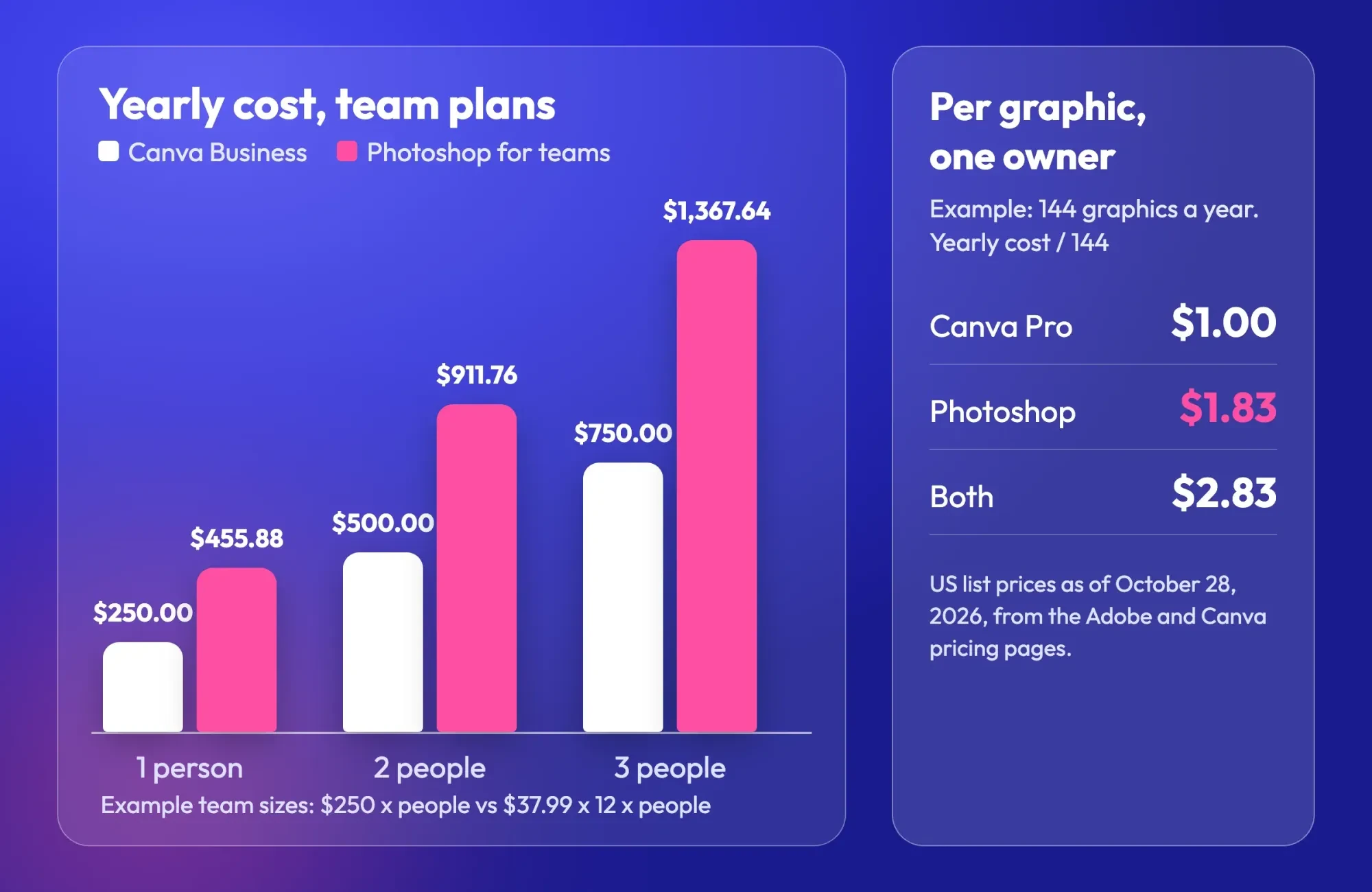 Diagram by DigitalTreed. Example volumes; US list prices from the Adobe and Canva pricing pages, read October 28, 2026.
What we tested
We wrote a small cost script and ran it on a local computer, without touching either app. It applies each formula above to the list prices and saves a table and a local page. Every row matched the hand math: $0, $1.00, $1.50, $1.67, $1.83, $1.92 and $2.83 per graphic for one owner, plus the three team totals above.
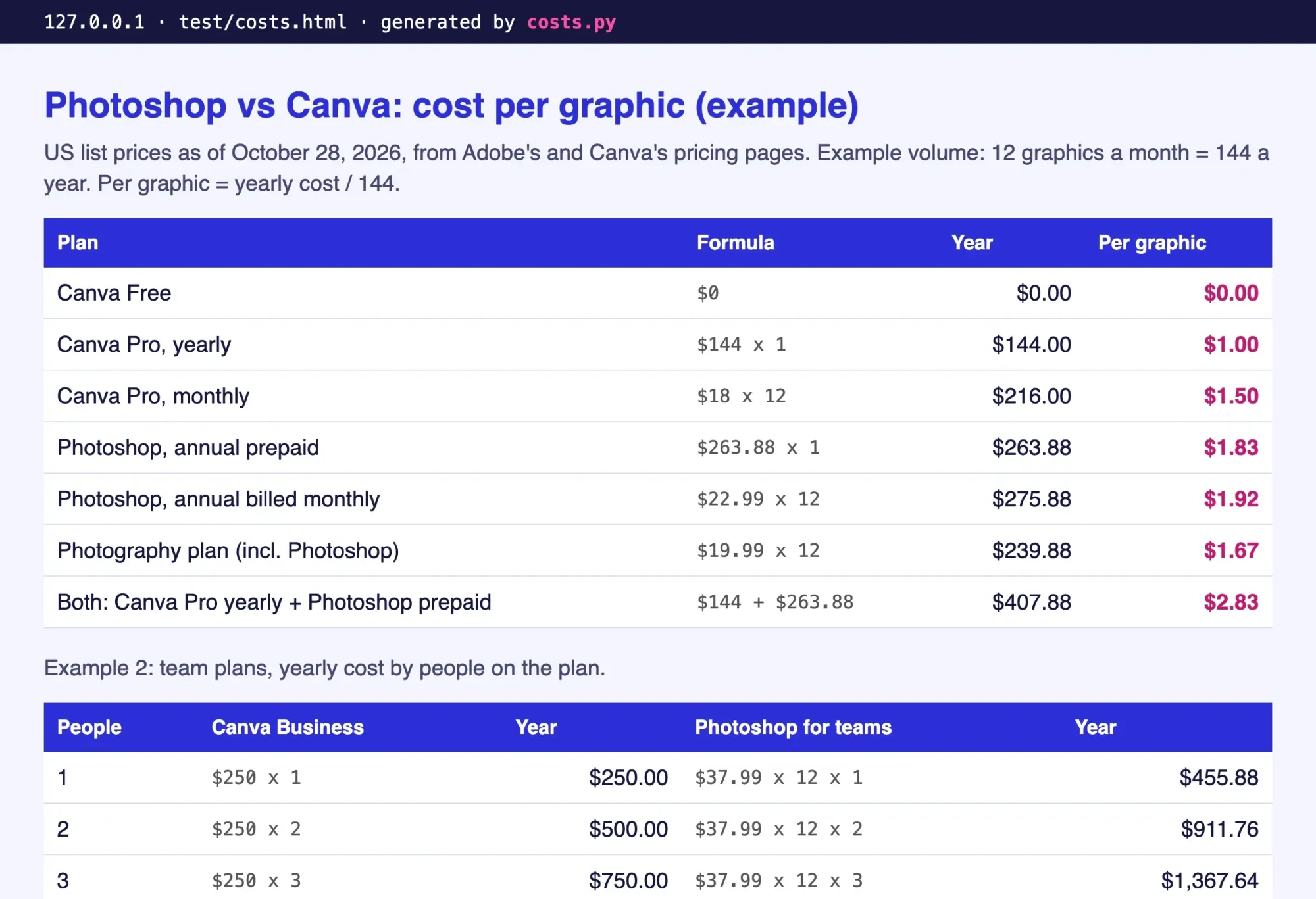 Screenshot: our cost test page on 127.0.0.1, October 28, 2026. Example inputs.
What each one asks you to learn
Time costs more than either plan. Photoshop asks you to think in layers before anything looks right. A headline, a product cutout, a shadow and a background each sit on their own layer, and you arrange them in the Layers panel. That's powerful, because you can change one piece without breaking the rest. But you build the post before you can polish it. A blank canvas gives no hints about spacing, font size or where the eye lands first. If you post between customers, build one layered file once and swap only the photo and headline each week.
Your computer gets a vote as well. Adobe's technical requirements page lists 8 GB of RAM as the floor and 16 GB or more as recommended. Its Windows table also asks for 10 GB of free disk space, plus an internet connection for activation and for checking that your subscription is still valid.
If your laptop has 8 GB, you're at Adobe's minimum, not its recommendation. Canva's pricing page lists no hardware needs at all.
Canva asks for much less up front. You pick a template, drop in your photo and change the words, and the spacing, fonts and colors were set by the template's designer. Paid plans add brand controls too, and the Canva compare table lists 1 Brand Kit on Free, 5 on Pro and 100 on Business for a growing team. If your designs still look homemade, our graphic design tips for posts and flyers fix most of it without any new app. One twist: Adobe's Photoshop plan includes the Adobe Express Premium plan, Adobe's own template tool. And if you only need light edits, the free photo editors we compared may cover you for $0.
One florist post, planned in both
Those differences get clearer on one everyday job. It's a square Instagram post for the made-up Amberlane Florist: a bouquet cut out over a soft background, with a sale headline on top. We picked a florist because loose petals and thin stems make a fussy cutout, which is where the photo side of each tool matters most. We didn't build it in either app, and nobody was timed doing it. Instead, we mapped each step from Adobe's and Canva's own help pages, the way a new user would learn it:
| Step | Photoshop (from Adobe Help) | Canva (from Canva Help) |
| 1. Start | File > Open the bouquet photo | Pick a template for the post |
| 2. Cut out the bouquet | Select it with a selection tool such as the Selection Brush | Select the photo, then BG Remover (paid plans) |
| 3. Fix the background | Generative Fill on the selection, using generative credits | Set a background color or delete the template's background |
| 4. Add the headline | A new layer from the Layers panel | Edit the template's text |
| 5. Export | File > Export > Quick Export as PNG or JPG | Share > Download, PNG or JPG, with a size |
Each column has five steps, so the count isn't the difference. What differs is how much is done for you.
Step 3 is the clearest case. Photoshop makes new background pixels with Generative Fill, while Canva swaps in a plain color or the template's own backdrop. Steps 1 and 4 in Canva start from a finished layout, while Photoshop starts from your photo alone and asks you to place every other piece yourself. The cells come from the Generative Fill, Quick Export as, Canva Background Remover and Canva transparent download pages. Size the file once for either tool. Instagram's image resolution page keeps photos up to 1,080 pixels wide, with heights from 566 to 1,440 pixels at that width. Before the file goes on your website, shrink it with our free image compressor so the page loads fast.
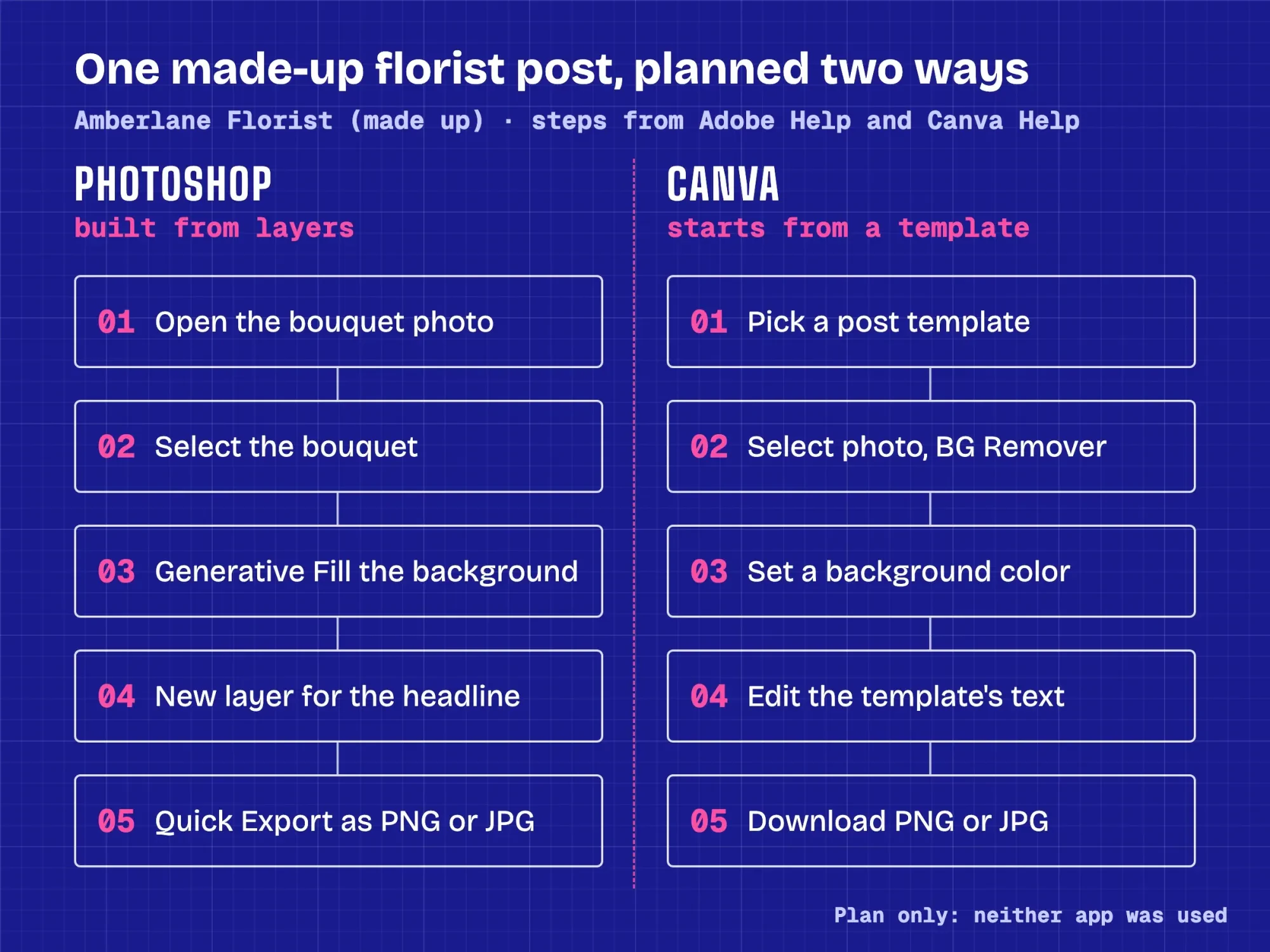 Drawn by us. Steps from Adobe Help and Canva Help pages, read October 28, 2026; neither app was used.
Photoshop gives more control over the photo itself
That step table hides one big difference: how much you can fix inside the photo. Adobe's Generative Fill guide says the tool edits an image "non-destructively" from a selection and an optional text prompt, and it lets you pick Adobe's Firefly models or partner models. That's the work of removing a stray bucket from a shop photo, or widening a background that was shot too tight for the square crop Instagram wants. Layers help here too, since the fix sits on its own layer and you can hide it if it looks wrong. If your bouquet photos are what sells, that control is what the extra $263.88 - $144 = $119.88 a year buys, at October 28, 2026 list prices.
AI edits run on a meter, though. Adobe's generative credits overview says Generative Fill and Generative Expand draw on a monthly allocation set by your plan, and some features use more per edit.
Canva covers the common photo jobs, but mostly on paid plans. Its Background Remover page calls the tool "included with paid plans," and its folder option handles up to 50 images in one go. An example batch of 40 new bouquet photos fits in one run. The compare table puts Magic Eraser, Magic Expand, Magic Grab and Magic Resize on Pro and up. Pro's AI allowance is listed at up to 200 Premium AI uses a month. During a free trial, though, Canva's FAQ says your AI allowance is the same as Canva Free, so a trial undersells it.
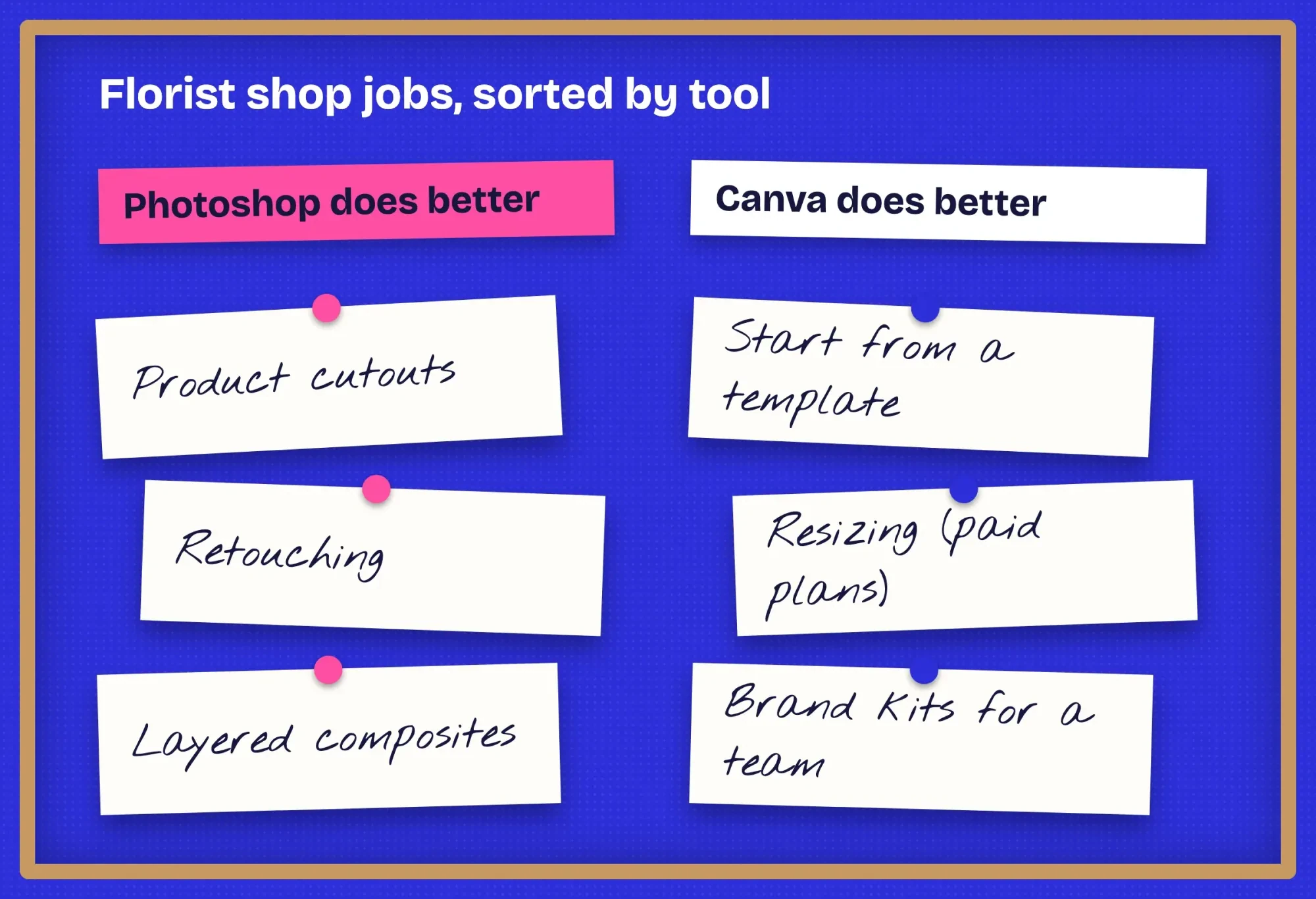 Diagram by DigitalTreed. Sorted from the Adobe and Canva pages cited in this section, read October 28, 2026.
Export is closer than you'd think. Canva's download file types page caps JPG and PNG at 8,000 x 3,125 pixels and offers PDF Print at 300 dpi for flyers. Quality controls, file size limits and transparent PNGs need a paid plan, so Free users get little say over file size. Photoshop's Quick Export saves PNG, JPG or GIF and can convert to sRGB, the color space most screens expect. A 1,080-pixel Instagram post sits far inside those caps, and a printed flyer goes out through PDF Print rather than PNG. If you only need a clean cutout now and then, our free background remover handles a single product photo without either plan.
Should you pay for Canva, Photoshop or both?
We'd sort it by the work that fills your week. Pick Canva Pro if most of your week is social posts, flyers and ads from a layout, and you work alone. Pick Canva Business once a helper needs to edit the same designs, since invites start there and Canva bills only for members who accept. Stay on Canva Free only if one Brand Kit and no Background Remover are enough for you. Pick Photoshop if product photos are what you sell, and you'll cut out, retouch or composite them often. Planning a content calendar? Our guide to a social media plan helps you count real volume first.
For that photo-first shop, Photoshop alone isn't the cheapest route. Adobe's Photography plan includes desktop Photoshop and Lightroom at $19.99 a month, with 1,000 generative credits instead of the Photoshop plan's 25, as of October 28, 2026. That's $19.99 x 12 = $239.88 a year, or $1.67 a graphic at the example 144.
Paying for both apps makes sense in one case: a shop that sells on its photos and posts daily. Canva Pro plus Photoshop prepaid is $2.83 a graphic at the example volume, $1.83 more than Canva Pro alone.
Logos are the exception to all of this. Canva's Content License Agreement says you may not "use any of the Content as part of a trade-mark, design-mark, trade-name, business name or service mark (excluding fonts)". The clause leaves out fonts, so it covers Canva's stock photos, icons, illustrations and templates. A logo built from stock elements runs into the rest, and it's a vector job anyway, which our Illustrator vs Photoshop comparison covers. Still on an old disc copy? Read whether Photoshop CS6 still works first. We'd pay a designer for the mark itself and use Canva for the posts built around it.
Our take: begin with Canva Pro on the yearly plan, and add Photoshop only when a photo job keeps beating Canva's tools for a month or more.
To hand the work off instead, our graphic designer cost guide shows what freelancers charge. DigitalTreed's graphics and video service makes posts and product images too. That earns us money, so ask for our quote and set it next to a freelancer's.
Questions owners ask about Photoshop and Canva
Frequently asked
Is there a free version of Photoshop?
Only a trial. Adobe's plans FAQ says the 7-day trial converts to a paid membership after 7 days unless you cancel. It points free users to Adobe Express instead.
Can two people share one Canva Pro account?
No. Canva's pricing FAQ says "Only one person can use a Canva Pro account," so a helper needs Canva Business.
Can I install Photoshop on two computers?
Yes, with limits. Adobe's license FAQ says a Photoshop for teams license can stay signed in on up to two computers, with only one in use at once.
Can I sell T-shirts with Canva stock graphics on them?
Not on their own. Canva's license bars showing its content "on a standalone basis" to sell on-demand items such as mugs and t-shirts.
How we made this guide: Our sources were Adobe's plans page, five Adobe Help pages, Canva's pricing page, three Canva Help pages, its license and Instagram's size page. The cost script ran locally; neither app was used. Facts checked by the DigitalTreed team on October 28, 2026.
First published July 2020 as a list of Photoshop features. Rewritten October 28, 2026: now a Photoshop vs Canva comparison on cost, skills and photo control for small businesses.
Sources
- Adobe: Compare Photoshop plans
- Canva: Plans and pricing
- Adobe Help: Adobe Photoshop on desktop technical requirements
- Adobe Help: Work with the Layers panel
- Adobe Help: Edit images with Generative Fill
- Adobe Help: Generative credits overview
- Adobe Help: Export your work using the Quick Export as option
- Canva Help: Remove photo and video backgrounds
- Canva Help: Choose the right download file type for your Canva design
- Canva Help: Download design with transparent background
- Canva: Content License Agreement
- Instagram Help: Image resolution of photos you share on Instagram
Comments
No comments yet. Start the conversation below.