
Quick answer
The best free photo editor for most business photos is Photopea in a browser or GIMP on a computer: both are free, with no account. In our test, Photopea turned a 2.6 MB test photo of a candle into a 39 KB WebP. Canva and Fotor are free too, but you sign in first.
You need to crop a product shot, clean up a background and get it small enough for your website. You don't want to pay for Photoshop to do it.
Good news: you don't have to.
We checked 13 photo editors against their own pricing and help pages in October 2026, and ran one of them through a real export test. Some "free" editors on older lists aren't free anymore, and a few hide the one tool you came for behind a paid plan.
Key takeaways
- Photopea in a browser and GIMP on a computer are free with no account.
- Quality 80 is not a standard; each app maps the number its own way.
- Canva's free plan does not include one-click background removal.
- PicMonkey is now a 7-day trial, not a free editor.
- Editing someone else's photo does not make it yours under US copyright.
One candle photo, two free setups and the same three steps
We wanted numbers, not adjectives. So we drew our own test photo: an amber candle jar with a wooden lid on a warm paper backdrop, 3,000 by 2,000 pixels, saved as a 2,615,622-byte JPEG. It isn't a real product, and nobody else owns it. Then we ran the same three steps in two setups that need no account. First, crop to a square. Next, resize to 1,200 by 1,200 pixels. Last, export at quality 80.
Setup one was Photopea in Chrome, run through Photopea's own script commands so each step was exactly the same; setup two was the Mac's own image tool, sips, on macOS 27.0.1.
Why only two? The rest need a sign-in or an install, or charge for the step we cared about. Preview is built in, but we couldn't drive its menus from our test session. We didn't create accounts or install anything for this test, so GIMP and the rest are described from their own pages. That's the honest limit of this test.
| Our file (1,200 x 1,200 px) | Tool and setting | Bytes | vs the 2,615,622-byte original |
|---|---|---|---|
| JPEG | Photopea, quality 80 | 116,518 | 95.5% smaller |
| WebP | Photopea, quality 80 | 39,542 | 98.5% smaller |
| PNG | Photopea | 1,422,191 | 45.6% smaller |
| JPEG | macOS sips, quality 80 | 332,431 | 87.3% smaller |
| JPEG | macOS sips, quality 50 | 103,109 | 96.1% smaller |
| WebP | macOS sips | Not possible | WebP is read-only on macOS 27.0.1 |
Two things jumped out.
Photopea's WebP was a third the size of its own JPEG, and quality 80 on the Mac made a file 2.9 times bigger than quality 80 in Photopea.
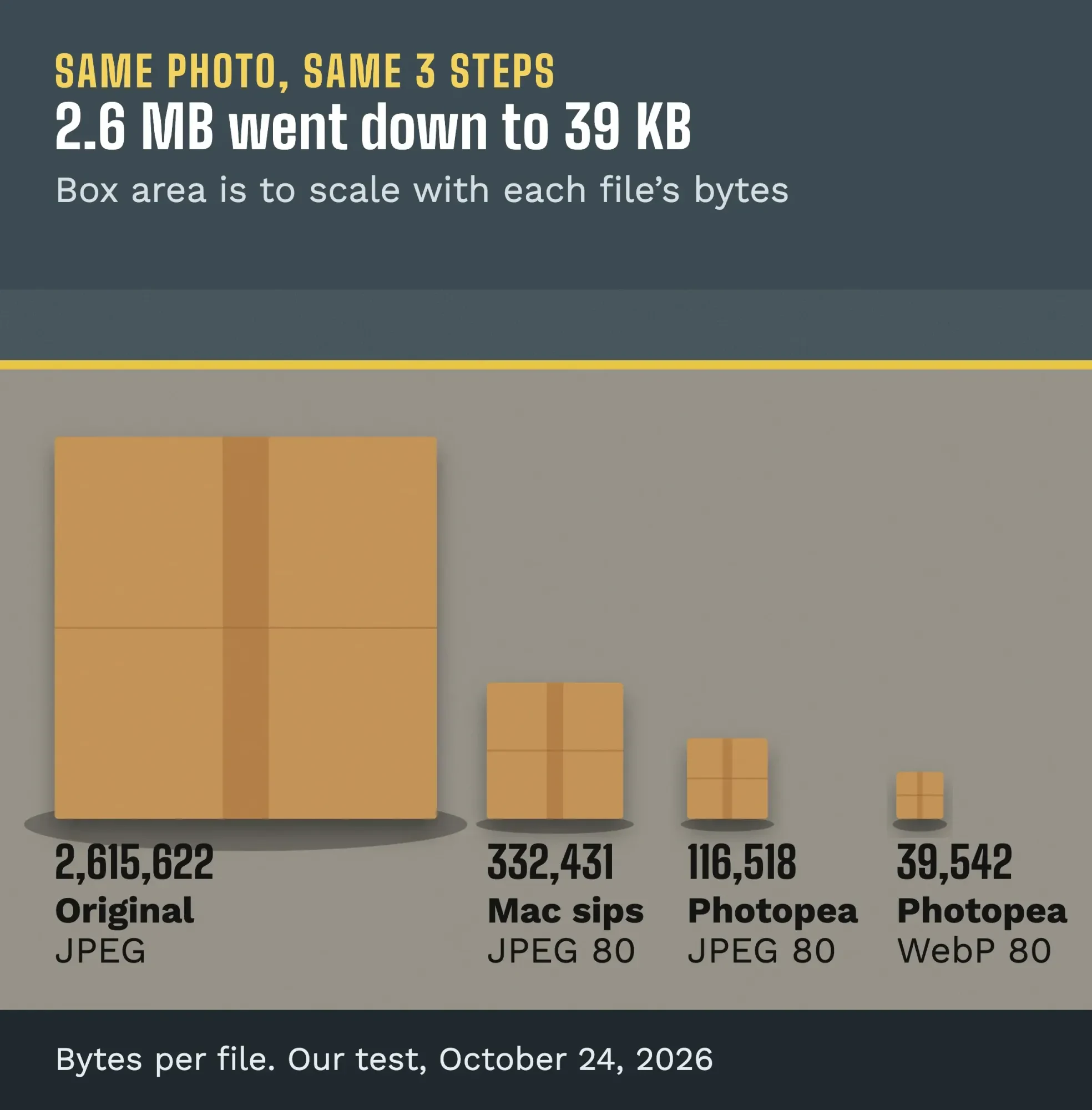 Diagram by DigitalTreed from our own test, October 24, 2026. Box areas are to scale with the file sizes.
That second one matters more than it looks. "Quality 80" isn't a standard; each app maps the number its own way.
Free photo editors side by side, as of October 24, 2026
So here's what each editor's own pages said when we read them, plus what we saw in our test. Where a vendor page didn't state something, the cell says so instead of guessing.
| Editor | Runs on | Account to edit? | Watermark on free exports | Paid plan from (as of Oct 24, 2026) |
|---|---|---|---|---|
| GIMP 3.2.6 | Windows, macOS, Linux | No | None (open source) | No paid plan |
| Photopea | Any browser | No | None in our test | Ads on free use; Premium price not confirmed |
| Preview and Photos | Mac (Photos also iPhone, iPad) | No, built in | None | Built in |
| Google Photos | Web, Android, iOS | Google Account | Not stated | Free; 15 GB shared with Gmail and Drive |
| Canva | Web and apps | Free plan for one person | Not stated | Pro US$144 a year |
| Adobe Express | Web and apps | Adobe account | Not stated | Premium price not confirmed |
| Fotor | Web, Windows, Mac, iOS, Android | One account | None, per Fotor | Pro price not confirmed in US$ |
| Pixlr | Browser | Not stated | Not confirmed | Plus $1.99 a month on a yearly plan |
| PicMonkey | Web and apps | 7-day trial | Trial only | Basic $7.99 a month |
| darktable 5.6.2, RawTherapee 5.13 | Desktop | No | None (open source) | No paid plan |
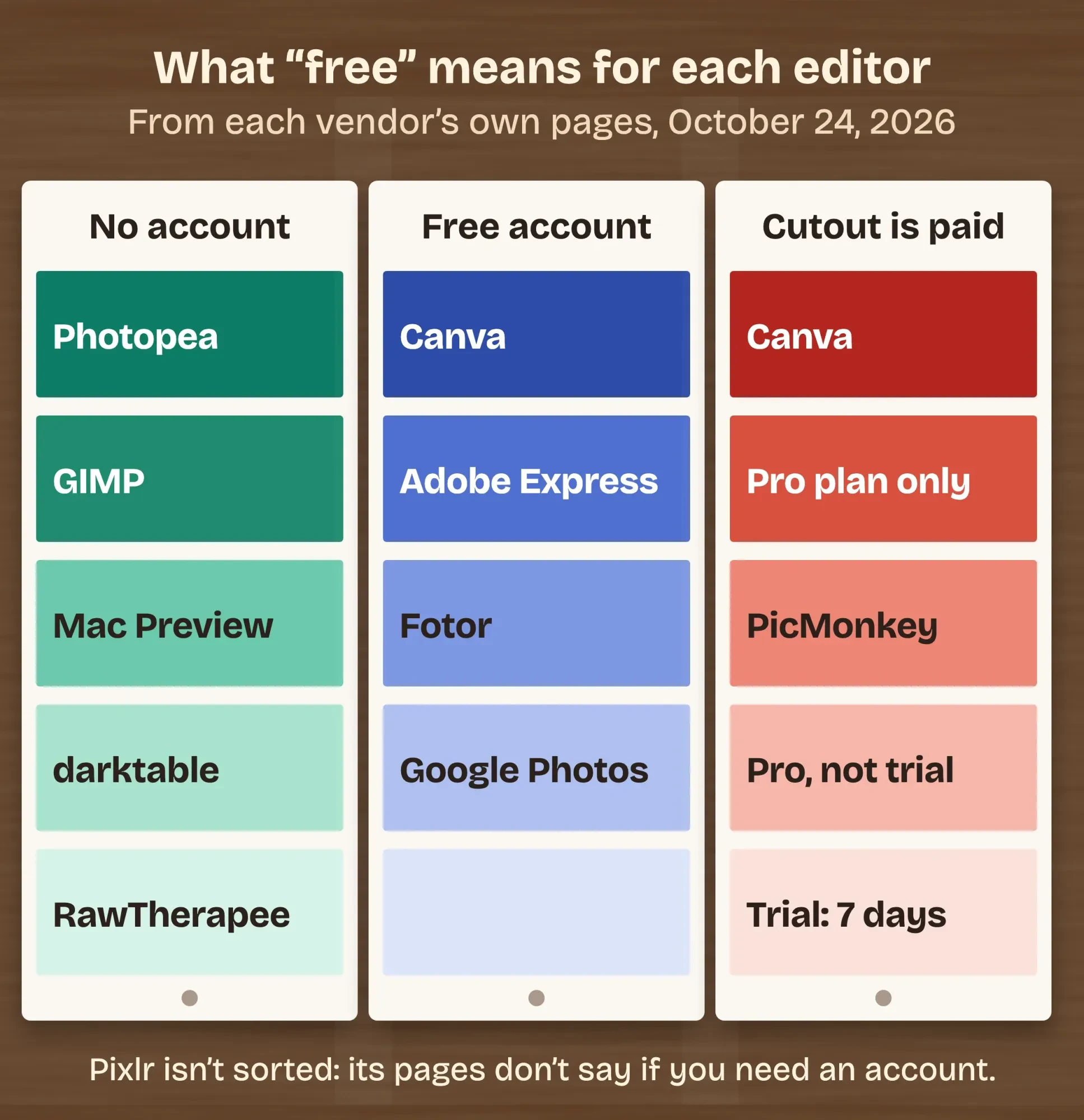 Diagram by DigitalTreed. Groups follow each vendor's own pages, read October 24, 2026.
Prices come from Canva’s pricing page, Fotor’s pricing page and PicMonkey’s pricing page, all read the same day as our test.
Adobe Express and Photopea Premium prices didn't show in a form we could confirm, so we left them out.
Photopea is the closest free thing to Photoshop, right in a browser
Now to the editors themselves. Photopea is a free online photo editor that looks and works much like Photoshop, layers and all. Photopea’s home page says it opens PSD, WebP, HEIC and camera RAW files, and that "Photopea runs on your device, using your CPU and your GPU."
Best for: one-off product edits when you don't want to install anything or make an account.
We tested that "runs on your device" claim, because it's the first thing an owner should ask about a browser editor. We logged every network request Chrome made while Photopea opened, cropped, resized and exported our photo. The page fetched its ads and scripts, but the only upload in the whole session was an analytics beacon of under 900 bytes, sent when the page first loaded, before the photo was opened.
Our photo never left the laptop.
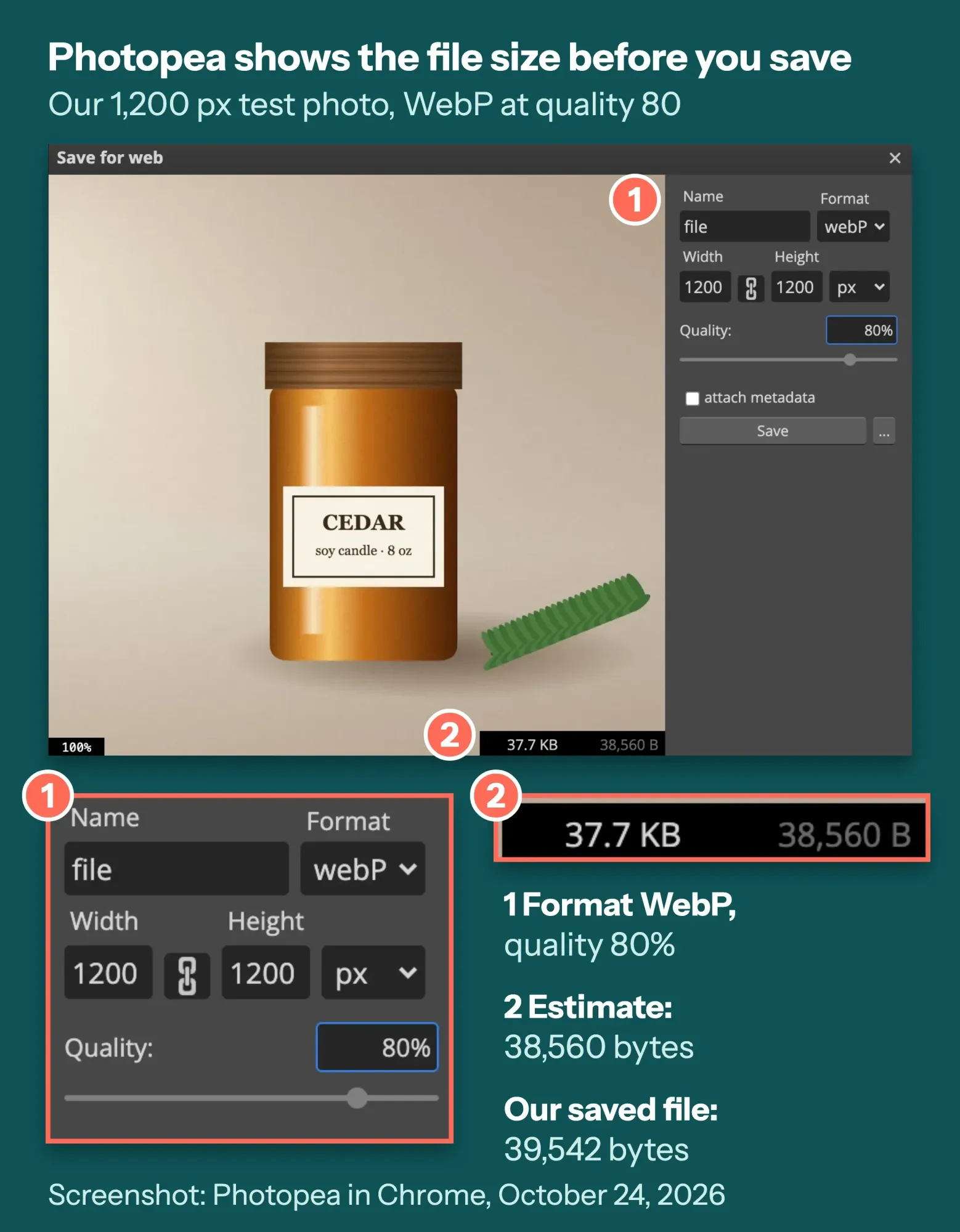 Screenshot: Photopea's Save for web dialog with our own test photo, October 24, 2026. The dialog's estimate (38,560 bytes) differs slightly from the file its export command wrote (39,542 bytes).
Exporting is easy once you find it: File, then Export as, then pick WebP or JPG. The dialog shows the expected file size before you save, so you can slide the quality down and watch the number drop instead of guessing and exporting again.
The catch is ads. Photopea’s own ad page says ads "may cover between 5% and 15% of the screen," and a panel in our session offered to hide them for a fee.
Expect a busy screen on a small laptop.
One more thing we didn't test: the home page lists one-click background removal. We can't tell you whether that's free without an account, so the cutout section below sticks to tools we could check.
GIMP is a full desktop editor with no account and no price
Unlike Photopea, GIMP installs on your computer, and it's the other free editor people mean by "like Photoshop." Its download page lists version 3.2.6, released September 10, 2026, for Windows, macOS and Linux. Its about page says it's free software under the GNU General Public License.
Who it suits: people who edit photos every week and want layers, masks and precise selections without a subscription.
We didn't install GIMP for this test, so this part comes from its manual. Two habits trip up new users. GIMP saves its own XCF format, and the GIMP manual says you use Export, not Save, to get a JPG or PNG. Its web chapter also gives the simple rule we'd give: use JPEG for photographs and PNG for buttons, icons and screenshots.
The catch: it's a big program with a learning curve.
If you only fix one photo a month, a browser editor is quicker.
Your Mac or phone may already have the editor you need
Before you download anything, look at what's already on your device. On a Mac, Preview can crop, resize and reduce file size; Apple’s Preview guide walks through Tools, then Adjust Size. In the macOS 27 guide, Preview can also remove the background from an image with one toolbar button.
Best for: Mac owners who need a quick crop, a resize or a cutout today.
Our Mac numbers come from sips, the image tool that ships with macOS. We couldn't click through Preview's menus in this test, so we ran the same crop and export from Terminal instead.
First, the Mac can open WebP but can't save it. On macOS 27.0.1, the system's format list marks WebP as read-only, and our WebP export simply produced no file. For WebP, use a browser editor.
Second, the Mac's quality scale runs high: its quality 80 JPEG was 332,431 bytes, and it took quality 50 to land near Photopea's quality 80.
Apple Photos is the other built-in option. Apple says Photos keeps the original, "so that you can always undo your changes." Its Clean Up tool removes distracting objects, but it needs Apple Intelligence, which "is not available in all languages or regions."
On Android, or an iPhone without a Mac, Google Photos adds filters and crops on your phone or computer. It needs a Google Account, and Google says each account gets 15 GB of storage, shared with Gmail and Drive.
Canva and Adobe Express are free with a sign-in, and built for social posts
But if the photo is going into an Instagram post or a flyer, Canva or Adobe Express will get you there faster than a pure photo editor. Canva's free plan is "US$0 /year for one person," per its pricing page, and Pro is US$144 a year as of October 24, 2026.
Best for: turning a photo into a social graphic with text, in one place.
Here's the catch most lists skip. On that same pricing page, "remove background" sits in the list of Pro AI tools, so the one-click cutout isn't part of the free plan. Plan around that.
Adobe Express has a free plan, "Free to use. No payment card required." per its pricing page, and a paid Premium plan; Adobe’s help page says Premium "can be purchased directly as a standalone subscription." That page showed us only non-US prices, so we don't quote one.
Designing the whole post, not only fixing the photo? Our graphic design tips for small businesses cover type, color and layout.
Fotor and Pixlr handle quick browser fixes, with credits and ads
Like the template tools, Fotor and Pixlr want a login for much of what they do, but they're closer to plain photo editors. Fotor's FAQ says its free plan lets you edit as many images as you want and "export the edited photos without watermarks," with one account across Windows, Mac, iOS and Android.
Fotor's AI tools run on credits, and the free plan gets "Limited Free credits" on its pricing table. We couldn't confirm Fotor's US price, so we don't quote one.
Pick it for fast filters and touch-ups when you already have a free Fotor login.
Pixlr is harder to pin down. Its pricing page lists Plus at $1.99 a month on a yearly plan ($2.49 month to month) and Premium at $7.99 ($9.99), as of October 24, 2026. Plus adds "Ad-Free" and "Unlimited saves," but the page doesn't spell out the free tier's limits, so we don't guess them.
Fine for a quick edit; check the limits yourself before you rely on it.
PicMonkey is a 7-day trial now, not a free editor
Then there's PicMonkey. Older roundups, including the first version of this page, call it free. It isn't. PicMonkey’s pricing page says "Start a 7-day free trial or buy today!" Basic is $7.99 a month or $72 a year, as of October 24, 2026.
Its one-click background remover is in the Pro plan, and the page says it's "not available in trial."
BeFunky is similar: its pricing page says many tools are "free to use or preview for free," with premium features behind a subscription.
For RAW camera files, try darktable or RawTherapee
Still shooting on a real camera? If you shoot RAW, you want a RAW developer, not a general editor. darktable 5.6.2 came out in October 2026 under the GPL, and RawTherapee 5.13 followed on July 26, 2026, and is free, open-source software under the GPLv3.
Best for: anyone moving off a paid Lightroom plan.
The catch is on darktable's install page: "Currently there are no official releases for Intel Macs."
Most phone photos aren't RAW, so most small shops can skip this one.
How can I remove a product photo background for free?
That brings us to background removal, where "free" gets slippery. Canva lists it under Pro, and PicMonkey keeps it in Pro and out of the trial. So which free routes are left?
- On a Mac running macOS 27, Preview's remove-background button, from Apple's guide above.
- In GIMP or Photopea, select the product by hand and delete the rest. It takes longer, but there's no plan to buy.
- Our free background remover, which runs the AI in your browser, so the photo isn't uploaded.
Whichever you use, zoom in all the way and check the edges.
One-click cutouts often leave a halo around hair, glass or fuzzy fabric.
Example: a two-person leather wallet shop in Flagstaff, Arizona, shoots 30 wallets on a white sheet by a window. The owner cuts out each wallet, crops it to a square and saves a 1,200-pixel WebP. If each lands near our test's 39,542 bytes, all 30 come to about 1.2 MB, less than half of our single original.
Adding a price tag or a sale banner on top? If you're matching a font you saw elsewhere, our comparison of free font finders shows which ones worked.
You own the photos you take, not every photo you edit
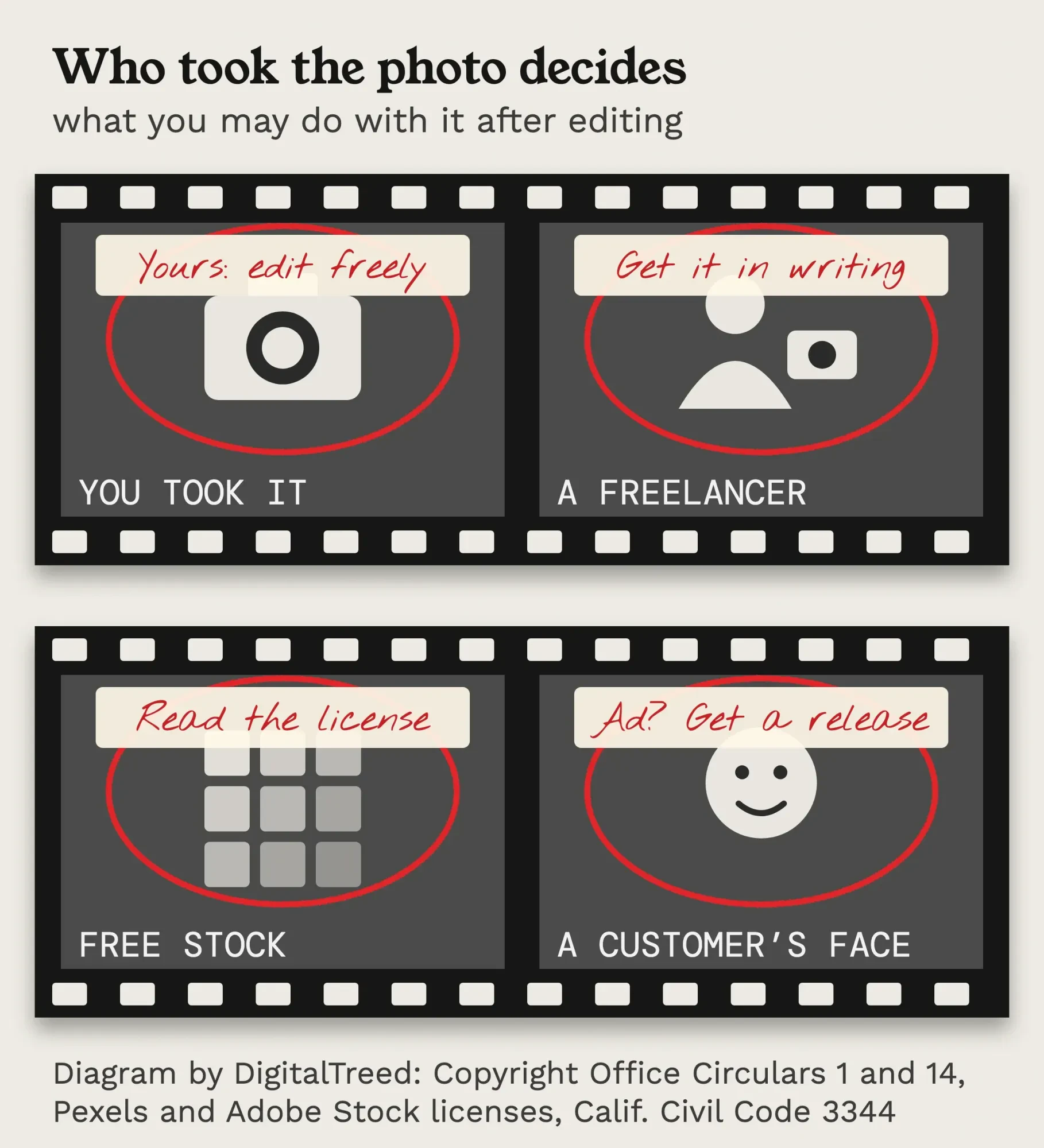 Diagram by DigitalTreed, based on Copyright Office Circulars 1 and 14, the Pexels and Adobe Stock licenses and California Civil Code 3344. Not legal advice.
Once the cutout is done, there's a question free editors never ask: is it your photo to change? Copyright Office Circular 1 says US copyright starts "automatically from the moment the original work of authorship is fixed," and the owner controls derivative works.
So editing someone else's photo doesn't make it yours.
Circular 14 says your copyright covers "only the additions, changes, or other new material," and that "the unauthorized adaptation of a work may constitute copyright infringement."
Hired a freelance photographer? Circular 1's work-made-for-hire rule covers employees doing their regular job, or certain works under "an express written agreement."
Get the rights in writing before you edit and publish; when in doubt, the Copyright Office recommends getting permission.
Free stock has rules too. Pexels’ license lets you modify photos without credit, but says "Don't imply endorsement of your product by people or brands on the imagery." An Adobe Stock "Editorial Use Only" image can't go in ads or be modified beyond minor changes.
Faces add a separate layer, and that's state law. California Civil Code 3344 makes anyone who knowingly uses a person's photograph in advertising "without that person's prior consent" liable for at least $750 or the actual damages, whichever is greater. Get a signed release from customers or staff who appear in ads.
And AI edits? The Office's January 2025 report says AI output is protected only where a human author "determined sufficient expressive elements." Our guide to picking business photos covers where to find images you can use.
None of this is legal advice for your business; it's what the Copyright Office and one state's code say. If a photo is central to a product launch, a short call with an intellectual property attorney costs less than a takedown fight.
Export for your website at the size it's shown
Once the photo is cleaned up, the export decides how fast your page loads. Google’s image guidelines say images "are often the largest contributor to overall page size," and Search supports JPEG, PNG, WebP and AVIF.
WebP is usually the smart pick. Google’s WebP page says lossy WebP files are "25-34% smaller than comparable JPEG images at equivalent SSIM quality index."
Our single test went further, with WebP at a third of the JPEG's size. Zoomed all the way in, though, the WebP had smoothed the fine grain in our backdrop, while the label text looked the same in both.
- Resize to the largest size your page shows the photo, not the full size your camera saves.
- Save WebP if your editor can; otherwise JPEG for photos and PNG for logos or screenshots.
- Judge quality by eye at full zoom, since "80" means different things in different apps.
- If a file still feels heavy, run it through our free image compressor, which works in your browser.
Then check the page itself: the PageSpeed Insights walkthrough on our site points out images that slow a page down.
Name the file and write alt text before you upload
Next comes the step that costs nothing and helps search. Google’s guidelines say "my-new-black-kitten.jpg is better than IMG00023.JPG," and that Google uses alt text "along with computer vision algorithms" to understand an image.
So the wallet shop would name a file brown-bifold-leather-wallet.webp, not IMG_4410.webp.
Its alt text would read "brown leather bifold wallet with 6 card slots, open." Not a string of keywords; Google warns against "filling alt attributes with keywords."
Our alt text checker lists every image on a page with missing or weak alt text.
Frequently asked
What size should product photos be for a Shopify store?
Shopify says square product images usually display best at 2048 x 2048 px. Images can be up to 5000 x 5000 px, or 25 megapixels, and must be under 20 MB, per Shopify's product media help as of October 2026. Use the same aspect ratio for every product so collection pages line up.
Is GIMP safe to download?
Get it only from the official GIMP downloads page. Each installer there is listed with a SHA256 hash sum and a link to check it on VirusTotal, so you can confirm the file before you run it. The Windows installer for version 3.2.6 shows over 2.7 million downloads on GIMP's downloads page as of October 2026.
Can I use Google Photos editing tools with a work account?
Not on Android. Google says the editing features need a personal Google Account and aren't available to Google Workspace or school accounts. Most tools also need at least 3 GB of RAM and Android 8.0 or later, and some are Pixel only, per Google Photos Help as of October 2026.
Pick by the job in front of you
Still unsure? Match the editor to the job instead of hunting for the "best" one.
- One product photo, no account, any computer: Photopea.
- Weekly editing, offline, full control: GIMP.
- A Mac and a quick cutout: Preview.
- A social post with text: Canva or Adobe Express, signed in.
- RAW files from a camera: darktable or RawTherapee.
Our take: start with Photopea or the editor already on your Mac. Most small-shop photo jobs come down to a crop, a cutout and a smaller file, and none of them needs a subscription.
Some jobs aren't worth doing yourself, like a logo or a full product catalog.
When that point comes, read what to look for in a graphic designer and how a small brand sets its look first.
If you'd like a hand, our graphics team edits product photos and social images for small businesses. That's our paid service, so weigh the suggestion with that in mind.
How we made this guide: our team read every price, limit and claim above on the vendor's own page, October 24, 2026. We also read Apple's and Google's help pages, GIMP's manual, three Copyright Office documents and California's civil code. The export test ran that day on a MacBook in India, with a test photo we drew ourselves, Photopea in Chrome and the sips tool on macOS 27.0.1. We didn't install GIMP or sign up for any editor. Every fact links to the page it came from, and Eram N., whose name is on this post, reviews it before it's published.
First published July 2020. Rewritten in full October 24, 2026: PicMonkey corrected (now a trial), sign-up, watermark and price facts per editor, our own export and privacy test, image rights for US businesses and web export tips.
Sources
- GIMP: Downloads (version 3.2.6)
- GIMP: About GIMP
- GIMP 3.0 manual: Getting images out of GIMP
- GIMP 3.0 manual: Preparing your images for the web
- Photopea: Home page
- Photopea: How Photopea displays ads
- Canva: Pricing
- Adobe: Adobe Express Premium help
- Fotor: Online photo editor and FAQ
- Fotor: Pricing
- Pixlr: Pricing
- PicMonkey: Pricing
- BeFunky: Pricing
- Apple: Crop, resize, or rotate an image in Preview on Mac
- Apple: Remove a background or extract an image in Preview on Mac
- Apple: Photos editing basics on Mac
- Apple: Use Clean Up in Photos on Mac
- Google Photos Help: Edit your photos
- Google One Help: How your storage works
- darktable: News (5.6.2)
- darktable: Install
- RawTherapee: Downloads
- U.S. Copyright Office: Circular 1, Copyright Basics
- U.S. Copyright Office: Circular 14, Derivative Works
- U.S. Copyright Office: Fair use FAQ
- U.S. Copyright Office: Copyright and AI, Part 2 release (January 29, 2025)
- California Civil Code section 3344
- Pexels: License
- Adobe Stock: License terms
- Google Search Central: Image SEO best practices
- Google for Developers: WebP
Comments
No comments yet. Start the conversation below.