
Quick answer
The graphic design tips that matter most are simple: one message per graphic, two fonts, a small color palette, and text contrast of at least 4.5:1 (3:1 for big headlines). In our October 24, 2026 test of 11 common color pairs, 7 failed that 4.5:1 line. So check contrast first. It's the rule people break without noticing.
We wrote this for the owner who makes their own Instagram posts, sale graphics and flyers in a free template app, usually between customers. You don't need to become a designer. You need a few graphic design tips for beginners that stop a post from looking homemade, plus a quick way to check your work before it goes out.
We've put the rules in order of how much they change the result.
One more thing up front: we design graphics for clients, so near the end we'll tell you when doing it yourself stops being worth your time.
Key takeaways
- Use two fonts and no more than three text sizes.
- In our test, 7 of 11 common color pairs failed the 4.5:1 line.
- White on amber scored 1.63:1, while black on the same yellow scored 12.88:1.
- On a photo, add a dark layer or blur behind the words.
- Design at 1080 pixels wide and keep words away from the edges.
Start with one message and make it the biggest thing on the canvas
The first rule is visual hierarchy, the order in which someone's eye moves through your design. Nielsen Norman Group describes it as arranging elements so the eye takes in each one "in the order of intended importance." You decide what gets read first. Then you make it big.
NN/g's advice for simple designs is to use "no more than 3 sizes" of text and to keep big elements to a maximum of 2. Everything else gets smaller and quieter.
A sale post doesn't need your address, your hours, a slogan and four photos.
Example: Wren Street Florist is a made-up two-person flower shop in Bozeman, Montana. Its Mother's Day post has one job, which is getting people to pre-order by Friday. So the headline says exactly that. The price sits at the second size, the web address at the third, and the logo goes small in a corner.
Then test the order the way NN/g suggests: squint, or "apply a slight blur," and see what still stands out. We blurred our mock-up of Wren Street's post at 5 and 10 pixels. At 10 pixels you can't read every letter, but the headline and the price are still the two shapes that stand out. The web address fades away, and that's fine for the third thing on the list.
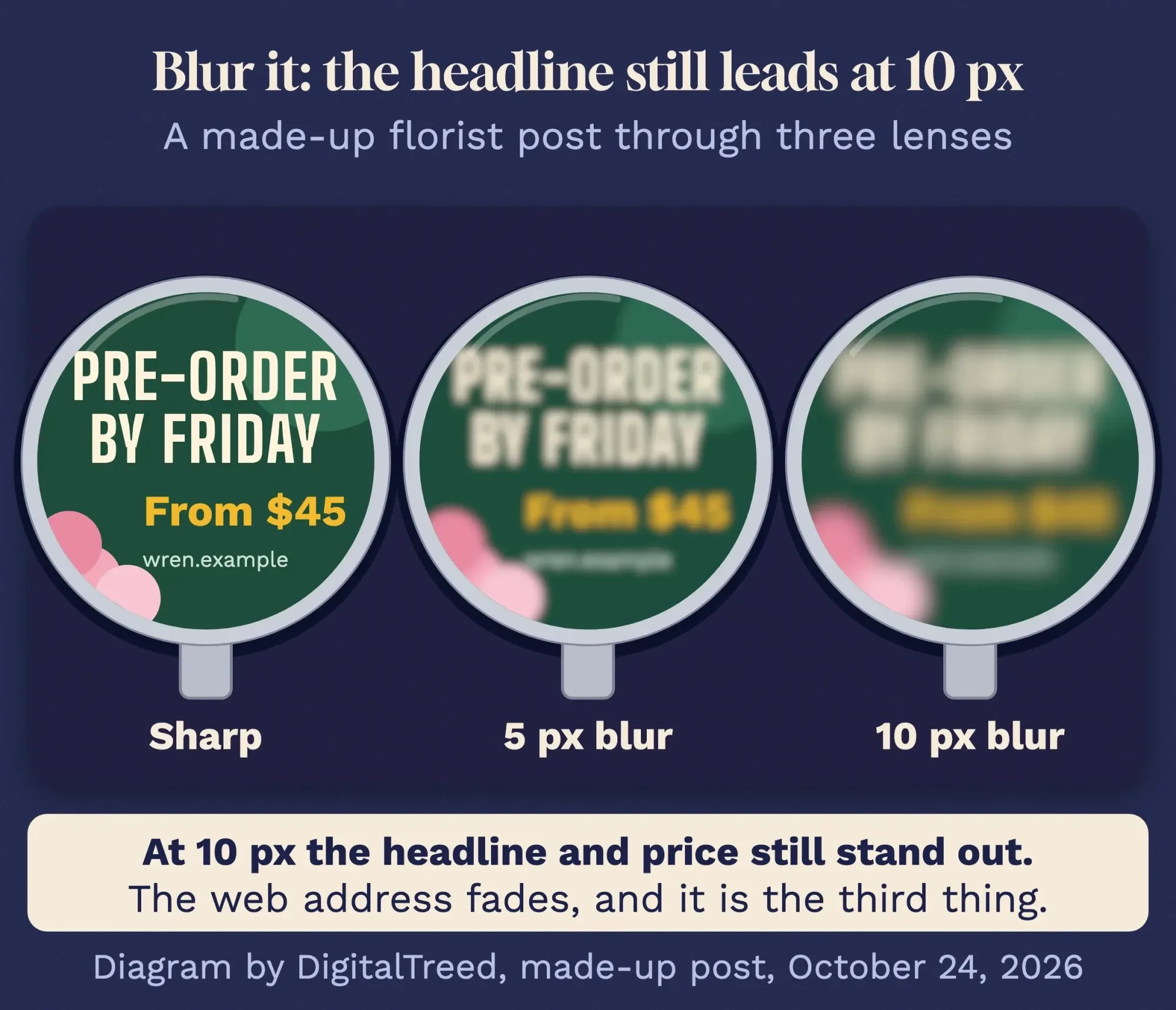 Diagram by DigitalTreed: our squint test on a made-up post, October 24, 2026.
Two fonts are enough, and thin weights vanish on a phone
Once the order is set, type decides whether anyone can read it. Pick two fonts: a bold one for headlines and a plain one for everything else. Apple’s typography guidelines tell app makers to "minimize the number of typefaces you use," and a flyer works the same way.
Weight matters as much as the font. Apple says to avoid Ultralight, Thin and Light weights, "which can be difficult to see, especially when text is small." Its minimum text size on iPhone is 11 points, with 17 as the default. Those are app numbers, not rules for a post, but they point one way: bigger and bolder beats delicate.
If a post feels hard to read, check for a thin script font first.
Line spacing is the quiet fix. Google’s Material Design 3 recommends a line height of about 1.2 times the type size for headlines and around 1.5 times for smaller body text. In most design apps that's the line spacing slider, and nudging it up makes a crowded caption breathe.
Saw a font you like on someone else's graphic? Our guide to finding the font in an image tests five free font finders. It also explains font licenses in plain words, which is worth five minutes before you put a font in an ad.
Our test: 7 of 11 common color pairs failed for normal text
So the words are big and bold. Now they need to stand out from what's behind them. Our yardstick is WCAG 2.2, the W3C's web accessibility standard. Its contrast rule asks for at least 4.5:1 for normal text and 3:1 for large text, on a scale that runs from 1:1 to 21:1.
Large means at least 18 point, or 14 point bold, at the size people actually see it. Text inside an image counts too, so judge "big" on your phone screen, not on the full-size canvas in your design app.
We wanted to know how often everyday color pairs pass. For a test dated October 24, 2026, we picked 11 pairs that are common in small-business graphics, such as white on amber yellow, white on green and dark gray on beige. We ran each one through the WCAG 2.2 contrast formula in a short Python script. Then we checked the same pairs in WebAIM’s free Contrast Checker, and the two gave the same pass or fail result for every pair. Seven of the 11 failed 4.5:1. Only 3 of those 7 cleared 3:1, so they're usable for big, bold headlines and nothing smaller.
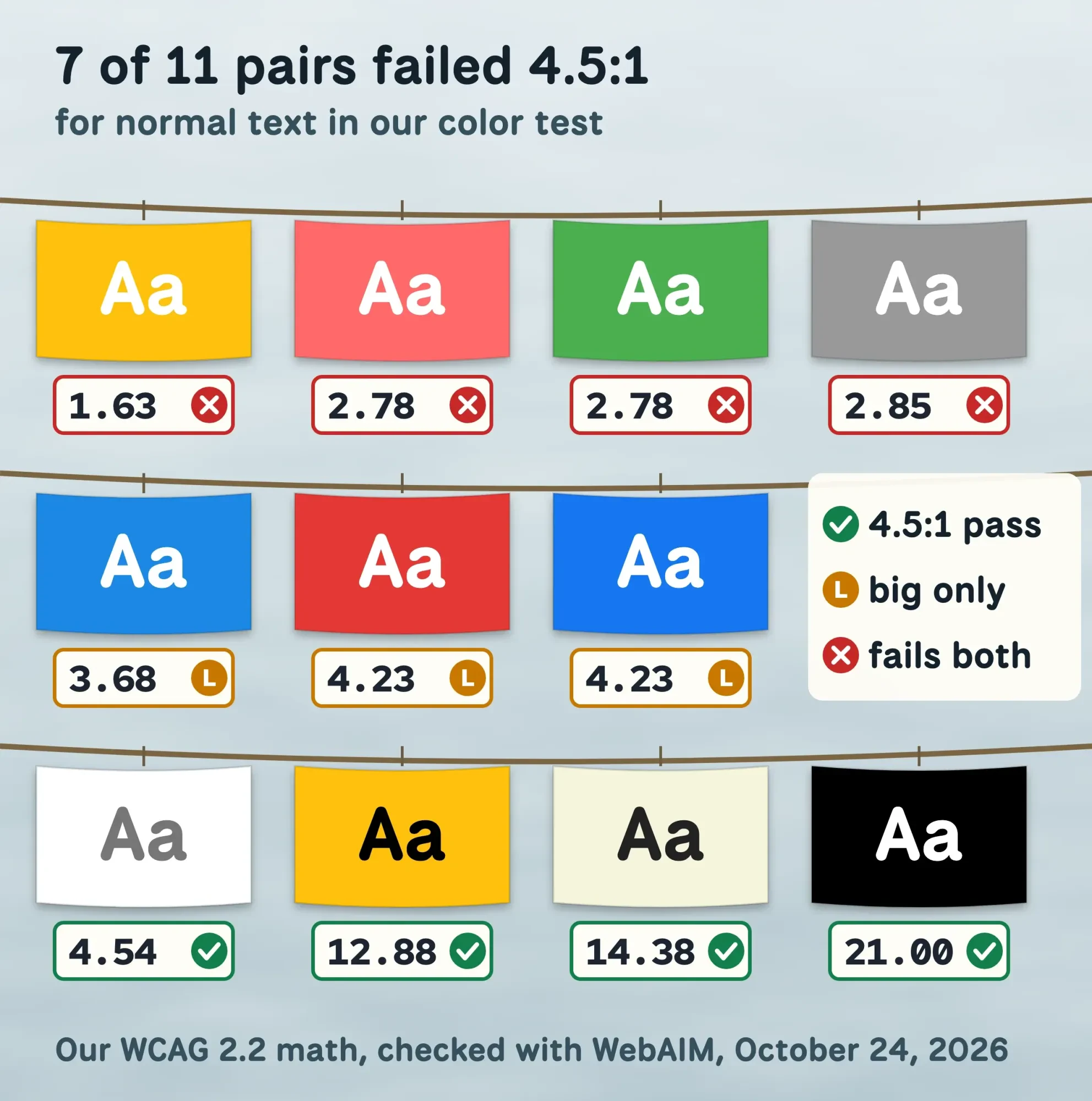 Diagram by DigitalTreed: our WCAG 2.2 math, checked with WebAIM’s Contrast Checker, October 24, 2026.
White on bright red came in at 4.23:1, and white on a medium blue at 3.68:1. Close isn't a pass. The W3C's explainer for this rule says 4.499:1 "would not meet the 4.5:1 threshold."
Yellow was the surprise. White on amber scored 1.63:1, a fail at any size, while black on the very same yellow scored 12.88:1.
If your brand color is bright, put dark text on it, not white.
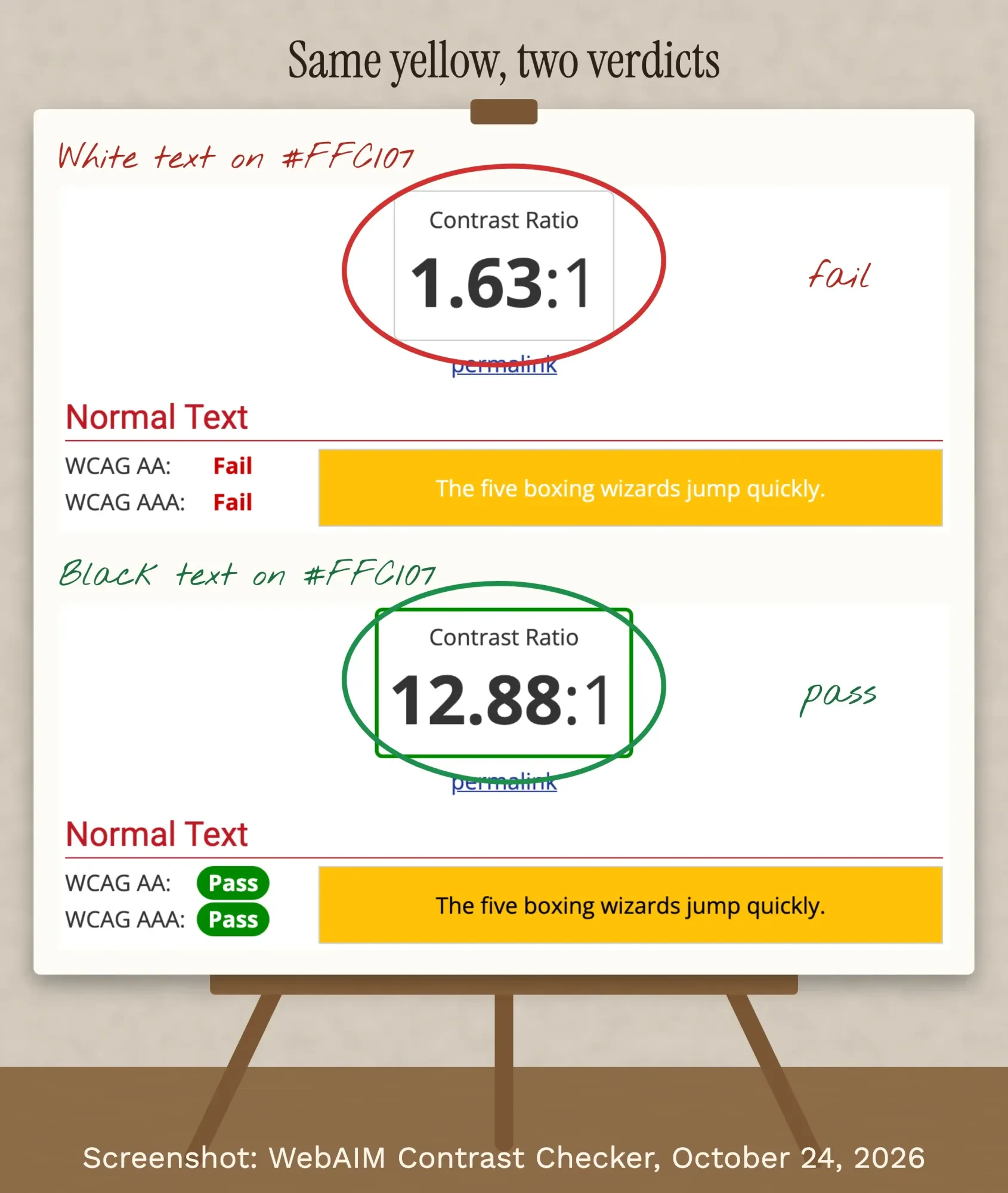 Screenshot: WebAIM Contrast Checker, October 24, 2026, our marks.
WCAG is written for websites, so no rule says a social post has to meet it. We still use it because it's the clearest published number for readable text. Our own site doesn't have a contrast tool, so WebAIM's free checker is the one to bookmark.
Pick four colors from your brand and stop there
That test is also an argument for a small palette. NN/g suggests limiting simple designs to "2 primary and 2 secondary colors." Fewer colors means fewer pairs to check, and your posts start to look like they come from the same business.
Pull the colors from your logo if you have one. If you don't have brand colors yet, our branding strategy guide covers choosing a visual identity and writing the colors down, so whoever makes the next flyer uses the same ones.
One WCAG rule is worth keeping even on paper: "Color is not used as the only visual means of conveying information." A red badge needs the words SOLD OUT on it, too.
We'd skip the color-psychology charts.
Pick colors that suit what you sell, then let the contrast numbers decide which one goes on top.
Text on a photo needs a dark layer or a blur
Photos are where contrast goes wrong most quietly. A headline that's easy to read over the sky can vanish over a white tablecloth in the same picture. NN/g’s article on text over images puts it plainly: text on an image "backfires when the contrast between the text and the background is too low."
Its fixes work in any free editor. Lay a semi-transparent black gradient behind the words, blur the part of the photo under them, or move the text to a calm area near the edge. Then judge the worst spot, not the best one, because NN/g's rule is to plan for "the worst-case background image and text placement."
Example: Wren Street's first draft put white text over pale pink peonies, and it was hard to read. A dark band behind the headline fixed it in one step.
What size should a social media post be?
The right size depends on the platform, and each one publishes its own numbers. This is what their help pages said when we read them (October 24, 2026).
| Platform | What its help page says | Source |
|---|---|---|
| Instagram feed | Up to 1080 px wide; shapes from 1.91:1 to 3:4 (1080 x 566 up to 1080 x 1440). Other shapes get cropped. | Instagram Help |
| Facebook and Instagram ads | Minimum 1080 x 1080 for 1:1; Facebook Feed 4:5 at 1440 x 1800 | Meta Business Help (ad minimums) |
| LinkedIn Page posts | Custom image on a link post: 1.91:1 (1200 x 627). Page images in general: PNG or JPEG, 3 MB at most. | LinkedIn Help |
| 2:3 (1000 x 1500); taller Pins might get cut off in feeds | Pinterest Business Help (ad specs) |
Two warnings. Meta's numbers are minimums for ads, and we didn't find a Meta page with sizes for ordinary posts. LinkedIn's pages also disagree with each other: its marketing help says organic link previews now use a smaller layout and recommends 3:2 or 16:9.
We left X out, because its help center blocked our requests on the day we checked. For YouTube, our YouTube thumbnail guide has the size table from YouTube's own help page.
Our take: design at 1080 pixels wide and keep your words near the middle. LinkedIn's advice for cover photos is to "place key details away from the edges," and that habit protects you from every crop in the table. If a platform crops from the center, the strip all four shapes share is a wide band across the middle.
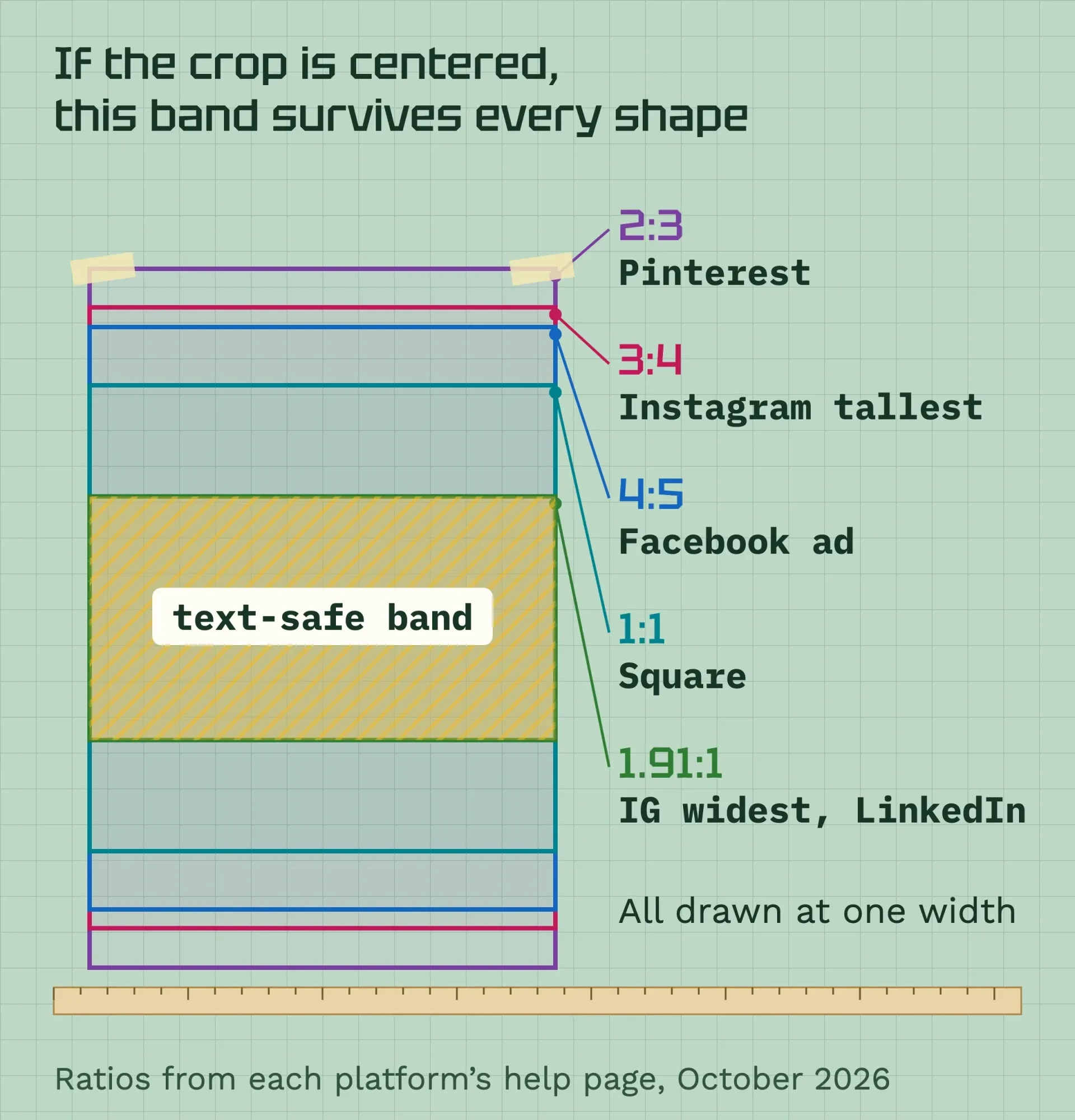 Diagram by DigitalTreed, from the Instagram, Meta, LinkedIn and Pinterest help pages, October 2026.
Sharing a link instead of uploading an image? Then the platform builds the preview from your web page's tags. Paste the address into our free social preview checker to see the image and title people will get. What you post each week is a separate question, covered in our social media strategy guide.
How do you design a flyer people actually read?
Unlike a post, a flyer gets a glance from across a room before anyone walks closer. So the hierarchy rule gets stricter. Give it one headline that reads from a distance, one image, the date or the offer, and one way to act.
Leave a margin all the way around. Text jammed against the edge looks cramped and risks getting cut when the sheet is trimmed. Apple's layout guidance for screens says to "group related items" and align elements "to make them easier to scan," and paper rewards the same discipline: date and place together, contact details together.
When it's done, export a PDF instead of a screenshot. If a print shop is printing it, ask for its spec sheet before you start, since the shop sets the rules for bleed, resolution and file type. Fixing those after the design is finished takes far longer.
Then print one copy at full size, tape it to a wall and walk back a few steps.
If the headline doesn't read, cut words before you shrink anything.
Use photos you own or have a license for
That flyer photo matters as much as the type, and where it came from matters too. A picture you found in a search engine belongs to someone, and so do most icons and illustrations. The U.S. Copyright Office’s FAQ is direct about getting permission: "You can ask for it." If you know who owns the work, you can contact them.
Your own phone photos are usually the simplest choice, as long as they're sharp and at least 1080 pixels wide. Need to crop or cut out the photo first? Our test of free photo editors shows which ones need no account.
For a local business they're often the better ones anyway: your real flowers, your real storefront, your real staff.
To cut a product out of a busy background, run the photo through our free background remover. Then set it on a plain color from your palette so the text has a calm place to sit.
We make graphics for a living, so treat this paragraph as a pointer, not legal advice. A copyright lawyer can tell you whether a specific use counts as fair use, and the Copyright Office keeps a Fair Use Index of past court decisions.
Templates are a fine start if you make them yours
Templates are why a non-designer can make a decent post in ten minutes. They're also why some designers sigh at template apps: when many businesses start from the same layout, their posts look alike.
The fix is to change what makes a design recognizable. Swap the fonts for your two and the colors for your four. Replace the stock photo with one of yours, and delete anything you don't need. Then save the result as your own template, so next week's post starts from your style instead of someone else's.
AI image tools are the same story. They can make a background or a quick mock-up, but the result still needs the checks below, plus a look at whether you're allowed to use it.
A two-minute check before anything goes out
Every rule above fits into one short check. We'd run it on each post, flyer and ad before it's published:
- Squint or blur it. Is the main message still the first thing you see?
- Count the fonts (two) and the text sizes (three at most).
- Check each text color against its background: 4.5:1 for normal text, 3:1 for big headlines.
- Look at it on your phone at arm's length.
- Read every word out loud, especially the date, the price and the phone number.
- Confirm the size and shape for the platform, with words away from the edges.
- Check the file size against the platform's limit.
That last line catches more posts than you'd think.
Photos saved as huge PNG files are the usual culprit, and LinkedIn, for one, caps Page images at 3 MB. Save photos as JPEG, then shrink the file with our free image compressor before you upload.
Frequently asked
Can I use a free font in my business logo?
If the font uses the SIL Open Font License, yes. The OFL FAQ says you may use it for logos, posters and business cards with no extra permission. You stay the copyright holder of the artwork. The license only stops you from selling the font file by itself.
Can I copyright a graphic I made with an AI tool?
Only the parts a person shaped. The U.S. Copyright Office's January 2025 report says prompts alone are not enough, as of October 2026. Creative changes or arrangements you make to the output can be protected. Using AI as a helper in a larger human-made work doesn't block copyright.
Do I need to register my logo as a trademark?
No, registration isn't required. The USPTO's trademark basics page says you own a mark once you use it with your goods or services, as of October 2026. Those rights cover only the area where you trade. Registering with the USPTO gives you stronger, nationwide rights.
Logos, brand systems and paid ads are worth a designer
Doing it yourself is fine for weekly posts and one-off flyers. It stops making sense when a design has to last for years or has real money behind it: a logo, a full brand system, a big print run, or ads you'll pay to show again and again.
Those are also the jobs where a weak first version costs the most to redo.
Our guide to graphic designer costs covers US prices, what to put in writing and why you should own the files you pay for.
Prefer to pass it on? Our graphics and video team designs social posts, flyers and brand graphics for small businesses. That's a paid service of ours, so weigh the suggestion with that in mind. For a number before you decide, ask us for a quote.
How we made this guide: every source was read in full by our team, with the last check October 24, 2026. That included the W3C's WCAG 2.2 and its contrast explainer, two Nielsen Norman Group articles, Apple's and Google's design guidelines, the image help pages of Instagram, Meta, LinkedIn and Pinterest, and the U.S. Copyright Office FAQ. The 11-pair color test ran the same day with our own formula script and WebAIM's public checker, and the screenshots come from that checker. Wren Street Florist is our invention. Every number above carries a link to the page it came from, and Eram N. reads and signs off on this version before anyone sees it live.
First published July 2020. Rewritten October 24, 2026: new text for owners who make their own graphics, sourced numbers for contrast, type and platform sizes, our color test and a pre-post checklist. The old Photoshop and career sections are gone.
Sources
- W3C: Web Content Accessibility Guidelines (WCAG) 2.2
- W3C: Understanding Success Criterion 1.4.3 Contrast (Minimum)
- Nielsen Norman Group: Visual Hierarchy in UX, Definition
- Nielsen Norman Group: Ensure High Contrast for Text Over Images
- Apple Human Interface Guidelines: Typography
- Apple Human Interface Guidelines: Layout
- Material Design 3: Applying type
- WebAIM: Contrast Checker
- Instagram Help: Image resolution of photos you share on Instagram
- Meta Business Help: Recommended minimum image pixel requirements across placements
- LinkedIn Help: Image specifications for your LinkedIn Pages and Career Pages
- LinkedIn Marketing Solutions Help: aspect ratios for organic and sponsored posts
- Pinterest Business Help: Review ad specs
- U.S. Copyright Office: Fair Use Index
- U.S. Copyright Office: Can I Use Someone Else's Work? Can Someone Else Use Mine?
Comments
No comments yet. Start the conversation below.