
Quick answer
To make a YouTube banner in Canva for free, start a 2560 x 1440 px design and keep text and logos in the middle 1544 x 423 px. YouTube's limit, as of October 2026, is 6 MB. Free Canva can't cap file size, so export a heavy PNG as a JPG. Then upload it in YouTube Studio.
Say you've just opened a channel for a small shop, and the top of your channel page is still plain gray. A YouTube banner is the background image across that space, one file YouTube uses on computers, phones and TVs. Canva's free plan can build it. We'll plan one for Lanternhill Pottery, a made-up studio, and test a local copy.
We start from a 2560 x 1440 template and mark the safe strip with guides. Then come the name, tagline and logo layers, a download under 6 MB, a crop test, the upload and the free plan's gaps.
Key takeaways
- Our first draft failed 3 of 17 checks.
- Set four guides at x 508 and 2052, and y 509 and 931.
- Canva Free includes custom sizes and PNG or JPG downloads.
- YouTube's banner limit is 6 MB, but Canva's banner page says 4 MB.
- Our grainy test PNG weighed 5.50 MB, close to YouTube's cap.
Start from a YouTube banner template at 2560 x 1440
Your first choice is the canvas size, because everything else sits on top of it. YouTube's channel branding help page sets a minimum of 2048 x 1152 pixels at a 16:9 ratio and recommends 2560 x 1440, "especially for TV." Go with the bigger size. A banner made at the minimum has no spare pixels for the largest screens.
The quickest start is a ready-made layout. Canva's YouTube banner maker page tells you to search for "Youtube Channel Art" and says its banner templates are made to fit YouTube's requirements. Its template help article has you preview one and pick Customize this template to open it in the editor. We'd pick a layout whose text already sits in a band across the middle, since that's where it has to end up anyway. A template with its name tucked into a top corner may look fine in the preview and still lose that name on a phone. For Lanternhill, we'd look for clay-colored shapes and centered type.
No template you like? Start blank. Canva's design-from-scratch steps put a Custom size button on the homepage, where you choose px as the unit and type 2560 by 1440.
Set the size before you design, though. The pricing page lists custom dimensions in the Free plan, but changing the size later is a different tool. Canva's resize help page says Magic Resize is for Pro, Business and other paid or education plans, so Free users can't use it. The steps below work the same on a blank canvas, and our roundup of YouTube banner makers covers tools other than Canva.
Mark the safe strip with rulers and guides
Once the canvas is open, mark where text is allowed before you touch the words. YouTube gives the safe area for text and logos as 1235 x 338 pixels "at the minimum dimension," which is 2048 x 1152. Your canvas is 1.25 times bigger, so we scaled it: 1235 x 1.25 = 1,543.75 and 338 x 1.25 = 422.5, or about 1544 x 423 pixels. Centered, the strip starts (2560 - 1,543.75) / 2 = 508.1 px from each side and (1440 - 422.5) / 2 = 508.75 px from the top. Rounded, the vertical guides go at x 508 and 2052, and the horizontal ones at y 509 and 931.
That's our arithmetic, not a number YouTube prints. Recheck it if YouTube ever changes the safe area on its help page.
Canva's guide on rulers and guides explains how to place them in a desktop browser:
- Open File, then Rulers and guides, then Show rulers and guides. Pixel rulers appear on the top and left edges.
- Drag down from the top ruler to add a horizontal guide, and stop at 509. Add a second one at 931.
- Drag across from the side ruler for vertical guides at 508 and 2052.
- Leave the guides in place while you edit. File, Rulers and guides, Clear guides removes them later.
Rulers don't work on mobile, by Canva's own note, so do this part in a desktop browser, even if you plan to tweak the words on your phone later. When you drag an element, a gray band on each ruler shows exactly where it sits. That's how you'll catch a long channel name creeping past 2052 before it reaches YouTube. Then make sure Lock guides is ticked under File, Rulers and guides. Canva locks preset and custom guide layouts by default, and a locked guide can't be dragged off by a stray click while you move text around it.
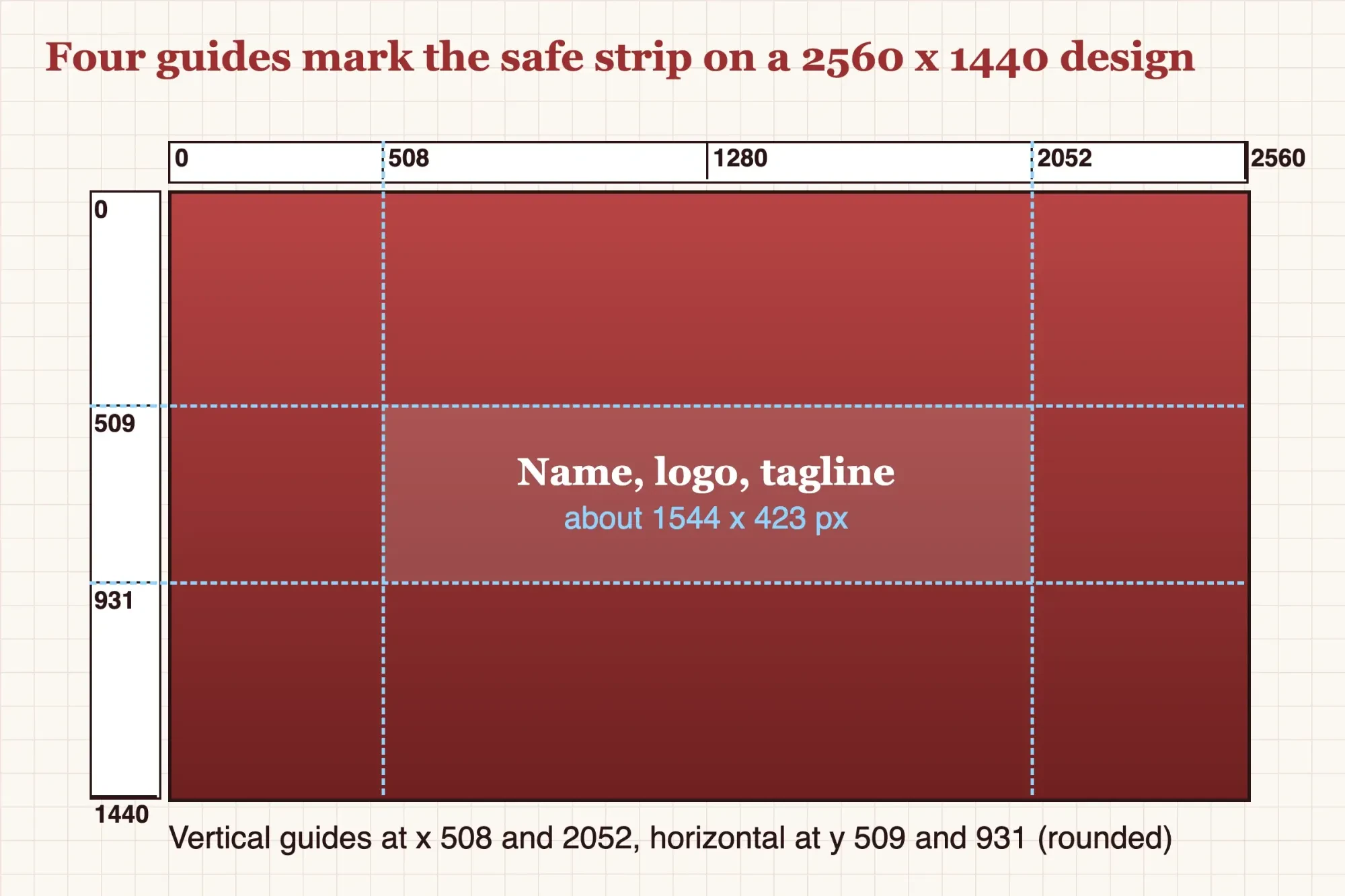 Diagram by DigitalTreed. Safe strip from YouTube Help scaled by 1.25; the guide positions are our arithmetic, October 2026.
Where do the channel name, tagline and logo go?
Once the strip is marked, the words and the logo go inside it. Everything else can spill past the guides. The Lanternhill plan has four layers: the background, a logo, the channel name and a one-line tagline. Canva's layers article has you select Position on the toolbar, open the Layers tab and drag a layer up or down to restack it. Keep the background at the bottom so nothing hides behind it. The Layers tab lists every element on the page, and grouped ones show a group icon. That's where you'll spot leftover template text.
Decoration can live outside the strip. Our vases sit at the far left and right, where a narrower view may crop them and nobody loses information.
Words can't take that risk. YouTube's banner and profile picture tips suggest adding your upload schedule if you keep one. We added "Uploads every Thursday" as a fifth layer, and it has to fit in the strip too.
Logos are trickier. A logo often arrives as a photo of a sign, or a JPG with a white box around the mark. Canva's pricing table puts its Photo Background Remover in paid plans, not Free. We'd cut the mark out with our background remover tool instead and save it as a PNG. Canva's banner maker page lets you bring in a logo you already have with one click. Its FAQ accepts JPG, PNG, HEIC and WebP images under 50 MB. Drop the logo on the left end of the strip, inside the 508 guide, and size it to roughly the height of the name.
Give the logo room, because in our first draft a centered, oversized name ran straight over it, and a check of the safe area alone didn't flag the clash.
Download a PNG or JPG under 6 MB
Once the layers look right, download, and pick the file type with the 6 MB limit in mind. YouTube's branding page sets the banner file size at "6 MB or smaller." Canva's banner maker FAQ says 4 MB instead. We go by YouTube, since its upload is the one that refuses the file. Staying under 4 MB satisfies both.
Canva's free plan can download PNG and JPG files, its pricing table shows. The download file type guide explains the catch: quality controls, a file size limit and compression options belong to Pro and other paid plans. On Free, you get the file Canva makes, and there's no slider to shrink it. Canva calls JPG "best for photographs" and PNG "best for graphics." Our banner's clay grain made it behave like a photo for file size, not like a flat graphic. That matters because a PNG keeps every pixel of a photo exactly, and that exactness is what pushes a 2560 x 1440 file toward the cap.
Grainy textures make this worse. Our test banner was drawn and saved by our script, not by Canva. It has a fine clay grain over every pixel, the way a photo does, and its PNG weighed 5.50 MB. That's under the cap with only about 0.50 MB to spare, a thin margin once you add a second photo or a heavier texture. The same pixels saved as a JPG at quality 92 came to 1.45 MB, and at quality 80, 0.81 MB.
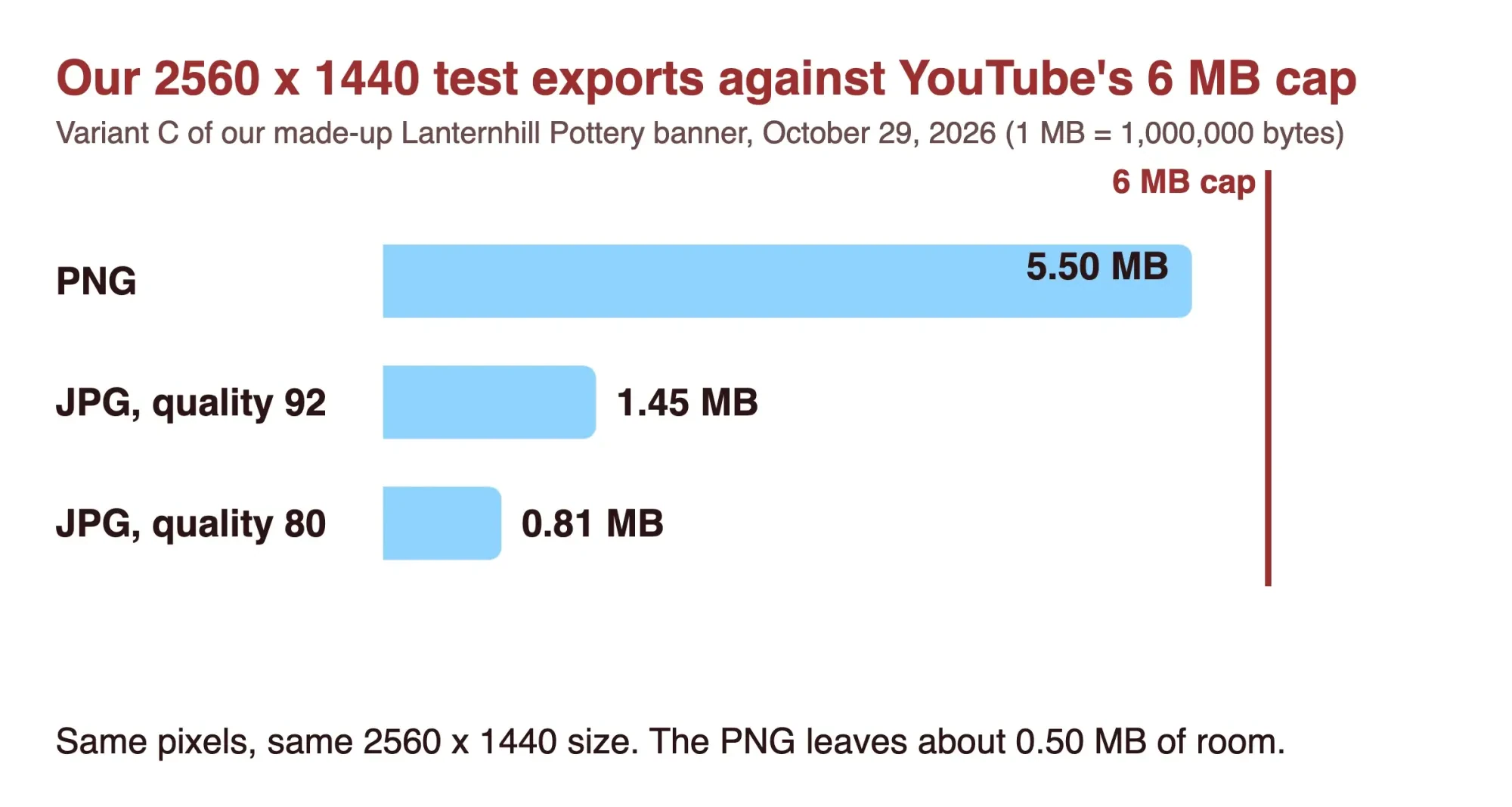 Diagram by DigitalTreed. Our variant C exports from test/run_test.py, October 29, 2026; 1 MB = 1,000,000 bytes.
So if a PNG comes out over 6 MB, download the JPG. Still too heavy? Our free image compressor shrinks a JPG toward a size you set in KB. Check that it still reads 2560 x 1440 before you upload.
Test the export before YouTube crops it
Even a file that passes YouTube's size rules can still lose its words on a small screen, so check the crops before you upload. YouTube's note is plain: the same banner image is used across computer, mobile and TV displays, "but it shows differently depending on your device." Its guidelines add that images "should accommodate the entire screen for larger devices but will get cropped on certain views and devices." The safe strip is the part YouTube asks you to rely on.
Our test looked at three views of each export: the whole image, the safe area alone, and a full-width strip as tall as the safe area. That strip is our stand-in for a wide computer view, because YouTube's help page gives no crop size for one.
A rough check needs no special software. Crop a copy of the file to the middle 1544 x 423 pixels and read what's left. Then view the full image once at TV size, since YouTube says the image should fill larger screens, and a stray corner label there looks like a mistake.
If the name or tagline is cut, or the logo touches the edge, move that layer in Canva and leave the guides where they are.
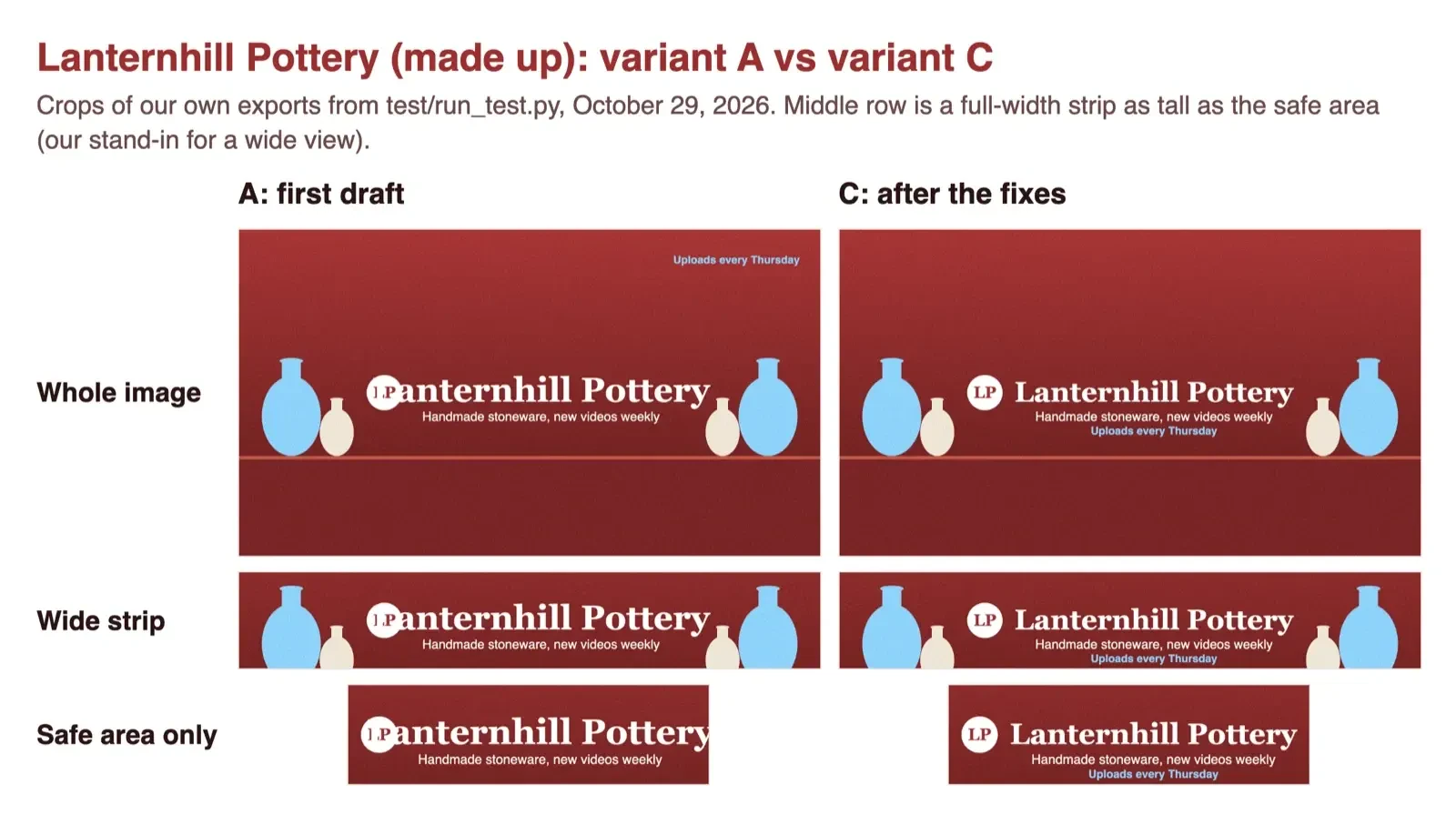 Screenshot: test/views.html on 127.0.0.1, crops of variants A and C, October 29, 2026. Lanternhill Pottery is made up.
What we tested
On October 29, 2026, a local script drew the Lanternhill banner in three versions and ran 17 checks on each. Draft A failed 3. Its name ran 25.1 px past the right guide and covered the logo, and the schedule sat 418.1 px past the right guide and 394.7 px above the top one. Version B moved the schedule into the strip and still failed 2, since the name overran the guide and covered the logo. Version C, with a smaller name beside the logo, passed all 17. Across all 51 checks, that's 46 PASS and 5 FAIL.
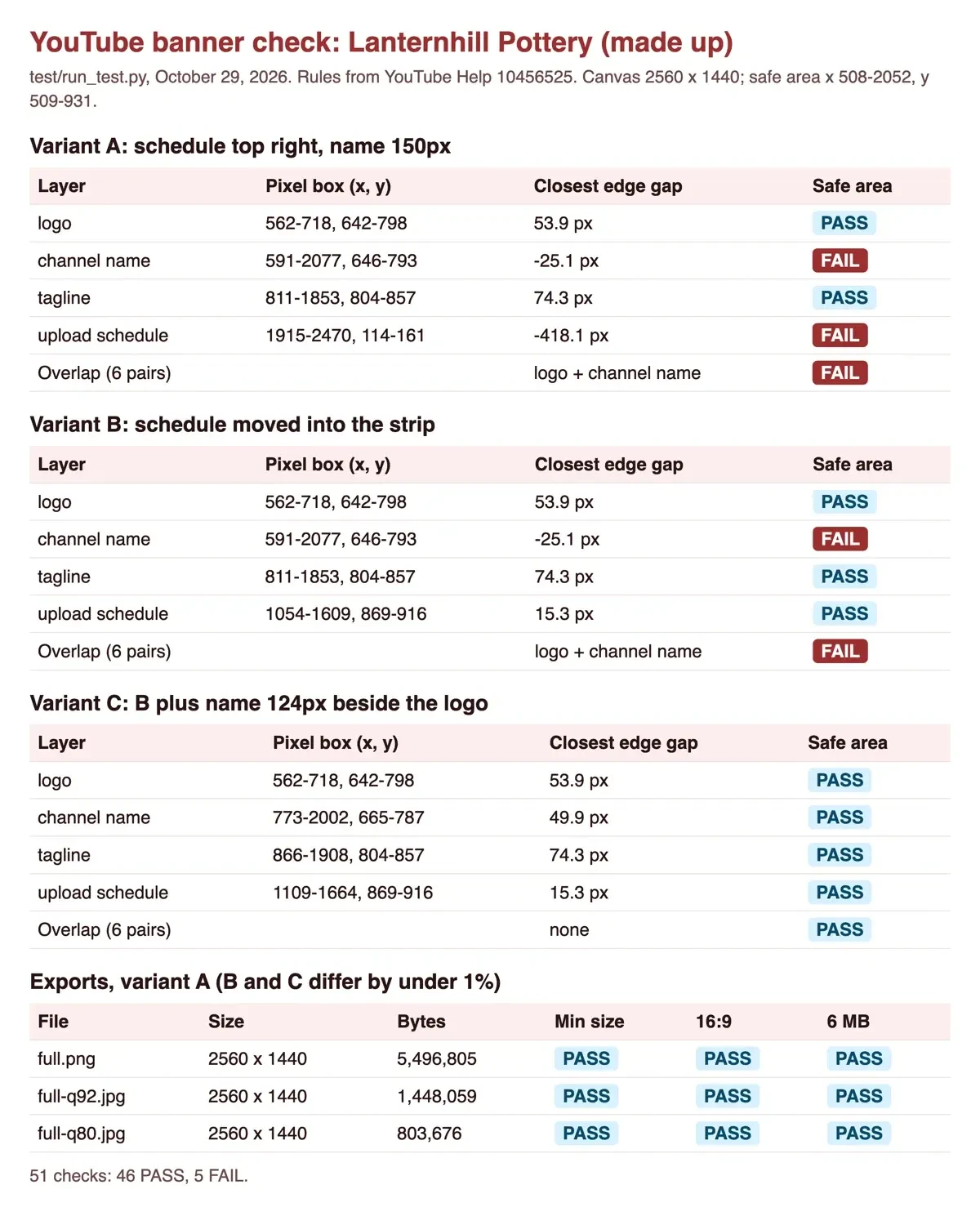 Screenshot: test/report.html on 127.0.0.1, from test/run_test.py, October 29, 2026.
Publish from YouTube Studio or the YouTube app
After the crop check, the banner goes onto the channel. In our test, all 36 export checks for size, ratio and file weight had passed by then. YouTube's help page gives these steps on a computer:
- Sign in to YouTube Studio.
- In the left menu, open Customization, then Profile.
- Click CHANGE and select your image file.
- Select a preview to adjust the crop if you need to, then click DONE.
- Click PUBLISH.
That preview step is your last look, so read the name in each one before you click DONE. On Android, YouTube's app steps are shorter. Tap your profile picture, tap View channel, then tap EDIT. Tap the banner image on the right, choose the photo and tap SAVE. The Android version of the help page repeats the same banner rules, from the 2048 x 1152 minimum to the 6 MB file size, so nothing changes on a phone.
While you're in Customization, look over the profile as well. Our business channel setup guide covers the profile picture and links, and our YouTube thumbnail guide uses the same template-and-text approach.
What does the free plan leave out?
This build ran on features Canva lists as Free, though a few paid ones would've saved steps. Canva's pricing page (US view) marks Magic Resize, the Photo Background Remover and the Video Background Remover as not included in Free. Its file type guide adds transparent PNG downloads and the file size limit. On the banner maker page, Magic Eraser, Magic Edit, Magic Grab and Magic Expand carry a PRO label. Two AI tools on that same page, Dream Lab and Magic Media, are marked FREE; we didn't check their usage limits. You don't need any Pro tool for a banner. Magic Expand, which extends an image outside its frame, would help a square photo fill a 16:9 canvas.
Templates are the other gap. Canva's pricing table lists 1.6+ million templates on Free and 3.6+ million on Pro, counted across every design type, so the number says little about banners alone. Canva Pro was listed at US$144 a year for one person on the US page, billed yearly, as of October 29, 2026, with tax not included.
Our take: for one banner, the free plan is enough. Set the size first, mark the guides, keep every word inside them and export a JPG if the PNG runs heavy. Pro starts paying off when you're resizing the same artwork for several channels every week, because that's the job Magic Resize does and Free can't. We design channel art for clients as paid work, which is the reason the DigitalTreed graphics and video service shows up here. Nothing above needs it.
After the banner's live, our plan for the first 1,000 subscribers covers what to post. Our Photoshop vs Canva comparison covers when a full photo editor earns its price.
Quick answers on Canva banners
Frequently asked
Can I make a YouTube banner in the Canva app on my phone?
You can edit one, but Canva's rulers article says rulers aren't available on mobile, so placing guides at exact pixel positions is a desktop job.
Can my banner have a border or a drop shadow?
No. YouTube's banner guidelines rule out "shadows, borders, and frames" as file embellishments.
What size should the profile picture be?
YouTube's branding page says it shows at 98 x 98 px, and the file can't exceed 15 MB.
What is the largest design Canva allows?
Canva's custom size limits run from 40 x 40 px up to 8000 x 3125 px.
How we made this guide: We saved three YouTube Help pages as text. Canva's site blocks scripts (403 bot-block, opens in a browser), so we read eight Canva pages in a browser, signed in to neither. A local script, not Canva, drew a made-up banner in three versions, saved PNG and JPG copies and ran 51 checks on them. Facts checked by the DigitalTreed team on October 29, 2026.
First published July 2020 as general tips for channel art. Rewritten October 29, 2026: this version is one free Canva build, from canvas size and guides to export, crop checks and upload.
Sources
- YouTube Help: Manage your channel branding (computer)
- YouTube Help: Manage your channel branding (Android)
- YouTube Help: Channel banner and profile picture tips
- Canva: YouTube banner maker
- Canva: Pricing (US view)
- Canva Help: Create designs using templates
- Canva Help: Design from scratch
- Canva Help: Resize designs and size limits
- Canva Help: Add and remove guides
- Canva Help: Finding and arranging layers
- Canva Help: Choose the right download file type

Comments
No comments yet. Start the conversation below.