

What PageSpeed Insights and Lighthouse are, and when you need them
This guide is part of our "SEO tools explained" path. It's for small business owners, freelancers and junior SEOs who run or look after WordPress sites, often on shared hosting, and who have seen a red score and don't know what to do with it. Developers will find the scoring, throttling and API details useful too.
By the end you'll know which number Google's ranking actually uses, why a small site shows "no data", why the score changes when nothing changed, and which five insights matter on a WordPress site. You'll also be able to test a page properly, fix the top three issues and prove the result.
There are six chapters, a little under 40 minutes in all. Chapter 1 says what the two tools are and when you don't need them. Chapters 2 and 3 cover field data and lab data, chapter 4 the insights and the other Lighthouse categories, and chapter 5 is four step-by-step tasks. Chapter 6 covers the free API, the CrUX data tools, paid alternatives and which to use when. Guide 3's Core Web Vitals chapter explains the metrics themselves; this guide goes deeper on the tool. Prices were checked on each vendor's own site between 16 and 18 October 2026.
Quick answer
PageSpeed Insights is Google's free web page that tests one URL and shows two things: what real Chrome users experienced over the last 28 days, and a Lighthouse lab test with scores and fixes. Lighthouse is the open-source engine behind the lab half, and it also runs inside Chrome. Use both to find why a page is slow.
Two names, one job, a lot of confusion. People say "my PageSpeed score is 42" when they mean the Lighthouse performance score, and they call it a ranking factor when Google's ranking systems look at something else entirely. This chapter sorts out what each tool is, who should use it, and when you can skip it.
PageSpeed Insights in one paragraph
You type a URL at pagespeed.web.dev and pick Mobile or Desktop. The report has two parts. The top part, "Discover what your real users are experiencing", is field data from the Chrome User Experience Report (CrUX): real Chrome users' First Contentful Paint, Largest Contentful Paint, Interaction to Next Paint, Cumulative Layout Shift and Time to First Byte over the previous 28 days.[1] The lower part, "Diagnose performance issues", is a Lighthouse run in a Google data centre, with scores for Performance, Accessibility, Best Practices and SEO, a new Agentic Browsing check (chapter 4), plus the audits behind them.[2]
Google puts the difference simply: lab data "is useful for debugging issues", while field data is "useful for capturing true, real-world user experience".[1] Chapter 2 covers the field half and chapter 3 the lab half.
Lighthouse in one paragraph
Lighthouse is "an open-source, automated tool to help you improve the quality of web pages". You can run it in Chrome DevTools, from the command line, as a Node module, or through PageSpeed Insights, and Lighthouse CI can run it on every deploy.[3] The DevTools version can test pages behind a login, which PageSpeed Insights can't. On 16 October 2026 PageSpeed Insights reports were made with Lighthouse 13.5.0,[2] released on 18 September 2026.[4]
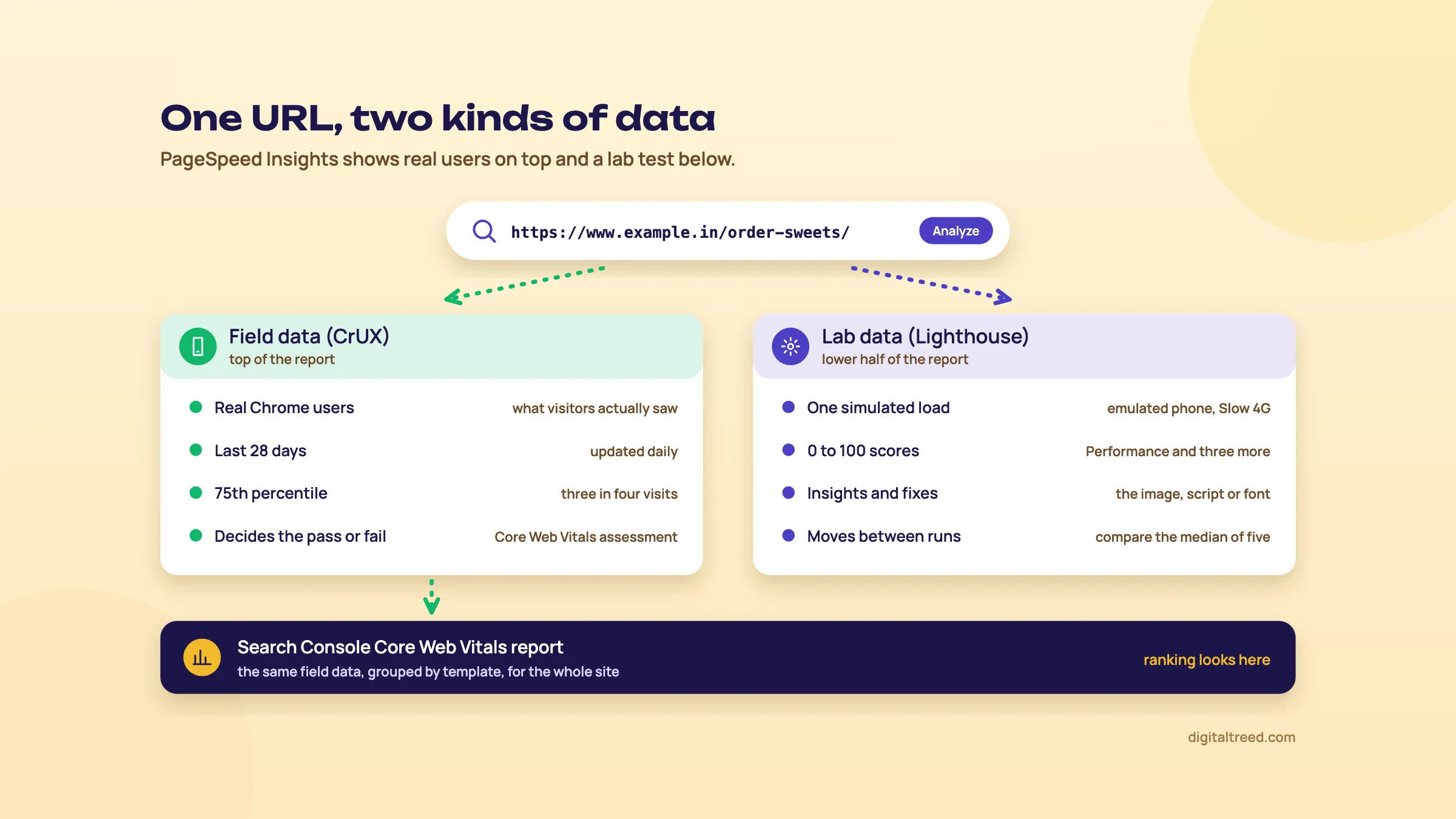 The top half is real users; the bottom half is a lab test. Search Console uses the same field data.
Which number does Google's ranking use?
Core Web Vitals, measured on real users. Google says it highly recommends "site owners achieve good Core Web Vitals for success with Search", and sends you to Search Console's Core Web Vitals report to check them.[5] That report is built from the same CrUX field data you see at the top of PageSpeed Insights.[6] The Lighthouse score isn't part of it. Lighthouse's own SEO section says as much: there are "many additional factors Lighthouse does not score here that may affect your search ranking, including performance on Core Web Vitals."[2]
Keep the ranking effect in proportion. Google's page experience guide says "There is no single signal" and that it will show the most relevant content "even if the page experience is sub-par".[7] Guide 3's Core Web Vitals chapter goes through what that means. Our view: fix speed because slow pages lose enquiries and orders, and treat any ranking gain as a bonus.
Who it's for
- Small business owners on WordPress who want to know whether "the site is slow" is true, and what to ask the developer for.
- Freelancers and junior SEOs who need a free, Google-made report to show a client before and after a fix.
- Developers who need the exact image, script or font that holds the page back. They'll get more from Lighthouse in DevTools and the Performance panel than from the web page.
Note
From our work: an SEO class. When I taught SEO A to Z at a training institute, my students were already doing client work and saw results in two to three weeks. The hardest part for them was technical SEO, because the local business sites they handled mostly ran on WordPress with shared hosting. The most common issue was site speed. The lesson: test speed in the first week of a project, not the last.
When you don't need it
- Every day. Field data is a 28-day window. Testing daily after a change shows you the old visitors, not the new code. Once a month per template is plenty, plus a lab re-test after each fix.
- For a site-wide picture. PageSpeed Insights tests one URL at a time. For "which templates fail across the site", Search Console's Core Web Vitals report is the right tool (chapter 2).
- For pages nobody visits. A privacy policy with a red score doesn't matter. Your top landing pages from Search Console do.
- To chase 100. Google's own scoring page says a perfect 100 "is extremely challenging to achieve and not expected".[8]
Start with our Website Speed Test
Before you open PageSpeed Insights, a quick check from our side often finds the cause faster. Our free Website Speed Test loads the page and its files from our server and gives a 0 to 100 score built from eight factors: server response time (25%), page weight (20%), request count (15%), compression, caching and render-blocking files (10% each), image dimensions and third-party domains (5% each). It also shows the redirect chain and the largest file it found.
Be clear about what it isn't. It doesn't measure Core Web Vitals, doesn't simulate a phone or a throttled 4G connection, has no waterfall chart, and sizes only the first 20 CSS, JavaScript and image files. It's a server-side check. Use it to catch a slow host, missing compression, missing caching or a 2 MB image, then use PageSpeed Insights for real-user data. You can test any public URL, including a competitor's.
Next, chapter 2: the field data at the top of the report, and why a small site often sees "no data" there.
Field data: what real Chrome users experienced
Quick answer
The field section shows real Chrome users' LCP, INP and CLS over the last 28 days, at the 75th percentile. A page passes Core Web Vitals when all three are good. If the URL has too little traffic, PageSpeed Insights shows the whole origin instead; if the origin is too small too, you get no field data at all.
This is the half of the report that matters for Google, and the half most people scroll past to get to the coloured score circle. Read it first.
Where the numbers come from
Field data in PageSpeed Insights comes from the Chrome User Experience Report (CrUX). It covers the previous 28-day collection period and is updated daily.[1] Not every visit counts. CrUX collects from Chrome users who have usage statistics reporting on, sync their browsing history and have no sync passphrase. That means desktop Chrome on Windows, macOS, ChromeOS and Linux, and Chrome on Android. Chrome on iPhone, Android apps using WebView and other Chromium browsers such as Edge don't send data.[9] So your field data is your Chrome visitors, not all of them.
The three Core Web Vitals and their thresholds
The thresholds below are from PageSpeed Insights' documentation, set to match Google's Web Vitals programme.[1] Guide 3, chapter 3 explains what each one measures and how to fix it; here we stay with what the tool shows.
| Metric | Good | Needs improvement | Poor |
|---|---|---|---|
| Largest Contentful Paint (LCP), Core Web Vital | 2.5 s or less | 2.5 to 4.0 s | Over 4.0 s |
| Interaction to Next Paint (INP), Core Web Vital | 200 ms or less | 200 to 500 ms | Over 500 ms |
| Cumulative Layout Shift (CLS), Core Web Vital | 0.1 or less | 0.1 to 0.25 | Over 0.25 |
| First Contentful Paint (FCP) | 1.8 s or less | 1.8 to 3.0 s | Over 3.0 s |
| Time to First Byte (TTFB), experimental | 0.8 s or less | 0.8 to 1.8 s | Over 1.8 s |
INP replaced First Input Delay as a Core Web Vital on 12 March 2024.[10] Any report or plugin that still shows FID is out of date.
What "75th percentile" means here
Above each green, amber and red bar, PageSpeed Insights shows one number: the 75th percentile of all the visits it has. If LCP reads 3.1 s, three out of four visits saw the main content in 3.1 seconds or less, and one in four waited longer. The bars show the spread. If the amber LCP bar says 11%, then 11% of visits had an LCP between 2.5 and 4 seconds.[1]
Google picked the 75th percentile so pages "work well for the majority of users", including those on the most difficult devices and networks.[1] In India that's often a budget Android phone on patchy 4G, which is exactly the visitor you want to pass.
Passed or failed
The headline is "Core Web Vitals Assessment: Passed" or "Failed".[2] The rule:[1]
- With enough data for all three, it passes only if the 75th percentile of LCP, INP and CLS are all good.
- If INP has too little data, LCP and CLS decide on their own.
- If LCP or CLS has too little data, there's no assessment.
FCP and TTFB sit under "Other notable metrics". They don't count towards the pass, but a slow TTFB is often the first clue on shared hosting (chapter 4).
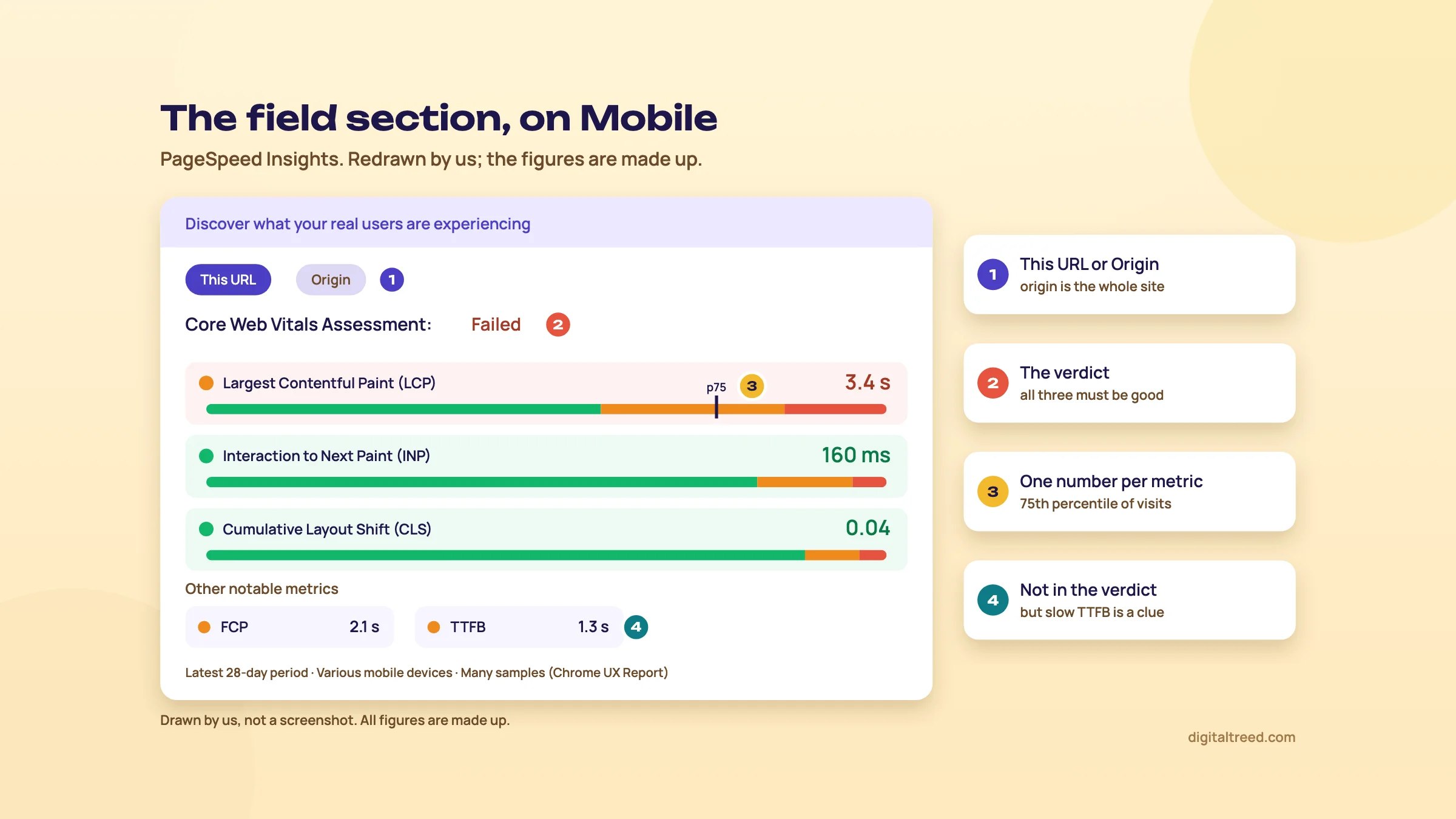 Read the field section first: one 75th percentile value per metric. Drawn by us; the figures are made up.
This URL or Origin
The field section has two tabs, "This URL" and "Origin".[2] An origin is the whole site on one protocol and host, such as https://www.example.in. If a page "has been recently published or has too few samples from real users", PageSpeed Insights falls back to origin-level data, which covers all pages on the site. If the origin has too little data as well, there's no field data at all.[1]
Two things trip people up:
- Origin data isn't your page. A fast blog and a slow shop on the same domain average out. When the "This URL" tab is empty, don't report the origin numbers as that page's result.
- www and non-www are different origins, and so are http and https. Test the version your site actually redirects to.[11]
Why a small site shows "no data"
This catches out a lot of small sites. A Kanpur sweet shop's site with a few hundred visits a month will often have no field data, for one of these reasons:[9]
- Not popular enough. A page or origin needs a minimum number of visitors. Google doesn't publish the number; it says it's chosen so there are enough samples to be confident in the result, and it's the same for pages and origins.
- Not publicly discoverable. A page that returns anything other than 200, or carries a noindex in a meta robots tag or an X-Robots-Tag header, is left out. So a staging site or a noindexed landing page will never have field data.
- The wrong visitors. If most of your customers use iPhones, their visits don't count.
You can't submit a site to CrUX; pages and origins come in and drop out on their own as their traffic changes.[9] Without field data you work from lab data, which is fine for finding problems. You just can't say whether real visitors pass. Our Noindex Tag Checker and HTTP Status Checker rule out the two discoverability reasons in a minute.
Tip
URL parameters are stripped in CrUX, so ?utm_source=whatsapp visits count towards the clean URL.[9] Test the clean URL in PageSpeed Insights, not the tracking link you shared.
Search Console's Core Web Vitals report: the site-wide view
PageSpeed Insights answers "how is this page?". Search Console's Core Web Vitals report answers "which kind of page is failing across the site?". It uses the same field data, splits Mobile and Desktop, and groups URLs that give a similar experience. Each group takes the status of its worst metric, so poor CLS with good INP is "Poor".[6]
The rules that matter, all from Google's help page:[6]
- A group needs a minimum amount of data for both LCP and CLS, or it's left out. "No data available" means a new property or not enough CrUX data for that device type.
- If a group is too small, Search Console builds an origin group for the whole host instead.
- Its numbers can differ from PageSpeed Insights for one URL, because one page can be an outlier in its group.
- "Start Tracking" begins a 28-day watch of CrUX data. It doesn't trigger a recrawl or speed anything up.
Our Search Console guide walks through the report screen by screen.
Other places to see the same field data
| Tool | Level | Updated | Good for |
|---|---|---|---|
| PageSpeed Insights | URL or origin | Daily, 28-day window[1] | One page now |
| Search Console Core Web Vitals report | URL groups, origin groups | 28-day window[6] | Which templates fail across your own site |
| CrUX Vis (cruxvis.withgoogle.com) | URL or origin | Weekly, every Monday, each point a 28-day window; up to 40 weeks of history[12] | Trend lines, before and after a fix |
| CrUX Dashboard (Looker Studio), now deprecated | Origin only | Monthly, released the second Tuesday[11] | Long monthly history, device and connection mix |
| CrUX on BigQuery | Origin only, by country | Monthly, back to 2017[13] | Comparing many sites, India-only data |
| CrUX API and History API | URL or origin, by device | Daily (History API: weekly)[14] | Your own dashboards and scripts |
CrUX Vis is the one we'd bookmark. It shows a URL's or origin's history week by week, so you can see whether last month's fix moved the line. Chapter 6 covers the API and BigQuery.
Next, chapter 3: the lab half, and why its score jumps around.
Lab data: the Lighthouse score, its weights and why it swings
Quick answer
The performance score is a weighted average of five lab metrics: Total Blocking Time 30%, Largest Contentful Paint 25%, Cumulative Layout Shift 25%, First Contentful Paint 10% and Speed Index 10%. It comes from one simulated load on a slow phone, so it moves between runs. Use it to find causes and compare before and after, never as the result.
The big coloured circle is the number everyone remembers and the one Google's ranking doesn't use. It's still useful, once you know how it's made.
How the lab test is run
On mobile, PageSpeed Insights loads the page as an emulated mid-range phone on a throttled mobile network; on desktop, as an emulated desktop on a wired connection.[1] The report footer names the setup. On 16 October 2026 it read "Emulated Moto G Power with Lighthouse 13.5.0", "Slow 4G throttling", "Single page session" and "Initial page load".[2]
Lighthouse's Slow 4G profile is 150 ms of latency, 1.6 Mbps down and 750 Kbps up, which its documentation describes as roughly the bottom quarter of 4G connections. It also slows the CPU four times to look like a mid-tier phone.[15] By default the throttling is simulated: Lighthouse loads the page once without limits, then calculates how long it would have taken on the slower setup.[15] That's fast and repeatable, but it's an estimate, which is why the report says "Values are estimated and may vary."[2]
The five metrics and their weights
The performance score is a weighted average of metric scores. Each raw metric is turned into a 0 to 100 score by comparing it with real-site data from the HTTP Archive, then weighted like this:[8]
The same five weights are in Lighthouse's current default configuration,[16] and Chrome's Lighthouse 13 announcement says "There are no changes to the performance scoring in this version".[17] PageSpeed Insights shows each metric's share of your score as small "+N" figures beside the gauge, with a link to the scoring calculator.[2]
Three things follow from the table:
- INP isn't in it. A page-load test has nobody tapping, so it can't measure INP. Total Blocking Time is the lab stand-in: web.dev says TBT "may be a reasonable proxy metric for INP for the lab but it's not a substitute for INP".[18] TBT adds up the part of each long main-thread task that runs beyond 50 ms while the page loads.
- JavaScript weighs the most. At 30%, TBT is the biggest single piece, and heavy scripts are what drive it. On WordPress that's usually page builders, sliders, chat widgets and marketing tags.
- The fixes don't count directly. "In general, only metrics contribute to your Lighthouse Performance score, not the results of Opportunities or Diagnostics."[8] Fixing an insight helps only if it moves a metric.
Score bands, and why 100 isn't the goal
0 to 49 is red (poor), 50 to 89 orange (needs improvement) and 90 to 100 green (good).[8] The curve flattens at the top: going from 99 to 100 "needs about the same amount of metric improvement that would take a 90 to 94."[8] Google also notes that good lab data "does not necessarily mean real-user experiences will also be good".[1]
Our rule for clients: get mobile into the orange or green band on your main templates, then stop looking at the score and look at the field data.
Why the score changes when you changed nothing
Run the same URL three times and you might get 61, 54 and 66. Lighthouse's documentation is direct about it: scores "will change due to inherent variability in web and network technologies, even if there hasn't been a code change."[19] The usual causes it lists:[8]
- A/B tests or different ads being served
- Internet traffic routing changes
- Testing on different devices
- Browser extensions that inject JavaScript
- Antivirus software
Two more apply to PageSpeed Insights in particular. Its tests run in a Google data centre that can vary; Google says it will be in North America, Europe or Asia.[1] And your web server's response time varies from request to request, which matters on busy shared hosting.[19]
The fix is to stop trusting single runs. "The median Lighthouse score of 5 runs is twice as stable as 1 run."[19] Chapter 5 shows how to re-test that way.
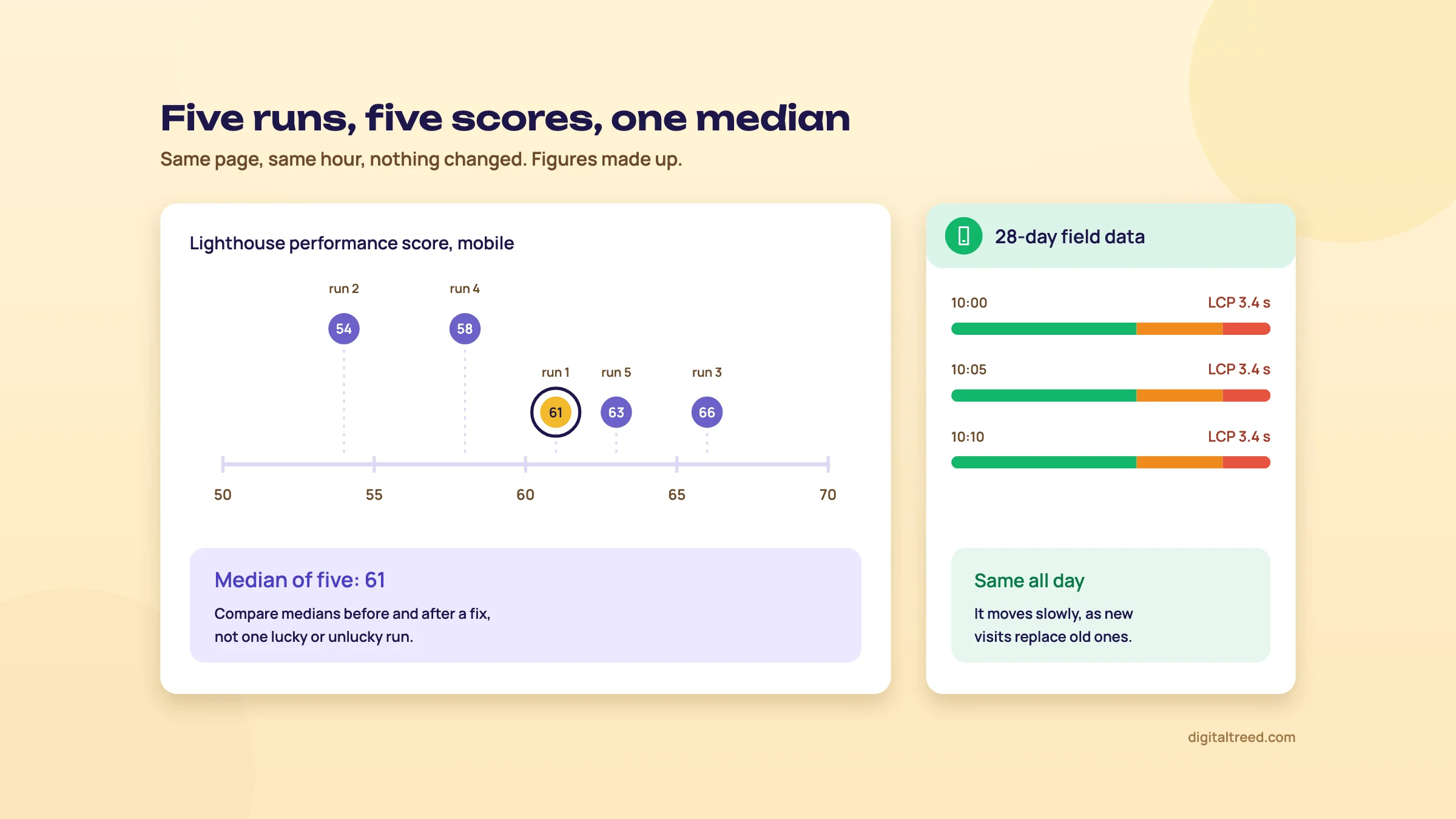 Lab scores move between runs; field data doesn't. Compare medians. Figures made up.
Lighthouse in Chrome DevTools
The same engine runs on your own machine, which you need for pages behind a login (a members' area, a cart) and for testing a staging copy before it goes live. Google's steps:[3]
- Open the page in Chrome on a desktop.
- Open DevTools (right-click, Inspect) and click the Lighthouse tab.
- Choose the categories and the device (mobile or desktop).
- Click "Analyze page load". The report appears after 30 to 60 seconds.
Run it in a Chrome window without extensions, such as a fresh Guest profile, because extensions inject scripts and change the numbers.[8] Your laptop is also not Google's server, so DevTools and PageSpeed Insights scores won't match exactly. Compare DevTools runs with DevTools runs.
The insights in Lighthouse 13 are the same ones shown in the DevTools Performance panel,[20] so if you need more detail on one, record a trace there.
Lab and field disagree: which to believe
They often disagree, and web.dev lists why. The lab uses one device, one network and one location. It loads with a cold cache, while returning visitors have files cached. It doesn't scroll or tap. And the LCP element it picks can differ from what visitors see.[21] Its advice: "field data is what you should use to prioritize your efforts", and lab data is for debugging and testing before you deploy.[21]
| What you see | What it usually means | What to do |
|---|---|---|
| Lab red, field passes | Real visitors have faster phones, or cached files, than the simulated Moto G | Fine for now. Fix the big lab items when you can, for slower visitors. |
| Lab green, field fails | Something the lab misses: scripts that load late, slow taps (INP), layout shifts while scrolling | Trust the field. Look at INP and CLS, and at tags that load after the page. |
| Both fail | A real problem | Start with the biggest insight on LCP (chapter 4). |
| No field data | Too little Chrome traffic, or the page isn't indexable | Use the median of five lab runs; check Search Console for an origin group. |
Next, chapter 4: which of the insights under the score are worth your time on a WordPress site.
Reading the report: the insights that matter on a WordPress site
Quick answer
Below the score, Lighthouse lists Insights and Diagnostics. On a WordPress site on shared hosting, five usually matter: Improve image delivery, Render-blocking requests, Document request latency (TTFB), 3rd parties and Font display. Filter by the metric that fails, fix the item with the biggest estimated saving, and ignore the rest until the field data moves.
A report can list 15 or more items, each with a saving in milliseconds or KiB. Most aren't worth a small business's money. Here's how to pick.
How the lab section is laid out
Under the five metric values, PageSpeed Insights shows "Show audits relevant to:" with buttons for All and the metrics that have related audits, such as FCP, LCP, TBT and CLS.[2] Click the metric that's failing and the list shrinks to the items that affect it. Then come two lists:
- Insights, the newer checks from Lighthouse 13, which replaced many older audits. They're also available in the DevTools Performance panel.[20]
- Diagnostics, which give "More information about the performance of your application. These numbers don't directly affect the Performance score."[2]
If an old tutorial tells you to look for "Opportunities", "Eliminate render-blocking resources" or "Reduce initial server response time", it was written before mid-2025, when insights became the default; Lighthouse 13 (October 2025) removed the old audits.[17] Those audits were merged into the insights below.[20]
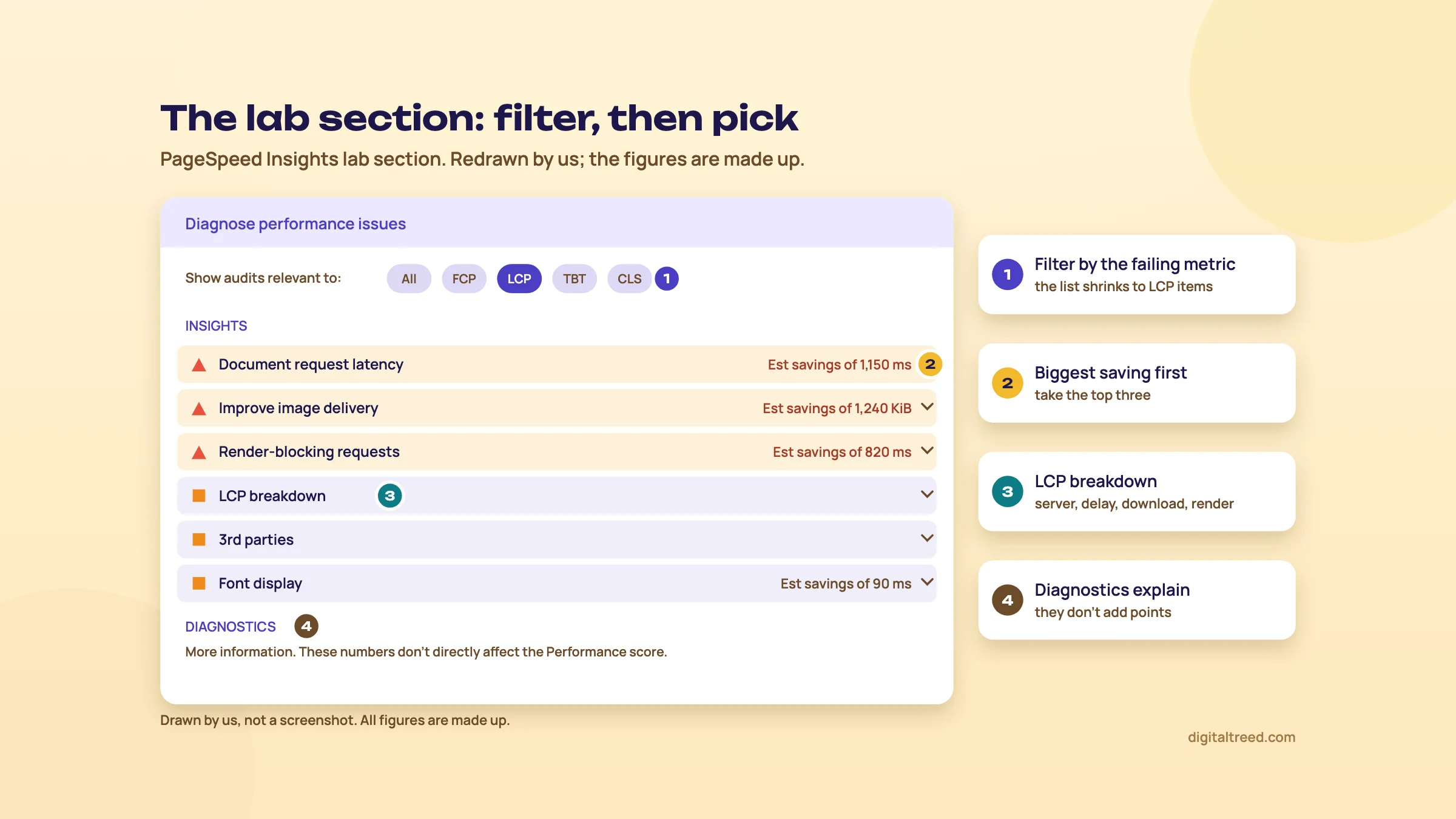 Filter by the failing metric, then take the three biggest savings. Drawn by us; the figures are made up.
The insights, and what each means on WordPress
| Insight (as shown) | What it flags | Usual WordPress cause | First fix |
|---|---|---|---|
| Improve image delivery | Images bigger than they need to be: wrong format, too much quality, larger than displayed[20] | Full-size phone photos uploaded straight from the gallery; sliders with five banners | Resize and compress, serve WebP; an image optimisation plugin |
| Render-blocking requests | CSS and JavaScript in the head that stop the first paint | Theme and page-builder CSS, plugin scripts loaded on every page | Defer non-critical scripts; turn off plugins on pages that don't use them |
| Document request latency | Slow HTML response, redirects and missing compression (one insight now)[20] | No page cache on shared hosting; http to https to www redirect chains | Page caching; one redirect hop; gzip or Brotli on |
| LCP breakdown and LCP request discovery | Which part of LCP is slow, and whether the main image is found and prioritised early[20] | The hero image lazy-loaded, or set as a CSS background by the builder | Put the hero in the HTML as an image, not lazy-loaded |
| 3rd parties | Code from other domains and how much time it takes[20] | Chat widgets, YouTube embeds, several analytics and ad pixels | Remove unused tags; load the rest later |
| Font display | Text hidden while web fonts load | Three Google Fonts families in five weights | Fewer fonts and weights; font-display set |
| Use efficient cache lifetimes | Static files sent without long browser caching | Host or plugin not setting cache headers | Caching plugin or host setting |
| Layout shift culprits | What moved the layout: images without size, late content, fonts[20] | Cookie bars and offer banners pushed in at the top; ads | Reserve space; set width and height |
The labels in the first column are as PageSpeed Insights showed them on 16 October 2026.[2]
Images
WordPress's own performance guide says to "Make sure all image files are optimized" and suggests WebP, which is smaller.[22] Since WordPress 6.3, core adds fetchpriority="high" to the image it judges most likely to be the LCP image, and never gives an image both fetchpriority="high" and loading="lazy".[23] Themes, sliders and lazy-load plugins can undo that, though. If "LCP request discovery" says the LCP image is lazy-loaded, exclude it in the plugin's settings. web.dev's advice is blunt: "Never lazy-load your LCP image".[24]
We don't have an image compressor yet. Squoosh does it free in the browser, one image at a time; for a whole media library, an image optimisation plugin is less work.
Render-blocking CSS and JavaScript
Every stylesheet and synchronous script in the head must load before the browser draws anything. web.dev's rule for outside scripts: "Always use async or defer for third-party scripts, unless the script is necessary for the critical rendering path."[25] Most caching and optimisation plugins have a "defer JavaScript" option. Turn it on, then click through the site's menu, forms and cart, because deferring the wrong script breaks things.
TTFB and shared hosting
If FCP and LCP are both slow and "Document request latency" is flagged, the server is the problem, not the page. web.dev says shared hosting "is generally" slower and suits small, mostly static sites, and that "WordPress performance is impacted by the number and quality of plugins".[26] WordPress's guide adds that on shared hosting "you have very little control over server settings", so caching is your main lever. It says caching plugins "can improve performance several hundred times over for fairly static pages".[22]
Our Website Speed Test shows server response time from our server, with full marks under 200 ms. That's a stricter, server-only target than Google's 0.8 s field TTFB threshold, which also counts redirects and connection time for real visitors. If both are slow, look at caching and the hosting plan before you touch the theme.
Third-party scripts
"If the script doesn't add clear value to your site, remove it."[25] The 3rd parties insight lists each outside domain and how long its code ran. A typical small business site might carry two analytics tags, a heatmap tool nobody opens, a Facebook pixel from a campaign that ended, a chat widget and a YouTube embed on the home page. Removing a tag nobody reads is the cheapest fix there is. If you manage tags in Google Tag Manager, our Tag Manager guide covers cleaning up a container.
Fonts
web.dev puts it well: "The fastest font to deliver is a font that isn't requested in the first place." Its other advice: serve WOFF2 only, set font-display (swap, or optional for the fastest result), and preconnect to a third-party font host.[27] In a theme's typography settings, that usually means one family for headings and body, two or three weights, and system fonts where they look fine.
Diagnostics worth a look
Diagnostics don't change the score directly but explain it. "Reduce unused JavaScript" and "Reduce unused CSS" show page builders loading their whole library on every page. "Avoid long main-thread tasks" counts the tasks behind a high TBT. "Image elements do not have explicit width and height" is a CLS problem with a one-line fix. "Avoid enormous network payloads" gives the page's total size.[2]
The other categories: Accessibility, Best Practices, SEO and Agentic Browsing
PageSpeed Insights shows four more scores beside Performance.[2] They're quicker to fix and easy to misread.
- Accessibility is a weighted average of pass or fail checks; there's no partial credit, so one unlabelled button fails that whole check. The heaviest checks (weight 10) include buttons with accessible names, images with alt attributes and labelled form fields.[28] Lighthouse itself says automatic detection finds only a subset of issues, so manual testing is still needed.[2]
- Best Practices covers general checks (such as browser errors in the console), trust and safety, and browser compatibility.[2]
- SEO checks basics: the page isn't blocked from indexing, returns a successful status code, and has a title, a meta description, descriptive link text, crawlable links, a valid robots.txt, image alt text, valid hreflang and a valid canonical.[16] A score of 100 means none of these basics is broken. It says nothing about content, links or rankings.
- Agentic Browsing is new. It appeared in Lighthouse for Chrome 150 in June 2026 and checks how usable a page is for AI agents: parts of the accessibility tree, layout stability and WebMCP. Google calls it "informational and unbenchmarked".[29] In PageSpeed Insights it shows as a fraction such as "0/2", and the report says it is "still under development and subject to change."[2] Lighthouse 13.5 added an agent resource discovery check and grouped it with the llms.txt check.[4] It isn't a Google ranking signal; Guide 5's llms.txt chapter explains why llms.txt doesn't help in Google Search.
Do not
- Fix every orange item in the order listed
- Install a second caching plugin "to be safe"
- Lazy-load every image, hero included
- Treat SEO 100 as proof the page will rank
Do
- Filter by the failing metric first
- Start with the biggest estimated saving
- Check TTFB and caching before the theme
- Remove tags nobody uses
- Fix accessibility failures; they're usually quick
Next, chapter 5 puts this into practice: test a page, fix the top three issues on WordPress, and re-test properly.
Step by step: test a page, fix the top three issues on WordPress, re-test
Quick answer
Test your busiest template on mobile, read the field data first, then pick the three lab items with the biggest saving on the failing metric. On WordPress these are nearly always page caching, images and scripts. Re-test with the median of five runs the same day, and judge the real result from field data 28 days later.
Four jobs, in the order you'd do them. Each uses a made-up Indian business as the example; swap in your own site.
Task 1: test a page the right way
- Pick the page Not the home page by habit. In Search Console, open Performance, then Pages, and take the top landing page from search. For a Kanpur sweet shop that's likely the "order sweets online" category page.
- Run our Website Speed Test first Paste the URL into our Website Speed Test. Note server response time, page weight, request count and the largest file. A slow server or a 2 MB banner shows up here in seconds.
- Run PageSpeed Insights on Mobile Go to pagespeed.web.dev, paste the clean URL (no ?utm tags) and click Analyze. Mobile is the default tab.
- Read the field section first Is there data for "This URL", or only "Origin", or none? Note the Core Web Vitals Assessment and which of LCP, INP and CLS isn't good.[1]
- Note the lab metrics Write down the five metric values and the score, plus the "Captured at" time and Lighthouse version from the footer.[2]
- Repeat on Desktop They're measured separately. If mobile fails and desktop passes, the page is heavy for phones, which is most of your Indian visitors.
- Save the report Use "Copy Link" at the top. The link opens this dated report again, so you can show the before state later.[2] Google doesn't say how long these links last, so save a PDF or screenshot too.
Task 2: read the report and choose three fixes
- Start from the failing field metric A Pune coaching centre's course page fails on LCP at 4.2 s. That's the metric to work on; ignore the rest for now.
- Filter the lab section Under the metrics, click "LCP" in "Show audits relevant to". The list now shows only items that affect LCP.[2]
- Open LCP breakdown It shows which part of the time is too long: the server, the delay before the image starts loading, the download, or the render. That tells you where to look.[20]
- Rank by estimated saving Take the three items with the largest "Est savings". Typical picks: Document request latency (no page cache), Improve image delivery (a 1.4 MB banner), Render-blocking requests (builder CSS and slider scripts).
- Write them as tasks One line each: what, where, who. "Turn on page caching (developer, today). Replace the banner with a 150 KB WebP at display size (us). Defer slider scripts on course pages (developer)."
The three fixes that usually win on WordPress
WordPress's own performance guide lists the same levers: caching, optimised images, fewer plugins and a lightweight theme. In its words, "A fast lightweight theme will perform much more efficiently than a heavy graphic-laden inefficient one."[22]
Note
From our work: a perfume brand. A perfume brand's WordPress site was slow, and that was hurting how Google crawled and indexed it. With their developer we moved to a lighter theme, added a caching plugin and optimised the images. Alongside blog posts on the topics competitors covered and products synced to Google Merchant Center, results came in five to six weeks, including organic orders. The lesson: on WordPress, theme, cache and images come before anything clever.
Task 3: fix the top three issues on a WordPress site
- Back up first Take a full backup, or work on a staging copy if your host offers one. Speed plugins can break layouts.
- Turn on page caching Use your host's cache if it has one, or one caching plugin. Only one: two caching plugins fight each other. Switch on gzip or Brotli compression in the same plugin or host panel. Caching is the biggest lever on shared hosting.[22]
- Fix the images For a D2C skincare brand, resize product and banner images to the size they're shown, convert to WebP, and compress. An optimisation plugin can do the existing library in bulk. Make sure the hero or first product image is not lazy-loaded.[24]
- Cut render-blocking scripts In the caching or optimisation plugin, defer JavaScript that the first screen doesn't need. Then deactivate plugins you don't use; WordPress's guide says to "Deactivate and delete any unnecessary plugins."[22]
- Check for breakage Click through the menu, add to cart, checkout, the contact form and the WhatsApp button on a phone. Clear the cache after every setting change.
- Leave the theme for last If the three fixes don't get mobile LCP near 2.5 s, the theme or page builder may be setting a floor you can't get under. That's a redesign decision, not a setting. Our web development team builds lighter WordPress themes if you get there.
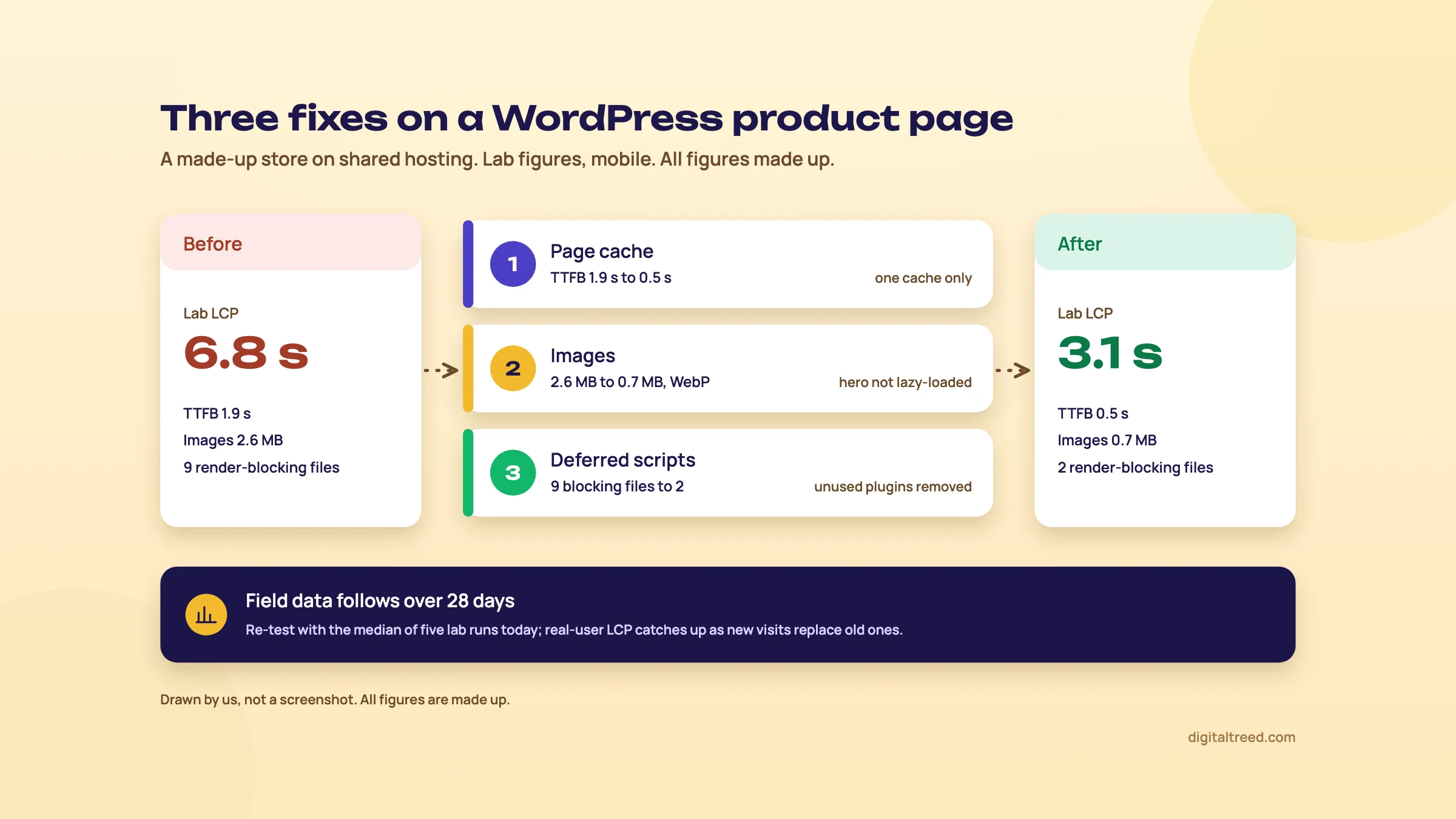 Cache, images, scripts: the usual three on shared hosting. Drawn by us; all figures made up.
Task 4: re-test properly, then track the real result
- Clear every cache Plugin, host and CDN. Then open the page once in a normal browser so the cache is warm for the test.
- Run five lab tests Run PageSpeed Insights five times on Mobile for the same URL, a minute or so apart, and note each score and LCP. Lighthouse's own guide says the median of five runs is "twice as stable" as one.[19]
- Compare medians Put the before and after medians side by side, metric by metric. For a Delhi dentist's "root canal treatment" page, a median LCP going from 5.8 s to 3.0 s is the change to report, not a score moving from 41 to 67.
- Check the field section is still the old data It will be. Field data covers the last 28 days, updated daily, so it moves gradually as new visits replace old ones.[1]
- Start tracking in Search Console If the page's template appears in the Core Web Vitals report, open the issue and click Start Tracking. Search Console watches for 28 days and marks the issue fixed if no URLs show it in that time.[6]
- Watch the trend weekly In CrUX Vis, look at the URL or origin each Monday after the weekly update.[12] After four weeks, PageSpeed Insights' field section reflects only post-fix visits.
Warning
Don't promise a client a ranking jump from a speed fix. Promise faster pages for their visitors, a passed Core Web Vitals assessment where the data exists, and a before and after report. Google says Core Web Vitals are one of many signals, with no single signal deciding rankings.[7]
Run our Free Website Audit afterwards for a site-wide view. Its speed section uses Google's PageSpeed data for phone and desktop, including real-user Core Web Vitals where Google has them, and it crawls up to 25 pages. Next, chapter 6: the free API, the CrUX tools, and when a paid monitor is worth it.
The API, CrUX data tools, pricing and alternatives
Quick answer
PageSpeed Insights, Lighthouse, the CrUX API and CrUX Vis are all free. The PageSpeed Insights API needs a free Google Cloud key for regular use, and BigQuery gives 1 TiB of queries a month free. Paid tools such as GTmetrix (from US$4.99 a month billed yearly) and DebugBear (from US$99 a month billed yearly) add scheduled monitoring, test locations and history.
The PageSpeed Insights API
Everything in the web report is also available as JSON from one address, runPagespeed, for scripts, spreadsheets and dashboards. Google says the API "can be used with or without an API key, although a key is recommended for frequent, automated queries."[30] The key is free: click "Get a Key" on the API's Get Started page, or create one in a Google Cloud project, then add key=yourAPIKey to each request.[30]
https://www.googleapis.com/pagespeedonline/v5/runPagespeed?url=https://www.example.in/&strategy=mobile&key=yourAPIKeyThe response holds the same two halves as the web page: field data for the URL and origin, and the full Lighthouse result.[30] Google's Get Started page doesn't state a daily quota; your project's limit shows on the API's Quotas page in Google Cloud console. Requests without a key share one common quota and are often refused with a "Quota exceeded" error, even for a single test, so get a key before you start.
Lighthouse CI can call the API instead of running Chrome locally. Its documentation shows a five-run collection with --mode psi and a key, which gives you the median run from chapter 5 automatically.[19]
CrUX data: API, BigQuery, Vis and the Dashboard
- CrUX API. Field data only, for an origin or a URL, by phone, tablet or desktop. It's free, needs a key, and allows 150 queries a minute per Google Cloud project, a limit you can't raise by paying. Data updates daily around 04:00 UTC as a 28-day rolling window.[14]
- CrUX Vis. A free web page at cruxvis.withgoogle.com that charts weekly CrUX history for a URL or origin. No set-up.[12]
- CrUX Dashboard. Now deprecated in favour of CrUX Vis, but still working: a Looker Studio report for an origin, with monthly data released on the second Tuesday of each month and device and connection breakdowns. It has origin data only, no URLs.[11]
- CrUX on BigQuery. The raw monthly dataset back to 2017, including country tables, so you can query Indian users only. It needs a Google Cloud project and some SQL.[13] The first 1 TiB of queries each month is free, then US$6.25 per TiB on demand.[31] The BigQuery sandbox lets you try the free tier without a credit card.[32]
For a small business site, CrUX Vis is enough. BigQuery is for agencies comparing dozens of sites, or anyone who wants "how do Indian phone users experience our site versus a competitor's" by month.
Free vs paid
There is no paid version of PageSpeed Insights or Lighthouse. What paid tools add is everything around a single test: scheduled tests, alerts, test locations, history, real-user monitoring that includes browsers other than Chrome, and reports for clients. Prices below were read from each vendor's own pricing page between 16 and 18 October 2026. None showed an Indian rupee price, so we give US dollars with "about ₹" at ₹96 to US$1, the X-Rates average for 1 to 16 October 2026.[33] We have no affiliate links with any of them.
| Tool and plan | Price a month (USD) | About ₹ | What you get |
|---|---|---|---|
| PageSpeed Insights, Lighthouse, CrUX Vis, CrUX API | $0 | ₹0 | Field and lab data for any public URL; Lighthouse for private pages |
| GTmetrix Lite | $4.99, billed yearly ($5.99 billed monthly)[34] | ₹479 | 50 on-demand tests a month, 1 monitored slot, 5 test locations, mobile testing |
| GTmetrix Core | $9.99, billed yearly ($11.99 billed monthly)[34] | ₹959 | 150 tests a month, 3 monitored slots, 10 locations, 6 months' history |
| GTmetrix Advanced | $24.99, billed yearly ($29.99 billed monthly)[34] | ₹2,399 | Unlimited on-demand tests, 10 monitored slots, 28 locations, hourly monitoring |
| DebugBear Startup | $99, billed yearly ($1,188 a year)[35] | ₹9,504 | 4,000 lab tests and 100,000 real-user page views a month, CrUX data, 14-day free trial |
| DebugBear Team | $249, billed yearly[35] | ₹23,904 | 10,000 lab tests, 500,000 real-user page views, 5 projects |
| WebPageTest Starter and Pro (LogicMonitor)[36] | $0 (Starter); Pro from $15, billed yearly ($180 a year)[37] | ₹0; Pro about ₹1,440 | Starter: 150 test runs a month, 30 locations, detailed waterfalls. Pro: 1,000 runs a month, 40 locations, scheduled tests and API |
The GTmetrix and DebugBear prices are per month with the year paid upfront; GTmetrix says yearly billing gives "2 months free",[34] and DebugBear's yearly option saves 20%.[35] Month by month, DebugBear costs $125 (Startup) or $325 (Team); check GTmetrix's page for its monthly price.[35]
Pros and cons of PageSpeed Insights and Lighthouse
Pros
- Free, no account, any public URL
- Real-user Core Web Vitals from Google's own dataset, the same data Search Console uses
- Lighthouse insights point at the exact image, script or font
- Accessibility, Best Practices and SEO checks in the same run
- A free API and Lighthouse CI for automation
Cons
- One URL at a time, no schedule or history in the web tool
- Small sites often get no field data
- Lab score swings between runs; one test proves little
- Field data counts Chrome only, not iPhones
- Fixed test locations (North America, Europe or Asia); you can't pick Mumbai
Alternatives, and which one when
Our own tools come first where they fit. The Website Speed Test is the quick server-side check: response time, weight, requests, compression, caching, render-blocking files and third-party domains, with no Core Web Vitals. The Free Website Audit pulls phone and desktop PageSpeed data, including real-user Core Web Vitals where Google has them, alongside SEO, security and local checks for up to 25 pages.
| You want to | Use | Cost |
|---|---|---|
| Check if the server, caching or a heavy file is the problem, in seconds | Our Website Speed Test | Free |
| See speed with SEO, security and local issues for a whole small site | Our Free Website Audit | Free (1 audit a day without sign-up) |
| Know if real visitors pass Core Web Vitals on one page | PageSpeed Insights, field section | Free |
| Find which templates fail across your site | Search Console Core Web Vitals report | Free |
| Debug a page behind a login, or before launch | Lighthouse in Chrome DevTools | Free |
| See a field trend week by week | CrUX Vis | Free |
| Test from many locations with a waterfall, on a budget | GTmetrix, WebPageTest | Free (WebPageTest Starter); from $4.99 a month (GTmetrix) |
| Monitor many pages daily with alerts and real-user data on all browsers | DebugBear | From $99 a month, billed yearly |
For a 20-page local business site, we don't think you need a paid tool. PageSpeed Insights once a month on the top templates, Search Console's report, and CrUX Vis cover it. Pay for monitoring when you run many sites for clients, or when a slow deploy would cost real sales before anyone noticed.
The rest of this path covers the tools around this one: Google Search Console for the site-wide Core Web Vitals report, Google Tag Manager for cleaning up third-party tags, and Best free SEO tools for the rest of your free kit. If you'd rather have the fixes done for you, see our web development and SEO services.
Test yourself
Ten questions on the whole guide. Pick an answer, check it, and see your score at the end.
You got 0 of 10 right.
Frequently asked questions
Frequently asked
Is PageSpeed Insights free?
Yes. The web tool, Lighthouse and CrUX Vis are free and need no account. The PageSpeed Insights API is free too; Google recommends a free API key for frequent, automated use. The CrUX API is free but needs a key. CrUX on BigQuery is free up to BigQuery's monthly free tier of 1 TiB of queries.
What is a good PageSpeed Insights score?
For the Lighthouse performance score, 90 to 100 is good, 50 to 89 needs improvement and 0 to 49 is poor. But the result that counts is the Core Web Vitals assessment in the field section: LCP 2.5 s or less, INP 200 ms or less and CLS 0.1 or less at the 75th percentile. Google says a perfect 100 is not expected.
Does the PageSpeed Insights score affect Google rankings?
Not directly. Google's ranking systems use Core Web Vitals measured on real users, the field data at the top of the report and in Search Console. The Lighthouse score is a lab test for debugging. Even Core Web Vitals are one signal among many; Google says it shows the most relevant content even when page experience is sub-par.
Why does my PageSpeed score change every time I test?
Lighthouse scores vary even when nothing changed, because of ads and A/B tests, network routing, the test server and your web server's response time. Run five tests and compare the median, which Lighthouse says is twice as stable as one run. Field data doesn't jump like this; it's a 28-day window updated daily.
Why does PageSpeed Insights say there's no real-user data for my site?
The Chrome User Experience Report only includes pages and origins with enough eligible Chrome visits, and only publicly indexable pages that return a 200 status. Small sites, new pages, noindexed pages and sites whose visitors mostly use iPhones often have none. You can't submit a site; use lab data and Search Console's origin group until traffic grows.
What's the difference between PageSpeed Insights and Lighthouse?
Lighthouse is the open-source testing engine. PageSpeed Insights is a Google web page that runs Lighthouse in a Google data centre and adds real-user field data from CrUX on top. Lighthouse also runs in Chrome DevTools, where it can test pages behind a login, and from the command line.
Why is my mobile score so much lower than desktop?
The mobile test emulates a mid-range phone on a Slow 4G connection, with 150 ms latency, 1.6 Mbps download and a CPU slowed four times. Desktop emulates a computer on a wired connection, with much lighter throttling. Heavy images and JavaScript hurt far more on the mobile setup, which is closer to what many Indian visitors have.
How do I improve my PageSpeed score on WordPress?
Start with page caching (one plugin, or your host's cache), then resize and compress images to WebP and make sure the main image isn't lazy-loaded, then defer scripts and remove plugins and tags you don't use. Check the theme last. Re-test with the median of five runs and track the field data for 28 days.
Is there a PageSpeed Insights API, and is it free?
Yes. The runPagespeed endpoint returns the same field and Lighthouse data as JSON. It's free; a key from Google Cloud is recommended for frequent, automated queries, and your quota shows in Google Cloud console. For field data alone, the CrUX API allows 150 free queries a minute per project.
What are the best alternatives to PageSpeed Insights?
For a quick server-side check, our free Website Speed Test; for a site-wide view with SEO and security, our Free Website Audit. Outside tools: GTmetrix (from US$4.99 a month billed yearly) and WebPageTest for waterfalls and test locations, and DebugBear (from US$99 a month billed yearly) for monitoring with real-user data. Prices checked 16 to 18 October 2026.
Sources
References
- About PageSpeed Insights, Google for Developers, updated 21 Oct 2024, accessed 16 Oct 2026
- PageSpeed Insights report (live tool: section labels, Lighthouse version, test environment and audit titles as shown), Google, report viewed 16 Oct 2026, accessed 16 Oct 2026
- Introduction to Lighthouse, Chrome for Developers, accessed 16 Oct 2026
- Lighthouse v13.5.0 release notes, GoogleChrome on GitHub, 18 Sep 2026, accessed 16 Oct 2026
- Understanding Core Web Vitals and Google search results, Google Search Central, updated 10 Dec 2025, accessed 16 Oct 2026
- Core Web Vitals report, Search Console Help, accessed 16 Oct 2026
- Understanding page experience in Google Search results, Google Search Central, updated 22 Sep 2026, accessed 16 Oct 2026
- Lighthouse performance scoring, Chrome for Developers, accessed 16 Oct 2026
- CrUX methodology, Chrome for Developers, updated 20 Jun 2024, accessed 16 Oct 2026
- Interaction to Next Paint is officially a Core Web Vital, web.dev blog, 12 Mar 2024, accessed 16 Oct 2026
- CrUX Dashboard (deprecated), Chrome for Developers, updated 9 Sep 2025, accessed 16 Oct 2026
- CrUX Vis, Chrome for Developers, updated 6 May 2025, accessed 16 Oct 2026
- CrUX on BigQuery, Chrome for Developers, accessed 16 Oct 2026
- CrUX API, Chrome for Developers, updated 13 Oct 2026, accessed 16 Oct 2026
- Network throttling and CPU throttling in Lighthouse, GoogleChrome on GitHub, accessed 16 Oct 2026
- Lighthouse default configuration (category weights and audits), GoogleChrome on GitHub, accessed 16 Oct 2026
- What's new in Lighthouse 13, Chrome for Developers blog, Barry Pollard and Connor Clark, 10 Oct 2025, accessed 16 Oct 2026
- Total Blocking Time (TBT), web.dev, updated 15 Oct 2025, accessed 16 Oct 2026
- Score variability, GoogleChrome on GitHub, accessed 16 Oct 2026
- Moving Lighthouse to performance insights, Chrome for Developers blog, Barry Pollard, 28 Apr 2025, accessed 16 Oct 2026
- Why lab and field data can be different (and what to do about it), web.dev, Philip Walton, updated 18 Jul 2022, accessed 16 Oct 2026
- Optimization (WordPress performance), WordPress Developer Resources, updated 14 Oct 2026, accessed 16 Oct 2026
- Image performance enhancements in WordPress 6.3, Make WordPress Core, Felix Arntz, 13 Jul 2023, accessed 16 Oct 2026
- Optimize Largest Contentful Paint, web.dev, Philip Walton and Barry Pollard, updated 31 Mar 2025, accessed 16 Oct 2026
- Load third-party JavaScript, web.dev, Addy Osmani and Arthur Evans, updated 19 Feb 2024, accessed 16 Oct 2026
- Optimize Time to First Byte, web.dev, Barry Pollard and Jeremy Wagner, updated 28 Nov 2025, accessed 16 Oct 2026
- Best practices for fonts, web.dev, Katie Hempenius and Barry Pollard, updated 4 Oct 2022, accessed 16 Oct 2026
- Lighthouse accessibility score, Chrome for Developers, updated 22 Oct 2025, accessed 16 Oct 2026
- A developer toolkit to make your website agent-ready, Chrome for Developers blog, Kasper Kulikowski and Michael Hablich, 22 Jun 2026, accessed 16 Oct 2026
- Get Started with the PageSpeed Insights API, Google for Developers, updated 28 Aug 2025, accessed 16 Oct 2026
- BigQuery pricing, Google Cloud, accessed 16 Oct 2026
- Enable the BigQuery sandbox, Google Cloud documentation, updated 15 Oct 2026, accessed 16 Oct 2026
- Monthly average USD to INR, 2026, X-Rates, accessed 16 Oct 2026
- GTmetrix pricing, GTmetrix, prices seen 16 Oct 2026, accessed 16 Oct 2026
- DebugBear pricing, DebugBear, prices seen 16 Oct 2026, accessed 16 Oct 2026
- WebPageTest, Catchpoint (part of LogicMonitor), accessed 16 Oct 2026
- Web Performance Optimization pricing (WebPageTest Starter and Pro), LogicMonitor (Catchpoint), accessed 18 Oct 2026
Get the free checklist
Every step of this guide on one page, to print or tick off. We email you the PDF link.