
Quick answer
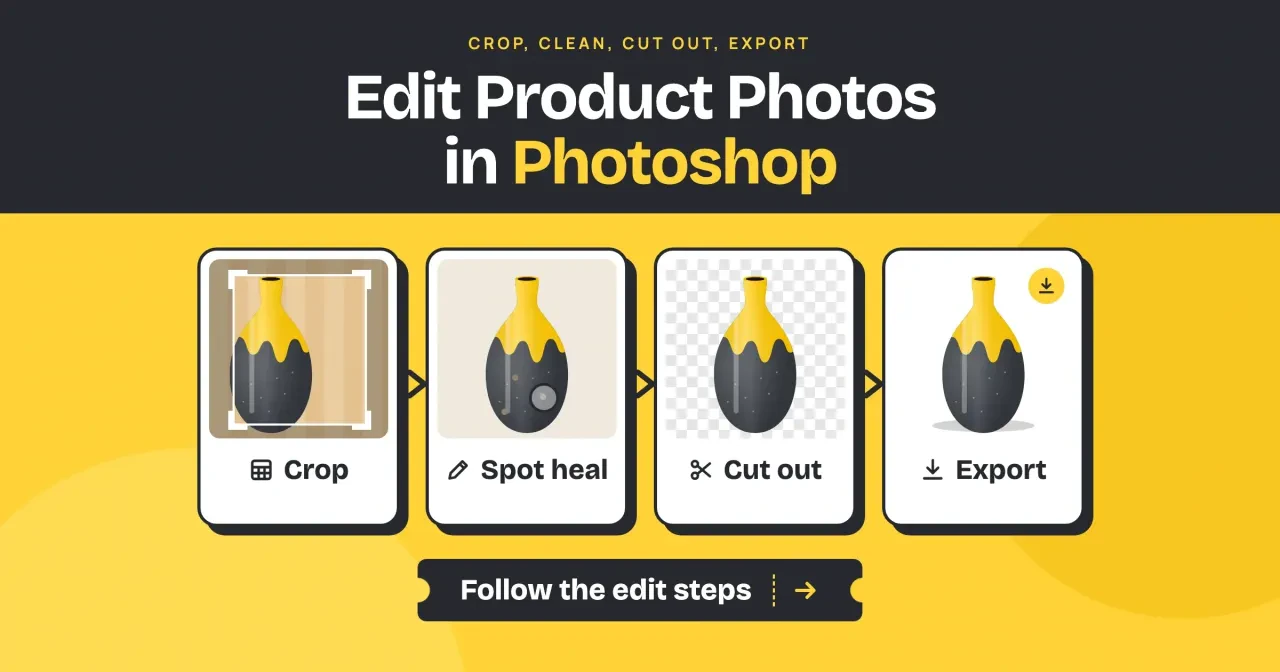
To edit product photos in Photoshop, crop to a square, spot heal dust, cut the product out onto pure white, and export a 2,048-pixel JPEG. That size is Shopify's square suggestion as of October 28, 2026. Amazon's main image is stricter: pure white, RGB 255, 255, 255, with the product at 85% of the image. Check your store's row first, then follow the four steps.
If you sell things you make, you've likely shot them on a phone against white paper, and the photo came out grayish. Product photo editing is the short run of fixes between that photo and your listing. You frame it, clean it, lift it off the backdrop and save a file the store accepts. We'd do those four jobs in that order every time, since each one shrinks the next.
Store rules come first, since they set the crop. Then crop, spot heal, cut out and export, with our file-size test inside the export step, and last, whether Photoshop is worth paying for.
Key takeaways
- Paper white isn't Amazon's white; the main image needs RGB 255, 255, 255.
- Drawn paper averaged RGB 240, 238, 235, with 1 pure-white pixel in 11.1 million.
- Crop to a 2,048-pixel square with Delete Cropped Pixels turned off.
- Etsy shows transparent PNG areas as black, so export on a white layer.
- Our white 2,048-pixel JPEG at quality 80 weighed 286,658 bytes.
Set the target size before you open Photoshop
Each store checks your file against its own rules, so where the photo goes decides the crop. Amazon's product image guide for US sellers asks for 500 to 10,000 pixels on the longest side. It recommends 1,000 or more, because that's what turns on zoom. The main image also needs "a pure white background (RGB color values: 255, 255, 255)" with the product at 85% of the image. Shopify and Etsy care less about the backdrop and more about size and weight, as of October 28, 2026:
| Store | Pixel size | Background | File notes |
| Amazon (main image) | 500 to 10,000 px on the longest side; 1,000+ turns on zoom | Pure white, 255, 255, 255; product at 85% of the image | JPEG recommended; also TIFF, PNG, still GIF |
| Shopify | Up to 5000 x 5000 px or 25 megapixels; 2048 x 2048 for squares | No rule; keep one aspect ratio for main images | Under 20 MB; PNG first, then JPEG |
| Etsy | 2000+ px recommended; first photo at least 635 px | Transparent areas show as black | Over 1 MB may not finish uploading |
So one 2,048 x 2,048 square covers all three. It matches Shopify's product media page and clears the 2,000 pixels that Etsy's image requirements recommend. It also sits well above Amazon's 1,000-pixel zoom line, and since Etsy wants a horizontal or square first photo, a square main image works there too. Shopify's page adds that main images should share one aspect ratio, so once you pick square, crop every product that way and your collection grid lines up. Still choosing where to sell? Our side-by-side comparison of WordPress and Shopify covers the store before you edit anything.
Amazon also wants the main image to show one unit, once, so save front-and-back views for later slots.
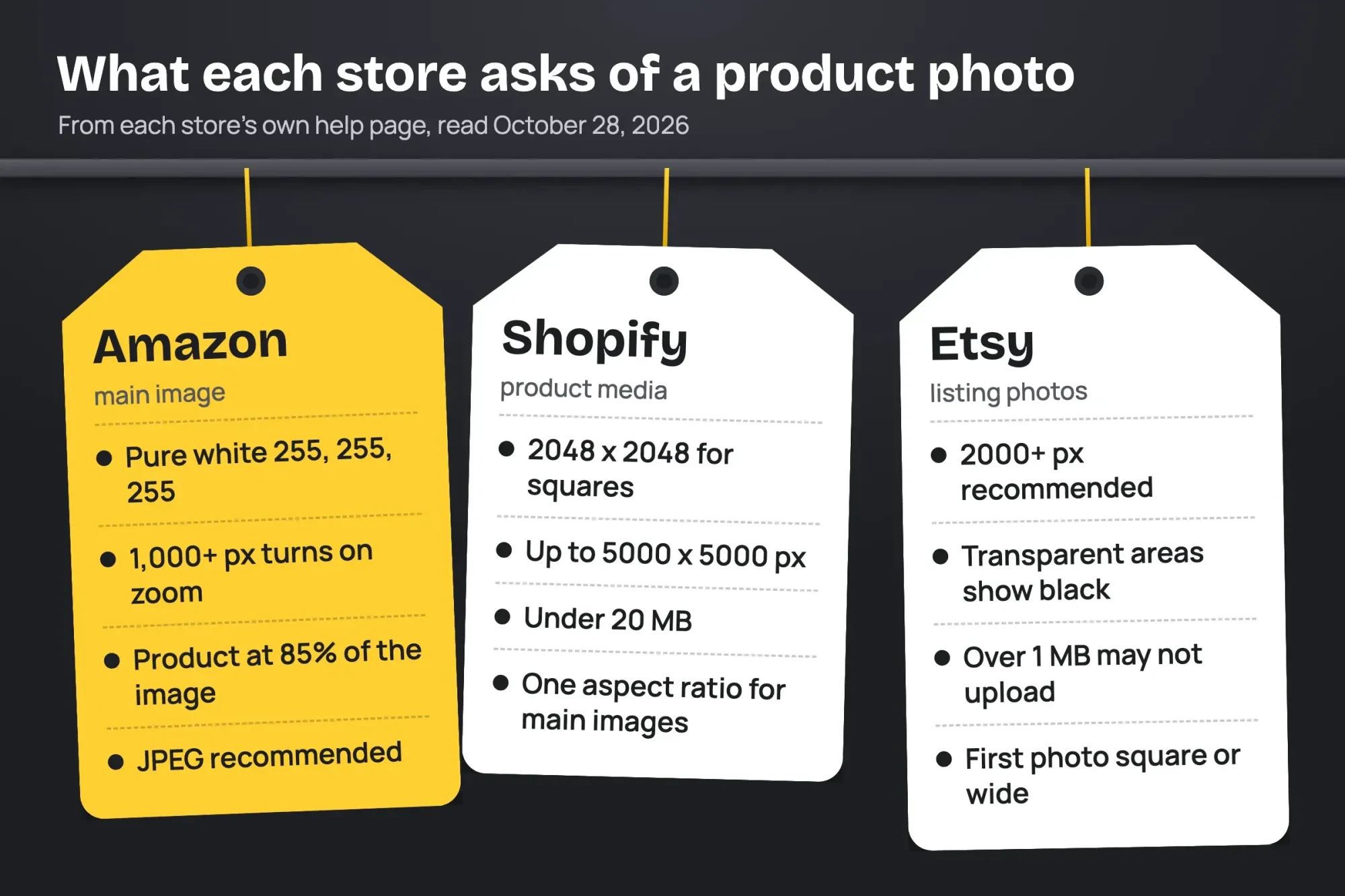 Diagram by DigitalTreed. Rules from Amazon Seller Central, Shopify Help and Etsy Help, read October 28, 2026.
Step 1: Crop to a square with room around the product
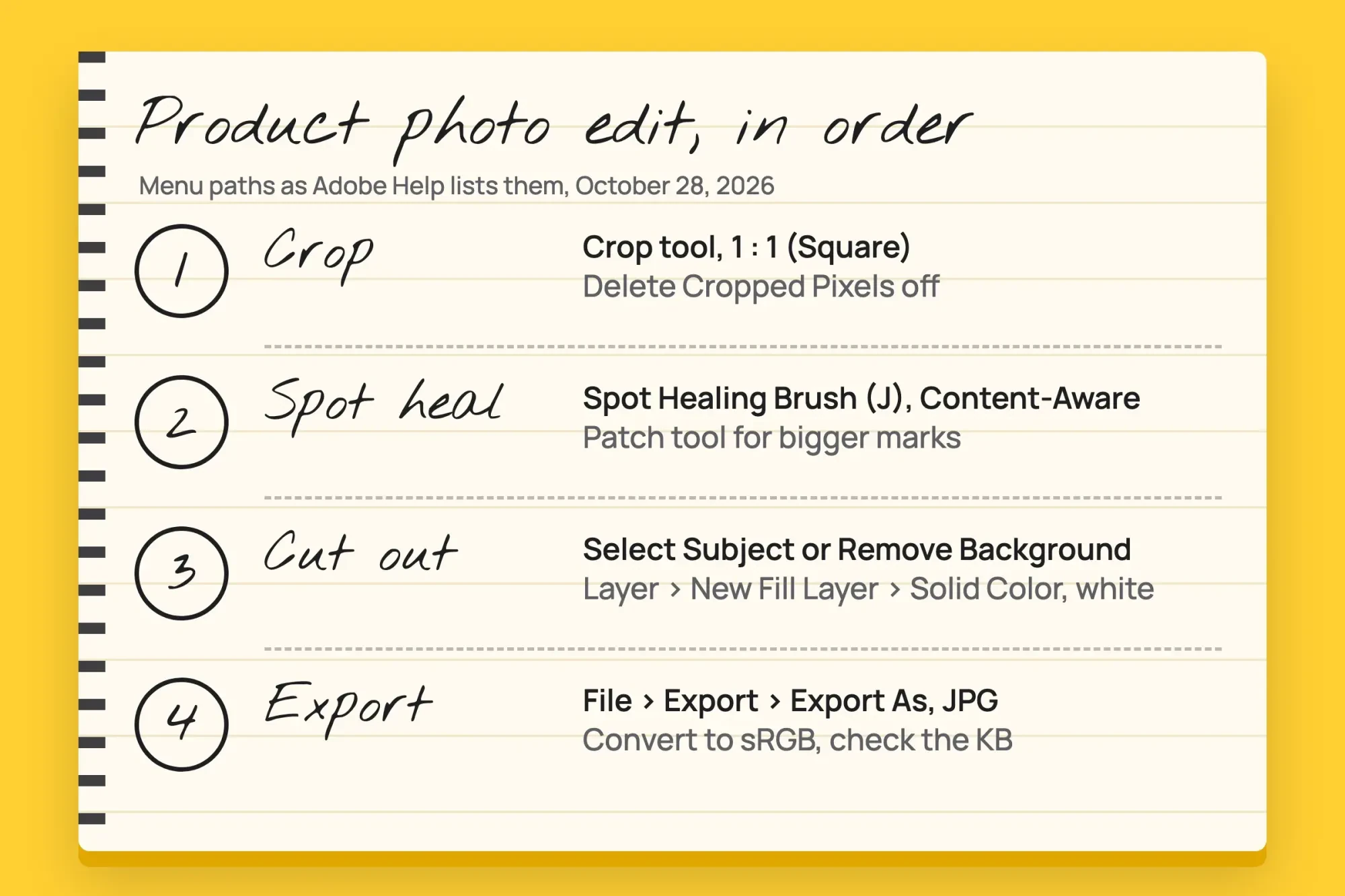
With the target set, crop first, because every later fix only has to cover what stays in the frame. Adobe's crop guide and its Crop tool options page give these steps:
- Select the Crop tool in the toolbar.
- In the options bar, pick 1 : 1 (Square), or W x H x Resolution and type 2048 for both sides.
- Turn off Delete Cropped Pixels, so the trimmed edges aren't thrown away and you can reframe later.
- Drag the corner handles, or drag a new box, until the product sits centered with an even margin.
- Press Enter (Windows) or Return (macOS), or select Done.
Leave a little air around the product but keep all of it in frame, since Amazon's main image rules ask you not to cut off any part of it. The 85% figure is harder to read than it looks. In our test crop, a tall vase filled 87.9% of the square's height but only 24.9% of its area. Amazon's page doesn't say which one it means. A tall or thin product can't fill 85% of a square's area, so we'd measure along the longest side and leave the sides as they fall. If you resize after cropping, Adobe's resize guide sends any change in pixel size through Image > Image Size.
Don't stretch a photo that ends up smaller than 2,048 pixels, because Amazon's guide says "Do not artificially enlarge small images."
Running CS6 from an old install? The options page lists a Use Classic Mode setting, which brings back the crop tool behavior of earlier versions. Other menu names may differ, since this guide follows today's Help pages. Whether CS6 still runs is covered in our Photoshop CS6 vs CC guide.
 Drawn by us. Menu paths from Adobe Help pages, read October 28, 2026; Photoshop was not opened.
Step 2: Spot heal the dust, then patch bigger marks
Once the frame is set, zoom to 100%. Then hunt for small flaws, like dust on the paper, a fleck in the glaze or a scuff on a label. Adobe's Spot Healing Brush page says the tool removes "dust spots, blemishes, or minor imperfections" by sampling the pixels around them. Press J and set the brush slightly larger than the spot. Then choose Content-Aware as the type in the options bar. The page adds that it works best on fairly even surroundings, which a product shot on plain paper usually has around the edges.
Healing on an empty layer above the photo? Tick Sample All Layers so the brush reads the pixels below.
Bigger marks need the Patch tool, which hides under the Spot Healing Brush in the toolbar. Adobe's Content-Aware Patch page has you pick Content-Aware in the options bar and select the bad area. Then you drag that selection onto a clean spot with similar texture and let go. Two sliders control the blend. Structure runs from 1 to 7, and Color runs from 0 to 10, and the page says a setting of 0 switches color blending off. The 2020 CS6 tutorial on this page used an Adaptation menu set to Very Strict instead.
Give the patch some margin. The page's tip is to "Extend selections slightly beyond the unwanted element for better blending." So draw the outline a little wider than the scuff on a label or the fleck in the glaze, and drop it on clean surface with the same texture.
You won't need to heal every speck, though. If the product is going onto white in the next step, dust on the backdrop goes with the backdrop. Our test picture had 6 dark specks on the paper. The crop cut 5 of them away, and the white fill covered the last one, so save your healing for the product itself.
Step 3: Cut out the product and set it on pure white
Now that the product is clean, separate it from the paper. Adobe's Select Subject page starts from a selection tool. You choose Select Subject in the options bar, add or subtract areas, then refine the edge in Select and Mask. If the photo holds a set of three mugs and you only want one, Adobe points you to the Object Selection tool instead. One product filling the photo has a faster route. The Remove Background quick action sits in the Discover panel under Browse > Quick Actions. It leaves a transparent background or a masked layer, and the Revert button in the same panel undoes the whole action if the result looks wrong.
Adobe's tip for that quick action is a high-contrast photo, with any rough edge painted back on the layer mask using the Brush tool.
Both commands can run locally or in Adobe's cloud. Adobe's page on better Select Subject results says Device is the default. Cloud is a switch under Settings > Image Processing on a Mac, or Edit > Preferences > Image Processing on Windows. Edge still rough? Switch to Cloud and run it again before you paint the mask by hand.
Now make the white real. Set your foreground color to pure white and add a solid color fill layer through Layer > New Fill Layer > Solid Color. Drag it below the product in the Layers panel, and everything outside the product reads 255, 255, 255. A sheet of paper won't give you that number, however bright it looks. For a single photo, the background remover on our site does the cutout in your browser and can add the white, and the photo isn't uploaded.
Keep that white layer when you save. Etsy's page warns that transparent parts of a file "will appear black on Etsy." A transparent PNG straight out of Remove Background can show your vase on a black square. The same cutout lets you combine shots, as the 2020 tutorial did. Adobe's Place a file page uses File > Place Embedded, which adds the second image as a Smart Object you can scale without losing quality. Hold Shift while you drag a corner handle, and the placed photo keeps its proportions instead of stretching. If that combined shot becomes an ad with words on it, our graphic design tips cover type and layout.
Step 4: Export a file the store will take
That leaves the file itself. Adobe's Export As page puts it under File > Export > Export As, where you pick PNG, JPG, GIF or SVG. The export settings page lists the controls that matter for a store photo. There's a JPG quality slider from 1% to 100% and a Color Space option that converts the file to sRGB. We'd leave sRGB on for every store photo.
The same page has a Canvas Size box. When that canvas is bigger than the image, Photoshop fills the extra space with white, provided the file has a background layer. It's a quick way to add an even margin around a product you cropped too tight, without going back to Step 1.
Amazon's specifications also list RGB as the preferred color mode, so keep CMYK files for the print shop.
JPEG is the safe pick for all three stores. Amazon recommends it, Etsy accepts it, and Shopify lists it right after PNG. The quality slider decides the file size, so we exported one finished 2,048-pixel test square at five JPEG settings, plus WebP and PNG, to see where each lands:
| Export of the same 2,048 x 2,048 file | Bytes | Under 1 MB? | Outer 40-px border pure white |
| JPEG quality 100 | 1,830,166 | No | 100% |
| JPEG quality 90 | 376,254 | Yes | 100% |
| JPEG quality 80 | 286,658 | Yes | 100% |
| JPEG quality 70 | 215,452 | Yes | 100% |
| JPEG quality 60 | 149,471 | Yes | 100% |
| WebP quality 80 | 30,586 | Yes | 100% |
| PNG | 2,186,338 | No | 100% |
| JPEG quality 80, paper backdrop left in | 863,242 | Yes | 0% |
Two rows matter most. Quality 100 and PNG both went over the 1 MB mark Etsy warns about, while quality 80 came in at 286,658 bytes with the white edge intact. The same crop with the paper backdrop left in weighed 863,242 bytes at quality 80. That's 863,242 / 286,658 = 3.0 times the white version, because grain on the paper costs bytes and flat white compresses to very little. WebP made the smallest file at 30,586 bytes. But WebP isn't on Amazon's or Etsy's list of file types, so we'd keep it for Shopify or your own site. The image compressor on our site converts a batch in the browser and can aim at a size in KB.
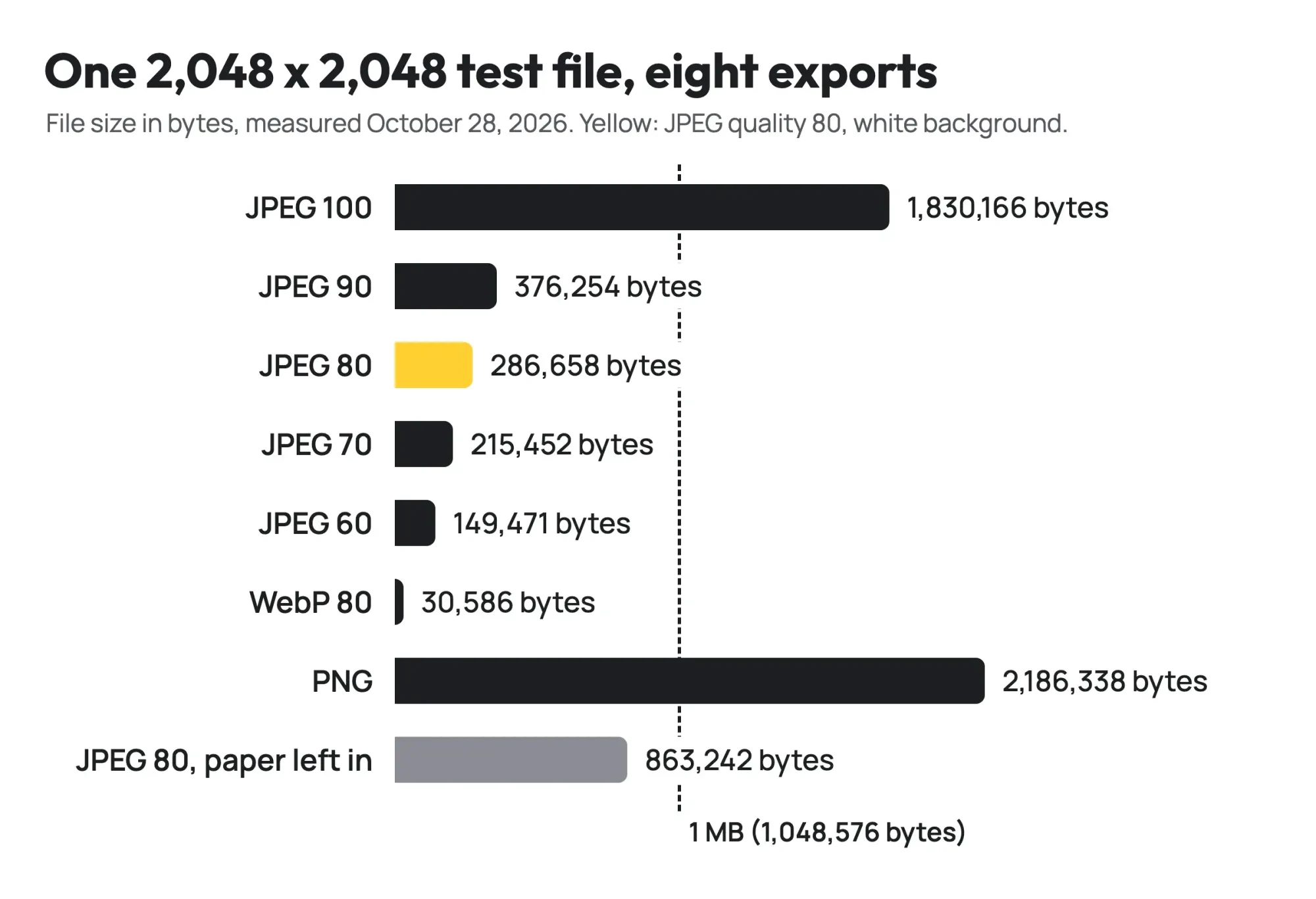 Diagram by DigitalTreed. Bytes measured from our local test files, October 28, 2026.
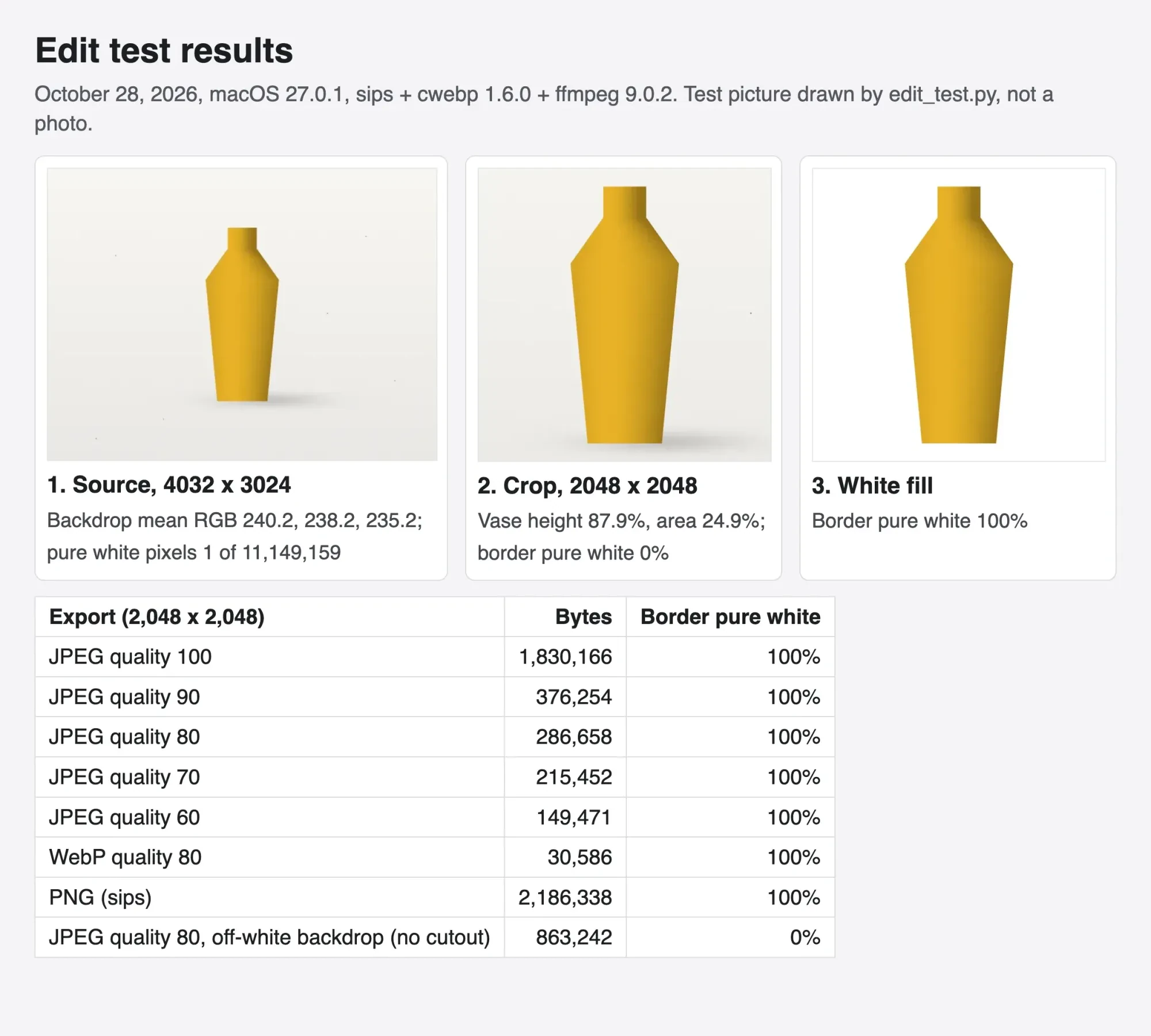 Screenshot: our local test results page, October 28, 2026. The vase picture was drawn by a script, not photographed.
What we tested
We didn't run Photoshop for this. A script drew a 4032 x 3024 test picture of the made-up Ferncastle Ceramics vase on off-white paper, with grain and 6 dust specks. The macOS sips command cropped it to a 2,048-pixel square. The script then set every pixel outside its own vase outline to 255, 255, 255, in place of Remove Background plus a white layer. A real cutout edge won't be this clean. We exported with sips and cwebp, read each file's size in bytes, and decoded every file with ffmpeg to check that its outer 40-pixel border stayed pure white. The paper averaged RGB 240.2, 238.2, 235.2, and 1 of its 11,149,159 pixels was pure white.
Is Photoshop worth paying for just to edit product photos?
Each step needs a paid plan. Adobe's US Photoshop plans page charges $22.99 a month for Photoshop alone on a one-year plan paid month by month (read October 28, 2026). Paid up front, the same plan is $263.88 a year. Paying monthly costs $22.99 x 12 - $263.88 = $12 more over the year. The Photography plan includes desktop Photoshop and Lightroom at $19.99 a month on an annual plan, which comes to $19.99 x 12 = $239.88 over the year when billed monthly. The plans page lists a 7-day free trial for the Photoshop plan, which is long enough to run one real batch of photos through these four steps before you pay.
Here's an example to size that up. Say the made-up Ferncastle Ceramics lists 40 pieces a year with 5 photos each, which is 200 photos. At the prepaid price as of October 28, 2026, that's $263.88 / 200 = $1.32 per photo, before your own time. If your edits stop at crop, dust and a white background, the free photo editors we compared handle most of it. And if your week is mostly sale graphics, not photo fixes, read our Photoshop vs Canva breakdown first.
Our take: pay for Photoshop when the photos are the product and need real retouching, like glare on glaze, and use free tools for plain cutouts on white.
Short on time for 200 photos? The DigitalTreed graphics and video team does this work as a paid job. Set a quote from us beside the example $1.32 a photo in software, as of October 28, 2026, plus your hours.
Frequently asked questions about editing product photos
Frequently asked
Can my Amazon main image be a lifestyle photo?
Not if it breaks the main-image rules. Amazon's product image guide asks for the entire product, shown once, on "a pure white background (RGB color values: 255, 255, 255)".
What DPI should product photos be?
Pixels matter more on screens. The same Amazon guide asks for at least 72 dpi, and Adobe's resize page puts screen images at 72-96 PPI.
Can I upload an animated GIF to an Etsy listing?
No. Etsy's image requirements say animated GIF files aren't supported, and neither are transparent PNGs.
Does Shopify convert my product photos to a faster format?
Yes. Shopify's media types page says its Imagery service checks each shopper's browser and shows the best format it supports.
How we made this guide: On October 28, 2026, we read 12 Adobe Help pages, Adobe's US plans page and the photo rules of Amazon, Shopify and Etsy. We read our two tool pages too, without running the tools. A script drew the test picture; sips, cwebp and ffmpeg cropped, exported and measured it on a local Mac. Photoshop wasn't used. Facts checked by the DigitalTreed team on October 28, 2026.
First published July 2020 as a Photoshop CS6 tutorial. Rewritten October 28, 2026: now a four-step product photo edit for store listings, with store rules and a local export test.
Sources
- Adobe: Compare Photoshop plans (US)
- Adobe Help: Crop photos
- Adobe Help: Crop tool options
- Adobe Help: Resize images
- Adobe Help: Remove small spots with the Spot Healing Brush
- Adobe Help: Use the Content-Aware Patch tool
- Adobe Help: Detect subject using Select Subject
- Adobe Help: Remove background in your images
- Adobe Help: Improve Select Subject and Remove Background results
- Adobe Help: Create fill layers
- Adobe Help: Place a file in Photoshop
- Adobe Help: Fine-tune export settings with Export As
- Adobe Help: Export settings and export location preferences
- Amazon Seller Central: Product image guide
- Shopify Help Center: Product media types
- Etsy Help: Requirements and Best Practices for Images in Your Etsy Shop
Comments
No comments yet. Start the conversation below.