
Quick answer
Here's how to add email to Outlook: in new Outlook for Windows, go to View settings, then Accounts and Add Account. In classic Outlook, it's File, then Add Account. Most accounts need only the address and a sign-in. If yours doesn't connect, you'll need your host's encrypted settings, usually IMAP on port 993.
This page used to show Outlook 2013 and 2016 screens. One step on it was wrong, too.
So we've rewritten it from Microsoft's current pages (read October 24, 2026), for every version you're likely to have open.
Which Outlook do you have?
Look at the top right corner first. Microsoft's version check page puts it simply: "If you have the Settings button, you have the new Outlook. If the Settings button is missing, you're using classic Outlook."
Classic Outlook has a File tab instead.
That difference matters because the menus aren't the same.
New Outlook is free and needs Windows 10 version 17763.0 or later, according to Microsoft's new Outlook start page. Classic Outlook comes with many Microsoft 365 plans that include the desktop apps, and Microsoft Learn says existing installs "will continue to be supported until at least 2029" in its migration timeline page.
On a Mac, the app has an Outlook menu in the menu bar. On a phone, it's the Outlook app. In a browser, it's Outlook on the web.
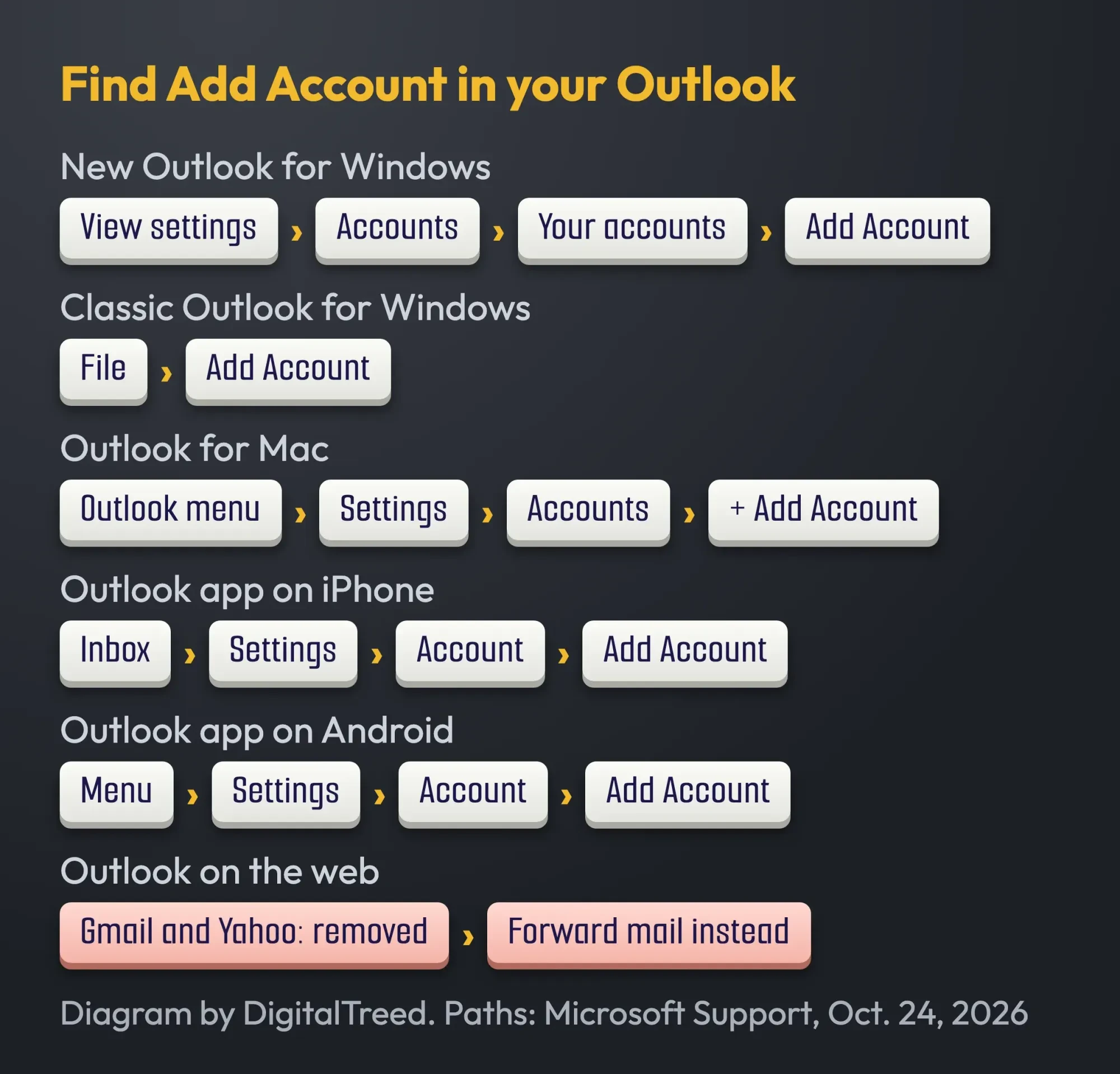 Diagram by DigitalTreed. Menu paths from Microsoft Support pages, read October 24, 2026.
New Outlook for Windows: View settings, then Accounts
Once you know you're in new Outlook, the path sits under the View tab. These are the steps from Microsoft's Add an email account page, word for word where the menus are named:
- On the View tab, select View settings. (Or, from the File tab, select Account info.)
- Select Accounts, then Your accounts.
- Under Email accounts, select Add Account, pick a suggested account or type a different address, and select Continue.
- If you're asked, enter the account's password and select Done.
That's it for most accounts.
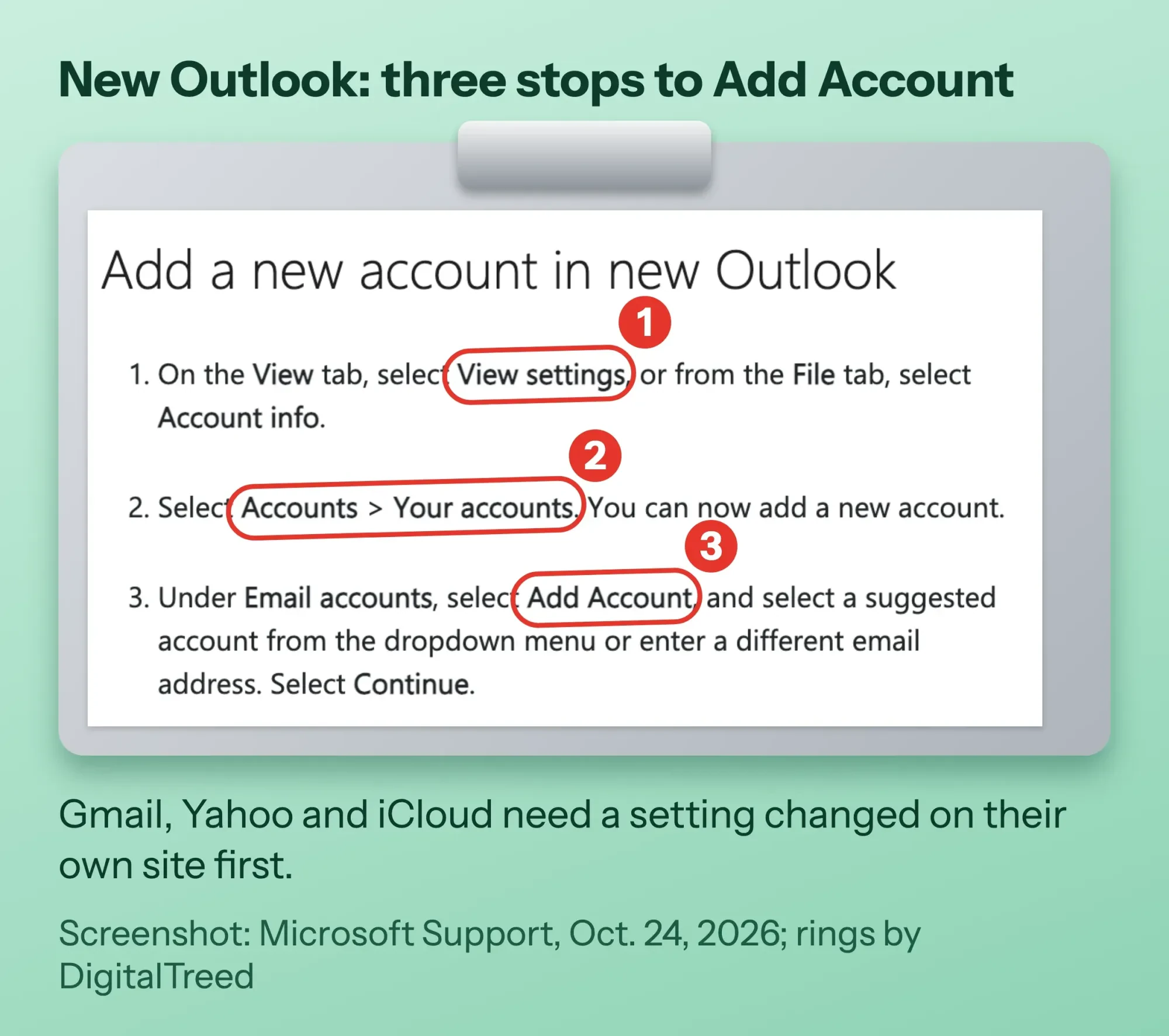 Screenshot: Microsoft Support, Add an email account to Outlook for Windows, read October 24, 2026, annotated by DigitalTreed.
Gmail, Yahoo and iCloud are the exception.
Microsoft warns that these providers "require you to change some settings on their websites" before the account will add.
A host mailbox connects to new Outlook through IMAP. Microsoft lists Gmail, Yahoo, iCloud and "other third-party accounts connecting through IMAP" as supported.
We've left POP out here, because Microsoft's new Outlook start page lists only IMAP for other providers.
One more thing happens quietly.
For Gmail and Yahoo, new Outlook can sync the account to the Microsoft Cloud, which means "a copy of your email, calendar, and contacts" is kept in Microsoft data centers. That's worth knowing if your business has rules about where client mail is stored.
Classic Outlook: File, then Add Account
Classic Outlook has two routes in: a quick one and a manual one.
Its steps on the same support page are short: select File, then Add Account, enter your address and select Connect. If you're asked, enter the password again, then OK and Finish.
That works for most Microsoft, Gmail and Yahoo accounts.
A host mailbox sometimes needs the manual route:
- Select File, then Add Account.
- Enter your email address, select Advanced options, and check Let me set up my account manually. Select Connect.
- Choose IMAP. Microsoft says that's the right pick "most of the time" here.
- Enter the incoming and outgoing server settings from your host, then select Next.
- Enter your password and select Connect.
When sending fails afterward, open More Settings, then Outgoing Server, and check My outgoing server (SMTP) requires authentication. That box is named on Microsoft's POP and IMAP settings page.
You can change a server name later without starting over.
Go through Control Panel, then Mail, then Email Accounts and Change, as the account settings page shows. Its Test Account Settings button runs a check, and green check marks mean it passed.
On a Mac, a phone or the web
The same account can live on more than one device, and each one has its own path.
Outlook for Mac
Select the Outlook menu, then Settings. In the side panel, select Accounts, then + Add Account, type your address and follow the prompts, per Microsoft's Mac setup page. For a second account, it's Tools, then Accounts.
New Outlook for Mac also copies Google, iCloud, Yahoo and IMAP accounts to the Microsoft Cloud. You can opt out by choosing Sync directly with your provider, according to the Microsoft Cloud page for Mac.
POP accounts can't use that sync at all.
iPhone and Android
On an iPhone, tap Inbox at the top of the Outlook app, then Settings, then Account and Add Account. For a host mailbox, the iOS setup page says to choose IMAP and toggle on Use Advanced Settings.
On Android, open the Menu, then Settings, Account and Add Account. Manual setup there offers IMAP or POP3, then an Advanced settings toggle, per the Android setup page.
There's a catch on both phones.
An IMAP or POP account, Microsoft says, syncs "only your email", not your calendar or contacts.
Outlook on the web
You can't add Gmail or Yahoo there anymore.
Microsoft "removed the ability to connect new third-party accounts" in Outlook.com, its connected accounts page says, and it doesn't give a date. Its suggestions are the desktop or mobile apps, or forwarding mail from the other account.
Host email settings: encrypted ports only
When the automatic setup can't find your host mailbox, you'll need four values: two server names and two ports.
A cPanel host keeps them all in one place. Go to Email Accounts, find the address, and click Connect Devices, as cPanel’s mail client docs describe.
The Secure SSL/TLS settings it shows are IMAP port 993, POP3 port 995 and SMTP port 465.
cPanel labels the other set "NOT Recommended". We don't list those ports at all, and you shouldn't use them.
Server names trip people up.
cPanel says it uses your own domain as the server name only "if the account has a valid SSL certificate installed". If not, it shows the server's hostname.
Our free SSL checker tells you in a few seconds whether your domain's certificate is valid. If the name won't resolve at all, read why that happens in our DNS_PROBE_FINISHED_NXDOMAIN fix.
Pick IMAP over POP.
cPanel's note says that with POP, your mail client "will download all of the account's email messages, then remove the messages from the server." You can't read them anywhere else after that.
Your user name is your full email address.
A Microsoft 365 work mailbox shouldn't go in as IMAP. Microsoft Learn says there's "no plan for Outlook clients to support OAuth for POP and IMAP" on its basic authentication page, so use Add Account and sign in instead.
| Your email is with | Easiest way in | Manual settings (encrypted only) | Watch for |
|---|---|---|---|
| Web host using cPanel | Add Account with your address | IMAP 993, SMTP 465, SSL/TLS; server name from Connect Devices | Server name depends on your SSL certificate |
| Outlook.com or Hotmail | Add Account, then sign in | IMAP outlook.office365.com 993 SSL/TLS; SMTP smtp-mail.outlook.com 587 STARTTLS | POP and IMAP are off by default; sign-in must be modern auth |
| Microsoft 365 work account | Add Account, then sign in | Don't use IMAP in Outlook | Ask your admin if sign-in fails |
| Gmail | Add Account, Google sign-in window, Allow | Not listed on Google's current help page | App password only with 2-Step Verification |
| Yahoo | Add Account, Yahoo sign-in, Agree | IMAP imap.mail.yahoo.com 993; SMTP smtp.mail.yahoo.com 465 or 587; SSL required | App password for apps without Yahoo's sign-in page |
Sources for the table: cPanel, Microsoft's Outlook.com settings, Microsoft Learn, Microsoft's Gmail steps and Yahoo’s IMAP settings, all read October 24, 2026.
Example: Copper Pine Piano Service is a made-up one-person piano tuner in Missoula, Montana. Its owner has info@ on a cPanel host and wants it on a Windows laptop and an iPhone. Connect Devices shows a server name on the domain itself, such as mail. plus the domain,, because the certificate is valid. So new Outlook gets the address, then IMAP on 993 and SMTP on 465, and the iPhone app gets the same values under Use Advanced Settings.
Don't have a mailbox on your domain yet? Set that up first; our guide to creating a business email on your own domain covers hosts and DNS records.
A disclosure first: we sell website builds and upkeep. If your host's mail settings are a mess, our web developers can sort out the domain, certificate and mailbox with you.
Gmail and Yahoo sign in through their own window
Those manual settings are for host mail. Gmail and Yahoo work differently, because they'd rather you sign in on their own page than type your password into Outlook.
For Gmail, Microsoft's Gmail steps have classic Outlook open the Gmail Sign in window. You confirm the address, add your password, and select Allow on the Google account permissions window.
If you see "Something went wrong," select Retry.
Google is strict about this. Its Gmail IMAP page says Gmail "no longer supports third-party apps or devices which require you to share your Google username and password."
That page also says IMAP has been always on since January 2025, and you can add Gmail to up to 15 email clients at a time.
What about app passwords?
Google says they "aren't recommended and are unnecessary in most cases" on its app passwords page. If you do need one, it's a 16-digit code, it only works with 2-Step Verification turned on, and Google revokes it when you change your Google password.
Yahoo has its own flow. In new Outlook, Microsoft's Yahoo steps have you select Continue on Sync your Yahoo account, sign in, select Agree, then select Open on the browser pop-up.
Yahoo app passwords live under External connections, with a Create app password button. Unlike Google's, they stay active even after you change your main password, Yahoo's help page says.
You have to delete one to stop it.
Why a password that used to work gets rejected
Most "wrong password" errors on older setups aren't about the password. They're about how Outlook sends it.
Basic authentication means the app sends your user name and password with each request. The big mail providers have been switching it off for years.
For Exchange Online, Microsoft Learn says "Basic authentication is now disabled in all tenants," and most cloud environments hit the October 1, 2022, date. For personal Outlook.com accounts, Microsoft's known issues page gives September 16, 2024, as the day basic authentication stopped working.
Old desktop versions got caught by that.
That page lists Outlook 2013, Outlook 2016 MSI and Outlook 2019 LTSC among the versions that don't support modern authentication for Outlook.com. If you're on one of those, updating Outlook is the fix.
Google moved too. Starting January 2025, Google Workspace stopped supporting apps that sign in with only a user name and password, per its less secure apps page.
The next date is for sending.
Microsoft's Exchange team says SMTP AUTH basic authentication will be "disabled by default for existing tenants" at the end of December 2026, in its updated timeline. Admins can still turn it back on for now.
A printer, scanner or website contact form that sends through Microsoft 365 with a saved password is the thing to check; Microsoft's device and app sending guide lists the other ways to send.
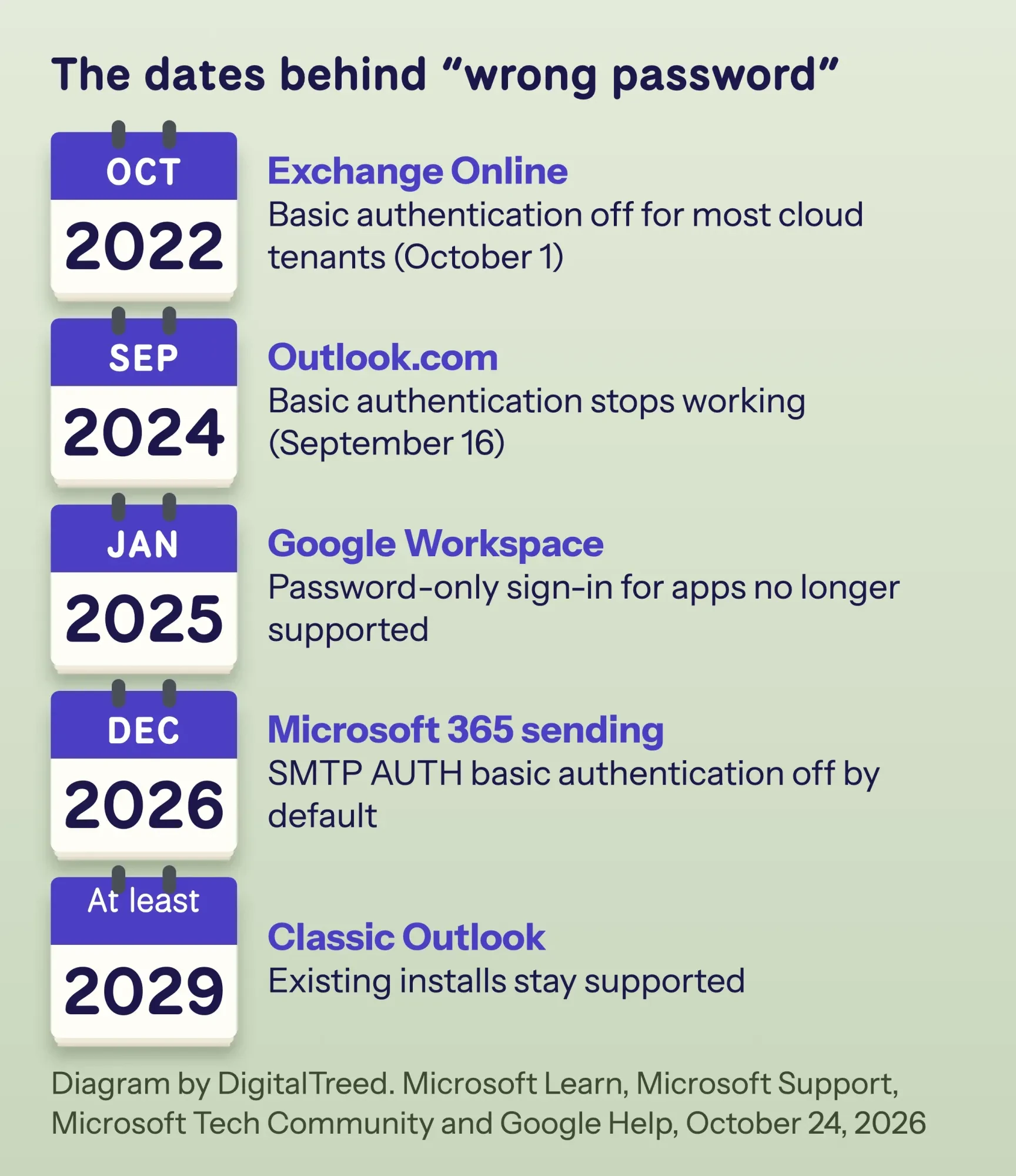 Diagram by DigitalTreed. Dates from Microsoft Learn, Microsoft Support, Microsoft Tech Community and Google Help, read October 24, 2026.
Fixes for the errors people hit most
Once the sign-in method is right, most of what's left are a handful of known errors, and Microsoft documents most of them.
We started this rewrite by checking our own old steps against Microsoft's pages. For that check, we read 14 Microsoft Support and Microsoft Learn pages on Saturday, October 24, 2026, and wrote down the path for each Outlook. Step 5 of our 2020 version told you to tick Require logon using Secure Password Authentication. Microsoft's troubleshooting page says that box should be unchecked. This rewrite fixes that. Two other guides that rank for this search were out of date too: one still points readers to Outlook.com connected accounts, and one lists unencrypted ports.
Here's what Microsoft actually says, error by error.
"You may need to use an app password." Use the app password from your provider at the password step, not your usual one, says the app password page.
Outlook never asks for your password. On the IMAP details page, make sure Require logon using Secure Password Authentication (SPA) is unchecked, per Microsoft's setup troubleshooting page.
Outlook keeps asking for it. Check caps lock, then the user name. Microsoft says "Your user name is your full email address." A password you changed with your provider also has to be changed in Outlook.
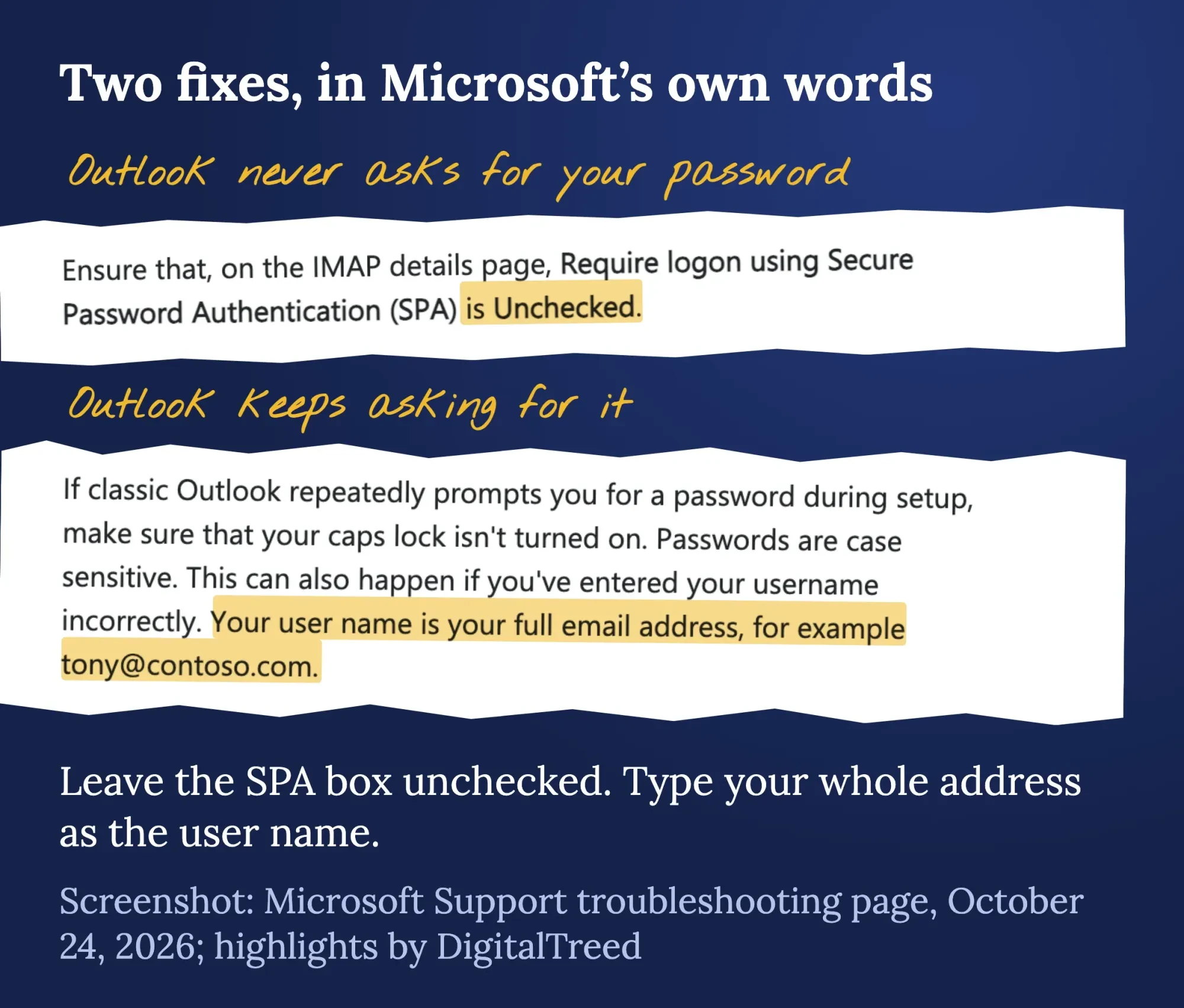 Screenshot: Microsoft Support, Troubleshoot email setup in Outlook, read October 24, 2026, annotated by DigitalTreed.
Mail stopped arriving. Look for Working Offline at the bottom of classic Outlook. If it's there, turn off Work Offline on the Send/Receive tab.
An Outlook.com account shows a connection error in a second IMAP app. Go to account.live.com/activity, find the matching sign-in under Recent activity and select This was me, as the Outlook.com settings page says.
New Outlook shows the account as needing attention. When a provider changes its backend, the POP and IMAP page says to remove the account from all Outlook devices and sign in again.
Read the warning first, though.
Microsoft says calendar events, saved contacts and drafts created in Outlook "will all be lost" when you remove the account. Export anything you'll need before you click Remove from all devices.
When to hand it to your email host
If the fixes above don't clear it, the problem is usually on the server side, and that's your host's job.
Contact them when you can't find the server names, when Outlook warns about the certificate, when your account is locked, or when mail sends from webmail but not from Outlook.
Give them the exact error text and the ports you used.
It saves a round of back and forth.
If your website went down at the same moment, the whole server may be the problem. Our guide to monitoring your site and apps covers alerts that catch that early.
One thing Outlook isn't built for is bulk mail.
A newsletter sent from your own mailbox can hit sending limits and spam filters. Our email marketing strategy guide and the steps for running an email campaign cover the right tools. Clean the list with an email verification tool first.
Once the account works, finish with a signature. Our free email signature generator builds one you can paste into Outlook.
Would you rather hand off the domain, mailbox and Outlook setup for your whole team? List your mailboxes and devices on our quote page, and we'll scope the work in plain terms.
How we made this guide: The DigitalTreed team read every page linked here on Saturday, October 24, 2026. That covered Microsoft Support, Microsoft Learn, Google Help, Yahoo Help and cPanel's docs, and we compared each menu path with our own 2020 steps. We didn't sign in to an account or run a setup for this guide, so the click paths are Microsoft's, quoted at the line they support. Both screenshots show public Microsoft Support pages.
First published July 2020. Fully rewritten Saturday, October 24, 2026: the Outlook 2013 and 2016 screens and the wrong SPA step are gone. New: steps for new Outlook, classic Outlook, Mac, iPhone, Android and the web, encrypted host settings, Gmail and Yahoo sign-in, basic authentication dates and error fixes.
Sources
- Microsoft Support: Add an email account to Outlook for Windows
- Microsoft Support: What version of Outlook do I have?
- Microsoft Support: Start using new Outlook for Windows
- Microsoft Learn: Stages of migration to new Outlook for Windows
- Microsoft Support: Sync your account in Outlook to the Microsoft Cloud
- Microsoft Support: POP and IMAP account settings
- Microsoft Support: Change or update email account settings in Outlook for Windows
- Microsoft Support: Add an email account to Outlook for Mac
- Microsoft Support: Add email accounts in Outlook for Mac using Microsoft Cloud
- Microsoft Support: Set up the Outlook app for iOS
- Microsoft Support: Set up email in the Outlook for Android app
- Microsoft Support: Connected accounts like Gmail and Yahoo not working in Outlook.com
- Microsoft Support: POP, IMAP and SMTP settings for Outlook.com
- cPanel Docs: Set Up Mail Client (last modified July 8, 2026)
- Microsoft Learn: Deprecation of basic authentication in Exchange Online
- Microsoft Support: Modern authentication now needed for Outlook.com in other email apps (June 10, 2024)
- Microsoft Tech Community: Updated SMTP AUTH basic authentication deprecation timeline (January 2026)
- Microsoft Learn: Set up a multifunction device or application to send email using Microsoft 365
- Microsoft Support: Add a Gmail account to Outlook for Windows
- Gmail Help: Add Gmail to another email client
- Google Account Help: Sign in with app passwords
- Google Account Help: Less secure apps and your Google Account
- Microsoft Support: Add or manage a Yahoo email account in Outlook
- Yahoo Help: Generate and manage third-party app passwords
- Yahoo Help: IMAP server settings for Yahoo Mail
- Microsoft Support: "You may need to use an app password" message
- Microsoft Support: Troubleshoot email setup in Outlook

Comments
No comments yet. Start the conversation below.