
Quick answer
As of October 28, 2026, a Microsoft 365 shared mailbox costs nothing extra and holds up to 50 GB without its own license. Past 50 GB it needs Exchange Online Plan 2, listed at $8.00 a user a month, paid yearly. Archiving or a litigation hold needs Plan 2, or Plan 1 with the Archiving add-on. Every teammate who opens it needs a licensed mailbox, so check seats first.
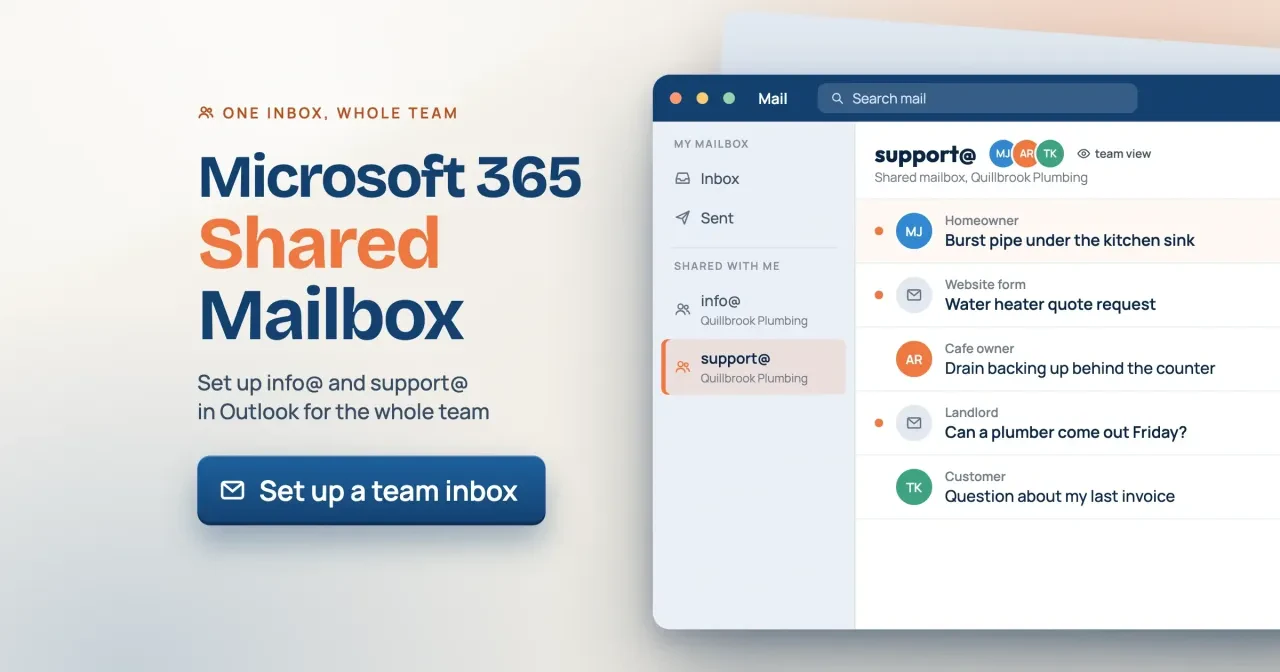
At a small crew, customer email tends to pile up in one person's inbox, or in somebody's personal Gmail. A Microsoft 365 shared mailbox is a team address, like info@ or support@, that several licensed people open from their own Outlook. Replies go out under the business name.
This guide covers what a team address is and what it costs, then creates info@ and support@ in the admin center. Next come Full Access and Send As, where the mailbox shows up in Outlook, house rules, and when to move past it. Our example, Quillbrook Plumbing, is made up.
Key takeaways
- A shared mailbox needs no license of its own until 50 GB.
- Every member still needs a licensed Exchange Online mailbox.
- Full Access opens the mailbox; only Send As or Send on Behalf can send.
- Microsoft caps a shared mailbox at 25 users and blocks outside accounts.
- Our roster check found 4 failures before any admin work started.
A shared mailbox is a team address nobody signs in to
So what are you building? Microsoft's shared mailbox set-up page describes it as a way for "a group of people" to watch and send from one address, such as [email protected]. When someone on the team replies, the message comes from the shared address, not from that person. A shared calendar comes with it. The mailbox does have a user account behind it, and that's the part people get wrong. Microsoft's overview of shared mailboxes says to "always block sign-in for the shared mailbox account and keep it blocked." Each teammate opens the mailbox from their own sign-in, so there's no shared password taped to a monitor and nothing to change when someone leaves the business.
For Quillbrook, that means two team addresses. Info@ goes on the website, the truck wraps and the yard signs as the general address, for supplier mail, invoices and anything that isn't a job. Support@ is where the work comes in. The website's request form sends there. Homeowners, landlords and cafe owners write to it about burst pipes, quotes and visit times, and the office manager and the field tech answer it together.
If the domain isn't set up yet, our business email set-up guide comes first.
What does a shared mailbox cost?
The mailbox is free; the people aren't. Microsoft's overview says a shared mailbox "can store up to 50 GB of data without assigning a license to it." The same page adds that "a user must have a licensed Exchange Online mailbox" to open one.
In practice, the bill is the seats around the mailbox. Check which plan each person on your staff has before you build anything, because one wrong seat blocks that person from the shared inbox entirely. Microsoft notes that the Microsoft 365 Apps for business subscription "doesn't include email." A person on that plan can't open a shared mailbox at all. Business Basic does include email, and Microsoft's US business plans page lists it at $7.00 a user a month, paid yearly, as of October 28, 2026. The Exchange Online limits table shows the same 50 GB shared mailbox cap on Business Basic, Standard and Premium. Here's the bill for our made-up shop, with three staff seats and two team addresses:
| Line (USD, paid yearly, as of October 28, 2026) | Formula | A month | A year |
| Staff seats on Business Basic | 3 x $7.00 | $21.00 | $252.00 |
| info@ and support@ as shared mailboxes | 2 x $0.00 | $0.00 | $0.00 |
| Same two addresses as user seats instead | 2 x $7.00 | $14.00 | $168.00 |
| Exchange Online Plan 2 if support@ passes 50 GB | 1 x $8.00 | $8.00 | $96.00 |
The third row prices the old shared-password setup, a full seat for info@ so somebody can sign in to it directly. For Quillbrook, that would add $14.00 a month, or $168.00 a year, for nothing a shared mailbox can't do. The last row only applies if support@ outgrows its cap. Exchange Online Plan 2 lists at $8.00 a user a month, paid yearly, on Microsoft's Exchange Online plans page, checked October 28, 2026. It raises the limit to 100 GB.
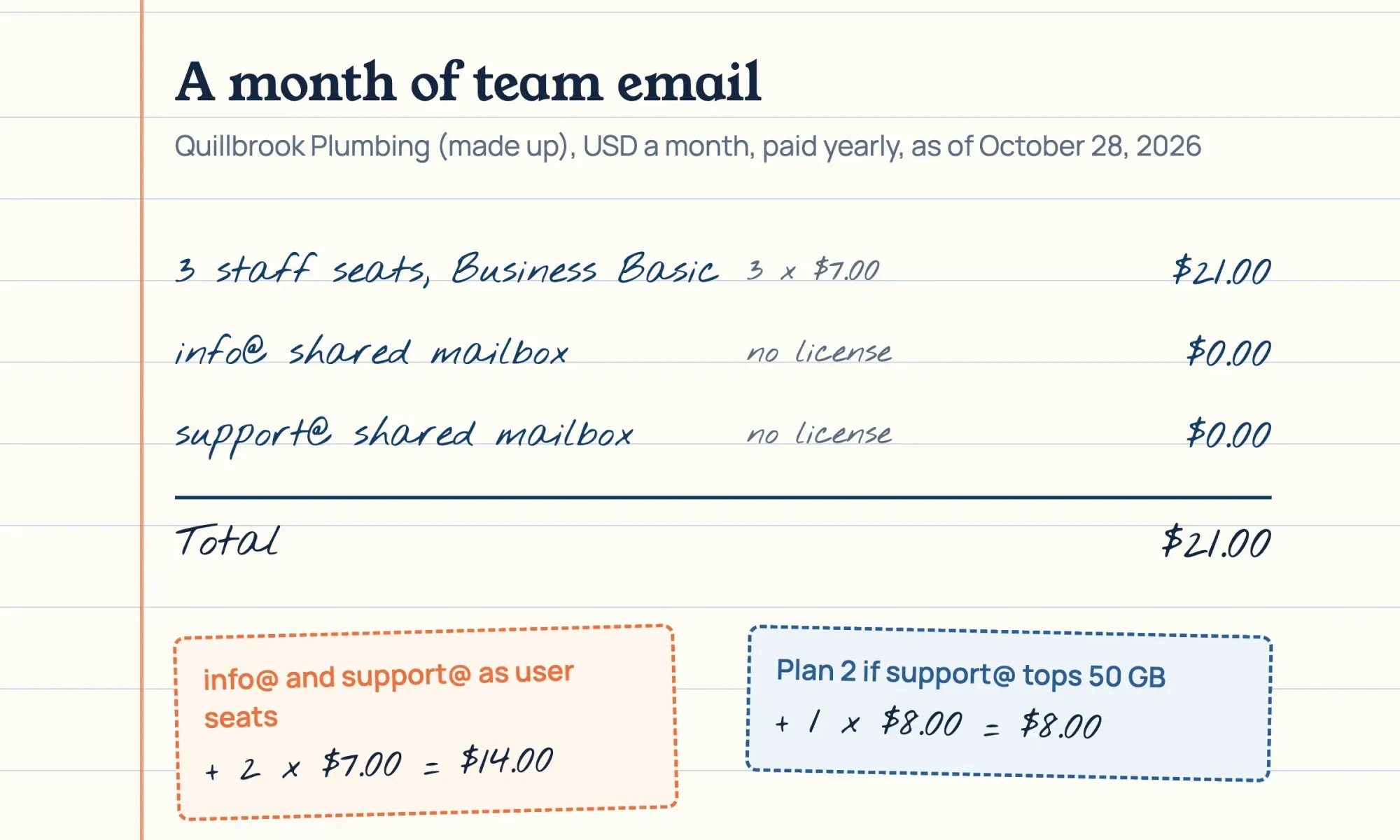 Diagram by DigitalTreed. Example costs for Quillbrook Plumbing (made up), from Microsoft US prices read October 28, 2026.
Archiving and legal holds also need that license. Microsoft says in-place archiving and litigation hold each require Exchange Online Plan 2, or Plan 1 with the Exchange Online Archiving add-on. If a mailbox does slip past 50 GB, Microsoft says it can still receive mail for some time, but nobody on the team can send new email from it. After that, senders get a bounce. That's why we'd look at support@'s size every month once it carries a few years of job photos and invoices. Our small business tech stack cost breakdown puts team email next to your other software bills.
Create info@ and support@ in the admin center
Once the seats check out, you'll need the right role. The overview says "users with Exchange admin roles can create shared mailboxes," and anyone else sees a no-permission message. Microsoft's set-up page gives this order:
- Sign in to the Microsoft 365 admin center with an Exchange admin account.
- Go to Teams & Groups > Shared mailboxes. Select Show all if you don't see Teams & Groups.
- Select + Add a shared mailbox and type a name, such as Quillbrook Plumbing Support. The name sets the address, which you can edit.
- Select Save changes, then wait a few minutes before adding people.
- Under Next steps, select Add members to this mailbox and pick each teammate.
- Repeat for info@, then leave sign-in blocked, which is the default.
Microsoft's overview lists two snags. Sending from the new mailbox right away can throw a permission error. Microsoft blames replication delay, and its advice is to "wait an hour and then try again." Owners with two domains hit the second snag. Wanting info@ on both, they create the second one and get a proxy address error. Microsoft's fix is to give the second mailbox a different name first, then rename it in the admin center once it exists, or to create it with PowerShell. Neither error means the set-up failed, so don't delete the mailbox and start over.
Name each mailbox the way customers should read it, because a Send As reply shows its display name in their inbox. Quillbrook Plumbing Support beats a bare Support. Write the names down before you start, since the address follows the name you type.
Before info@ goes on the website and truck wraps, check the domain's MX record with our free DNS lookup tool, then send info@ a test from a personal address.
Full Access reads the mail, Send As answers it
Once info@ takes that test message, member rights come down to three permissions. Microsoft's set-up page says someone with Full Access "can't send email from the shared mailbox unless they also have Send As or Send on Behalf permission." Your customer sees the difference in the From line:
| Permission | What the teammate can do | From line on a Quillbrook reply |
| Full Access | Open, read, file and delete mail; use the calendar | Nothing, because Full Access alone can't send |
| Send As | Send as the mailbox | Quillbrook Plumbing Support |
| Send on Behalf | Send with their own name shown | Alex R. on behalf of Quillbrook Plumbing Support |
For a customer inbox, we'd give everyone Full Access plus Send As, so replies look like they come from the shop. Send on Behalf suits an owner who wants customers to see which person answered. Don't set both. A teammate with both might expect their name on replies and never see it, which is exactly the mix-up our test flagged for Theo. Microsoft's permissions guide for Exchange Online says that if a user has both, "the Send as permission is always used."
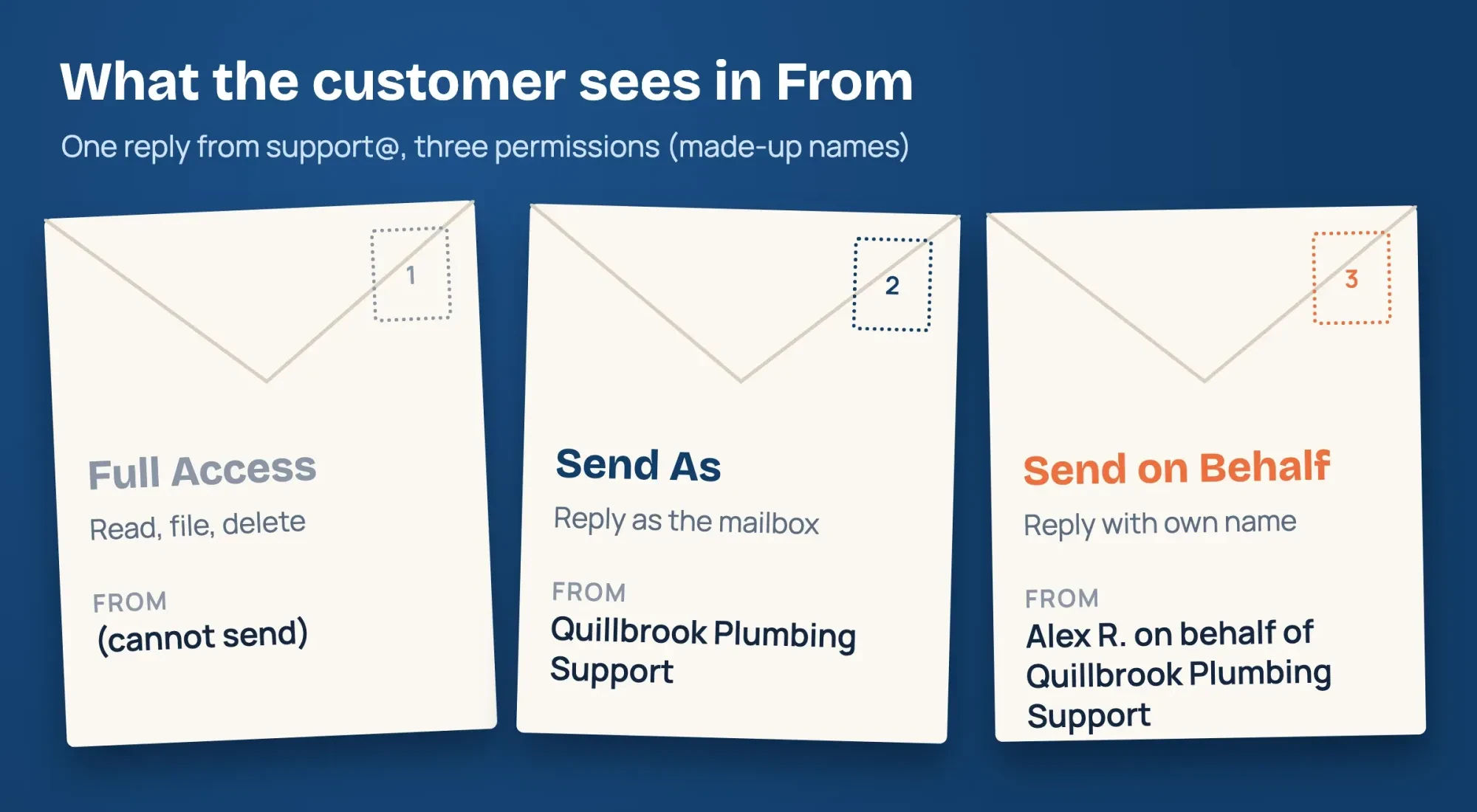 Drawn by us. From lines follow the examples on Microsoft Learn, read October 28, 2026; names are made up.
Here's a wrinkle we found while reading. Microsoft's set-up page lists the Exchange admin center as one place to grant Send on Behalf. Its permissions guide says that option "isn't available in the EAC for shared mailboxes." If you can't find it, the guide's PowerShell route works for any mailbox: Set-Mailbox with the GrantSendOnBehalfTo parameter. Full Access uses Add-MailboxPermission and Send As uses Add-RecipientPermission. Our test wrote Add-MailboxPermission for the five roster rows that passed and Add-RecipientPermission for four of them. Alex R.'s Send on Behalf row on support@ got Set-Mailbox instead, and Theo K. got Send As only. None of the 10 lines was run against a tenant.
What we tested
On October 28, 2026, a local Python script checked our access plan before any admin work. It read a made-up Quillbrook roster of 7 rows, 5 people and 2 mailboxes, against seven rules from Microsoft's pages. Of 24 checks, 17 passed, 3 warned and 4 failed. The failures were Dana L. on Apps for business, a helper with no plan and an outside personal address, and support@ at an example 51.4 GB. The warnings were Theo holding both send permissions and two read-only members. It wrote 10 PowerShell lines, which we didn't run.
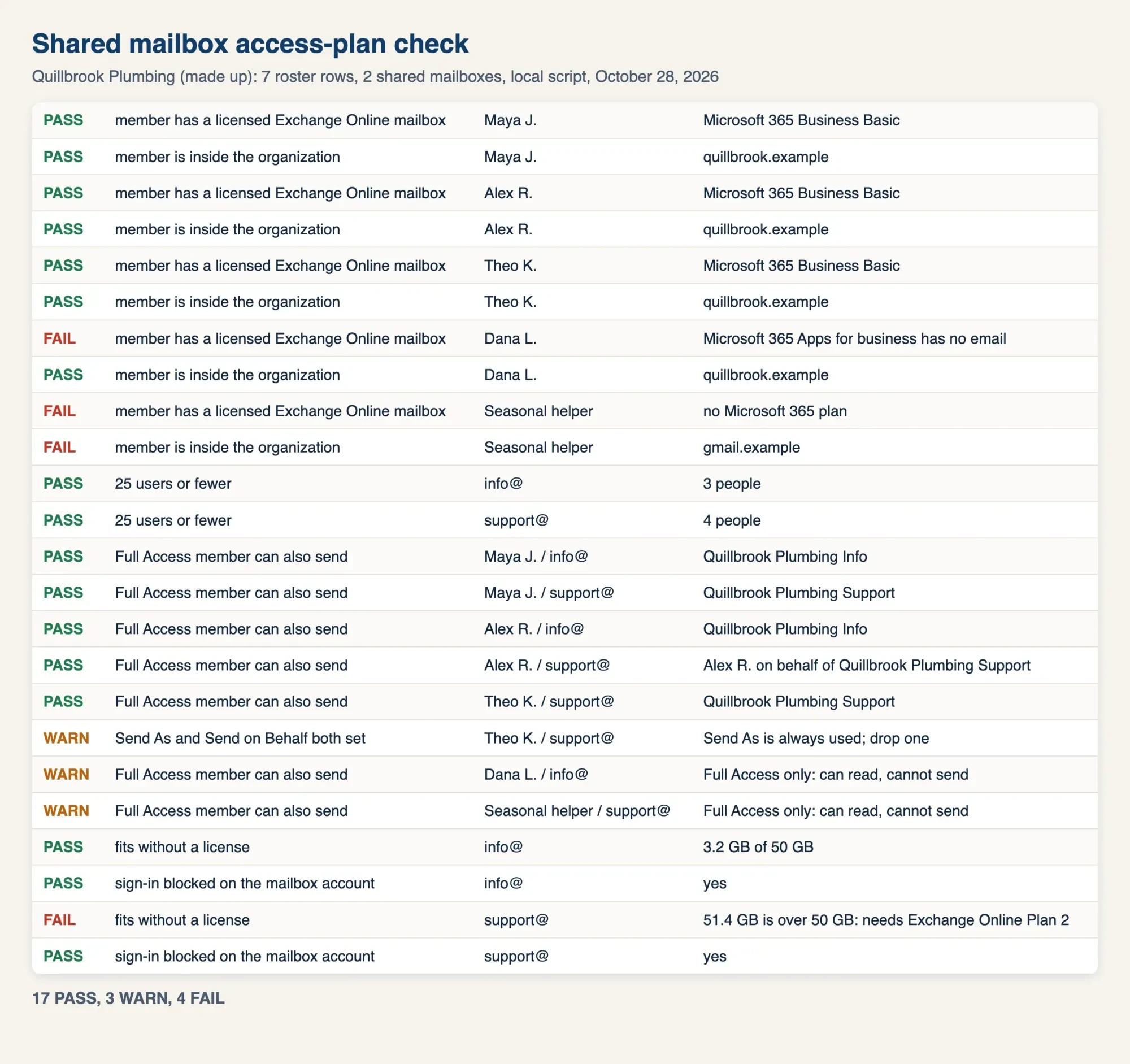 Screenshot: our access-plan report for Quillbrook Plumbing (made up), from test/run_test.py on 127.0.0.1, October 28, 2026.
Where the mailbox shows up for each teammate
With permissions set, where the mailbox appears depends on each person's Outlook. Microsoft calls the automatic part automapping, and its set-up page says the mailbox appears "automatically after they close and restart Outlook," if access went to each person directly. If you grant it through a security group, automapping won't work.
In new Outlook for Windows, look for a Shared with me folder in the folder pane, as Microsoft's guide to opening a shared mailbox in Outlook explains. The mailbox sits under it with its own Inbox, Drafts and Sent Items. If it's missing, right-click your account name and choose Add shared folder or mailbox. Classic Outlook adds it through File > Account Settings, then Change > More Settings > Advanced > Add. Outlook on the web works a little differently. You right-click Folders and add the mailbox there, but alerts need more, since you "must open the shared mailbox in a separate browser window" to get them. One gap catches teams in new Outlook: contacts for shared mailboxes are "currently unavailable" there.
Microsoft's Outlook mobile steps say to tap Add Account in the left pane, then Add a Shared Mailbox, and pick the account with access if the app holds several. It works when your mailbox and the shared one are both in Exchange Online.
The teammate's own account must already be in the app, though. If it isn't, adding email to Outlook walks through that part.
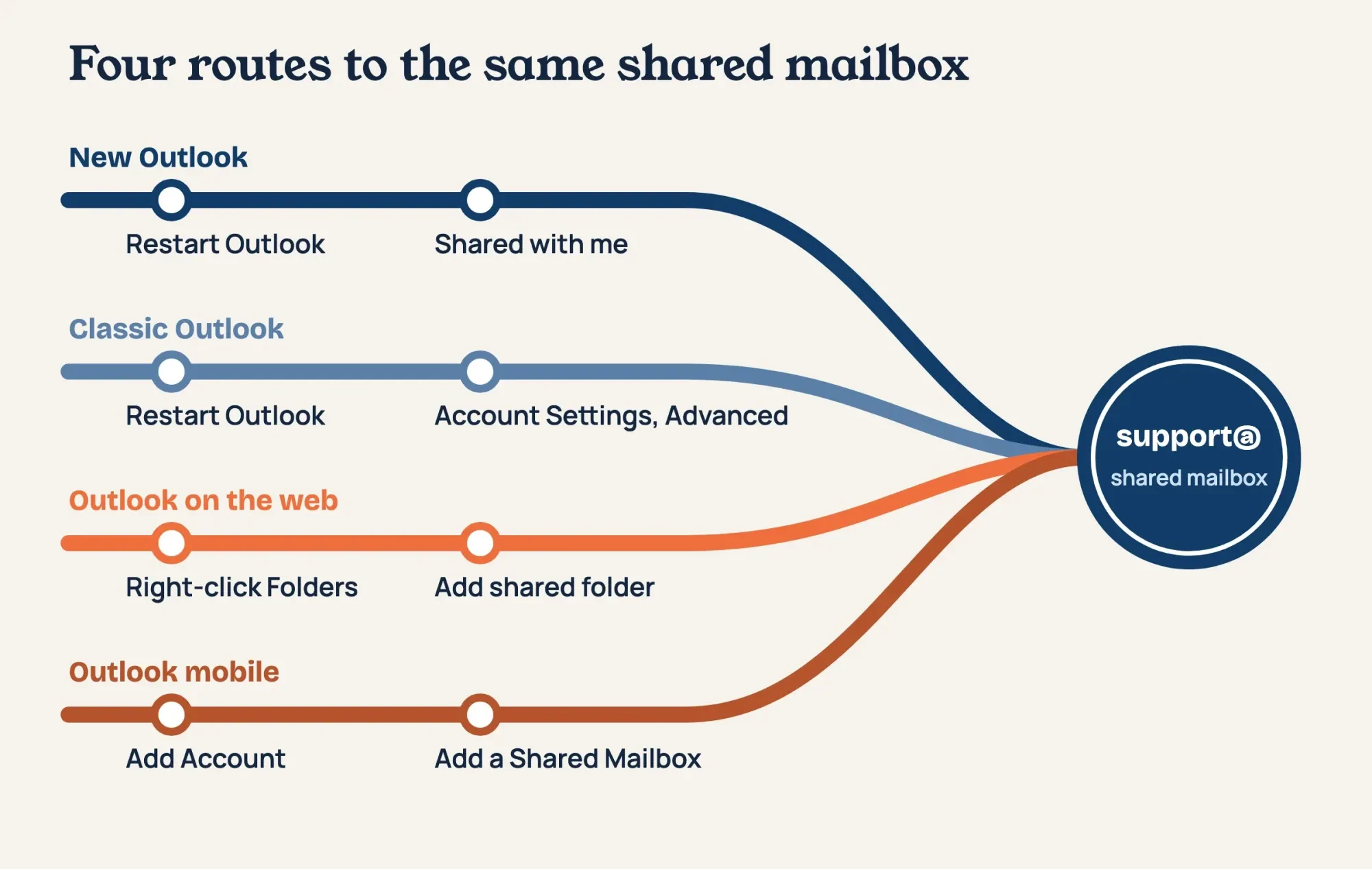 Diagram by DigitalTreed. Steps from Microsoft Support pages for each Outlook version, read October 28, 2026.
Too many mailboxes can slow Outlook at start-up, and Microsoft's page on removing automapping fixes it by re-adding Full Access with automapping off.
House rules for a shared inbox
Before the first customer email lands, agree on house rules, starting with deletion. Microsoft says that "you can't prevent users from deleting messages in a shared mailbox." So agree on one rule, such as moving answered mail to a Done folder and never deleting a customer thread. Mail sent from a shared mailbox can't be encrypted, either, because Microsoft says it has no security context, and that matters if you email quotes with account details. Automatic replies are another surprise. Only your Microsoft 365 admin can turn them on for a shared mailbox, so a teammate can't switch on a holiday message alone. Our free email signature generator makes one team signature with the shop's phone and hours.
Staff changes are where shared mailboxes save the most grief. When someone leaves, Microsoft's conversion steps turn their mailbox into a shared one and keep every email. The mailbox "needs a license assigned to it before you convert it," and you shouldn't delete the old account, which anchors the mailbox. Reset its password, too. Otherwise, Microsoft warns, the old username and password keep working on the shared mailbox. If the account is already deleted, Microsoft's steps restore it first, and the mailbox can take up to 24 hours to come back.
Once it's converted and under 50 GB, the license can come off the old account, and that paid seat goes to the next hire instead.
If the website's request form sends to support@, submit a test entry and check that it lands in the shared Inbox. Our SMTP relay guide covers what to change when form mail never arrives.
When should you move past a shared mailbox?
Beyond house rules, shared mailboxes stretch a long way, but they have edges. Microsoft says one "supports a maximum of 25 users," and beyond that people may see connection failures or duplicated messages. You also can't add anyone outside your business, such as a contractor's Gmail account. For both, Microsoft points to a Microsoft 365 group, which it also suggests when you need to stop people deleting messages, the one control a shared mailbox lacks. Groups use a different model, though, and its comparison of group types shows how they differ.
The other edge is tracking. A shared mailbox shows who replied, but it doesn't assign tickets, set due times or report response speed, so nobody can see which customer has waited longest. Our test roster already put four people on support@, yet no one there can see who has picked up a message. Once two of them answer the same customer, or a job request waits because each assumed another had it, a help desk earns its fee. Our Shopify customer service guide prices several help desks per conversation.
Our take: two shared mailboxes with Send As and one written rule about deleting cover what a three-person crew like Quillbrook needs. Spend the money on seats for real people, not on mailboxes. For Quillbrook, we'd set up support@ first, since job requests land there, then add info@ the same afternoon and test a reply from each phone. DigitalTreed's web development team sets up business email for clients as paid work, so we've got a stake in that offer. Every step above works without us.
Shared mailbox questions small teams ask
Frequently asked
Can I sign in to a shared mailbox with its own password?
You shouldn't. Microsoft's set-up page says "every new shared mailbox has sign-in blocked" by default.
Is the 50 GB limit the same for older shared mailboxes?
No. Unlicensed shared mailboxes created before July 2018 have 100 GB, says Microsoft's shared mailbox overview.
Do inbox rules survive a conversion to shared?
Yes. Microsoft's conversion page says "Inbox rules are preserved" after the change.
How do I take a shared mailbox off a phone?
In Outlook mobile, go to Settings > Accounts, tap the mailbox and select Delete Account, per Microsoft's mobile steps.
How we made this guide: We read the nine Microsoft Learn and Support articles in Sources as saved text. Only the two US price pages were viewed in a browser. The access-plan script used an invented roster, and its PowerShell lines were never run. Facts checked by the DigitalTreed team on October 28, 2026.
First published July 2020 as a general Outlook 365 overview. Rewritten October 28, 2026: this version explains shared mailboxes for small teams, from cost and permissions to Outlook on every device.
Sources
- Microsoft Learn: About shared mailboxes
- Microsoft Learn: Create a shared mailbox
- Microsoft Learn: Manage permissions for recipients in Exchange Online
- Microsoft Learn: Convert a user mailbox to a shared mailbox
- Microsoft Learn: How to remove automapping for a shared mailbox
- Microsoft Learn: Compare groups
- Microsoft Learn: Exchange Online limits
- Microsoft Support: Open and use a shared mailbox in Outlook
- Microsoft Support: Add a shared mailbox to Outlook mobile
- Microsoft: Microsoft 365 business plans and pricing
- Microsoft: Exchange Online plans and pricing

Comments
No comments yet. Start the conversation below.