
Quick answer
A free Looker Studio dashboard for GA4 needs one data source, 4 pages and 9 charts. The core set: scorecards for users, sessions and key events, a trend line, a channel table, a landing page table and a date control. Google renamed the tool back to Data Studio in April 2026. GA4's API quota is the limit you'll hit first.
A Looker Studio dashboard is a report you build in Google's free reporting tool that pulls live numbers from sources like Google Analytics 4 (GA4) onto pages you design yourself. Google's docs call it a no-cost tool that turns data into shareable dashboards and reports.
This guide walks a small shop through one, step by step, using only Google's own help pages.
If you're still choosing between GA4, Search Console and other trackers, start with our guide to website analytics tools by job. If GA4 isn't set up yet, the GA4 setup and reports guide on our site covers the setup and GA4's own reports. Come back once data is flowing.
Key takeaways
- Mark your leads as key events in GA4 a day before you build.
- Owner's credentials let viewers see the data without their own GA4 access.
- Give each of the 4 pages one question an owner actually asks.
- The free version allows one email schedule per report, at most once a day.
- Compare the same dates, without today, before assuming the numbers are broken.
Looker Studio is called Data Studio again, and your old links still work
Google's welcome page puts it plainly: "In April 2026, the Looker Studio product name returned to its original name: Data Studio." Google's release note dated April 16, 2026 says the same: "We've rebranded Looker Studio as Data Studio." The app now lives at datastudio.google.com, and the page says lookerstudio.google.com will automatically redirect to it.
We checked that on October 26, 2026 from our office with a plain web request, no account.
The old address answered with a permanent redirect to datastudio.google.com and, after two more hops, landed on a page titled "Data Studio Overview". Old help links were hit and miss: some, such as the old scheduling article, now forward to the new docs, while others returned "page can't be found". The help itself now sits on Google Cloud's documentation site.
So your bookmarks to reports keep working.
Saved help links may not.
We'll say Looker Studio in headings, since that's the name most people still search, and Data Studio when we quote Google.
Before you build, mark the actions that matter as key events
Now the groundwork.
A dashboard can only count what GA4 already records.
First, check your access. Google's connector page says you need at least Read & Analyze permission on the GA4 property. Owners usually have more than that, but a contractor who set up your site may hold the admin login.
Second, decide what a lead looks like on your site: a quote form, a tap on your phone number, a booking. In GA4, you mark those as key events. You can mark up to 30 events as key events on a standard property, from Admin, then Data display, then Events, by clicking the star next to the event.
Do this a day before you build.
Google says to allow up to 24 hours for a new key event to show in reports, and marking one doesn't change historic data.
If the form or call event doesn't exist yet, create it first.
Our Google Tag Manager guide explains sending those events without editing code. And if you want to learn GA4 itself in more depth, the free Google Analytics certification is a structured way to do it.
Connect GA4 in a few clicks, then pick owner's credentials
Once key events are marked, connecting takes a few minutes.
These are the steps from Google's connector page, as of October 2026:
- Sign in to datastudio.google.com with the Google account that can see your GA4 property.
- On the home page, in the top left, click Create, then Data Source.
- Pick the Google Analytics connector and click Authorize if it asks.
- Select your GA4 account, then the property.
- Click Connect in the upper right. The fields panel opens.
- Click Create Report, then Add to Report.
One setting on that fields panel matters more than the rest: data credentials.
Google's page says owner's credentials let other people view or create reports that use the data "without requiring them to have their own access to the dataset." Viewer's credentials make every viewer bring their own GA4 access.
For a business owner sharing with a partner or office manager, owner's credentials is usually the right pick. It's also the first fix Google suggests for quota errors, which we'll get to. The catch sits in Google's own warning: "be sure that you trust the person or persons with whom you share them."
Search Console can be a second data source for the search page of your dashboard. Its connector makes you choose either Site Impression or URL Impression, and one data source can only use one. Pick URL Impression if you want clicks by page. Our Search Console guide explains what those numbers mean.
The page-by-page layout plan
That's the plumbing.
This is the plan we'd build on it: 4 pages, each answering one question an owner actually asks.
Google's docs say reports can hold multiple pages to "make a busy report more scannable." Use them. One crowded page costs more quota and answers nothing quickly.
| Page | The question it answers | Charts and exact GA4 fields | Controls |
|---|---|---|---|
| 1. Overview | Is the site bringing leads this month? | Scorecards: Active users, Sessions, Key events, Session key event rate. Time series: Sessions and Key events by Date, previous period as comparison | Date range control (top right) |
| 2. Channels | Where do those leads come from? | Table: Session default channel group with Sessions, Engaged sessions, Key events, Session key event rate. Bar chart: Key events by Session default channel group | Date range control |
| 3. Landing pages | Which pages turn visits into leads? | Table: Landing page with Sessions, Engagement rate, Key events, sorted by Key events | Date range control, drop-down filter on Session default channel group |
| 4. Search (optional) | What do people search before they click? | Search Console data source (URL Impression): a table of pages and queries with clicks, impressions, click-through rate and average position | Date range control |
The GA4 field names follow Google's dimensions and metrics list, so you can type them straight into the field picker.
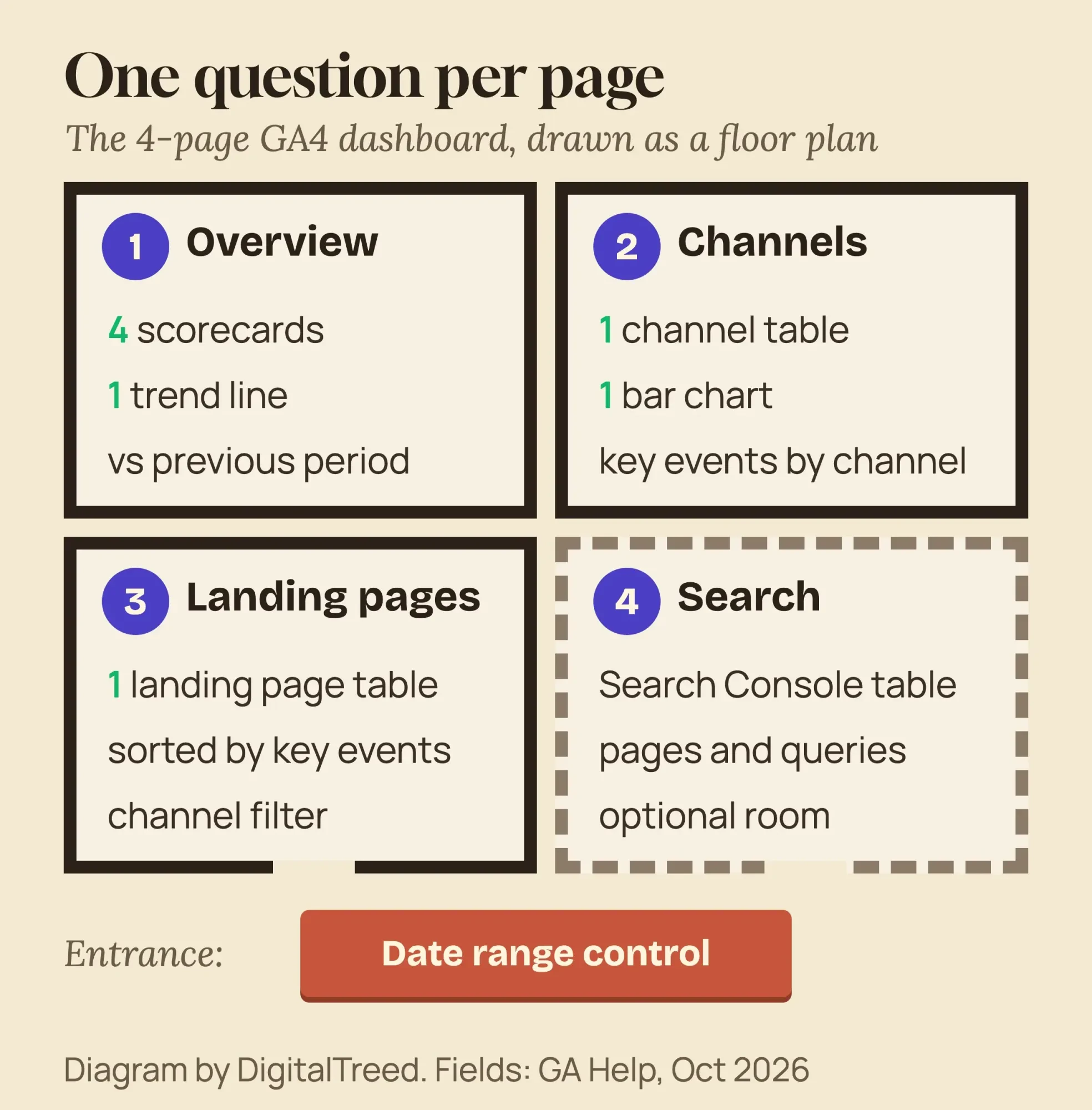 Diagram by DigitalTreed: the 4-page layout plan, with GA4 field names from Google Analytics Help, October 2026
Build the charts, one page at a time
Next, fill the pages in order, starting with the overview. Add a chart from the toolbar, drop it on the page, then set its dimension and metric in the Setup tab on the right.
Page 1: scorecards and one trend line
A scorecard shows a summary of a single metric, so you'll need four of them.
Use Active users rather than Total users. GA4 Help explains that you’ll only see active users in GA4's own reporting, so this keeps your dashboard in line with what you see there. Sessions are counted per visit, and a session times out after 30 minutes of user inactivity by default.
Under them, add a time series chart.
It can show up to five metrics; two is plenty here (Sessions and Key events), so the lead line doesn't get lost.
Page 2: a channel table people can read
The channel dimension to use is Session default channel group, which GA4 defines as "the default channel group that referred the user’s session."
Expect one newer row. GA4's channel list now includes AI Assistant, the channel for visitors from sources like ChatGPT, Gemini, Deepseek, Copilot, or Grok, which excludes Google's AI Overviews and AI Mode. Our GEO guide covers what to do with that traffic.
Channels are only as good as your links. Email and social links without campaign tags often land in the wrong row. Tag them before you judge a channel; our UTM tagging tool makes those links in a minute.
Page 3: landing pages that bring leads
GA4 Help defines Landing page as the page path of the first page view in a session. Sort the table by Key events, not Sessions. Traffic tells you a page is seen; key events tell you it works.
Add Engagement rate as a column. GA4 counts a session as engaged when it lasts longer than 10 seconds, has a key event, or has 2 or more page views.
Short on time? Google's Template Gallery has ready-made Google Analytics and Search Console reports you can copy and trim. They're built for general use, so expect to delete more than you keep.
Set the dates once, then let viewers change them
With the charts in place, the dates decide what everyone sees by default.
The Google Analytics connector defaults to last 28 days.
That's fine for a monthly look, but a weekly email works better with "Last week" or "Last 7 days".
To set it for the whole report, choose File, then Report settings, and set the default date range filter in the Setup tab. To let viewers change it, add a date range control from the toolbar and pin it to the top right corner of each page.
Google notes that a date range control governs all the charts on the page unless a chart has its own date setting.
For the trend line, add a comparison. Select the time series or a scorecard, open the Setup tab, and under Comparison date range choose the previous period or previous year. Google adds that only report editors can set the comparison date range, so viewers won't break it.
One trap from Google's connector page: in stacked bar charts, ISO week dimensions can inflate session counts, and Google suggests standard date dimensions such as Date or Month instead.
Share it view-only, with owner's credentials
Now the report is ready to share.
Sharing works like Google Docs: click Share, add people, and choose Can view or Can edit.
Give edit access to whoever maintains the report. Everyone else gets view access, which lets them see the report but not edit or share it.
Your partner doesn't need a Google account to look. Google's requirements page says a Google Account is not required to view reports shared by link. Invites by email do need one.
Link sharing has five settings for a standard user. They run from "Off - Only specific people can access" to "Anyone on the Internet can find and edit." For a business dashboard, "Anyone with the link can view" is as wide as we'd go.
Google warns that with a public link, "any embedded data sources within that report will also be accessible to anyone who has the link."
Sharing a report shares all pages of the report, so keep anything private in a separate report.
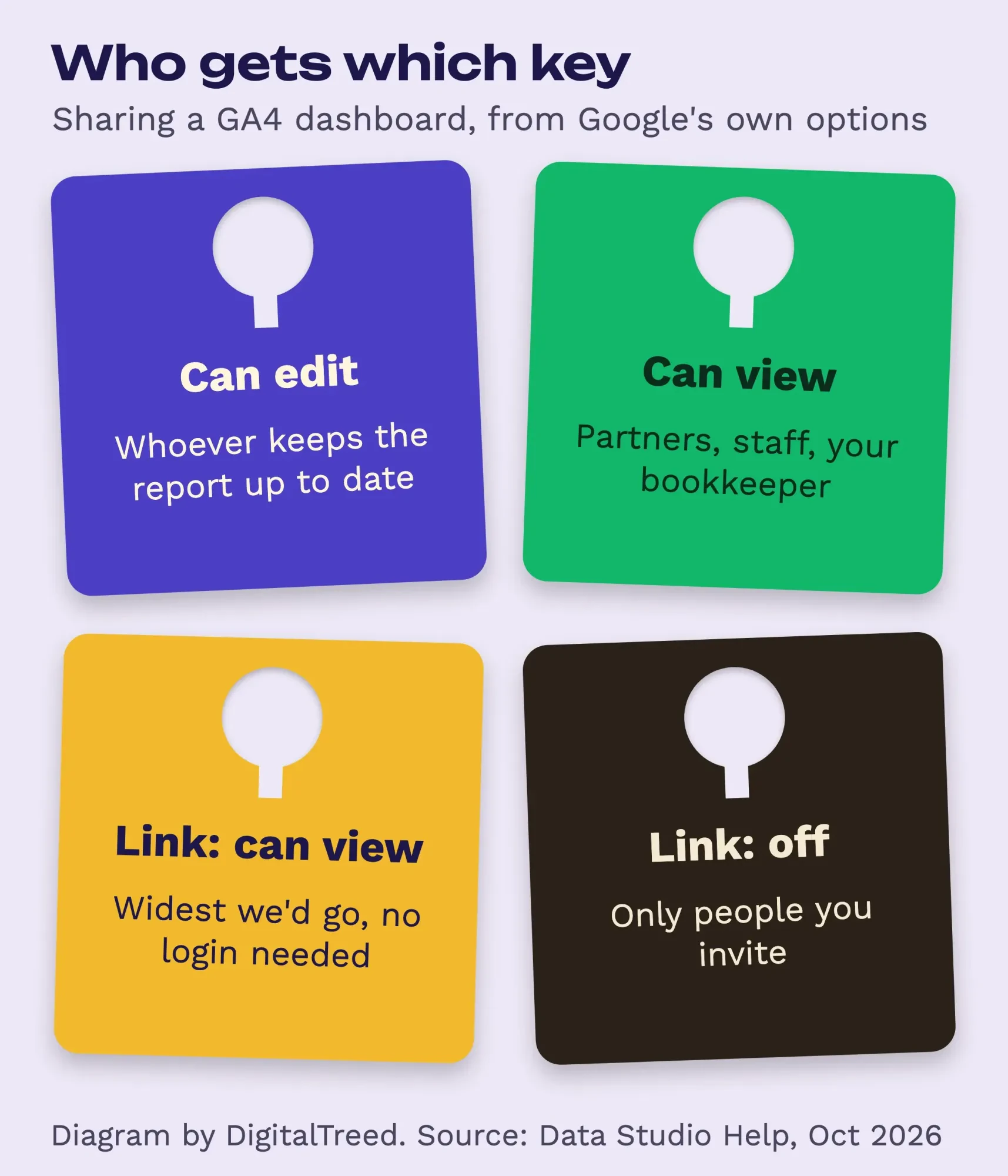 Diagram by DigitalTreed: sharing choices from Data Studio Help (Invite others to your reports), October 2026
Schedule the Monday email (one schedule per report on the free version)
Once people can view it, a scheduled email puts it in front of them without anyone opening a browser.
- Open the report in view mode.
- Click Share, then Schedule delivery.
- Add recipients. You're always on the list.
- Pick the pages to include. Pages 1 and 2 are enough for most owners.
- Set the start date and time, then choose a Repeat option, such as weekly on Monday.
- Click Schedule.
The email carries the report as a PDF that can include a link back to the live version, per Google’s scheduling page. It uses the report's default date range, which is why we set it earlier.
The free version has tighter limits than most tutorials mention.
As of October 2026, Google lists these:
- One schedule per report, and no more often than once a day.
- No more than 50 recipient addresses.
- A personal Google account can send to 200 recipients a day and 800 a month; a Google Workspace account gets 500 and 3,000.
- The send time follows your computer's time zone, and you can't change that inside Data Studio.
Once you pass a quota, Google says further emails won't be sent. It's also "not possible to check your progress against each quota." We read those limits on the public help page, signed out, and marked them up below.
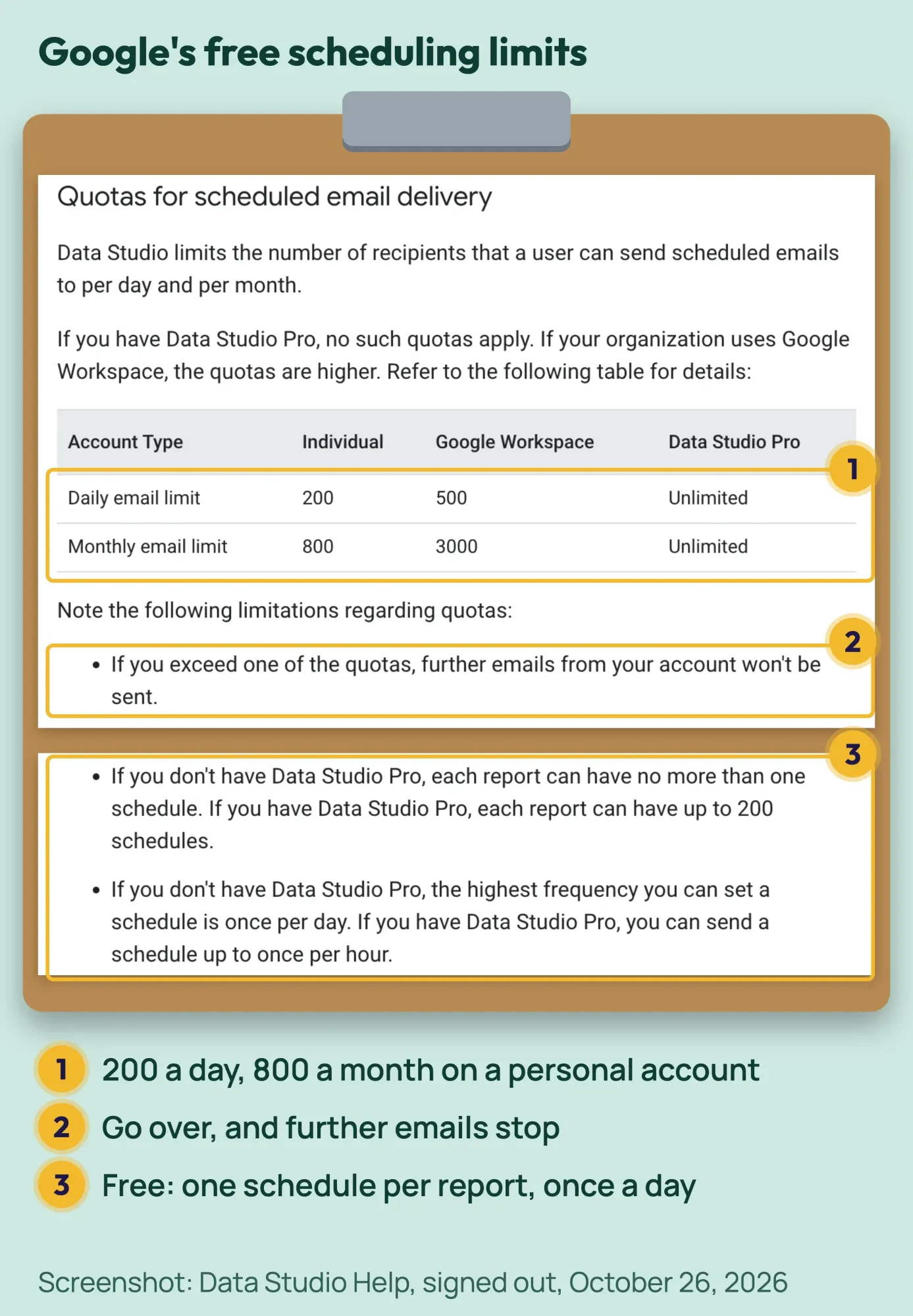 Screenshot: Data Studio Help, "Schedule automatic report delivery" (docs.cloud.google.com), signed out, October 26, 2026
GA4's quota is the limit you'll hit first
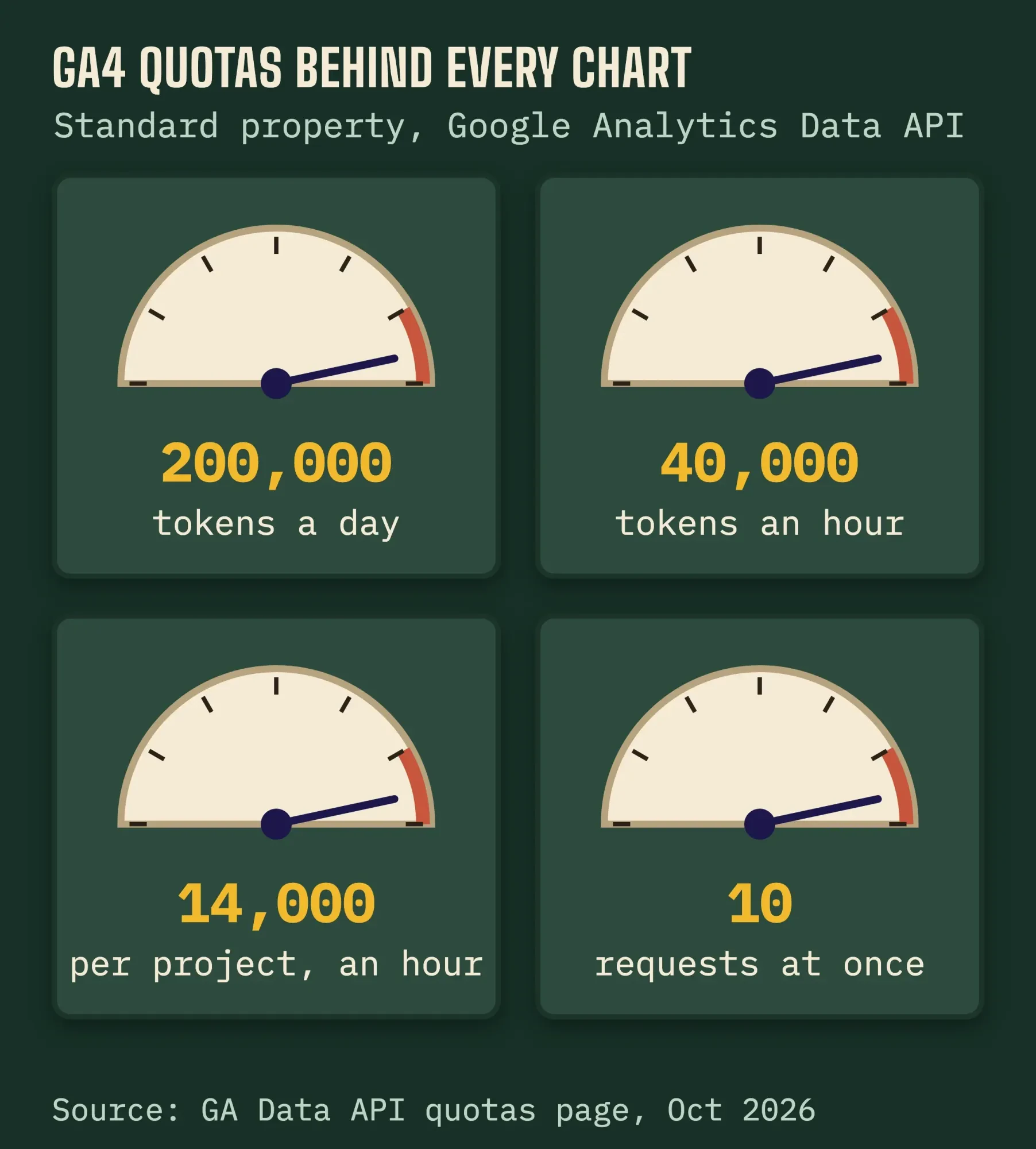
That covers delivery. The real ceiling sits on the GA4 side. Google's connector page says reports are subject to Google Analytics Data API (GA4) quotas, and every chart on every page draws from them.
The numbers come from Google's GA4 Data API quota page, which Data Studio's help links to.
As of October 2026, a standard property gets 200,000 core tokens per day, 40,000 per hour, 14,000 per project per property per hour, and 10 requests running at once. Most requests cost 10 tokens or fewer, but complex ones cost more. Daily quotas reset at midnight Pacific time.
When you run out, charts show errors such as "This property has issued too many requests in the last hour." You can see what each chart spends: in edit mode, right-click the canvas and pick Google Analytics token usage.
 Source: Google Analytics Data API limits and quotas, standard property, October 2026
Google's quota fixes, plus its pause-updates tip, in the order we'd try them on a small site:
- Switch the data source to owner's credentials, so viewers share cached data.
- Use one reusable GA4 data source, not a copy per report.
- Cut the number of charts per page.
- While editing, pause updates so each change doesn't fire a new request.
- Extract the data into a snapshot, after waiting up to 24 hours for the quota to reset.
- Export to BigQuery, or upgrade to Analytics 360 for higher limits.
If the dashboard keeps breaking, or you'd rather have someone build and read it with you every month, that's part of our SEO service. Bear in mind we're paid for that work.
Why doesn't the dashboard match GA4?
Because the two read the same data in different ways.
Small gaps are normal, and most have a reason in Google's own docs.
Data Studio matches GA4's standard reports but not the explorations. GA4 segments and comparisons aren't available through the connector at all.
Sampling can creep in on big date ranges, and Data Studio doesn’t indicate if data from Google Analytics is sampled. Google also says including today's date may have sampling implications, so leave today out when you compare.
Timing is the next suspect. Google's freshness page says Google Analytics data in Data Studio refreshes every 12 hours and adds, "That rate can't be changed." Yet the table on the same page lists 1-hour and 4-hour options for Google Analytics. Its default is 12 hours. Plan for that. GA4 itself warns that data processing can take 24-48 hours, and numbers may change during that time.
Low traffic adds one more. GA4 withholds some rows under data thresholds it says you can't adjust; a wider date range often brings them back.
Compare the same dates, without today, before you assume something is broken.
Example: Sandpiper Pool Care's Monday report
Here's how the plan fits one business.
Sandpiper Pool Care is made up: a two-van pool cleaning and repair company in Tuscaloosa, Alabama.
Its site has two actions that matter, the quote form and the tap-to-call button, so those are its only key events. The owner reads email on Monday mornings; the part-time office manager answers the quote forms.
So Sandpiper builds pages 1 to 3 and skips the search page until it has more traffic. The report runs on owner's credentials. The office manager gets Can view by email, and nobody gets a public link. The single free schedule sends pages 1 and 2 every Monday at 7 a.m., set from a computer on Central time. The default range is "Last week (starts Monday)", compared to the previous period.
That's 8 charts across 3 pages, one data source and one email.
It's small enough to stay well inside the quota.
Frequently asked
Can I embed a Looker Studio dashboard on my website?
Yes. As of October 2026, the embed help page says to choose File, then Embed report, and use the link that dialog creates. A report shared with specific people shows only to them, signed in to Google. Embedded reports always carry the Data Studio watermark.
Can I combine GA4 with other data in one chart?
Yes, with a blend. As of October 2026, Google's page on how blends work says a blend can have up to five tables. Each table needs a join condition, a field found in every table that links their records together.
Can I download a Looker Studio report as a PDF?
Yes. Click Share, then Download, and pick all pages or only some. As of October 2026, the PDF download help page also offers a password for the file. Very large reports can time out, so the PDF may not include every page.
When Pro, or no dashboard at all, makes more sense
Most small businesses never outgrow the free version. Data Studio Pro is the paid version. It allows up to 200 schedules on a report, delivery to Google Chat and team workspaces. The 30-day free trial turns into paid billing automatically. Google's product page lists it at $9 per user per project per month as of October 2026, so check the total in your Google Cloud account before the trial ends.
Some owners don't need a live dashboard at all. If one page a month is enough, our Monthly SEO Report Builder turns your Search Console and GA4 exports into a one-page report in the browser. There's no connector and no quota. Pair it with the checks in our first SEO audit guide once a quarter.
Our take: build the 3-page version first, run it for a month, and add a page only when someone asks a question it can't answer.
Want us to set up the key events, the dashboard and the schedule for you? ask for a quote and tell us what counts as a lead on your site.
How we made this guide: on October 26, 2026, our team read 49 pages of Google's Data Studio documentation and 9 Google Analytics Help pages, signed out. We matched every limit, quota and step here to them. Google moved the old Looker Studio Help into the Data Studio docs, so we quote those. We checked the lookerstudio.google.com redirect ourselves and captured the scheduling help page in headless Google Chrome.
We didn't sign in, build a report in an account, measure token use or send a schedule, so nothing here reports how fast the tool feels. Sandpiper Pool Care is made up. Each Google page we relied on is linked at the line it supports. Eram N. checks this rewrite and approves it before publication.
First published July 2020. Rewritten October 26, 2026: replaced five retired Universal Analytics dashboards with a GA4 build in Looker Studio (now Data Studio). Added a 4-page layout plan, date controls, sharing, scheduling limits, GA4 quotas and why numbers differ from GA4.
Sources
- Google Cloud: Welcome to Data Studio (Looker Studio is now called Data Studio)
- Data Studio release notes (April 16, 2026: Looker Studio rebranded as Data Studio)
- Google Cloud: Data Studio product page (Pro pricing)
- Data Studio Help: What you need to use Data Studio
- Data Studio Help: Connect to Google Analytics
- Data Studio Help: Connect to Search Console
- Data Studio Help: Data credentials
- Data Studio Help: Page
- Data Studio Help: Scorecard reference
- Data Studio Help: Time series reference
- Data Studio Help: Create a report from a template
- Data Studio Help: Date range control
- Data Studio Help: Set a date range for your report
- Data Studio Help: Ways to share your reports
- Data Studio Help: Invite others to your reports
- Data Studio Help: Schedule automatic report delivery
- Data Studio Help: Troubleshoot errors in Data Studio
- Data Studio Help: Pause report updates
- Data Studio Help: Google Analytics 4 sampling
- Data Studio Help: Manage data freshness
- Data Studio Help: About Data Studio Pro
- Google Analytics developer docs: Data API limits and quotas
- Google Analytics Help: Mark events as key events
- Google Analytics Help: About Analytics sessions
- Google Analytics Help: Understand user metrics
- Google Analytics Help: Engagement rate and bounce rate
- Google Analytics Help: Analytics dimensions and metrics
- Google Analytics Help: Default channel group
- Google Analytics Help: Data freshness
- Google Analytics Help: About data thresholds
- Google Analytics Help: Google Analytics 4 has replaced Universal Analytics


Comments
No comments yet. Start the conversation below.