

What Search Console is, who needs it, and which parts you can skip
This is the first guide in our path "SEO tools explained". It's for anyone who already has a site and a Search Console account, or is about to: shop and clinic owners, marketers, freelancers and junior SEOs. If you've never set it up, do that first with chapter 8 of SEO for beginners. It takes about 20 minutes. Then come back here.
By the end you'll be able to read the Performance report without falling into its traps, and filter it with regex and comparisons. You'll find out why a page isn't on Google and fix it, and check speed, security and penalties. And when the 1,000-row table runs short, you'll get all your data out through the API, Data Studio or BigQuery.
There are eight chapters, about an hour in all. Chapter 1 explains what the tool is and when you don't need parts of it. Chapters 2 to 7 go report by report, each with real jobs done step by step, using examples like a sweet shop in Kanpur and a dentist in Delhi. Chapter 8 covers what's free, what the limits are, and what paid tools add on top (prices checked 16 October 2026). A FAQ and a 10-question quiz close the guide.
Every menu name and limit here comes from Google's own help pages and blog, and every price from the vendor's own pricing page, all linked in the references. Search Console changes its menus often, so where a label may have moved since we checked, the text says "at the time of writing".
Quick answer
Search Console is a free Google service that shows how your site appears in Google Search: searches, clicks, indexed pages, and problems Google found. Every site owner should set it up. Small sites can skip some reports; Google itself says a site under 500 pages rarely needs the Page indexing report.
Think of Search Console as the one place where Google talks to you about your site. Analytics tools see visitors after they arrive. Rank trackers guess where you stand. Search Console is Google's own record of what it crawled, what it indexed and what it showed people.
What it does
Google describes it as "a free service" that helps you "monitor, maintain, and troubleshoot your site's presence in Google Search results".[1] In practice it lets you:
- check that Google can find and crawl your site
- fix indexing problems and ask Google to recrawl new or changed pages
- see your search traffic: how often you appear, for which searches, and how often people click
- get alerts when Google finds indexing, spam or other problems
- see which sites link to yours
You don't need Search Console to be in Google. Google says so plainly: signing up isn't required to be included in results.[1] It's a window into what Google already does with your site, not a switch that turns search on.
What it doesn't do
Know its edges before you start. People expect things it was never built for.
- No competitor data. You only see sites you've verified.
- No visitor behaviour. What people do after they land (calls, forms, sales) is GA4's job. Our GA4 guide covers that.
- No search volumes. Impressions tell you how often you were shown, not how often a phrase is searched. For volumes use Google Keyword Planner.
- No Bing. Bing has its own free tool, covered in our Bing Webmaster Tools guide.
- No exact rank. Average position is an average across many searches, not your rank for one keyword (chapter 3).
Who it's for
Google lists four groups: business owners, SEO specialists and marketers, site administrators and web developers.[1] For a small business in India, that usually means two people. The owner should know it exists, own the account and glance at it once a month. Whoever runs the website (an employee, a freelancer or an agency) uses it weekly.
Since July 2026 there's a third kind of user: creators. Search Console now has platform properties for Instagram, TikTok, X and YouTube accounts, which show how your posts and videos perform on Google Search, Discover and Google News. They became available to everyone on 29 July 2026.[2] They only count what happens on Google, not views inside the app itself.[3]
When you don't need parts of it
Here's the honest bit. You should set Search Console up for every site, but you don't have to read every report. Google's own help pages say so:
| Report | Google's advice | What to do instead |
|---|---|---|
| Page indexing | "If your site has fewer than 500 pages, you probably don't need to use this report."[4] | Search site:yourdomain.in on Google and inspect your key pages one by one |
| Sitemaps | A site of about 500 pages or fewer, where every page is reachable by links from the homepage, probably doesn't need a sitemap or this report.[5] | Request indexing of the homepage once; WordPress, Shopify and Wix make a sitemap anyway |
| Crawl stats | Sites with fewer than a thousand pages "should not need to use this report".[6] | Watch the Page indexing report for server errors |
So a 20-page site for a Delhi dental clinic really needs three things from Search Console: the Performance report, URL Inspection for its key pages, and an eye on the manual action and security alerts. That takes 15 minutes a month. The rest of this guide is for when something goes wrong or the site grows.
A map of the menu
The left-hand menu groups the reports. At the time of writing it runs roughly like this; labels and order can differ a little in your account:
| Menu area | Reports | Chapter |
|---|---|---|
| Overview, Insights, Achievements | A summary, a simple traffic view, milestones | 1, 6 |
| Performance | Search results, Discover and News (the last two only with enough traffic), generative AI reports | 3, 7 |
| URL Inspection | The search bar at the top of every screen | 4 |
| Indexing | Pages, Videos, Sitemaps, Removals | 4 |
| Experience | Core Web Vitals, HTTPS | 5 |
| Enhancements and Shopping | One report per rich result type Google found on your site | 5 |
| Security and manual actions | Manual actions, Security issues | 5 |
| Links | External and internal links | 6 |
| Settings | Users, verification, associations, crawl stats, robots.txt, change of address, bulk export, Search generative AI | 2, 6, 7 |
Google's "Reports at a glance" page lists them all, with who each one is for.[7] Discover and News reports appear only if your site gets enough traffic there.
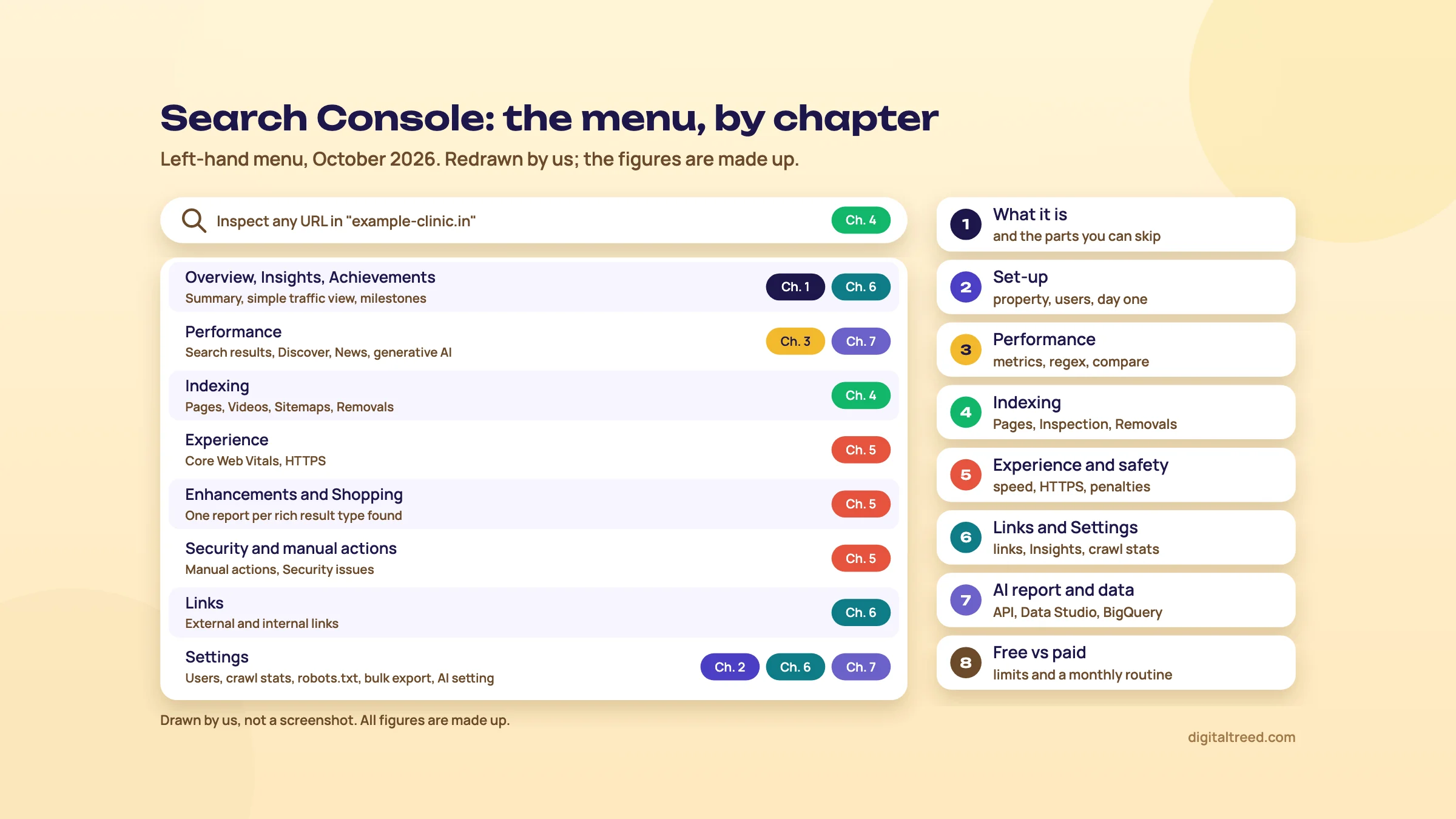 Where each part of the menu is covered in this guide. Drawn by us; labels as of October 2026.
The Overview page
Overview is the first screen you see. It summarises search performance, recommendations and indexing, plus rich results and shopping if your site has them.[8] Its chart mixes Search and Discover clicks if you have Discover data, so don't compare it with the Performance report and wonder why the numbers differ.
Recommendations sit here too. Google shows them only when it has something actionable, in three kinds: issues, opportunities and configuration. They're optional and expire over time.[9] Read them; ignore any that don't fit your goals.
If you only check in now and then, Google's own suggestion for the Overview page is a good routine: look for manual actions or security issues first, then for spikes in indexing or enhancement errors, then for sharp dips in clicks.[7]
- Property
- One website (or part of one, or a social account) that you've added to Search Console. Each has its own data and users.
- Impression
- One time a link to your site was shown in a Google result. The person didn't have to click; in ordinary results they didn't even have to scroll to it (carousels and image search are stricter).[10]
- Indexed
- Google has stored the page and it's eligible to appear in results. It still has to rank to be seen.
- Canonical
- The one version Google treats as the main copy when several URLs show the same content. Search Console credits most data to it.
Next, chapter 2 sets up the property properly: the right property type, the right people with the right access, and the five settings to change on day one.
Set-up done right: property type, verification, users and day-one settings
Quick answer
Add a Domain property verified by a DNS TXT record, so every version of the site is covered. Keep a second verified owner, give agencies Full or Restricted access instead of your login, then on day one submit the sitemap, check the generative AI setting, start the BigQuery export if you'll need history, and add your first annotation.
The basic set-up is in chapter 8 of SEO for beginners, with a step-by-step video. This chapter covers the decisions behind it, the ones that cause trouble a year later if you get them wrong.
Domain or URL-prefix property
Search Console has two kinds of website property. A Domain property covers every subdomain and protocol: http and https, www and non-www, m. and any other subdomain. A URL-prefix property covers only URLs that start with exactly the address you typed, protocol included.[11]
| Choice | Domain property | URL-prefix property |
|---|---|---|
| Example | yourshop.in | https://www.yourshop.in/ |
| Covers | All subdomains and protocols | Only that exact start of the URL |
| Verification | DNS record only | Several methods (HTML file, HTML tag, Google Analytics, Tag Manager, DNS) |
| Best for | The main property for every site | A section you want to watch on its own, such as /blog/, or when you can't edit DNS |
Use a Domain property as your main one. If the www version of your site gets taken over or a test subdomain leaks into Google, a URL-prefix property for https://www. won't show it. A Domain property will. You can add URL-prefix properties for sections later; once a parent is verified, child properties you add are verified automatically with the same method.[12]
One account can hold up to 1,000 properties,[11] which is plenty even for an agency.
Verification methods
Verification proves you own the site. Google lists six methods:[12]
| Method | Good when | Watch out |
|---|---|---|
| Domain name provider (DNS TXT record) | You can log in to GoDaddy, Hostinger, BigRock or wherever the domain is registered | The only way to verify a Domain property |
| HTML file upload | You can upload files to the site's root folder | URL-prefix only; deleting the file later removes your verification |
| HTML tag | You can edit the homepage's head section | A theme change can wipe the tag |
| Google Analytics tracking code | The site already has your GA tag | Removing the tag later can break verification |
| Google Tag Manager | The site already has your GTM container | Same as above |
| Google Sites or Blogger | The site is on those platforms | Use the platform's own method |
Verification isn't a one-time event. Search Console checks from time to time that your token is still there, and if all verified owners lose access, everyone loses access to the property.[12] That's why we'd always add a second verification method, such as the HTML tag next to the DNS record, from the property's Settings, Ownership verification page.
One useful detail: Google starts collecting data for a property as soon as anyone adds it, even before verification.[12] So add the property the day the site goes live, even if the DNS step waits a day.
Users and permissions
Never share your Google password with an agency or freelancer. Add them as users instead, from Settings, then Users and permissions. Only owners can see that page and add people.[13]
| Role | What they can do | Give it to |
|---|---|---|
| Verified owner | Everything; proved ownership with their own token | The business owner, and one trusted backup |
| Delegated owner | Everything, but added by an owner without a token | Rarely; an in-house manager |
| Full user | Views all data and can take some actions, such as requesting indexing and validating fixes | Your SEO agency or freelancer |
| Restricted user | Views most data only | A content writer, a reporting dashboard, a curious relative |
A property can have up to 100 users who aren't owners, and only owners can add users or link Google Analytics.[13] To ask Google to recrawl a page through URL Inspection, someone must be an owner or a full user.[14] Removing a delegated owner or user takes effect quickly; removing a verified owner also means deleting their token from the site, or they can verify again.[13]
Give a new SEO agency access, and take it back later
- Open the property Pick the Domain property for your site in the property selector. Example: a Delhi dental clinic hiring a freelancer for six months.
- Go to users Open Settings, then Users and permissions, then Add user.
- Add their email Type the freelancer's Google account email. It must be a real Google account, not an email group.
- Choose Full Full lets them request indexing and validate fixes, which is the work you're paying for. Save.
- Remove at the end When the contract ends, open the same page, click the menu next to their name and choose Remove access.[13]
Warning
If an agency set up Search Console for you, check who the verified owners are today. If the only verified owner is someone at the agency, add yourself as a verified owner with your own token before the relationship ends. Google's help page has a whole section titled "We lost our only verified site owner!" for a reason.[13]
Five settings for day one
- Submit your sitemap. Indexing, then Sitemaps. Paste the sitemap address and click Submit.[5] Chapter 4 explains what the statuses mean.
- Check Search generative AI. In Settings, Search generative AI, the default is to include your site in AI Overviews, AI Mode and Discover's AI features (a URL-prefix property inherits its parent's choice). Make sure nobody switched it to exclude by mistake.[15] Chapter 7 covers it.
- Link GA4. Settings, Associations, lets you connect Google Analytics, YouTube channels and other Google services to the property.[7] Only an owner can link Google Analytics.[13] The GA4 guide shows the link from the GA4 side.
- Start the bulk data export if you'll ever want long history. Search Console keeps 16 months of Performance data.[16] The BigQuery export keeps data for as long as you let it, but it only starts from the day you set it up and doesn't fill in the past.[17] Chapter 7 has the steps.
- Add your first annotation. Right-click the Performance chart on today's date and write "Search Console set up" (up to 120 characters).[18] From now on, annotate every change you make to the site.
Then add the same site to Bing Webmaster Tools. It can import your sites straight from Search Console in a few clicks.[19]
Platform properties for your social accounts
If the business posts on YouTube or Instagram, add those accounts too. Open the property selector, click Add property, and pick the platform; verification happens through a website property you already own or by logging in to the platform. Data takes a few days to appear, and the default date range is 28 days.[3] A Kanpur sweet shop with a busy Instagram page will see which posts Google shows for searches like "kaju katli near me", and that's a content idea list in itself.
Before chapter 3, run the SSL Checker on your domain: the HTTPS report in chapter 5 flags invalid certificates, and it's quicker to catch them now. Then open the Performance report, which is where most of your time in Search Console will go.
The Performance report: metrics, filters, regex and comparisons
Quick answer
The Performance report shows clicks, impressions, CTR and average position for Google Search, grouped by query, page, country, device, search appearance or date. Filter it with "contains", regex or the branded filter, compare two periods, switch to weekly view, and remember the table stops at 1,000 rows and hides anonymised queries.
Most of your time in Search Console goes here. Guide 2's measuring chapter explains how to report these numbers to a client. This chapter is about using the report itself: every metric, every filter, and the traps in how Google counts.
The four metrics
- Clicks: how many times someone clicked through to your site from Google Search.
- Impressions: how many times your site appeared in results.
- CTR: clicks divided by impressions.
- Average position: the average position of your topmost result. In the chart it's for your whole site; in the table it's for that query, page or row.[20]
The default view is the last three months.[20] The longest is 16 months.[16] Google's own advice on position is worth repeating: focus on trends in impressions and clicks more than on position alone.[21]
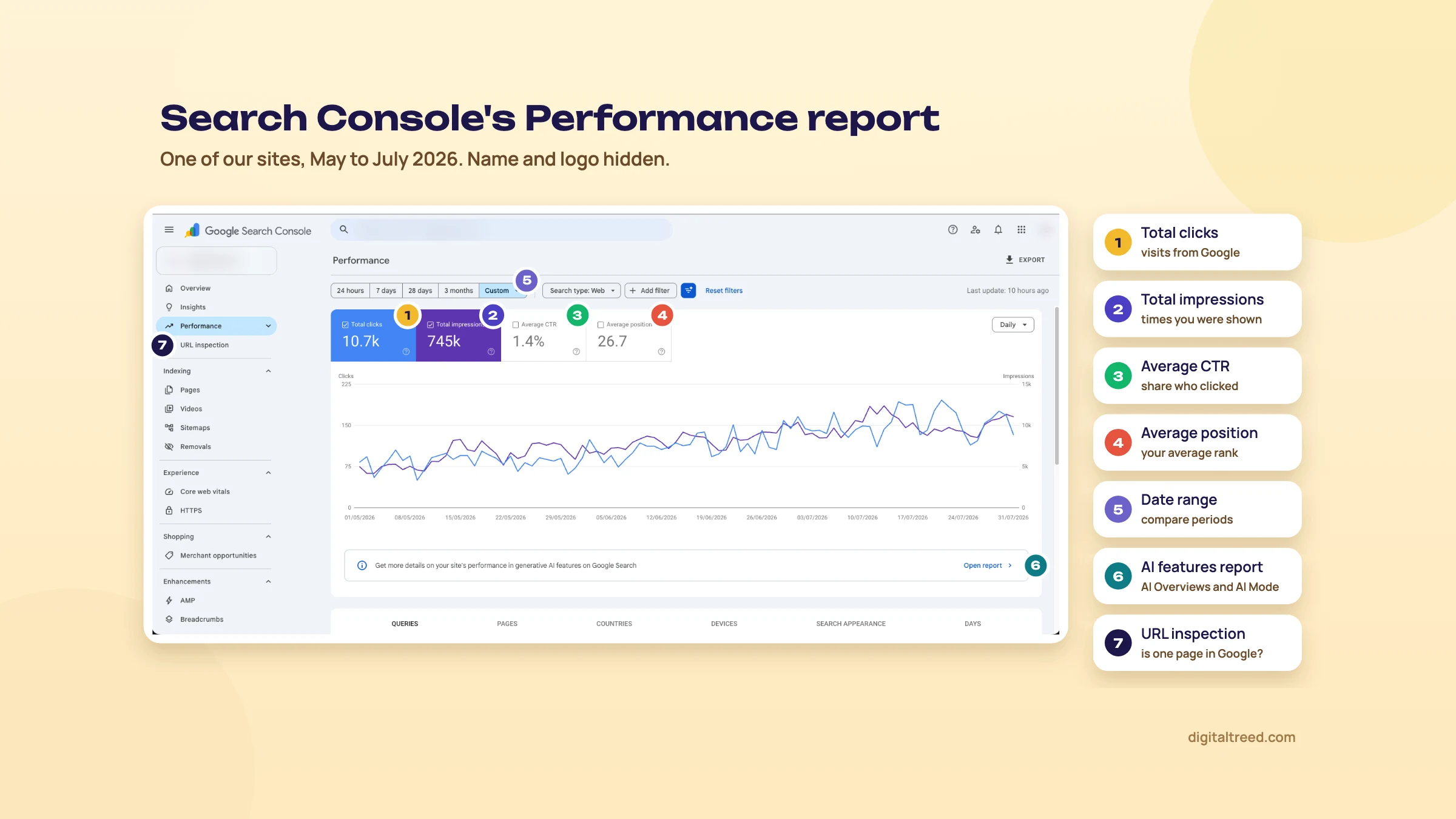 The Performance report on one of our sites, May to July 2026. Name and logo hidden.
On this site, 10,700 clicks came from 745,000 impressions over three months, a CTR of about 1.4%. The average position of 26.7 looks poor, but it averages every search the site appeared for, including thousands on page three. A single page can rank third for its main search and still drag that average down with long-tail impressions. Read the trend lines first, the totals second, position last.
Dimensions: the tabs under the chart
The table groups data by one dimension at a time: Queries, Pages, Countries, Devices, Search appearance or Dates.[20] A few rules that change what you see:
- Pages are the final URL after redirects, and most data is credited to the canonical URL. If someone clicks a duplicate, the click counts for the canonical.[22]
- Search appearance shows rich result types, such as review snippets, merchant listings and videos, and only the types your site has impressions for.[22] FAQ and how-to rich results now sit in Google's list of deprecated fields, with no data for recent dates.[22]
- Dates are in Pacific Time, except in the 24-hour view, which uses your browser's time zone.[22] For an Indian site that means a Search Console "day" starts at about 12:30 or 1:30 in the afternoon IST, depending on US daylight saving. Daily numbers won't line up with GA4 set to Indian time. Weekly ones mostly will.
Search type: web, multimodal, image, video, news
The Search type filter at the top splits traffic by where it came from. Web is now in two parts. "Web: text-based" is ordinary typed searches. "Web: multimodal" is searches made with an image: Google Lens, Circle to Search on Android, uploaded images and Chrome's image search.[20] Google added the multimodal type on 24 September 2026.[23] There's no query data for multimodal searches, because most of them start from a picture, not words.[22] If you sell sarees, shoes or anything people photograph in a shop and search for later, check it.
How Google counts: property versus page
This is the trap that confuses most people. The chart counts by property. If three of your pages show for one search, that's one impression and the position is your best one. The table, when grouped by page or search appearance, counts each URL separately.[24]
| One person searches, sees three of your pages, clicks all three | Chart (by property) | Table (by page) |
|---|---|---|
| Impressions | 1 | 1 for each URL |
| Clicks | 1 | 1 for each URL |
| Average position | 1 (the best one) | 2 per URL, the average of 1, 2 and 3 |
That example is Google's own.[24] So CTR and position look better in the chart than in a page table. Neither is wrong; they answer different questions.
Why the table doesn't add up
Google gives four reasons the table totals differ from the chart:[25]
- Row limit. "The table can display a maximum of 1,000 rows." Long-tail rows beyond that are in the chart total but not the table.
- Anonymised queries. Rare queries are left out of the query table to protect privacy, but stay in the chart totals unless you add a query filter.
- Aggregation. Page and search appearance filters switch the counting method, as above.
- Filter totals. A "contains" filter and its "doesn't contain" opposite won't add up to the unfiltered total.
Beyond anonymised queries, Google says it "stores and shows only the most important data rows".[22] On a small site you'll barely notice. On a site with thousands of long-tail searches, a large share of query clicks can be missing from the table. Google doesn't publish what share, and it varies by site. Chapter 7 shows how to get more rows out.
Two more timing facts: new data usually appears after 2 to 3 days,[25] and the newest days can be preliminary, shown as a dotted line, and change within hours.[24] Don't panic about yesterday.
Filters: contains, regex and multiple values
Click "+ Add filter" and choose Queries or Pages. You can also click any table row to filter by it.[26]
- Containing / not containing: one piece of text, not case-sensitive, otherwise exact, spaces included.
- Custom (regex): a regular expression in RE2 syntax. It matches anywhere in the text unless you use ^ or $, and it isn't case-sensitive unless you start with (?-i).
- Multiple pages or queries: pick several to match or exclude together. You can't filter by more than one search appearance at once.
All of that is from Google's filtering page.[26] For several values, Google suggests separating them with a vertical bar inside brackets. Five patterns worth saving:
| Goal | Regex (Queries, Matches regex) |
|---|---|
| Question searches | ^(how|what|why|when|which|where|who|can|does|is|are)\s |
| Local intent | (near me|nearby|kanpur|lucknow) |
| Price and buying intent | (price|cost|fees|charges|rate|buy|cheap|best) |
| Brand name and its misspellings (for sites without the branded filter) | (sharma ?sweets|sharma ?sweet|sarma sweets) |
| Long searches, seven words or more | ^(\S+\s){6,}\S+$ |
The long-search pattern is a quick way to spot conversational searches, the kind people now type into AI Mode. Chapter 7 links a fuller method. To exclude a pattern, choose "Doesn't match regex" instead.[26]
Tip
AI chatbots write decent regex, but Search Console uses RE2, which doesn't support some features other flavours have, such as lookaheads. Paste the pattern, apply it, and check the first 20 rows by eye before you trust the numbers.
The branded queries filter
Google added a filter that splits branded queries (your brand name, its misspellings, and products unique to you) from everything else. It's classified by an AI-assisted system, not by a keyword list, and it can sometimes get queries wrong. It has no effect on ranking.[27] Launched in November 2025, it was open to all eligible sites from 11 March 2026. It works only on top-level properties, not on URL-path or subdomain properties, and only for sites with enough queries and impressions.[27] If you don't see it, use the brand regex above.
Non-branded clicks are the honest measure of SEO work. Branded clicks mostly measure how well-known the business already is.
Compare: two periods, two countries, two devices
Open a filter (Date is easiest), choose Compare, set the two values and click Apply. The table gets a Difference column. You can only run one comparison at a time.[26] Since December 2025 you can switch the chart from Daily to Weekly or Monthly, which Google recommends for comparisons because it removes the weekday-versus-weekend mismatch.[28] Weeks run Sunday to Saturday.[22]
Compare Diwali this year with Diwali last year
- Open Performance Go to Performance, then Search results. Example: a Kanpur sweet shop that sells gift boxes online.
- Set the dates Click the date filter, choose Compare, and set the four weeks before Diwali this year against the same four weeks before Diwali last year. The festival moves on the calendar, so match the festival, not the dates.
- Switch to Weekly In the chart's granularity drop-down, choose Weekly so Sundays line up with Sundays.
- Remove the brand Add the branded filter set to Non-branded, or a "Doesn't match regex" filter with your brand pattern.
- Sort by Difference Open the Queries tab and sort by the clicks difference column. The biggest falls and gains are your story: "gift hamper" up, "dry fruit box" down.
- Repeat for Pages Switch to the Pages tab to see which pages won and lost.
- Annotate Right-click the chart on the day you change any of those pages, and note what you did.
Find quick wins: queries on the edge of page one
The fastest clicks usually come from searches where you already sit between positions 5 and 15. Google suggests a related check: queries with high impressions and low CTR, where a better title and description can help.[22]
Find 20 quick-win queries for a coaching centre
- Set it up Performance, Search results, last 3 months. Tick all four metrics above the chart. Example: a Pune coaching centre for CA Foundation.
- Remove the brand Filter to non-branded queries.
- Filter by position Use the table's filter, usually a filter icon above it, to keep rows with a position over 4.9 and under 15.1. If you can't find it, sort by Position instead.
- Sort by impressions Click the Impressions column. The top rows are searches Google already links you with, just not high enough.
- Find the page Click a query, then the Pages tab, to see which URL ranks for it.
- Improve the page Rewrite the title and description to match the query's wording (our Meta Tag Analyzer previews the result), and add the answer the searcher wants near the top.
- Annotate and wait Add an annotation, then compare the four weeks after the change with the four weeks before.
Annotations
Annotations are notes pinned to a date on the chart. Right-click the chart, pick the date, type up to 120 characters and click Add. A property can have 200 annotations, they're deleted after 500 days, and they can't be edited, only deleted and re-added. Owners and full users can add them; restricted users can only see them. They don't show in comparison mode or the 24-hour view.[18] Search Console also adds its own system annotations when there's a data problem on Google's side, which saves you chasing a drop that isn't real.[18]
Annotations count as business data shared with everyone on the property, so Google asks you not to put names, phone numbers or addresses in them.[18]
The 24-hour view and AI-powered configuration
Choose "24 hours" in the date filter to see hourly data with only a few hours' delay.[29] It's useful the day you publish a news-led post or a festival offer.
Some accounts also have an experimental AI helper: click the filter icon in the report header and type a request such as "compare mobile clicks this quarter to the same quarter last year". It sets the filters, comparisons and metrics for you to confirm. It can't sort or export, it's limited to 20 requests per user per day, and only a small share of users have it.[26] Google's own warning: check the filters it applied, because it can misread requests.[30]
Sharing and exporting
The Share button gives a link to the current view only; it doesn't give access to the rest of the property.[20] Export downloads the chart and table, with "~" or "-" values written as zeros.[24] Since the table holds at most 1,000 rows, so does the table part of the export.
Next, chapter 4 moves from "how do people find me" to "can Google find me": the Pages report, URL Inspection, Sitemaps and Removals.
Indexing: the Pages report, URL Inspection, Sitemaps and Removals
Quick answer
The Pages report shows which URLs Google indexed and gives a reason for each one it didn't. Many reasons are fine, such as duplicates, redirects or noindex on purpose. Use URL Inspection to check one page, test the live version and request indexing. Sitemaps tells Google where your pages are; Removals hides a URL for about six months.
"Why isn't my page on Google?" is the question most small business owners start with. Search Console usually has the answer, in plain words, if you know which report to open. Start with URL Inspection for a single page and the Pages report for the whole site.
URL Inspection: one page, two views
Paste a full URL into the search bar at the top of any Search Console screen, or click the Inspect icon next to a URL in most reports. The URL must belong to the property you have open.[31]
The first result is not a live test. It's what Google stored the last time it indexed the page. The verdict reads one of these:[31]
- URL is on Google: indexed and eligible to show. Google adds that this "doesn't guarantee that your page is appearing in Search results".
- URL is on Google, but has issues: indexed, but something such as broken structured data may stop rich results.
- URL is not on Google: it won't show in results. The reason is in the Page indexing section.
Open Page indexing for the details that matter. Discovery shows how Google found the page (sitemaps and a referring page). Crawl shows the last crawl date, mobile or desktop, whether robots.txt allowed it and whether the fetch worked. Indexing shows whether indexing was allowed, and two canonicals: the one you declared and the one Google chose.[31] When those two canonicals differ, Google is telling you it thinks another URL is the main copy.
Warning
If robots.txt blocks a page, "Indexing allowed?" always says Yes, because Google can't read the noindex tag behind the block. The page can still end up in results.[31] To keep a page out of Google, allow the crawl and use noindex.
Click Test live URL to fetch the page as it is now. Use it after a fix. The live test checks whether Google can crawl and read the page, with a screenshot and the rendered HTML under View tested page. It doesn't check duplicates, quality, manual actions or removals, so a pass isn't a promise of indexing.[31] For JavaScript-heavy pages, the rendered HTML is the quickest way to see what Google sees; Guide 3's rendering chapter goes deeper.
Request indexing, and its limits
After a live test, click Request indexing to put the page in Google's queue. Google says indexing "typically takes only a day or so" but can take much longer, a request doesn't guarantee indexing, and there's a daily limit per property.[31] Requesting the same URL again won't make it faster.[14]
Google doesn't publish the daily limit in the interface. For the API, the URL Inspection quota is 2,000 calls a day and 600 a minute per site,[32] but that's for inspecting, not for requesting indexing. For many pages at once, Google's answer is a sitemap with accurate lastmod dates.[31]
Find out why a new page isn't on Google
- Inspect it Paste the URL into the bar at the top. Example: a Delhi dentist's new page, /root-canal-treatment-cost/, published three weeks ago.
- Read the verdict "URL is unknown to Google" means Google hasn't seen it. Any other "not on Google" reason sits under Page indexing.
- Check discovery Is it in a sitemap? Is there a referring page? A new page with neither has no road in. Link to it from the services page and the homepage.
- Check crawl and index Look at Crawl allowed, Page fetch and Indexing allowed. A "No" in any of them is your answer; our Robots.txt Tester and Noindex Tag Checker show the exact rule.
- Test live Click Test live URL. If it says "URL is available to Google", open View tested page and check the screenshot shows your content.
- Request indexing Click Request indexing once. Then leave it.
- Check in a week Inspect again after a week. If it now reads "Crawled - currently not indexed", the problem is the page itself, not access (see below).
The Pages report
Indexing, then Pages, shows every URL Google knows in your property, split into Indexed and Not indexed, with a table titled "Why pages aren't indexed".[4] Each row has a reason, a source (Website or Google) and a validation state. Google's advice is to prioritise rows where the source is "Website" and validation is "failed" or "not started".[4]
Before you read it, take in two of Google's warnings. You shouldn't expect every URL to be indexed, only the canonical version of every important page. And non-indexed URLs "can be fine".[4] A WordPress shop with 60 products can easily show 400 not-indexed URLs from tags, filters, feeds and attachment pages, and that's normal.
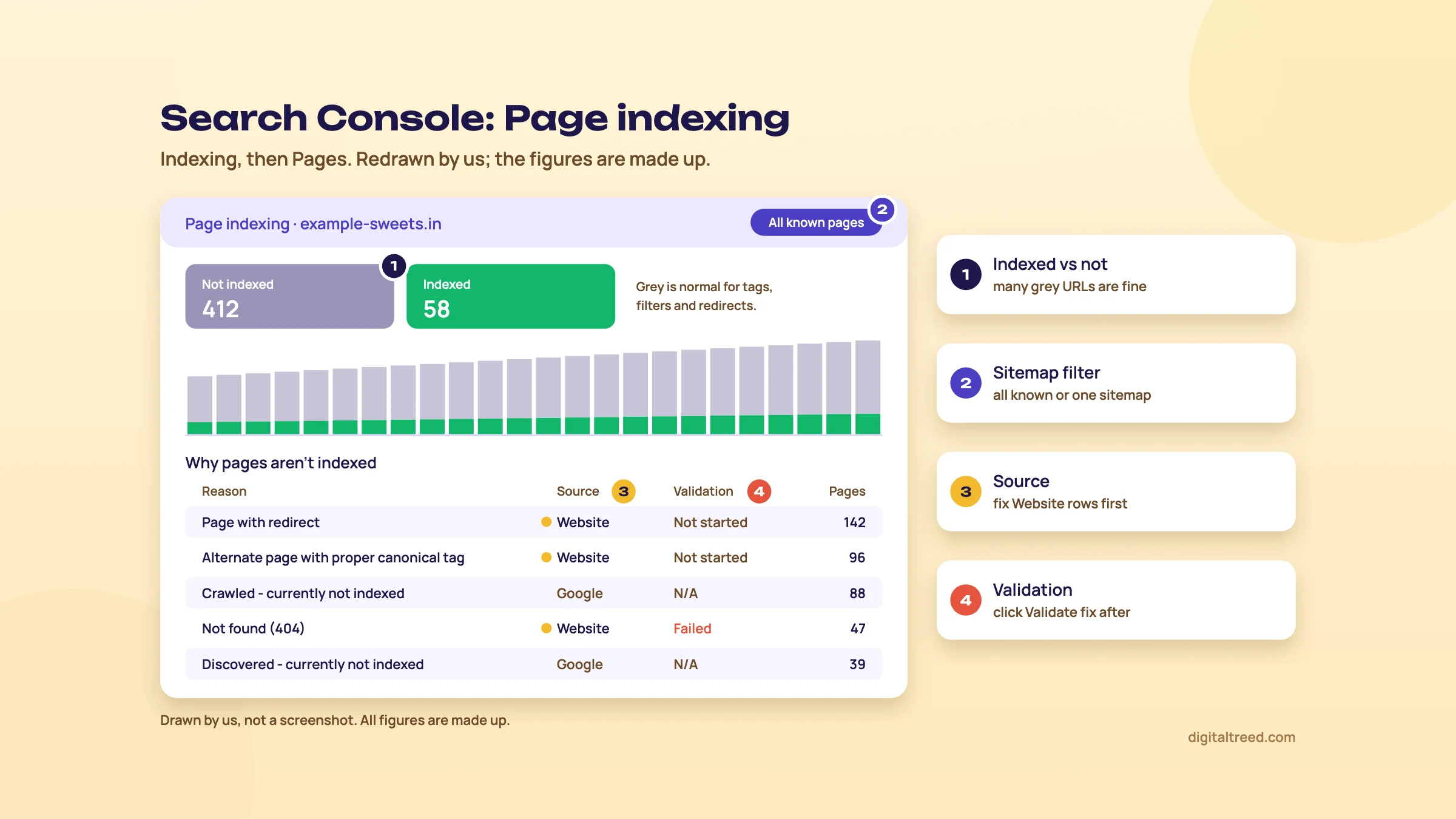 The Page indexing report: fix rows from Website first. Drawn by us; the figures are made up.
Every reason, and what to do about it
These are the reasons Google lists, with its meaning in short and what we'd do.[4]
| Reason | What it means | What to do |
|---|---|---|
| Server error (5xx) | Your server failed when Google asked | Check Crawl stats host status (chapter 6); talk to your host if it repeats |
| Redirect error | Chain too long, a loop, a URL too long, or an empty URL in the chain | Trace the hops with our HTTP Status Checker; redirect straight to the final URL |
| URL blocked by robots.txt | robots.txt stops the crawl | Fine if intended; otherwise remove the rule |
| URL marked 'noindex' | The page or header says don't index | Fine if intended; otherwise remove noindex, then request indexing |
| Soft 404 | A "not found" page that returns 200 | Return a real 404 or 410, or add real content if the page should exist |
| Blocked due to unauthorized request (401) | A login or password stands in the way | Remove the login for public pages |
| Not found (404) | The URL doesn't exist | Fix only the 404s you link to or list in a sitemap; redirect moved pages |
| Blocked due to access forbidden (403) | Server refuses Googlebot | Check firewall or security plugin settings |
| URL blocked due to other 4xx issue | Another 4xx code | Inspect the URL to find which |
| Crawled - currently not indexed | Google read it and chose not to index, for now | Improve the page: more useful content, better internal links. No need to resubmit |
| Discovered - currently not indexed | Google knows the URL but delayed the crawl, usually to avoid overloading the site | Speed up the server; cut low-value URLs; link important pages better |
| Alternate page with proper canonical tag | An alternate correctly points to the indexed canonical | Nothing |
| Duplicate without user-selected canonical | A duplicate with no canonical tag; Google picked one | Add a canonical tag if Google picked the wrong page |
| Duplicate, Google chose different canonical than user | Your canonical tag lost; Google prefers another URL | Compare both pages in URL Inspection; align internal links and redirects |
| Page with redirect | The URL redirects elsewhere | Nothing, unless the redirect is a mistake |
Two more appear as warnings in an "Improve page experience" table. "Indexed, though blocked by robots.txt" means Google indexed a page it couldn't crawl, from links pointing at it; to keep it out, unblock it and use noindex. "Page indexed without content" means Google indexed the URL but couldn't read the content.[4]
Guide 3 covers the fixes behind several of these rows in depth: status codes, canonicals, redirects and noindex, and crawl budget for large sites.
Note
From our work: a perfume brand. A perfume brand's WordPress site was so slow that it hurt crawling and indexing. With their developer we moved it to a lighter theme, added a caching plugin and optimised the images, then built content on the topics competitors ranked for and synced products to Google Merchant Center. Results started to come in within five to six weeks, including organic orders. The lesson for this report: when "Discovered" and "Crawled - currently not indexed" pile up, check speed before you write more pages.
Validate fix
When you've fixed every instance of an issue, open its row and click Validate fix. Search Console checks a few pages at once, then works through the affected URLs only, not the whole site. It usually takes up to about two weeks, sometimes longer, and you get emails as it goes. If one URL still has the issue, validation fails and you fix and restart.[4] You don't have to validate: Google updates the counts on its normal crawl anyway. Validation just gives you a log and an email.
Two filters make the report more useful. The sitemap drop-down above the chart shows "All submitted pages" or one specific sitemap, which tells you whether the pages you care about are indexed. And Google's tip for faster validation is to submit a sitemap of only your most important pages and filter by it before you click Validate.[4]
The example list under each reason shows at most 1,000 URLs, and 404 rows only show URLs from the past month.[4] You can't search for one URL in this report; that's what URL Inspection is for.
Sitemaps
The Sitemaps report lists every sitemap submitted through it or the API, with a status for the last read:[5]
- Success: read with no errors; the URLs are queued for crawling.
- Has errors: read in part; click it for the error list.
- Couldn't fetch: Google couldn't get the file at all. Test the sitemap URL with a live URL Inspection and check that Page fetch says "Successful".
Things the report doesn't do: it won't show sitemaps Google found only through robots.txt, it shows no data for image, video or news URLs, and it lists at most 1,000 submissions. Deleting a sitemap from the report doesn't make Google forget its URLs.[5] If a fetch keeps failing, Google retries for a few days, then stops, so fix it and resubmit.[5]
The useful number is "Discovered pages". Compare it with the indexed count for that sitemap in the Pages report. If a sitemap lists 300 product pages and only 90 are indexed, you've found your problem section.
Removals
The Removals tool hides a URL from Google Search, fast but only for about six months. It doesn't stop Google crawling, and it doesn't delete anything from the web.[33] Under Temporary Removals, New Request, there are two options:
- Temporarily remove URL: one exact URL, or every URL with a prefix. Both www and non-www, http and https are covered; other subdomains such as m. aren't.
- Clear snippet in search: wipes the description until Google indexes the page again. Use it after removing sensitive text from a page.
A request usually takes up to a day.[33] To make a removal permanent, delete the page so it returns 404 or 410, put it behind a password, or add noindex, and don't rely on robots.txt.[33] Google is clear about what not to use it for: cleaning up old 404s, fixing duplicate versions of your site, or starting over after buying a domain (Google's words: "start from scratch").[33]
Do not
- Use Removals to tidy up old 404 pages
- Use it to hide duplicates instead of setting canonicals
- Block a whole hacked site with it
- Expect it to remove a page from Bing or from the web
Do
- Use it when private data (a phone number, a leaked price list) is in results today
- Follow up with noindex, a 404 or a login within six months
- Block the spam URLs a hacker created, not the whole site
- Use Clear snippet after editing sensitive text out of a page
The tool's other tabs are Outdated content, which lists requests other people filed with Google's Remove Outdated Content tool about your pages, and SafeSearch Filtering, which lists requests to label your content as adult.[33] If a SafeSearch report is wrong, that tab is where you'll see it first.
Chapter 5 turns to how pages perform for visitors: Core Web Vitals, HTTPS, rich results, and the two reports you hope stay empty.
Core Web Vitals, HTTPS, rich results, manual actions and security issues
Quick answer
Core Web Vitals shows real visitors' speed for groups of similar pages, from Chrome data over 28 days. HTTPS lists pages still on http. Enhancements reports show broken structured data. Manual actions and Security issues should read "No issues detected"; if they don't, fix every affected page, then request a review.
These reports answer a different question from chapters 3 and 4. Not "do people find me" or "can Google index me", but "is the page good and safe enough to show". You'll look at most of them once a month. Two of them, manual actions and security, you hope never to need.
Core Web Vitals
The report uses field data: real Chrome users' visits, collected in the Chrome UX Report (CrUX). It groups similar pages and gives each group the status of its worst metric, separately for mobile and desktop.[34]
| Metric | Good | Needs improvement | Poor |
|---|---|---|---|
| LCP (largest contentful paint) | 2.5 s or less | 4 s or less | over 4 s |
| INP (interaction to next paint) | 200 ms or less | 500 ms or less | over 500 ms |
| CLS (cumulative layout shift) | 0.1 or less | 0.25 or less | over 0.25 |
Thresholds from Google's report page.[34] Each group value is what 75% of visits reached or bettered over the last 28 days. A few things catch people out:[34]
- "No data available" is common for small Indian sites. A group needs a minimum amount of CrUX data for both LCP and CLS, or it's left out.
- Groups, not pages. The report isn't meant for checking one URL. For that, use PageSpeed Insights, which strips URL parameters and may show different numbers.
- Data is credited to the actual URL, not the canonical, unlike most other reports.
- Fixes take four weeks to show. "Start Tracking" begins a 28-day watch of CrUX data. It doesn't trigger a recrawl.
- All locations are mixed. Visitors on slow mobile networks pull the whole group down.
Guide 3 explains what moves each metric in its Core Web Vitals chapter, and our PageSpeed Insights guide covers the per-page tests.
Note
From our work: an SEO class. When I taught SEO A to Z at a training institute, my students were already doing client work and saw results in two to three weeks. The hardest part for them was technical SEO, because the local business sites they handled mostly ran on WordPress with shared hosting. The most common issue was site speed. The lesson: open the Core Web Vitals report early, not last.
Our Website Speed Test measures server response, page weight, requests, compression, caching and render-blocking files. It's a lab check from our server, so use it to find causes and the Core Web Vitals report to confirm that real visitors feel the change.
HTTPS
The HTTPS report counts indexed HTTP and HTTPS URLs and gives a reason for each http URL whose https version couldn't be indexed. It's available only for Domain properties and https URL-prefix properties.[35] The goal is zero HTTP URLs. The errors it names:[35]
- HTTP marked with canonical tag: the http page declares itself canonical. Point the canonical at https.
- HTTPS has invalid certificate: usually site-wide; renew or fix the certificate.
- Sitemap points to HTTP: update the sitemap to https URLs.
- HTTPS has redirect: the https URL redirects back to http.
- HTTPS URL is roboted: robots.txt blocks the https version.
- HTTPS not evaluated: no https twin, Google chose http as canonical, too many errors, or not crawled yet. Fix the other errors first.
What happened to the Page experience report
There used to be a Page experience report that combined Core Web Vitals and HTTPS. Google removed it in November 2024, saying the Core Web Vitals and HTTPS reports "will continue to be available as they are".[36] If an old tutorial tells you to open it, use those two reports instead.
Enhancements and Shopping: rich result reports
When Google finds supported structured data on your site, it adds a report for each type under Enhancements, or under Shopping for product snippets and merchant listings. Each report counts items, not pages, and splits them into valid and invalid, with critical issues in "Why items are invalid" and minor ones in "Improve item appearance".[37] A report appears only if Google found valid markup of a supported type; the list includes breadcrumbs, events, job postings, merchant listings, product snippets, profile pages, recipes, review snippets and videos, among others.[37]
The reports show a sample, not every item, so use URL Inspection or the Rich Results Test for a single page.[37] Fix, then Validate fix, as in chapter 4. Our Rich Results Test guide covers testing, and Guide 3's structured data chapter covers markup across a whole site.
Online shops may also see Merchant opportunities, and owners and full users get a Shipping and returns setting under Settings, Shopping (if you have a Merchant Center account, link it to the property first).[38] A D2C brand selling kurtas or skincare on its own site should fill in shipping and returns there if it hasn't done so in Merchant Center.
Sites with videos get a Video indexing report showing which watch pages have an indexed video and why the others don't.[7] A common reason on business sites is that the video isn't on a watch page: a product page with a supporting video doesn't count, because Google only indexes videos whose page exists mainly to show that one video.[31]
Manual actions
A manual action means a human reviewer at Google decided pages on your site break its spam policies. Some or all of the site can then be ranked lower or left out of results. You'll see it in the Manual actions report and the Search Console message centre.[39] A clean site shows a green tick.
The report names the type and the affected pages, which can be a folder pattern such as /real-estate/* or "Affects all pages".[39] The types Google lists include site abused with third-party spam, user-generated spam, spammy free host, structured data issue, unnatural links to your site, unnatural links from your site, thin content with little or no added value, major spam problems, cloaked images, AMP content mismatch, sneaky mobile redirects, news and Discover policy violations, and since 2026, back button hijacking.[39] Google announced that last one on 13 April 2026 and began enforcing it on 15 June 2026.[40]
Respond to a manual action
- Read the action Expand it to see the type, the affected page patterns and the "Learn more" link for that type.
- Fix every page Fixing only some pages won't bring a partial return. If there are several actions, fix all of them.
- Check access Make sure the affected pages aren't behind a login, a paywall, robots.txt or noindex. Inspect a few with URL Inspection.
- Request review Click Request Review. Explain the exact problem, what you did, and the result, with evidence.
- Wait Reviews take several days or weeks, link cases longer. Don't resubmit before you get a decision.
Those steps follow Google's report page.[39] If you bought a domain that was penalised before you owned it, say so in the request.[39] Guide 3's chapter on spam policies, manual actions and recovery covers what reviewers look for, and how to tell a manual action from an algorithm update. Most traffic drops are the second kind, and those never show in this report.
Security issues
This report shows Google's findings if your site was hacked or could harm visitors. There are three kinds: hacked content, malware and unwanted software, and social engineering such as phishing.[41] Affected pages can carry a warning in search results or a full-page browser warning. Google says to treat this report as the source of truth, even if you can't reproduce the warning yourself.[41]
The example URLs are a sample. An issue can even appear with no examples, which doesn't mean no pages are affected.[41] On WordPress sites we'd look at recently added admin users, plugins you don't recognise, and new pages in the sitemap you never wrote. Then clean up, update everything, and request a review from the report.
Warning
Make sure Search Console emails reach a person. Owners and full users receive Search Console messages; restricted users get only the ones that specifically affect them.[13] If the only owner is an old employee's Gmail, nobody hears the alarm.
Chapter 6 covers the reports you'll open less often but should know: Links, Insights and the Settings page, including Crawl stats.
Links, Insights, crawl stats and the rest of Settings
Quick answer
The Links report shows a sample of sites linking to you, your most linked pages, link text and internal links, exportable up to 100,000 rows. Insights is a simple traffic summary with query groups. In Settings, Crawl stats shows Googlebot's requests and server health, the robots.txt report shows which files Google read, and Change of Address handles domain moves.
None of these is a daily report. But each answers one question nothing else in Search Console can, and two of them (Crawl stats and Change of Address) matter a great deal on the few days you need them.
The Links report
Links shows backlinks from other sites and links within your own. Google is clear that it's a sample, not every link: tables stop at 1,000 rows, duplicates are combined, and links may have since been removed.[42] It also doesn't say whether a link is nofollow, and it groups sites by root domain, so www., m. and blog. all show as one.[42]
| Table | What it shows | Use it to |
|---|---|---|
| Top linked pages (external) | Your pages with the most links from other sites | Check your best links point at the pages you expect |
| Top linking sites | Domains that link to you most | Spot sites you don't recognise, or important ones missing |
| Top linking text | The words in links pointing to you | Check others describe you accurately, and catch spammy anchor text |
| Top linked pages (internal) | Your pages with the most links from your own site | Make sure the homepage, services and contact pages are well linked |
The table follows Google's report page.[42] The Export button on the main Links page gives two larger slices: "Latest links", up to 100,000 rows sorted by discovery date, and "More sample links", up to 100,000 more from the full set.[42] That export is the best free list of your own backlinks you'll find anywhere.
A Delhi dental clinic might sort "Latest links" by date each month and look for new local directories, health portals or news mentions. A spike of links from unknown foreign domains with odd anchor text is usually noise; Google says it typically ignores links from known spam sites.[42] Guide 2's link building chapter explains when disavowing is worth it (rarely).
What it can't do: show competitors' links, give a strength score, or show links Google hasn't counted. For those you need a link index such as Ahrefs or Semrush (chapter 8).
Insights and Achievements
Insights is the simple view, built for content creators and owners who aren't data people. It replaced the separate Search Console Insights beta on 30 June 2025.[43] Its cards show:[44]
- clicks and impressions for the chosen period
- your content: top pages, trending up and trending down
- queries leading to your site, the same way
- top countries
- branded versus non-branded traffic
- additional traffic sources such as Image, Video, News and Discover
"Trending" is ranked by the change in clicks, not the percentage.[44] For sites with lots of queries, Insights groups similar queries together using AI,[45] named after the best-performing query in each group.[44] Smaller sites see a plain list. Click any item to jump into the Performance report already filtered to it.
For a shop owner who will open Search Console once a month, Insights is a fine place to start. Point them to it and spare them the Performance report.
Achievements are milestones by clicks, such as your first 50 clicks from Google Search in 28 days, which also arrive by email. Google notes they weren't "designed to reflect how Google's ranking systems work".[46] Enjoy them; don't plan around them.
Crawl stats
Open Settings, then Crawl stats. It's only available for root-level properties: a Domain property or a URL-prefix property without a path.[6] It shows total crawl requests, total download size, average response time and host status, then breaks requests down by response, file type, purpose and Googlebot type.[6]
Host status is the part every site owner should glance at. It's green if Google hit no significant availability problems in the past 90 days, and it warns you if there was one, recent or older. The three checks behind it are robots.txt fetching, DNS resolution and server connectivity.[6] On shared hosting, server connectivity is the check we'd watch most closely.
Warning
robots.txt can stop crawling of your whole site. If Google can't get a valid answer for robots.txt (a 429 or 5xx error), it slows or stops crawling. A 404 for robots.txt is fine: it just means there's no file.[6] A firewall or security plugin that blocks Googlebot's robots.txt request is enough to stall everything.
Other things to read in Crawl stats:
- Average response time rising week after week points to a slow server; check it against the dates of any hosting or plugin changes.
- By purpose: Discovery is new URLs, Refresh is recrawls of known ones.[6] A new section with almost no Discovery requests isn't being found.
- By response: a jump in 404s, 5xx errors or redirects shows where Google is wasting requests.
- Hosts: on a Domain property, the top 20 child domains from the last 90 days each get their own view.[6]
Crawl stats counts requests by the actual URL, follows each step of a redirect chain as a separate request, and doesn't yet count every request.[6] For the full picture on large sites, use server logs, as Guide 3's crawling chapter shows.
The robots.txt report
Settings, robots.txt, shows the robots.txt files Google found for the top 20 hosts in the property, when each was last fetched, its size, and any parsing errors. You can view the last fetched version, earlier versions from the past 30 days, and request a recrawl of the file after an urgent fix.[47] It's available only for Domain properties and URL-prefix properties without a path.
It tells you what Google read, not whether a given URL is blocked. To test URLs against the rules, use our Robots.txt Tester, which checks up to 10 URLs and shows the exact matching rule.
Change of Address
Use this only when you move to a new domain, for example from sharmasweets.co.in to sharmasweets.in. Don't use it for http to https, www to non-www, moving pages within a site, or changing hosts with the same URLs.[48]
The requirements: 301 redirects from the old homepage and, ideally, every old page to its new address; owner access to both properties from the same Google account; and domain-level properties (it can't move a folder). It doesn't move subdomains below the domain you name, including www, so run it for each variant.[48] Keep the redirects for at least 180 days, longer if the old URLs still get search traffic, and keep paying for the old domain for at least a year so nobody else buys it.[48] Guide 3's site migrations chapter has the full plan.
The rest of Settings, briefly
- Ownership verification and Users and permissions: chapter 2.
- Associations: links to Google Analytics, YouTube channels, Android apps and other Google services.[7]
- Bulk data export: chapter 7.
- Search generative AI: chapter 7.
- Shipping and returns: for online merchants; link Merchant Center first if you use it (chapter 5).
Next, chapter 7 covers the two newest parts of Search Console, the generative AI report and setting, and then how to get far more data out than the 1,000-row table allows.
The generative AI report, and getting all your data out
Quick answer
The generative AI report shows impressions in AI Overviews and AI Mode by page, country and device, with no clicks or queries. The Search generative AI setting can exclude your site. For more than 1,000 rows, use the API (25,000 rows a request), Data Studio's connector, or the free-tier BigQuery export, which also keeps data past 16 months.
Two different topics share this chapter because they meet in practice. Once you start asking "which of my pages show in AI answers, and for what?", the 1,000-row table runs out fast.
The generative AI performance report
Google launched separate generative AI reports for Search and Discover on 3 June 2026 and rolled them out to all sites worldwide by 31 August 2026.[49] The Search report counts impressions in AI Overviews and AI Mode. It doesn't include Search Labs experiments.[50]
| It shows | It doesn't show |
|---|---|
| Impressions: how many times links to your site were shown in an AI feature | Clicks or CTR |
| Pages (credited to the canonical URL) | Queries |
| Countries and devices | Position |
| Dates, by hour, day, week or month | Which AI feature (AI Overview or AI Mode) for each impression |
Sources: Google's help page[50] and launch post.[49] The report can be filtered by search type, "Web: text-based" or "Web: multimodal".[50] The same data is still inside the normal Performance report under Web; this is a separate view of it, not extra traffic.[49] The usual limits apply too, including the 1,000-row table.[50]
If the report is missing, Google gives two likely reasons: too few AI impressions, or your site excluded through the Search generative AI setting.[50]
How we'd use it: export the Pages table each month and set it beside the Pages tab of the Performance report for the same period. Pages with many AI impressions but falling clicks are pages where an AI answer may be doing the job your page used to do. Pages with good rankings and zero AI impressions are worth a look at how clearly they answer the question. Guide 5's measuring AI visibility chapter puts this report next to Bing's AI Performance, GA4 and a prompt log. Bing's report, unlike Google's, counts citations.[51]
The Search generative AI setting
Settings, then Search generative AI, has three choices:[15]
- Include (the default): your content can appear and be linked in AI Overviews, AI Mode and generative AI features in Discover.
- Exclude: your links and content won't appear or be used to ground AI answers in those features, and you get no traffic or impressions from them.
- Inherit control from parent: the default for child properties, which follow the nearest parent property that set its own choice.
Google says the setting isn't a ranking signal for the rest of Search, and that exclusion usually takes effect within one to two days, some content taking longer. It reached all sites on 31 August 2026.[15] We'd leave it on Include for almost every business. Google notes that if you exclude your site, content from other sites still appears in those features and "may appear similar to yours".[15] Excluding yourself mostly hands the space to competitors. The exceptions are publishers making a deliberate content licensing decision. Guide 5's technical access chapter covers how this setting relates to robots.txt and Google-Extended.
Why you'll want the data outside Search Console
The interface has three walls you'll hit as a site grows:
1,000
rows, the most any Performance table shows[25]
16
months of Performance data kept[16]
1
dimension in the table at a time, so no query and page pairs[20]
Each way out solves a different wall.
| Route | Rows | History | Skill needed | Cost |
|---|---|---|---|---|
| Interface export | 1,000 per table | 16 months | None | Free |
| Data Studio connector | Up to 50,000 a day per search type, the same cap as the API[63] | 16 months | Basic report building | Free |
| Search Analytics API | 25,000 per request, paged; up to 50,000 a day per search type | 16 months | A script or a tool that calls it | Free, within quotas |
| BigQuery bulk export | All data except anonymised queries | From set-up day, for as long as you keep it | SQL | Free tier, then Google Cloud prices |
The Search Analytics API
The API's query method returns up to 25,000 rows per request (1,000 by default), and you page through results with a startRow offset.[52] Google's own guide says the method exposes "a maximum of 50K rows of data per day per search type", sorted by clicks, and recommends querying one day at a time.[53] Quotas are generous for one site: 1,200 queries a minute per site and per user for Search Analytics.[32]
The API can also do two things the interface can't. It can group by query and page together, which is how you find cannibalisation (Guide 3's indexing controls chapter uses this). And it returns hourly data for up to 10 days, where the interface shows only the last 24 hours.[29]
You don't have to write code. Crawlers such as Screaming Frog can pull Search Console data through the API for you (Guide 3, chapter 11). Guide 2's measuring chapter walks through Glenn Gabe's method for pulling queries through the API to spot AI Mode-style searches.
Data Studio
Google's free reporting tool connects to Search Console directly. You sign in with the same Google account, pick the property, and choose one of two tables: Site Impression (counted by property, like the chart) or URL Impression (counted by page, like the Pages table). One data source uses one table, so to see both, add two data sources to the report.[54] That's the property-versus-page rule from chapter 3 again, and mixing the two up is the most common reason a Data Studio report "doesn't match Search Console".
For a monthly client report, Data Studio is where we'd start. Guide 2 shows a one-page layout with outcomes first.
BigQuery bulk export
The bulk export sends a daily copy of your Performance data to Google BigQuery: all the data Search Console has for the property, except anonymised queries.[55] Data builds up for as long as you keep it, so it's also the answer to the 16-month limit. It can't go back in time: history before set-up has to come from the API or the reports.[17]
Set up the BigQuery bulk export
- Create a Cloud project In Google Cloud Console, create or pick a project with billing set up. Example: a D2C skincare brand with 4,000 product and blog URLs that has outgrown the 1,000-row table.
- Enable the APIs In APIs and Services, enable the BigQuery API and the BigQuery Storage API.
- Grant Search Console access In IAM and Admin, click Grant access and add [email protected] with two roles: BigQuery Job User and BigQuery Data Editor.
- Start the export In Search Console, open Settings, then Bulk data export. Paste the project ID (not the project number), keep or change the dataset name (it always starts with "searchconsole"), pick a location, and click Continue.
- Wait The first export arrives within 48 hours and includes that day's data.
- Control costs Once the tables exist, set a partition expiration of 14 days or more if you don't want to keep data forever. Don't add columns to the tables, or the export fails.
Steps from Google's set-up page.[17] On cost: BigQuery's free tier covers the first 10 GiB of storage and the first 1 TiB of query processing each month.[56] A small business site's Search Console data is unlikely to reach that for a long time, but billing must be switched on, so set a budget alert in Google Cloud.
Before your first export, take a baseline of the site with our Free Website Audit, so the numbers you start collecting have a technical snapshot beside them. Chapter 8 covers what all of this costs (mostly nothing), what Search Console can't do, and when a paid tool earns its fee.
Free, its limits, and what paid tools add on top
Quick answer
Search Console is free for every site you verify. Its limits: your own sites only, 16 months of history, 1,000-row tables and hidden rare queries. Paid suites such as Ahrefs, Semrush and SE Ranking (main SEO plans about ₹9,900 to ₹13,350 a month) add competitor data, daily rank tracking and full link indexes, not better data about your own site.
There's no paid version of Search Console. Every report in this guide is free, for every site you can verify. So the real question isn't "free or paid", it's "what does Search Console not do, and is that worth paying for?"
What's free, and the limits that come with it
| Limit | The number | Way around it |
|---|---|---|
| Properties per account | 1,000[11] | Rarely a problem |
| Users per property who aren't owners | 100[13] | Rarely a problem |
| Performance history | 16 months[16] | BigQuery bulk export, from the day you set it up (chapter 7) |
| Rows in a Performance table | 1,000[25] | API (25,000 a request), Data Studio, BigQuery |
| Rare queries | Hidden as anonymised; not in the API or BigQuery either[55] | None; that data isn't given out |
| Example URLs in Page indexing and Links tables | 1,000[4] | Links export gives up to 100,000 rows[42] |
| Annotations | 200 per property, deleted after 500 days[18] | Keep a change log in a sheet too |
| Index requests | A daily limit per property, number not published[31] | A sitemap with accurate lastmod dates |
| BigQuery export | Free tier: 10 GiB storage and 1 TiB queries a month[56] | Set a partition expiration and a budget alert |
And the limits no setting fixes: you only see sites you've verified, you see Google and nothing else, and average position is an average, not a rank for a set city and device.
What paid tools add on top
Paid SEO suites don't know more about your own site than Google does. What they add is everything outside it:
- Competitors. Their keywords, top pages and estimated traffic. Search Console can't show anyone else's site.
- A full link index. Links to any site, with strength scores, lost and new links, and competitor links to copy.
- Fixed-list rank tracking. Daily positions for 500 to 2,000 chosen keywords, in a chosen location and device.
- Site crawls. Every URL checked for broken links, titles, redirects and canonicals, whether Google crawled it or not.
- Keyword volumes for searches you don't rank for yet.
- AI visibility tracking across ChatGPT, Perplexity and others, which Search Console doesn't cover.
Here's what the main suites charge, read from their own pricing pages on 16 October 2026. None of them showed an Indian rupee price, so we give US dollars with "about ₹" at ₹96 to US$1, the X-Rates average for 1 to 16 October 2026.[57] We have no affiliate links with any of them.
| Tool and plan | Price a month (USD) | About ₹ | What it adds to Search Console |
|---|---|---|---|
| Ahrefs Free | $0[58] | ₹0 | Site audit (5,000 crawl credits a project a month) and up to 1,000 backlinks at once, for unlimited verified sites |
| Semrush Free | $0[59] | ₹0 | 10 reports a day and one demo project, for quick competitor checks |
| Ahrefs Starter | $29[60] | ₹2,784 | Keyword and competitor research |
| SE Ranking Core | $129, or $103.20 billed yearly[61] | ₹12,384 (₹9,907 yearly) | 2,000 keywords tracked daily, 10 projects, audits, a Search Console integration; 14-day free trial |
| Ahrefs Lite | $129[60] | ₹12,384 | 5 projects, 750 tracked keywords, Site Explorer link data, Site Audit |
| Semrush SEO | $139, or $117.33 billed yearly[59] | ₹13,344 (₹11,264 yearly) | 5 websites, 500 keywords tracked daily, Site Audit, competitor analysis |
The yearly prices are per month, paid for the year upfront. Our Ahrefs, Semrush and SE Ranking guides go plan by plan, and Ahrefs vs Semrush compares the two big ones.
Our view: a local business with a 20 to 50 page site doesn't need any of these. Search Console, Bing Webmaster Tools, a free crawler and a free Ahrefs account cover it. Pay when you're doing SEO for clients, competing in a crowded online market, or reporting fixed keyword positions to someone who insists on them.
Pros
- Free, for every site you can verify
- Google's own data: real clicks, impressions and index status, not estimates
- Tells you why a page isn't indexed, in Google's words
- The only place to see manual actions and Google's security findings
- Request indexing and validate fixes directly
- Generative AI impressions for AI Overviews and AI Mode
- API, Data Studio and BigQuery exports at no charge
Cons
- Your own sites only; no competitor data
- 16 months of history unless you export
- 1,000-row tables and hidden anonymised queries
- Average position isn't a true rank
- Data arrives 2 to 3 days late, with Pacific Time days
- AI report shows impressions only, no clicks or queries
- Google only; Bing needs its own tool
Alternatives and companions
Nothing replaces Search Console for Google data about your own site. These sit beside it. Start with our own free tools for the checks Search Console doesn't do on demand:
| Job | Use | Why |
|---|---|---|
| Check a whole site's SEO, speed and security in one go | Our Free Website Audit | 50+ checks across 25 pages with a ranked action plan, on demand |
| Check status codes and redirect chains for a list of URLs | Our HTTP Status Checker | Up to 10 URLs, every hop and the headers, today rather than after Google's next crawl |
| Check why a page might not be indexed | Our Noindex Tag Checker, Canonical Tag Checker, Robots.txt Tester | Shows the exact tag, header or rule, before you wait for URL Inspection |
| Bing and Copilot data | Bing Webmaster Tools (free) | Imports your sites from Search Console in a few clicks[19]; its AI Performance report counts citations[51] |
| What visitors do after the click | GA4 (free) | Leads, calls and sales by landing page |
| Backlinks with more detail | Ahrefs Free | Free for verified sites |
| Full crawl of the site | Screaming Frog | Free up to 500 URLs a crawl[62] |
| Competitors, rank tracking, link research | Semrush, Ahrefs or SE Ranking (paid) | Data Search Console doesn't have |
Our best free SEO tools guide lists every free option by job.
A monthly routine, in 20 minutes
- Overview: any manual action or security issue? Any new recommendation?
- Performance: last 28 days against the previous period, weekly view, non-branded. Note the top three gains and losses by page.
- Generative AI report: export the pages table and save it with the month's date.
- Pages: any new "Why pages aren't indexed" row with source Website? Any jump in a row you already had?
- Core Web Vitals: any group moved to Poor on mobile?
- Crawl stats: host status still green?
- Annotate: add a note for every change you made to the site this month.
If that routine turns up more than you have time to fix, our SEO service can take it over, or you can get a quote. Otherwise, check what stuck with the 10-question quiz below, then carry on to our GA4 guide, the next in this path.
Test yourself
Ten questions on the whole guide. Pick an answer, check it, and see your score at the end.
You got 0 of 10 right.
Frequently asked questions
Short answers to the questions people ask most about Google Search Console.
Frequently asked
Is Google Search Console free?
Yes. Google describes it as a free service, and there's no paid version. Every report, the API, the Data Studio connector and the bulk export setting cost nothing. The only possible cost is Google BigQuery if you use the bulk export, and its free tier covers 10 GiB of storage and 1 TiB of queries a month.
Do I need Search Console to appear on Google?
No. Google says you don't have to sign up to be included in search results. Search Console shows you what Google already does with your site and lets you fix problems faster, so every site owner should still set it up.
What is the difference between Search Console and Google Analytics?
Search Console shows what happens on Google before the click: impressions, clicks, queries, indexing and problems Google found. GA4 shows what visitors do on your site after they arrive, from every source. Their numbers never match exactly, and they aren't meant to. Link them and use both.
How long does Search Console keep data?
The Performance report keeps 16 months. To keep more, set up the BigQuery bulk export, which stores daily data for as long as you want from the day you start it. It can't recover data from before that day.
Why does Search Console show fewer queries than clicks?
Google leaves rare, anonymised queries out of the query table to protect privacy, and the table shows at most 1,000 rows. Both are still counted in the chart total. The API returns up to 25,000 rows a request, and the bulk export returns everything except anonymised queries.
How do I get a page indexed faster?
Inspect the URL, run a live test, and click Request indexing once. Google says indexing usually takes a day or so but can take much longer, and there's a daily limit on requests. For many pages, submit a sitemap with accurate lastmod dates, and link new pages from pages Google already crawls.
What does "Discovered - currently not indexed" mean?
Google knows the URL but hasn't crawled it yet, usually because it expected the crawl to overload your site and rescheduled it. Faster hosting, fewer low-value URLs and better internal links to important pages help.
Is average position in Search Console my Google ranking?
Not exactly. It's the average of your topmost position across every search you appeared for, across all locations and devices. A page can rank third for its main search and still show an average of 20. Google advises watching trends in clicks and impressions more than position.
Can I see AI Overview traffic in Search Console?
Partly. Clicks and impressions from AI Overviews and AI Mode are included in the normal Performance report under Web, mixed with other results. The separate generative AI report, available to all sites since 31 August 2026, shows AI impressions by page, country and device, but no clicks or queries.
How do I give my SEO agency access to Search Console?
Open Settings, then Users and permissions, click Add user, enter their Google account email and choose Full (to let them request indexing and validate fixes) or Restricted (view only). Only owners can do this. Make sure you, not the agency, are a verified owner.
Sources
References
- About Search Console, Search Console Help, accessed 16 Oct 2026
- Platform properties roll out globally, plus a new social and video performance guide, Google Search Central blog (Daniel Waisberg, Lizzi Sassman), 29 Jul 2026, accessed 16 Oct 2026
- About platform properties in Search Console, Search Console Help, accessed 16 Oct 2026
- Page indexing report, Search Console Help, accessed 16 Oct 2026
- Sitemaps report, Search Console Help, accessed 16 Oct 2026
- Crawl Stats report, Search Console Help, accessed 16 Oct 2026
- Reports at a glance, Search Console Help, accessed 16 Oct 2026
- Search Console's overview page, Search Console Help, accessed 16 Oct 2026
- Recommendations in Search Console, Search Console Help, accessed 16 Oct 2026
- What are impressions, position, and clicks?, Search Console Help, accessed 16 Oct 2026
- Add a website or platform property to Search Console, Search Console Help, accessed 16 Oct 2026
- Verify your site ownership, Search Console Help, accessed 16 Oct 2026
- Managing owners, users, and permissions, Search Console Help, accessed 16 Oct 2026
- Ask Google to recrawl your URLs, Google Search Central, updated 10 Dec 2025, accessed 16 Oct 2026
- Search generative AI control, Search Console Help, accessed 16 Oct 2026
- Introducing the new Search Console, Google Search Central blog, 8 Jan 2018, accessed 16 Oct 2026
- Start a new bulk data export, Search Console Help, accessed 16 Oct 2026
- Search Console annotations, Search Console Help, accessed 16 Oct 2026
- Easily Verify Your Site in Bing Webmaster Tools by Importing from Google Search Console, Bing Webmaster Blog, 13 Sep 2019, updated June 2025, accessed 16 Oct 2026
- Performance report (Search results): Overview and basic setup, Search Console Help, accessed 16 Oct 2026
- Performance report (Search results): Common tasks and use cases, Search Console Help, accessed 16 Oct 2026
- Performance report (Search results): Dimensions and data groupings, Search Console Help, accessed 16 Oct 2026
- Announcing web multimodal Search performance reporting in Search Console, Google Search Central blog (Harsh Kharbanda, Moshe Samet), 24 Sep 2026, accessed 16 Oct 2026
- Performance report (Search results): About the data, Search Console Help, accessed 16 Oct 2026
- Performance report (Search results): Troubleshooting data discrepancies, Search Console Help, accessed 16 Oct 2026
- Performance report (Search results): Advanced filtering and comparison, Search Console Help, accessed 16 Oct 2026
- Introducing the branded queries filter in Search Console, Google Search Central blog (Michael Huzman), 20 Nov 2025, updated 11 Mar 2026, accessed 16 Oct 2026
- Introducing weekly and monthly views in Search Console, Google Search Central blog (Moshe Samet), 10 Dec 2025, accessed 16 Oct 2026
- The Search Analytics API now supports hourly data, Google Search Central blog, 9 Apr 2025, accessed 16 Oct 2026
- Streamline your Search Console analysis with the new AI-powered configuration, Google Search Central blog (Nati Yosephian), 4 Dec 2025, accessed 16 Oct 2026
- URL Inspection tool, Search Console Help, accessed 16 Oct 2026
- Usage limits, Google for Developers, accessed 16 Oct 2026
- Removals and SafeSearch reports tool, Search Console Help, accessed 16 Oct 2026
- Core Web Vitals report, Search Console Help, accessed 16 Oct 2026
- HTTPS report, Search Console Help, accessed 16 Oct 2026
- Google retires Search Console's Page Experience report, Search Engine Journal, 18 Nov 2024, accessed 16 Oct 2026
- Rich result report overview, Search Console Help, accessed 16 Oct 2026
- Shopping reports and tools, Search Console Help, accessed 16 Oct 2026
- Manual actions report, Search Console Help, accessed 16 Oct 2026
- Introducing a new spam policy for "back button hijacking", Google Search Central blog, 13 Apr 2026, accessed 16 Oct 2026
- Security issues report, Search Console Help, accessed 16 Oct 2026
- Links report, Search Console Help, accessed 16 Oct 2026
- The new Search Console Insights report is here, Google Search Central blog (Moshe Samet), 30 Jun 2025, accessed 16 Oct 2026
- Insights report, Search Console Help, accessed 16 Oct 2026
- Introducing Query groups in Search Console Insights, Google Search Central blog (Moshe Samet), 27 Oct 2025, accessed 16 Oct 2026
- Achievements in Search Console, Search Console Help, accessed 16 Oct 2026
- robots.txt report, Search Console Help, accessed 16 Oct 2026
- Change of Address tool, Search Console Help, accessed 16 Oct 2026
- Introducing Search Generative AI performance reports in Search Console, Google Search Central blog (Hillel Maoz, Moshe Samet), 3 Jun 2026, note added 31 Aug 2026, accessed 16 Oct 2026
- Generative AI performance report (Search), Search Console Help, accessed 16 Oct 2026
- Introducing AI Performance in Bing Webmaster Tools public preview, Bing Webmaster Blog, 10 Feb 2026, accessed 16 Oct 2026
- Search Analytics: query, Google for Developers, accessed 16 Oct 2026
- Getting your performance data, Google for Developers, accessed 16 Oct 2026
- Connect to Search Console, Data Studio, Google Cloud documentation, updated 13 Oct 2026, accessed 16 Oct 2026
- About bulk data export of Search Console data to BigQuery, Search Console Help, accessed 16 Oct 2026
- BigQuery pricing, Google Cloud, seen 16 Oct 2026, accessed 16 Oct 2026
- US dollar to Indian rupee, monthly average 2026, X-Rates, accessed 16 Oct 2026
- Ahrefs Webmaster Tools: free SEO tools to grow your site, Ahrefs, accessed 16 Oct 2026
- Semrush plans and pricing, Semrush, seen 16 Oct 2026, accessed 16 Oct 2026
- Ahrefs plans and pricing, Ahrefs, seen 16 Oct 2026, accessed 16 Oct 2026
- SE Ranking subscription plans, SE Ranking, seen 16 Oct 2026, accessed 16 Oct 2026
- Screaming Frog SEO Spider pricing, Screaming Frog, seen 16 Oct 2026, accessed 16 Oct 2026
- A deep dive into Search Console performance data filtering and limits, Google Search Central Blog, 19 Oct 2022, accessed 21 Oct 2026
Get the free checklist
Every step of this guide on one page, to print or tick off. We email you the PDF link.