

What Tag Manager is, and when gtag.js or a plugin is simpler
This guide is for site owners, freelancers and agency staff who already have GA4 and want it to count leads, not just visits. You should be comfortable logging in to your site's admin; you don't need to write JavaScript.
By the end you'll be able to set up an account and container the right way round (owned by the business), install it on WordPress or any site, build and test tags in Preview, publish named versions you can roll back, and set consent checks behind a cookie banner. You'll track phone taps, WhatsApp taps, form sends, scroll depth and Drive downloads, then mark the right ones as key events in GA4.
Chapter 1 helps you decide whether you need Tag Manager at all. Chapters 2 to 4 are the set-up and the real jobs, with step-by-step tasks for a Delhi dental clinic, a Kanpur sweet shop, a Pune coaching centre and a D2C brand. Chapter 5 covers what not to do with Tag Manager for SEO and what tags cost in page speed. Chapter 6 covers server-side tagging, Tag Manager 360 and the alternatives, with prices checked 16 October 2026.
Quick answer
Google Tag Manager is a free tool that holds all your tracking codes (GA4, Google Ads, Meta pixel) in one container, so you add or change them without editing the site. You need it once you track phone taps, WhatsApp clicks or form leads. For GA4 page views alone, a plugin or gtag.js is simpler.
Most SEO reports stop at traffic because nobody set up the tracking for anything else. Tag Manager is where that tracking usually lives. It doesn't help you rank. It helps you prove what organic visitors did after they arrived: called, sent a WhatsApp message, booked, downloaded the fee list.
What it actually is
Google describes Tag Manager as "a tag management system that allows you to set up and manage tags on your site".[1] A tag is a piece of code that sends data somewhere: the GA4 tag, a Google Ads conversion tag, a Meta pixel. You add the Tag Manager code to the site once (two short snippets, one in the head and one after the opening body tag). After that, every tag is added, changed or removed inside Tag Manager's web interface, and goes live when you publish.
Everything you set up for one site sits in a container. Google defines it as a collection of tags, triggers, variables and related settings installed on a website or app.[1] Inside it there are three building blocks:
- Tag
- What to send, and where. "Send an event called phone_click to GA4."
- Trigger
- When to send it. Triggers listen for events such as a click or a form being sent, and decide when a tag fires or is blocked.[2]
- Variable
- A value Tag Manager reads at that moment, such as the URL of the link that was clicked (Click URL) or the page path. Triggers use variables as conditions and tags send them as data.[3]
- Data layer
- An object "used by Google Tag Manager and gtag.js to pass information to tags".[4] Developers and plugins push events into it, such as "form sent" or "order placed", for your triggers to pick up.
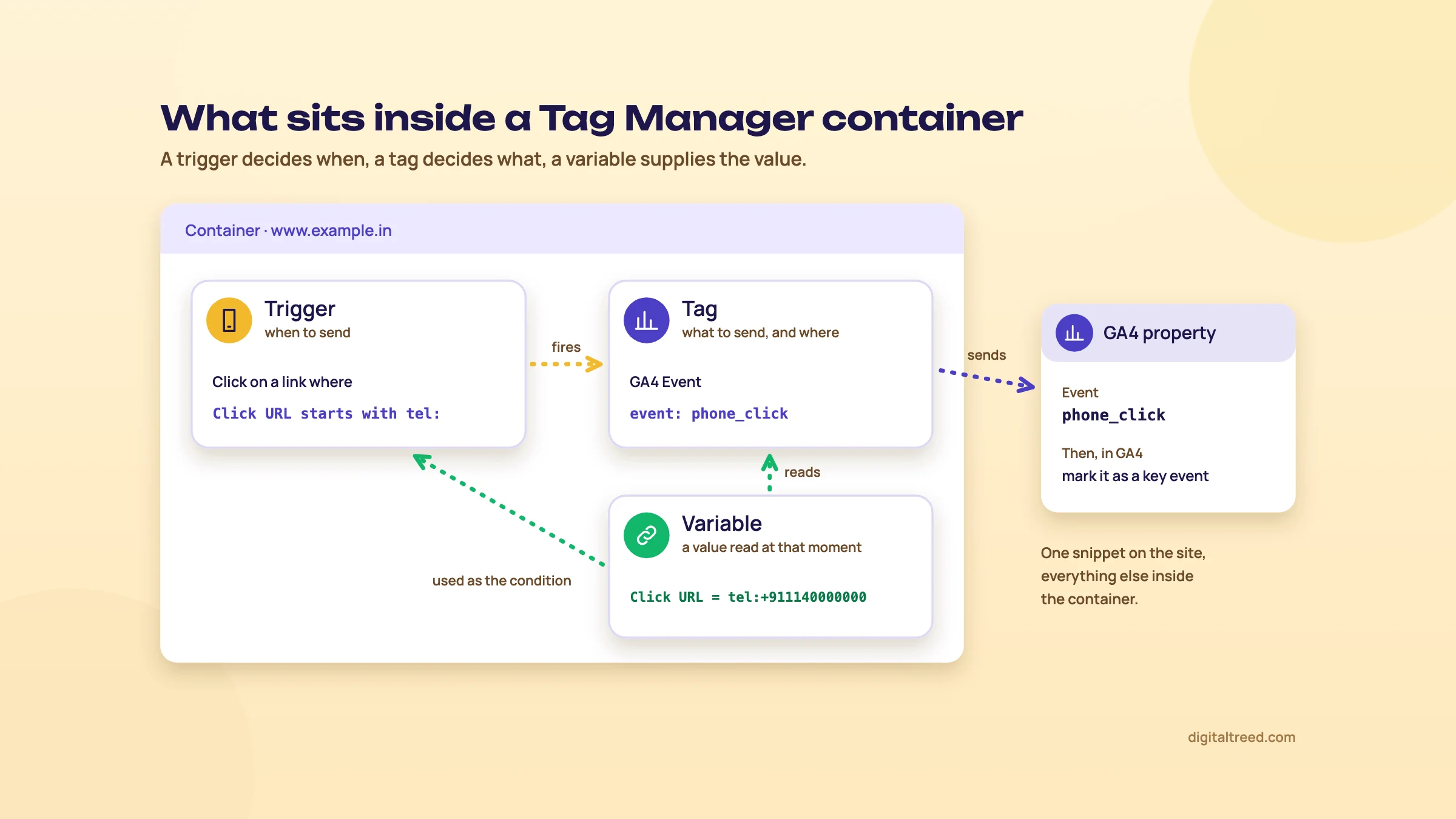 Trigger decides when, tag decides what, variable supplies the value. Drawn by us.
Who needs it
Tag Manager is worth learning if any of these is true:
- You want leads from organic search counted in GA4: phone taps, WhatsApp taps, form sends. GA4 counts some of these on its own (chapter 4 says which), but phone taps aren't among them, and in our experience its form events miss some forms.
- The site carries more than one tracking product: GA4 plus Google Ads, a Meta pixel or a heatmap tool.
- You're an agency or freelancer and don't want to ask the client's developer every time a tag changes.
- Several people touch tracking and you want a version history and the option to roll back.
Google's own developer guidance leans the same way. It says that "If you want to measure Google Ads, Google Analytics, and other measurement platforms, consider using Google Tag Manager."[5] For a site that only measures traffic, it suggests the plain Google tag.
When you don't need it
Take a 15-page site where the only goal is GA4 page views and the built-in events. There, Tag Manager adds a tool to learn and a script to load, and gives nothing back. We'd use one of these instead:
| Method | Best for | Limit |
|---|---|---|
| Site Kit by Google (WordPress plugin) | A WordPress owner who wants GA4 and Search Console in a few clicks | It records leads from some form and shop plugins (Contact Form 7, WPForms, WooCommerce and a few others)[6]; any other custom event still needs code or Tag Manager |
| The Google tag (gtag.js) pasted in the theme | A custom-coded site that only needs GA4 or one Ads tag | Every new tag or event means editing code; gtag.js only sends data to Google products[7] |
| Google Tag Manager | Lead tracking, several tag vendors, agencies, teams | A learning curve, and it's easy to pile up tags that slow the page |
One rule whichever you pick: install GA4 one way only. If Site Kit adds GA4 and you also add a GA4 tag in Tag Manager, you can end up with every page view counted twice. Site Kit can also place the Tag Manager snippet for you,[8] which chapter 2 covers. Our Google Analytics 4 guide compares the three install methods for GA4 itself.
Warning
Tag Manager has no effect on rankings. It can't make Google index a page, and chapter 5 explains why you shouldn't use it for canonicals, meta robots or schema. Use it for measurement.
What it costs
Standard Tag Manager is free. Google's product page says "Manage all your tags without editing code - for free."[9] The paid Tag Manager 360 adds approval workflows, unlimited workspaces and zones, and Google doesn't publish its price.[10] The one cost that can appear for a small business is server-side tagging, which usually runs on Google Cloud and is billed there (chapter 6). The other cost is speed: every tag you add is code your visitors' phones must run (chapter 5).
If you've decided you need it, chapter 2 sets up the account and puts the snippet on the site.
Set up Tag Manager: account, container, the snippet and who gets access
Quick answer
Create one account per business and one web container per website at tagmanager.google.com. Paste the first code block high in the head and the second right after the opening body tag on every page, or let Site Kit or GTM4WP do it on WordPress. Give the owner Administrator, and give others only the container access they need.
Set-up takes about 20 minutes. The part people get wrong isn't the code. It's ownership: an agency creates the account under its own Google login, the relationship ends, and the business loses its tracking history. Create it under the owner's Google account and add yourself as a user.
Account and container
One account per business, one container per website. A coaching centre in Pune with a main site and a separate admissions microsite gets one account and two web containers. You don't need a container per page.[11]
Create a Tag Manager account and web container
- Sign in Go to tagmanager.google.com with the business owner's Google account.[11]
- Create the account Open the Accounts tab and click Create Account. Enter the business name as the account name and choose India as the country. Sharing data anonymously with Google for benchmarking is optional; we leave it off.
- Name the container In Container Setup, enter the site's top-level address, for example www.example.in, as the container name.
- Pick the type Choose Web. The other types are iOS, Android, AMP and Server; Server is only for server-side tagging (chapter 6).
- Create Click Create and accept the Terms of Service. Tag Manager then shows the two code blocks to install.
To add a second container later, go back to the Accounts tab, open the More menu next to the account name and pick Create Container.[11]
Install the snippet
Tag Manager gives you two blocks of code. Google's instructions are specific about where they go:[12]
- The first block goes in the <head>, "as high in the <head> tag as possible".
- The second block, a noscript fallback, goes right after the opening <body> tag.
- Both go on every page of the site.
If you lose them, they're under Admin, Install Google Tag Manager.[13] On a custom-coded site, your developer adds them to the shared header template once. Google also notes that sites on WordPress, Shopify or Wix can set up the Google tag through an integration instead of editing code.[12]
On WordPress: three ways, pick one
| Method | What it does | When we'd use it |
|---|---|---|
| Site Kit by Google | Free plugin from Google with 5+ million active installs. Its listing says you can "easily set up Tag Manager- no code editing required. Then, manage your tags in Tag Manager."[8] | You already use Site Kit for Search Console and GA4 |
| GTM4WP | Free, open-source plugin by Thomas Geiger, 700,000+ active installs. It adds the container code and pushes page data, Contact Form 7 form sends and WooCommerce events into the data layer.[14] | WooCommerce stores, and sites that need form or ecommerce events in the data layer |
| Header and footer code by hand | You paste the two blocks into the theme or a header-scripts field | Only with a child theme or a dedicated field, so a theme update doesn't wipe it |
For a Kanpur sweet shop on WordPress with a WhatsApp order button, we'd use Site Kit. For a D2C skincare brand on WooCommerce, GTM4WP, because the purchase data in the data layer saves a developer job later. Whichever you choose, check that the theme or another plugin isn't already printing a Tag Manager or GA4 snippet. A second copy of the container, or a GA4 snippet left in the theme next to the GA4 tag in Tag Manager, is a common reason for doubled numbers.
Check it's installed
Google's install page has a Test option: enter your website's address, click Test, then OK.[12] Then use Preview mode (chapter 3), which shows whether the container loads on a page. Nothing will fire yet, because an empty container has no tags. Its first version is literally named "Version 1 - Empty Container".[15]
Tip
While you're in the theme, run the home page through our Website Speed Test before and after you install the container. It reports server response time, page weight and request count from the page's HTML, so you have a "before" figure when someone later asks why the site got slower. It doesn't run JavaScript, so it won't see tags added later inside Tag Manager; use PageSpeed Insights for those (chapter 5).
Users and permissions
Access is set at two levels.[16] At account level, a User can see basic account information, and an Administrator can create containers and change user permissions. At container level, there are five settings:
| Container permission | Can do | Give it to |
|---|---|---|
| No access | Doesn't see the container | Everyone by default |
| Read | Browse tags, triggers and variables; no changes | The client who wants to look, an auditor |
| Edit | Create workspaces and make edits; can't create versions or publish | A junior or a freelancer on trial |
| Approve | Edit and create versions; can't publish | A senior who reviews work |
| Publish | Everything, including publishing live | One or two people who answer for the site |
Source for the table: Google's user permissions page.[16] Publishing changes what runs on every page, so we keep Publish to as few people as possible. A wrong tag published at 6 pm on a Saturday can break a checkout until Monday.
Workspaces
A workspace is a separate draft of the container, so two people can work without overwriting each other. Every container has a Default Workspace. The free version allows two more, three at a time in all; Tag Manager 360 allows unlimited workspaces.[17]
When one workspace is published, the others are out of date. Tag Manager asks you to update the other workspace, and if the same items were changed in both it shows "Conflict found"; you then choose, change by change, whether to keep your version or take the published one. After a publish, the published workspace is removed; if it was the Default Workspace, a fresh one takes its place.[17] For a small business with one person on tracking, the Default Workspace is all you'll use.
With the container on the site, chapter 3 adds the first tags: the Google tag for GA4 and an event tag.
Tags, triggers, variables, Preview and publishing, with consent built in
Quick answer
Add a Google Analytics tag with your G- tag ID on an Initialization trigger, then one GA4 event tag per action you want to count. Test every change in Preview, which opens Tag Assistant, and publish with a version name that says what changed. If you have a cookie banner, set each tag's consent checks before you publish.
This is the loop you'll repeat for every tracking job: build a tag, give it a trigger, check it in Preview, publish a named version. Get the loop right on the first tag and the rest of the guide is variations on it.
The Google tag: GA4 on every page
Google's current recommended way to load GA4 in Tag Manager is a tag of the Google Analytics type with your GA4 tag ID (the measurement ID starting with G-). It also documents an alternative: a tag of the Google Tag type with the same ID.[18] Either works; use one, not both.
Load GA4 through Tag Manager
- Remove other GA4 installs Is GA4 already on the site through a plugin or pasted gtag.js? Plan to remove it at the moment you publish this tag.
- Add the tag In the container's overview, click Add Tag (or Tags, then New). Under Tag Configuration choose Google Analytics, then Google Analytics again as the tag type.[18]
- Enter the tag ID Paste your GA4 measurement ID. Leave the optional settings empty for now. If you later add parameters to every event, such as currency, use Shared event settings.
- Set the trigger Under Triggering, choose Initialization - All Initialization Events. Name the tag "GA4 - Google tag" and click Save.
- Preview and publish Test in Preview (below), then Submit, Publish and Create Version.
GA4 event tags: one per action
Each action you want counted gets a tag of the type Google Analytics: GA4 Event. You fill in the Measurement ID, an Event Name, and optionally extra parameters.[19] A new name creates a custom event; a name from Google's recommended list creates a recommended event. For leads, the recommended name is generate_lead, which "measures when a lead has been generated (for example, through a form)".[20]
Name events in lowercase with underscores and keep the same names on every site you manage: phone_click, whatsapp_click, generate_lead, file_download. It's dull, and it means a report template works on the next client's property without changes.
Extra parameters you send, such as the link that was clicked, don't appear in GA4's standard reports until you register them as custom dimensions. A standard property allows 50 event-scoped custom dimensions, and new ones take 24 to 48 hours to show data.[21]
Triggers you'll use for SEO jobs
| Trigger | Fires when | SEO use |
|---|---|---|
| Click - Just Links | Someone clicks an HTML <a> link[22] | Phone (tel:) and WhatsApp (wa.me) taps, outbound links |
| Click - All Elements | Someone clicks any element: button, image, link[22] | Buttons that aren't links |
| Form Submission | A form is sent; with Check Validation, only when it's sent successfully[23] | Enquiry and booking forms |
| Scroll Depth | A vertical or horizontal depth you set is reached, once per page load[24] | How far people read a guide or service page |
| Page View | A page loads | A thank-you page after a form |
| Custom Event | A named event is pushed to the data layer[4] | Forms and stores whose plugin pushes events |
Google's performance tip for clicks applies to all of these: under "This trigger fires on", choose Some Clicks (or Some Forms) and add a condition, so the trigger only works where it should.[22] The conditions use built-in variables such as Click URL, Click Text, Form ID, Page Path and Scroll Depth Threshold.[3] If one is missing from the condition drop-down, open Variables and, under Built-In Variables, click Configure to switch it on.[25]
Preview mode and Tag Assistant
Never publish an untested tag. Preview runs your draft on your own browser only; ordinary visitors don't see it.[26]
Test a change in Preview
- Start Preview In the Workspace tab, click Preview at the top right. Tag Assistant opens in a new tab.[26]
- Connect Enter your site's address and click Connect. The site opens in a new window with "Connected" at the bottom right. If pages break, untick Include debug signal in the URL and connect again.
- Do the action In the site window, tap the phone number, send the form, scroll the page: whatever your tag is for.
- Read the result Back in Tag Assistant, click Continue. Pick the event in the left-hand list (Click, Form Submit and so on) and see which tags fired and which didn't. Open a tag that didn't fire to see which trigger condition failed.
- Check GA4 too The event should also appear in GA4's Realtime and DebugView reports.[19]
- Stop Close the debug interface with the X at the top left.
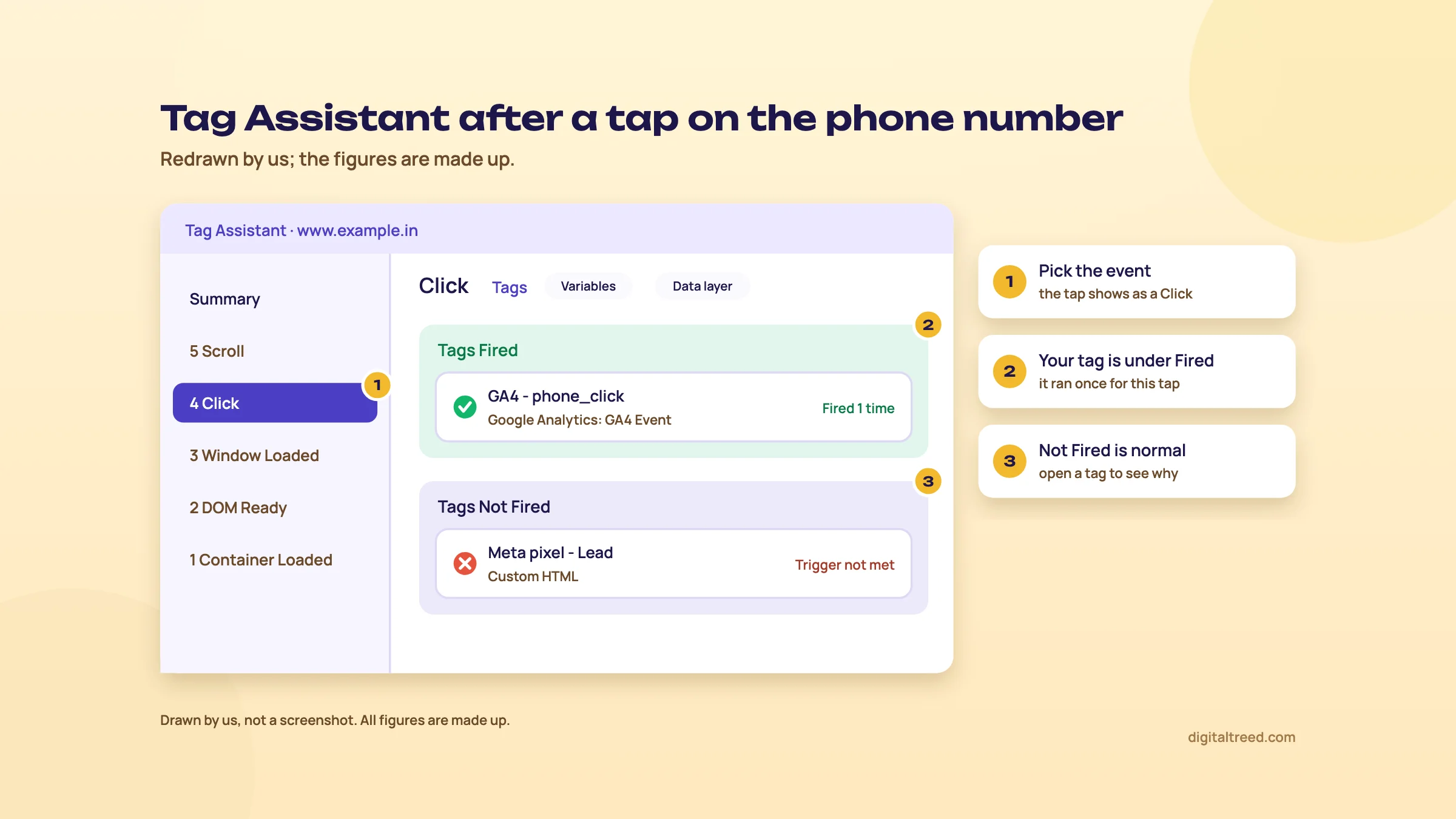 Pick the event, find your tag under Tags Fired, open any tag that didn't fire. Drawn by us; the figures are made up.
You can also share a preview with a client or developer: in Tag Assistant, More Actions, Share, then send them the preview link.[26]
Versions and publishing
Click Submit at the top right, choose Publish and Create Version, check the list of workspace changes, write a version name and description, and click Publish.[15] Every publish saves a version: a snapshot of the whole container.
Write names a stranger could read a year later. "Phone and WhatsApp click events for GA4" beats "v12" or "fixes". When a client's GA4 numbers jump in March, the version list is the first place you'll look.
If a publish breaks something, roll back. Open Versions, pick the last good version, and use the Actions menu to publish it. Set as Latest Version only copies it into your draft; you still have to publish.[15]
Consent mode, set up in Tag Manager
If your site shows a cookie banner, consent mode is how the banner's answer reaches Google's tags. Our GA4 guide explains basic and advanced consent mode. In short: in basic mode, Google tags don't load until the visitor answers the banner; in advanced mode, they load at once and send cookieless pings while consent is denied.[27] Here is the Tag Manager side.
- Use the Consent Initialization - All Pages trigger for your banner's tag (the consent management platform, or CMP) and the consent defaults. Google says it "will always fire before all other tags, including any Initialization triggers."[28]
- Use a template from the Community Template Gallery or your CMP, rather than hand-written code. Google lists CMP partners such as OneTrust, Cookiebot, Usercentrics and Didomi.[28] Templates set defaults with Tag Manager's own consent APIs; don't swap in a gtag consent update call.[29]
- Check each tag's consent settings In a tag, open Advanced Settings, Consent Settings. Google tags have built-in consent checks. For a Meta pixel or a heatmap tag, choose Require additional consent for tag to fire and add the consent types it needs, such as ad_storage or analytics_storage.[28]
- Turn on Consent Overview under Admin, Container Settings, Additional Settings. Then Tags, Consent Overview lists tags under Consent Not Configured and Consent Configured, and lets you change several at once.[28]
Then test it in Preview: refuse cookies on the banner and check that the non-Google tags stay in the not-fired list.
That's the whole toolkit. Chapter 4 puts it to work on five real SEO tracking jobs.
Five SEO tracking jobs in Tag Manager, step by step
Quick answer
Check what GA4's enhanced measurement already records before you build anything: outbound clicks, file downloads and 90% scrolls come free. Use Tag Manager for phone taps, named WhatsApp events, forms that don't reload, deeper scroll steps and Google Drive downloads. Then mark the lead events as key events in GA4.
The easy mistake is rebuilding what GA4 already does. Someone adds an "outbound click" tag in Tag Manager while enhanced measurement is also on, and the report now has two click events for every tap. Start with this table.
Do you need Tag Manager for it?
| Job | GA4 enhanced measurement already records | Use Tag Manager when |
|---|---|---|
| Outbound clicks | A click event "each time a user clicks a link that leads away from the current domain", with link_url[30] | Only if enhanced measurement is off, or you want a named event for one destination (WhatsApp) |
| File downloads | file_download for links to files with common extensions, PDF included[30] | The file sits behind a link with no extension, such as a Google Drive share link |
| Scroll depth | scroll, once, when 90% of the page's height becomes visible[30] | You want 25, 50 and 75% as well |
| Form sends | form_start and form_submit[30] | Your test shows form_submit missing or firing on failed sends; you want a generate_lead event |
| Phone taps (tel: links) | Not listed as an enhanced measurement event | Always; this is the main reason small businesses need Tag Manager |
Before each task, make sure the Google tag from chapter 3 is published, and that the built-in Click and Form variables are switched on.
Task 1: phone taps for a Delhi dental clinic
Most of the clinic's patients call from the mobile site. Each tap on the number is a tel: link, so a link-click trigger catches it.
Count tel: link taps as a GA4 event
- Create the trigger Triggers, New. Choose Click - Just Links. Under "This trigger fires on", choose Some Link Clicks and set Click URL, starts with, tel:. Name it "Click - tel links".[22]
- Create the tag Tags, New, Google Analytics: GA4 Event. Enter the measurement ID and the event name phone_click.[19]
- Add a parameter Add link_url with the value {{Click URL}}, so you can see which number was tapped if the site lists two branches.
- Attach the trigger Choose "Click - tel links" under Triggering and save.
- Test on a phone-sized window In Preview, tap the number (cancel the call on a desktop) and check that phone_click fired. Then publish as "phone_click event for tel links".
A tap isn't a completed call. Someone can tap and hang up. Report it as "call taps" to the client, not "calls".
Task 2: WhatsApp order taps for a Kanpur sweet shop
The shop's "Order on WhatsApp" button links to wa.me. GA4 already records it as an outbound click with the link URL attached.[30] Our GA4 guide shows how to turn that into a key event without Tag Manager. If the shop already has Tag Manager, a named event is cleaner to report and survives a change to the button's text.
Send a whatsapp_click event
- Trigger Click - Just Links, Some Link Clicks, Click URL matches RegEx wa\.me|api\.whatsapp\.com. That covers the two addresses most WhatsApp buttons use; if your plugin links to web.whatsapp.com, add it to the pattern. Regex is one of the trigger operators Tag Manager supports.[2]
- Tag Google Analytics: GA4 Event, event name whatsapp_click, parameter link_url = {{Click URL}}.
- Test Preview, tap the button, check the tag fired. WhatsApp may open; close it.
- Publish Name the version "whatsapp_click event".
GA4 will still log the outbound click too. That's fine, as long as you mark only whatsapp_click as the key event.
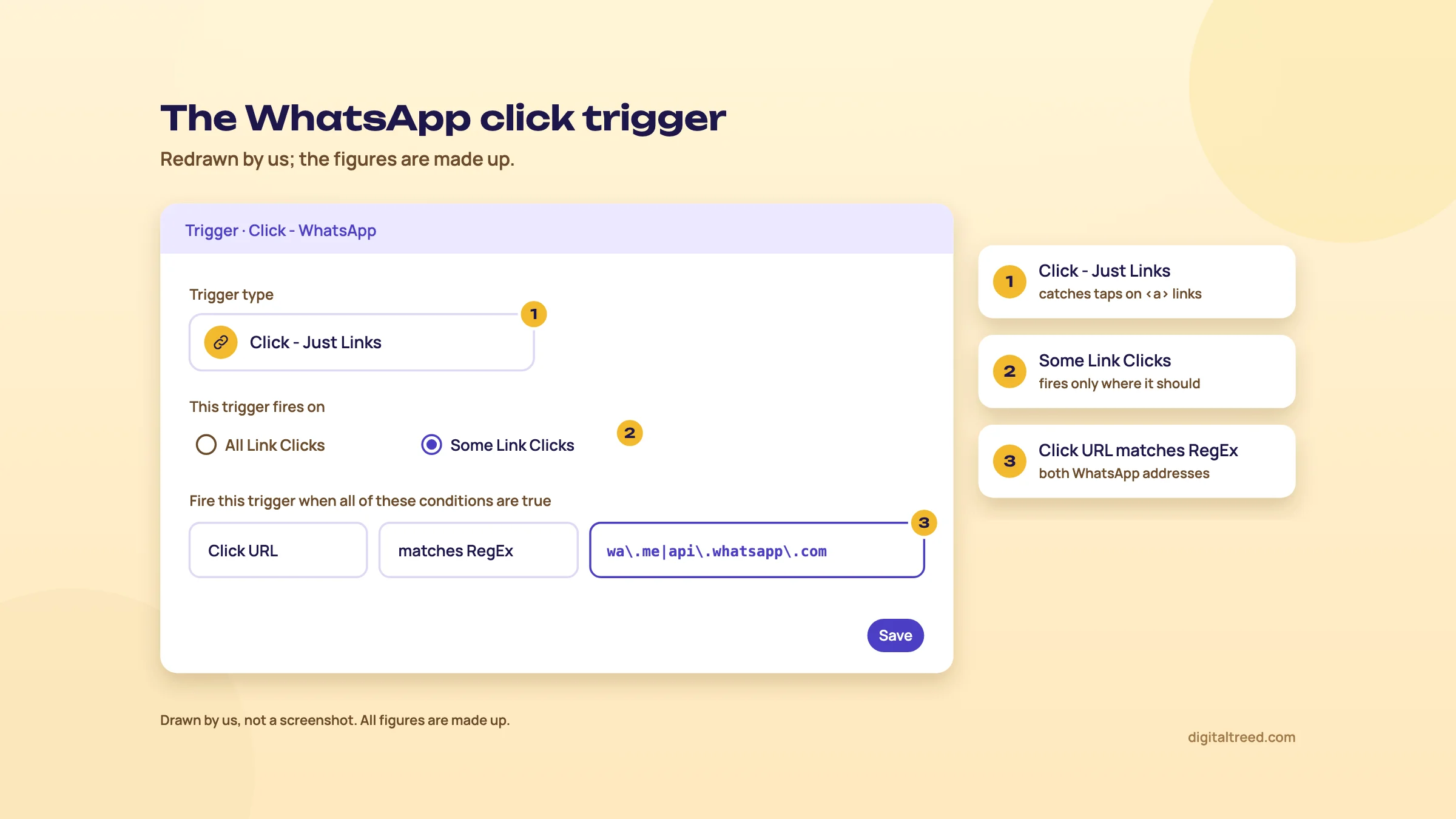 The three settings to copy for a whatsapp_click trigger. Drawn by us; the figures are made up.
Task 3: enquiry forms for a Pune coaching centre
Forms are the trickiest job, because forms differ. Some reload the page or go to a thank-you page. Some WordPress form plugins send the form in the background and only show a message, so a plain Form Submission trigger may never fire. Test first, then pick the method.
| Your form | Trigger |
|---|---|
| Sends people to a thank-you page | Page View, Some Page Views, Page Path equals /thank-you/. The surest method. |
| Reloads or submits normally | Form Submission with Check Validation ticked, so it fires only when the form is sent successfully. Limit it with Some Forms and the Form ID.[23] |
| Contact Form 7 on WordPress | GTM4WP pushes Contact Form 7 sends into the data layer;[14] catch them with a Custom Event trigger using the event name you see in Preview |
| Anything else that doesn't fire | Ask the developer to push an event to the data layer on success, for example dataLayer.push({'event': 'enquiry_sent'}), and use a Custom Event trigger[4] |
Whatever the trigger, send it to GA4 as a GA4 Event tag named generate_lead, Google's recommended event for leads.[20] If you know roughly what an admission enquiry is worth, add value and currency parameters. Currency is an ISO 4217 code such as INR, and Google requires it whenever you set a value.[20]
Warning
Test with one real enquiry and one with a required field left empty. If the empty one also fires generate_lead, your trigger is counting attempts, and the centre's "leads" will never match the counsellor's register.
Task 4: scroll depth on a D2C brand's buying guides
A skincare brand writes long buying guides for organic search. GA4 only tells you who reached 90%. To see where readers drop off, add steps.
Track 25, 50 and 75% scroll on guide pages
- Trigger Triggers, New, Scroll Depth. Tick Vertical Scroll Depths, choose Percentages, and enter 25,50,75. Each threshold fires once per page load.[24]
- Limit it Under "This trigger fires on", choose Some Pages and Page Path starts with /guides/. Keep the default Window Load timing; the trigger needs the page's size to calculate depth.[24]
- Tag GA4 Event named scroll_depth, with a parameter percent = {{Scroll Depth Threshold}}.
- Register the parameter In GA4, create an event-scoped custom dimension for percent, or the steps won't show in reports.[21]
Two cautions. A threshold already visible when the page loads fires without any scrolling,[24] so 25% means little on a short page; use this on long pages only. And scroll is engagement, not a lead. Don't mark it as a key event.
Task 5: brochure downloads hosted on Google Drive
The coaching centre's fee brochure is a Google Drive share link, not a PDF on its own site. A Drive link has no .pdf in the address, so GA4 is unlikely to log it as file_download; it shows as an outbound click instead.
- Trigger Click - Just Links, Some Link Clicks, Click URL contains drive.google.com.
- Tag GA4 Event named file_download, with parameters link_url = {{Click URL}} and link_text = {{Click Text}}. Using GA4's own event name puts these downloads in the same report as the PDFs.[30]
Better still, upload the brochure as a PDF to the site. Enhanced measurement then counts it with no Tag Manager work at all.
Then: mark the lead events as key events in GA4
Events alone don't reach your SEO report as leads. In GA4, go to Admin, Data display, Events, find phone_click, whatsapp_click and generate_lead in Recent events, and click the star next to each.[31] An event only appears in Recent events after it has been received, so test first and mark it the next day; or, on the Key events tab, create the key event ahead of time with the exact event name.
- Standard properties allow 30 key events (50 on Analytics 360).[31]
- Marking counts from that moment; past data doesn't change, and standard reports can take up to 24 hours to show it.[31]
Our GA4 guide's chapter on key events covers what to mark, values in INR and what to leave out. Its chapter on organic reports shows where to read these key events against Organic Search, which is the number the client actually wants. For how these fit a monthly SEO report, see Measuring SEO in Intermediate SEO.
Five tags in, it's worth asking what all this costs your page speed. That, and the SEO jobs Tag Manager shouldn't do, is chapter 5.
What not to do with Tag Manager for SEO, and what tags cost in speed
Quick answer
Don't use Tag Manager to set canonicals, robots meta tags or titles. Google says JavaScript shouldn't change the canonical, and a noindex removed by script may not work. Structured data added through Tag Manager can work, but it belongs in the page's HTML. Every tag also costs speed, so remove the ones nobody reads.
Tag Manager can put any code on any page without a developer. That's why it's tempting as an SEO shortcut, and why it goes wrong. Google reads tags added by Tag Manager only after it renders the page with JavaScript, and many other crawlers don't render at all.
Canonicals and robots meta: never through Tag Manager
Google's JavaScript SEO guide is direct about both.[32]
- Canonical. You "shouldn't use JavaScript to change the canonical URL to something else" than the one in the original HTML. If JavaScript must set it, it should set the same value as the HTML.
- Noindex. When Google sees noindex, "it may skip rendering and JavaScript execution", so "using JavaScript to change or remove the robots meta tag from noindex may not work as expected." A Tag Manager tag that removes noindex from a page may simply never run for Googlebot.
A canonical added by Tag Manager is a JavaScript canonical. If the theme also prints one, the page now carries two signals that can disagree. Fix canonicals and robots tags in the CMS or SEO plugin, where they're in the HTML the server sends. Our Advanced SEO chapter on indexing controls covers the right way to set them.
Titles and meta descriptions: possible, still a bad idea
Google says you can use JavaScript to set or change the title and meta description.[32] So it works for Google, after rendering. We still wouldn't, for two reasons. First, the theme's original title stays in the HTML, so anything that reads the HTML without running scripts sees the old one. Second, that group includes AI crawlers. Vercel's December 2024 study on its own network found that "none of the major AI crawlers currently render JavaScript", naming GPTBot, OAI-SearchBot, ClaudeBot and PerplexityBot among others.[33] Change titles in Yoast, Rank Math or the CMS. Our rendering chapter in Advanced SEO explains how Google renders pages and how to compare raw and rendered HTML.
Structured data through Tag Manager: Google's guidance
This one Google documents as a real option. Its page on generating structured data with JavaScript lists Tag Manager as a method: add a Custom HTML tag, paste a supported JSON-LD block, publish.[13] Google Search can process structured data "that's available in the DOM when it renders the page."[13] It attaches three conditions:
- Read values from the page. "Use variables to extract the structured data from the page instead of duplicating the information in GTM." Google says duplicating it "increases the risk of having a mismatch between page content and the structured data".[13]
- Be careful with Product markup. Google warns that "dynamically-generated markup can make Shopping crawls less frequent and less reliable."[13]
- Test with the live URL. In the Rich Results Test, Google recommends the URL input over pasting code.[13]
Our view matches Advanced SEO's structured data chapter: server-side is the safe default. Tag Manager is a stopgap when a CMS truly can't print LocalBusiness or Article markup, and never for a shop's prices and stock. A Delhi clinic on WordPress doesn't need it at all, because Yoast and Rank Math already output schema. Check what's on a page with our Schema Markup Validator, or test eligibility with the Rich Results Test (see our Rich Results Test guide).
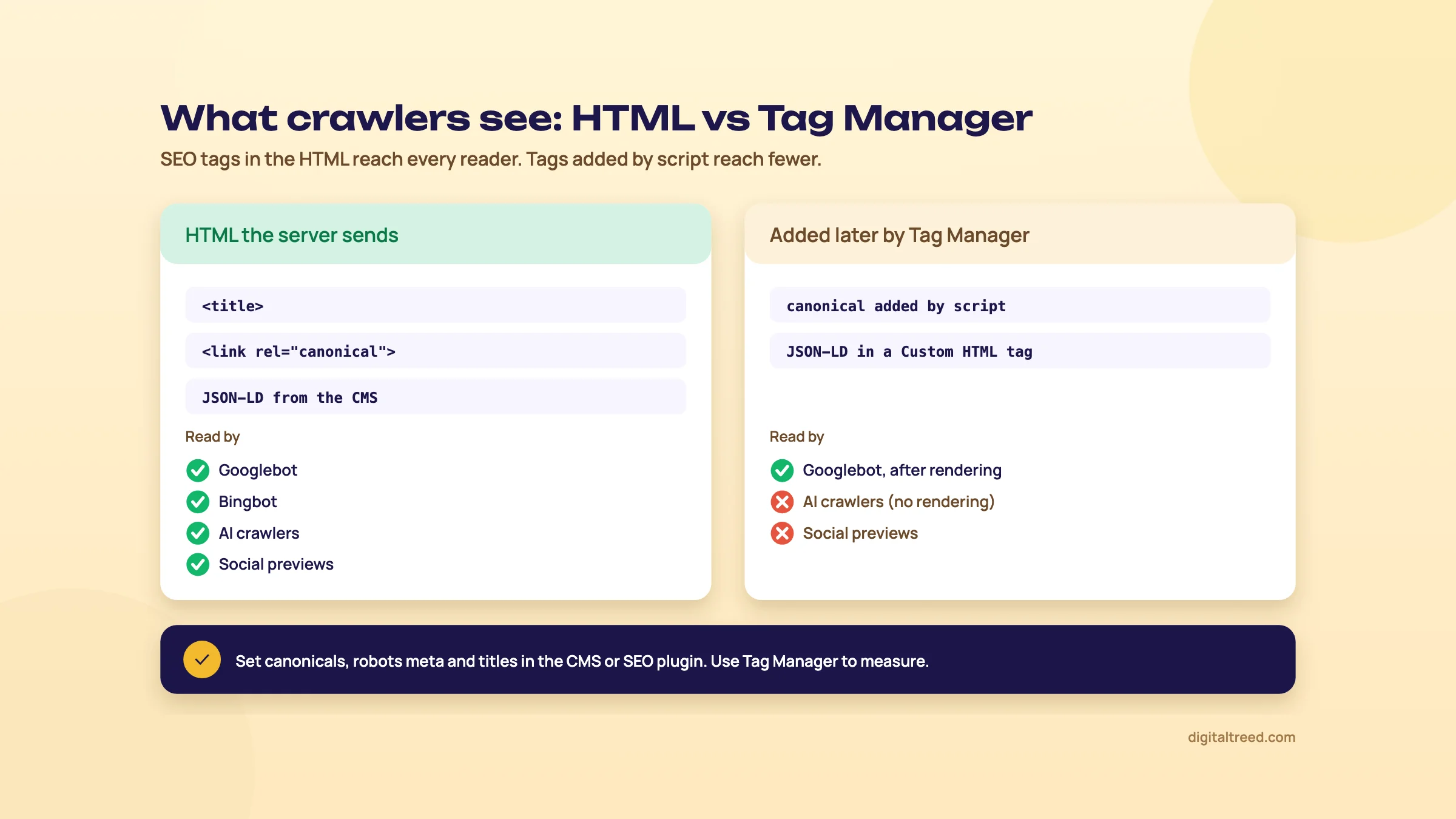 SEO tags belong in the HTML the server sends; Tag Manager is for measurement. Drawn by us.
The speed cost of tags
Each tag is code that a visitor's phone downloads and runs. One tag costs little. Web.dev's guide on tag managers, by Google's Katie Hempenius and Barry Pollard (2021, updated 2022), says the impact "can become significant when tens or hundreds of tags are used on the same page". Its authors also write that they "have seen a correlation between the size of tag managers and poorer INP scores."[34] INP, Interaction to Next Paint, is the Core Web Vital that measures how quickly a page responds to taps, clicks and key presses.[35]
Their advice, and ours:
Do not
- Pile Custom HTML tags on every page; they are "easy to misuse in a way that is bad for performance"[34]
- Load cookie notices or hero images through Tag Manager; that "typically delays their delivery"[34]
- Keep dead tags switched off with a blocking trigger
- Fire a chat widget, heatmap and three ad pixels on All Pages because it's easy
Do
- Use built-in tag types, or templates from the Community Template Gallery instead of Custom HTML; templates run sandboxed JavaScript and are "much less likely to exhibit performance or security issues"[34]
- Pause or delete unused tags rather than blocking them with a trigger exception[34]
- Fire tags only on the pages that need them (Some Pages, Some Clicks)
- Act when the container's Size indicator on the Versions page passes 70%[36]
Our Advanced SEO guide gives the same advice in its Core Web Vitals chapter: audit the Tag Manager container before you touch your own code. Once a quarter, open the tag list and ask the client one question about each tag: who reads this data? If nobody answers, pause it, and delete it a month later.
Measure before and after. Field data from real visitors is in Search Console's Core Web Vitals report, and lab tests are in PageSpeed Insights (our PageSpeed Insights guide shows where third-party scripts appear). Our Website Speed Test gives a quick page weight and request count for the HTML and the files it links to; it doesn't run scripts, so it won't count tags that Tag Manager adds later.
Moving tags off the visitor's phone altogether is what server-side tagging is for. Chapter 6 covers it, with Google Cloud's prices.
Server-side tagging, Tag Manager 360, pricing and the alternatives
Quick answer
Tag Manager is free. Tag Manager 360 is sold by Google's sales team at an unpublished price. A server container costs nothing in Tag Manager, but the server it runs on does: Google estimates about $45 a month per Cloud Run server and recommends at least two. Most small Indian businesses need none of that; Site Kit or plain Tag Manager is enough.
What server-side tagging is
In a normal set-up, every tag runs in the visitor's browser and sends data straight to Google, Meta and the rest. With server-side tagging, the browser sends one stream of data to a server container that you run, and that server passes it on to each product. Google's overview says "only you have access to the data in the server until you choose to send it elsewhere."[37] In the GA4 tag, you point data at your server with a server_container_url setting.[18]
Google lists the gains in its Tag Manager help page on container size: moving some tags to a tagging server can improve page speed, allow stricter content security policies, improve privacy, and make cookies more secure and durable.[36] Google also recommends running the server on a first-party domain (a subdomain of your own site) before it takes production traffic.[37]
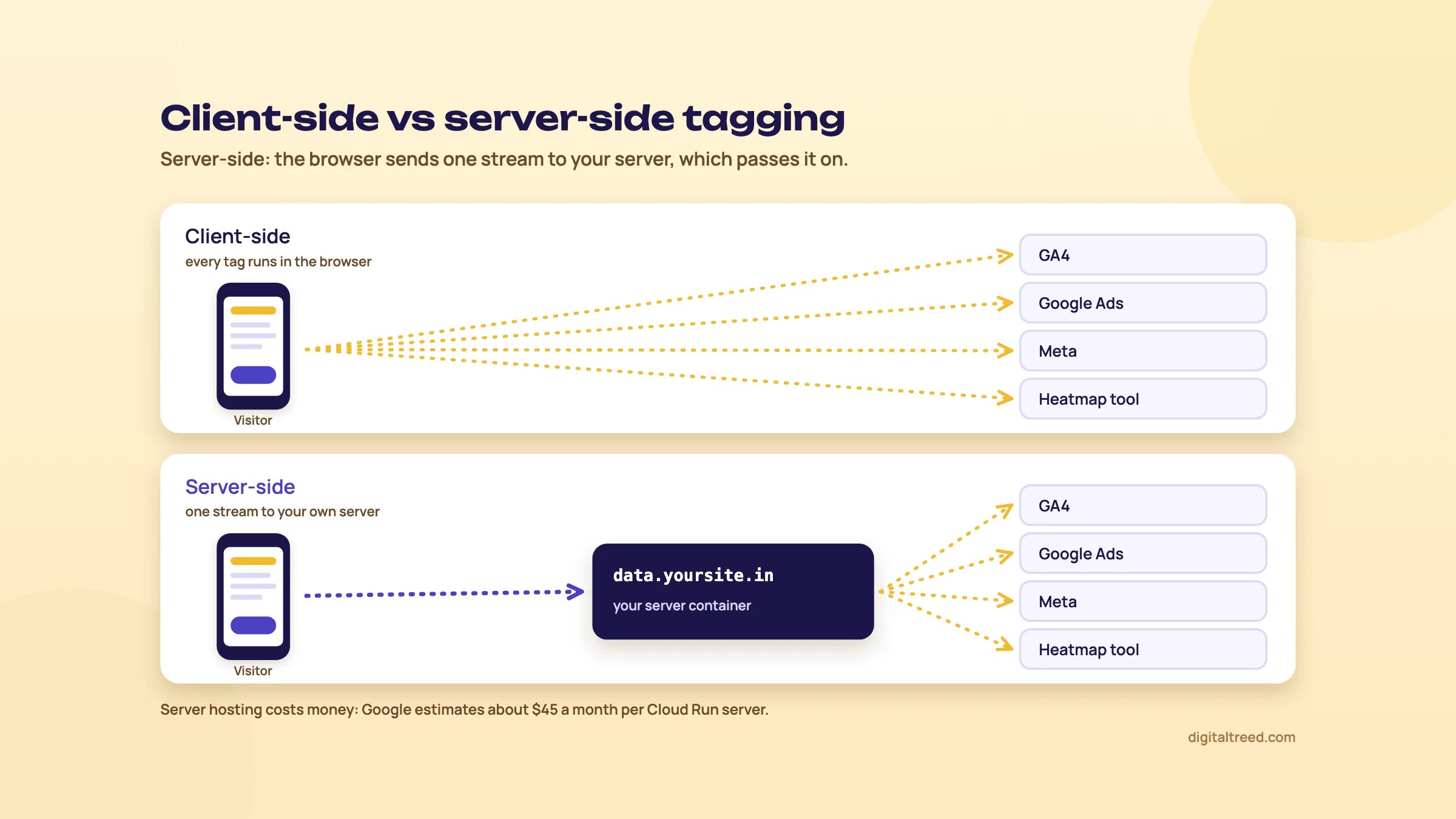 Server-side tagging puts your own server between the browser and each product. Drawn by us.
What server-side tagging costs
The server container runs in your own Google Cloud project, or another host you choose.[37] Google's Cloud Run set-up guide gives the numbers:[38]
- "each server costs approximately $45 /month (USD)", for a Cloud Run instance with 1 vCPU and 0.5 GB of memory, CPU always allocated.
- It recommends "a minimum of 2 instances to reduce the risk of data loss in case of a server outage".
- Autoscaling between 2 and 10 servers handles 35 to 350 requests per second, depending on the tags.
- A separate preview server is needed for Preview mode. The guide gives no price for it.
So a production set-up starts at about $90 a month by Google's own estimate, before the preview server. Cloud Run's free tier, for instance-based billing, covers the first 240,000 vCPU-seconds and 450,000 GiB-seconds a month per billing account.[39] One server running all month uses about 2.6 million vCPU-seconds (30 days times 86,400 seconds), so the free tier barely dents the bill. If you pay Google Cloud in a currency other than US dollars, the prices listed in that currency apply.[39]
Our view: for the Delhi clinic, the Kanpur sweet shop or the Pune coaching centre, server-side tagging is about ₹8,640 a month spent on problems they don't have. It starts to make sense for a D2C brand spending heavily on Google and Meta ads, where better conversion data pays for the server. It does nothing for rankings.
Tag Manager 360
Tag Manager 360 is the enterprise version, part of Google Marketing Platform. Google's comparison page lists what it adds:[10]
| Feature | Tag Manager (free) | Tag Manager 360 |
|---|---|---|
| Workspaces at once | 3 | Unlimited |
| Approval workflows | No | Yes |
| Zones (control of large set-ups) | No | Yes |
| Support | Help centre and community forums | Services, support and SLAs from Google and partners |
Google publishes no price; the product page sends you to Talk to Sales.[40] If you're asking whether you need it, you don't: approvals and zones solve problems of large teams running many containers, not of a clinic or a sweet shop.
Prices, checked 16 October 2026
Vendors below price in US dollars; we give "about ₹" at ₹96 = US$1, the X-Rates monthly average for 1 to 16 October 2026.[41] Prices exclude tax unless the vendor says otherwise.
| Option | Price | What you get |
|---|---|---|
| Google Tag Manager | Free[9] | Web, app and server containers, 3 workspaces, Preview, versions |
| Tag Manager 360 | Not published (Talk to Sales)[40] | Approvals, zones, unlimited workspaces, SLAs |
| Server container on Google Cloud Run | About $45 (about ₹4,320) per server a month; at least 2 recommended, so about $90 (about ₹8,640)[38] | Your own tagging server, billed by Google Cloud |
| Stape (server GTM hosting) | Free up to 10K requests; Pro $20 a month (about ₹1,920), or $17 a month billed annually, up to 500K requests; Business $100 (about ₹9,600) up to 5M; Enterprise $200 (about ₹19,200) up to 20M[42] | Hosting for a server container, so you don't manage Cloud Run |
| Cloudflare Zaraz | 1,000,000 events a month free per Cloudflare account; $5 (about ₹480) per extra million[43] | Cloudflare's own tag tool for sites on Cloudflare |
| Site Kit by Google, GTM4WP | Free WordPress plugins[8] | Install GA4 or Tag Manager without code (GTM4WP adds data layer events) |
Pros and cons
Pros
- Free, and the standard version covers what a small business site needs
- Phone, WhatsApp and form tracking without a developer for each change
- Preview before anything goes live, and a version history to roll back
- Permissions down to Read, Edit, Approve and Publish per container
- Consent settings for every tag in one place, with Consent Overview
Cons
- A real learning curve: triggers, variables and the data layer
- Easy to pile up tags that slow the site and hurt INP
- Forms that don't reload need testing, a plugin or developer help
- Tempting to use for SEO tags (canonical, robots) that belong in the HTML
- Server-side tagging costs real money on Google Cloud
Alternatives: which one when
| Situation | Use | Why |
|---|---|---|
| WordPress site, GA4 page views only | Site Kit by Google | Free, no code, also connects Search Console[8] |
| Custom site, GA4 or one Ads tag only | The Google tag (gtag.js) | Google suggests it when the goal is measuring traffic or Ads[5] |
| Any site counting calls, WhatsApp taps and forms | Google Tag Manager | Free, and built for exactly this |
| WooCommerce store | Tag Manager with GTM4WP | Ecommerce and form events arrive in the data layer[14] |
| Site already on Cloudflare, wants fewer scripts in the browser | Cloudflare Zaraz | 1M events a month free[43] |
| Self-hosted analytics for privacy reasons | Matomo Tag Manager | Open-source tag manager that works with Matomo: free on self-hosted Matomo On-Premise, and included in Matomo Cloud's Business plan[44] |
| Heavy ad spend, conversion data loss | Server-side Tag Manager on Cloud Run or Stape | Data passes through your own server first[37] |
Tag Manager tracks what visitors do. To see how Google shows your pages before the click, you need Google Search Console, and to read the events you've just built, Google Analytics 4. Start with the one tag that matters most to the business, usually phone or WhatsApp taps, and publish it this week.
If you'd rather have someone set it up for you, ask us for a quote.
Test yourself
Ten questions on the whole guide. Pick an answer, check it, and see your score at the end.
You got 0 of 10 right.
Frequently asked questions
Frequently asked
Is Google Tag Manager free?
Yes. Standard Tag Manager is free, with web, app and server containers. Tag Manager 360, the enterprise version with approvals, zones and unlimited workspaces, is sold by Google's sales team at a price it doesn't publish. A server container costs nothing in Tag Manager, but its server runs on Google Cloud or another host, and that costs money.
Does Google Tag Manager help SEO?
Not directly. It doesn't change rankings or indexing. What it does is measure what organic visitors do: call, message, fill a form, download. That lets you show a client leads from SEO instead of traffic. Too many tags can slow pages, which works against you.
What is the difference between Google Tag Manager and Google Analytics?
GA4 stores and reports data about visits and events. Tag Manager is the delivery system that puts the GA4 tag, and other tags, on your pages and decides when each one fires. You can use GA4 without Tag Manager, but Tag Manager on its own reports nothing.
Do I need Tag Manager if I use Site Kit on WordPress?
Not for GA4 page views and the built-in events; Site Kit handles those. Add Tag Manager when you want phone taps, named WhatsApp events or form leads counted. Site Kit can place the Tag Manager snippet for you, but then load GA4 in one place only, not through both.
How do I track WhatsApp button clicks in GA4?
GA4's enhanced measurement already logs a tap on a wa.me link as an outbound click with the link URL. For a cleaner report, use Tag Manager: a Click - Just Links trigger where Click URL matches wa.me or api.whatsapp.com, and a GA4 Event tag named whatsapp_click. Then mark that event as a key event in GA4.
How do I test tags before they go live?
Click Preview in the Workspace tab. Tag Assistant opens, connects to your site in a new window and shows which tags fired for each action you take. Only your browser, or people you share the preview link with, see the draft. Publish only after the tag fires where it should and nowhere else.
Can I add schema markup with Google Tag Manager?
Google documents it: a Custom HTML tag with a JSON-LD block, which Google can read after rendering the page. It asks you to pull values from the page with variables rather than typing them in again, and warns that script-generated Product markup can make Shopping crawls less frequent and less reliable. Server-side markup from the CMS or an SEO plugin is the safer default.
Does Google Tag Manager slow down my website?
The container itself is one script, but every tag inside it adds work for the visitor's browser. Web.dev's guide on tag managers notes a correlation between larger tag managers and poorer INP scores. Fire tags only where they're needed, prefer built-in templates over Custom HTML, and pause or delete tags nobody uses.
What is server-side tagging, and does a small business need it?
It sends data from the browser to a server container you run, which passes it on to GA4, Google Ads and others. Google estimates about $45 a month per Cloud Run server and recommends at least two. For most small businesses it isn't worth it; it suits brands with large ad budgets that need better conversion data.
How do I undo a bad Tag Manager publish?
Open Versions, choose the last version that worked, and publish it from its Actions menu. That puts the old container live at once. Then fix the problem in your workspace, test it in Preview and publish again with a clear version name.
Sources
References
- Introduction to Tag Manager, Tag Manager Help, accessed 16 Oct 2026
- Triggers, Tag Manager Help, accessed 16 Oct 2026
- Built-in variables for web containers, Tag Manager Help, accessed 16 Oct 2026
- The data layer, Google for Developers, updated 13 Oct 2026, accessed 16 Oct 2026
- Plan your tag setup, Google for Developers, updated 30 Jul 2026, accessed 16 Oct 2026
- Plugin conversion tracking, Site Kit by Google documentation, accessed 18 Oct 2026
- Tagging for Google Analytics, Google for Developers, updated 25 Mar 2026, accessed 16 Oct 2026
- Site Kit by Google: Analytics, Search Console, AdSense, Speed, WordPress.org plugin directory, version 1.189.0, accessed 16 Oct 2026
- Google Tag Manager, Google Marketing Platform, accessed 16 Oct 2026
- Compare Tag Manager and Tag Manager 360, Google Marketing Platform, accessed 16 Oct 2026
- 1. Create an account and container, Tag Manager Help, accessed 16 Oct 2026
- 2. Install a web container, Tag Manager Help, accessed 16 Oct 2026
- Generate structured data with JavaScript, Google Search Central, updated 10 Dec 2025, accessed 16 Oct 2026
- GTM4WP: A Google Tag Manager (GTM) plugin for WordPress, WordPress.org plugin directory, version 2.0.6, accessed 16 Oct 2026
- Publishing, versions, and approvals, Tag Manager Help, accessed 16 Oct 2026
- Managing users and permissions, Tag Manager Help, accessed 16 Oct 2026
- Workspaces, Tag Manager Help, accessed 16 Oct 2026
- Set up Google Analytics in Tag Manager, Tag Manager Help, accessed 16 Oct 2026
- Set up Google Analytics events in Tag Manager, Tag Manager Help, accessed 16 Oct 2026
- Recommended events, Google for Developers, updated 16 Sep 2026, accessed 16 Oct 2026
- About custom dimensions and metrics, Google Analytics Help, accessed 16 Oct 2026
- Click trigger, Tag Manager Help, accessed 16 Oct 2026
- Form submission trigger, Tag Manager Help, accessed 16 Oct 2026
- Scroll depth trigger, Tag Manager Help, accessed 16 Oct 2026
- Built-in variables, Tag Manager Help, accessed 18 Oct 2026
- Preview and debug containers, Tag Manager Help, accessed 16 Oct 2026
- Consent mode overview, Google for Developers, updated 30 Jul 2026, accessed 16 Oct 2026
- Tag Manager consent mode support, Tag Manager Help, accessed 16 Oct 2026
- Set up consent mode on websites, Google for Developers, updated 13 Oct 2026, accessed 16 Oct 2026
- Enhanced measurement events, Google Analytics Help, accessed 16 Oct 2026
- Mark events as key events, Google Analytics Help, accessed 16 Oct 2026
- Understand the JavaScript SEO basics, Google Search Central, updated 4 Mar 2026, accessed 16 Oct 2026
- The rise of the AI crawler, Vercel (with MERJ), 17 Dec 2024, accessed 16 Oct 2026
- Best practices for tags and tag managers, web.dev, Katie Hempenius and Barry Pollard, 29 Jul 2021, updated 24 Aug 2022, accessed 16 Oct 2026
- Interaction to Next Paint (INP), web.dev, accessed 16 Oct 2026
- Manage container size and efficiency, Tag Manager Help, accessed 16 Oct 2026
- An introduction to server-side tagging, Google for Developers, updated 30 Jul 2026, accessed 16 Oct 2026
- Set up server-side tagging with Cloud Run, Google for Developers, updated 12 May 2026, accessed 16 Oct 2026
- Cloud Run pricing, Google Cloud, accessed 16 Oct 2026
- Google Tag Manager 360, Google Marketing Platform, accessed 16 Oct 2026
- Monthly average USD to INR, 2026, X-Rates, accessed 16 Oct 2026
- Stape pricing, Stape, accessed 16 Oct 2026
- Zaraz pricing, Cloudflare Docs, updated 16 Apr 2026, accessed 16 Oct 2026
- Matomo Tag Manager, Matomo, accessed 16 Oct 2026
Get the free checklist
Every step of this guide on one page, to print or tick off. We email you the PDF link.