
Quick answer
You make your own WhatsApp stickers in the phone app: tap the Stickers icon in a chat, then Create, and pick a photo (WhatsApp Help Center, November 2, 2026). The web app can't do it. Static files for a sticker pack app must be 512 x 512 pixels and under 100 KB. Start with the phone steps below.
If you've got a mascot, a pet or a running joke in the group chat, a sticker of it beats any stock GIF. A WhatsApp sticker is an image with a transparent background that you send in a chat, the same way WhatsApp's sticker developer README defines it. On a phone, you can make one without any extra app.
Here's how to make your own WhatsApp stickers. First come the iPhone and Android steps, then the WhatsApp Web and desktop question. Packs and the published file specs follow, then a spec-correct file we made and measured, and copyright before you sticker someone's photo.
Key takeaways
- On a phone, the Stickers icon then Create turns a photo into a sticker.
- WhatsApp's Help Center says sticker making isn't available on the web app.
- Static pack files must be 512 x 512 pixels, transparent and under 100 KB.
- Our made-up busy test image at quality 80 hit 115,698 bytes, too big.
- Copyright protects a photo once it's taken, so ask its owner first.
Make a sticker from a photo on iPhone
No extra download is needed. WhatsApp's article on creating custom stickers and sticker packs has an iOS tab. Its first note says custom sticker packs "are available on the latest Android and iOS versions of WhatsApp," so update WhatsApp from the App Store first. Then open a chat and follow its steps:
- Tap the Stickers icon, which the Help Center describes as a square with a folded corner.
- Tap the Create Sticker icon (a photo with a plus sign), then Use a photo.
- Select a photo from your gallery. On the preview screen, choose one of the preset options.
- Dress it up: add a sticker or emoji, add text, or draw on it. Undo takes back a change, and the X cancels the sticker.
- Tap Send, the paper airplane, to send your sticker.
Notice the last step: the iPhone editor ends in Send, so your first sticker lands in whatever chat you opened. Pick a friend who won't mind a few half-finished mascots.
Make a sticker from a photo on Android
Android reaches the same sticker editor by a longer path, and it lets you take a fresh photo instead of picking an old one. The Android tab of that same Help Center article gives this route:
- In a chat, tap the Stickers icon, then the stickers tab.
- Tap Create, then Recents, See more and Photos.
- Select a photo from your gallery, or take a photo with your camera.
- Use the same tools: sticker or emoji, text, draw, or the X to start over.
- Tap Send.
Two small differences stand out. The Android tab lists no Undo button, and only Android offers the camera here.
If Create doesn't show up at all, the app is probably out of date. WhatsApp's How to use stickers page says on its Android tab: "You might need to update WhatsApp to be able to use stickers." That's a Google Play update, nothing more. On either phone, a photo with a plain background gives the cleanest cutout. If yours is cluttered, crop it first in one of the free photo editors we tested, then come back to WhatsApp.
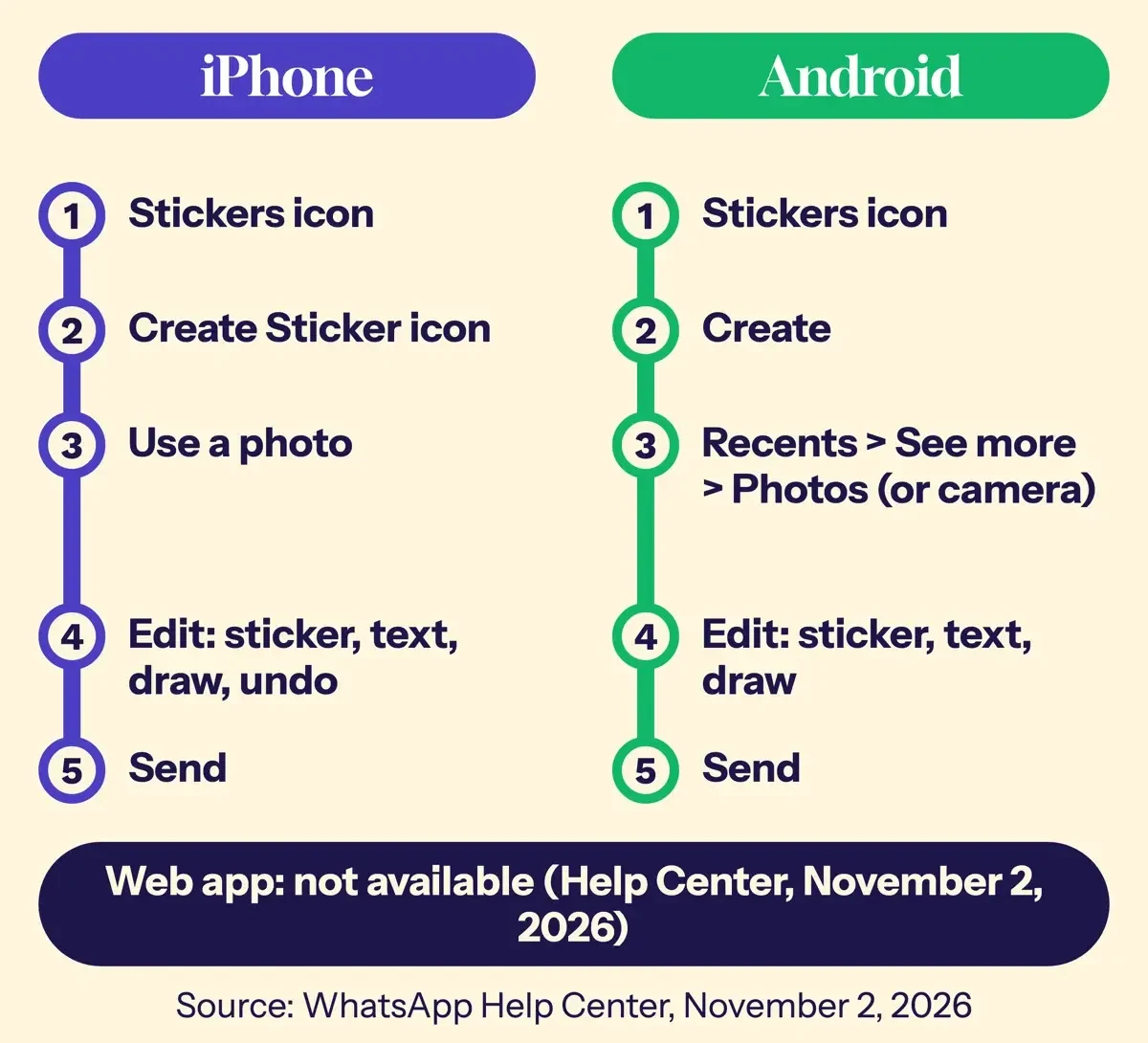 Diagram by DigitalTreed, from the iOS and Android tabs of the WhatsApp Help Center article on custom stickers, November 2, 2026.
Can you make WhatsApp stickers on WhatsApp Web or desktop?
Not on the web app, going by WhatsApp's own help pages as of November 2, 2026. Pick the web tab of the sticker-making article and the page shrinks to one line: "This feature isn't available on the web app, but it is available on these devices." The article on designing custom stickers shows the same line on its web tab. What the web can do is send and sort stickers you already have. On the web tab of How to use stickers, you click the sticker button, then a sticker, and it's "sent as soon as you click it." A search bar takes text or emoji, and a right-click adds a sticker to favorites.
Desktop is murkier: the Windows tab of that page shows no steps, and the Mac tab didn't load for our checker. At a laptop, make stickers on the phone.
Group your stickers into a pack
Once you've made a few stickers on the phone, a pack keeps them together, and the steps differ a little by phone. On Android you tap and hold a sticker in the tray, or tap one in the chat, then choose Add to sticker pack. On iPhone you select the stickers first, then pick the same option. Either way you can drop them into an existing pack or tap New, enter a pack name, then tap Save on Android or Create on iPhone.
How big can a pack get? The Help Center's iOS tab says "Each sticker pack must have between 3 and 30 stickers," and the Android tab says a pack "can have up to 30 stickers."
No photo to start from? WhatsApp can also draw a sticker from a text description. Its AI stickers article says the feature is "currently only available in limited countries," and each description gives you "Up to four stickers." The language lists don't agree, though. The Android tab of the create article names English, Indonesian, Portuguese and Spanish, while its iOS tab says descriptions are "only supported in English." WhatsApp also warns that AI stickers "might not be accurate or appropriate," and you can report one by tapping and holding it. AI images raise their own rights questions, and the US side is covered in ChatGPT image generation for business.
WhatsApp sticker file specs, in one table
The phone maker handles sizing for you, so skip this part if a pack in your own chats is all you need. The specs matter once you or a designer draw sticker art outside WhatsApp. To publish a pack, WhatsApp's page on creating sticker packs says to "package them in an app to be published in the Google Play Store or the Apple App Store." Its GitHub repository holds the sample apps and these rules:
| Rule | Static sticker | Animated sticker | Tray icon |
| Size | Exactly 512 x 512 px | 512 x 512 px | 96 x 96 px |
| Largest file | 100 KB | 500 KB | Under 50 KB |
| Background | Transparent | Transparent | Not stated (must be static) |
| File type | WebP (Android); PNG or WebP (iOS) | WebP only | Not stated |
| Per pack | 3 to 30, all static | 3 to 30, all animated | One per pack |
| Timing | None | Frames 8 ms or longer, 10 seconds total at most | None |
| Recommended | 8 px white outline; 16 px margin (design article only) | Same | None |
"Stickers must be exactly 512x512 pixels," the design article says, and "Each sticker must be less than 100 KB." The tray icon "should be 96x96 pixels and must be less than 50 KB." The iOS README adds that "Animated stickers are supported in the WebP format only." Per the Android README, a pack holds static or animated stickers, "never a mix of both."
One line doesn't match, though. The iOS tab of the create article says "Each sticker image must be 500x500 px" in its static list. Yet the animated list on that same tab says "Stickers should be 512 x 512 in pixels." The design article, the Android tab and both READMEs say 512 as well. We'd build at 512 x 512, since every other WhatsApp line gives that size and the design article says "exactly."
We'd also read 100 KB as 100,000 bytes, the stricter way to count it. There's one more warning in the README for anyone building an iPhone app: the sample app "will not be accepted by Apple." A real app needs its own design; if you hire for it, see what a graphic designer costs in the US.
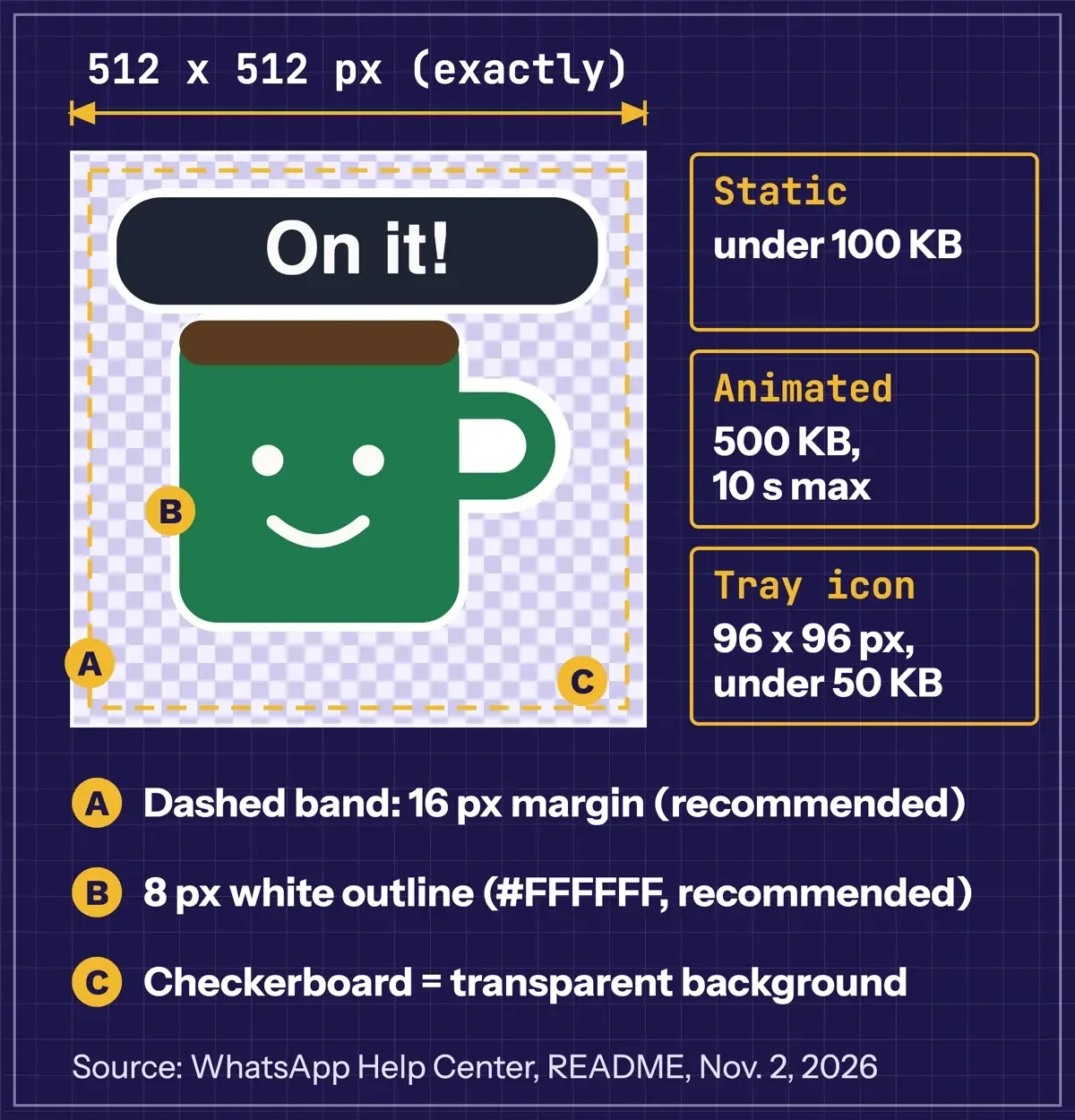 Diagram by DigitalTreed, from the WhatsApp Help Center design article and the WhatsApp/stickers README files, November 2, 2026.
Make a spec-correct sticker file yourself
A static sticker needs no special software: any editor that exports a transparent PNG will do, plus a converter to WebP. WhatsApp's README lists cwebp, Google's command-line encoder, among its options. Google's cwebp documentation says it "compresses an image using the WebP format." We'd work in this order:
- Draw on a 512 x 512 canvas, or 1,024 x 1,024 and scale down later. The design article recommends "a 16-pixel margin between the sticker image and the edge" of the canvas.
- Leave the background transparent and add an 8 px white outline, so the sticker reads on dark chat themes.
- Export a PNG with transparency.
- Convert it with cwebp, then check the pixel size and the byte count.
On a Mac or Linux machine with cwebp installed, those last steps take three commands, and the -resize flag only matters if you drew at a larger size:
cwebp -q 80 sticker-art.png -o sticker.webp
cwebp -q 80 -resize 512 512 [email protected] -o sticker.webp
sips -g pixelWidth -g pixelHeight sticker.webp && ls -l sticker.webp
Quality 80 isn't magic. The cwebp page says -q runs "between 0 and 100" and "The default is 75."
It also says "a small factor produces a smaller file with lower quality." That's the trade you make with a busy photo, while -lossless keeps every pixel, and in our test it cost more bytes for both images. Transparency survives either way: Google's WebP overview says "WebP supports transparency in both lossless and lossy modes." The pixel size lives in the file, too. RFC 9649, the WebP format spec, says "The actual canvas width is 1 + Canvas Width Minus One." That's how our checker read 512 x 512 straight from each file's header.
Our files, byte by byte
We drew one sticker ourselves, a green coffee mug under a dark label that says "On it!" and rendered it at 512 and 1,024 pixels on a transparent background. We also made a busy-photo stand-in, random color noise inside a circle, which is made up and a worst case. Here's every file we produced:
| File (how it was made) | Bytes | Canvas | Under 100,000 bytes? |
| Mug, cwebp -q 80 | 6,610 | 512 x 512 | Yes |
| Mug, cwebp -lossless | 7,574 | 512 x 512 | Yes |
| Mug from 1,024 px, -q 80 -resize 512 512 | 6,650 | 512 x 512 | Yes |
| Busy stand-in, -lossless | 550,252 | 512 x 512 | No |
| Busy stand-in, -q 80 | 115,698 | 512 x 512 | No |
| Busy stand-in, -q 50 | 87,540 | 512 x 512 | Yes |
| Busy stand-in, -q 20 | 59,686 | 512 x 512 | Yes |
| Tray icon, sips -z 96 96 (PNG) | 4,884 | 96 x 96 | Yes (limit 50 KB) |
Flat art barely registers: the mug came to 6,610 bytes at quality 80 and 7,574 bytes lossless, far under the cap.
The busy stand-in is a different story. Lossless, it was 550,252 bytes, more than five times the limit.
Even quality 80 gave 115,698 bytes, over 100 KB however you count a kilobyte, and quality 50 brought it down to 87,540. Every file kept a transparent corner and a 512 x 512 canvas. The mug's art sat 32 to 84 pixels from the edges, so the 16 px margin held. If a photo sticker comes out too big, lower the quality a step at a time. Shrinking the canvas breaks the 512 rule.
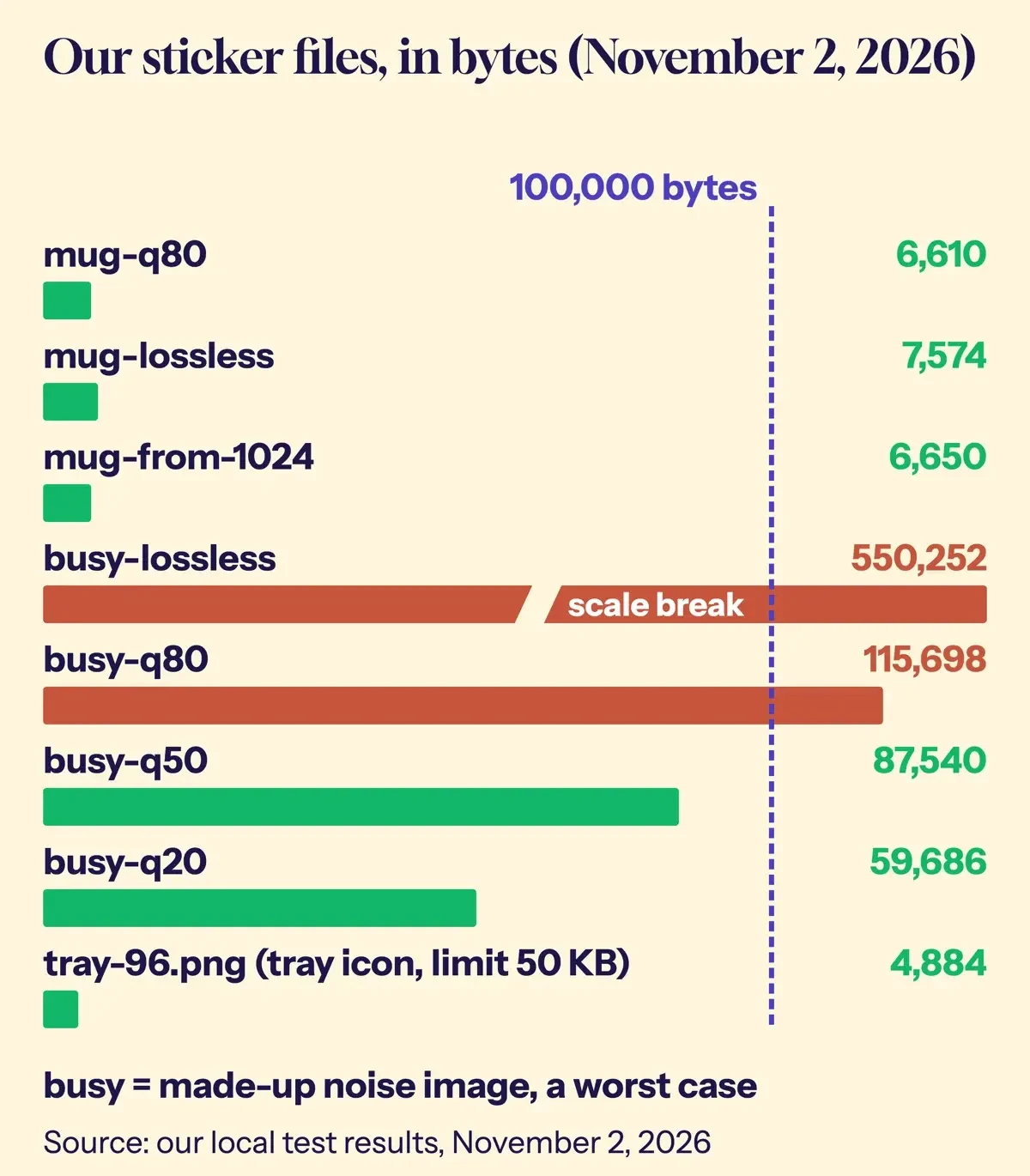 Diagram by DigitalTreed, from our local test results (test/results.json), November 2, 2026. Busy files are a made-up noise image.
What we tested
We ran this on a Mac on November 2, 2026, with cwebp and dwebp 1.6.0 and sips. A short script read every WebP header and measured the transparent margin. A page on 127.0.0.1 shows the mug on white, black, green and striped tiles. We didn't import the files into WhatsApp or try any sticker app.
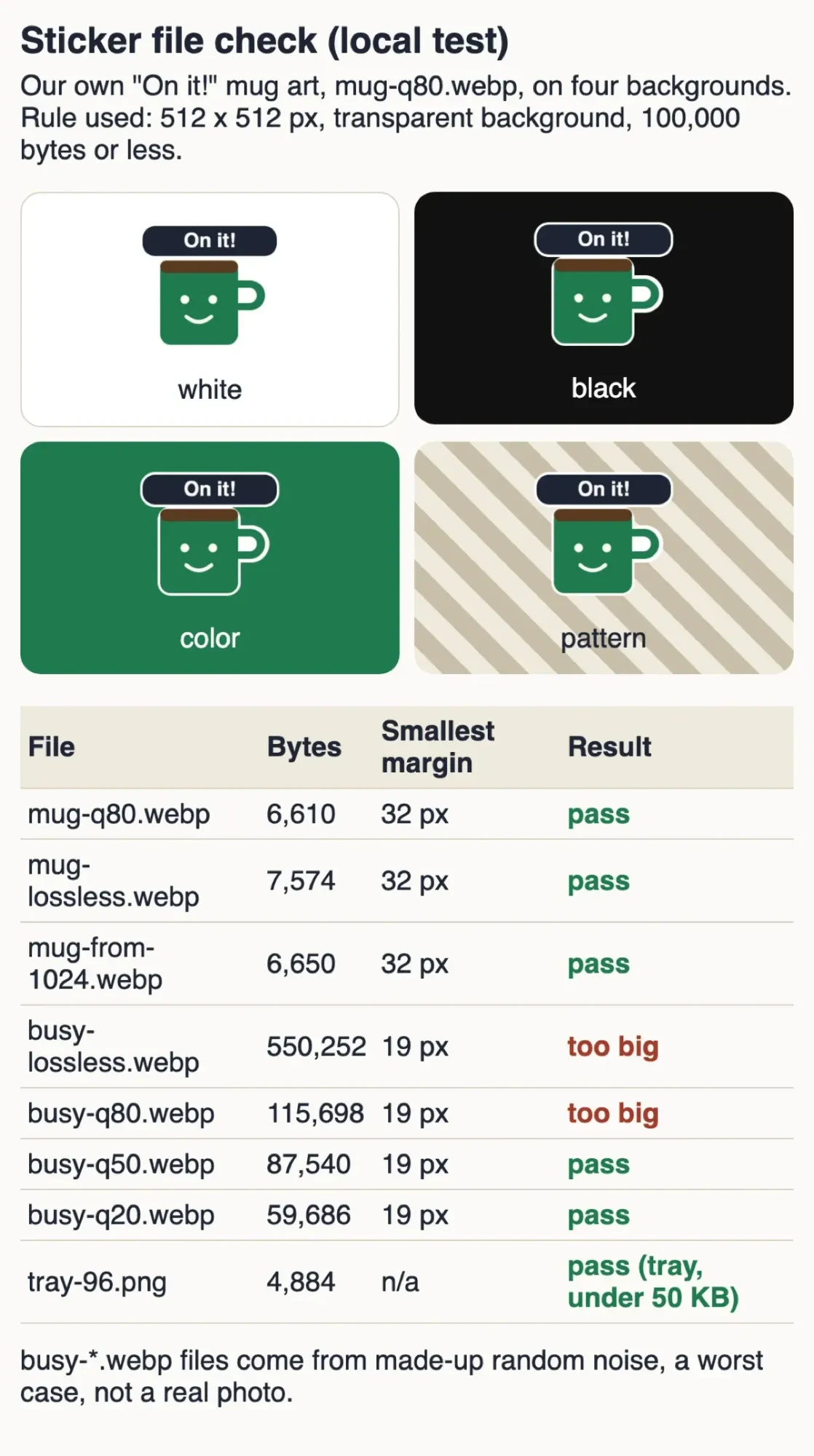 Screenshot: our sticker file check page on 127.0.0.1, November 2, 2026.
Whose photo is it? Copyright before you share a sticker
Those test files were our own drawing, which keeps things simple. A sticker cut from someone else's photo is still a copy of that photo, so US copyright rules travel with it. This isn't legal advice; it's what the US Copyright Office's own pages say. Its What is Copyright page says copyright "protects original works of authorship as soon as an author fixes the work in a tangible form of expression." Its list of works includes photographs and illustrations.
Registration isn't required for that protection, either. The Copyright Office FAQ says "In general, registration is voluntary."
Turning that photo into a sticker can touch one of the owner's rights. 17 U.S.C. 106 gives the owner the exclusive right "to prepare derivative works based upon the copyrighted work." Fair use is the exception people reach for, and section 107 lists four factors, starting with "the purpose and character of the use." The Copyright Office's fair use index is blunt: "Courts evaluate fair use claims on a case-by-case basis," so nobody can promise a movie-scene meme sticker is fine.
WhatsApp adds its own rule. The create article says "WhatsApp stickers must be legal, authorized, and acceptable."
WhatsApp's Terms of Service bar uses that "violate, misappropriate, or infringe the rights of WhatsApp, our users, or others, including privacy, publicity, intellectual property, or other proprietary rights." Note the words privacy and publicity, because a sticker of a friend's face is still their face, and asking first costs you one message. Your own drawing sits at the safe end. The Copyright Office's protection FAQ says "Copyright does not protect facts, ideas, systems, or methods of operation." Nobody owns the idea of a smiling mug, only a particular drawing of one.
Here's what we'd do first. Make three stickers on your phone today from photos you took, put them in a pack and use them for a week. Watch which ones people send back. Move to files and an app only if people outside your chats start asking for them. If you'll sell the pack, or build an app around a character you didn't create, talk to a US copyright attorney before launch. For your own mascot, keep the source files; if someone lifts your art, see how to protect website content from copying.
For the drawing itself, these graphic design tips for small businesses cover the basics, and you can weigh editors in our Photoshop vs Canva comparison. A mascot pack also suits seasonal notes like our Easter wishes for clients and teams, and when words beat pictures, there's always the shrug emoticon.
WhatsApp sticker questions
Frequently asked
Can I make animated WhatsApp stickers?
The Help Center's photo-sticker steps don't mention animation. For a sticker app, the Android README caps each animated sticker at 500 KB. It also says WhatsApp "ends the animation on the first frame after looping," so make that frame the full picture.
Can people see who made my sticker pack?
Yes. On iPhone, the How to use stickers page says "The owner and creator of the sticker pack will be shown below the sticker." Android shows the same through View sticker pack.
Why can't I find a sticker when I search?
WhatsApp warns that stickers from outside the app "might not be searchable if the creator didn't follow WhatsApp guidelines when tagging them." The Android README allows up to three emoji tags per sticker, while the Help Center's iOS tab says "max 2 emojis."
Is registration required to protect my own sticker art?
No, but the Copyright Office FAQ adds: "You will have to register, however, if you wish to bring a lawsuit for infringement of a U.S. work."
How we made this guide: On November 2, 2026, we read WhatsApp's sticker help articles, its sticker READMEs and Terms, and the US Copyright Office pages. We drew, converted and measured our own sticker locally. Facts checked by the DigitalTreed team on November 2, 2026.
First published December 2023 around one third-party sticker app. Rewritten November 2, 2026 around WhatsApp's built-in maker, its published file specs and our own file test.
Sources
- WhatsApp Help Center: How to create and share custom stickers and sticker packs
- WhatsApp Help Center: How to design custom stickers
- WhatsApp Help Center: About creating stickers packs for WhatsApp
- WhatsApp Help Center: How to create and share AI stickers
- WhatsApp Help Center: How to use stickers
- WhatsApp/stickers on GitHub (README)
- WhatsApp/stickers Android README
- WhatsApp/stickers iOS README
- WhatsApp Terms of Service
- US Copyright Office: What is Copyright?
- US Copyright Office FAQ: Copyright in General
- US Copyright Office FAQ: What Does Copyright Protect?
- US Copyright Office: Fair Use Index
- Copyright Law of the United States, chapter 1 (17 U.S.C. 106 and 107)
- Google for Developers: An image format for the Web (WebP)
- Google for Developers: cwebp
- RFC 9649: WebP Image Format
Comments
No comments yet. Start the conversation below.