
Quick answer
When a yt.be/activate code fails, get a fresh code on the TV and type it on your phone, exactly as shown. In our October 29, 2026 trace, that address took 4 redirects to Google's own code page. If the sign-in still loops, put the phone on the TV's Wi-Fi and unplug the TV for 30 seconds.
You're on the couch with a code on the TV, a phone in your hand, and the yt.be activate code not working. Or it worked, and the TV shows someone else's recommendations. The address yt.be/activate is a short YouTube link to the Google page where you type the code your TV or console shows. We'd fix it in the order the sign-in happens.
We start with the two different codes a TV can show and where yt.be/activate takes you. Then come the five sign-in steps, a rejected or expired code, a sign-in that loops on Wi-Fi and the wrong account. Last: why you never type in a code someone sent you, and how to sign the TV out.
Key takeaways
- yt.be/activate, youtube.com/activate and google.com/device all reached one Google page.
- The numbers-only blue TV code links a phone, not your account.
- An expired code is dead, so ask the TV for a new one.
- Put the phone on the TV's Wi-Fi and turn off mobile data.
- Remove Access under YouTube on TV signs every TV out at once.
Your TV can show two different codes
Before you blame the code, check which one you have. The YouTube app on a TV uses two. The first is the sign-in code. YouTube's TV and console sign-in help page says to scan the QR code or go to yt.be/activate on a phone, tablet or computer. Then you enter the code on the screen. That code puts your Google Account on the TV, with your playlists and subscriptions.
The second one looks similar and does a different job. YouTube's page on watching YouTube on a smart TV describes a TV code you find under Settings, then Add a device. YouTube says it shows in blue and is numbers only. You don't type it at yt.be/activate at all. You enter it in the YouTube app on your phone, under Cast, then Add a device, then Link. It was made to pair a phone for casting, so typing it into Google's sign-in page goes nowhere useful. It also has its own rules: YouTube says it isn't available with computers, and it works when the phone and TV are on different Wi-Fi.
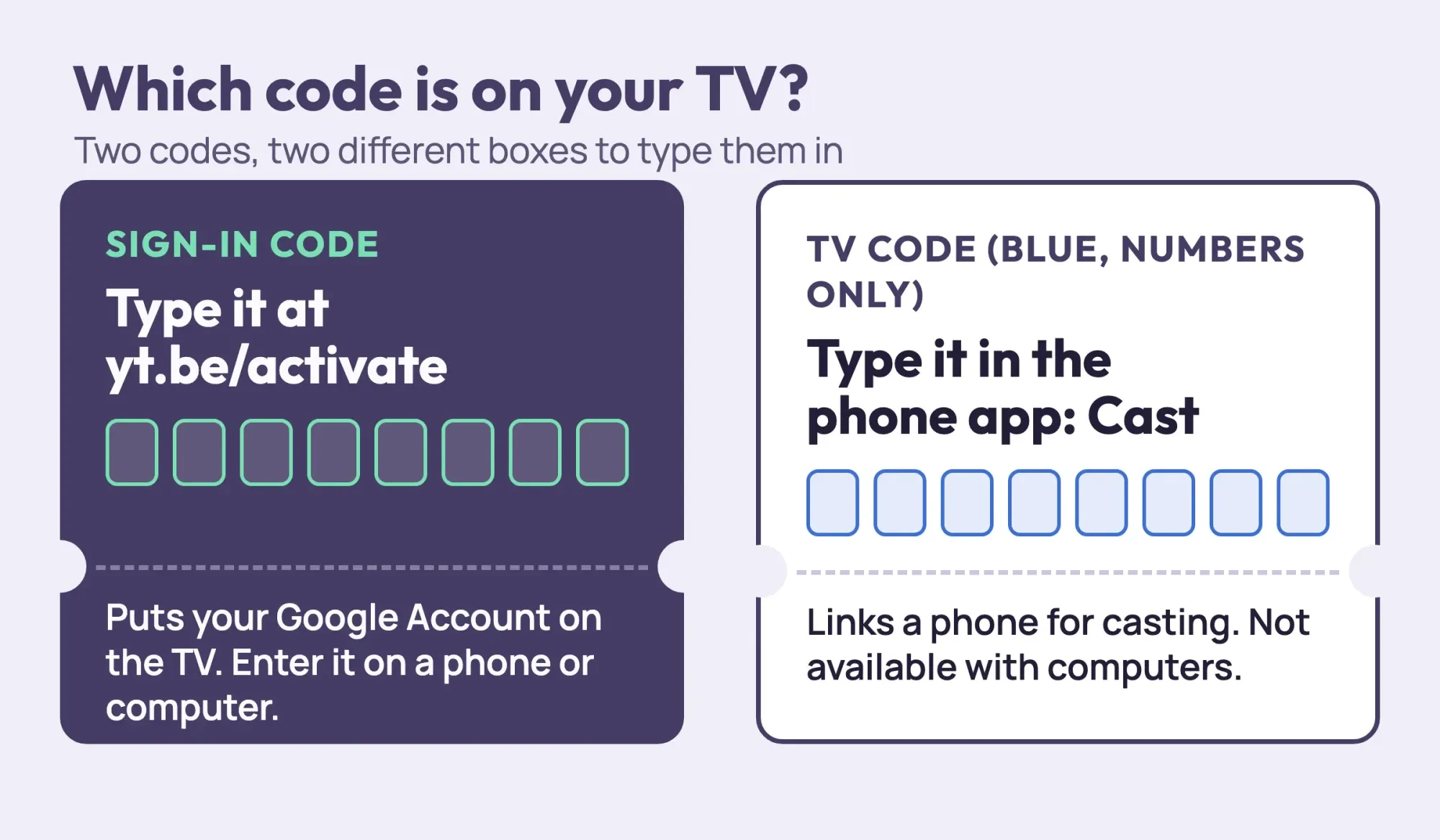 Diagram by DigitalTreed. Both codes as YouTube Help describes them, read October 29, 2026; the dots stand in for real codes.
Seeing only digits under Add a device? You're in the pairing menu, so go back and choose Sign in.
Where does yt.be/activate take you?
Once you have the right code, look at where it sends your phone. The address bar is the quickest way to tell Google's real code page from a copy, and our trace below shows the route it should take.
The domain yt.be is a short one that YouTube uses, and it doesn't host the code box itself. It forwards your browser to a page on accounts.google.com. We traced every hop with a short script. A plain http link to yt.be/activate took 5 redirects, and the https version took 4. Both youtube.com/activate, the address YouTube's Xbox Series X|S help page gives, and google.com/device took 2 each. All four ended at the same Google page, titled Connect a device, which says "Enter the code displayed on your device." Any other domain asking for your TV code isn't part of this route.
The hops themselves are dull, which is good news. The middle stop, youtube.com/tv/activate, is YouTube's own address, and the last jump hands you to Google Accounts. After the first http hop, every step in our trace stayed on https. So on your phone, the address bar should end on accounts.google.com before you type anything.
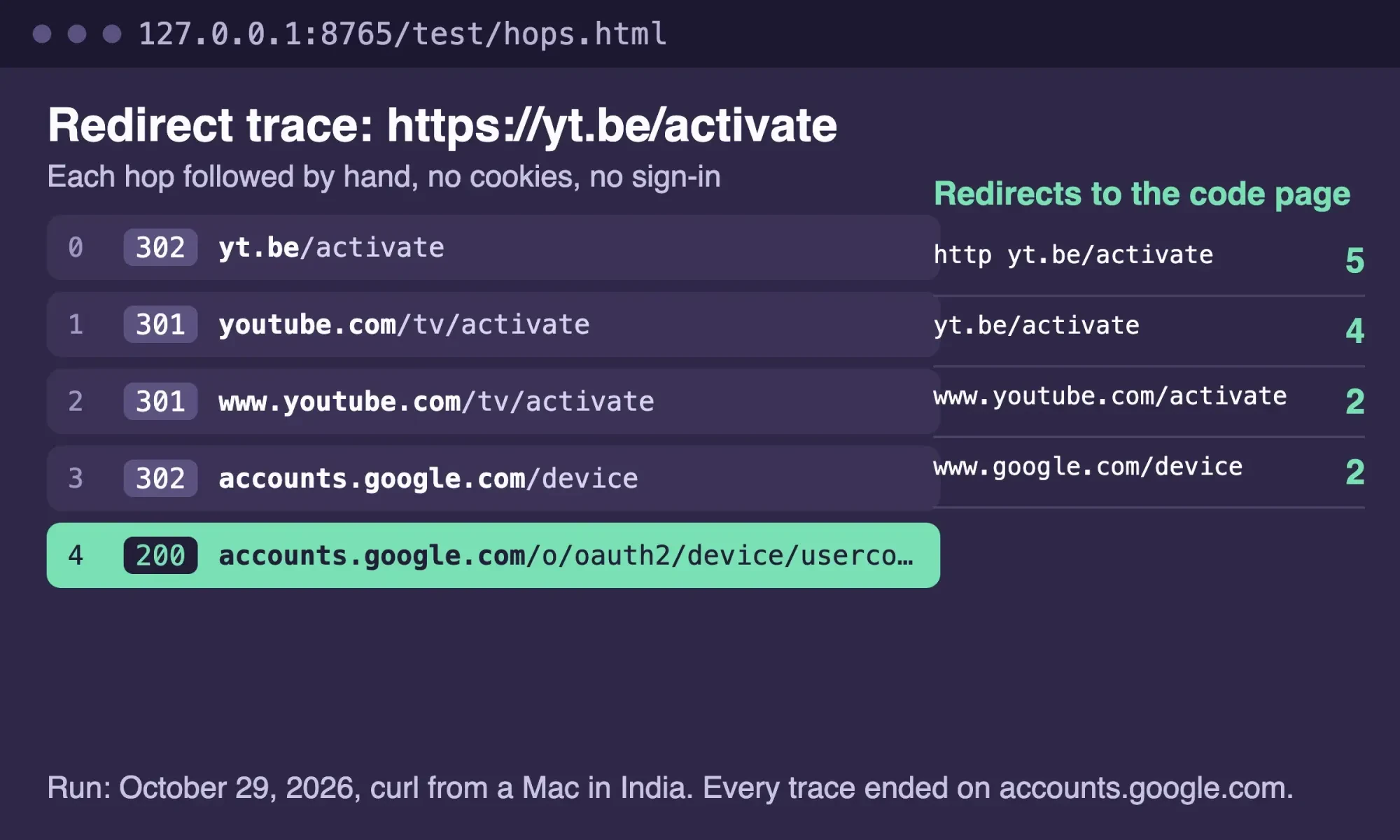 Screenshot: our redirect trace of four activation addresses, run with plain curl and no custom headers, shown on 127.0.0.1, October 29, 2026.
What we tested
Our script, test/hops.py, ran from a Mac in India with plain curl, no custom headers, no cookies and no Google sign-in. It follows each Location header by hand until a page answers 200. No code was typed, so it shows the route, not a sign-in.
$ python3 test/hops.py https://yt.be/activate
  hop 0: 302 https://yt.be/activate
  hop 1: 301 https://youtube.com/tv/activate
  hop 2: 301 https://www.youtube.com/tv/activate
  hop 3: 302 https://accounts.google.com/device?hl=en-GB&enable_delegation=1&pageId=none
  hop 4: 200 https://accounts.google.com/o/oauth2/device/usercode?hl=en-GB&enable_delegation=1&pageId=none
  total redirects: 4
Sign in with the code in five steps
With the route known, the sign-in itself is short. These steps follow YouTube's own help page, and they're the same on a smart TV, a streaming stick or a console. Is the app missing? YouTube's download page for TVs and consoles lists the app store to use on Roku, Fire TV, Samsung, LG, Apple TV, Google TV, PlayStation and Xbox.
- Open the YouTube app on the TV and choose Sign in.
- Pick the phone option, so the TV shows a QR code and a sign-in code.
- Scan the QR code, or open yt.be/activate in a browser on your phone or computer.
- Type the code exactly as the TV shows it, then sign in to Google if you aren't already.
- Choose the Google Account and channel you want, then allow access.
Now watch the TV. On an Xbox Series X|S, YouTube says to go to www.youtube.com/activate, enter the code, then "Click Allow Access, which completes the sign in process."
In Google's developer guide, a TV app checks back with Google every few seconds, and its sample uses 5. So give it a moment. If the phone says you're done and the TV still shows the same code a full minute later, something between the two devices is stuck. The next two sections cover why.
A rejected or expired code needs a fresh one
A rejected code is usually a typo or an old code. Both get the same fix. YouTube's sign-in page only says to make sure you typed the correct code at yt.be/activate. Google's developer guide for TV and limited-input sign-in explains what sits behind that box. The TV asks Google for two codes, keeps one private and shows you the other, then checks back until you finish or the code runs out. How long is that window? YouTube doesn't publish it for its own app. Google's sample response lasts 1,800 seconds, or 30 minutes, but that is one sample, not a published limit for YouTube. It also tells TV apps to show the code unchanged. Copy it exactly.
An expired code can't be saved. IETF's RFC 8628 on the device authorization grant says that at that point "the device authorization session has concluded."
The device can start a new request. On a TV, that means backing out of the sign-in screen and choosing Sign in again, so the app asks for a fresh code. Then type the new one straight away, while it's still on the screen, and don't reuse a code you wrote down earlier.
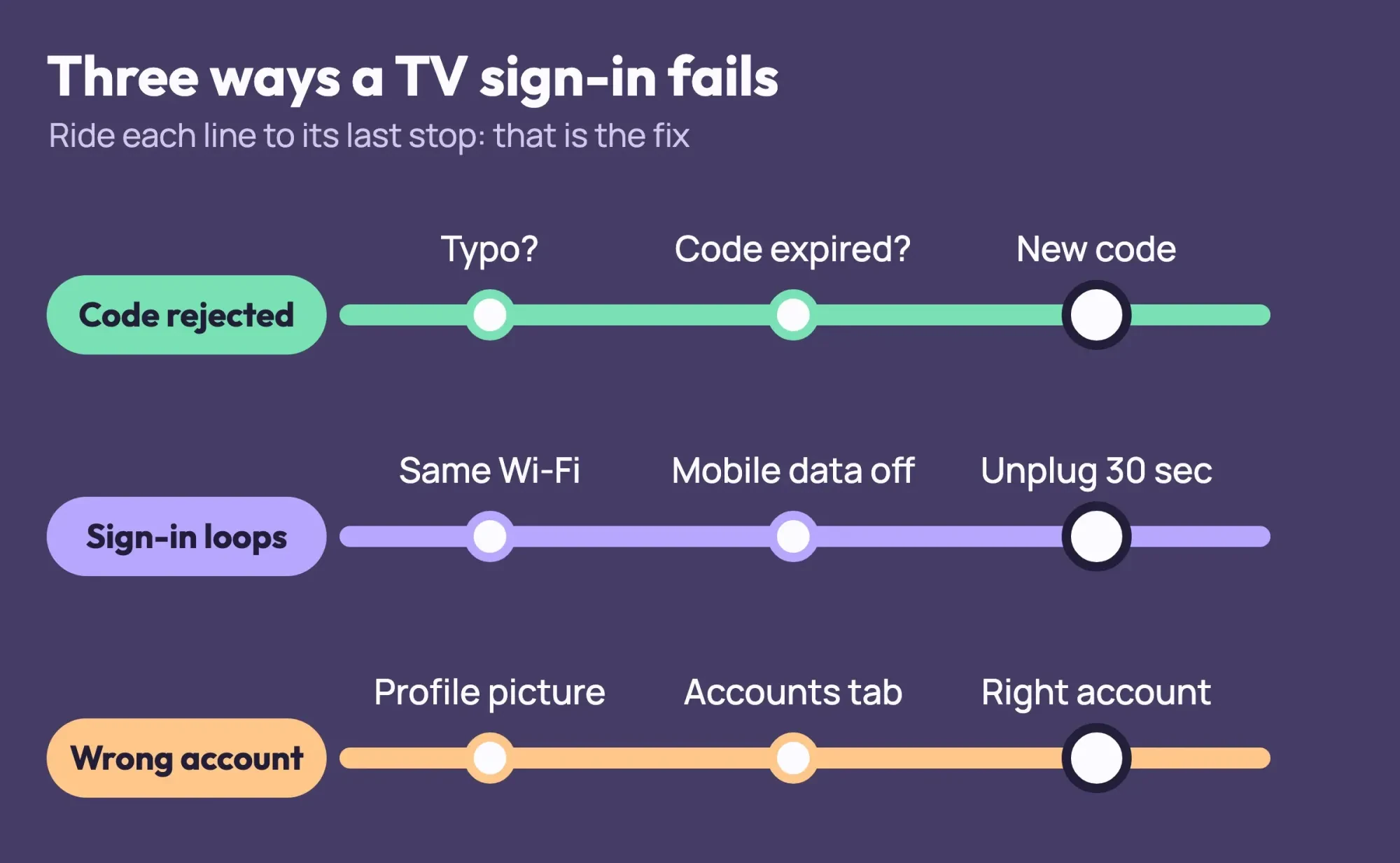 Diagram by DigitalTreed. Fixes from YouTube Help and Google for Developers, read October 29, 2026.
Did a fresh code fail twice in a row, typed straight from the screen? Then the code itself is fine, and the problem sits between the phone and the TV, so stop retyping and check the connection.
If the sign-in loops, check the Wi-Fi first
A loop is when the phone says you're signed in and the TV keeps showing the code, or drops back to the start. YouTube's sign-in help page lists the checks in a set order. First, the TV should be on the same Wi-Fi network as your phone, and you can see the TV's network in its Settings menu. Next, the phone shouldn't be on mobile data instead of Wi-Fi, so turn mobile data off for a minute while you sign in.
Still stuck? YouTube's next step is to unplug the TV or streaming device for 30 seconds, then reboot your router and your phone.
Seeing an error number instead of a loop? Our guides to YouTube error 503 on a TV and YouTube error 400 cover those restarts.
There's also a way around the phone entirely. YouTube says that if one sign-in option isn't working, you should try the other one, using the remote and the on-screen keyboard to type your Google Account details. It's slower, and a long password on a TV keyboard is no fun. But it skips the code, so it's the quickest test of whether the code route is the real problem. If the remote sign-in works and the code never does, look at the phone's side: its network, its browser or the account it's signed in to.
The TV signed in to the wrong account
Sometimes the code works and the wrong person ends up signed in, which happens when a phone holds more than one Google Account and you tap the first one offered. YouTube's help page lets each person add an account on the TV and switch between them. Open the left-hand menu, select the profile picture at the top, then pick the account under the Accounts tab. A TV that opens on Who's Watching? lets you choose there instead. Matching accounts matter later, too. YouTube's casting page says your phone only works as a companion to the TV when both are logged into YouTube with the same Google Account.
Brand Accounts cause a quieter failure. YouTube's Nintendo Switch page warns you can't sign in with a Brand Account that has no YouTube channel.
Example (made up): Thistlerock Kids Dental in Kearney, Nebraska, plays YouTube on a waiting-room TV. The office manager signed it in with a personal account, so patients saw that person's recommendations. The fix is to add a separate office account on the TV, switch to it, and then sign the personal account out with the steps in the last section. Guest mode also works for a TV that only plays a set playlist, and YouTube says guest actions won't affect any account's recommendations.
Consoles add a twist. YouTube's PlayStation page notes that linking your Google Account to your PlayStation account will not sign you in to YouTube, so you still need the app's own sign-in.
Business channels usually sit on a Brand Account, and our step-by-step guide to a business YouTube channel shows how those accounts and channel roles fit together.
Never type in a code someone sent you
Every code you enter at yt.be/activate should come from a screen in front of you, and nowhere else. That rule matters because the same system that makes TV sign-in easy also makes a quiet scam possible. RFC 8628 has a section on remote phishing. It warns that an attacker can start the sign-in on a device they hold. The attacker might then "send an email instructing the target user to visit the verification URL and enter the user code." If you do, their device gets your account.
So treat any text, email or support chat that hands you a code as a red flag, however official it looks. Google's Avoid and report scams page puts the rule plainly: "No reputable person or agency will ever demand payment or your personal information on the spot." YouTube's sign-in help page mentions no fee for activating a TV. A site that asks you to pay, or to call a number for an activation code, isn't the page our trace reached.
If you already typed in a code you didn't create, sign that device out right away using the steps below. Then change your Google password, picking a new one with our free password generator so it shares nothing with the old one. You can also report the scam to the FTC at ReportFraud.ftc.gov.
Sign the TV out when you leave it behind
Signing in is only half the job. A TV you no longer control stays on your account until someone signs it out, and YouTube gives you a way to do that without the TV.
A hotel TV, a rental, a dorm lounge or a set you sold may still have your account on it. YouTube's page on signing out of YouTube on a TV gives two routes. With the TV in front of you, open the left menu, select your profile picture, pick your account and choose Sign out. Without the TV, use any phone or computer: YouTube points to the device activity page in your Google Account, where you select the device and choose Sign out. Google's devices help page says that list covers devices signed in now or in the last few weeks. It suggests signing out of devices that are lost, sold or not yours.
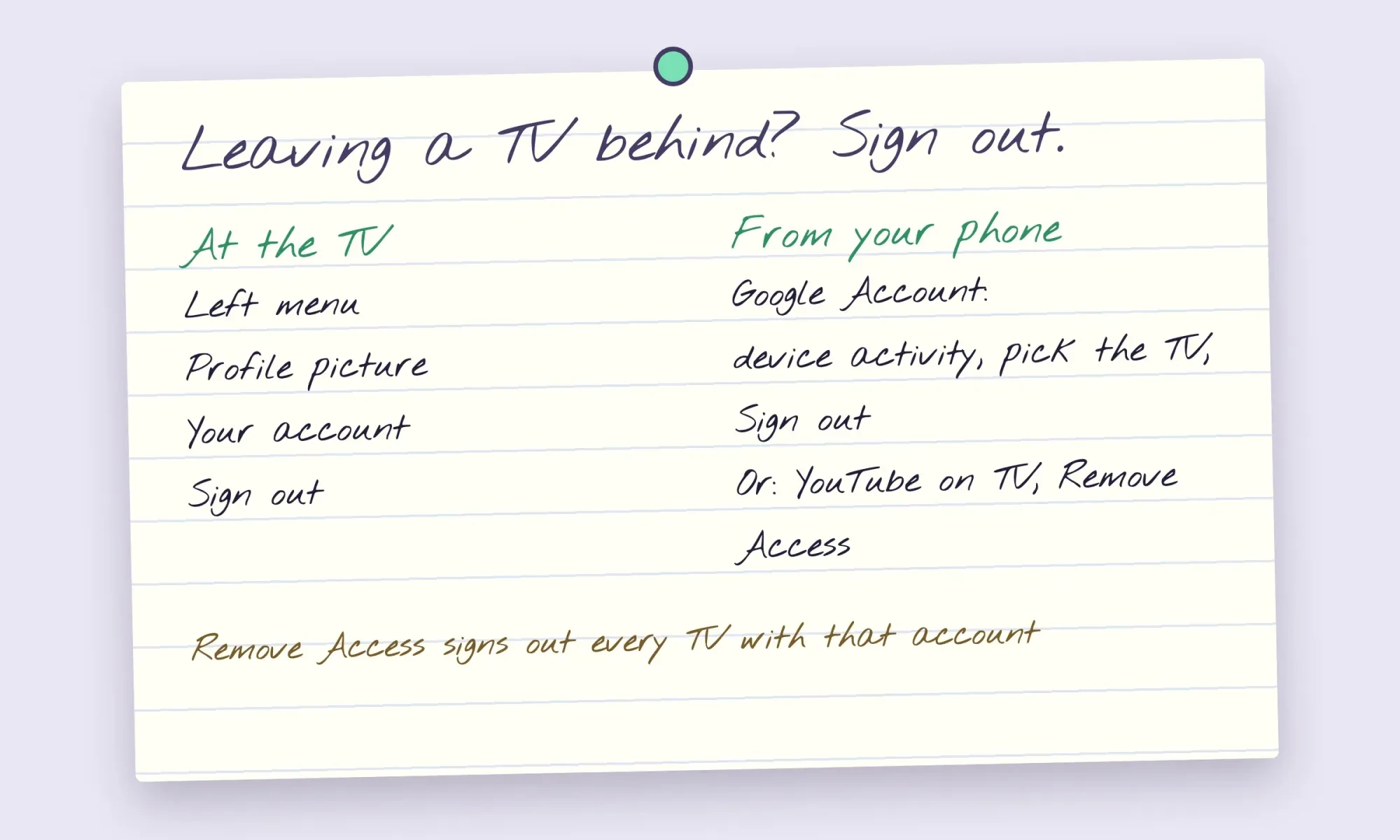 Drawn by us. Steps from YouTube Help and Google Account Help, read October 29, 2026.
For a clean sweep, go to the permissions page in your Google Account, find YouTube on TV and choose Remove Access. YouTube warns that removing access will sign you out of any device using the YouTube on TV app with that account. That's handy after a move, though you'll need a fresh code on your own TV afterward. For the made-up dental office above, device activity is the gentler tool. It signs out the waiting-room TV and leaves the manager's TV at home signed in.
Our take: when a code fails, get a fresh one and enter it on a phone that's on the TV's Wi-Fi before trying anything else. If you stream on other apps too, we've also covered canceling Hulu through a partner and streaming app error codes and their fixes.
Is the TV in your lobby the easy part, and the channel behind it the hard one? Our social media management page lists YouTube among the platforms DigitalTreed runs for businesses.
Questions about TV sign-in codes
Frequently asked
Why can't I find the YouTube app on my TV?
YouTube's app download page says the app is already on most smart TVs. On a Roku, add it from the Streaming Store, and a "Channel added" message confirms it.
Does yt.be/activate work on an older Chromecast?
No. YouTube's TV sign-in page says older Chromecast devices don't support signing in directly. Cast from your phone instead.
How do I unlink my phone from the TV?
On the TV, open Settings, then Linked devices, then Unlink all devices. YouTube's casting help page notes that devices can't be unlinked one by one, and relinking needs a new TV code.
Is YouTube TV the same as the YouTube app on my TV?
No. YouTube TV is a separate live TV service with its own YouTube TV Help Center. YouTube TV's own help page calls its app different from the YouTube app, though on some TVs you can open YouTube TV inside the YouTube app.
How we made this guide: Signed out, we read eight YouTube Help pages, two Google help pages, Google's developer guide for TV sign-in and RFC 8628. Each is cited inline. Our redirect trace used plain curl with no custom headers, and no code was entered. Facts checked by the DigitalTreed team on October 29, 2026.
First published December 2023 as a short yt.be/activate walk-through. Rewritten October 29, 2026: now a fix guide by sign-in step, with a redirect trace, the two-code difference and sign-out steps.
Sources
- YouTube Help: Sign in to the YouTube app on your smart TV or game console
- YouTube Help: Watch YouTube on your smart TV, cast videos or use your phone as a companion
- YouTube Help: Download the YouTube app on your smart TV or game console
- YouTube Help: Sign out or remove an account from YouTube on your TV or game console
- YouTube Help: Watch YouTube on the Xbox Series X|S
- YouTube Help: Watch YouTube on the Nintendo Switch
- YouTube Help: Watch YouTube on PlayStation
- YouTube TV Help: Download and control YouTube TV on your TV
- Google Account Help: See devices with account access
- Google Help: Avoid and report scams
- Google for Developers: OAuth 2.0 for TV and Limited-Input Device Applications
- IETF RFC 8628: OAuth 2.0 Device Authorization Grant
- Federal Trade Commission: ReportFraud.ftc.gov
Comments
No comments yet. Start the conversation below.