
Quick answer
As of October 29, 2026, CapCut's own guide says to select the clip and click Crop above the timeline. Pick 9:16 and drag the box onto your subject. A 1080p wide clip keeps only 607.5 of its 1,920 pixels across, so a 4K source stays sharper. Set the project Ratio to 9:16 first, then export at 1080 x 1920.
You filmed a product demo sideways, and now TikTok, Instagram Reels and YouTube Shorts all want it standing up. A 9:16 crop throws away about two-thirds of the picture. Cropping is a frame edit that cuts the edges of the picture without changing the clip's length. We'd do this job on a computer rather than a phone, because a big preview makes a drifting subject easy to spot.
First we check that CapCut desktop is still available in the US, then sort out canvas ratio versus crop and the 9:16 crop steps. After that come how to reframe a moving subject, where captions and buttons belong, and the export settings each app accepts.
Key takeaways
- Shoot 4K for vertical; a 1080p clip keeps only 607.5 pixels across.
- A 9:16 crop keeps 31.6% of any wide 16:9 clip's width.
- Our fixed center crop kept a moving subject whole in 86 of 180 frames.
- Meta asks Reels ads to keep the bottom 35% free of text.
- A 9:16 canvas with an uncropped wide clip was 68.3% black bars.
Is CapCut desktop still available in the US?
Before any cropping, it's fair to ask whether the app is still sold here, since its publisher is Bytedance Pte. Ltd. As of October 29, 2026, it is.
Apple's US App Store listing for CapCut shows version 19.9.0 and says it runs on a Mac with macOS 10.14 or later. The Google Play listing shows an update dated October 28, 2026.
For Windows, the build comes from CapCut's own site. Its desktop editor page lists Windows 7 or above, with Windows 10 recommended, and macOS 10.14 or above. Price is less clear. CapCut's Pro pricing help page states that cost varies by region, device and promotion, so read the plan screen inside the app. The crop guide calls the crop tool free with no watermark. That's CapCut's claim, and we didn't export from the app to check it.
Canvas ratio and crop do different jobs
Before any crop comes the canvas ratio, the shape of the whole project and the frame every clip sits inside. A crop decides which part of one clip shows in that frame. CapCut's crop guide for CapCut PC treats them as two settings. You crop the clip to 9:16. Setting the Ratio to 9:16 as well makes the preview match what TikTok shows.
Here's the usual mistake. Set the canvas to 9:16 but leave the wide clip uncropped, and it shrinks to fit the width with black above and below. In our test, a 1920 x 1080 clip in a 1080 x 1920 frame filled 31.7% of the height. The other 68.3% was black. The math is plain: 1,080 / 1,920 x 1,080 gives 607.5 rows of picture out of 1,920, and ffmpeg rounded that to 608. One more catch: our bars-only file and our cropped file were both exactly 1080 x 1920, so the dimensions alone won't tell you which you made. Only the preview will.
CapCut's guide also separates cropping from two tools that sound alike. Trimming cuts time from the start or end of a clip, while resizing scales the whole frame up or down without removing any of it. Cropping is the only one of the three that throws picture away, which makes it the setting to check twice.
If the clip is also headed for Stories, the 9:16 frame is the same. Our list of Instagram Story ideas has formats to fill it.
Crop a clip to 9:16 in CapCut desktop
So the order is canvas first, crop second. CapCut's guide and its crop video tool page describe these steps as of October 29, 2026:
- Import the wide clip and drag it onto the timeline.
- Set the project Ratio to 9:16 so the preview shows a vertical frame.
- Select the clip, then click Crop in the toolbar above the timeline.
- Choose 9:16 in the pop-up, or Free to draw the box by hand.
- Drag the box onto your subject, rotate it if the shot is tilted, and click Confirm.
- Play the clip through once before you export.
The pop-up also lists fixed shapes such as 3:4 and 1:1, and Free covers the rest. CapCut's guide suggests 1:1 or 4:5 for the Instagram feed and 16:9 for regular YouTube videos. A square post uses the 1:1 preset. The guide doesn't name 4:5 in the pop-up, so for a 4:5 post use Free and size the box by eye. At full height, a 1920 x 1080 clip keeps 607.5 pixels across for 9:16, 864 for 4:5 and 1,080 for a square. We'd cut the vertical version first, since it loses the most picture, and make the wider crops after.
The tool page adds a ratio lock for the crop box, covered in the questions below. CapCut sets no fixed limit on how far you can crop, but every pixel you trim is one the export must stretch back. Example: tighten a 9:16 box on a 1080p clip by 20% and it keeps 486 pixels across (607.5 x 0.8), stretched 2.22 times to reach 1,080.
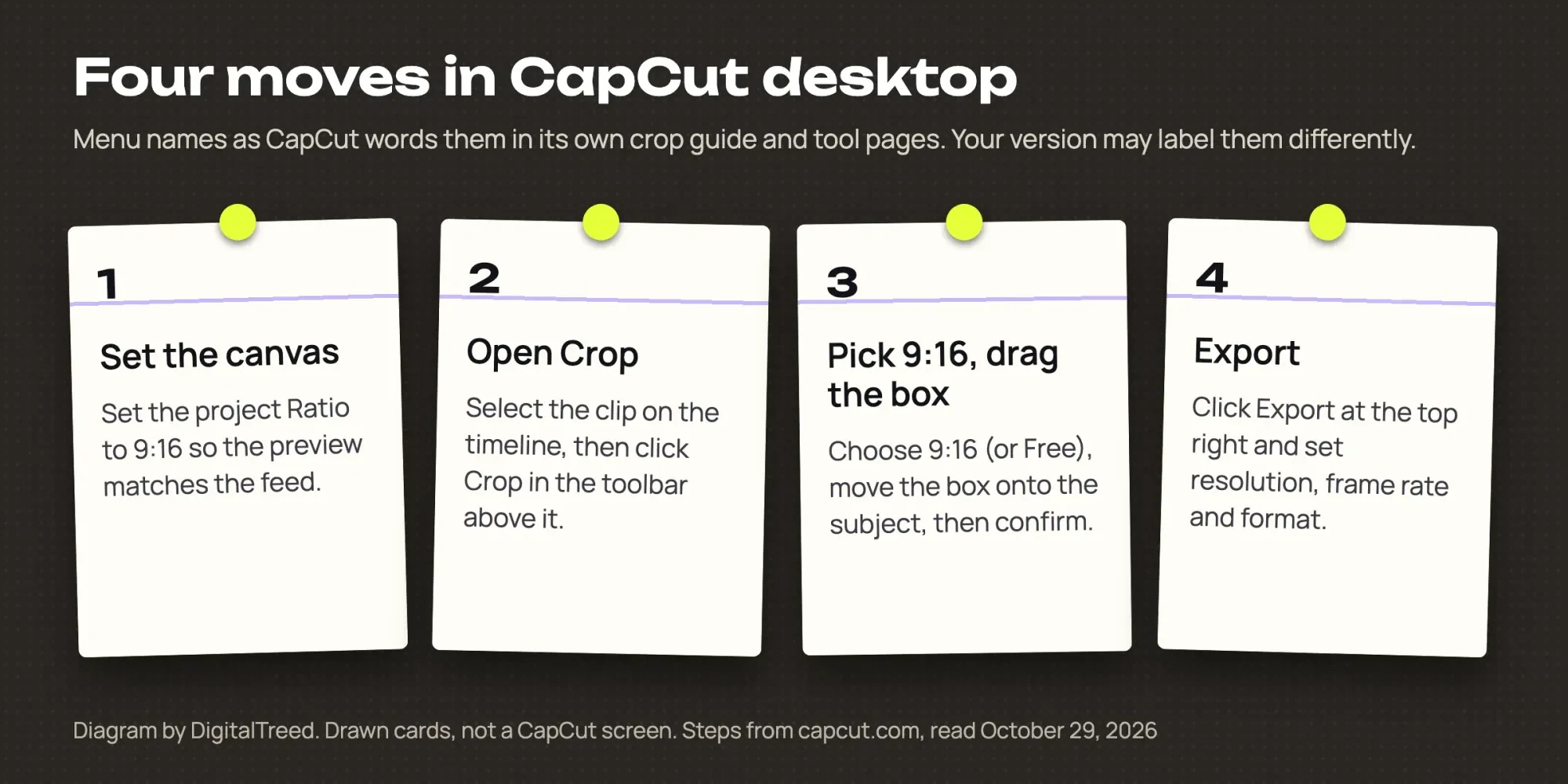 Diagram by DigitalTreed. Steps as worded on capcut.com, read October 29, 2026; drawn cards, not a CapCut screen.
If a menu name doesn't match your screen, check your version before anything else. CapCut's help page on updating CapCut PC puts the update button in the top-right corner and says the app checks for and installs the latest version itself. It warns that uninstalling during an update may cause loss of locally saved projects. Keep the app open on a stable connection until it's done.
Reframe a wide clip when the subject moves
A single crop box works when the subject stays put. Most clips don't. To see how much a fixed box loses, we built a test file with a dark square sliding 960 pixels across a 1920 x 1080 frame in 6 seconds. We cropped it to 9:16 two ways and exported both at 1080 x 1920. Our fixed crop from the center kept the square whole in 86 of 180 frames, cut it off in 57 and lost it completely in 37. The crop that moved with the square kept it whole in all 180. In a real clip, that's a viewer seeing your product the whole time versus an empty counter at the end.
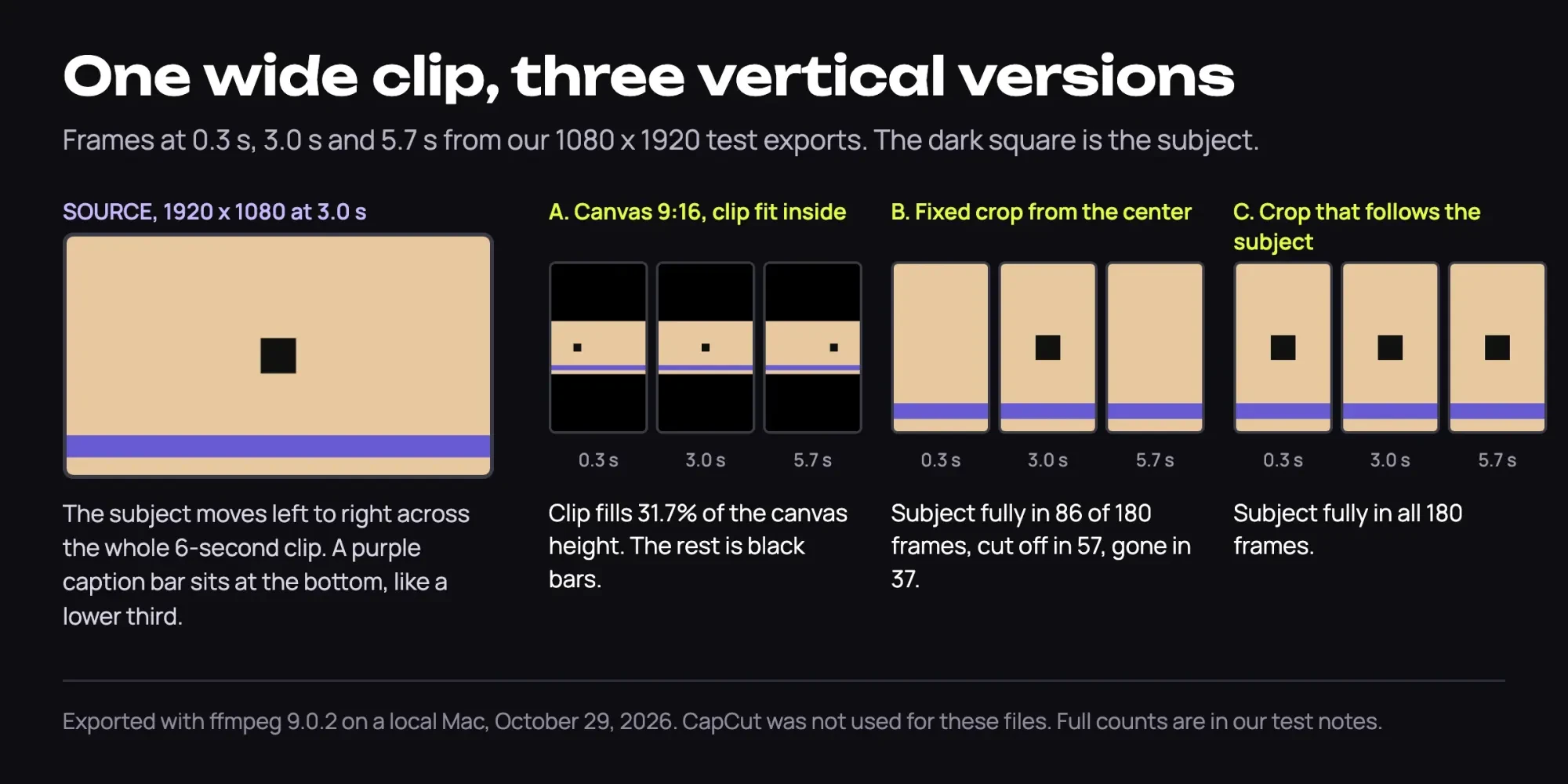 Diagram by DigitalTreed: frame grabs from our ffmpeg test exports, October 29, 2026. CapCut was not used for these files.
CapCut offers two ways to make the moving version. Its crop guide pairs Crop with keyframes for pans that follow the subject: you set the box at one point, move along the timeline and move it again. Its Auto reframe page describes a switch in the Video panel that tracks the subject at the ratio you pick. It has settings for image stabilization and camera moving speed.
CapCut notes the feature is available in specific regions, so your copy may have Crop but no Auto reframe.
We'd try Auto reframe first where it shows up and fix its misses with keyframes. If the clip also runs on YouTube, our guide to reading the audience retention graph shows where people stopped watching. That's a fair check on whether the reframe held them.
What we tested
We didn't install or run CapCut. On October 29, 2026, we rebuilt the same crop math with ffmpeg 9.0.2 on a local Mac, and a Python script counted the square's pixels per frame. A frame counted as whole when 97% or more showed. The two crops:
ffmpeg -i source-16x9.mp4 -vf "crop=608:1080:656:0,scale=1080:1920" out-b-center-crop.mp4
ffmpeg -i source-16x9.mp4 -vf "crop=608:1080:'min(max(480+160*t-304,0),1312)':0,scale=1080:1920" out-c-follow-crop.mp4
Keep captions and buttons off the subject
Even with the subject in frame, the app's own layer can still cover it. Vertical feeds put the account name near the top and the caption and buttons along the bottom.
Meta's ad specs for Instagram Reels ask for at least 14% of the top, 35% of the bottom and 6% of each side to stay free of text and logos.
On a 1080 x 1920 export, those shares come to 268.8 pixels at the top, 672 at the bottom and 64.8 on each side. What's left is a box of about 950 x 979 pixels, close to a square and a little above the middle. Our test shows why the bottom number bites. The caption bar near the bottom of the wide source landed at rows 1,600 to 1,775 after the crop. Meta's bottom 35% starts at row 1,248.
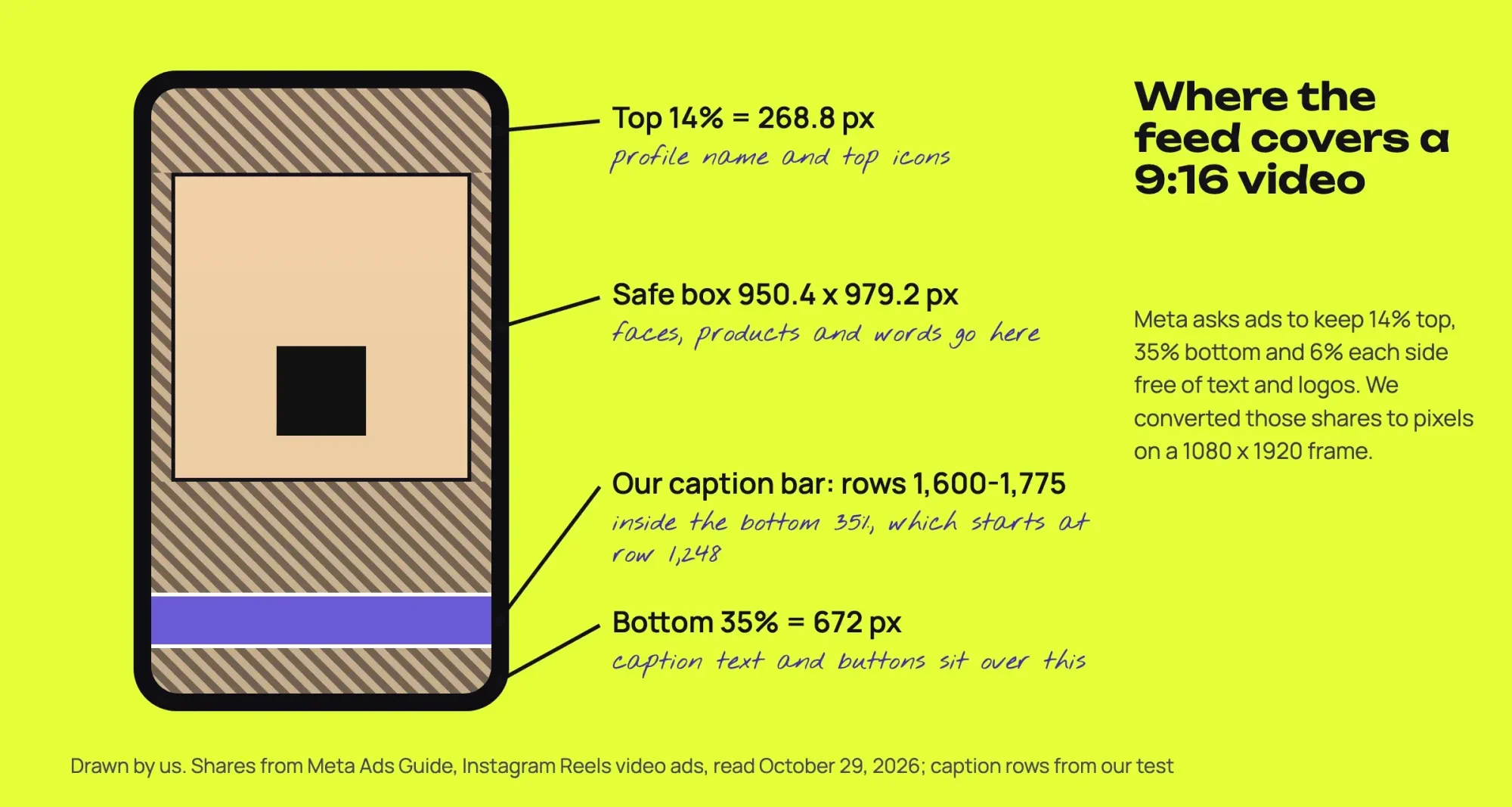 Drawn by us. Shares from Meta Ads Guide, Instagram Reels video ads, read October 29, 2026; caption rows from our test.
So move burned-in captions up into the safe box, or add text after the crop so you can place it on the new frame. TikTok publishes its safe zones as downloadable files on its In-Feed ads specs page, but we didn't download them, so we can't give you TikTok's pixels. Our Facebook Stories size guide works through the same Meta percentages for story ads. Before you crop, scrub through the clip and note anything important that sits low in the frame, like a price card, a shirt logo or a pointing hand. Those are the details the bottom margin hides first.
Export settings for TikTok, Reels and Shorts
With the crop set, export is where each app's rules come in. Our three vertical test files came out at 1080 x 1920, H.264 with AAC audio at 30 frames per second. Here's what each platform's own page says, as of October 29, 2026:
| App | Shape | Limits on the page | Page |
| TikTok In-Feed ads | 9:16 recommended | 540 x 960 or larger; up to 10 minutes; 500 MB or less | TikTok Ads Help |
| Instagram Reels (API) | 9:16 recommended | 23-60 fps; 1,920 px wide at most; 3 seconds to 15 minutes; 300 MB | Instagram Platform docs |
| Instagram Reels ads | 9:16 | 1440 x 2560; 0 seconds to 15 minutes | Meta Ads Guide |
| YouTube Shorts | Square or vertical | Up to 3 minutes | YouTube Help |
One file can meet every limit in that table. Ours would be 9:16 at 1080 x 1920, H.264, 30 frames per second, between 3 seconds and 3 minutes long, and under 300 MB. That's our pick, not any one app's rule. The TikTok row is the ads spec, since TikTok's help page for regular uploads didn't load for us. The ads page also asks for a bitrate of at least 516 kbps. The Instagram row comes from Meta's Reels publishing specs, and YouTube's Shorts upload page sets the 3-minute cap. CapCut's crop guide puts its export ceiling at 4K and 60 frames per second.
Resolution is where the crop costs you. A 9:16 crop is as tall as the source and 9/16 of that height wide. That keeps 31.6% of any 16:9 clip's width (9/16 x 9/16 = 0.316). So a 1920 x 1080 clip keeps a 607.5 x 1080 slice, and exporting it at 1080 x 1920 stretches it 1.78 times. A 4K clip keeps 1215 x 2160, more than the export needs, which is why we'd film in 4K whenever a clip is headed for a vertical feed. A 720p clip fares worst: its 405-pixel slice gets stretched 2.67 times, against 1.33 times for the 810-pixel slice from 1440p.
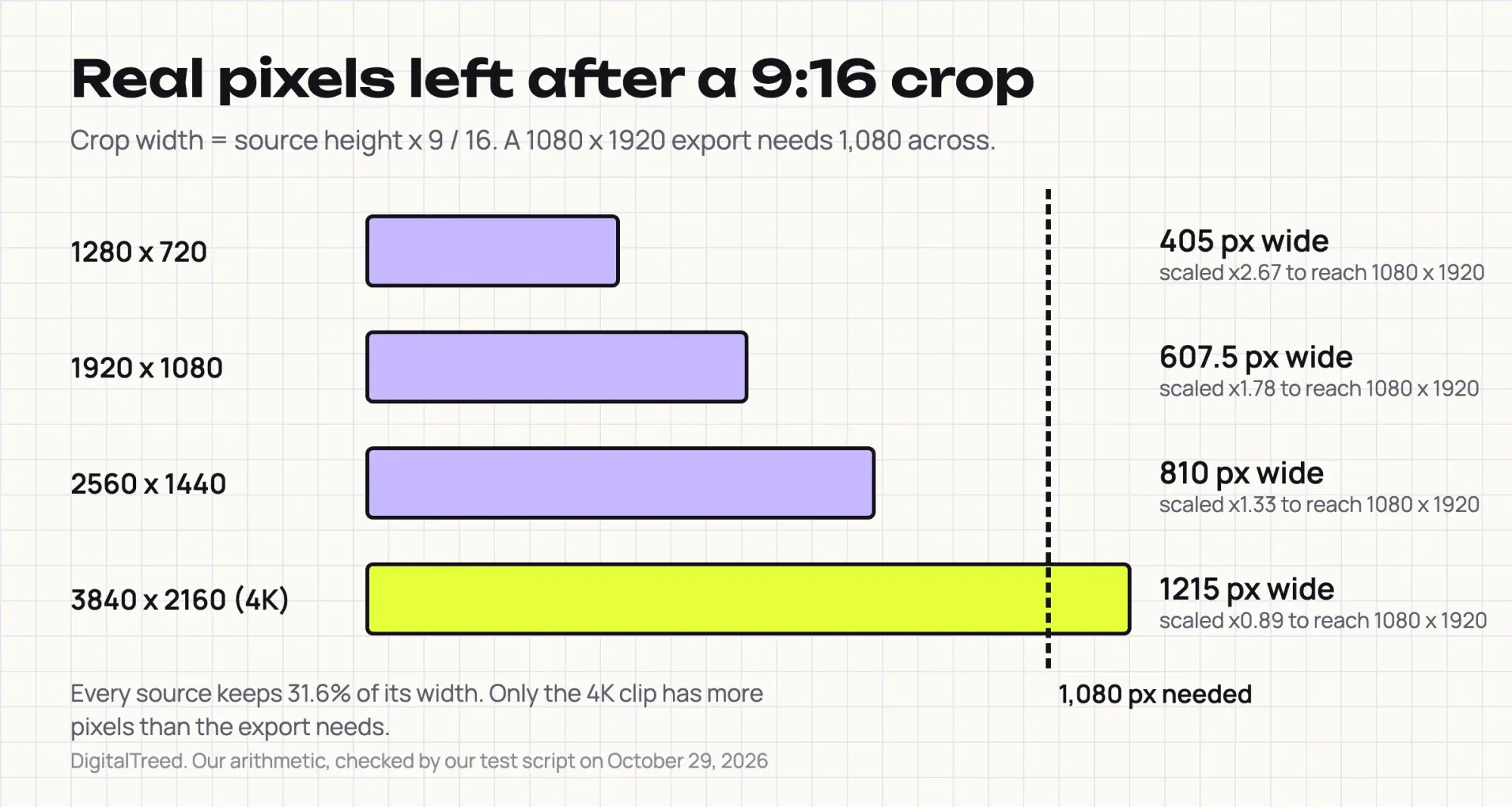 Diagram by DigitalTreed. Our arithmetic, checked by our test script on October 29, 2026.
Before you click Export, pick a cover frame. Our guide to thumbnail optimization covers what makes people tap one.
YouTube's Shorts help page caps a Short's title at 100 characters, so we'd put the product name in the first few words. For the description and tags, see how to rank videos on YouTube and Google.
If you're deciding whether a short clip should come before a written post, our comparison of video and blog posts sets out the trade.
Our take: set the canvas first, crop with a box that follows the subject, and keep words inside the safe box. Then export one 1080 x 1920 file for all three apps.
To hand off the editing, DigitalTreed's graphics and video service can take it on. Our editors charge for it, and one practice crop on your own footage will tell you whether you need them.
Questions about cropping in CapCut desktop
Frequently asked
Why does my CapCut export have a watermark?
Usually it isn't the export. CapCut's watermark help page traces it to a default ending clip or a template element. Delete that clip and export again.
Can I lock the aspect ratio while cropping in CapCut?
Yes. CapCut's crop tool page lets you lock the ratio so the video won't stretch, and it lists a 1:1 preset.
Can I upload several Shorts at once from a computer?
Yes. YouTube's Shorts upload page allows up to 15 short videos at a time in YouTube Studio. Open each draft to add details first.
Will Instagram take a Reel that is not 9:16?
Through Meta's API, yes. Its Reels specs allow ratios from 0.01:1 to 10:1 but recommend 9:16 "to avoid cropping or blank space."
How we made this guide: CapCut's own pages supplied the clicks, since the app wasn't installed, and our numbers come from ffmpeg test files on a local Mac. Facts checked by the DigitalTreed team on October 29, 2026.
First published December 2023 as a general CapCut PC crop guide. Rewritten October 29, 2026: now covers vertical reframing, safe zones and export settings, with a local test.
Sources
- CapCut: How to crop video in CapCut PC
- CapCut: Crop video tool
- CapCut: Auto reframe
- CapCut: Desktop video editor
- CapCut Help: Update CapCut to the latest version on PC
- CapCut Help: Remove the watermark when exporting a template video
- CapCut Help: How much does CapCut Pro cost
- Apple App Store (US): CapCut
- Google Play: CapCut
- YouTube Help: Upload YouTube Shorts
- YouTube Help: Get started creating YouTube Shorts
- TikTok Ads Help: Auction In-Feed ads specifications
- Meta Ads Guide: Instagram Reels video ads
- Instagram Platform: IG User Media (Reels specifications)


Comments
No comments yet. Start the conversation below.