
Quick answer
"Error establishing a Redis connection" means WordPress can't reach the Redis server its object cache plugin uses, so it stops every page with an HTTP 500 error. To get the site back in about a minute, rename wp-content/object-cache.php. Then open /wp-admin/ and read the detail line, which names the real cause.
This message comes from the Redis Object Cache plugin, which shows 500,000+ active installations on its WordPress.org page as of October 2026.
Redis is an in-memory store that holds a copy of your data for speed, so your posts, orders and settings are still sitting in your MySQL database, untouched.
Seeing it on someone else's site, on your phone or in Chrome? Nothing on your device needs fixing. That site's server is failing, so wait a few minutes or tell the owner.
We broke a test site on purpose for this guide, one cause at a time.
Key takeaways
- When WordPress can't reach Redis, every page fails with an HTTP 500 error.
- Your posts and orders stay safe in MySQL; Redis only holds a copy.
- Rename wp-content/object-cache.php to bring the site back in about a minute.
- Renaming the plugins folder does not help, because the drop-in still loads.
- Put every WP_REDIS line above "That's all, stop editing!" in wp-config.php.
The message comes from one file: wp-content/object-cache.php
The Redis Object Cache plugin works by copying a file called object-cache.php into your wp-content folder. WordPress calls this kind of file a drop-in, and it's loaded differently from a plugin.
The WordPress 7.1.3 loader pulls it in on every request, before any plugin starts.
When that file can't talk to Redis, its error handler stops WordPress with wp_die(), and WordPress sends that page with status 500 unless the code asks for a different one.
Here's the part most guides skip.
Visitors get the heading and one line telling them to delete object-cache.php. The real reason only appears in /wp-admin/, during an install, or when WP_DEBUG is on.
![Two real screenshots of the Redis error: the public page shows only the heading, while /wp-admin/ adds the line Connection refused [tcp://127.0.0.1:6390]](https://digitaltreed.com/storage/5108/conversions/redis-error-public-page-vs-wp-admin-optimized.webp) Screenshot: our WordPress 7.1.3 test site with Redis stopped, public page and /wp-admin/, October 23, 2026.
Screenshot: our WordPress 7.1.3 test site with Redis stopped, public page and /wp-admin/, October 23, 2026.So open yoursite.com/wp-admin/ first, even though it fails too.
Can't see the detail there? Our WordPress debug log guide explains how to write it to a file instead, and WordPress's own debugging page lists the same constants.
Get the site back first by switching the cache off
That detail line tells you the cause, but your site can come back before you fix it.
The plugin’s FAQ says the easiest way to disable Redis is deleting wp-content/object-cache.php. We'd rename it instead, so you can undo it:
- Open your host's File Manager, or connect with SFTP.
- Go to the wp-content folder of your site.
- Rename object-cache.php to object-cache.php.off.
- Load your site in a private browser window.
In our test, the site came back with status 200 the moment we renamed the file.
It'll be a little slower without the cache, but it works.
Prefer to leave the file alone? Add the line below to wp-config.php instead. The plugin README calls WP_REDIS_DISABLED an "emergency switch" that bypasses the cache without deleting the drop-in.
define( 'WP_REDIS_DISABLED', true );Put it above the line that says "That's all, stop editing!"
We also tried it below that line, and the site stayed down with a 500, because by the time WordPress reads anything down there, it's already loaded the drop-in.
Don't rename the plugins folder.
That's the standard advice for plugin errors, and it doesn't work here. We renamed the redis-cache folder, then the whole plugins folder, and the error stayed both times. WordPress lists object-cache.php as a drop-in that loads automatically, whether the plugin is active or not.
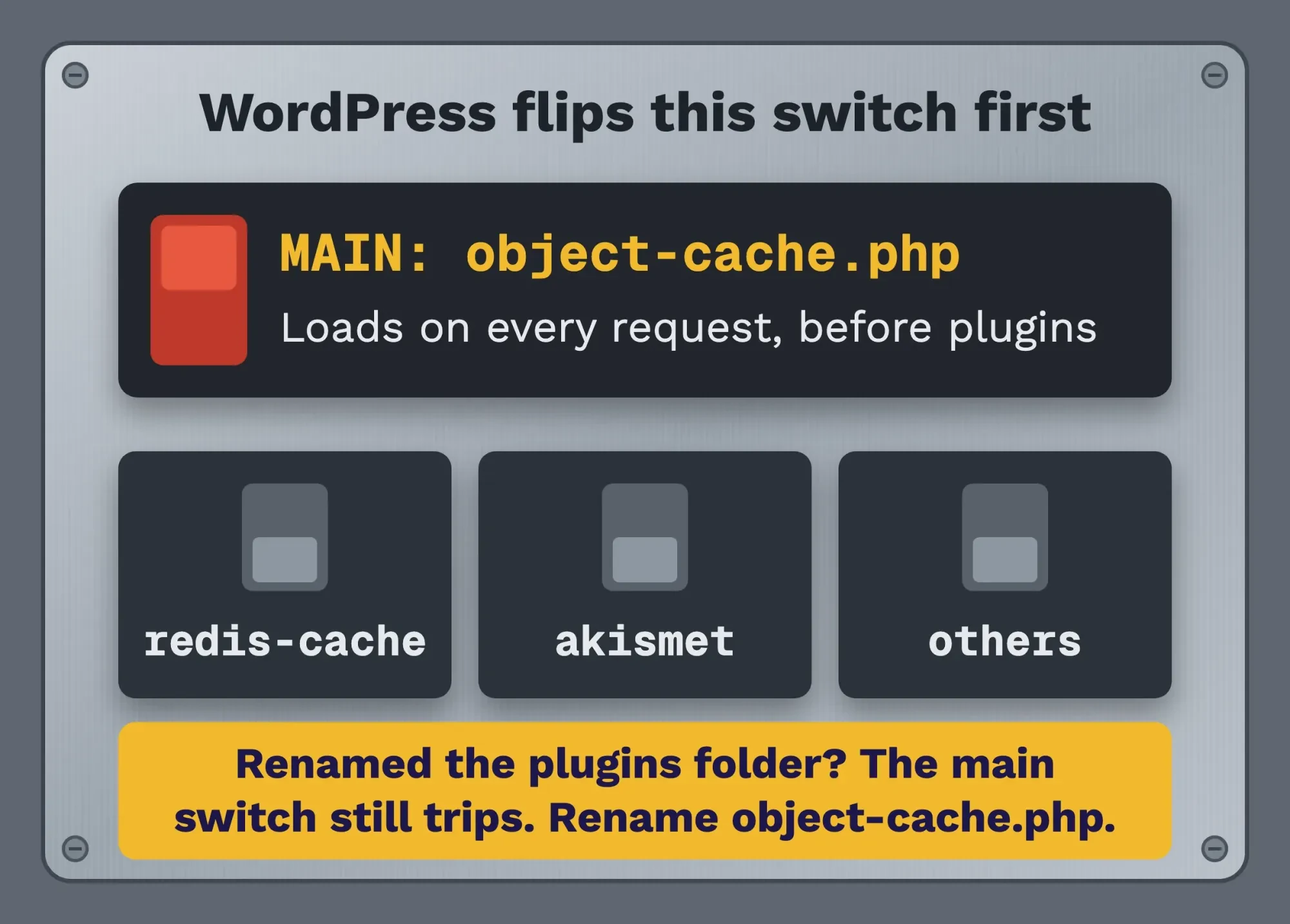 Diagram by DigitalTreed, based on WordPress 7.1.3 load order and our test, October 23, 2026.
Deactivating the plugin under Plugins does delete the file; the plugin’s deactivation code removes it, and our test confirmed that.
But with the site down, you usually can't reach that screen.
You'll also see WP_REDIS_GRACEFUL suggested online. It hides the error, and the README warns it "will cause data corruption." Skip it.
The detail line names the cause
Now that visitors can see the site again, go back to the line printed under the heading.
With WP_REDIS_DISABLED on, our Settings > Redis page still named the cause in a red notice ("Redis is unreachable: Connection refused"). These are the exact lines our test site printed:
| Detail line we saw | What it means | Who fixes it |
|---|---|---|
| Connection refused [tcp://127.0.0.1:6390] | Redis isn't running, or the port is wrong | Your host, or you in wp-config.php |
| php_network_getaddresses: getaddrinfo for ... failed | The host name in WP_REDIS_HOST doesn't exist | You |
| `SELECT` failed: NOAUTH Authentication required. | Redis wants a password and got none | You |
| `AUTH` failed: WRONGPASS invalid username-password pair or user is disabled. | Wrong password or user name | You |
| Error while reading line from the server. | Redis didn't answer within the read timeout | You first, then your host |
| OOM command not allowed when used memory > 'maxmemory'. | Redis is out of memory | Your host |
Our site used the Predis client that ships with the plugin, and sites running the PhpRedis extension word a few of these lines differently; the FAQ lists "read error on connection" for the timeout case, for example.
Connection refused means Redis is stopped or the address is wrong
That first row has two possible causes. Either Redis isn't running, or WordPress is calling the wrong address.
If you have SSH access, ask Redis directly. The PING command answers PONG when the server's alive:
redis-cli -h 127.0.0.1 -p 6379 pingNo PONG? Redis is down, or it isn't at that address. A NOAUTH reply means it's running and wants a password.
Starting it again is a server job, so on shared or managed hosting it's your host's call.
If Redis does answer, compare its address with wp-config.php. The plugin connects to 127.0.0.1 on port 6379 by default, per its install guide. A host that runs Redis somewhere else will give you its own values, and they go in like this:
define( 'WP_REDIS_HOST', '127.0.0.1' );
define( 'WP_REDIS_PORT', 6379 );
define( 'WP_REDIS_DATABASE', 0 );
These lines must also sit above "That's all, stop editing!" Just below it, wp-config.php loads WordPress itself, so anything placed after that point arrives too late.
Read the brackets in the error.
When we set a wrong port, the line said Connection refused [tcp://127.0.0.1:6391]. That bracket is the address WordPress really tried, which makes a typo easy to spot.
NOAUTH and WRONGPASS point to the password
These two errors mean Redis is up and reachable, but it wants a password.
NOAUTH means WordPress sent none. WRONGPASS means it sent the wrong one.
define( 'WP_REDIS_PASSWORD', 'your-redis-password' );Where the line goes matters, and we've tested both spots.
Placed below "stop editing", it still gave NOAUTH. Moved above, the site loaded with status 200. The FAQ’s NOAUTH answer says the same thing: add the constant, or move it higher up.
Some hosts also give you a Redis user name. The README says the constant accepts both as an array, written ['user', 'password'].
Errors during plugin updates usually mean Redis answered too slowly
That brings us to the error that shows up only during plugin updates.
A WordPress.org support thread from May 2023 reported the error "after performing some plugin updates." Its detail line was "read error on connection to 127.0.0.1:6379".
That's a read timeout, not a wrong setting.
The plugin waits 1 second for Redis to answer by default, then gives up and stops the page. Updates do a lot of cache work at once, so a busy or slow Redis shows up right then.
We reproduced it in our own test run. We told our test Redis to pause for 3 seconds, then loaded /wp-admin/ while it was paused. The page failed after 1.0 second with "Error while reading line from the server." Then we set WP_REDIS_READ_TIMEOUT to 5 and repeated the same pause. This time the page waited and loaded in 2.7 seconds, with status 200.
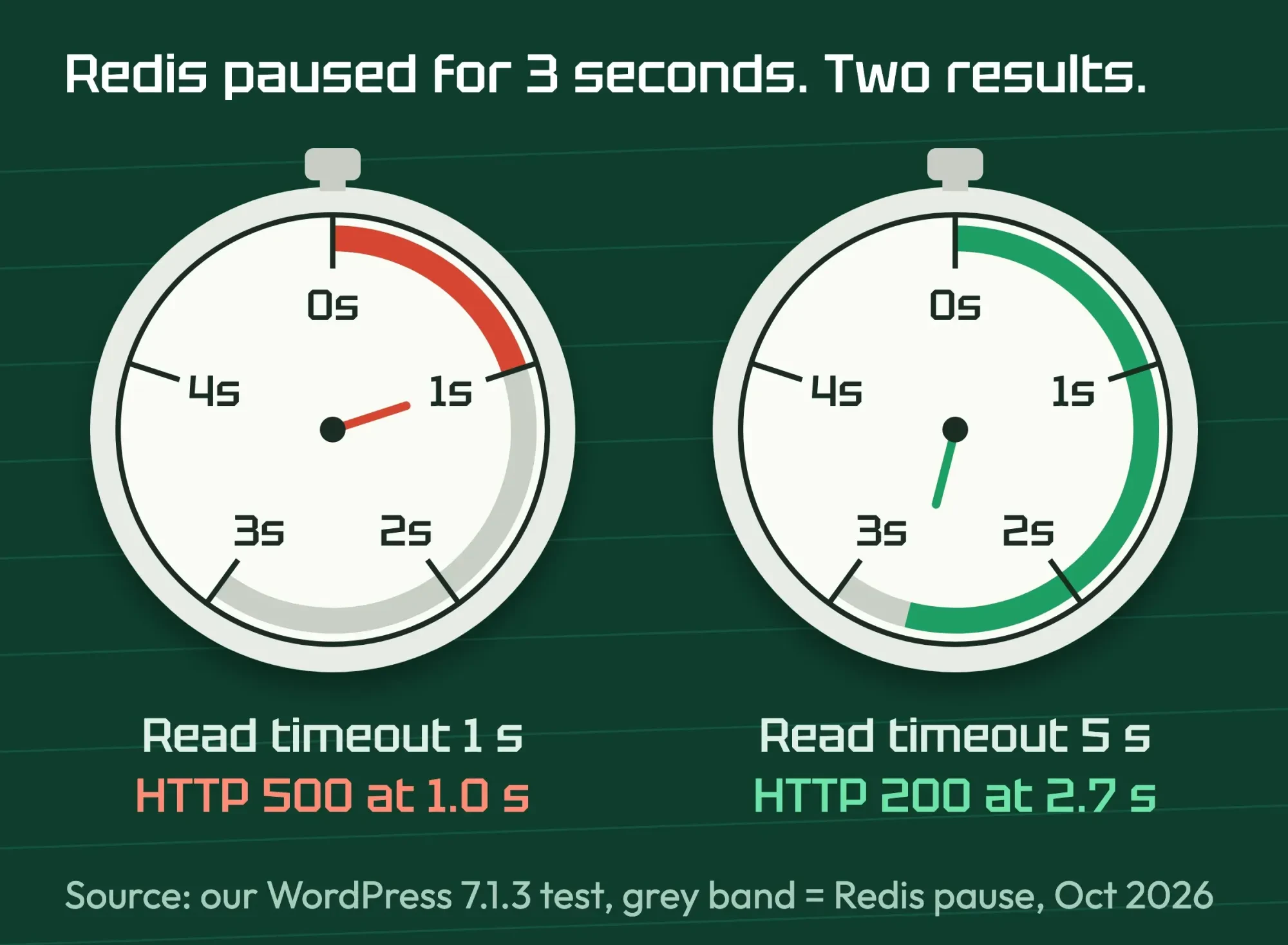 Diagram by DigitalTreed from our test: Redis paused 3 seconds, WordPress 7.1.3, October 23, 2026.
Sound like your site? Give Redis a little more time:
define( 'WP_REDIS_TIMEOUT', 2 );
define( 'WP_REDIS_READ_TIMEOUT', 2 );
define( 'WP_REDIS_FLUSH_TIMEOUT', 10 );GridPane, a host, raised the first two to 2 seconds for this error back in 2023, and the plugin FAQ suggests raising the read and flush timeouts to 5 to 10 seconds when flushing a large cache times out.
Our take: a longer timeout is a patch.
When Redis keeps needing more than a second, ask your host why. Load and memory both sit on their side.
Example: a florist in Spokane, Washington, clicks "Update all" on 8 plugins the week before Mother's Day. The error appears. /wp-admin/ shows "Error while reading line from the server." She renames object-cache.php so orders keep coming in, adds the timeout lines and turns Redis back on. Then she emails her host, who'll look at Redis load.
Out of memory still shows up as a connection error
A slow Redis isn't the only server problem hiding behind that heading. Redis can be connected and still refuse to work.
We capped our test Redis at 1 MB of memory with the CONFIG SET command and reloaded the site.
The public page showed the usual heading. /wp-admin/ showed "OOM command not allowed when used memory > 'maxmemory'." That's Redis saying it's full.
By default it doesn't throw old entries away, and redis.conf says it then starts "to reply with errors to commands that would use more memory".
The real fix sits on the server, out of reach from WordPress: a higher memory limit, or an eviction policy such as allkeys-lru. On hosting, that's a support ticket.
From your side, the FAQ offers WP_REDIS_MAXTTL, which caps how long cache entries live, for example 3600 seconds, followed by one cache flush.
A host move or a shared Redis can leave the wrong settings behind
Those were server problems. Sometimes, though, nothing on the server is broken at all, and the settings simply belong to a different setup.
Take a site move first. If you've copied a site from a host that ran Redis to one that doesn't, the old object-cache.php came along in wp-content. It keeps calling a Redis server that isn't there. Delete it, then set Redis up again only if the new host offers it.
Sharing is the other trap. When two sites use one Redis database, the FAQ says you "MUST" give each its own WP_REDIS_DATABASE and WP_REDIS_PREFIX, and the usual sign is one site redirecting to the other's domain.
Be careful with the cleanup the FAQ suggests for that.
FLUSHALL deletes the keys in every database on that Redis server, other sites included, so on a shared server, let your host run it.
How do I know the Redis fix worked?
Whichever fix applied, turn the cache back on and check it properly.
A page that loads once isn't proof yet.
- Remove the WP_REDIS_DISABLED line, or rename object-cache.php.off back to object-cache.php.
- Open Settings > Redis and look for Status: Connected.
- Load your homepage in a private window and check that the status is 200, not 500.
- Click Flush Cache once, then reload a few pages.
- Watch your next plugin update.
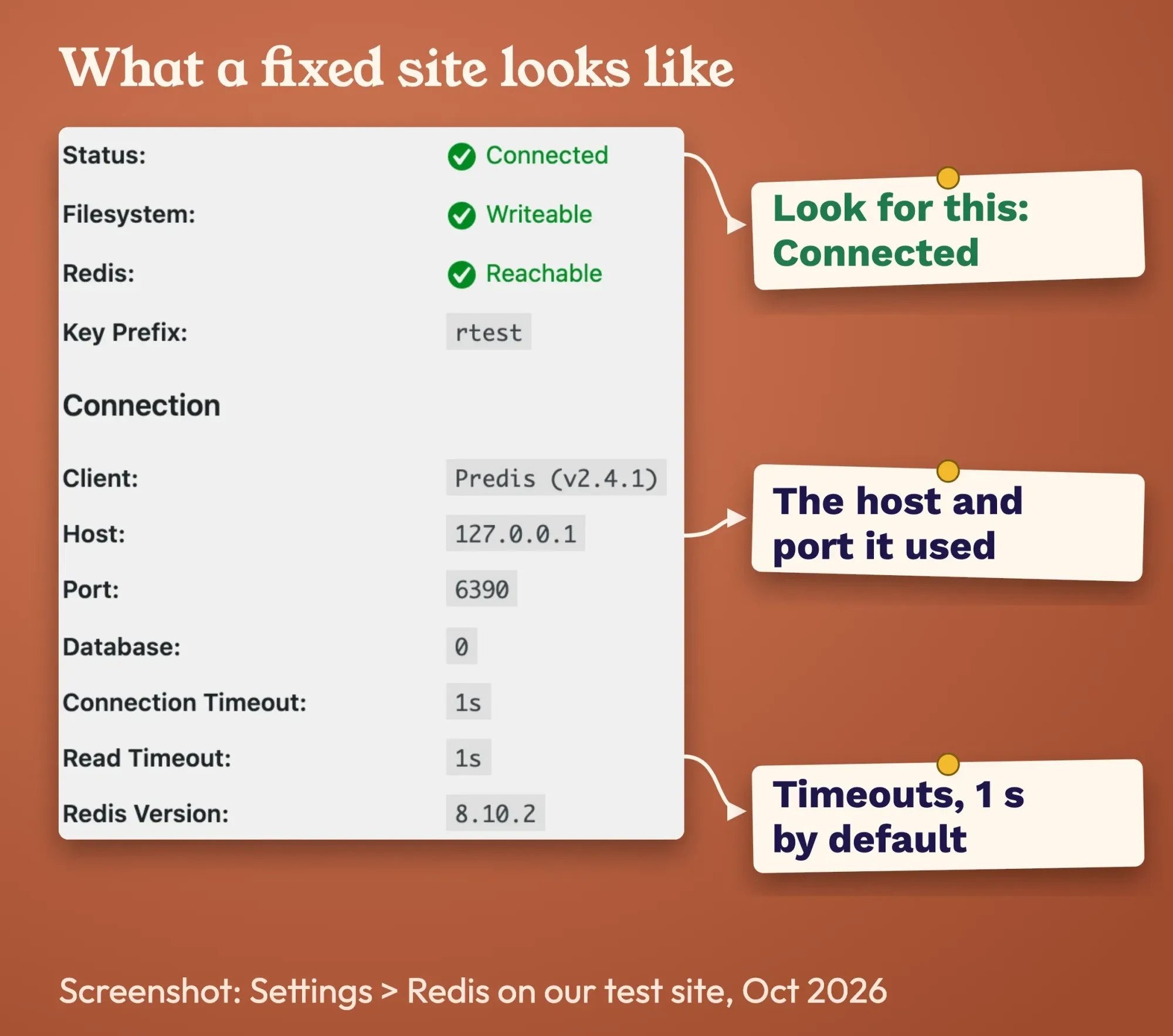 Screenshot: Settings > Redis on our WordPress 7.1.3 test site with Redis running, October 23, 2026.
That Overview tab also lists the host, port, database and both timeouts, so it's a quick way to confirm which settings WordPress really read.
For step 3, our HTTP status checker shows the code a visitor gets, without your login cookies.
A short outage won't sink your rankings.
Google says 5xx errors make its crawlers slow down, and that URLs which keep failing are "eventually dropped" from the index. Uptime monitoring will tell you if the error comes back at 2 a.m.
Frequently asked
Can I turn the Redis cache off and on with WP-CLI?
Yes, if you have SSH access and WP-CLI. The plugin adds wp redis status for diagnostics, plus wp redis disable and wp redis enable. There is also wp redis update-dropin, which refreshes object-cache.php, per the Redis Object Cache README as of October 2026.
My host gave me a Redis socket path, not a port. How do I connect?
Set the scheme to unix and give the socket path instead of a host and port. The README's example uses define( 'WP_REDIS_SCHEME', 'unix' ) and define( 'WP_REDIS_PATH', '/var/run/redis.sock' ). Use the exact path your host gives you, per the Redis Object Cache README as of October 2026.
Why is WordPress slower with Redis turned on?
The plugin's FAQ says a slower site means something is broken. Check that Settings, then Redis shows Connected. Then run redis-cli --latency-history to see if Redis answers slowly. Also check whether it is maxing out its RAM or CPU, per the Redis Object Cache FAQ as of October 2026.
When to hand it to your host
Some causes never clear from your side. Anything inside the Redis server belongs to whoever runs it, and on shared or managed hosting that's your host.
Starting Redis, memory limits, firewalls and the connection limit are theirs, and they'll usually want the exact detail line. Redis allows 10,000 clients by default, then answers "max number of clients reached".
The plugin's install guide says it plainly: install Redis yourself, "or ask your hosting company for assistance." Some hosts sell it as an add-on. Kinsta charges $100 per month per site, as of October 2026.
Send them something they can act on. Copy this and fill in the brackets:
Note
Hi, since [time and time zone] my site [domain] shows "Error establishing a Redis connection". In /wp-admin/ the detail line says: "[exact line]". I've disabled the object cache for now, so the site is up. Can you check that Redis is running for my site, its memory use and connection limit, and confirm the host, port, password and database I should use?
Do you need Redis at all? Often you don't.
WordPress's Site Health check only recommends a persistent object cache, and adds that "your hosting provider can tell you" if one can be enabled. By default, the WordPress object cache lasts for one request only, and a small brochure site runs fine that way.
We run WordPress maintenance for small businesses, so we have an interest here.
A Redis server that's down is your host's job. For the WordPress side, our WordPress support team can take it from there.
Seeing a different message? We've covered the database connection error, the HTTP 500 error, the 502 bad gateway, the 403 forbidden error, too many redirects and the missing temporary folder error. New to running a site? Start with our guide to building a WordPress website.
Right now: rename object-cache.php, read the line in /wp-admin/, and match it to the table.
If it keeps coming back, ask us for a fixed quote.
How we made this guide: The test ran October 23, 2026, on a throwaway WordPress 7.1.3 site on a Mac, with Redis Object Cache 3.0.0, its Predis 2.4.1 client, Redis 8.10.2 and PHP 8.3.35. We stopped Redis, broke the port, host and password, paused Redis and filled its memory, copying every message word for word. The DigitalTreed team checked each step the same day, October 23, 2026, against the plugin's source code and FAQ and the WordPress source. Each source is linked where its fact appears.
First published January 2024. Rewritten October 23, 2026: the old "delete the Redis cache file" step was wrong and is gone. New: our test results, the exact detail lines, the timeout case behind update errors, and a note for your host.
Sources
- WordPress.org: Redis Object Cache plugin (version 3.0.0)
- Redis Object Cache FAQ (GitHub)
- Redis Object Cache installation guide (GitHub)
- Redis Object Cache README, configuration constants (GitHub)
- Redis Object Cache drop-in source, includes/object-cache.php
- Redis Object Cache plugin class, deactivation code
- WordPress 7.1.3 source: wp-includes/load.php
- WordPress 7.1.3 source: wp-includes/functions.php (wp_die)
- WordPress 7.1.3 source: wp-admin/includes/plugin.php (drop-ins)
- WordPress 7.1.3 source: Site Health checks
- WordPress developer reference: WP_Object_Cache
- WordPress: Debugging in WordPress
- Redis docs: PING
- Redis docs: FLUSHALL
- Redis docs: CONFIG SET
- Redis: redis.conf (default configuration)
- WordPress.org support: Error establishing a Redis connection, only on plugin updates (2023)
- GridPane: How to fix the Error establishing a Redis connection error (2023)
- Kinsta: Redis cache add-on
- Google Search Central: HTTP status codes and network errors


Comments
No comments yet. Start the conversation below.