

Quick answer
The WordPress debug log is a file, wp-content/debug.log, where WordPress writes PHP errors once you switch logging on. In wp-config.php, set WP_DEBUG and WP_DEBUG_LOG to true and WP_DEBUG_DISPLAY to false. Make the error happen again, read the newest lines at the bottom, then switch debugging off and delete the file.
The debug log often names the plugin or theme that broke your site. The WordPress debugging handbook gives a 4-line setup that logs every error and hides it from visitors.
We ran that setup on a fresh WordPress 7.1.3 test site on October 22, 2026, and broke the site on purpose 4 ways. This guide shows what we saw, including a log anyone could open and a crash that still returned status 200.
Key facts about the WordPress debug log
- The WordPress debugging handbook, last updated October 14, 2026, logs errors with WP_DEBUG and WP_DEBUG_LOG. It hides them from visitors with WP_DEBUG_DISPLAY.
- We tested WordPress 7.1.3, released October 6, 2026, on October 22, 2026. Its default debug.log opened in a browser with status 200 on PHP's built-in server.
- WordPress has 4 environment types: local, development, staging and production. If a site doesn't set one, it counts as production.
- The PHP manual lists "1", meaning on, as the default for display_errors. It adds that php.ini-production sets it to Off.
- As of October 2026, WP Debugging shows 10,000+ active installs on WordPress.org, and Query Monitor shows 200,000+.
What is the WordPress debug log?
The WordPress debug log is off by default, and you switch it on in wp-config.php. It is a plain text file where PHP writes every error, warning and notice on your site. WordPress doesn't write the file itself. Its wp_debug_mode() function only tells PHP where to save errors, at wp-content/debug.log.
Three settings in wp-config.php control it. The WordPress 7.1.3 defaults are below; in 7.1.3, WP_DEBUG starts out true only in a "development" environment or development mode.
| Setting | What it does | Default in WordPress 7.1.3 |
|---|---|---|
| WP_DEBUG | Turns debug mode on | false (true only in a development setup) |
| WP_DEBUG_LOG | Saves errors to a file | false |
| WP_DEBUG_DISPLAY | Prints errors on the page | true |
That last default is a trap. Turn on WP_DEBUG alone, and errors print on your live pages. The environment type defaults to "production" when your host has not set it.
Check your host's error log first
Many hosts already keep a PHP error log, so you may not need to edit anything. As of October 2026, their help pages put it here:
| Host | Where the error log is |
|---|---|
| SiteGround | Site Tools > Statistics > Error Log |
| Hostinger | File Manager, .logs folder |
| DreamHost | Panel > Manage Websites > Manage > Logs |
| WP Engine | User Portal > your environment > Logs |
| WordPress.com | Your site's Settings page |
SiteGround gives its path in its error log guide. Hostinger's is in its help center, and DreamHost's is on its log page. WP Engine says its error log covers only the most recent 24 hours. DreamHost hides PHP warnings and deprecated notices, so debug.log can show more.
How do you turn on WordPress debug mode?
To turn on WordPress debug mode, set WP_DEBUG to true in wp-config.php, the file in your site's main folder. Add WP_DEBUG_LOG to save errors and WP_DEBUG_DISPLAY false to hide them. Open wp-config.php with your host's File Manager or an SFTP app. The wp-config.php guide covers both.
Before any change, the handbook asks you to use a staging copy of your site or take a backup. If your host offers staging, test there first.
These 5 steps take about 10 minutes:
- Back up wp-config.php. Download a copy first. If anything goes wrong, upload the copy back.
- Find the existing line. Look for define( 'WP_DEBUG', false ); under "For developers: WordPress debugging mode."
- Replace it with 4 lines. Paste the snippet below in its place. It must sit above "That's all, stop editing! Happy publishing."
- Save and reproduce the error. Reload the broken page, or repeat the action that failed, such as saving a post.
- Open the log. In File Manager, open wp-content/debug.log. The newest lines are at the bottom. When you are done, turn debugging off (steps below).
define( 'WP_DEBUG', true );
define( 'WP_DEBUG_LOG', true );        // writes wp-content/debug.log
define( 'WP_DEBUG_DISPLAY', false );   // visitors see nothing extra
@ini_set( 'display_errors', 0 );
This matches the recommended handbook snippet. In 7.1.3, the stock wp-config-sample.php has the WP_DEBUG line at line 88 and "stop editing" at line 94. The snippet logs errors and hides them "so they do not interrupt page generation."
On a live site, also move the log out of your public folder. The section on who can read your debug.log shows how.
Rather not touch the file? The free WP Debugging plugin writes the settings for you (10,000+ active installs as of October 2026). Its page says it sets display_errors to 1 while active, which can show errors to visitors. With WP_DEBUG on, even the public page shows the real Redis error line, as our Redis connection error test found. Use it on a staging copy, not your live site.
What do SCRIPT_DEBUG and SAVEQUERIES do?
Guides and debug plugins often add 2 more settings. Neither one is needed for debug.log.
| Setting | What it does | When to use it |
|---|---|---|
| SCRIPT_DEBUG | Loads the full "dev" versions of core CSS and JavaScript files instead of the minified ones | Only when testing changes to core .js or .css files |
| SAVEQUERIES | Saves every database query, with its time and the function that called it | Only while you look into a slow page |
Both are in the WordPress debugging handbook. It warns that SAVEQUERIES "will have a performance impact on your site." The WP Debugging plugin page linked above lists both as on by default.
So switch them off with the rest when you are done.
Where is the WordPress debug log?
By default, the WordPress debug log is wp-content/debug.log, in the same folder as your plugins and themes. On cPanel hosts, with WordPress in the main folder, that is usually public_html/wp-content/debug.log. If you set WP_DEBUG_LOG to a file path instead of true, the handbook says the log goes to that path.
Read the time stamps with care: they are in UTC. wp-settings.php sets PHP to UTC before it starts debug mode. Every line in our test log ended its time with "UTC."
For US time zones, subtract 4 hours for Eastern daylight time, or 5 for Eastern standard time. NIST says daylight saving time in 2026 ends on November 1.
Why is my WordPress debug log not created?
Most often, nothing has gone wrong yet. PHP creates debug.log only when the first error happens, so a quiet site won't have one. In our test, we saved the 4 lines and loaded 3 pages. No debug.log appeared. The file appeared only when our test plugin raised its first warning.
If you did reproduce the error and still have no file, work through this list:
- WP_DEBUG is still false, or an older WP_DEBUG line higher up still says false. PHP keeps the first one it reads.
- WP_DEBUG_LOG is missing or false. WP_DEBUG alone saves no file, since the 7.1.3 defaults set WP_DEBUG_LOG to false.
- The lines sit below "That's all, stop editing!", which is too late for WordPress to read them.
- PHP can't write to wp-content. The PHP manual says the log file "should be writable by the web server's user." Ask your host to fix the folder permissions.
- The error happens before WordPress loads, such as a typo in wp-config.php itself. It goes to your host's PHP log instead.
- A page cache serves an old copy, so the broken code never runs. Clear the cache, then try again.
- Your host sends errors to its own log. Check the host table above.
- Your site keeps wp-content in another place. In 7.1.3, wp_debug_mode() puts debug.log in the folder that WP_CONTENT_DIR names, so look there.
- The fault is a JavaScript error, such as a button that does nothing. Those never reach debug.log; see the JavaScript section below.
One more trap: quotes. The handbook warns that 'false' in quotes is read as true. We set define( 'WP_DEBUG', 'false' ); on our test site, and it kept logging errors.
How do you read a debug.log line?
Read debug.log from the bottom up, since the newest errors come last. Python tools also hide the cause above the last line; our pip subprocess-exited-with-error guide shows where to look in that log. Each line has 4 parts: the time, the type of problem, the message, and the file and line number. These 2 lines come from our test log, with the server folder shortened to "...":
[22-Oct-2026 08:54:58 UTC] PHP Warning: Undefined variable $booking_note in .../wp-content/mu-plugins/bakery-test.php on line 4
[22-Oct-2026 08:54:59 UTC] PHP Fatal error: Uncaught Error: Call to undefined function bakery_show_booking_form() in .../wp-content/mu-plugins/bakery-test.php:4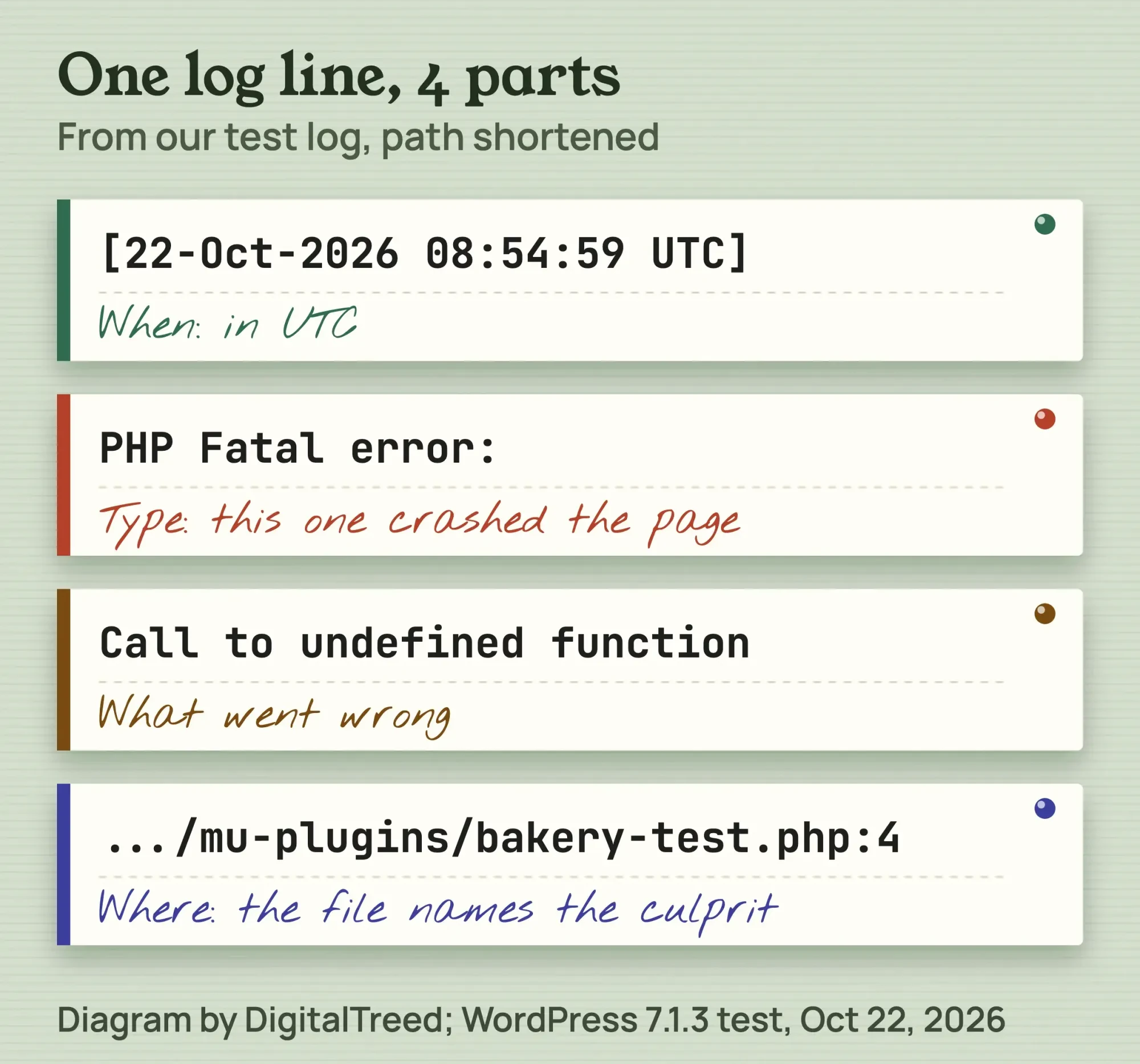 Diagram by DigitalTreed, using a line from our WordPress 7.1.3 test log, October 22, 2026.
- A "Fatal error" stops the page. Start with that line.
- A "Warning", "Notice" or "Deprecated" line is usually noise. It rarely breaks a site.
- The folder after /plugins/ or /themes/ names the culprit. Deactivate that plugin, or switch to a default Twenty theme.
A fatal error does not always look like one. We put the fatal error in the page footer, after WordPress had started sending the page. The status stayed 200, the page looked almost normal, and the footer was cut short. Only the log showed the crash. Moved earlier, the same error gave WordPress's "There has been a critical error on this website" page with status 500. Our HTTP 500 guide covers that screen.
Before you paste lines into a support forum, trim the server folder path and any email addresses. Send the fatal error line and the 3 lines above it.
A fatal error in a plugin you paid for, or in custom code, is a job for its developer. If you'd rather hand it over, our WordPress development team can read the log, fix the code and switch debugging off. (DigitalTreed sells this service.)
Can anyone read your debug.log?
Often, yes, and Site Health warns you about it. When debug.log sits in wp-content, the web server can hand it to anyone who types its address. That's how your errors and server folder paths leak. Moving the log out of your public folder fixes it.
Our test: a public debug.log, rated critical
With the log on, our test site showed "Your site is set to log errors to a potentially public file" as a critical issue. The Site Health source rates it critical whenever the log sits inside the WordPress folder.
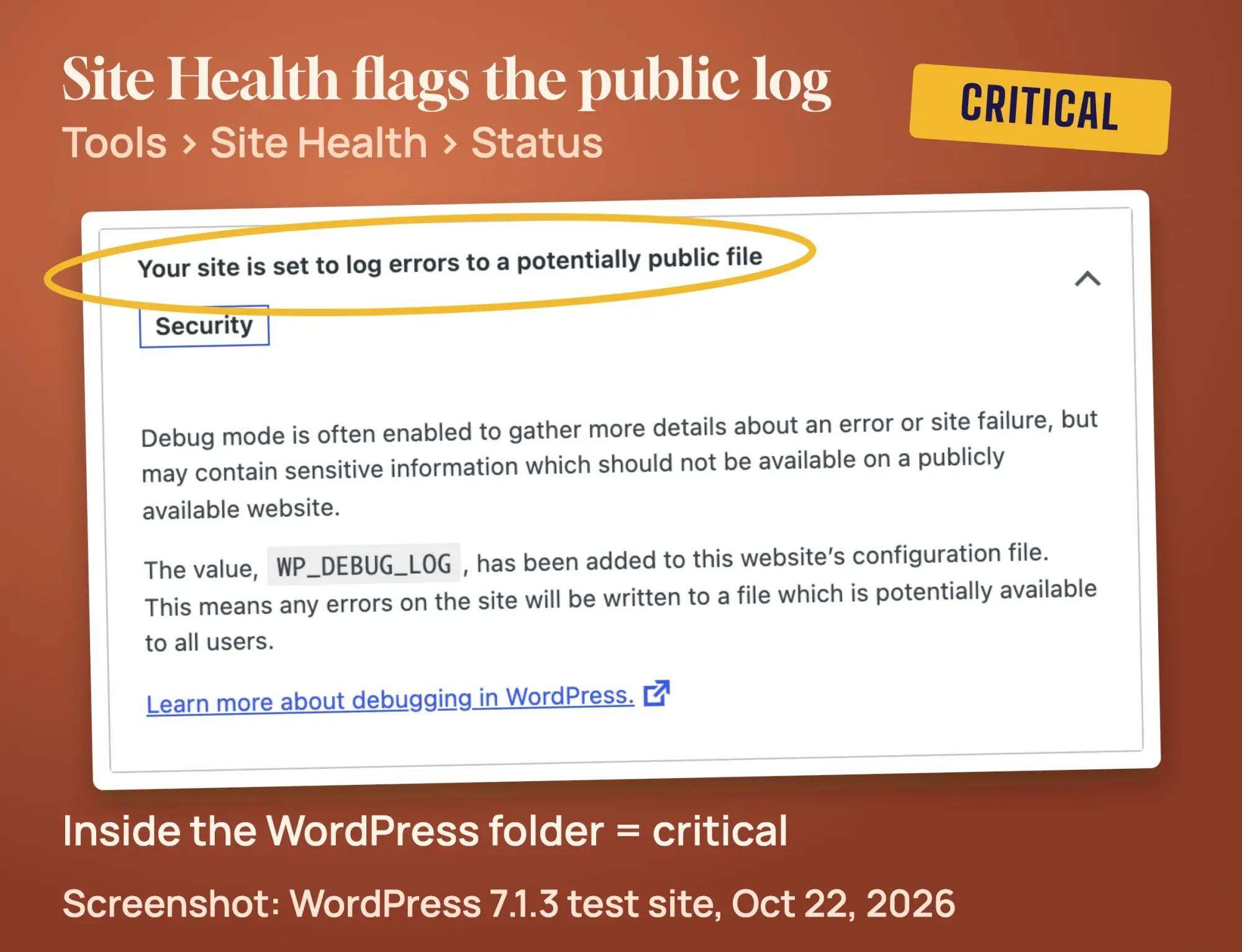 Screenshot: Tools > Site Health > Status on our WordPress 7.1.3 test site, October 22, 2026.
Then we opened 127.0.0.1/wp-content/debug.log in a browser, on PHP's built-in test server. It loaded with status 200 and showed every line, including the server folder path. You can test your own site: paste yoursite.com/wp-content/debug.log into our free HTTP status checker. A 200 means anyone can read it; a 403 or 404 means it is blocked or missing.
A safer setup keeps the log outside your public folder. Ask your host for your home folder path, then use a line like this one with your own path. The folder must already exist, and PHP must be able to write to it:
define( 'WP_DEBUG_LOG', '/home/youraccount/logs/wp-errors.log' );We did exactly that on our test site. The old address returned 404, and Site Health dropped the item from "critical" to "recommended." Changing the setting does not delete the old wp-content/debug.log, so delete that file too.
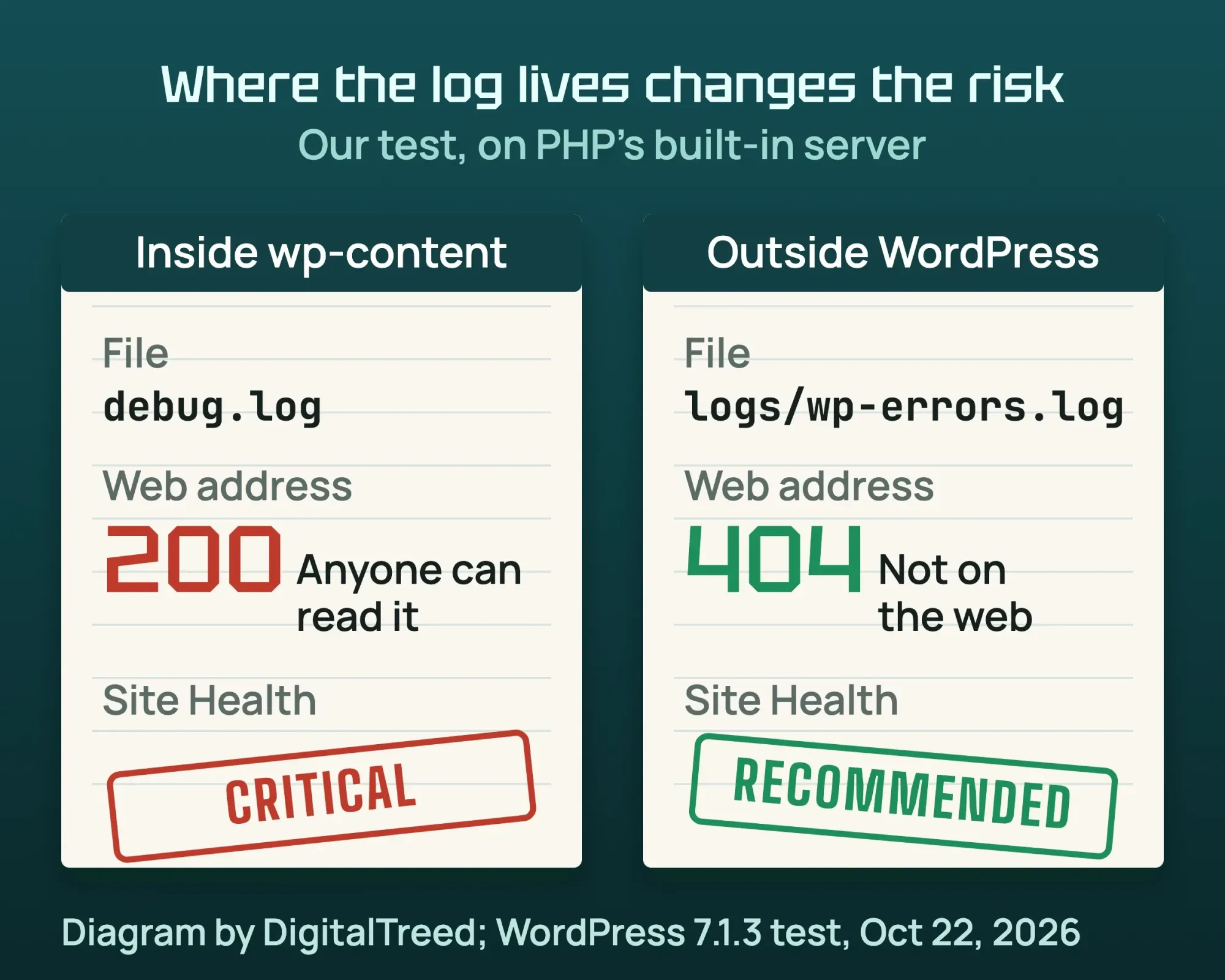 Diagram by DigitalTreed, results from our WordPress 7.1.3 test on PHP's built-in server, October 22, 2026.
Can you block debug.log instead of moving it?
On most Apache hosts, yes. Apache's docs say a Files section can be used inside .htaccess files. Rules there apply to that folder and every folder below it.
Add these 3 lines at the top of the .htaccess file in your site's main folder:
<Files "debug.log">
  Require all denied
</Files>
In Apache, Require all denied means access "is denied unconditionally." It stops web requests for the file, and PHP keeps writing to it.
Then run yoursite.com/wp-content/debug.log through the status checker above again. You want a 403. A 200 means the rule did not work. Apache's guide says an AllowOverride None setting makes it ignore .htaccess.
Our test site ran on PHP's built-in server, so we did not test this rule. On nginx there is no .htaccess. Ask your host to add a deny all rule for the file.
Site Health will still call the log critical. The Site Health code linked above looks only at where the file sits, not whether the web can reach it. Only moving the log clears that warning.
Why are errors showing on your pages?
Errors show on your pages when PHP is set to display them. Most often, WP_DEBUG_DISPLAY is missing or set to true. It defaults to true, and the PHP manual says displaying errors "should never be used on production systems." Set WP_DEBUG_DISPLAY to false, and errors still go to the log.
We removed the WP_DEBUG_DISPLAY line on our test site and kept WP_DEBUG on. The warning printed in plain text at the bottom of the home page, with the full server path.
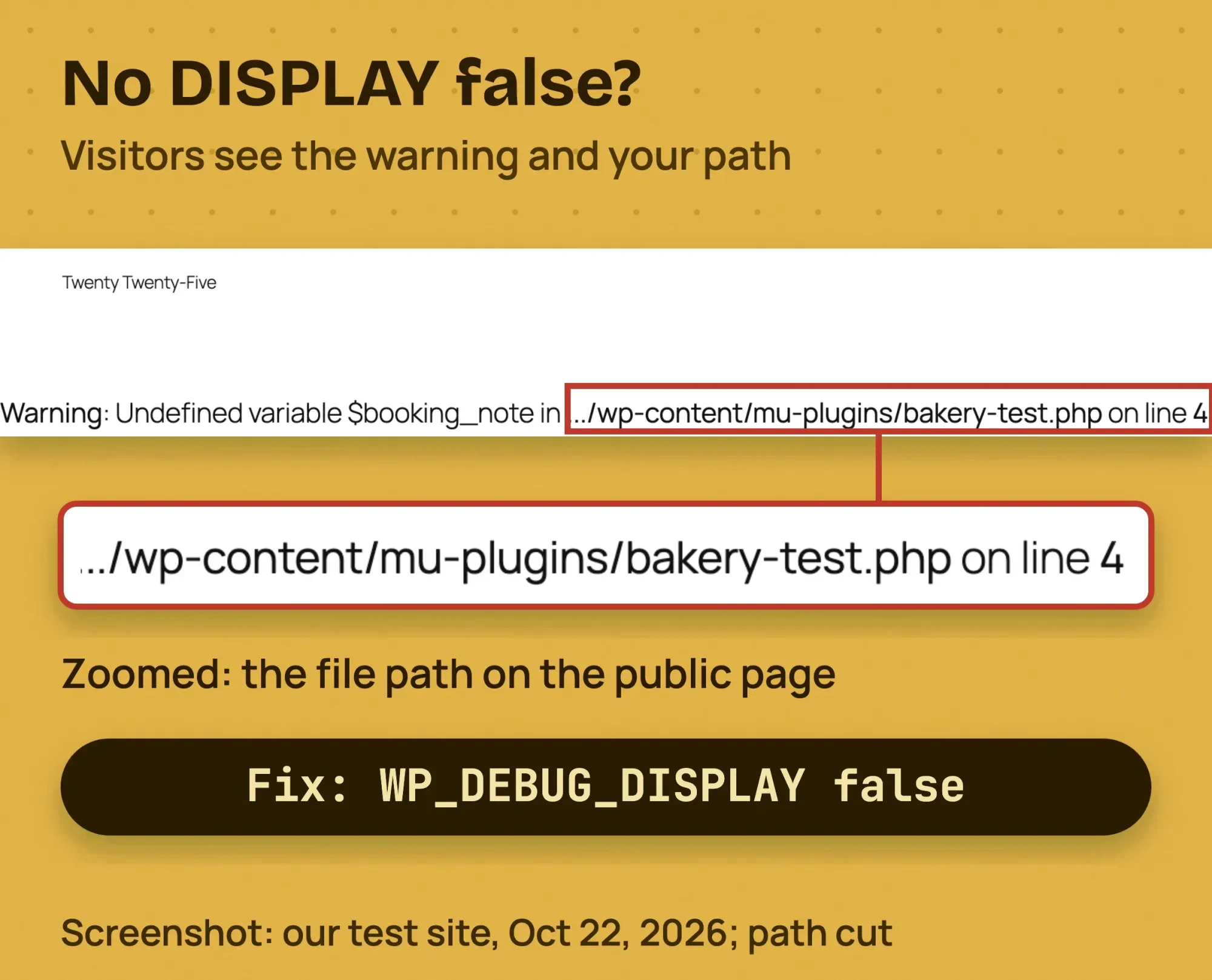 Screenshot: our WordPress 7.1.3 test site home page, October 22, 2026; server folder shortened to "...".
Fix it by adding define( 'WP_DEBUG_DISPLAY', false ); and @ini_set( 'display_errors', 0 ); back, as in the 4-line snippet.
How do you turn debug mode off?
To turn WordPress debug mode off, set WP_DEBUG back to false and remove the other debug lines you added to wp-config.php, such as SAVEQUERIES. Then delete debug.log, because changing the setting doesn't delete the old file. Site Health confirms it.
- Set WP_DEBUG back to false and remove the lines you added, including SCRIPT_DEBUG or SAVEQUERIES if you added them.
- Delete debug.log (or your custom log file).
- If you used the WP Debugging plugin, deactivate it. Its page says it removes its settings on deactivation.
- Open Tools > Site Health > Status. The item should read "Your site is not set to output debug information."
WordPress.com warns that a forgotten log can cause "excessive disk usage," in its WP_DEBUG guide. When the site works again, run our free website audit to catch anything else the error left behind.
Which WordPress errors does the log help with?
The debug log helps most when PHP itself fails, as with the critical error screen or a blank page. It's less useful for redirect loops, server rules and JavaScript faults, which usually don't leave a PHP error. The table shows where to look instead.
| What you see | Does debug.log help? |
|---|---|
| There has been a critical error on this website | Yes, it names the plugin or theme |
| 502 Bad Gateway | Sometimes, if PHP crashed |
| Error establishing a database connection | Rarely; check wp-config.php first |
| ERR_TOO_MANY_REDIRECTS | No, a loop is not a PHP error |
| 403 Forbidden | Sometimes; often a server rule |
| Missing a temporary folder | Sometimes; it is a server setting |
| A button, slider or the block editor does nothing | No; check the browser Console |
For the fixes, see our guides to the HTTP 500 and critical error, the 502 bad gateway error and the database connection error.
For the others, read about the too many redirects error, the 403 forbidden error in WordPress and the missing temporary folder error.
What if the problem is a JavaScript error?
The debug.log file only holds PHP errors, which happen on your server. JavaScript runs in the visitor's browser, so its errors show up there instead. PHP and JavaScript do different jobs on your site; our guide to programming languages to learn explains both in plain terms.
In Chrome, press Control+Shift+J, or Command+Option+J on a Mac, to open the Console. Reload the page and look for red error lines.
Each error names the script file that failed. If its address contains /plugins/ and a plugin's name, that plugin is your first suspect.
Example: a dog-grooming shop in Austin
Example: a made-up dog-grooming shop in Austin, Texas, edits its booking form at 3:10 p.m. Central time. On save, the page goes blank.
Next, the owner adds the 4 lines, saves the form again, and opens debug.log. The newest Fatal error says 20:10 UTC, which is 3:10 p.m. Central daylight time (UTC minus 5). It points into the booking plugin's folder.
She deactivates that plugin and sends its support the fatal error line and the 3 lines above it, with the path trimmed. Then she sets WP_DEBUG back to false and deletes the file.
Frequently asked
Is it safe to leave WordPress debug mode on?
No. The handbook says debug tools are not recommended "on live sites." Use it while you fix the problem, then switch it off.
Why does Site Health say debug mode is on when I never added it?
Check for a WP_DEBUG line added by a plugin or a staging tool. In WordPress 7.1.3, a "development" environment type also turns WP_DEBUG on by default.
Can I see the log without FTP?
Yes. Use your host's File Manager, or a log viewer plugin. Query Monitor shows PHP errors for the page you are on.
Can I delete debug.log?
Yes, and you should once you are done. If logging is still on, PHP starts a new file at the next error, as it did on our test site.
Does debug mode slow my site down?
Logging adds a little work on every error, and the file keeps growing. That is one more reason to switch it off when you are done.
What if my log is full of Deprecated lines?
They warn about old code that still works. Search the log for "Fatal error" first, and pass the deprecated lines to the plugin's developer later.
Your next step
New to WordPress? Our WordPress website guide explains where wp-config.php and wp-content fit in. For a new build, our step-by-step guide to making a WordPress website also has a monthly routine for backups and updates.
Right now, open Tools > Site Health > Status on your site. If it says your site logs errors to a potentially public file, delete debug.log today and switch logging off.
If the log names a fatal error you can't fix, our WordPress team can take it from there, and you get a fixed quote first.
How we made this guide: it's built from the WordPress debugging handbook, the WordPress 7.1.3 source code, the PHP manual and host help pages. We ran a 10-step test on a fresh local WordPress 7.1.3 site and took the screenshots on October 22, 2026. We checked every number against the source named next to it the same day. Updated October 23, 2026: added how to block the log on Apache and what SCRIPT_DEBUG and SAVEQUERIES do. We also added JavaScript errors and 3 more reasons the log is missing. Updated October 25, 2026: added key facts, direct answers under question headings, a label for our test, plus our WordPress guide.
First published June 2020. Rewritten October 22, 2026. New: our own test, the "not created" checklist, the public-file risk, UTC times, host log locations and safe switch-off steps.
Sources
- WordPress Developer Resources: Debugging in WordPress
- WordPress Developer Resources: wp-config.php
- WordPress Code Reference: wp_get_environment_type()
- WordPress.org: Site Health Screen
- WordPress 7.1.3 source: wp-includes/default-constants.php
- WordPress 7.1.3 source: wp-includes/load.php
- WordPress 7.1.3 source: wp-settings.php
- WordPress 7.1.3 source: class-wp-site-health.php
- WordPress 7.1.3 source: wp-config-sample.php
- PHP manual: Runtime configuration for errors
- WordPress.com Developer: Enabling WP_DEBUG
- WordPress.org plugin directory: WP Debugging
- WordPress.org plugin directory: Query Monitor
- NIST: Daylight Saving Time
- SiteGround: error logs (vendor)
- Hostinger: where to find your website's error logs (vendor)
- DreamHost: viewing your error logs (vendor)
- WP Engine: error log (vendor)
- Apache HTTP Server 2.4: the Files directive
- Apache HTTP Server 2.4: mod_authz_core, Require
- Apache HTTP Server 2.4: .htaccess files
- nginx: ngx_http_access_module
- Chrome for Developers: Console features reference


Comments
No comments yet. Start the conversation below.