

Quick answer
"Error establishing a database connection" is the message WordPress shows when it can't reach its MySQL database, so it can't build any page. The usual cause is a wrong database name, user, password or host in wp-config.php. Other causes are a database server that is down or over its limits, damaged tables or, in some cases, a hacked site.
Your site shows one gray line of text, and every page is gone. The browser is not the problem. WordPress sends the same page to every browser with an HTTP 500 status, per the WordPress 7.1.3 source code.
We caused this error on purpose on a fresh local test install of WordPress 7.1.3 on October 22, 2026, to see exactly what you see. This guide follows the fixes in order, safest and most likely first, and tells you when to stop and call your host.
Key takeaways
- Visitors see only "Error establishing a database connection". Open yoursite.com/wp-admin/ to get a longer message that names the cause.
- In our test, a wrong database password and a wrong database name looked the same to visitors. Only /wp-admin/ told them apart.
- Most cases come down to 4 lines in wp-config.php. WordPress says the error "is usually caused by an error in your wp-config.php file."
- If phpMyAdmin in your host panel also fails, the database server is the problem, and your host must fix it.
- If you turn on database repair, remove the line right after. The repair page works without a login.
What does "Error establishing a database connection" mean?
WordPress keeps your pages, posts, settings and users in a MySQL or MariaDB database. It logs in to that database on every visit with 4 details stored in wp-config.php. If that login fails, WordPress can't build any page, so it shows this error message instead of your site.
It sends status 500, the code for an "unexpected condition," as defined in RFC 9110. The WordPress source says the 500 is there "to try to prevent search engines from caching the message." Our free HTTP status checker will show that 500 until the site is fixed.
What causes a WordPress database connection error?
A WordPress database connection error usually comes from wrong database details in wp-config.php. WordPress lists that cause first. It also names a database over its quota, a server that is down and, once those are ruled out, a hacked site. Kinsta, a host, adds damaged WordPress files and traffic spikes.
| Cause | What you will notice | Where to fix it |
|---|---|---|
| Wrong database name, user, password or host | The long message or "Cannot select database" in /wp-admin/ | Steps 2 to 4 |
| Database server down, overloaded or over its quota | phpMyAdmin fails too, or your other sites are down | Your host (step 1) |
| Damaged database tables | /wp-admin/ says "One or more database tables are unavailable." | Step 5, repair |
| Damaged WordPress core files | Your settings match and the server is up, but the error stays | Replace the core files |
| A hacked site | wp-config.php changed, or admin users you don't know | The hacked-site section |
What does /wp-admin/ tell you that visitors don't see?
/wp-admin/ shows a longer database error that visitors never see, and it points to the cause. In our WordPress 7.1.3 test on October 22, 2026, a wrong password and a misspelled database name looked the same on the home page. In /wp-admin/, they gave 2 different messages.
Our test: 2 wrong settings, 2 different messages
On our test site, we changed one database setting at a time and loaded the site. With a wrong password, the home page showed only the heading "Error establishing a database connection" under a tab titled "Database Error."
In /wp-admin/, we got a longer message from the database class in WordPress. It says either the username and password are wrong or WordPress could not reach the database server. Then it asks 3 questions.
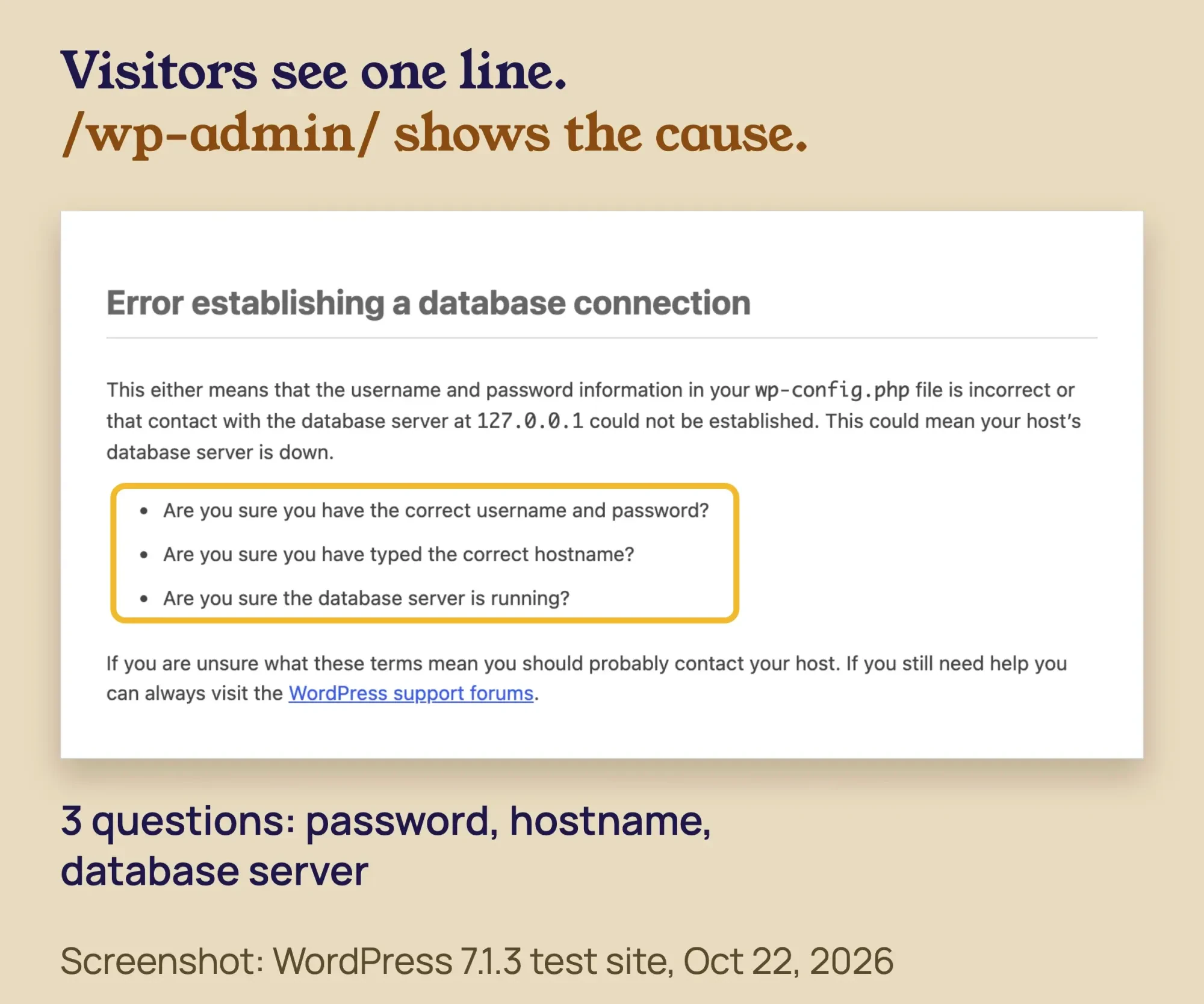 Screenshot: our WordPress 7.1.3 test site with a wrong DB_PASSWORD, /wp-admin/, October 22, 2026.
Then we put the password back and misspelled the database name. Visitors still saw the same short error. But /wp-admin/ now said "Cannot select database," with a line saying "your username and password is okay."
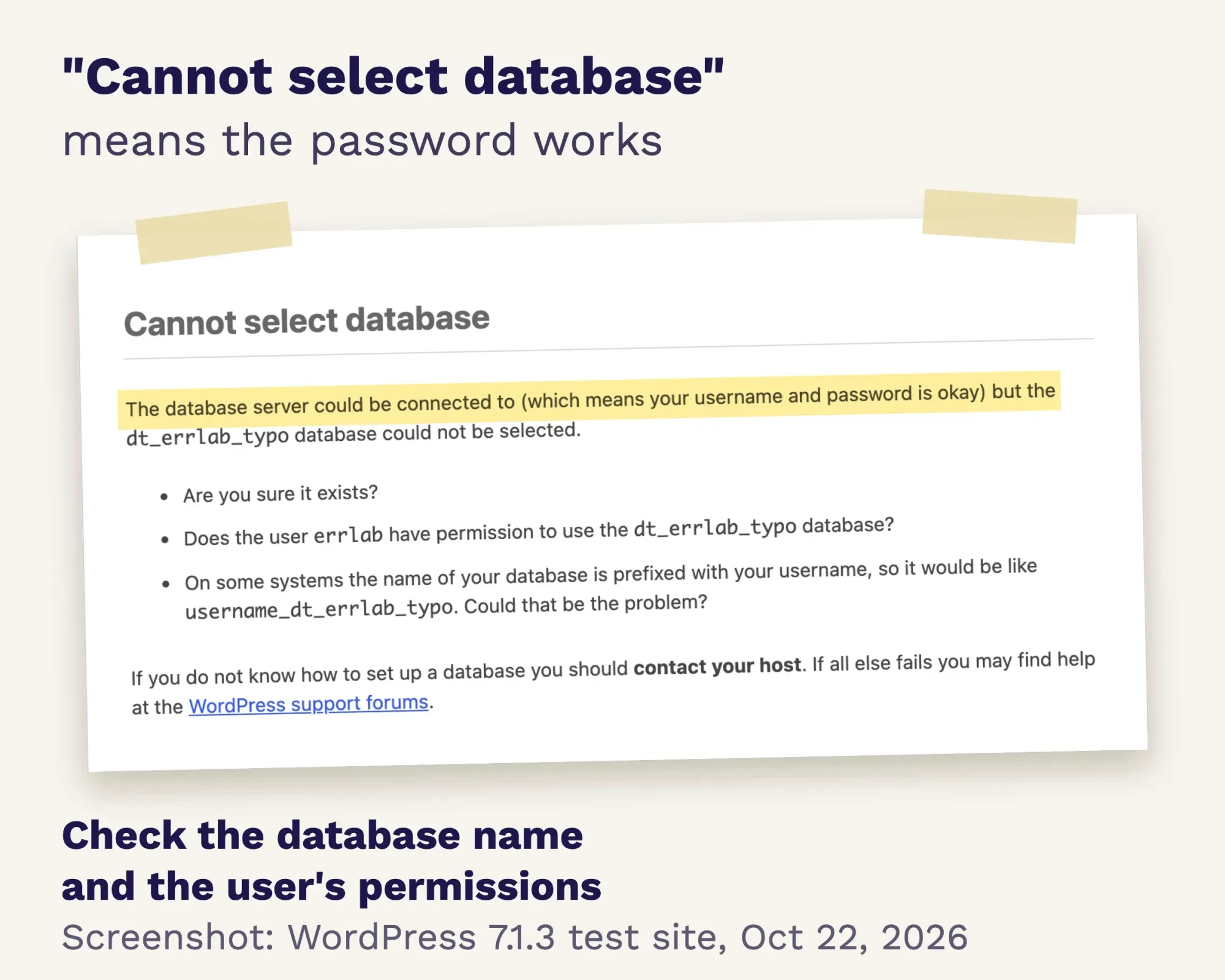 Screenshot: our WordPress 7.1.3 test site with a misspelled DB_NAME, /wp-admin/, October 22, 2026.
So open /wp-admin/ first. "Cannot select database" points to the database name or the user's permissions. The longer connection message points to the password, the user or the host.
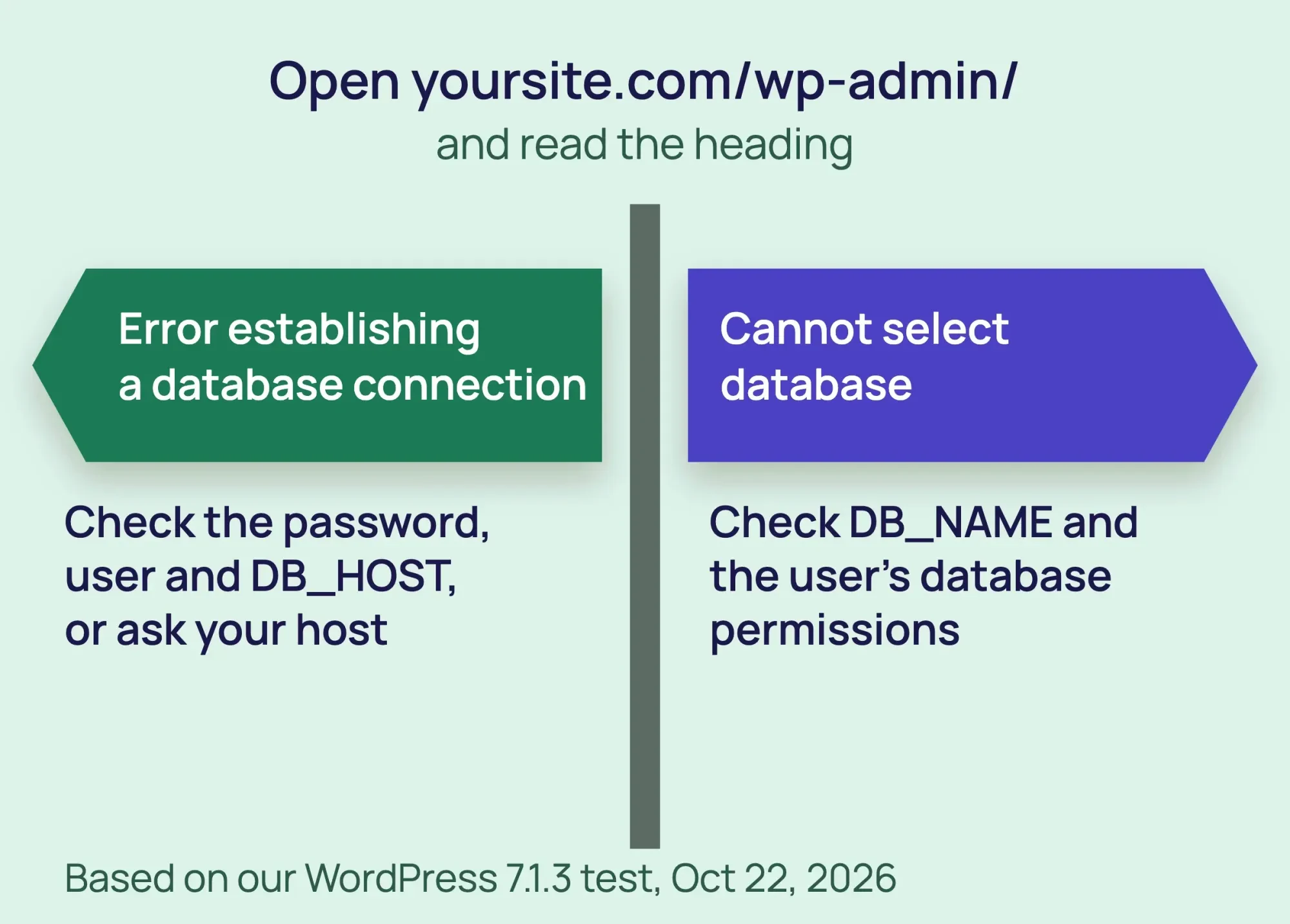 Diagram by DigitalTreed, based on our WordPress 7.1.3 test, October 22, 2026.
What should you do before changing anything?
Before you change anything, save a copy of wp-config.php and take a backup if your host offers one. Then work out what changed, check for host outage notices and note when the error started. A few minutes here lets you undo a bad edit.
- Download a copy of wp-config.php from your site's main folder. If an edit goes wrong, upload the copy back.
- If your host has a one-click backup, take one now, even of the broken site.
- Ask what changed: a new database password, a site move, a host maintenance email, a new plugin or a traffic spike.
- Check your host's status page and email for outage notices.
- Note the time the error started. Your host will ask.
SiteGround suggests copying the file to "wp-config-backup.php" before you edit it. That works on any host.
How to fix "Error establishing a database connection"
Work down this list in order. Stop at the first step that brings your site back.
- Check if the database server is up. Log in to your host panel and open phpMyAdmin. If it also fails, or your other sites are down too, the server is the problem. Contact your host.
- Compare the 4 database settings. Open wp-config.php and compare DB_NAME, DB_USER, DB_PASSWORD and DB_HOST with the database page in your host panel. Edit only the text between the quotes.
- Reset the database user's password. If /wp-admin/ showed the long connection message, set a new password for the database user in your host panel. Paste the same password into DB_PASSWORD, then save it in your password manager.
- Fix the name or permissions. If /wp-admin/ says "Cannot select database," correct DB_NAME. Check that the user is added to that database with all privileges.
- Repair damaged tables. If /wp-admin/ says tables "are unavailable," use your host panel's repair button, or the WordPress repair page described below.
- Restore a recent backup. Use your host's restore tool. Anything added since that backup, such as orders or bookings, will be lost, so export them first if you can.
- Call a developer for the rest. Reading server logs and cleaning a hacked site are jobs for a developer or your host. So is replacing core files, unless you know FTP (see below).
Which database settings should wp-config.php have?
The 4 lines sit near the top of wp-config.php, under "Database settings." The wp-config.php documentation says DB_HOST is usually localhost and that you probably won't need to change it.
define( 'DB_NAME', 'database_name_here' );
define( 'DB_USER', 'username_here' );
define( 'DB_PASSWORD', 'password_here' );
define( 'DB_HOST', 'localhost' );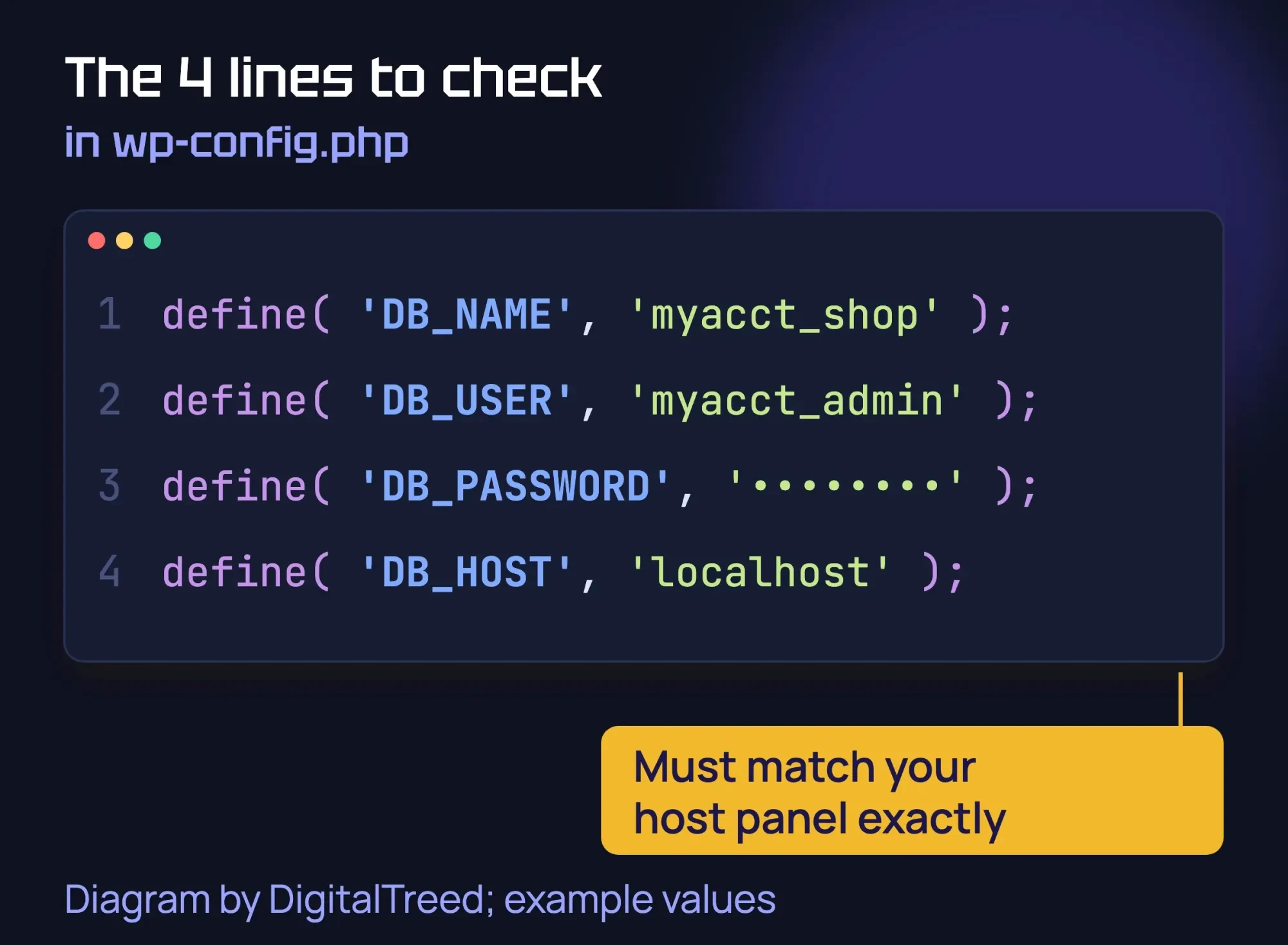 Diagram by DigitalTreed with example values.
| Host | Where to find the details | DB_HOST value |
|---|---|---|
| SiteGround | Site Tools > Site > MySQL | "localhost" or "127.0.0.1" |
| Hostinger | hPanel > Websites > Dashboard > Databases > Management | "localhost" |
| DreamHost | Panel > MySQL Databases, Hostname section | A mysql. subdomain, such as mysql.example.com |
| WP Engine | User Portal; name is wp_ plus the environment name | Set by WP Engine |
As of October 2026, SiteGround and Hostinger use localhost. DreamHost uses a mysql subdomain. After a new install with its WordPress installer, it says the subdomain can take a few hours to start working. WP Engine says the database name "will always be wp_environmentname."
2 catches are common. Some hosts add your account name in front of the database name, so "shop" becomes "myacct_shop." A password pasted with an extra space or quote mark also fails.
Leave the other lines alone. The wp-config.php documentation says that if DB_CHARSET and DB_COLLATE are missing, "DO NOT" add them. On an existing site, adding them "can cause major problems."
How to repair the database safely with WP_ALLOW_REPAIR
Use repair only when /wp-admin/ says "One or more database tables are unavailable." Repair fixes damaged tables, not a wrong password or a server that is down.
If your host panel has a "Repair Database" button, use that. Bluehost lists one in cPanel.
Otherwise, add this line to wp-config.php above "That's all, stop editing!" and visit yoursite.com/wp-admin/maint/repair.php. The wp-config.php documentation warns that "a user does not need to be logged in" to use it.
define( 'WP_ALLOW_REPAIR', true ); // delete this line right after the repairClick "Repair Database." Skip "Repair and Optimize" on a busy store, because the repair page says the database "will be locked while optimizing." When it finishes, the page tells you to remove the line "to prevent this page from being used by unauthorized users." Do it right away.
How to restore a backup safely
Your host's restore tool is the easiest way. Before you restore, export recent orders or bookings if you can, because they will be lost.
To restore by hand, the WordPress backup guide says to "Restore the WordPress files first," then the database. If the database details changed during a move, it says to update wp-config.php to match.
How to replace damaged WordPress core files
When your settings are right and the host says the server is fine, the WordPress files themselves may be damaged. Kinsta lists corrupt core files as a cause of this error. For server errors, WordPress suggests re-uploading the wp-admin and wp-includes folders from a fresh copy.
You need FTP or your host's File Manager for this. If those sound unfamiliar, hand this step to a developer.
- Take a full backup first, files and database.
- Find your version in the wp-includes/version.php file, on the line that starts with $wp_version.
- Download that version from the WordPress release archive and unzip it on your computer.
- Upload the new wp-admin and wp-includes folders over the old ones.
- Don't delete or replace wp-config.php or the wp-content folder. The WordPress upgrade guide marks both "DO NOT DELETE."
- Reload your site and check it again with the HTTP status checker.
When is it your host's problem?
It's your host's problem when the database server is down or your database is over its quota. WordPress lists 2 host problems: "Your database has met its quota and has been shut down" and "The server is down." SiteGround adds a MySQL server that is "overloaded or under maintenance." On shared hosting, only your host can restart MySQL.
Send your host a short, specific email with the facts they will ask for. Change the site, times and steps to match yours:
Note
Subject: Database connection error on example.com since 2:10 p.m. ET
Hi, my WordPress site shows "Error establishing a database connection" and returns HTTP 500. DB_NAME, DB_USER and DB_HOST in wp-config.php match my panel, and I reset the database password at 2:30 p.m. Please check that the MySQL server for my account is up and under its limits. Was there maintenance on your side? Please don't restore a backup without asking me first.
Thanks,
[Your name], account [ID]
Could your site have been hacked?
A hack can cause this error, but WordPress lists it last, after wp-config.php mistakes and host problems. If wp-config.php changed and you didn't change it, or you see admin users you don't know, treat it as a possible hack. WordPress suggests scanning with Sucuri SiteCheck once your settings and host are ruled out.
The WordPress hacked-site guide says to change "all access points," including FTP, wp-admin, your host panel and MySQL. After you change the database password, update DB_PASSWORD to match.
Cleaning a hacked site is easy to get wrong. If you'd rather have it done for you, our WordPress development team can find the cause and restore the site. (DigitalTreed sells this service.)
How is this different from other WordPress errors?
This error means WordPress can't log in to its database, and the page returns a 500 status. Other WordPress errors look different and have other causes. A critical error points to PHP code, a 502 to a server that didn't answer, and a redirect loop to settings.
| What you see | Status | Likely cause |
|---|---|---|
| Error establishing a database connection | 500 | WordPress can't log in to the database |
| There has been a critical error on this website | 500 | A PHP error, often a plugin or theme |
| 502 Bad Gateway | 502 | The server behind your site didn't answer |
| ERR_TOO_MANY_REDIRECTS | Redirect loop | Two settings keep sending visitors back and forth |
| Error establishing a Redis connection | 500 (usually) | A cache add-on, not the main database |
For the other errors, see our guides to the HTTP 500 and critical error, the 502 bad gateway error and the too many redirects error. If image uploads fail instead, see our missing temporary folder fix for WordPress. If the page says Forbidden instead, use our 403 Forbidden error guide for WordPress. If the message mentions Redis, read our Redis connection fix instead.
Example: a barbershop booking site in Columbus
Example: a made-up 2-chair barbershop in Columbus, Ohio, takes bookings on a WordPress site at a shared host. During a password cleanup, the owner changes the database password in cPanel. A minute later, the site shows "Error establishing a database connection."
The HTTP status checker shows 500. The owner opens /wp-admin/ and sees the username-and-password message, not "Cannot select database." They paste the new password into DB_PASSWORD, save and reload, and the checker now shows 200.
How to stop it from happening again
- Change database passwords in 2 places at once: the host panel and wp-config.php.
- Keep 3 to 5 recent backups in different places, as the WordPress backup guide advises.
- Set up uptime monitoring so you hear about an outage before your customers do.
- Keep WordPress updated. Version 7.1.3 shipped 7 security fixes on October 6, 2026, per its release note. Our step-by-step WordPress website guide covers securing a site from day one.
- Move to a bigger plan if your host warns about database size or traffic limits.
- Remove WP_ALLOW_REPAIR and debug lines as soon as you finish with them.
If you need to find a deeper cause, logging helps. Our guide to debugging WordPress shows how. The WordPress debugging page says debug tools are not recommended "on live sites," so turn them off when done.
Frequently asked
Is the problem my browser?
No. WordPress builds this page on the server, so every browser and device shows the same message. Clearing your cache won't fix it.
What if I see this error on someone else's website?
The problem is on their server, not your device. There is nothing to fix on your side. Try again later, or let the owner know.
Will I lose my content?
Not from the error itself. In the WordPress source, it only shows the message and stops the page from loading. If tables are damaged, try repair first, and restore a backup only if repair fails.
Why did this error show up after I moved my site?
A move can change the database name, user, password or host. Compare all 4 values in wp-config.php with the new host's panel, as in step 2. The WordPress backup guide gives the same advice for changed database details.
Will this error hurt my Google rankings?
WordPress sends a 500 status so search engines don't save the error page. Google says 5xx errors "prompt Google's crawlers to temporarily slow down with crawling." It adds: "already indexed URLs are preserved in the index, but eventually dropped." Fix it fast, then check the Pages report in Google Search Console.
Can I fix it without touching code?
Often, yes. You can reset the database password in your host panel, restore a backup with the host's tool, or ask your host to check the server.
What if I see the error on a local XAMPP install?
On your own computer, the usual cause is that MySQL isn't running. Start it in the XAMPP control panel and reload. That is general knowledge, not something we tested.
Your next step
Right now, open yoursite.com/wp-admin/ and read the full message. It tells you whether to check the password or the database name.
If the error comes back, or you suspect a hack, our WordPress development team can fix it, and you get a fixed quote first.
How we made this guide: it's built from WordPress's developer documentation, the WordPress 7.1.3 source code and RFC 9110. We also used help pages from SiteGround, Hostinger, DreamHost, Bluehost and WP Engine. We caused the error on a local WordPress 7.1.3 test site and took the screenshots on October 22, 2026. We checked every number against the source named next to it the same day.
First published June 25, 2020. Rewritten October 22, 2026: our own test, the /wp-admin/ check, database settings by host, a safer repair step and a host email. Updated October 23, 2026: added a causes table, restore and core-file steps, 3 FAQs and Google's rule on 5xx errors. Updated October 25, 2026: direct answers under question headings, a definition, a label for our test and a link to our WordPress guide.
Sources
- WordPress Developer Resources: Common WordPress Errors
- WordPress Developer Resources: wp-config.php
- WordPress Developer Resources: Debugging in WordPress
- WordPress Developer Resources: Backups
- WordPress.org: FAQ My site was hacked
- WordPress 7.1.3 Maintenance and Security Release, October 6, 2026
- WordPress 7.1.3 source: wp-includes/functions.php
- WordPress 7.1.3 source: wp-includes/class-wpdb.php
- WordPress 7.1.3 source: wp-admin/maint/repair.php
- RFC 9110, HTTP Semantics, section 15.6.1 (500)
- SiteGround: Fix Error Establishing a Database Connection (vendor)
- Hostinger: How to find your MySQL database details (vendor)
- DreamHost help: MySQL hostname (vendor)
- Bluehost: Troubleshoot a database connection error (vendor)
- WP Engine: Fix Error Establishing Database Connection (vendor)
- Sucuri SiteCheck (vendor)
- WordPress Developer Resources: Upgrading WordPress
- WordPress.org: Release Archive
- WordPress 7.1.3 source: wp-includes/version.php
- Google: How HTTP status codes affect Google's crawlers
- Kinsta: Error Establishing a Database Connection (vendor)


Comments
No comments yet. Start the conversation below.