

Quick answer
A 500 internal server error is the HTTP status a server returns when it hits a problem it can't handle, so your page doesn't load. In WordPress, a common cause is a PHP fatal error from a plugin or theme. Check the admin inbox first: WordPress emails a recovery link that names the broken plugin or theme.
Your site shows "HTTP ERROR 500" or "There has been a critical error on this website." Both are the same problem. WordPress lists plugin conflicts, theme issues, the wrong PHP version, memory and damaged files as the usual causes.
We broke a test copy of WordPress 7.1.3 on purpose on October 22, 2026, to see what you see. This guide gives the fixes in a safe order, starting with the easy ones. It also says when to stop and call your host.
Key takeaways
- The critical error page and HTTP ERROR 500 are the same problem.
- Check the admin inbox and spam for the WordPress recovery email first.
- The newest PHP Fatal error line in your log names the broken file.
- Renaming the plugins folder turns off every plugin without deleting settings.
- Set WP_DEBUG back to false and delete debug.log when you finish.
Key facts about the WordPress 500 error
- RFC 9110, the HTTP standard from June 2022, defines a 500 as an "unexpected condition" that stops the server from finishing a request.
- In our test on WordPress 7.1.3 on October 22, 2026, a broken plugin returned status 500 behind the "critical error" page.
- By default, WordPress asks for 40MB of memory on a single site and 64MB on a multisite, per the wp-config.php guide.
- WordPress recommends PHP 8.3 or greater. PHP.net's end-of-life page lists December 31, 2025 as the end of PHP 8.1 security support.
- The WordPress file permissions page says folders should be 755 or 750 and files 644 or 640. No folder should ever be 777.
What does HTTP error 500 mean in WordPress?
HTTP error 500 means your server "encountered an unexpected condition" and could not finish the request. That's the definition in RFC 9110, the HTTP standard. In WordPress, a common cause is a PHP error in a plugin or theme. It is a catch-all code: it says something broke, not what.
MDN lists the usual causes: server settings, out-of-memory errors, code errors and wrong file permissions. It also says a visitor can't fix it. Only the site owner or host can.
A friendly page can hide the code, so paste your URL into our free HTTP status checker to see the real status. Check the home page, one post, /wp-admin/ and /wp-login.php; if only /wp-admin/ fails, the cause is often memory or an admin-only plugin.
Why does my site say "There has been a critical error"?
Your site says it because a PHP fatal error stopped WordPress. Since WordPress 5.2, a fatal PHP error shows a friendly page instead of a blank one. The fatal error handler in WordPress core still sends status 500 with it. So the friendly page and the 500 are the same error.
Our test: one broken plugin, two error pages
Our test showed both faces. We added a small plugin that called a function that does not exist. WordPress returned status 500 and its critical error page.
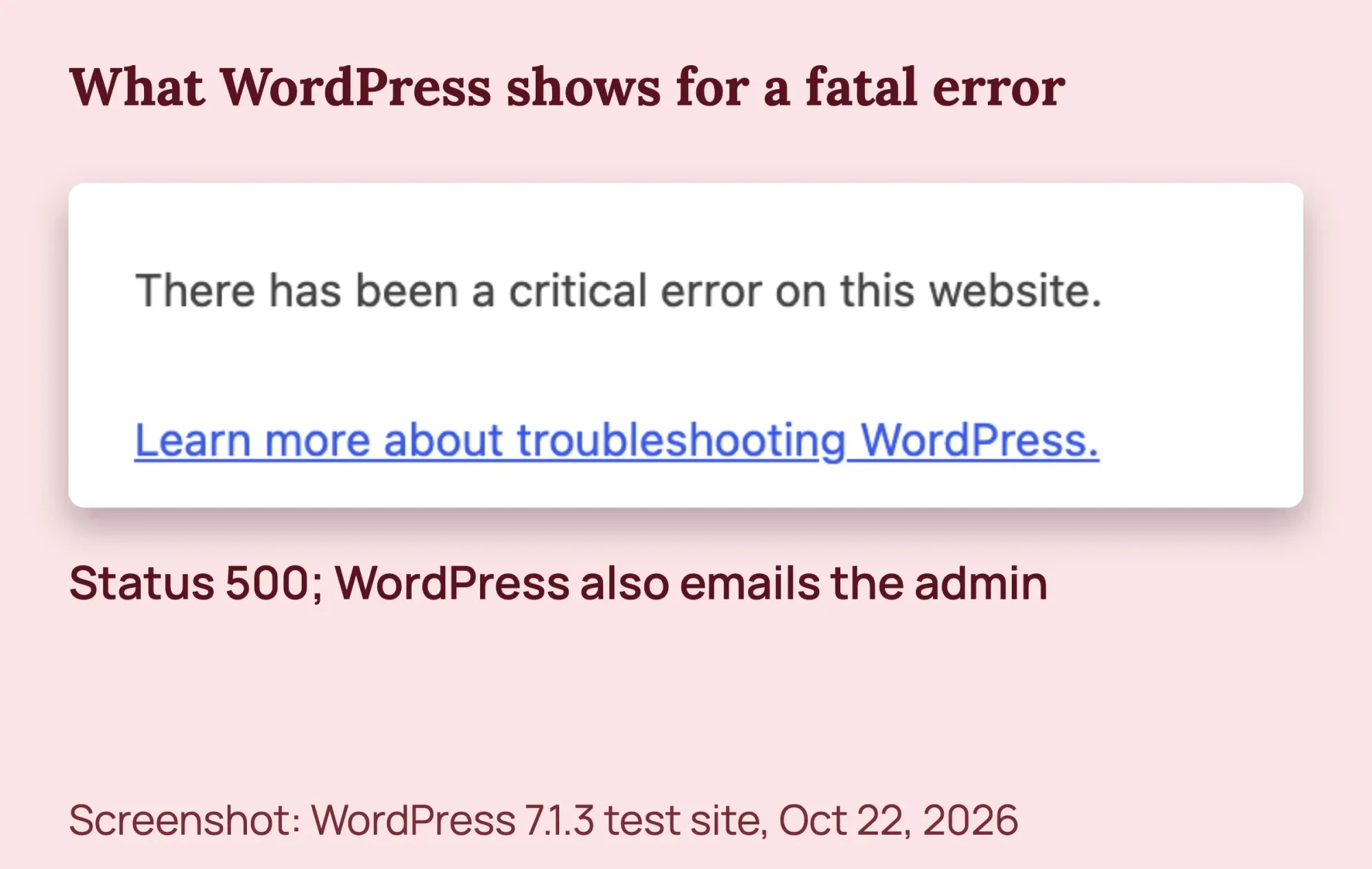 Screenshot: our WordPress 7.1.3 test site with a broken test plugin, Chrome, October 22, 2026.
Then we turned off WordPress's fatal error handler and loaded the page again. This time the server sent a blank 500. Chrome filled the gap with its own page: "This page isn't working" and "HTTP ERROR 500."
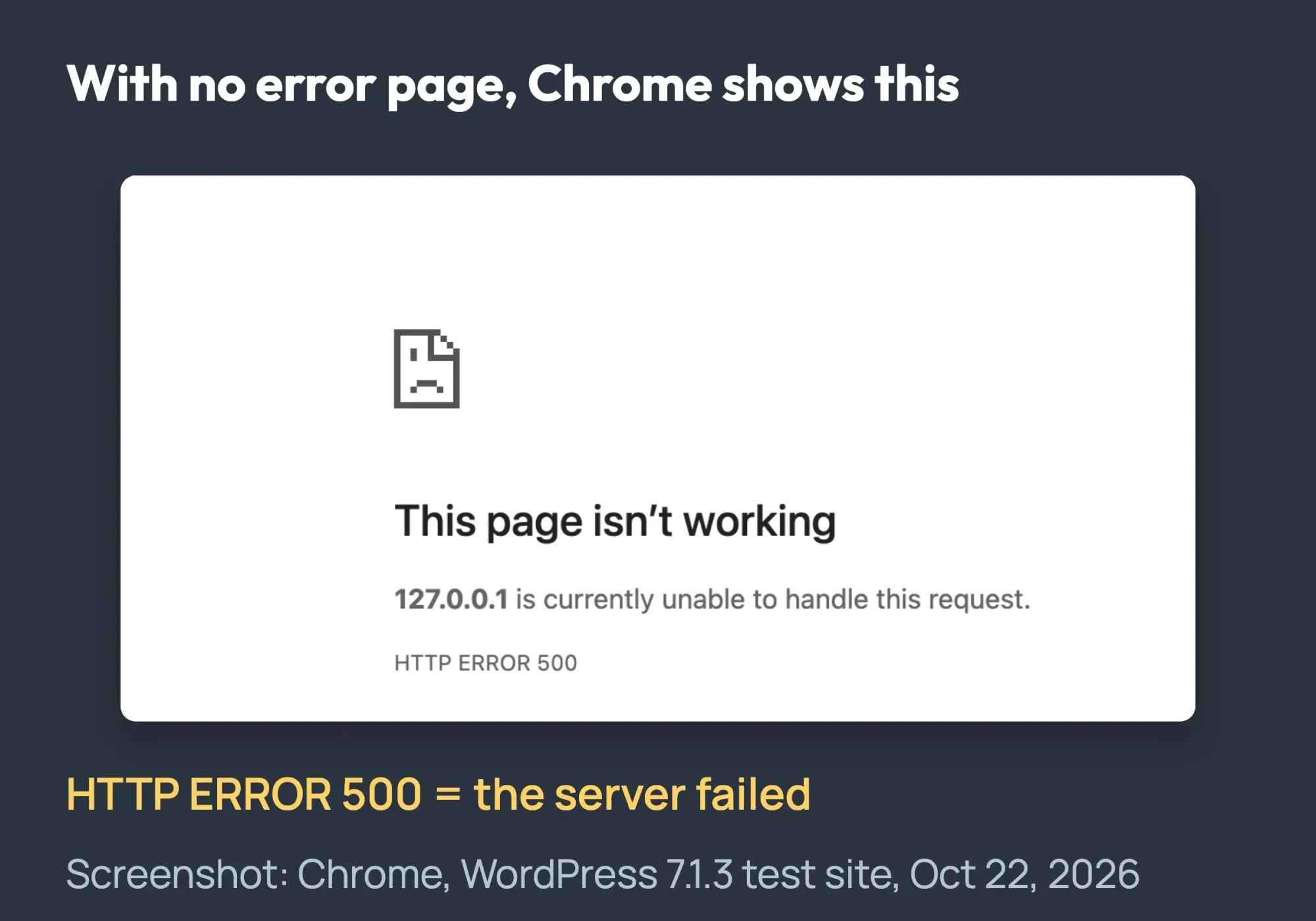 Screenshot: the same test site with the fatal error handler off, Chrome, October 22, 2026.
We turned the handler off only for the test. Leave it on for your site. It is what lets WordPress send you the recovery email.
Visitors see only the short sentence. On the login page or in /wp-admin/ of a single site, the message adds "Please check your site admin email inbox for instructions". That is why you and your visitors may report different text.
What changed right before it broke?
The change you made just before the error is the best clue. A plugin update points to that plugin, and a PHP switch points to an old plugin or theme. The table below maps it to the right step, so you skip the guessing.
| Started right after... | Most likely cause | Go to step |
|---|---|---|
| Updating or adding a plugin | That plugin | 2, then 5 |
| Switching or updating a theme | The theme | 2, then 6 |
| A PHP version change at your host | An old plugin or theme | 9 (switch back), then 3 |
| Moving host or changing domain | .htaccess, file paths or PHP version | 7, 9, then 3 |
| Editing wp-config.php or functions.php | A typo in that file | Upload your copy of the file, or 3 |
| Nothing at all | Server, memory, traffic or a hack | 3, then call your host |
| Only /wp-admin/ breaks | Admin memory or an admin-only plugin | 3, 8, then 5 |
Did the 500 start after a move? Check for redirect trouble too. Our guide to the too many redirects error covers loops between http and https.
How to fix the 500 internal server error in WordPress
Before you start, download a copy of wp-config.php and .htaccess from your site's main folder. Use your host's File Manager. Skip plain FTP, because it sends your password unencrypted.
Do the steps in order and stop when the site loads.
- Reload once. Wait 1 to 2 minutes and reload. If you can log in, clear your cache plugin or host cache. A hard reload that skips your browser cache rules out an old copy on your own screen.
- Check the recovery email. Look in the admin inbox and spam for "Your Site is Experiencing a Technical Issue". Click the link, log in and deactivate the plugin or theme it names.
- Read the error log. Open the log in your host panel. The last fatal error names the file that broke.
- Turn on the WordPress debug log. If your host has no log, add the debug lines below to wp-config.php. Reload the broken page, then open wp-content/debug.log.
- Test the plugins. Rename wp-content/plugins to plugins-off. If the site loads, a plugin is the cause. Rename the folder back to plugins, then turn them on one at a time under Plugins.
- Test the theme. Rename your active theme's folder in wp-content/themes. WordPress switches to a default theme (one named "Twenty" plus a year) if one is installed.
- Reset .htaccess. Rename .htaccess to .htaccess_old. If the site loads, log in and click Save Changes on Settings > Permalinks to write a fresh one.
- Raise the memory limit. Only if the log says "Allowed memory size ... exhausted." Add the memory line below to wp-config.php.
- Check the PHP version. If the error started after a PHP change, switch back in your host panel. Then update or replace the old plugin.
- Restore a backup or call for help. Restore yesterday's backup with your host's tool, which loses changes made since. Or ask your host or a developer for the core file and server steps.
Use the recovery email and recovery mode first
When a plugin or theme causes a fatal error, WordPress emails the site admin a secret link. The WordPress 5.2 Recovery Mode announcement says the link pauses the broken plugin or theme for you only, so you can log in.
The subject line is "[Your site name] Your Site is Experiencing a Technical Issue," per the recovery email code. By default, WordPress sends at most one of these emails per day. The Recovery Mode code sets that 1-day limit.
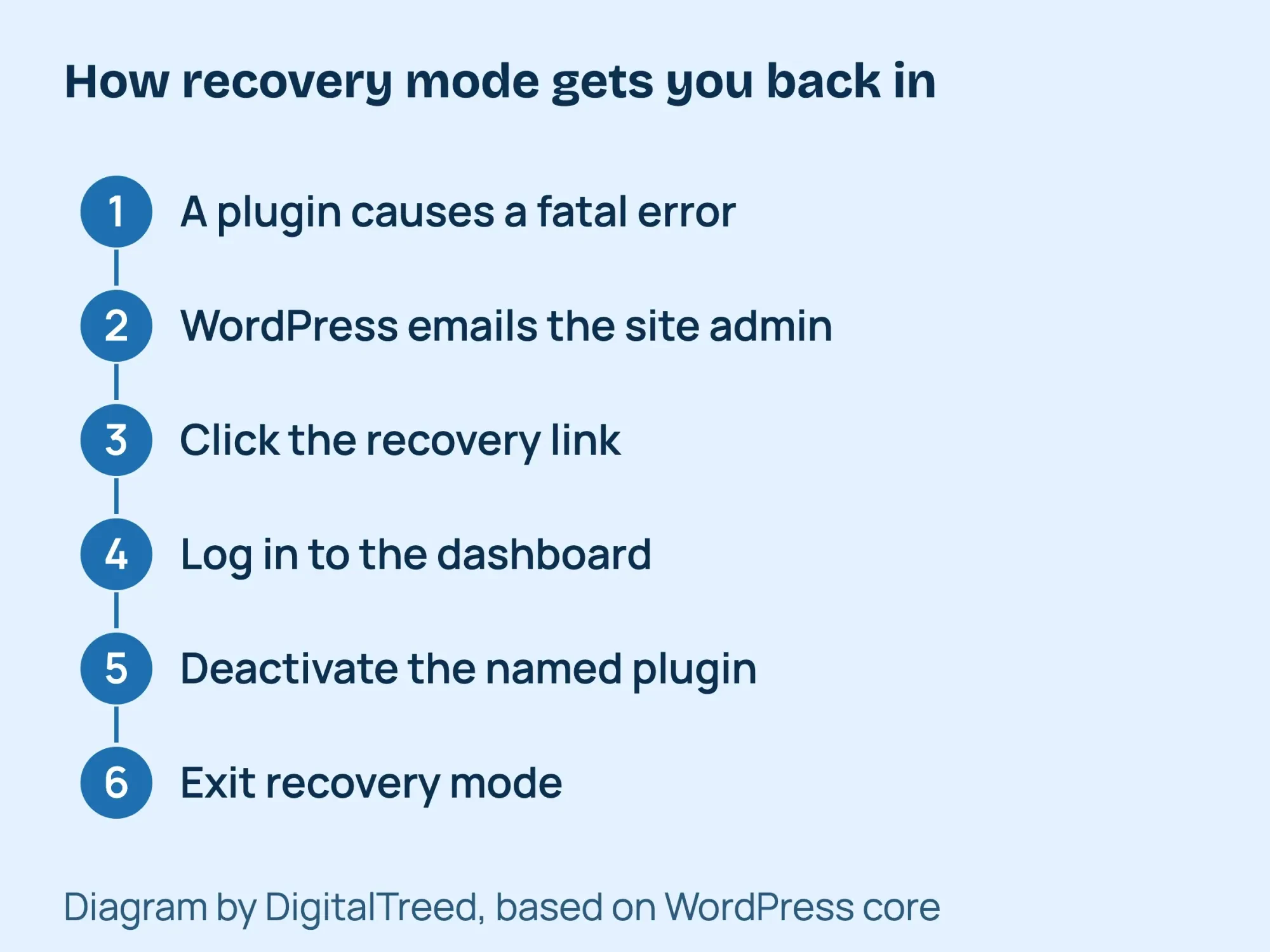 Diagram by DigitalTreed, based on the WordPress core source code.
If no email came, check spam, then check the address under Settings > General if you can reach it. It may have gone out yesterday, since WordPress sends one a day. If not, go to the error log.
To send future emails to another inbox, add this line to wp-config.php above "That's all, stop editing!"
define( 'RECOVERY_MODE_EMAIL', '[email protected]' );Where is your WordPress error log?
Most hosts keep a PHP error log for you. Here is where 5 hosts popular in the US put it, as of October 2026.
| Host | Where the error log is |
|---|---|
| SiteGround | Site Tools > Statistics > Error Log |
| Hostinger | File Manager, .logs folder, file error_log_ plus your domain |
| DreamHost | Panel > Manage Websites > Manage > Logs tab |
| WP Engine | User Portal > Sites > your environment > Logs > Error (times in UTC) |
| Bluehost | Websites > Manage Site > Files & Access > File Manager; turn on the debug log in wp-config.php |
| Most cPanel hosts | cPanel > Metrics > Errors |
Sources: SiteGround's error log guide, Hostinger's log help page, DreamHost's error log article, WP Engine's error log page and Bluehost's critical error guide. DreamHost shows times in Pacific time.
Hosts that use cPanel have a log screen too. Per cPanel's Errors page, it lists up to 300 of the newest entries, newest first.
Look for the newest line with "PHP Fatal error." It ends with a file path. A path with /wp-content/plugins/name/ points to that plugin, and /themes/name/ points to that theme. "Allowed memory size ... exhausted" means memory.
Turn on the WordPress debug log safely
Your wp-config.php already has a line that reads define( 'WP_DEBUG', false );. Replace that one line with these 4 lines, as the WordPress debugging page shows. Don't paste a second WP_DEBUG line.
define( 'WP_DEBUG', true );
define( 'WP_DEBUG_LOG', true );        // writes wp-content/debug.log
define( 'WP_DEBUG_DISPLAY', false );   // visitors see nothing extra
@ini_set( 'display_errors', 0 );
Keep them above the "That's all, stop editing!" line. Reload the broken page, then open wp-content/debug.log in File Manager.
WordPress says debug tools are not recommended "on live sites." On many servers, anyone who guesses the address can open debug.log. So set WP_DEBUG back to false and delete debug.log when you finish. Our guide to debugging in WordPress explains each setting.
Test plugins, the theme and .htaccess
Renaming the plugins folder turns off every plugin at once, without deleting settings. WordPress's common errors page suggests the same test. Name it back to plugins, all lowercase, when you finish.
If you can still log in, the Health Check & Troubleshooting plugin turns off plugins for your login only. As of October 2026, its WordPress.org page says it was tested up to 6.6.10. It is not tested on WordPress 7, so use it as a second option.
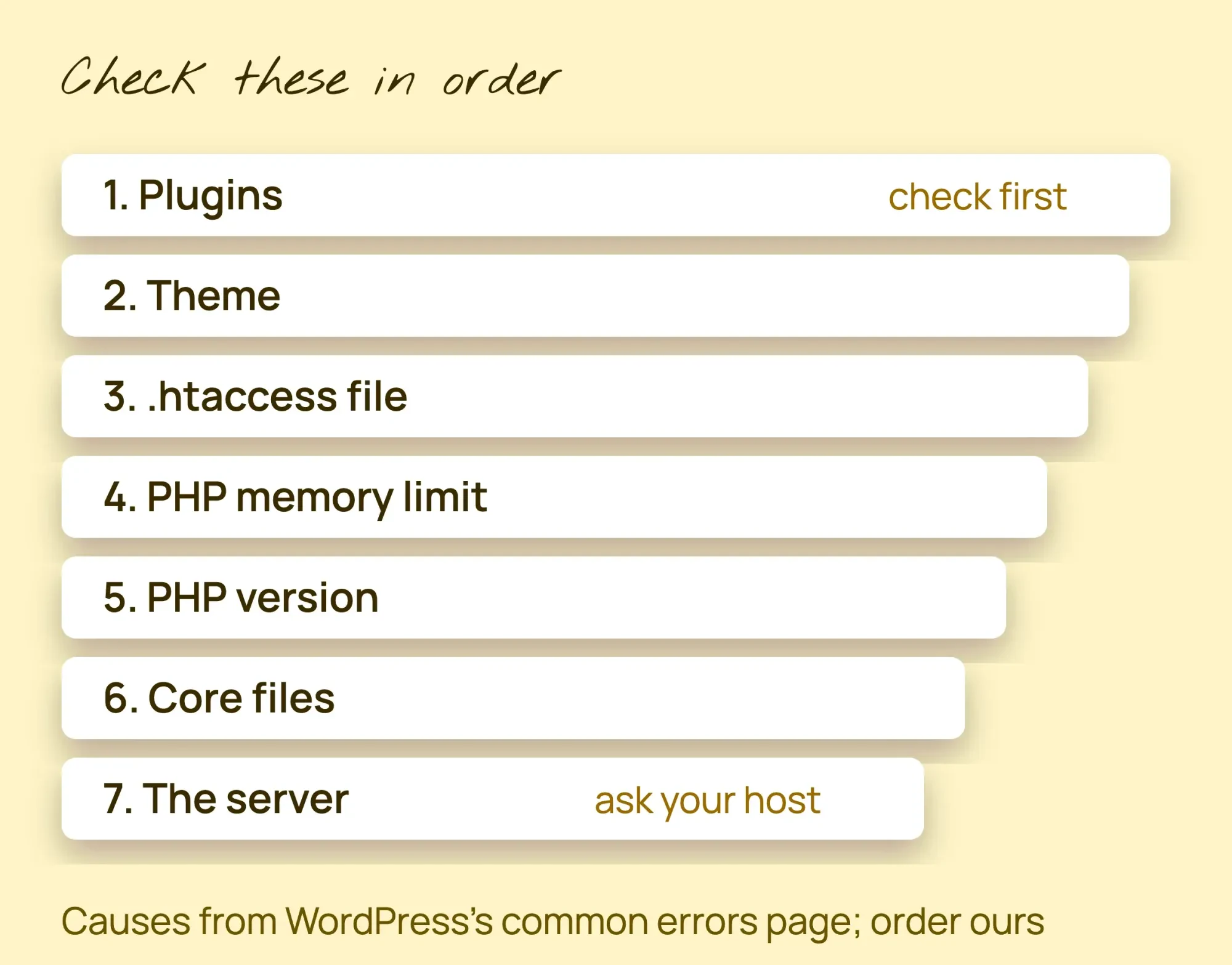 Diagram by DigitalTreed. The causes come from WordPress's common errors page; the order is ours.
For a plain Internal Server Error, WordPress's common errors page names a corrupted .htaccess file as the most likely issue. Turn on "show hidden files" in File Manager first. The WordPress .htaccess page has the default rules if you need to rebuild the file by hand. This step only matters on Apache or LiteSpeed servers, because Nginx ignores .htaccess.
After the reset, log in and click Save Changes under Settings > Permalinks. If links then break, see our fix for permalinks not working in WordPress.
Raise the memory limit
By default, WordPress asks for 40MB on a single site and 64MB on a multisite. The wp-config.php guide says a higher WP_MEMORY_LIMIT can fix "Allowed memory size ... exhausted" errors. Add this above "That's all, stop editing!"
define( 'WP_MEMORY_LIMIT', '256M' );256M is a common value hosts allow, not a WordPress rule. WordPress can't go above your host's cap. The same guide warns that more memory can hide the real cause.
See your real limit under Tools > Site Health > Info > Server. The Site Health screen guide explains that page.
Check your PHP version
WordPress recommends PHP 8.3 or greater. The PHP supported versions page shows PHP 8.1 lost security support on December 31, 2025. PHP 8.2 loses it on December 31, 2026.
Errors right after a PHP switch usually mean an old plugin or theme. The WordPress PHP update page says it can't promise your plugins work on newer versions. Switch back in your host panel, then update or replace that plugin.
Is Cloudflare or your host the problem?
The error page tells you whether Cloudflare is the problem. Cloudflare's Error 500 guide says to contact its support if the page body contains "cloudflare" or "cloudflare-nginx". If not, the problem is your origin server (your host), and pausing Cloudflare for a test confirms it.
Cloudflare pages with a 520 to 526 code are a different family. Our 502 bad gateway guide covers those.
On shared hosting, you can't restart PHP or raise server limits yourself. Send your host a short, specific email like this one:
Sample email to your host. Subject: 500 error on example.com since 9:10 a.m. ET. My WordPress site has returned HTTP 500 since about 9:10 a.m. ET. I renamed the plugins folder and .htaccess, and the error stayed. My PHP version is 8.3. Please send me the PHP error log lines from that time. Did my account hit a memory, process or disk limit? Was PHP updated or the server changed? Please restart PHP for the site if that is safe.
When should you stop and call for help?
Stop and call your host or a developer when the easy tests don't work and the next step is core files or permissions. Re-uploading core files and changing file permissions are the hardest steps. One wrong folder can wipe your site. Replace only wp-admin and wp-includes from a fresh copy, never wp-content, which holds your themes, plugins and images.
Can you still log in? Then try the safer route first. The Dashboard Updates screen guide says Dashboard > Updates has a "Re-install now" button for your current version.
The same page says to back up your database and files before an upgrade. Do that before you click.
The WordPress file permissions page says folders should be 755 or 750 and files 644 or 640. It also says never use 777. Ask your host before you change these in bulk.
- The log names a file in wp-includes or wp-admin, or a "Parse error" in a file you didn't edit.
- The site breaks again after every fix, or only under traffic.
- It is a store and checkout is down.
- You see files or admin users you don't know.
Rather hand it off? Our WordPress development team can find the broken file and get the site back. (DigitalTreed sells this service.)
How do you stop the 500 error from coming back?
To keep the 500 error from coming back, back up before every update, update plugins one by one, and keep PHP supported. Recent WordPress versions also undo some plugin updates that cause a fatal error. Themes and file edits don't get that safety net.
WordPress's core team calls a PHP fatal error "the biggest risk" when you update plugins. Its rollback proposal explains what WordPress now does about it.
Since WordPress 6.3, a plugin you update by hand is not turned back on if the update causes a fatal error.
WordPress 6.6 added rollbacks for plugin auto-updates. Per the proposal, WordPress checks the home page after an auto-update. On a fatal error, it restores the old version and emails the site admin.
These checks cover plugins, not every change. So keep these habits too:
- Back up before every update. The WordPress backups page suggests weekly backups for small sites and daily ones for busy sites.
- Keep at least 3 to 5 recent backups in different places, such as your host, cloud storage and your computer. The same page suggests this.
- Update one plugin at a time, then load the site. If it breaks, you know which one did it. This is our advice, not a WordPress rule.
- Keep PHP on a supported version, as in the PHP step above. Our step-by-step WordPress website guide covers securing a new site from day one.
- Set up uptime monitoring, so you hear about a 500 before your customers do.
Which WordPress error is it?
The words on the screen tell you which error you've got. A critical error page or a blank HTTP ERROR 500 page is a 500. So is a database connection error. So is "Error establishing a Redis connection," a cache problem covered in our Redis connection error fix. A 502, 503 or 403 isn't a 500, and each has its own causes.
| What you see | Status | Usual cause |
|---|---|---|
| There has been a critical error on this website | 500 | A PHP fatal error, often a plugin or theme |
| This page isn't working ... HTTP ERROR 500 | 500 | A fatal error with no page body |
| Error establishing a database connection | 500 | WordPress can't log in to its database |
| 502 Bad Gateway | 502 | The server behind your site sent no valid answer |
| Briefly unavailable for scheduled maintenance | 503 | An update that didn't finish |
| 403 Forbidden | 403 | The server refuses the request, often a permission or security rule |
| ERR_TOO_MANY_REDIRECTS | 301 or 302 in a loop, until the browser stops | A redirect loop |
Cloudflare calls the database error "a common HTTP 500 error". For the others, see our guides to error establishing a database connection and the 502 bad gateway guide. If uploads fail with "Missing a temporary folder," our guide to the missing temporary folder error in WordPress covers that PHP fix. We also cover the 403 Forbidden error and the too many redirects error. If the browser can't find the site at all, read our fix for DNS_PROBE_FINISHED_NXDOMAIN.
RFC 9110 defines a 403 as a server that "understood the request but refuses to fulfill it." Unlike a 500, nothing crashed.
Example: a bakery's ordering plugin in Columbus
Example: a made-up family bakery in Columbus, Ohio, updates its online-ordering plugin at 7:45 a.m. The home page now reads "There has been a critical error on this website."
In the admin inbox, the owner finds "[Bakery] Your Site is Experiencing a Technical Issue". They click the link, log in, see the ordering plugin paused, deactivate it and call the plugin's support. Without the email, the next stop would be the host error log.
Frequently asked
Does a 500 error hurt my Google rankings?
In our view, a short one is unlikely to matter. Google's crawling docs say 5xx errors slow crawling, and indexed pages are kept "but eventually dropped." Google gives no time limit, so fix it fast.
Why do I see the 500 only in wp-admin?
The admin area uses more memory, and some plugins run only there. Read the log, then check memory and admin plugins.
Will fixing it delete my content?
Renaming .htaccess or the plugins folder does not touch posts or pages. Uploading a fresh wp-content folder would. Back up first.
Why do I get a 500 error with Elementor?
Elementor's help page names low memory, another plugin or a PHP fatal error. It says Elementor needs at least 256MB of memory and recommends 512MB with other plugins. Read the PHP error log first.
I'm a visitor. Can I fix it?
No. The error is on the server. Try again later, or tell the site owner.
Your next step
Right now, check the admin inbox and spam for the recovery email. If it is there, the email names the broken plugin or theme.
If the error keeps coming back, our WordPress team can fix it, and you get a fixed quote first.
How we made this guide: it's built from WordPress's developer documentation, the WordPress core source code, RFC 9110 and MDN. We also used Google, Cloudflare, PHP.net and help pages from 5 hosts popular in the US. We caused the error on a local WordPress 7.1.3 test site and took the screenshots on October 22, 2026. We checked every number against the source linked next to it the same day. Updated October 23, 2026: added prevention steps, cPanel's error log, the Re-install now button, an Elementor answer and a 403 row. Updated October 25, 2026: direct answers under question headings, sourced key facts, a label for our test and a link to our WordPress guide.
First published June 2020. Rewritten October 22, 2026: our test, the critical error page, the recovery email and a triage table. Also new: host logs, safe code, PHP dates and a host email.
Sources
- RFC 9110, HTTP Semantics, section 15.6.1 (500)
- MDN: 500 Internal Server Error
- WordPress Developer Resources: Common WordPress Errors
- WordPress Developer Resources: Debugging in WordPress
- WordPress Developer Resources: Editing wp-config.php
- WordPress Developer Resources: Apache HTTPD / .htaccess
- WordPress Developer Resources: Changing File Permissions
- Make WordPress Core: Fatal Error Recovery Mode in 5.2, April 16, 2019
- WordPress core source: class-wp-fatal-error-handler.php
- WordPress core source: class-wp-recovery-mode-email-service.php
- WordPress core source: class-wp-recovery-mode.php
- WordPress.org: Health Check & Troubleshooting plugin
- WordPress.org: Site Health screen
- WordPress.org: Requirements
- WordPress.org: Update PHP
- PHP.net: Supported Versions
- Google Search Central: HTTP status codes and Google crawlers
- Cloudflare: Error 500 (vendor)
- SiteGround: How to get error logs (vendor)
- Hostinger: Where to find your website's error logs (vendor)
- DreamHost: Viewing your error logs in the panel (vendor)
- WP Engine: Error Logs and Common Errors (vendor)
- Bluehost: Fix the Critical Error on Your WordPress Site (vendor)
- cPanel Documentation: Errors (vendor)
- WordPress.org: Dashboard Updates screen
- WordPress Developer Resources: Backups
- Make WordPress Core: Merge Proposal: Rollback Auto-Update, April 19, 2024
- WordPress.org: WordPress 6.6 release notes
- Elementor Help: 500 error (vendor)
- RFC 9110, HTTP Semantics, section 15.5.4 (403)

Comments
No comments yet. Start the conversation below.