
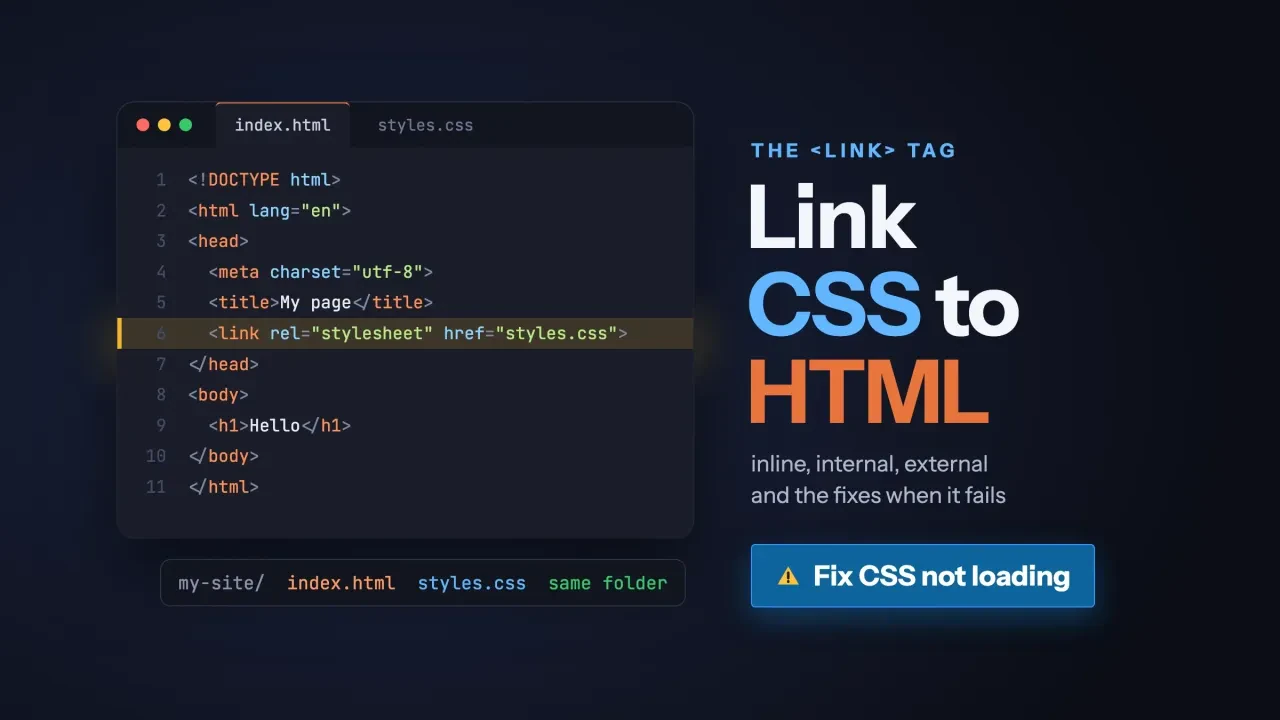
Quick answer
To link CSS to HTML, put one line in the head of your page: <link rel="stylesheet" href="css/style.css">. The href is the path from the HTML file to the CSS file. You can also use a style element or a style attribute. If nothing changes, check the path, letter case, MIME type and cache.
That's the short version of how to link CSS to HTML. The rest of this page is for when it doesn't work.
Everything below comes from a real test.
On October 26, 2026, we built a tiny test site and loaded it 28 times in headless Chrome 155. We broke it on purpose with wrong folders, a capital letter, a bad server setting and a stale cache.
Every fix below is one we watched work.
Key takeaways
- Put one link element with rel="stylesheet" in the head of each page.
- The href path starts from the HTML file's own folder.
- Keep file names lowercase, because most web servers are case-sensitive.
- When specificity is equal, the last rule in document order wins.
- Add a version like ?v=2 to the href so visitors get new CSS.
Link an external CSS file with one line in the head
An external stylesheet is a separate .css file that you connect with the link element. MDN's getting started with CSS guide calls it "the most common and useful method of bringing CSS to a document."
Link the same file from every page, and one edit restyles the whole site.
Here's the HTML page from our test:
<!doctype html>
<html lang="en">
<head>
  <meta charset="utf-8">
  <title>Prickly Pear Bike Repair</title>
  <link rel="stylesheet" href="css/style.css">
</head>
<body>
<header>
  <h1 class="brand">Prickly Pear Bike Repair</h1>
  <p class="tagline">Flat fixes and tune-ups in Marfa, Texas</p>
</header>
<main>
  <p>Basic tune-up: <span class="price">$65</span></p>
</main>
</body>
</html>
And here's the CSS file it points to, saved as css/style.css:
/* css/style.css: the shop's one stylesheet */
body {
  margin: 0;
  font-family: Georgia, serif;
  background: #fff8ec;
  color: #2b2118;
}

header {
  background: #2f6b4f;
  padding: 24px 32px;
}

h1 {
  margin: 0;
  color: #ffffff;
  font-family: Arial, Helvetica, sans-serif;
}

.tagline {
  margin: 6px 0 0;
  color: #f4d58d;
}

main {
  padding: 8px 32px 24px;
}

.price {
  color: #b5452b;
  font-weight: bold;
}
Two attributes do the work. rel="stylesheet" tells the browser the file is a stylesheet, and href says where it is.
The HTML standard puts it plainly: "The address of the link(s) is given by the href attribute."
You don't need type="text/css".
MDN's link element reference says leaving it out "is actually now recommended practice."
Keep the link in the head.
A stylesheet link is allowed in the body, but MDN says that "isn't a good practice to follow."
In the head, the link blocks rendering until the CSS arrives, so the page doesn't paint without its styles.
That wait is also why a heavy stylesheet slows the first paint. The render-blocking part of the PageSpeed Insights guide on our site explains it, and our free page speed checker times yours.
Here's one more trick. Add media="print" to a link, and that file only applies when the page is printed.
Get the path right for your folder structure
Now the part that breaks most links: the path.
The href starts from the HTML file's own folder, not from your site's top folder. So the same line can work on your home page and fail on a page one folder down.
Say your site looks like this:
my-site/
  index.html
  css/
    style.css
  pages/
    about.html
From index.html, the path is css/style.css. From pages/about.html, it's ../css/style.css.
The two dots mean one folder up. MDN's dealing with files lesson says: "To link to a target file in the folder above the invoking HTML file, write two dots."
A path that starts with a slash, like /css/style.css, works from any page. MDN's guide to URLs says the browser then fetches the file "from the top root of the server."
Here's the catch. If your site lives in a subfolder, such as example.com/shop/, that slash points at the wrong place.
Example: Prickly Pear Bike Repair is a made-up repair shop in Marfa, Texas, with the folders above. Its owner copies the head of index.html into a new about page inside pages/. In our test, that page asked for /pages/css/style.css, got a 404 and showed plain black text. Changing the href to ../css/style.css fixed it, and so did /css/style.css.
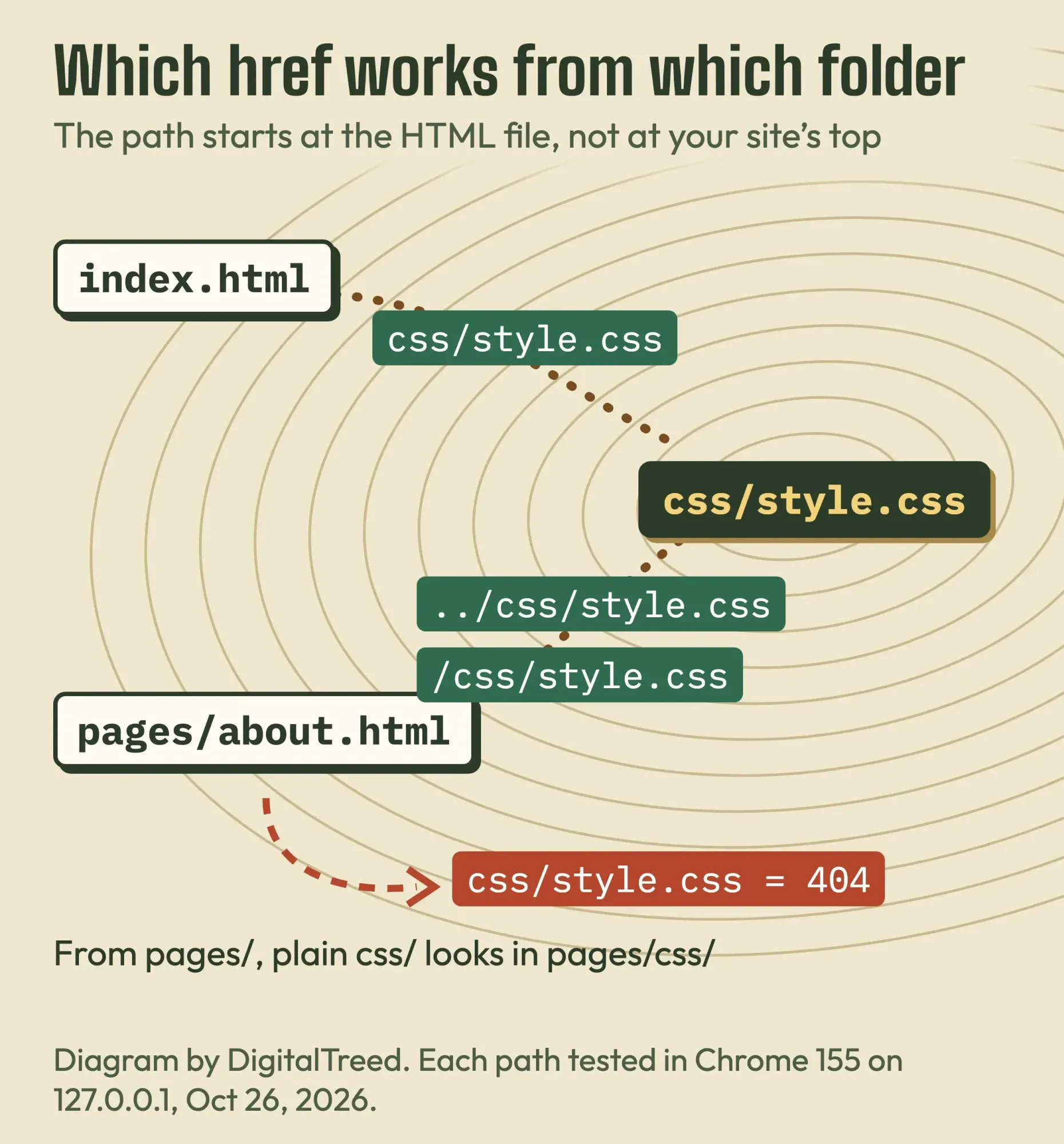 Diagram by DigitalTreed: which href works from which folder, from our local test of October 26, 2026 (Prickly Pear Bike Repair is made up).
Use forward slashes, even on Windows.
And keep file names lowercase, with hyphens instead of spaces. A capital letter that your own computer ignores can break the link on a web server, as you'll see in the fixes section.
Internal CSS goes in a style element
Paths only matter for external files. Internal CSS needs no path, because it lives inside a style element in the head of one page.
The HTML standard says "The style element allows authors to embed CSS style sheets in their documents."
<style>
  header { background: #2f6b4f; padding: 24px 32px; }
  h1 { margin: 0; color: #ffffff; }
</style>
It's handy for a one-page site, a quick test, or a site builder that lets you edit the page's HTML but won't let you upload a separate CSS file.
But it only styles that page. The same MDN guide says internal stylesheets are less efficient for sites with more than one page, since you'd repeat the block on every page.
Skip the type attribute here too.
MDN's style element reference says it "should not be provided."
Inline CSS sits in a style attribute
Inline CSS skips the style element and goes straight on one element, with the style attribute.
<h1 style="margin: 0; color: #ffffff;">Prickly Pear Bike Repair</h1>
It styles that element and nothing else.
MDN's getting started guide is blunt: "Avoid using CSS in this way if possible. It is a bad practice."
Every change means hunting through the HTML for each element, and inline styles also beat your stylesheet, so a fix in the CSS file seems to do nothing.
It does have real uses. MDN notes that HTML email uses a lot of inline styles "to achieve compatibility with as many email clients as possible."
It's also fine for a quick test.
Styling a link to look like a button? Put that in your CSS file, not inline. Our HTML button link guide shows the markup.
Should you use inline, internal or external CSS?
Those are the three ways to add CSS. Here's how inline, internal and external CSS compare.
| Way | Where the CSS goes | What it styles | Use it for |
|---|---|---|---|
| External | A .css file, linked with <link rel="stylesheet" href="..."> in the head | Every page that links the file | Any real website |
| Internal | A <style> element in the head | That one page | One-page sites, quick tests, locked-down site builders |
| Inline | A style="..." attribute on one element | That one element | HTML email, one-off tests |
Our take: use one external file, linked from the head of every page.
Keep the other two for the cases in the last column. It's the only setup where you change a color once and see it everywhere.
Building pages with an AI chatbot? Ask it for exactly that: plain HTML files plus one CSS file. Our build a website with AI guide walks through that path.
Which CSS wins when rules clash
Once you use more than one way, rules start to clash. A common claim says inline beats internal, and internal beats external. Our own old version of this page said so.
The first half is right. The second half isn't.
Internal and external CSS have no rank of their own. Order decides. The W3C's CSS Cascading and Inheritance Level 5 says "The last declaration in document order wins."
The style element page on MDN agrees: link and style elements apply "in the order they are included in the document."
We tested it.
With a style element above the link, the external file won and the heading stayed white, and with the same style element moved below the link, the heading turned gold.
But order only matters between equally specific rules: MDN's handling conflicts lesson says "Source order only matters when the specificity weight of the rules is the same."
In our test, a class rule in an earlier file beat a plain h1 rule in a later file.
Inline styles "take precedence over all normal styles, no matter the specificity," says the same lesson. MDN's specificity page adds: "The only way to override inline styles is by using !important."
Both held in our test.
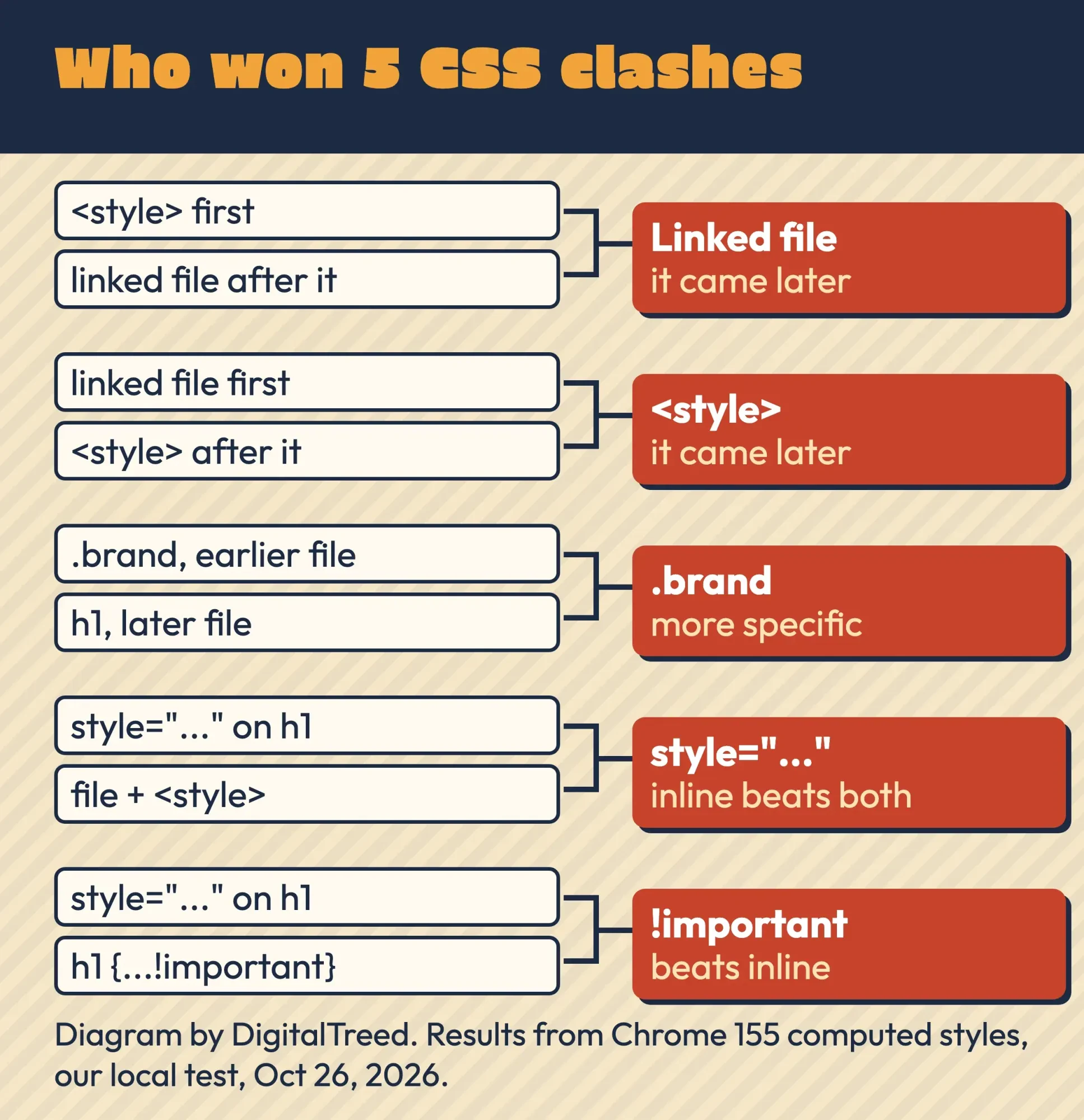 Diagram by DigitalTreed: five rule clashes we ran in Chrome 155 on October 26, 2026, and which rule won each one.
Use !important rarely. Once two rules both have it, you're back to fighting over order.
@import works, but put it first
Order matters for one more tool: the @import rule, which pulls one CSS file into another.
The rule is strict. The W3C cascade spec says "Any @import rules must precede all other valid at-rules and style rules in a style sheet." Only @charset or a bare @layer can go first. MDN's @import reference adds that a misplaced one is ignored.
@import url("base.css");

h1 {
  color: #ffffff;
}
We saw it happen.
With @import on the first line, Chrome downloaded base.css and applied it, but with the same @import placed after an h1 rule, Chrome never even requested base.css.
For most sites, a second link element is simpler.
CSS not loading? Six fixes, in the order we'd check
If your CSS isn't loading at all, the cause usually isn't order or @import but one of these six problems, which we reproduced in our test.
1. The path points at the wrong folder
Our test page linked style.css while the file sat in css/. The browser asked for /style.css and got a 404.
Fix the folder part of the href, or add ../ on pages in a subfolder.
2. The letter case doesn't match
This one bites after you go live.
Mozilla's dealing with files lesson warns: "Many computer systems, including most web servers, are case-sensitive." A Mac or Windows PC usually isn't.
We linked css/Style.css while the file was named style.css. Served from the Mac with Python's built-in server, the page looked perfect.
Served by a test server that matches names exactly, as MDN says most web servers do, it got a 404 and fell apart.
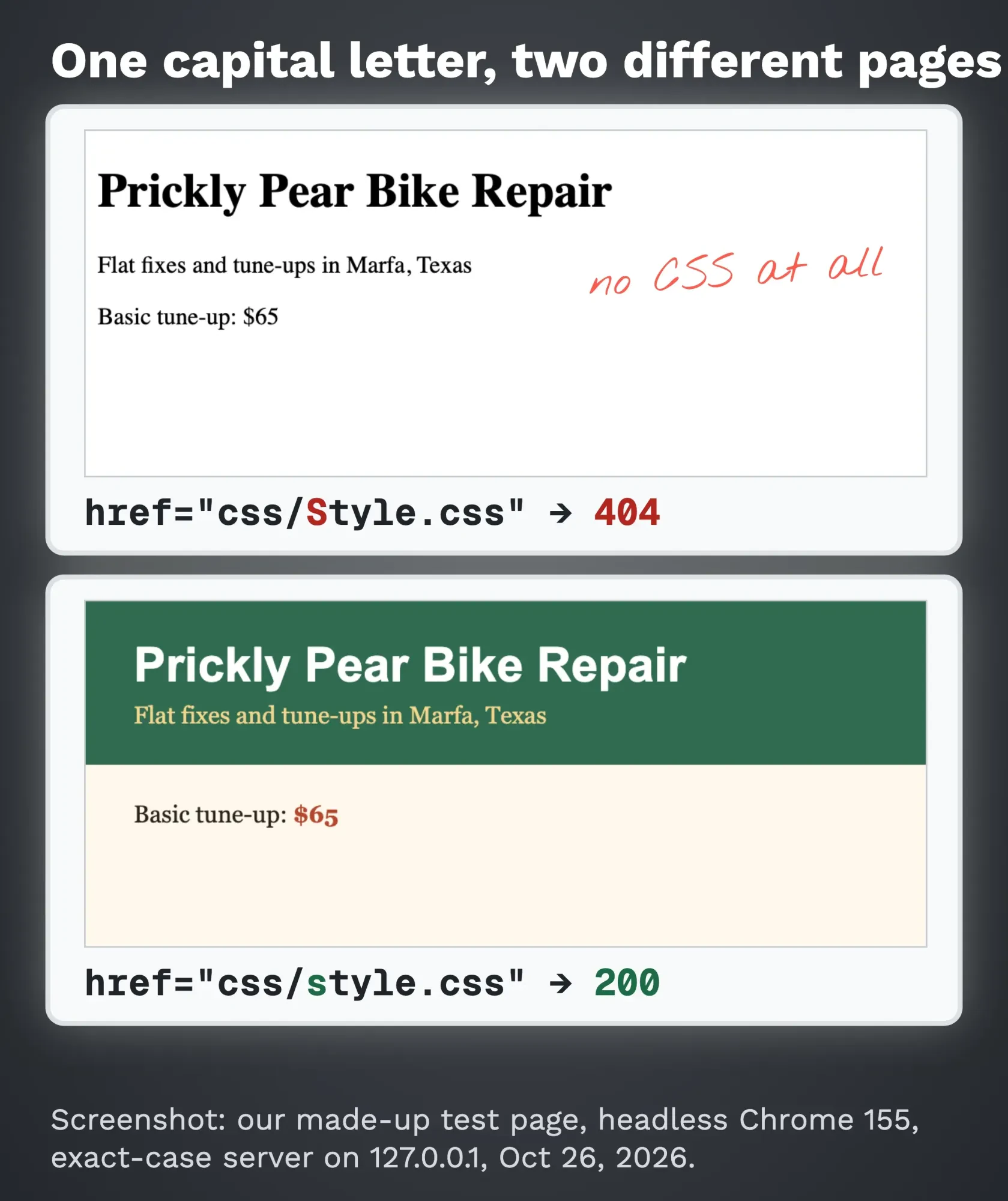 Screenshot: our made-up Prickly Pear Bike Repair page in headless Chrome 155 on 127.0.0.1, October 26, 2026. Top: href css/Style.css on an exact-case server. Bottom: css/style.css.
Rename files to lowercase and match the href letter for letter.
3. The rel attribute is missing or misspelled
A link with no rel, or with rel="stylesheets", isn't a stylesheet link. Chrome didn't even request the CSS file in our test.
No CSS request in the Network panel? Check rel first.
4. The server sends the wrong file type
MDN's MIME types guide says "CSS files used to style a Web page must be sent with text/css." Servers that don't know .css may send text/plain instead.
"If so, they won't be recognized as CSS by most browsers and will be ignored."
We served our CSS as text/plain on purpose, and while the file still downloaded with a 200 status, Chrome refused to use it and the page stayed plain black text.
Here's an odd detail. On a page with no doctype, Chrome applied it anyway. That's a quirks-mode rule in the HTML standard: for a CSS file from the same origin as the page, the browser "must instead assume it to be text/css."
Don't rely on it. Start every page with <!doctype html>.
To see what your host sends, paste the CSS file's full URL into our HTTP header checker and read the Content-Type line. If it isn't text/css, ask your host to fix it.
For one common server, MDN's server MIME guide notes that Nginx will report text/plain if no default type is set.
5. The browser is showing an old copy
You changed the CSS, saved, reloaded, and nothing happened.
Browsers keep copies of files. MDN's HTTP caching guide says they may reuse responses even when no Cache-Control header is sent.
Our test server told Chrome it could keep the CSS for an hour. We edited the file to turn the heading gold.
Visiting the page again showed the old white heading, and so did a normal reload.
A hard reload fetched the new file. Chrome's keyboard shortcuts page lists Ctrl + Shift + r, or ⌘ + Shift + r on a Mac.
Your visitors won't hard reload, so change the URL instead. MDN calls this cache busting, "changing the URL when the content changes." Add a version to the href, like css/style.css?v=2, and bump it on each change.
In our test, the ?v=2 page got the new CSS straight away.
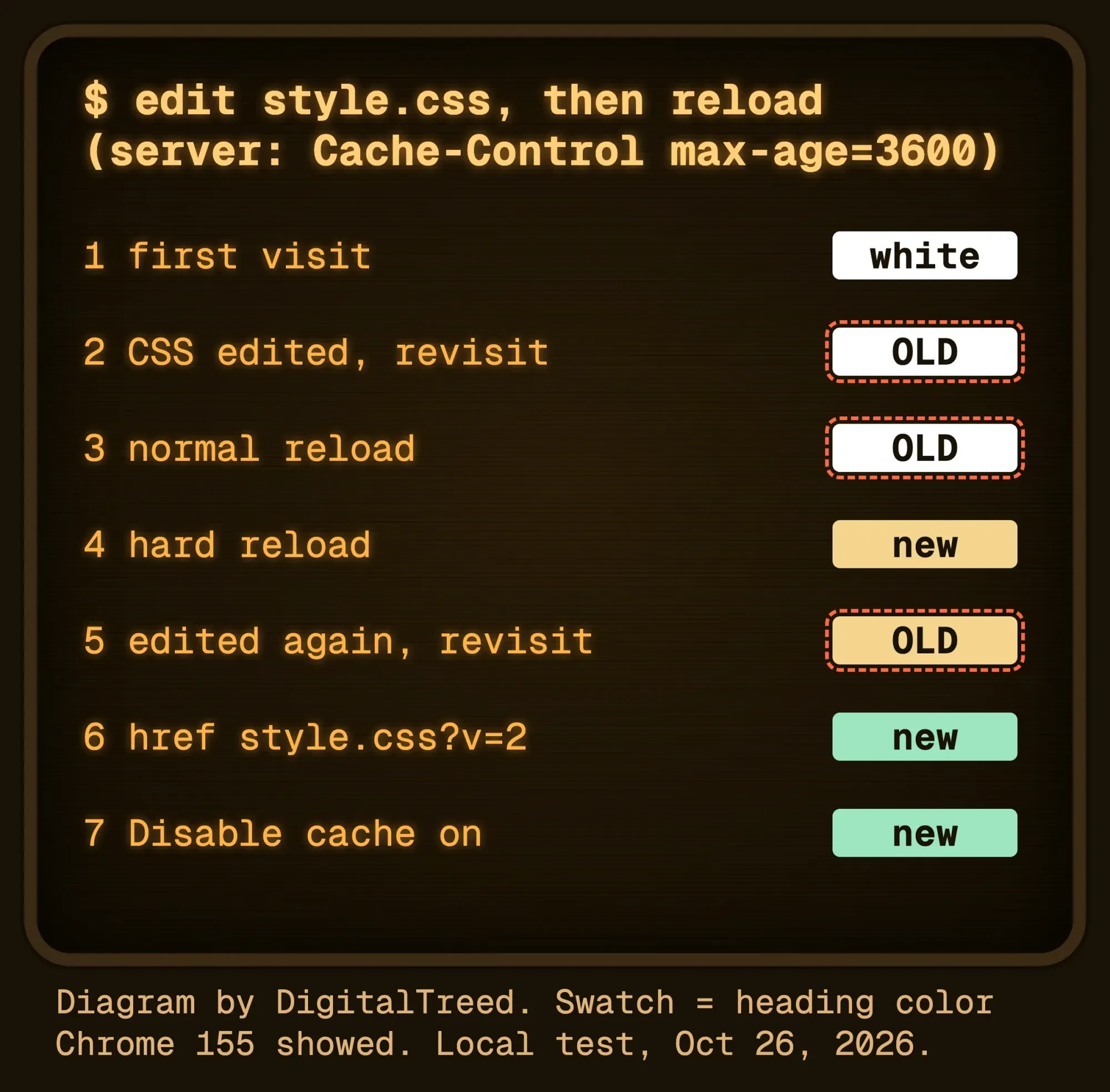 Diagram by DigitalTreed: our cache test in Chrome 155 with Cache-Control max-age=3600, October 26, 2026.
Google's renderer can hit the same problem after you deploy new CSS; see the rendering chapter of the Advanced SEO guide. And our post on location.reload(true) covers what a JavaScript reload really does.
6. The file loads, but a rule loses
If the CSS arrives with a 200 and text/css but one style still looks wrong, it isn't a loading problem.
Another rule is winning. Go back to the clash section and check for an inline style or !important first, then which selector is more specific, then which rule comes last.
Check it in the DevTools Network panel in two minutes
Guessing between those six fixes wastes time. The DevTools Network panel shows which one you've got.
Google's Network panel guide says to open DevTools with Control+Shift+J, or Command+Option+J on a Mac. Then:
- Click the Network tab, then click CSS in the filter bar.
- Reload the page. DevTools only logs requests while it's open.
- Find your CSS file and read the Status and Type columns.
- Click the file and open Headers to see the Content-Type and the exact URL the browser asked for.
Then match what you see to a fix:
- No CSS request at all: rel is missing or misspelled.
- 404: the folder, ../ or letter case is wrong. Compare the requested URL with the real file path.
- 200, but Headers shows a Content-Type other than text/css: the server sends the wrong MIME type.
- 200 and text/css, old styles: a cached copy. Tick Disable cache, reload, then add ?v= to the href.
- 200 and text/css, new styles, one rule wrong: a clash. Inspect the element to see which rule wins.
Google's Network reference says to tick Disable cache "To emulate how a first-time user experiences your site."
No browser handy? Our HTTP status checker shows whether a live CSS URL answers 200 or 404.
Quick questions about linking CSS
Frequently asked
Does the link tag go in the head or the body?
The head. A stylesheet link is allowed in the body, but MDN's link element page says that isn't good practice.
Do I need type="text/css" on the link?
No. MDN now recommends leaving it out, since CSS is the only stylesheet language on the web. It does no harm if an old template has it.
Can I link more than one CSS file?
Yes, one link element per file. The W3C cascade spec treats separately linked files as if they were joined in linking order, so put a file with overrides last.
Why does my CSS work on my computer but not on my web host?
Most often it's letter case. Your computer may treat Style.css and style.css as one file, and most web servers don't. A wrong MIME type on the host is the next thing to check.
New to HTML? Start with our HTML tutorial for beginners, and write both files in one of these free HTML editors.
From there, style the form in our HTML contact form guide. See how a clickable link differs from a stylesheet link in our HTML links tutorial, and add behavior with our JavaScript tutorial.
Still stuck, or the site has outgrown one stylesheet? DigitalTreed’s web developers build and fix sites like this. We're paid for that work, so try the fixes above first.
How we made this guide: every rule traces to MDN, the WHATWG and W3C specs, or Google's DevTools and Chrome Help pages, all opened on October 26, 2026. Each quote matches the page as it read that day; we then loaded a small made-up site 28 times in headless Chrome 155 on 127.0.0.1. One was Python's built-in server; the other matched file names by exact case and could send the wrong file type or a one-hour cache header. For each visit, we recorded the computed colors, CSS requests and status codes, but we didn't test on a real Linux host; the exact-case server stands in for one. This rewrite goes to its author, Eram N., to review before it's published.
First published July 2020. Rewritten October 26, 2026: the old page listed the three ways to add CSS. This version adds full starter files, folder paths, a corrected section on which rule wins, @import placement and six tested fixes for CSS that won't load.
Sources
- MDN: The link element
- MDN: Getting started with CSS
- MDN: The style element
- MDN: The style global attribute
- MDN: @import
- MDN: Handling conflicts
- MDN: Specificity
- MDN: Dealing with files
- MDN: What is a URL?
- MDN: MIME types
- MDN: Properly configuring server MIME types
- MDN: HTTP caching
- WHATWG HTML Living Standard: The link element
- WHATWG HTML Living Standard: Link type "stylesheet"
- WHATWG HTML Living Standard: The style element
- W3C: CSS Cascading and Inheritance Level 5
- Chrome for Developers: Inspect network activity
- Chrome for Developers: Network features reference
- Google Chrome Help: Chrome keyboard shortcuts

Comments
No comments yet. Start the conversation below.