
Quick answer
Your WordPress server error log is in your hosting panel, where cPanel's Errors page shows the latest 300 entries. WP Engine, Kinsta and DreamHost show 1 to 7 days, as of October 2026. If that log is empty, check that PHP's log_errors setting is on first. Then match its time to a 500 line in the access log.
If your site just broke and you're staring at your hosting account, start here. A WordPress server error log is a text file your web server or PHP writes on its own, with or without WordPress debugging. We'd open it before touching wp-config.php, because it usually names the broken plugin or theme.
We start with why server logs and debug.log are different files, then show where your WordPress server error log sits on cPanel, managed hosts and your own server. After that come PHP error logging when the log is empty, reading a fatal line, and the access log. A bakery outage and what to send your host or developer close it out.
Key takeaways
- Match the error line to a 500 in the access log by its second.
- cPanel's Errors page shows only the 300 newest entries.
- WP Engine, Kinsta and DreamHost show 1 to 7 days, so copy early.
- Check PHP's log_errors setting first when the log is empty.
- One PHP setting decides which file receives a fatal error.
Server logs and debug.log are different files
Before you go hunting, it helps to know there are two kinds of log on a WordPress site. WordPress writes its own file only when you ask: per the WordPress debugging handbook, WP_DEBUG_LOG saves errors to debug.log, usually in wp-content. That's the WordPress side, and our WordPress debug log guide covers turning it on and off.
Server logs are the host's. The Apache log files documentation calls the error log "the most important log file" on the server, and Apache writes it whether WordPress is in debug mode or not. PHP can write its messages to that same file or to a separate file of its own, depending on one setting your host controls and most owners never see. Next to both, the web server keeps an access log with one line for every request it answers, including the ones that failed.
So you've got up to three files, and each one answers its own question.
The error log says what broke. The access log says which page broke, when it happened and who asked for it. PHP's own log, if your host keeps one apart, holds the PHP messages with a file name and a line number. Most of the time you won't need debug mode at all, because the host's log already names the failing plugin file, folder and line before you've changed a single setting. That means you can skip editing wp-config.php and go straight to the fix, as long as you know where your host keeps those server logs.
Where is your WordPress server error log?
That depends on your host more than on WordPress. If you're on a shared or managed host, it'll show its logs on a screen in your account, usually under a menu called Logs, Errors or Statistics.
On a cPanel host
On a cPanel host, open Metrics, then Errors. The cPanel Errors documentation says the page "displays up to 300 of the most recent entries" from the web server's error logs, newest first. Anything older is only in the log files themselves, so if the site broke two days ago and the page has filled up since, you'll need those files.
Can't find Errors at all? Your host may have switched it off. The cPanel docs say the hosting provider can turn that page on or off in WHM's Feature Manager. If it's gone, a quick support ticket will tell you where the file lives instead, and it's worth asking now rather than during an outage.
Hosts that run Nginx in front of Apache add one more catch. The same page then shows only errors "for web traffic from the Apache logs," so an Nginx-level failure may not appear there.
You'll often also see files named error_log inside public_html or wp-admin in File Manager. Those are PHP's own logs. They're created next to the script that failed when the PHP setting uses a bare file name, and our test below shows how. For visits, the cPanel Raw Access page lets you download each domain's access log as a compressed .gz file. By default, cPanel processes those statistics every 24 hours and can archive old logs to /home/username/logs.
On a managed WordPress host
Managed hosts put logs behind their own dashboards, and they don't keep them long. Here's where five common US hosts show the error log, which time zone they use and how far back it goes, from each host's help page in October 2026:
| Host | Where the log is | Time zone shown | How far back |
|---|---|---|---|
| WP Engine | User Portal > environment > Logs > Error | UTC by default | Last 24 to 48 hours |
| Kinsta | MyKinsta > Sites > Logs tab (error.log, access.log) | Not stated | Up to 4 days |
| DreamHost | Manage Websites > Manage > Logs tab | Pacific (PST) | Up to 7 days |
| SiteGround | Site Tools > Statistics > Error Log | Not stated | Not stated |
| Hostinger | File Manager > .logs > error_log_ plus your domain | Not stated | Not stated |
Each row comes from the host's own page: WP Engine error logs, Kinsta server logs, DreamHost error logs, SiteGround error log and Hostinger error logs. Two details trip people up, and both can make a busy morning's errors look as if they never happened. DreamHost hides PHP warnings and deprecated notices by default. Kinsta skips error.log while debugging is on through its Tools page.
Because the window is short, copy the lines out the same day the site breaks. Paste them into a plain text file named with the date, since WP Engine's 24-hour view will have moved past them by tomorrow.
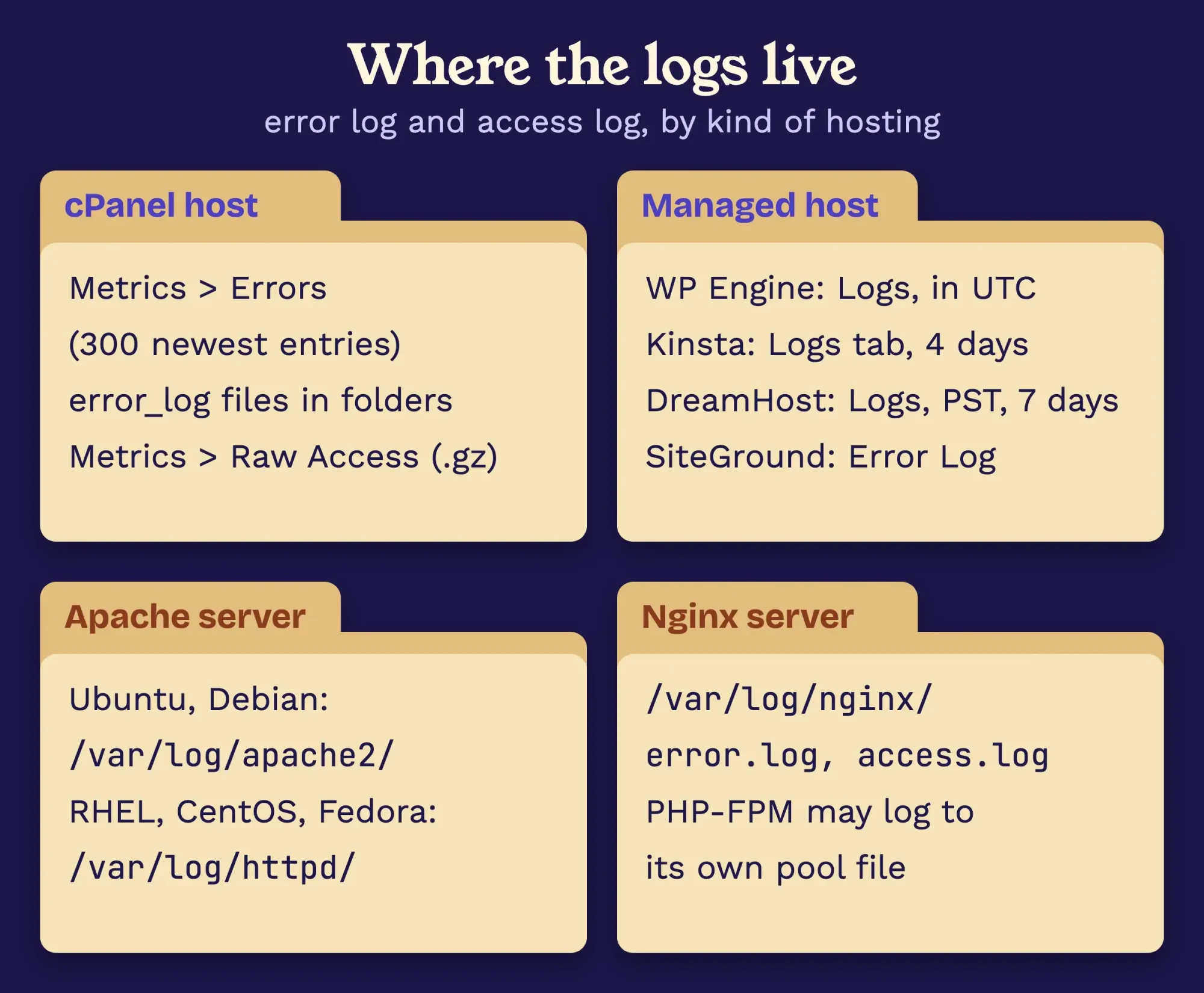 Diagram by DigitalTreed: where the logs live, from the cPanel, Apache, nginx and host help pages, October 2026
On your own server: Apache and Nginx paths
On a VPS or dedicated server, there's usually no log screen at all, so you'll read the files directly over SSH or download them with your SFTP app. Apache's default layout by Linux distribution lists /var/log/apache2/error.log and access.log on Debian and Ubuntu. Fedora, CentOS and RHEL use /var/log/httpd/error_log and access_log instead.
Nginx keeps its pair in /var/log/nginx or /usr/local/nginx/logs, per the nginx beginner guide. If PHP runs as PHP-FPM behind Nginx, its messages can sit in a third file. The PHP-FPM configuration page gives each pool its own error_log setting, so check the pool file when the usual paths are quiet.
The line format shifts a little from server to server, too. Apache stamps each entry with the date, then the module and level in brackets, like [php:error] or [core:notice], then a process ID and the visitor's IP. Nginx has its own scale, from debug up to emerg, and the nginx error_log directive defaults to the error level, so it won't keep warnings unless someone lowers it. None of this needs memorizing. A bracketed tag with error, crit or alert in it is the one worth reading first, and everything else can usually wait until the site's back up.
Turn on PHP error logging if the log is empty
Now for the frustrating case: you found the log, and it's empty. That doesn't mean nothing went wrong. The PHP error settings page lists log_errors with a default of "0", which is off, though PHP's sample production php.ini switches it on. Hosts don't all start from the same file. Hostinger adds that errors are recorded only once you enable logging, never back in time.
Three settings matter, and you'll want all three in place before the next crash:
- log_errors = On, so PHP writes errors down
- display_errors = Off, so visitors never see file paths
- error_log = a full path you choose, so you know where they go
PHP's manual says showing errors on screen "should never be used on production systems" and its production php.ini turns it off. On cPanel, you can set all three in the MultiPHP INI Editor. It saves them to php.ini, .user.ini or .htaccess for the domain you pick. On a VPS with PHP-FPM, the same three go in the pool file:
php_flag[display_errors] = off
php_admin_flag[log_errors] = on
php_admin_value[error_log] = /var/log/fpm-php.www.log
Those lines come straight from the example on PHP's FPM page. Reload PHP-FPM after the edit, then load the broken page once so the next error has somewhere to land.
Then check the log again.
How do you read a PHP fatal error line?
Once the log has lines in it, you'll only need four parts of each one. They're the time, the level, the message, and the file with its line number.
The level tells you how worried to be. PHP's error level list calls E_ERROR "Fatal run-time errors" that stop the page. A warning is milder, since PHP keeps running. Deprecated notices flag code that won't work in future PHP versions, which matters on your next upgrade, not today.
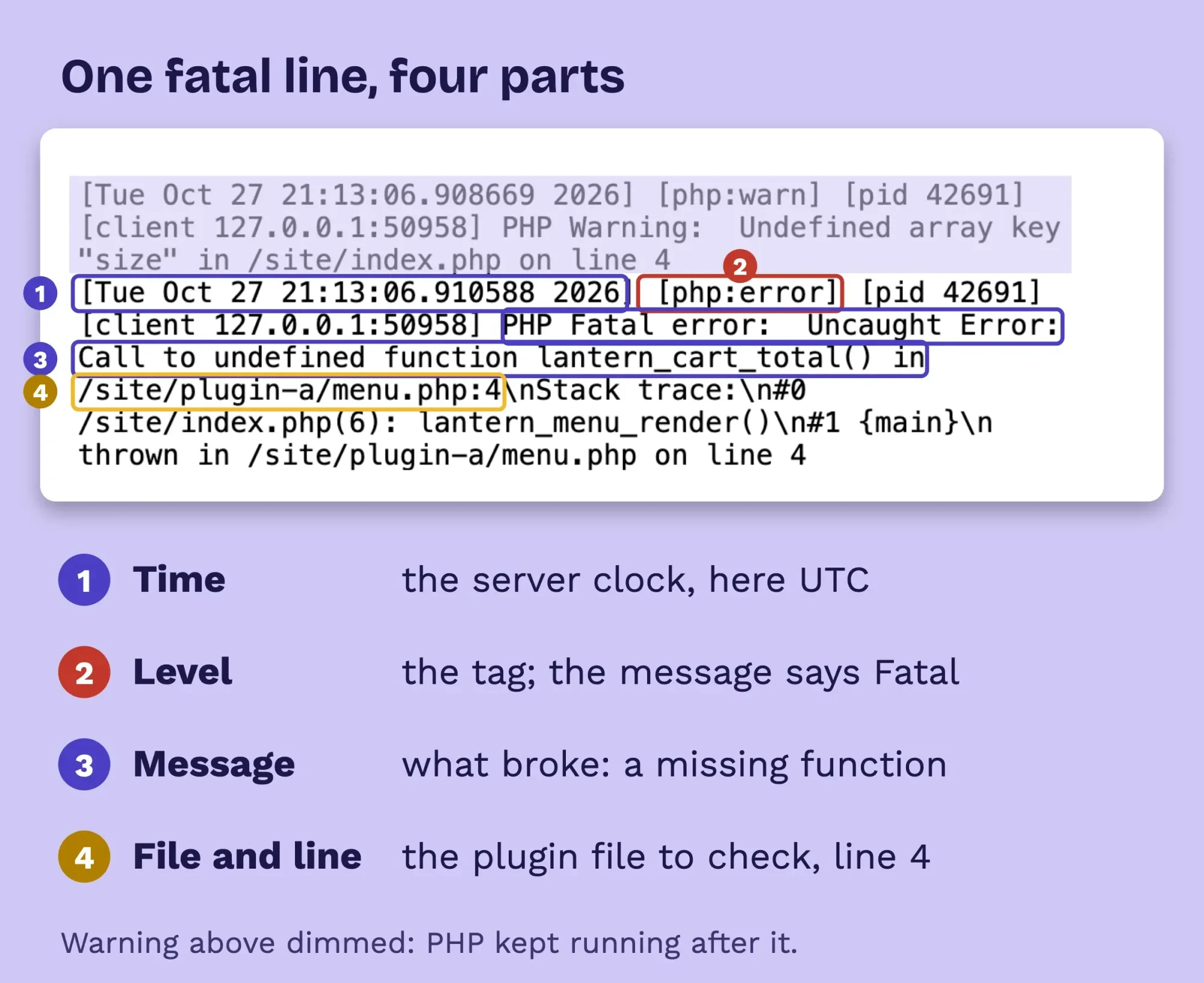 Screenshot: our local Apache error_log from the test, October 27, 2026 UTC, folder path shortened to /site, labels added by us
In WordPress, the file path is the clue that matters most. A path with /wp-content/plugins/ and a folder name points at that plugin, and /wp-content/themes/ points at your theme. When the top line sits in /wp-includes/, core usually isn't to blame. Read the stack trace under it, the lines starting #0, #1 and so on, and stop at the first plugin or theme file. In our test, #0 named the page that called the broken function. The last line, starting "thrown in", repeated the plugin file and line 4, right where the missing function was called.
When that first file belongs to something you updated this week, start there.
After a fatal error, the visitor usually gets a 500. RFC 9110 defines it as a server that hit "an unexpected condition" and couldn't fulfill the request. Our 500 error fix guide covers what to do next. A 502 bad gateway tells a different story, where PHP didn't answer at all.
Use the access log to find the failing request
That fatal line tells you what broke, but it doesn't always tell you which page a visitor asked for. The access log does, and it confirms the exact time too.
Nginx writes a "combined" format by default, and Apache's log docs define the same format for its CustomLog setting. Nginx's log module documentation lists it field by field: client IP, user, time, request, status, bytes sent, referrer and browser. Apache's guide adds that codes beginning in 5 are server errors, and a dash in the bytes field means nothing was sent.
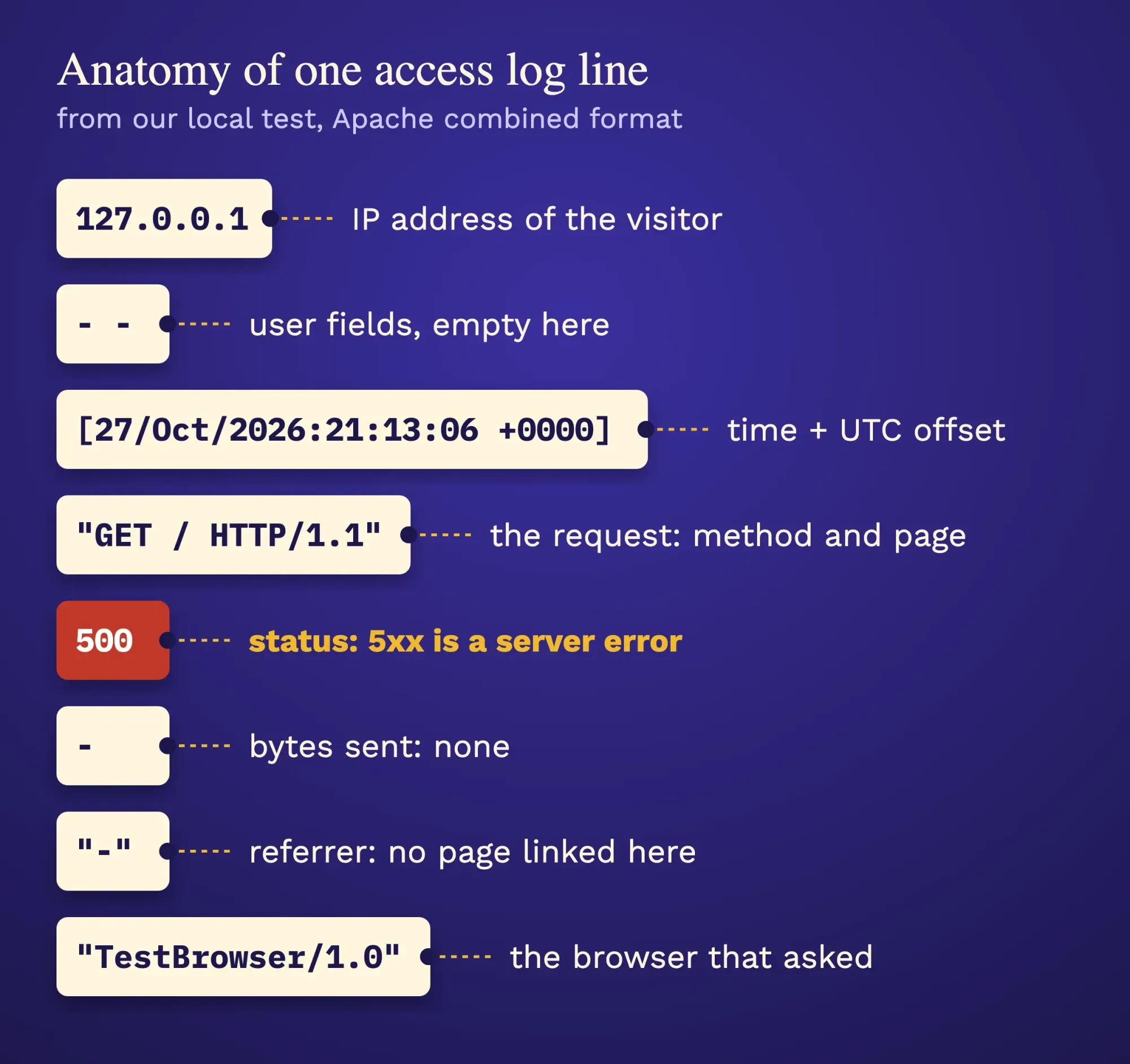 Diagram by DigitalTreed: one line from our test access_log, fields per the Apache and nginx log docs, October 2026
On a server, two commands get you most of the way. The first lists the last 20 requests that ended in a 500, and the second shows the last 20 PHP fatal lines:
grep '" 500 ' access_log | tail -n 20
grep 'PHP Fatal' error_log | tail -n 20
Put the two lists side by side and look for the same second.
No SSH? Download the access log from cPanel's Raw Access page and search it for " 500 " in any text editor. Kinsta and the DreamHost access log screens let you search in the browser instead. Kinsta's access.log also records how long each request took, which helps when the complaint is a slow page rather than a broken one.
Big files need a narrower search. Look for the date first, such as 28/Oct/2026, then the hour, so you read a few hundred lines instead of a month. Watch the zone. Apache's access log uses the server's local offset, shown right after the time, like +0000 for UTC. Write that offset down with the line. Your host will ask for it.
What we tested
So we checked it ourselves. On October 27, 2026 (UTC), we ran a throwaway Apache 2.4.56 with PHP 8.2.4 on 127.0.0.1, with display_errors off and log_errors on. A made-up plugin called a missing function, and one folder got a bare error_log name.
- With error_log unset, the fatal error went into Apache's own error_log.
- With error_log set to a bare name, PHP made a new file in that folder.
- The access log 500 and the fatal line shared the second 21:13:06 UTC.
- PHP 8.2 logged an undefined array key as a Warning, not a notice.
That first result matches PHP's manual on unset logs, and the second explains the stray error_log files in cPanel folders.
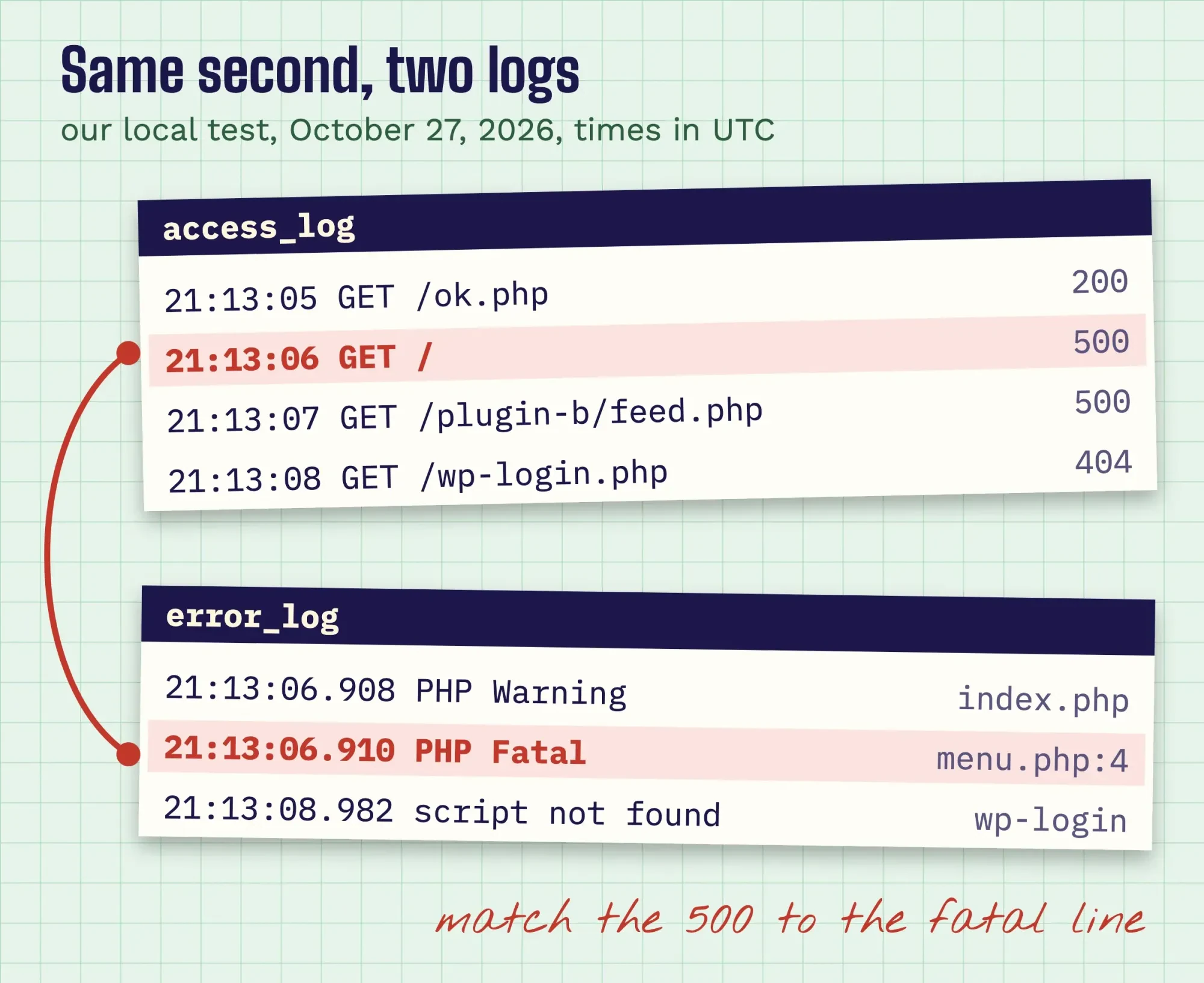 Drawn by us: two lines from our local test, October 27, 2026 UTC, matched by the second
Example: a bakery's 5 a.m. outage, traced in two logs
Here's how that matching plays out on a real-looking morning. Lantern Bakery is a made-up shop in Providence, Rhode Island, on a cPanel host whose PHP writes times in UTC. On Wednesday, October 28, 2026, the owner sees a critical error on the order page at 5:14 a.m.
Providence stays on Eastern Daylight Time until 2:00 a.m. on Sunday, November 1, per NIST daylight saving time rules. That's four hours behind UTC, so 5:14 a.m. local is 09:14 UTC. After November 1, the gap becomes five hours, and the same search would start at 10:14.
Had the owner searched the log for 05:14, there'd be nothing at that minute, and it'd be easy to decide the log was useless.
The owner opens public_html/error_log and finds a fatal line stamped 09:14:02 UTC. It's an uncaught error in /wp-content/themes/bakehouse/header.php on line 41, where the theme calls get_menu_cards(). That function came from a made-up menu plugin, and its overnight update had dropped it. In the access log, a POST to the order page returned 500 at the same second.
The plugin rollback fixed it.
When you report an outage like this one, write the zone with the time, as in 5:14 a.m. EDT. A bare "5:14" leaves your host guessing across four or five hours of log.
What should you send your host or developer?
Sometimes the line points at something you can't fix yourself, like a server limit or a crash below WordPress. That's when a clear message saves a day of back and forth, since support can't do much with a ticket that only says the site is down.
Send four things, in this order:
- the exact log lines, copied as text, not as a photo
- the time with its zone, such as 09:14 UTC
- the full URL that failed
- what changed just before, like an update or a new plugin
Leave out passwords, and trim visitor IP addresses if you post the lines on a public forum, since an IP address can point back to a real customer. Logs can show server paths, so keep them out of public folders. Once the fix is in, run the page through our HTTP status checker to confirm it returns 200 instead of 500. To hear about the next outage before customers do, read our uptime monitoring setup walkthrough.
Other errors leave other trails. A 403 forbidden error is often a permissions or security rule. A database connection error usually lives in wp-config.php or MySQL, not in a plugin. New to running a site? The WordPress website guide explains the parts you'll be looking at.
Our take: find your host's log today, while the site works, so you aren't searching menus during an outage. Fixing WordPress sites is part of how we earn a living, so we aren't neutral here, but our web development services can read the logs with you if that's easier.
Frequently asked
Can I delete the error_log files in my cPanel folders?
Yes, they're plain text, and PHP makes a new one at the next error. Read them first, though. The Raw Access page also keeps archived access logs "indefinitely" by default unless you set a retention period.
How long do WordPress hosts keep error logs?
Why does Nginx show an error that Apache does not?
They log different things. The nginx error_log directive defaults to the error level, and the cPanel Errors page notes the two servers log different types of errors, so check both files.
How we made this guide: We read the cPanel, Apache, nginx, PHP and WordPress docs plus five host help pages on October 28, 2026. Our test ran on our own machine with a made-up plugin, and no real site was touched. Lantern Bakery and its log lines are made up. Facts checked by the DigitalTreed team on October 28, 2026.
First published July 2020. Rewritten October 28, 2026: the old FileZilla and WP_DEBUG steps now live in our debug log guide. This post covers the host side, from panel logs to access logs.
Sources
- cPanel Docs: Errors
- cPanel Docs: Raw Access
- cPanel Docs: MultiPHP INI Editor
- WP Engine: View and troubleshoot error logs
- Kinsta Docs: Server logs
- DreamHost: Viewing your error logs in the panel
- DreamHost: Viewing your access logs in the panel
- SiteGround KB: How to find and export the server error log
- Hostinger: Where to find your website's error logs
- Apache HTTP Server 2.4: Log files
- Apache HTTPD wiki: Distros default layout
- nginx: core module, error_log
- nginx: ngx_http_log_module
- nginx: Beginner's guide
- PHP Manual: Runtime configuration for errors
- PHP Manual: Error constants
- PHP Manual: FPM configuration
- WordPress Developer Resources: Debugging in WordPress
- RFC 9110: 500 Internal Server Error
- NIST: Daylight saving time
- PHP source: php.ini-production (PHP 8.2)


1 comment
sanjay jinjala
Finally, steps I can understand and follow as a complete novice. Thank you!
Reply