

WordPress.org or WordPress.com, and when WordPress is the wrong choice
This guide is for people who want to build their own business website and keep it running: a clinic, a shop, a coaching centre, a freelancer, a consultant. You don't need to code. You do need two free days, a phone, an email address and a UPI app or card.
We build one site all the way through, for a made-up dental clinic in Pune called Nova Dental. By the end you'll have planned, bought, built, secured and launched a five-page site, and you'll know what it costs in year 1 and once the first-term deals run out. Chapters 1 to 3 help you decide and plan, 4 to 6 get WordPress running, 7 to 9 build the site, 10 and 11 make it safe and ready to launch, and 12 keeps it that way. There are 12 chapters, about an hour of reading, and every chapter ends with a "Done when" line so you know when to move on.
Prices are in rupees and US dollars and were checked on 24 October 2026. Where a company shows only one currency, we convert at ₹96 to US$1. We name hosts and registrars only to show real prices. We don't recommend any of them and there are no affiliate links in this guide.
Quick answer
WordPress.org is the free software you install on hosting you rent, so you control everything. WordPress.com is a hosting service that runs the same software for you, with paid plans from US$4 a month. For a business site you want to own and grow, pick WordPress.org. Pick WordPress.com if you never want to think about servers.
WordPress is free software for building websites. You write pages in an editor that looks a bit like a word processor, and WordPress turns them into a website. You change the look with a theme (a ready-made design) and add features with plugins (add-ons, a bit like apps on a phone). Nobody owns it in the usual sense: it's open source, so anyone can download it, use it and change it.
It's also the most common way to build a website. W3Techs, which surveys over 20 million sites and updates its figures daily,[1] counted WordPress on 39.6% of all websites on 24 October 2026.[2] Among sites where it could tell which system they use, the share was 58.3%. That matters to you for one practical reason: when something breaks, someone has almost certainly fixed it before and written about it.
39.6%
of all websites run WordPress (W3Techs, 24 Oct 2026)[2]
7.1.3
is the current version, released 6 October 2026[3]
₹0
is what the WordPress software costs; you pay for the domain and hosting
Two things with the same name
This is the question beginners ask most, and it causes real trouble. People sign up on WordPress.com thinking it's the free software, then find months later that it works differently from every tutorial they read.
WordPress.com's own help page puts it simply: both run the same WordPress software, and "the main difference is hosting".[4] On WordPress.com, the company keeps the server running for you. With WordPress.org, you download the software (or your host installs it in one click) and you look after the hosting yourself.
| WordPress.org (self-hosted) | WordPress.com | |
|---|---|---|
| What it is | Free software you install on hosting you rent | A paid service that runs WordPress for you |
| Who looks after the server | You and your host | WordPress.com |
| Plugins | Any plugin, including the 76,000+ free ones in the directory | On all paid plans, from Personal; not on the free plan |
| Themes | Any theme | Third-party themes on paid plans |
| Year 1 cost, small site | About ₹5,000 (US$52) for domain and hosting (chapter 3) | US$4 a month billed yearly for Personal (from India, ₹160 a month in year 1, then ₹200), excluding taxes |
| Control | Full: files, database, backups, where it's hosted | Less: the company sets the rules for each plan |
| Best for | A business site you want to own and grow | People who never want to touch a server |
One change trips up older guides. WordPress.com now says "Installing plugins is available on all WordPress.com paid plans: Personal, Premium, Business, and Commerce plans."[5] For years plugins needed the Business plan, so if a tutorial tells you that, it's out of date. Free WordPress.com sites still can't install plugins, and they show WordPress.com ads to your visitors.[6]
| WordPress.com plan | Billed yearly | Paying monthly |
|---|---|---|
| Personal | US$4 a month; in India ₹160 in year 1, then ₹200 | US$9; in India ₹420 |
| Premium | US$8 a month; in India ₹280 in year 1, then ₹350 | US$18; in India ₹790 |
| Business | US$25 a month; in India ₹640 in year 1, then ₹800 | US$40; in India ₹1,260 |
| Commerce | US$45 a month; in India ₹1,152 in year 1, then ₹1,440 | US$70; in India ₹2,240 |
Prices read on 24 October 2026, excluding taxes.[6] From India the page shows rupees, with a lower price for the first year of a yearly plan; the dollar prices are what US visitors see.[7]
Which one we'd pick
For a business site, we'd pick WordPress.org on your own hosting. The reason is ownership. Your domain, your files and your database sit in accounts you control, and you can move to another host any time with a backup file. You can add any plugin you need, such as a payment gateway made for India, without checking which plan allows it.
WordPress.com is a fair choice if you'll never want to deal with hosting, updates or backups, and the yearly fee is fine with you. It's the same WordPress underneath, so moving to self-hosting later is possible.
The rest of this guide uses WordPress.org.
Warning
Common mistake: signing up at WordPress.com because you searched "WordPress free", then following a WordPress.org tutorial and finding the menus don't match. Decide which one you're using before you pay for anything.
When WordPress is the wrong choice
WordPress is flexible, and that flexibility comes with upkeep: updates, backups, plugins to judge. Some businesses don't need that.
- You only need people to find and call you. A small kirana store or a plumber may do better with a complete Google Business Profile first. It's free, it shows on Google Maps, and it takes an afternoon. Our Google Business Profile guide covers it.
- You mainly sell products online. A hosted shop platform such as Shopify handles payments, stock and security for a monthly fee. WordPress with WooCommerce can do the same, with more work and more control.
- You want a one-page site this week and no upkeep at all. A hosted builder such as Wix is simpler to start with. The trade-off is that your site lives inside their system, and moving away later means rebuilding.
Pros
Cons
- You're responsible for updates, backups and security
- Plugins are where most security holes are (chapter 10)
- Many choices can slow a beginner down
- Hosting and domain prices jump at renewal (chapter 3)
Tip
Done when: you know you're using WordPress.org on your own hosting (or you've chosen a WordPress.com plan, or decided a Business Profile is enough for now).
Next, chapter 2: try WordPress free before you pay anything, and plan the five pages.
Try it free first, then plan your site
Quick answer
Before you pay for anything, open WordPress Playground in your browser and click around a real WordPress for free. Then write down your site's one goal, plan five pages (Home, Services, About, Contact, Privacy) and collect your photos, prices, logo and reviews. A plan on one page saves days of rebuilding.
Practise free in WordPress Playground
WordPress Playground is an official, free WordPress that runs inside your browser. There's nothing to install and no account to make. WordPress.org's page offers to "Install WordPress in a single click",[10] and the developer docs explain that it "runs entirely client-side in WebAssembly", with no login and no server behind it.[11]
In plain words: the whole site lives in your browser tab. Nobody else can see it, and nothing you do there can break anything. Treat it as a sandbox. Don't build your real site in it, because it isn't hosted anywhere and you may lose your changes when you close it.
Spend 30 minutes in Playground
- Open it. Go to wordpress.org/playground and start a new site. You land in a real WordPress dashboard.
- Write a page. Go to Pages, Add Page, and type a heading and two paragraphs. Press the slash key to see the blocks you can add.
- Change the look. Go to Appearance, Editor, then Styles. Try a few colour and font combinations.
- Add a plugin. Go to Plugins, Add Plugin, search for a contact form plugin and install it. See where its settings appear.
- Look at the result. View the site, then come back and change something. Get used to the back and forth.
Half an hour here answers the question "can I do this myself?" better than any guide can. If the editor feels manageable, carry on. If it doesn't, that's useful to know before you've bought hosting.
Write the site's one goal
Every page should push towards one action. For a business site that's usually one of three: a phone call, a booking or enquiry, or a sale. Write yours in one sentence before you build anything.
For Nova Dental, our made-up clinic in Pune, it's: "People in Baner and Aundh book a check-up by phone or WhatsApp." That one line decides a lot. The phone number goes at the top of every page. The Services page shows prices, because people ask about cost before they call. The Contact page has a map, because patients need to find the clinic.
Plan five pages
Five pages is enough for most small businesses at launch. You can add a blog or more service pages later.
| Page | What it must answer | Nova Dental example |
|---|---|---|
| Home | What you do, for whom, where, and the one action | "Family dental clinic in Baner, Pune. Book a check-up" with a call button |
| Services | What you offer, with prices or price ranges | Check-up, cleaning, fillings, root canal, braces, with starting prices |
| About | Who you are and why people can trust you | The dentists, their qualifications, real clinic photos |
| Contact | How to reach you and when | Phone, WhatsApp, address, map, hours, a short form |
| Privacy | What data you collect and why (chapter 11) | What the form collects, who sees it, how to ask for deletion |
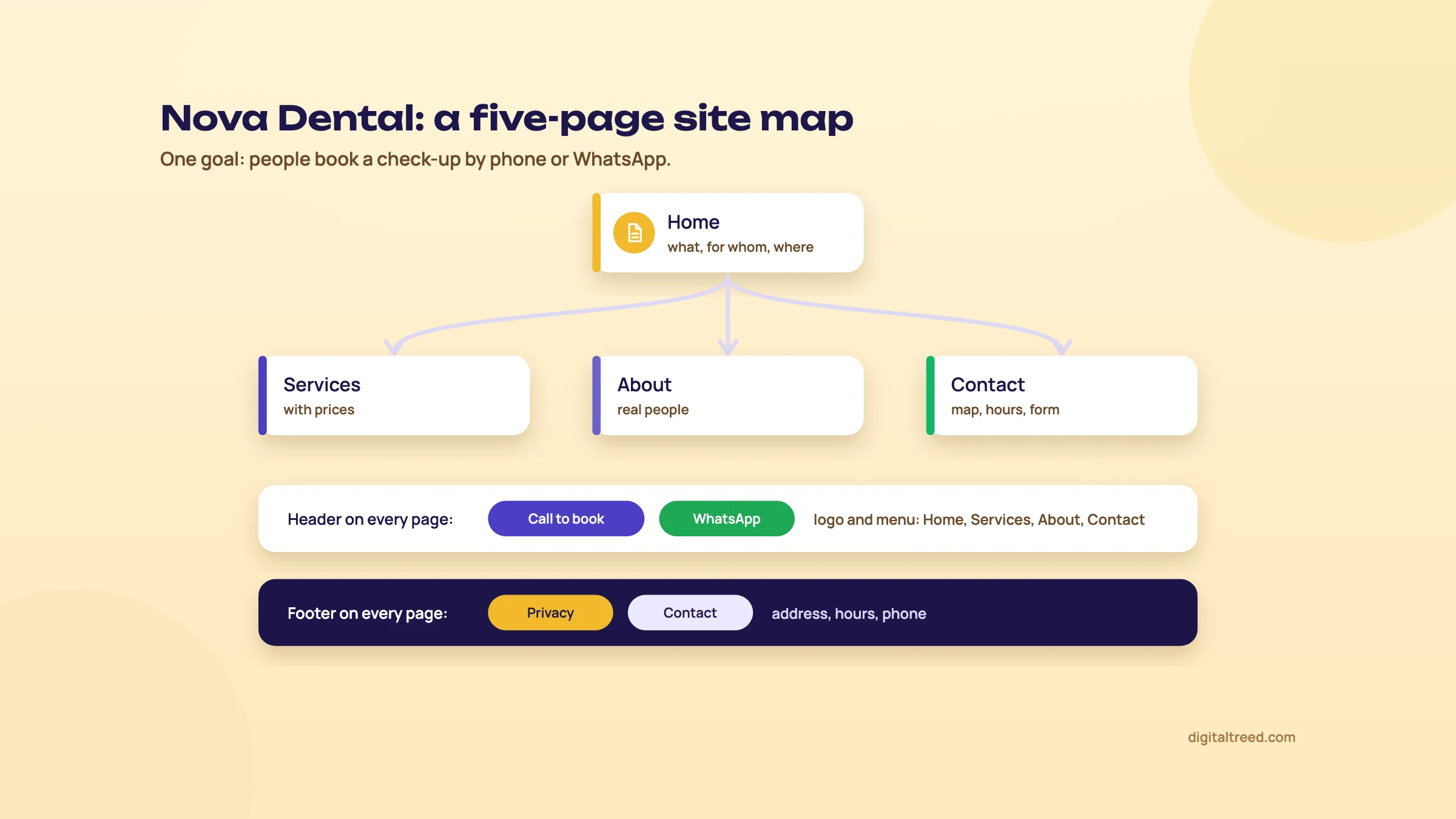 Five pages, one goal. Privacy lives in the footer, not the main menu.
Name pages the way people search
Page names and headings work best in your customers' words, not yours. A dentist might write "Endodontic treatment". Patients search "root canal cost in Pune". Before you name your pages, look at what people actually type.
Our free Keyword Suggestions tool pulls real phrases from Google and YouTube autocomplete, Hindi too. Type "dentist Pune" or "root canal" and note the words that keep coming up. The Question Finder does the same for questions ("how long does a root canal take"), which make good headings on your Services page and good FAQ questions. Our beginner's chapter on keywords explains the idea in more depth.
Collect the content before you build
The building part goes fast once you have the material. What slows people down is stopping halfway to look for a logo file or to ask the dentist for her qualifications. Put these in one folder first:
- Your logo, ideally as a PNG or SVG file.
- 10 to 20 real photos: the place, the team, the work. Phone photos are fine if they're in focus and well lit.
- Your services and prices, or price ranges.
- Opening hours, address, phone number and WhatsApp number.
- Three to five real customer reviews, with permission to use them.
- Short bios of the people customers will meet.
Warning
Common mistake: building without a plan, then adding pages as ideas come. You end up with a messy menu, no Contact page linked from the home page, and no privacy policy at launch. Spend 30 minutes on the plan; it's the cheapest step in the whole guide.
Tip
Done when: you've tried Playground, written your one goal, listed your five pages, and your content folder is ready.
Next, chapter 3: what all this really costs, in year 1 and after.
What it really costs: year 1 and after the deal ends
Quick answer
A five-page WordPress site on Indian shared hosting costs about ₹5,000 (US$52) on the day you buy, mostly four years of prepaid hosting plus GST and a domain. When the deal ends, the same hosting renews at up to 4.2 times the advertised price. Always read the renewal price and the term, not the headline.
WordPress is free. The website isn't. You pay for two things every year, a domain and hosting, and you may choose to pay for a few extras. The trouble is that the price on the banner is rarely the price you'll keep paying.
The three numbers on every hosting deal
Hosting companies show a low monthly price in big type. Read the small print and you'll find three numbers that matter more:
- The term. The low price usually needs you to pay for 3 or 4 years upfront.
- The upfront total. That's what leaves your account today.
- The renewal price. What each month costs once the term ends.
Here's what that looked like on Hostinger India's pricing page on 24 October 2026. We use it as an example because it shows all three numbers clearly, not as a recommendation.[12]
| Plan | Advertised | Term and upfront total | Renews at | Renewal vs advertised |
|---|---|---|---|---|
| Single | ₹69 a month | 48 months, ₹3,312 | ₹289 a month | 4.2 times |
| Premium | ₹139 a month | 48 months, ₹6,672 | ₹449 a month | 3.2 times |
| Unlimited | ₹199 a month | 48 months, ₹9,552 | ₹649 a month | 3.3 times |
| Cloud Startup | ₹599 a month | 48 months, ₹28,752 | ₹1,599 a month | 2.7 times |
The page also says "Prices are listed without GST".[12] GST on hosting is 18%, so ₹3,312 becomes about ₹3,908 at checkout.[13]
It isn't one company. SiteGround's WordPress StartUp plan showed US$3.99 a month, renewing at US$17.99, prepaid for 12 months.[14] Bluehost's Starter showed US$3.99, renewing at US$9.99, on a 36-month term.[15] Hostinger's US Premium plan showed US$2.49 on 48 months, renewing at US$10.99.[16] Low first-term prices paid for by higher renewals are how this market works.
A long prepaid term isn't a bad deal in itself. Four years at the intro price is cheap, as long as you know what comes after and you're sure about the host. The mistake is comparing hosts on the advertised price and being surprised in year 5, or picking a 12-month plan to "try it" and getting the renewal bill in year 2.
Domains work the same way
Domain registrars run the same kind of offer. Hostinger India showed .in and .com domains at ₹1 for the first year, "Applicable when you choose a 3-year term", against list prices of ₹899 for .in and ₹1,499 for .com.[17] Both renew at those list prices, ₹899 and ₹1,499 a year. Some registrars charge one flat price instead: Porkbun showed .com at US$11.08 (about ₹1,064) a year, the same on renewal.[18]
So budget for the list price, about ₹900 to ₹1,500 a year, and treat the first-year deal as a bonus. Chapter 4 covers choosing and buying the domain.
The full cost table
| Item | Do you need it? | Typical cost |
|---|---|---|
| WordPress | Yes | Free |
| Domain (.in or .com) | Yes | About ₹900 to ₹1,500 (US$9 to US$16) a year at list price, plus GST |
| Shared hosting | Yes | ₹69 to ₹199 a month on a long first term, ₹289 to ₹649 at renewal (Hostinger India example), plus GST |
| SSL certificate (what gives your site the padlock and https) | Yes | Free with most hosts (chapter 6) |
| Theme | Yes | Free block theme is enough (chapter 7) |
| Plugins for the basics | Yes | Free versions are enough for a five-page site (chapter 9) |
| A premium plugin or theme | Sometimes | Usually a yearly licence; renewals bring updates |
| Business email on your domain | Usually | Some hosting plans include mailboxes; check for how long |
| A developer | Optional | Only for the parts you can't or don't want to do |
Three budgets
₹0
to try WordPress in Playground before you buy (chapter 2)
About ₹5,000
on day one: 48 months of Single hosting with GST (₹3,908) and a domain at list price with GST (about ₹1,061)
About ₹5,150
a year once the hosting deal ends: ₹289 a month plus GST (₹4,092) and the domain
Many hosting plans, including this one, add a free domain for the first year. We still budget for it, because it renews at the list price.
For years 2 to 4 of that example, you'd pay only for the domain, because the hosting is prepaid. In US dollars, the same pattern on Hostinger's US Premium plan is US$119.52 upfront for 48 months and about US$132 a year at renewal, before tax, plus about US$11 a year for a .com.[16]
Tip
If you run a registered business: enter your GSTIN at checkout, before you pay, so the invoice carries it and your accountant can claim the input tax credit. Ask your CA whether that applies to you.[13]
Warning
Common mistake: comparing hosts on the monthly price in the banner. Compare the upfront total for the same term, and the renewal price, with GST added. Put them side by side in a note on your phone before you pay.
If you'd rather have someone build it for you, that's a different budget. Our quote estimator shows what a site like this costs with us, in rupees or dollars.
Tip
Done when: you've written down your year 1 total and your yearly cost after the deal ends, both with GST, for the host and domain you're considering.
Next, chapter 4: pick the domain name, buy it and keep it safe.
Domain name: pick it, buy it, protect it
Quick answer
Pick a short name people can spell after hearing it once. Use .in if your customers are in India and .com if they're anywhere. Register it in your own name and your own account, finish the .IN KYC if asked, and switch on auto-renew. Then point it at your hosting with two nameserver changes.
A domain is your website's address, like novadental.in. You don't buy it forever. You rent it a year (or a few years) at a time from a registrar, and if you stop paying, someone else can take it.
Choose the name
The test we use is the phone test: say the name out loud to someone and ask them to type it. If they get it wrong, so will customers.
- Short and spellable. novadental.in beats novadentalcareclinicpune.in.
- No hyphens or numbers unless they're part of your brand. People forget them.
- Your business name first. A city or service word helps only when the name alone is taken (novadentalpune.in).
- Check social handles at the same time, so your Instagram and domain match.
- Check trademarks if you're unsure. A name you have to give up later is expensive.
.in or .com?
Both work fine for Google. Pick by your customers.
| .in | .com | |
|---|---|---|
| Tells visitors | An Indian business | Could be anywhere |
| Short names free | More often | Rarely |
| Best for | Clinics, shops, local services, India-only sellers | Exporters, software, anyone selling abroad |
| Registration rules | .IN registry rules, KYC | ICANN rules |
If you can afford it, buy both and send one to the other. That stops someone else from taking the twin of your name. Claims that a .in "ranks higher in India" mostly come from people selling domains; we wouldn't choose on that basis.
Buy it: what to know about .in
The .IN registry, run under NIXI, sets the rules for .in names. Two of them matter to you:
- KYC (know your customer: proving who you are with an ID, as banks do). The registry's site says plainly that "KYC is mandatory". Your registrar may ask you to verify your identity through the registry's eKYC portal after you buy.[19]
- True contact details. You must give accurate contact data.[19] The registry's older policy text says it's shown in the public .IN WHOIS (the public lookup that shows who owns a domain), but when we looked up .in names on 24 October 2026, the WHOIS hid the name, address, phone and email and showed only the organisation, state and country.[20]
For .com and similar names, most registrars hide your details for free or sell a privacy add-on. For .in the registry already hides them, but your organisation name still shows, and the registrar holds your details. Use a business email and number you'll keep, rather than personal ones.
For .com, registrars also pass on an ICANN fee of US$0.20 for each year registered, renewed or transferred, and some show it as a separate line.[21] It doesn't apply to .in.
Protect it
Losing a domain is one of the most painful things that can happen to a small business site. It's also one of the easiest to prevent.
Five settings to protect your domain
- Your name, your account. Register the domain in your own or your company's name, in a registrar account you log in to. Not your developer's, not your nephew's.
- Auto-renew on. Turn it on and keep a valid card or UPI mandate on file.
- A working email. Renewal reminders go to the account email. Use one you read, ideally not on the domain itself (if the domain lapses, that inbox stops too).
- Two-step login. Turn on two-step verification in the registrar account.
- Transfer lock. Keep the domain locked against transfers unless you're moving it yourself.
Warning
Common mistake: letting the web designer buy the domain "to save you the trouble". Years later they've moved on, the domain is in their account, and you can't renew or move it. If that's already happened, ask them now to transfer it to an account in your name, while you're still on good terms.
Point the domain at your hosting
Your domain and your hosting are often with different companies. You connect them through DNS, the internet's address book. There are two common ways:
- Change the nameservers at your registrar to the two your host gives you (they look like ns1.examplehost.com). The host then manages all your DNS records. This is the simplest choice for beginners.
- Keep your nameservers and add records: an A record pointing your domain at the host's IP address, and a CNAME for www. Use this when your email or other services already depend on your current DNS.
Changes can take from a few minutes to a day or two to reach everyone. If you bought the domain and hosting together, the host usually does this for you.
Use our free DNS Lookup to see every record for your domain with plain notes. Check that the nameservers and A record show your host's details before you start building.
Tip
Done when: the domain is in your name and account, auto-renew and two-step login are on, and DNS Lookup shows your host's nameservers or IP address.
Next, chapter 5: what to check before you pay for hosting.
Hosting: what to check before you pay
Quick answer
For a five-page business site, shared hosting is enough. Don't choose by the banner price or by "best host" lists, which are often paid for. Check ten things instead: the renewal price, a data centre near your visitors, PHP 8.3 or newer, free SSL, daily backups you can download, email, staging, a GST invoice, support hours and a refund period.
Hosting is a computer that's always on and connected to the internet, where your website's files and database live. You rent a share of it. Search for "best WordPress hosting India" and you'll find long ranked lists. Many of them earn a commission on each sale they send, which is one reason the same few hosts top so many lists. This chapter gives you no ranking and no affiliate links. It gives you the questions to ask any host.
Three kinds of hosting
| Shared | Managed WordPress | Cloud | |
|---|---|---|---|
| What it is | Your site shares a server with many others | Shared or cloud, set up and looked after for WordPress only | A slice of a cloud server, more power for you alone |
| Who it's for | Small business sites, most first sites | Owners who want updates, backups and caching (ready-made copies of pages that load faster) handled | Busy sites, shops, several sites |
| Example intro price | ₹69 a month, 48-month term (Hostinger India Single) | US$3.99 a month, 12 months prepaid (SiteGround StartUp) | ₹599 a month, 48-month term (Hostinger India Cloud Startup) |
| Example renewal | ₹289 a month | US$17.99 a month | ₹1,599 a month |
Prices from the hosts' own pages, read on 24 October 2026, before tax.[12] SiteGround's figures are from its WordPress hosting page.[14] Some cloud hosts, such as Cloudways, bill by the month or hour with no long term, so there's no renewal jump to plan for. Read the current price on their page.
For Nova Dental, five pages and a contact form, shared hosting is plenty. You can move up later if the site grows.
What WordPress itself asks for
WordPress.org lists what it recommends from a host: PHP 8.3 or greater, MySQL 8.0 or greater or MariaDB 10.11 or greater, and HTTPS support.[22] PHP is the programming language WordPress is written in, and MySQL or MariaDB is the database that stores your pages and settings. You never touch either; you just pick a host that runs recent versions. It still runs on PHP 7.4 and MySQL 5.5.5, but the same page warns those versions are end of life and may expose your site to security problems. Any host that only offers old versions is a no.
The 10-point check
Ask each host these questions, or find the answers on their pages, before you pay:
- Renewal price. What does the plan cost per month after the first term, with GST? (Chapter 3.)
- Data centre. Is there one in India or nearby (Mumbai or Singapore) for Indian visitors? Closer servers answer faster.
- PHP version. Can you choose PHP 8.3 or newer from the control panel?
- Free SSL. Is a free certificate included and renewed automatically?
- Backups. Are there daily backups, how many days are kept, and can you download them yourself? A backup only the host can reach is less useful than it sounds.
- Email. Are mailboxes on your domain included, how many, and for how long?
- Staging. Staging is a private copy of your site where you test changes before the real site sees them. Can you make a copy of the site to test updates on before you touch the live one?
- GST invoice. Can you add your GSTIN and get a proper tax invoice? Can you pay by UPI?
- Support. Is it 24 hours, by chat, and does it answer WordPress questions?
- Refund period. How many days do you get to cancel for a full refund?
Write the answers in a simple table for two or three hosts. The right choice is usually obvious once the renewal price and backups are side by side.
Warning
Common mistake: choosing the cheapest plan anywhere and then fighting slow pages, "Error establishing a database connection" at busy times, and support that doesn't reply. Cheap is fine; cheapest with no backups and no answers isn't.
What we use, and why
Tip
Done when: you've bought hosting after checking the 10 points, you have the login details saved somewhere safe, and the domain points at it (chapter 4).
Next, chapter 6: install WordPress and change the first 10 settings.
Install WordPress and set the first 10 settings
Quick answer
Use your host's one-click installer, with a username that isn't "admin" and a long random password. Turn on the free SSL and make every page load on https. Then work through ten settings: title, time zone, date format, admin email, language, permalinks, search visibility, comments, media and sample content. It takes about 30 minutes.
Install with the one-click installer
Almost every host has a WordPress installer in its control panel. The names differ (a "WordPress" button, Softaculous, an auto-installer), but the questions are the same:
- Domain. Pick your domain, and choose https if the installer offers it.
- Directory. Leave it empty, so the site sits at novadental.in and not novadental.in/wp.
- Site title. Your business name. You can change it later.
- Admin username. Not "admin", not your business name. Bots try those first.
- Password. Long and random, saved in a password manager.
- Admin email. One you read every day (more on this below).
Our free Password Generator makes a strong random password in your browser and checks how long it would take to crack. Save it in a password manager, not in a WhatsApp chat to yourself.
When the installer finishes, it gives you a login address, usually your domain with /wp-admin at the end. Bookmark it.
Turn on SSL and send everything to https
SSL is what puts the padlock in the address bar and changes http to https. Without it, Chrome shows "Not secure" next to your address, which is not what a patient wants to see before typing their phone number into your form.
- In your hosting panel, find SSL and switch on the free certificate for your domain (often Let's Encrypt). Many hosts do this automatically.
- In WordPress, go to Settings, General. Make sure both WordPress Address (URL) and Site Address (URL) start with https.[23]
- Turn on the host's "force HTTPS" option, if it has one, so anyone typing http lands on https.
- Check the result with the two tools below.
Our SSL Checker shows the certificate's expiry date, issuer and whether it matches your domain. The Redirect Checker then shows every hop from http://novadental.in to https://novadental.in. You want one hop, a 301 (a permanent redirect: it tells browsers and Google the address has moved for good), ending on https.
Note
Padlock but still "Not secure"? That's usually mixed content: an image or file on the page still loads over http. Find the http address in the page or in Settings and change it to https.
The first 10 settings
Do these before you build anything. Several of them are painful to change once pages exist.
| # | Where | Setting | What to choose |
|---|---|---|---|
| 1 | Settings, General | Site Title and Tagline | Your business name, and a short line on what you do and where ("Family dental clinic in Baner, Pune") |
| 2 | Settings, General | Timezone | Kolkata (it's how WordPress names Indian time) |
| 3 | Settings, General | Date Format | One your customers read easily, like 24 October 2026 |
| 4 | Settings, General | Administration Email Address | An address you read, not on a shared front-desk inbox; security and recovery emails go here |
| 5 | Settings, General | Site Language | English, or Hindi (हिन्दी) if your site will be in Hindi; this changes the dashboard and built-in text |
| 6 | Settings, Permalinks | Permalink structure | Post name, so addresses look like novadental.in/root-canal |
| 7 | Settings, Reading | Search engine visibility | Unticked at launch (see the warning below) |
| 8 | Settings, Discussion | Comments | Off for new posts, unless you want comments; business sites mostly attract spam |
| 9 | Settings, Media | Image sizes | Leave the defaults unless your theme says otherwise |
| 10 | Posts, Pages, Plugins | Sample content | Delete the "Hello world!" post, the Sample Page and any plugins you won't use |
The setting names come from WordPress's own documentation for the General, Permalinks and Reading screens.[23] Post name gives addresses like sample.com/sample-post.[24]
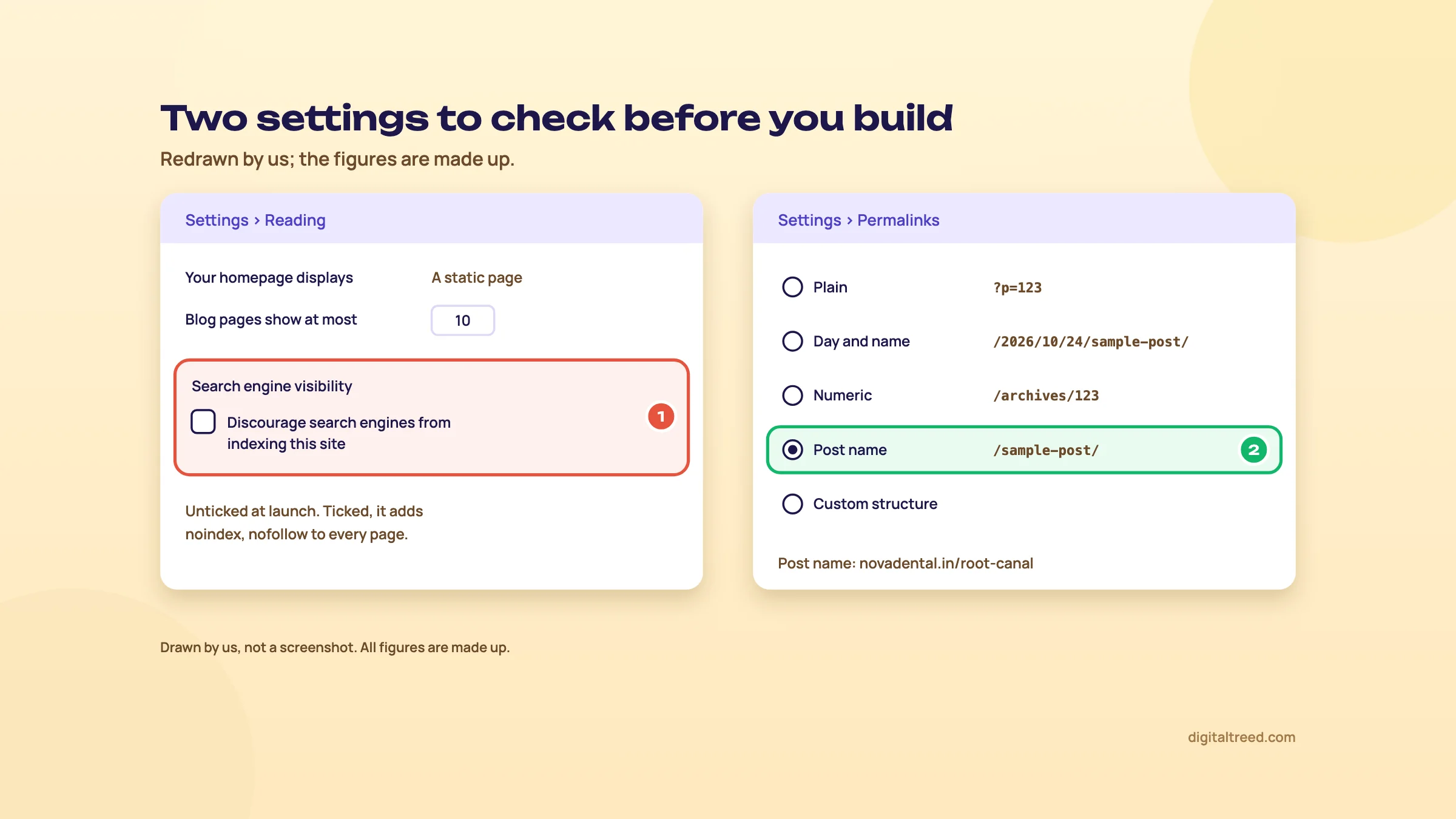 Drawn by us: untick the search engine box at launch, and pick Post name before you build.
The box that hides your site from Google
Under Settings, Reading there's a box called "Discourage search engines from indexing this site". Some hosts tick it while you build. When it's ticked, WordPress adds a robots meta tag with noindex,nofollow to every page, which asks search engines not to list them.[25]
Ticking it during the build is fine. Forgetting to untick it at launch is one of the most common reasons a new site never shows up on Google. Since version 6.9, the Site Health screen also flags it as a recommended improvement.[26] It's on the launch checklist in chapter 11.
Warning
Common mistake: leaving "Discourage search engines" ticked after launch, then waiting weeks for Google to find a site that has asked Google to stay away. Open Settings, Reading on launch day and check.
Tip
Done when: you can log in at /wp-admin, the site loads on https with one redirect, and all ten settings are done.
Next, chapter 7: choose a theme and learn the Site Editor.
Theme: a free block theme and the Site Editor
Quick answer
Start with a free block theme, such as the default Twenty Twenty-Five. With a block theme you change colours, fonts, the header, the footer and every template in the Site Editor, without code or a page builder. Judge any theme by its last update, reviews and speed. Never install a "nulled" copy of a paid theme.
A theme decides how your site looks: the layout, colours, fonts, header and footer. Your words and photos stay the same when you change it. There are two kinds of WordPress theme today, and the difference decides how you'll build.
Block themes and classic themes
| Block theme | Classic theme | |
|---|---|---|
| How you change the design | In the Site Editor, by clicking and dragging blocks | In the Customizer and theme options, often with code for bigger changes |
| Header, footer, templates | All editable with blocks | Fixed by the theme, or by a page builder |
| Where to find it | Appearance, Editor | Appearance, Customize |
| Our take for a first site | Start here | Fine if a developer already set one up |
The WordPress.org directory had 15,290 free themes on 24 October 2026,[9] and 1,910 of them were tagged for full site editing, which means block themes.[27] So about one in eight. That's still far more than you need: you only need one good one.
15,290
free themes in the WordPress.org directory[9]
About 1,900
of them are block themes (tagged full site editing)
1M+
sites use Twenty Twenty-Five, the default theme[28]
Start with the default theme
Every new WordPress comes with a default theme. Today that's Twenty Twenty-Five, a block theme with several style variations (ready-made colour and font sets), version 1.5, updated on 20 May 2026.[28] WordPress plans to ship a new default theme with version 7.2 in early December 2026.[29] Either is a sensible starting point for a business site, because the people who make WordPress keep it updated and fast.
If you want something different, judge any free theme on its page in the directory before you install it:
- Last updated within the past six months or so.
- Active installations in the thousands, not in the tens.
- Reviews, especially the recent one-star ones: what went wrong?
- "Block themes" in its tags, if you want the Site Editor.
- A demo that loads quickly on your phone.
Warning
Never use a nulled theme or plugin. "Nulled" means a pirated copy of a paid product, offered free on download sites. They often carry hidden admin accounts and backdoors. Wordfence, a WordPress security company, reported that its scanner found malware from nulled plugins and themes on 206,000 sites in 2020, over 17% of all the infected sites it found.[30] If you want a paid theme, buy it from its maker.
The Site Editor in 15 minutes
With a block theme, go to Appearance, Editor. WordPress's documentation lists what you can do there: edit the site's styles, change the layout, and manage templates, template parts (like the header and footer) and pages.[31]
Set up the look of Nova Dental
- Styles. Open Styles and try the style variations. Pick one close to your brand, then adjust Colors to match your logo (a calm blue and white for a clinic) and Typography to one readable font for text.
- Header. Open Patterns, then Template Parts, then Header. Add your logo, keep the menu, and add a Buttons block with "Call 020 0000 0000" (your real number) on the right.
- Footer. Edit the Footer the same way: address, hours, phone, and links to Privacy and Contact.
- Templates. Open Templates and look at Pages. Changes here affect every page that uses the template, so keep it simple.
- Save and view. Save, then open the site on your phone. Most of your visitors will see it there first.
Two shortcuts help. Press Ctrl+K (Cmd+K on a Mac) to open the Command Palette and jump to any screen by typing its name. And WordPress 7.0 added a font management page, so you can add or remove fonts without a plugin.[32]
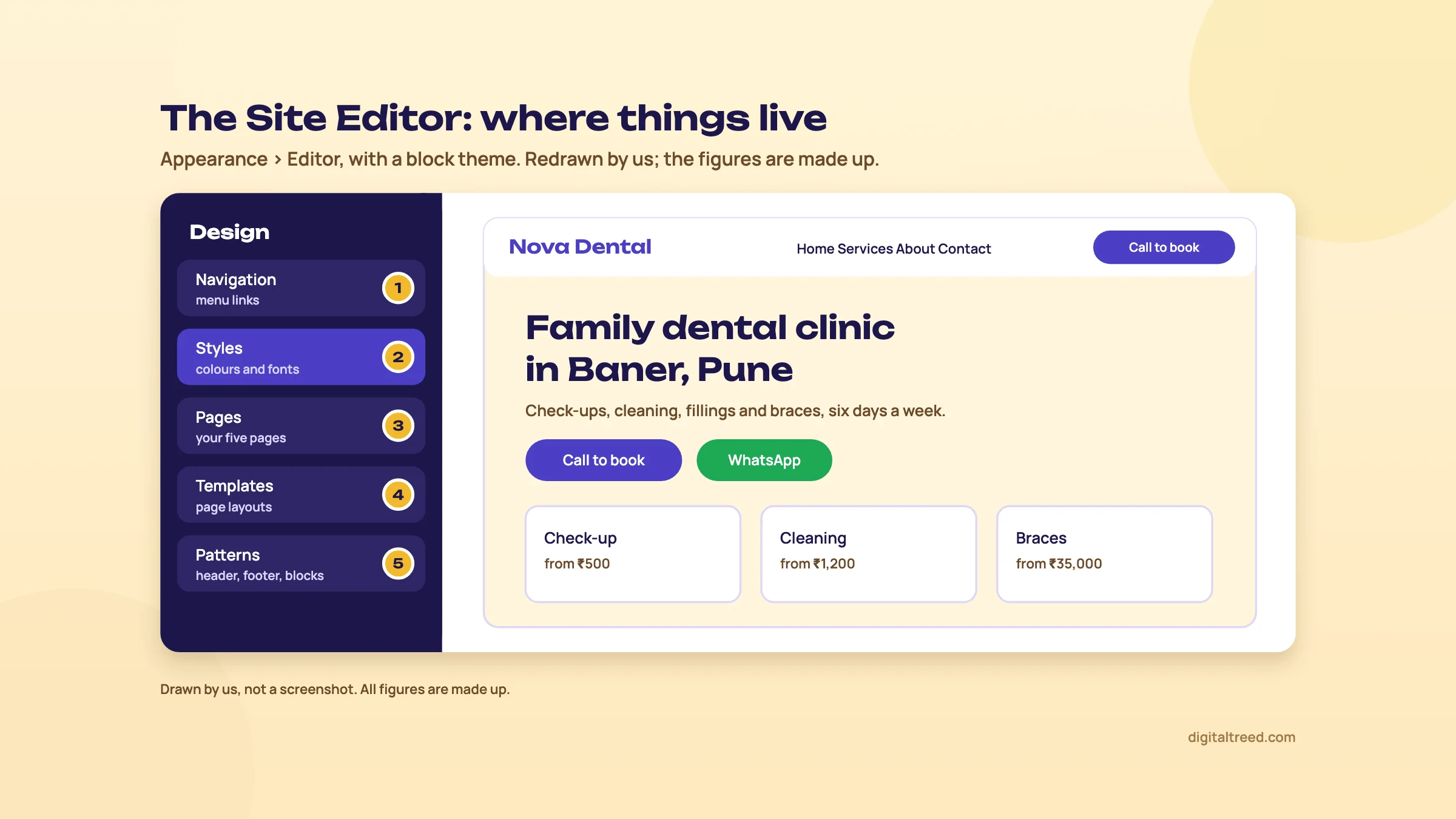 Drawn by us: the Site Editor's sidebar, with the made-up Nova Dental home page.
Do you need a page builder?
Page builders, such as Elementor, are plugins that add their own drag-and-drop editor on top of WordPress. For years they were the only easy way to design pages. With block themes and the Site Editor, we don't think a five-page business site needs one.
Pros
- Lots of ready designs and widgets
- Many tutorials and freelancers know them
- Fine-grained design control
Cons
- One more big plugin to update and secure
- Often heavier pages than the block editor makes
- Lock-in: turn the builder off and pages fill with leftover shortcodes and broken layouts, so leaving means rebuilding
- The best features are often in the paid version
If a developer has already built your site on a page builder, keep it; rebuilding just to switch isn't worth it for a small site. If you're starting fresh, start with the block editor.
Warning
Common mistake: installing five themes "to try them" and leaving them all there. Every unused theme is code that needs updates. Keep your active theme and one default theme as a fallback, and delete the rest.
Tip
Done when: your block theme is active, the styles match your brand, and the header and footer show your logo, phone, address and hours.
Next, chapter 8: build the five pages and the menu.
Build the five pages and the menu
Quick answer
Build each page from blocks and ready-made patterns: Home says what you do, for whom and where, with one button; Services lists prices; About shows real people; Contact has a map, hours and a short form. Add tap-to-call and WhatsApp links, a simple menu and a footer. AI can draft text, but check every fact yourself.
Blocks and patterns in five minutes
In the block editor, everything on a page is a block: a paragraph, a heading, an image, a button, a set of columns. Press the slash key on an empty line and type what you want ("/heading", "/image", "/buttons"). Drag blocks up and down with the handle on their toolbar.
A pattern is a group of blocks someone has already arranged, like a hero section with a heading, text and button, or three columns of services. Click the plus button at the top left, choose Patterns, and drop one in. Then replace the text and photos with yours. It's the fastest way to get a page that looks designed.
A synced pattern is one you make yourself and reuse. Change it once and every copy updates. Use it for things that repeat across pages, such as your "Book a check-up" box with the phone and WhatsApp buttons.
Home page
A visitor should know three things within a few seconds of landing: what you do, whether it's for them, and what to do next. For Nova Dental:
- Top section: a heading such as "Family dental clinic in Baner, Pune", one line underneath ("Check-ups, cleaning, fillings and braces, six days a week"), and one main button: "Call to book".
- Services: three or four cards, each with a starting price and a link to the Services page.
- Why us: two or three specific reasons, such as hours that suit office-goers or a dentist with 15 years in practice. Specific beats "best quality care".
- Reviews: three real reviews, with first names, used with permission.
- Find us: the address, a small map and the hours.
Services page
Put prices or starting prices on the page. People search "root canal cost in Pune" because they want a number before they call. A range is fine ("from ₹4,500, depending on the tooth"). Give each service a heading, two or three plain sentences on what happens and how long it takes, and the price. If you have many services, give the main ones their own page later.
About page
Real photos of real people. The dentists' names, qualifications and years in practice. Why the clinic exists, in two or three sentences. Stock photos of smiling models make visitors trust you less, not more.
Contact page
- Phone number as a tap-to-call link, so it dials when tapped on a phone.
- A WhatsApp chat link.
- Address, with a map embedded from Google Maps (in Maps, choose Share, then Embed a map, and paste the code into a Custom HTML block).
- Opening hours.
- A short form: name, phone, message. No more fields than you need (chapter 11 explains why).
The form itself comes from a plugin (chapter 9). Don't trust it until you've sent yourself a test message and it has arrived.
Tap-to-call and WhatsApp buttons
Both are plain links, so any Buttons block can do them. No plugin needed.
| Button | Link to type in | What happens |
|---|---|---|
| Call | tel:+912000000000 | Opens the phone dialler with your number |
https://wa.me/912000000000 | Opens a chat with your number in WhatsApp |
For the WhatsApp link, write the number in full international format: country code (91 for India) then the number, with no plus sign, zeros, brackets or dashes.[33] The numbers above are placeholders; use yours.
Menu and footer
In the Site Editor, select the Navigation block in your header and add your pages: Home, Services, About, Contact. Four or five items is plenty. Privacy goes in the footer, not the main menu. On phones the menu folds into a menu icon automatically.
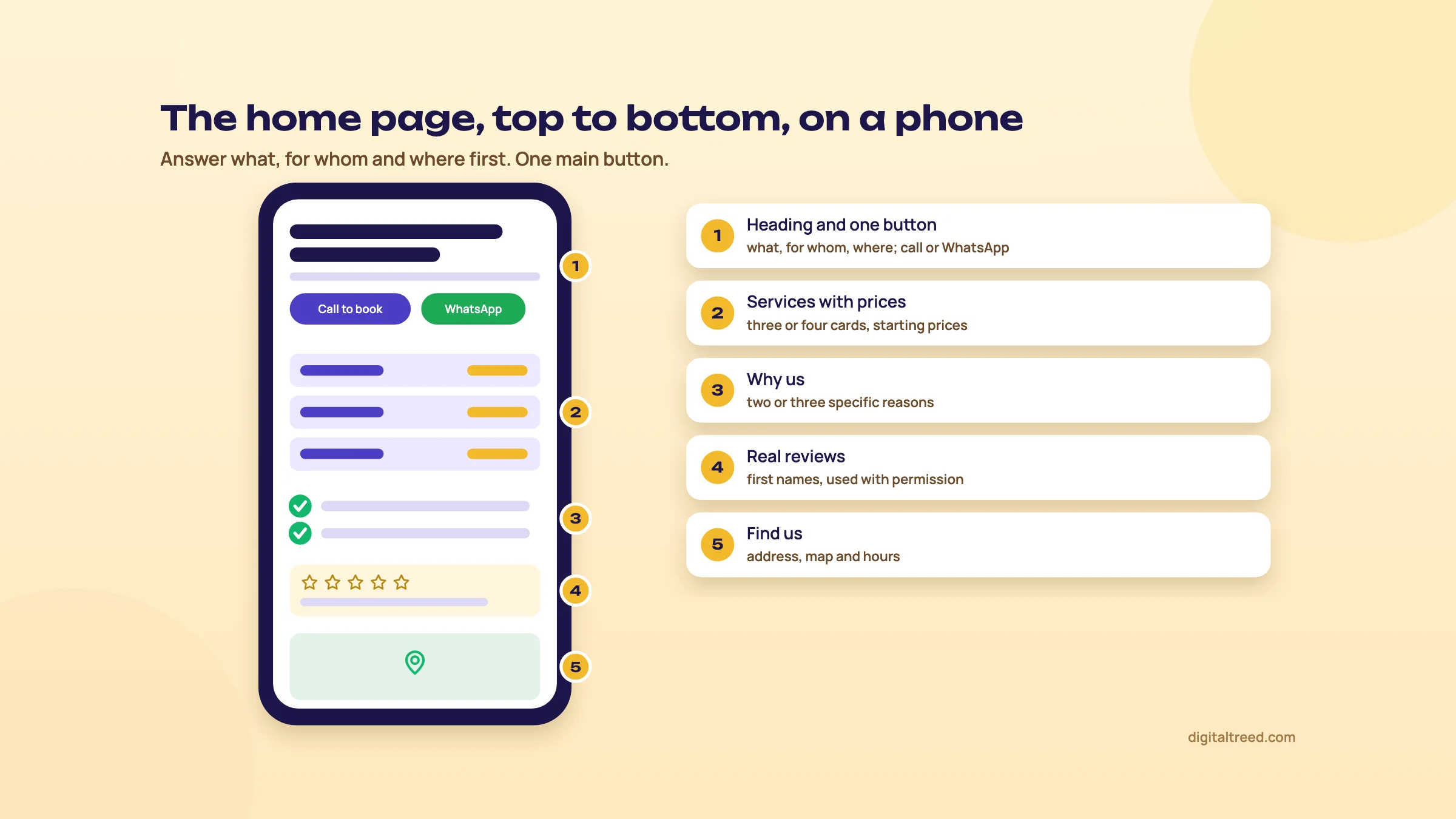 The order of a home page that gets calls: what you do first, the map last.
Images that don't slow the site
Phone photos are often 3 to 6 MB each. Upload ten of those to your home page and it will crawl on mobile data. WordPress helps: when you upload, it makes smaller copies, and it adds code so browsers pick the right size for the screen (since version 4.4).[34] It also lazy-loads images (since 5.5),[35] and since 5.9 it lets the first image in the content load straight away.[36] But it doesn't shrink your original, so do that before you upload.
Our free Image Compressor resizes and converts up to 50 photos at once to WebP or AVIF, in your browser, without uploading them anywhere. A width of about 1,600 pixels is enough for a full-width photo. Then add alt text to each image in WordPress: one plain sentence saying what's in the photo ("Dr Mehta checking a patient's teeth at Nova Dental"). Check the finished page with the Image Alt Text Checker.
Writing with AI: what it's good for
Using AI to help write your pages is fine, and Google says so. Its guidance says generative AI "can be particularly useful when researching a topic, and to add structure to original content". What it warns against is using AI tools "to generate many pages without adding value for users", which may break its spam policy on scaled content abuse.[37] The spam policy aims at low-value content made to manipulate rankings, "no matter how it's created".[38]
WordPress 7.0 added an AI Client in core and a Connectors screen to connect an AI provider, but nothing is switched on until you connect your own account.[32]
Do not
- Let AI invent prices, qualifications, reviews or years in practice
- Paste AI text without reading it aloud
- Make 50 "dentist in [area]" pages that say the same thing
Do
- Use AI for a first draft from your own notes
- Ask it for clearer headings and shorter sentences
- Draft alt text, then check it matches the photo
- Check every fact, name and number yourself
Before you publish, paste each page into our Readability Checker, which marks long and hard sentences, and the Word Counter to see the length and the words you use most. Our chapter on helpful content and AI-assisted writing goes further.
Warning
Common mistake: a home page that opens with "Welcome to our website" and a slider of stock photos. Nobody learns what you do or where you are. Open with the heading that answers "what, for whom, where" and one button.
Tip
Done when: all five pages are published, the menu and footer link to them, the call and WhatsApp buttons work on your phone, and every image is compressed and has alt text.
Next, chapter 9: the plugins you actually need.
Plugins: the five jobs you need them for, and how to judge any plugin
Quick answer
A five-page business site needs plugins for five jobs: SEO, a contact form, sending email properly (SMTP), backups and security, plus caching if your host has none. Pick each from the WordPress.org directory by recent updates, active installs, reviews and support replies. How good your plugins are matters more than how many you have.
A plugin adds a feature WordPress doesn't have on its own. The official directory had 76,585 free plugins on 24 October 2026.[8] That choice is a strength and a trap. Every plugin is code someone else wrote, running on your site with full access. Chapter 10 shows that plugins are where most WordPress security problems come from. So choose few, choose well, and keep them updated.
How to judge any plugin in two minutes
Open the plugin's page on wordpress.org/plugins (or click "More Details" inside Plugins, Add Plugin) and look at the box on the right:
| Check | Good sign | Warning sign |
|---|---|---|
| Last updated | Within the past six months | Over a year ago |
| Active installations | Tens of thousands or more for a common job | Under a few hundred, for a job big plugins already do |
| Tested up to | The current WordPress version, or the one before | Several major versions behind |
| Reviews | Mostly 4 and 5 stars; recent one-star reviews answered | Recent reviews about broken sites or hidden charges |
| Support forum | Most recent threads have replies, many marked resolved | Months of unanswered threads |
As an example, the Razorpay plugin for WooCommerce showed version 4.8.8, last updated on 4 September 2026, 100,000+ active installations and "Tested up to 7.1.0" when we looked.[39] That's a plugin that's being looked after.
The five jobs
| Job | Why you need it | Common free choices |
|---|---|---|
| SEO | Titles and descriptions for Google, an XML sitemap, schema | Yoast SEO or Rank Math (pick one, never both) |
| Contact form | WordPress has no form of its own | Contact Form 7, WPForms Lite, Fluent Forms |
| SMTP email | So form messages actually arrive (see below) | WP Mail SMTP, FluentSMTP |
| Backups | A copy of your site off the server, on a schedule | UpdraftPlus, or your host's backups if you can download them |
| Security | Limits login attempts, adds two-step login, warns about problems | Wordfence, Kadence Security (formerly Solid Security), or your host's tools |
| Caching (only if your host has none) | Serves saved copies of pages so they load faster | Your host's own cache first; otherwise a caching plugin such as WP Super Cache |
We name these because they're widely used, not because we're paid to; we have no deals with any of them. Check each one with the table above before you install it. For SEO, our guides to Yoast SEO and Rank Math walk through set-up, and Yoast vs Rank Math helps you pick.
Plugin count matters less than plugin quality
"How many plugins is too many?" is a common question, and there's no magic number. Ten well-kept plugins can be lighter and safer than three bad ones. What hurts is plugins that overlap (two SEO plugins, two caching plugins), plugins nobody updates, and plugins you installed to try and forgot. Once a month, open Plugins and ask of each one: do I still use this? If not, deactivate it and delete it.
Why your contact form mail never arrives
This is the problem we'd most want every new site owner to know about, because it's silent. The form says "Thank you, your message has been sent". The message never reaches you. You lose enquiries and never find out.
Here's why. WordPress sends email through a function called wp_mail(), which by default uses the server's PHP mail.[40] That mail usually isn't authenticated, which means it can't prove it really comes from your domain. Since February 2024, Google has required everyone who sends to Gmail addresses to set up SPF or DKIM,[41] and Yahoo asks for at least one of them too.[42] Mail that fails those checks may be marked as spam or blocked.[41] SPF and DKIM are small records you add to your domain\'s DNS that prove a message really comes from you. DMARC is a third record that tells mail services what to do with mail that fails them.
Make form email arrive
- Get a mailbox on your domain, such as [email protected], from your host or an email provider.
- Install an SMTP plugin and connect it to that mailbox (or your email provider's sending service) with the details your provider gives you.
- Set the From address to the mailbox on your own domain, not a Gmail address.
- Add SPF and DKIM records in your DNS, from your email provider's instructions, and a DMARC record (a policy of none is a fine start). Check them with our DNS Lookup.
- Test it. Send a test from the SMTP plugin, then fill in your own contact form from your phone, and check it arrives in the inbox, not spam.
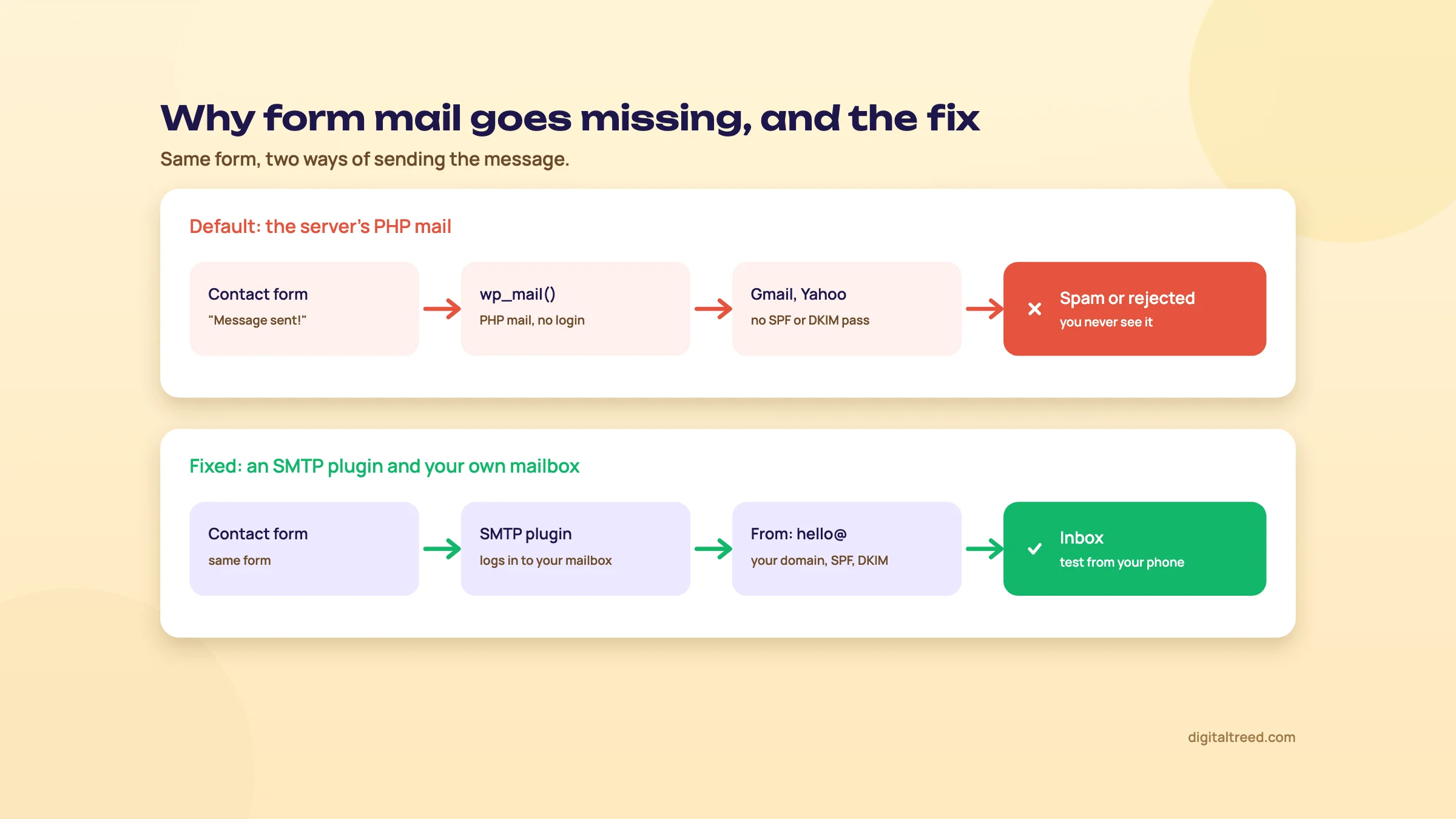 Same form, two ways to send. Only the second one reliably reaches you.
Warning
Common mistake: testing the form once, on the day you built it, from the same computer. Test it again after launch, from your phone, with mobile data, and every month after that (chapter 12).
Tip
Done when: the five jobs are covered by one plugin each (or by your host), every plugin passed the two-minute check, and a test message from your phone arrived in your inbox.
Next, chapter 10: security, backups and speed in one sitting.
Security, backups and speed in one setup
Quick answer
Most WordPress security holes are in plugins, not WordPress itself: 91% of new vulnerabilities found in 2025 were in plugins. So keep everything updated, delete what you don't use, turn on two-step login and limit login attempts. Keep a backup off the server and test restoring it. For speed, compress images, use caching and keep fonts and plugins few.
Where the risk really is
Patchstack, a WordPress security company, counts new security holes found in WordPress plugins, themes and core each year. Its report on 2025 found 11,334 new vulnerabilities, 42% more than in 2024.[43] Here's where they were:
Only 6 were in WordPress core, all low priority. And 46% had no fix from the plugin's developer by the time they were made public.[43] That last number is why "just keep it updated" isn't enough on its own: sometimes there's no update to install. The safest plugin is the one you deleted.
11,334
new WordPress vulnerabilities found in 2025, up 42%[43]
91%
of them were in plugins
46%
had no fix when they were made public
The 20-minute security setup
WordPress's own hardening guide covers the basics: keep WordPress, plugins and themes updated, delete what you don't use, use strong passwords, and "it's a good idea to enable two-step authentication".[44] Here's that turned into steps:
Secure the site
- Update everything. Dashboard, Updates: update WordPress, then plugins, then themes. WordPress applies minor security releases automatically, and has done since version 3.7.[44]
- Turn on auto-updates for plugins you trust, from the Plugins screen. For a small site the risk of an update breaking something is smaller than the risk of a known hole left open.
- Delete unused plugins and themes. Deactivated isn't enough; delete them.
- Two-step login. WordPress doesn't have it built in, so turn it on in your security plugin or your host's panel, for every admin.
- Limit login attempts, also in the security plugin, so bots can't guess passwords forever.
- One admin per person. Give your developer or staff their own accounts, with the lowest role that does the job (Editor for someone who only writes). Delete accounts people no longer need.
Backups you can actually restore
A backup is a copy of two things: your files (themes, plugins, uploaded photos) and your database (your pages, settings and users). WordPress's guide says to keep regular backups of both in a trusted place and to have a recovery plan.[44] Three rules make a backup useful:
- Off the server. If the server dies or the hosting account is closed, a backup stored on it goes too. Send copies to Google Drive, Dropbox or similar.
- On a schedule. Weekly is enough for a site that rarely changes; daily if you take bookings or orders on it.
- Tested. Restore it once, on a staging copy, to prove it works. An untested backup is a hope, not a plan.
Warning
Common mistake: trusting the host's backups without checking them. Some hosts keep only a few days, some charge to restore, and some lose the backups with the account. Keep your own copy as well.
Speed: what "fast enough" means
Google measures page experience with three Core Web Vitals. The "good" thresholds are:[45]
| Measure | What it means | Good |
|---|---|---|
| LCP (Largest Contentful Paint) | How fast the main content appears | Within 2.5 seconds |
| INP (Interaction to Next Paint) | How fast the page reacts when you tap | 200 milliseconds or less |
| CLS (Cumulative Layout Shift) | How much things jump around while loading | 0.1 or less |
They're measured at the 75th percentile of real visits, for mobile and desktop separately.[45] Our chapter on Core Web Vitals explains them in depth. For a five-page site, five habits get you most of the way:
- Small images. Compress and resize before upload (chapter 8). This is the biggest win on most small sites.
- Don't lazy-load the top image. WordPress lazy-loads images by default since version 5.5,[35] and since 5.9 it skips the first image in the content, so the big image at the top loads at once.[36] Don't undo that with a plugin that lazy-loads everything.
- Caching. Use your host's cache, or one caching plugin (chapter 9).
- Two fonts at most, ideally one family for headings and text.
- Fewer plugins, especially sliders, popups and page builders on pages that don't need them.
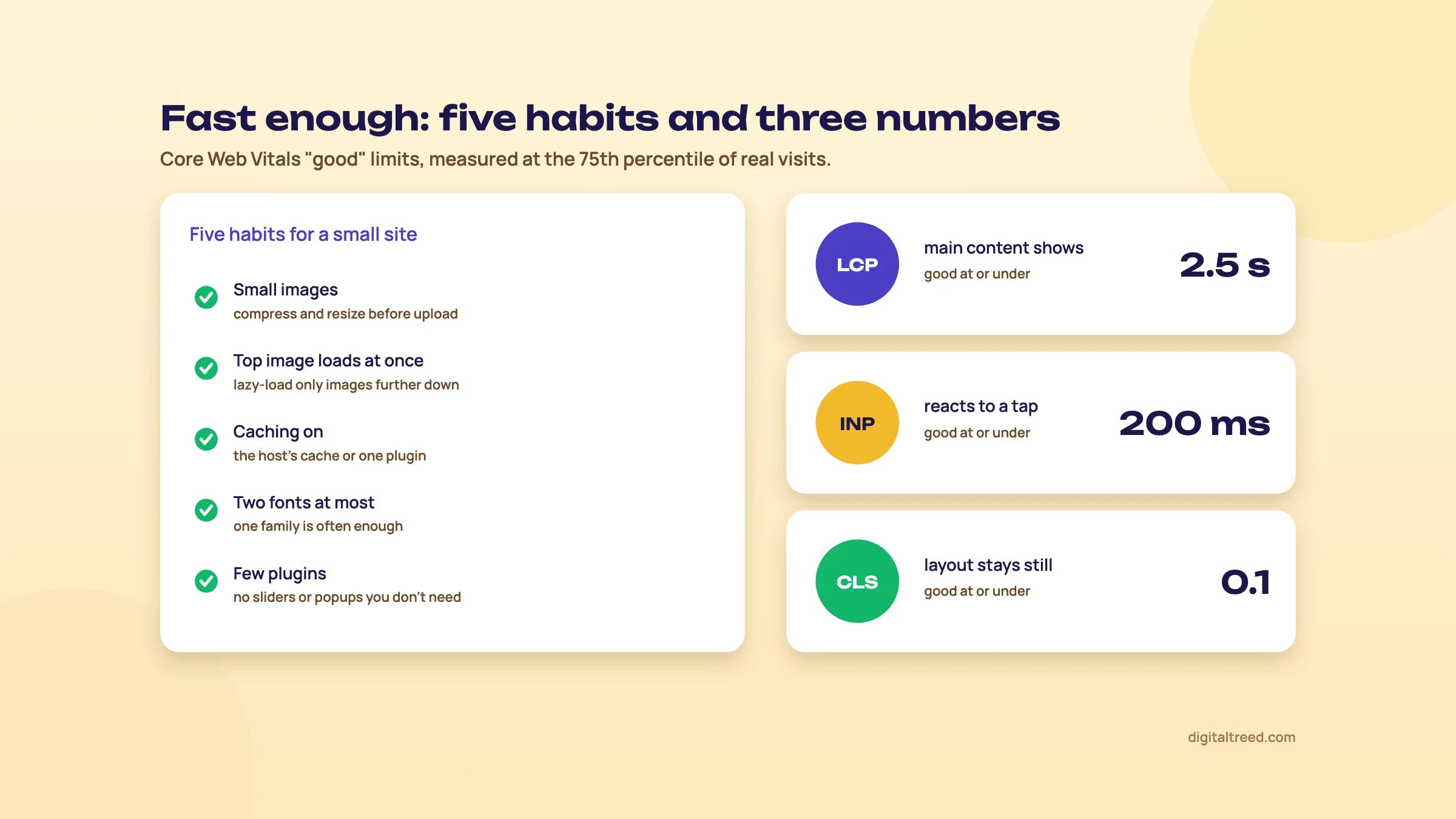 Five habits cover most of the speed work on a small site.
Our free Website Speed Test shows your server's response time, page weight, number of requests, compression and caching, scored out of 100. Run it on your home page before and after you compress the images and you'll see the difference. Then check the phone view with the Mobile-Friendly Test, and whether caching and compression headers are really on with the HTTP Header Checker. For Google's own measurements from real visitors, see our PageSpeed Insights guide.
Tip
Done when: everything is updated, two-step login is on, a backup sits off the server and you've restored it once on staging, and the speed test shows no image over a few hundred KB.
Next, chapter 11: the legal pages, payments and the launch checklist.
Legal pages, payments and the launch checklist
Quick answer
Before launch, publish a privacy notice that says what your forms collect and why, add a consent line to each form, and give a contact for data requests. Shops also need terms and a refund policy. Take UPI and cards through a gateway's own plugin. Then work through the launch checklist, ending with search visibility on and Search Console set up.
Note
This chapter is general information, not legal advice. Laws change and apply differently to different businesses. For anything beyond a simple enquiry form, ask a lawyer.
India: the DPDP Act and what a small site does now
India's main data privacy law is the Digital Personal Data Protection Act, 2023 (DPDP for short). Its Rules came out in November 2025. Businesses get 18 months, in phases, to follow them.[46] The Rules call for clear, standalone consent notices that explain the specific purpose of collecting data.[46]
Even before every duty applies, a small site collecting names and phone numbers through a form can do four simple things now:
- Collect only what you need. Name, phone and message are enough for a clinic enquiry. Don't ask for date of birth or address "just in case".
- Say why, at the form. One line under the form: "We use your name and number only to reply to your enquiry. See our Privacy Policy." Add a tick box if you also want to send offers.
- Publish a privacy notice in plain language: what you collect, why, who sees it (your SMTP and form plugins, your email provider), how long you keep it, and how to ask for it to be corrected or deleted.
- Name a contact for data requests, with an email address that someone reads.
WordPress helps with the page. Under Settings, Privacy you can create a Privacy Policy page from a template with suggestions, or choose an existing page.[47] The template is a starting point. WordPress's documentation is clear that you're responsible for what it says, so edit it to match what your site actually does.
Terms and refund policy
If you sell anything on the site, or take advance payments, add Terms of service and a Refund and cancellation policy, and link both in the footer. Payment gateways check your website before they give you live keys. Razorpay, for example, asks for links to your About us, Contact us, Pricing details, Terms and conditions, Privacy policy and Refunds policy pages.[48] Write them for your real process: how long refunds take, what happens if a patient cancels an appointment.
US readers: privacy basics
The US has no single national privacy law; states set their own rules. California's CCPA is the one people ask about most. It applies to for-profit businesses that do business in California and meet at least one of these tests:
- Gross annual revenue above US$26,625,000 (the figure from 1 January 2025).[49]
- Buying, selling or sharing the personal data of 100,000 or more California residents or households.
- Earning half or more of their revenue from selling Californians' personal data.[50]
Most small businesses don't meet those tests. A clear privacy policy is still good practice, and some states require one when you collect personal data.
Taking payments by UPI and card
For a clinic, the simplest route is often a payment link or QR code from your payment gateway, with no plugin at all. If you want payments on the site:
- Selling products or services with a cart: install WooCommerce, the free shop plugin, then your gateway's WooCommerce plugin. Razorpay's documentation lists the steps: create a Razorpay account, generate API keys (a pair of secret codes that let your site talk to Razorpay) from its Dashboard, and replace them with Live Mode keys when you're ready to take real payments.[51]
- Just a "Pay now" button for fixed amounts: Razorpay also has a plugin for WordPress that works without WooCommerce.[51]
Other Indian gateways have their own plugins; follow the gateway's own documentation rather than a third-party tutorial, because their screens change often. Test with the gateway's test mode before you switch to live keys.
The launch checklist
Go through this on launch day. It's also in the downloadable checklist with this guide.
| Area | Check |
|---|---|
| Content | All five pages published, with no "Lorem ipsum" or sample text left |
| Content | Phone, WhatsApp, address and hours are correct everywhere (header, footer, Contact) |
| Content | Every image compressed, with alt text |
| Content | The menu works on a phone |
| Forms | A test message from your phone arrived in the inbox (chapter 9) |
| Forms | The consent line and privacy link sit under every form |
| Legal | Privacy Policy published and linked in the footer; Terms and Refund policy if you take payments |
| Security | https everywhere, one redirect from http (SSL Checker, Redirect Checker) |
| Security | Two-step login on; no user called "admin" |
| Security | Unused plugins and themes deleted; everything updated |
| Backups | A backup off the server, restored once on staging (chapter 10) |
| Speed | Home page checked with the Website Speed Test and on a real phone |
| Settings, Reading: "Discourage search engines" is unticked | |
| SEO plugin set up; each page has its own title and description (Meta Tag Analyzer) | |
| XML sitemap loads without errors (XML Sitemap Validator) | |
| robots.txt doesn't block your pages (Robots.txt Tester) | |
| Site verified in Google Search Console and the sitemap submitted | |
| Google Business Profile links to the new site | |
| Sharing | The home page shows a proper preview with an image on WhatsApp (Social Preview Checker) |
| Analytics | Analytics installed, with a cookie banner if it uses cookies |
| Accounts | One note, kept safe, listing the registrar, host, WordPress, email and Search Console logins and renewal dates |
| Final | Run a full Website Audit and fix anything marked high priority |
Three terms from the checklist. An XML sitemap is a list of your pages for search engines. robots.txt is a small file that tells search engine bots which parts of the site they may visit. Google Search Console is Google's free tool that shows whether your pages are in Google, what people searched to find you, and any problems it found.
WordPress makes a basic XML sitemap by itself at /wp-sitemap.xml (since version 5.5), and SEO plugins usually replace it with their own.[52] Submit whichever one your site uses. Our Google Search Console guide shows how to verify the site and submit it, and our beginner's chapter on site setup covers Bing too.
Our free Website Audit runs more than 50 checks across up to 25 pages: SEO, speed, security, leads, email, local SEO and accessibility, with an action plan ranked by points and a PDF. Run it on launch day and keep the PDF; it makes a useful "before" for later. For single checks use the Meta Tag Analyzer, XML Sitemap Validator, Robots.txt Tester and Social Preview Checker.
Warning
Common mistake: launching without a privacy policy because "we're small". Your form collects personal data from day one. A plain one-page notice takes 30 minutes with the WordPress template.
Tip
Done when: every row of the launch checklist is ticked, the site is verified in Search Console, and you've sent the link to five people and asked them to try the form.
Next, chapter 12: the monthly routine that keeps it running.
Keep it running: the monthly routine and when to get help
Quick answer
A small WordPress site needs about 15 minutes a week and an hour a month: back up, update, check the site and test the form. When something breaks, start with the error message. "Critical error" usually means a plugin, the database error usually means wrong details or a busy server, and a lockout is fixed by a password reset.
The routine
| When | Task | Time |
|---|---|---|
| Weekly | Open the site on your phone: home, Services, Contact. Anything broken or wrong? | 5 min |
| Weekly | Check Dashboard, Updates; apply security updates | 5 min |
| Weekly | Check the form inbox and spam folder | 5 min |
| Monthly | Back up, then update everything, then check the site (below) | 20 min |
| Monthly | Send a test message through your form from your phone | 5 min |
| Monthly | Delete plugins and users you no longer need | 5 min |
| Monthly | Look at Search Console: pages indexed, clicks, any errors | 15 min |
| Monthly | Update prices, hours, photos and staff if anything changed | 10 min |
| Every 3 months | Restore a backup on staging to prove it still works | 30 min |
| Yearly | Check domain and hosting renewal dates and prices; check the SSL renews | 15 min |
Updating safely
Updates fix security holes, so skipping them is the bigger risk. But updating twenty things at once on the live site is how many "my site is broken" stories begin. Do it in this order:
- Back up files and database.
- Update on staging first if your host has it, and look at the copy.
- Update on the live site: WordPress first, then plugins, then the theme.
- Check the site: home page, a service page, the menu on a phone, and send a test form message.
- If something broke, restore the backup, or deactivate the plugin you just updated and wait for its fix.
Your host will also ask you to move to newer PHP versions over time. Treat that the same way: back up, switch on staging, check, then switch the live site.
The three errors beginners hit most
These show up on the WordPress.org support forums every week. Each has a calm first step.
"There has been a critical error on this website." Usually a plugin or theme, often right after an update. Since version 5.2, WordPress emails the admin email address when this happens, with a special link to "recovery mode", where you can log in and turn off the plugin that caused it.[53] This is why setting 4 in chapter 6, an admin email you actually read, matters. No email? Ask your host to rename the faulty plugin's folder, or do it yourself in the File Manager under wp-content/plugins; WordPress then switches that plugin off.
"Error establishing a database connection." WordPress can't reach its database. WordPress's documentation says it's usually caused by an error in the wp-config.php file: the database name, username, password or host.[54] If you didn't change anything, the database server may be down or overloaded. Tell your host; if it happens often, that's a sign you've outgrown the plan.
Locked out. Use the "Lost your password?" link on the login page first. If the reset email doesn't come (often the same mail problem as in chapter 9), WordPress documents other ways, including through phpMyAdmin in your hosting panel.[55] Your host's support can usually do it for you in a few minutes.
Warning
Common mistake: panicking and reinstalling WordPress, or trying fixes from five different videos at once. Read the exact error, take a backup of what's there, and try one thing at a time.
When to get help
You can run a five-page site yourself. It's worth paying someone when:
- The site was hacked, or Google or your host has flagged malware.
- You've restored a backup and the problem is still there.
- You need something no plugin does well, such as booking linked to your clinic software.
- The site makes you money every day and an hour of downtime costs more than a fix.
- You'd simply rather spend your weekends on your business.
If you do hire someone, keep the domain, hosting and WordPress admin in your own name (chapter 4) and give them their own login, which you can remove later.
Our web development service builds and looks after WordPress sites for small businesses, and the quote estimator shows prices up front.
Tip
Done when: the routine is in your calendar, your account note lists every login and renewal date, and you know the first step for each of the three errors.
Words used in this guide
- 301 redirect
- A permanent redirect. It sends visitors and Google from an old address to a new one, for good.
- Backup
- A copy of your site: its files (themes, plugins, photos) and its database (pages, settings, users).
- Block theme
- A theme you design in the Site Editor with blocks, without code.
- Caching
- Keeping ready-made copies of your pages so they load faster.
- Core Web Vitals
- Google's three speed measures: LCP (how fast the main content shows), INP (how fast a tap gets a response) and CLS (how much the page jumps while loading).
- Database
- Where WordPress stores your pages, settings and users.
- DMARC
- A DNS record that tells mail services what to do with mail that fails SPF or DKIM.
- DNS
- The internet's address book. It connects your domain to your hosting.
- Domain
- Your website's address, like novadental.in. You rent it a year or a few years at a time.
- Hosting
- A computer that's always online, where your site's files and database live.
- KYC
- Know your customer: proving who you are with an ID. The .in registry asks for it.
- Nameservers
- Two addresses at your registrar that say which company manages your domain's DNS.
- PHP
- The programming language WordPress is written in. Your host runs it; you never touch it.
- Permalink
- The address of a page. "Post name" gives clean ones like novadental.in/root-canal.
- Plugin
- An add-on that gives WordPress a new feature, like a contact form or backups.
- robots.txt
- A small file that tells search engine bots which parts of the site they may visit.
- Search Console
- Google's free tool that shows whether your pages are in Google and what people searched to find you.
- Site Editor
- The screen under Appearance, Editor where you change a block theme's colours, fonts, header, footer and templates.
- SMTP
- The proper way to send email: logged in to a real mailbox, so messages reach the inbox.
- SPF and DKIM
- DNS records that prove an email really comes from your domain.
- SSL
- What gives your site the padlock and https, so data sent through it is private.
- Staging
- A private copy of your site where you test changes before the real site sees them.
- Theme
- The ready-made design of your site. Change it and your words and photos stay the same.
- XML sitemap
- A list of your site's pages for search engines.
That's the whole build. To get people to the site, start with our free SEO for beginners guide, and if you're a clinic, shop or coaching centre, its local SEO chapter.
Test yourself
Ten questions on the whole guide. Pick an answer, check it, and see your score at the end.
You got 0 of 10 right.
Frequently asked questions
Frequently asked
Is WordPress free?
The WordPress software from WordPress.org is free and open source. What you pay for is a domain (about ₹900 to ₹1,500 a year at list price) and hosting to run it on. WordPress.com, the hosted service, has a free plan with ads and no plugins, and paid plans from US$4 a month billed yearly.
How much does a WordPress website cost in India?
Doing it yourself, about ₹5,000 on the day you buy for a five-page site: four years of entry shared hosting prepaid, plus GST and a domain. Once the hosting deal ends, expect around ₹5,000 a year. Always check the renewal price; Indian shared plans we looked at renewed at 3.2 to 4.2 times the advertised price. Chapter 3 has the full table.
Should I use WordPress or Wix?
Wix is quicker to start and handles hosting and updates for you, but your site lives inside Wix and moving away later means rebuilding. WordPress takes a little more upkeep, and you own everything and can change hosts any time. For a business site you plan to grow, we'd pick WordPress.
Can I make a WordPress website without coding?
Yes. With a block theme you build pages and change the design in the block editor and Site Editor by clicking and dragging. A five-page business site needs no code at all. Try it free first in WordPress Playground, which runs in your browser.
How long does it take to make a WordPress website?
A weekend for a five-page site, if your photos, prices and text are ready before you start. Plan for about a day to buy, install and set up, and a day to build the pages, secure the site and run the launch checklist. Collecting the content is what usually takes longest.
Do I need a page builder like Elementor?
Not for a small business site. Block themes and the Site Editor let you design headers, footers and pages without one. Page builders add weight and lock-in: switch one off and your pages fill with leftover shortcodes. If your site already runs on one, keep it.
Is WordPress safe?
WordPress itself is well looked after: Patchstack found only 6 low-priority vulnerabilities in core in 2025. The risk is plugins, where 91% of new vulnerabilities were found. Keep plugins few and updated, delete unused ones, turn on two-step login, and keep a tested backup off the server.
Can I make my WordPress site in Hindi?
Yes. Under Settings, General, choose Hindi as the Site Language, which translates the dashboard and WordPress's built-in text. Write your pages in Hindi as normal, and pick a theme font that shows Devanagari clearly. For a site in both Hindi and English, a multilingual plugin keeps the two versions linked. We'd keep page addresses in English so they stay short when shared.
Can I take UPI payments on a WordPress site?
Yes, through an Indian payment gateway's plugin. With WooCommerce, install the gateway's WooCommerce plugin and add its API keys; Razorpay also has a plugin for WordPress without WooCommerce. For a clinic or service business, a payment link or QR code from the gateway is often enough, with no plugin at all.
Can AI build my WordPress site?
AI can draft your page text, suggest headings and help with alt text, and WordPress 7.0 added an AI Client you can connect to your own AI provider. It can't know your prices, hours or qualifications, so check every fact yourself. Google's concern is many low-value pages made to rank, not AI use as such.
Sources
References
- Technologies overview (survey method), W3Techs, accessed 24 Oct 2026
- Usage statistics and market share of WordPress, W3Techs, 24 Oct 2026, accessed 16 Oct 2026
- WordPress releases, WordPress.org, accessed 24 Oct 2026
- WordPress.com vs. WordPress.org, WordPress.com Support, modified 21 Oct 2026, accessed 16 Oct 2026
- Install a plugin, WordPress.com Support, modified 22 Oct 2026, accessed 16 Oct 2026
- WordPress.com pricing, WordPress.com, accessed 24 Oct 2026
- WordPress.com plans (public plans data, USD), WordPress.com, accessed 24 Oct 2026
- WordPress.org Plugins API: free plugin count, WordPress.org, accessed 24 Oct 2026
- WordPress themes directory: latest (15,290 themes), WordPress.org, accessed 24 Oct 2026
- WordPress Playground, WordPress.org, accessed 24 Oct 2026
- WordPress Playground documentation, WordPress Developer Resources, accessed 24 Oct 2026
- Web hosting plans and pricing (India), Hostinger, accessed 24 Oct 2026
- GST on hosting services, DomainIndia knowledge base, accessed 24 Oct 2026
- WordPress hosting, SiteGround, accessed 24 Oct 2026
- WordPress hosting, Bluehost, accessed 24 Oct 2026
- Web hosting plans and pricing, Hostinger, accessed 24 Oct 2026
- Domain name search and pricing (India), Hostinger, accessed 24 Oct 2026
- .com domain pricing, Porkbun, accessed 24 Oct 2026
- .IN Registry policies, .IN Registry (NIXI), accessed 24 Oct 2026
- .IN WHOIS lookups for zomato.in, rediff.in and nixi.in (whois.nixiregistry.in), .IN Registry (NIXI), looked up 24 Oct 2026, accessed 16 Oct 2026
- Registrar fee approved FY27 (letter to ICANN-accredited registrars), ICANN, Jul 2026, accessed 16 Oct 2026
- Requirements, WordPress.org, accessed 24 Oct 2026
- Settings General screen, WordPress.org Documentation, accessed 24 Oct 2026
- Settings Permalinks screen, WordPress.org Documentation, accessed 24 Oct 2026
- Settings Reading screen, WordPress.org Documentation, accessed 24 Oct 2026
- Changeset 60529: Site Health check for search engine visibility, WordPress Core Trac, 31 Jul 2025, accessed 16 Oct 2026
- WordPress.org Themes API: free theme count and full-site-editing tag count, WordPress.org, accessed 24 Oct 2026
- Twenty Twenty-Five, WordPress.org Themes, accessed 24 Oct 2026
- WordPress 7.2, Make WordPress Core, accessed 24 Oct 2026
- The Wordfence 2020 WordPress Threat Report, Wordfence, 27 Jan 2021, accessed 16 Oct 2026
- Site Editor, WordPress.org Documentation, accessed 24 Oct 2026
- WordPress 7.0 "Armstrong", WordPress.org News, May 2026, accessed 16 Oct 2026
- How to use click to chat, WhatsApp Help Center, accessed 24 Oct 2026
- Responsive images, WordPress Developer Resources, accessed 24 Oct 2026
- Lazy-loading images in 5.5, Make WordPress Core, 14 Jul 2020, accessed 16 Oct 2026
- Enhanced lazy-loading performance in 5.9, Make WordPress Core, Felix Arntz, 29 Dec 2021, accessed 16 Oct 2026
- Google Search's guidance on using generative AI content on your website, Google Search Central, updated 1 Oct 2026, accessed 16 Oct 2026
- Spam policies for Google web search, Google Search Central, updated 28 Aug 2026, accessed 16 Oct 2026
- Razorpay for WooCommerce, WordPress.org Plugins, accessed 24 Oct 2026
- wp_mail(), WordPress Developer Resources, accessed 24 Oct 2026
- Email sender guidelines, Gmail Help, accessed 24 Oct 2026
- Sender best practices, Yahoo Sender Hub, accessed 24 Oct 2026
- State of WordPress security in 2026, Patchstack, 2026 (vendor report covering 2025), accessed 16 Oct 2026
- Hardening WordPress, WordPress Developer Resources, accessed 24 Oct 2026
- Web Vitals, web.dev (Google), accessed 24 Oct 2026
- Government notifies DPDP Rules to protect privacy, Press Information Bureau, Government of India, 14 Nov 2025, accessed 16 Oct 2026
- Settings Privacy screen, WordPress.org Documentation, accessed 24 Oct 2026
- Business website details, Razorpay Docs, accessed 24 Oct 2026
- Updated Monetary Thresholds in CCPA, California Privacy Protection Agency, posted 17 Dec 2024, accessed 16 Oct 2026
- California Consumer Privacy Act (CCPA), State of California Department of Justice, accessed 24 Oct 2026
- WooCommerce plugin prerequisites, Razorpay Docs, accessed 24 Oct 2026
- New XML sitemaps functionality in WordPress 5.5, Make WordPress Core, 22 Jul 2020, accessed 16 Oct 2026
- Fatal error recovery mode in 5.2, Make WordPress Core, 16 Apr 2019, accessed 16 Oct 2026
- Common WordPress errors, WordPress Developer Resources, accessed 24 Oct 2026
- Reset your password, WordPress.org Documentation, accessed 24 Oct 2026
Get the free checklist
Every step of this guide on one page, to print or tick off. We email you the PDF link.