
Quick answer
To start a Facebook group for business, switch into your Page, open Groups and click Create new group, so the Page owns it. Pick privacy with care. A public group with 10,000 or more members, created 30 or more days ago, can't go private. Then set up to 3 membership questions and rules before you invite anyone.
A Facebook group for business is a discussion space your business Page creates and runs, where members talk to each other as well as to you. Meta said in October 2024 that almost 1.8 billion people use Facebook Groups every month, and Pew found that 71% of US adults use Facebook. That's the crowd.
The group is the smaller room where your regulars gather.
This guide covers the parts owners get stuck on. That's making the group as the Page, choosing privacy you won't regret, linking the two, and the settings to finish before the first invite. Every step comes from Meta's own help pages, read on October 26, 2026. If the group is one piece of a bigger plan, see where it fits in a step-by-step social media plan for small businesses.
Key takeaways
- Create the group while switched into your Page, so the business owns it.
- Start private and visible, because you can open it up later.
- Public groups with 10,000 or more members, created 30+ days ago, can't go private.
- Write 4 to 6 rules and up to 3 membership questions before inviting anyone.
- Keep two admins, since a group with none is paused after seven days.
A group is a members' room, and your Page is the storefront
A Page is your public storefront. Anyone can follow it, and mostly you do the talking. A group is the back room where members talk to each other and you host. In a private group, Meta says only current members can see the posts and the member list.
That difference tells you whether you need one. A group earns its keep when customers have something to say to each other, not just to you. It tends to fit when:
- Customers ask the same questions, and your regulars could answer them.
- You run classes, clubs or cohorts, and people need a place to talk between sessions.
- Fans want early news, tastings or test runs before everyone else.
- You serve one neighborhood or one hobby, so members already share something.
- Someone on your team can check it every day.
If none of that sounds like you, keep posting on the Page.
An empty group looks worse than no group at all.
Create the group as your Page, not your personal profile
So you've decided a group fits. Make it as the Page, which puts the business name on it and keeps your personal profile in the background. Meta's help page on how to create a Facebook group as your Facebook Page gives this order:
- Log in, click your profile photo at the top right, then See all profiles, and pick your business Page.
- From your Feed, click Groups in the left menu. If you can't see it, click See more.
- Click Create new group.
- Enter the group name, such as your business name plus what members get.
- Pick the privacy option. For a private group, also pick visible or hidden.
- Invite people, or wait until your settings are done, and click Create.
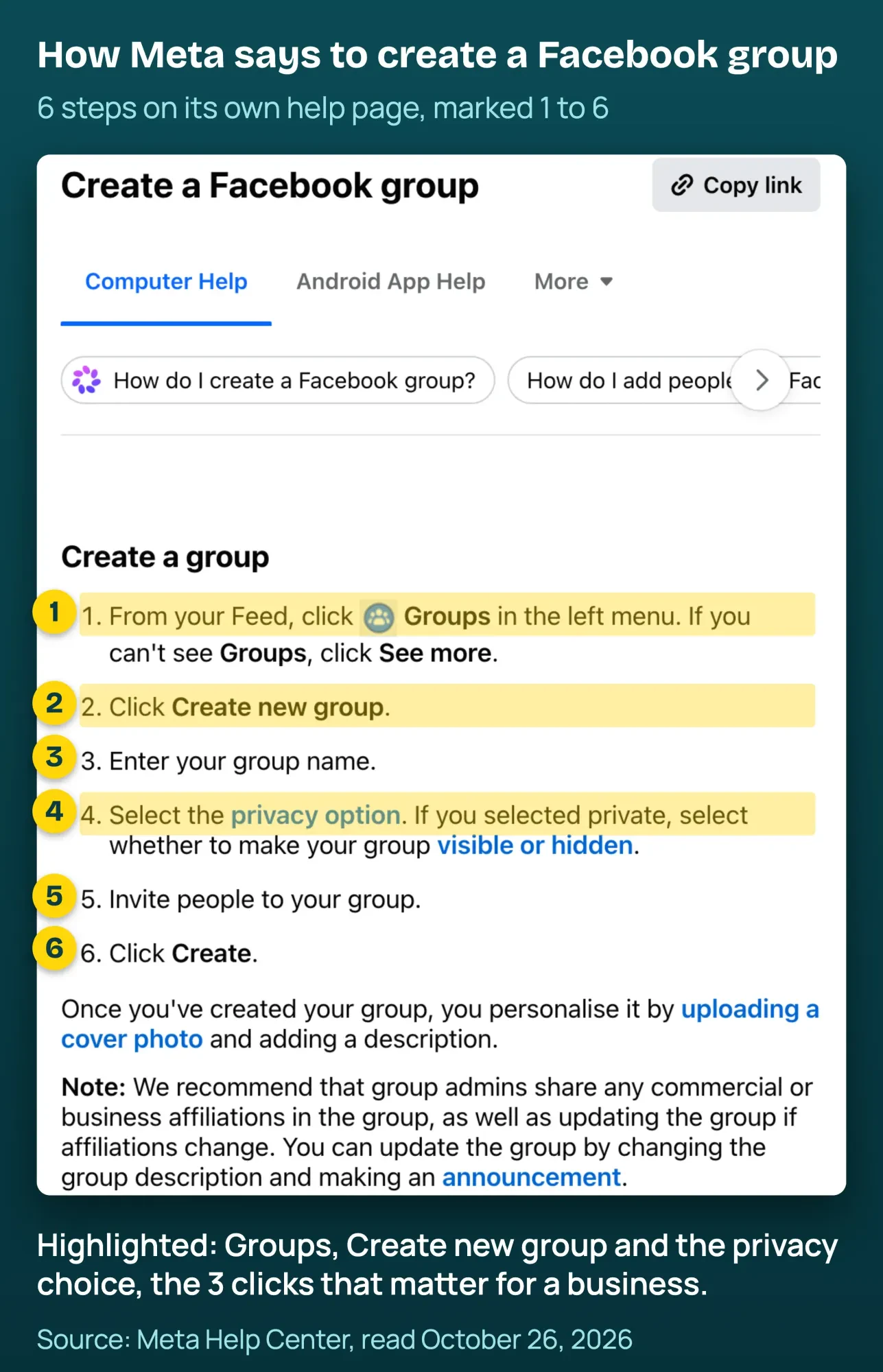 Screenshot: Meta Help Center, "Create a Facebook group" (English), read October 26, 2026. Step numbers and highlights added by DigitalTreed.
One catch on the Page route: Meta says "Pages with age restrictions can't be connected to a group," so check that setting first if you sell alcohol or other age-gated products.
After you click Create, Meta's general Create a Facebook group page suggests a cover photo and a description. Don't rush the description. The same page recommends that admins share "any commercial or business affiliations in the group," so say plainly that your business runs it. A line like "Run by the team at Maple & Main Bakery" (the made-up bakery in our example below) is enough.
It's honest, and it stops members wondering whether staff posts are ads.
Public or private: decide now, because big groups can't switch back
That cover photo can change any day. Privacy is the setting to get right first. For most business groups, pick private and visible: people can find the group and ask to join, but only members see the posts. A public group shows posts to "Anyone on or off Facebook."
Hidden suits paid programs and client-only groups, since Meta says people "can only find it if invited or a member."
Here's the part most guides skip.
Meta says a public group can go private "unless the group has 10,000 or more members and was created 30 days or more ago." But there's an exception. A group that started private and later went public can switch back to private at any size or age.
Going from private to public is allowed, but posts from the private days stay visible only to people who were members at the switch. So it's safer to start private and open up later if you want reach.
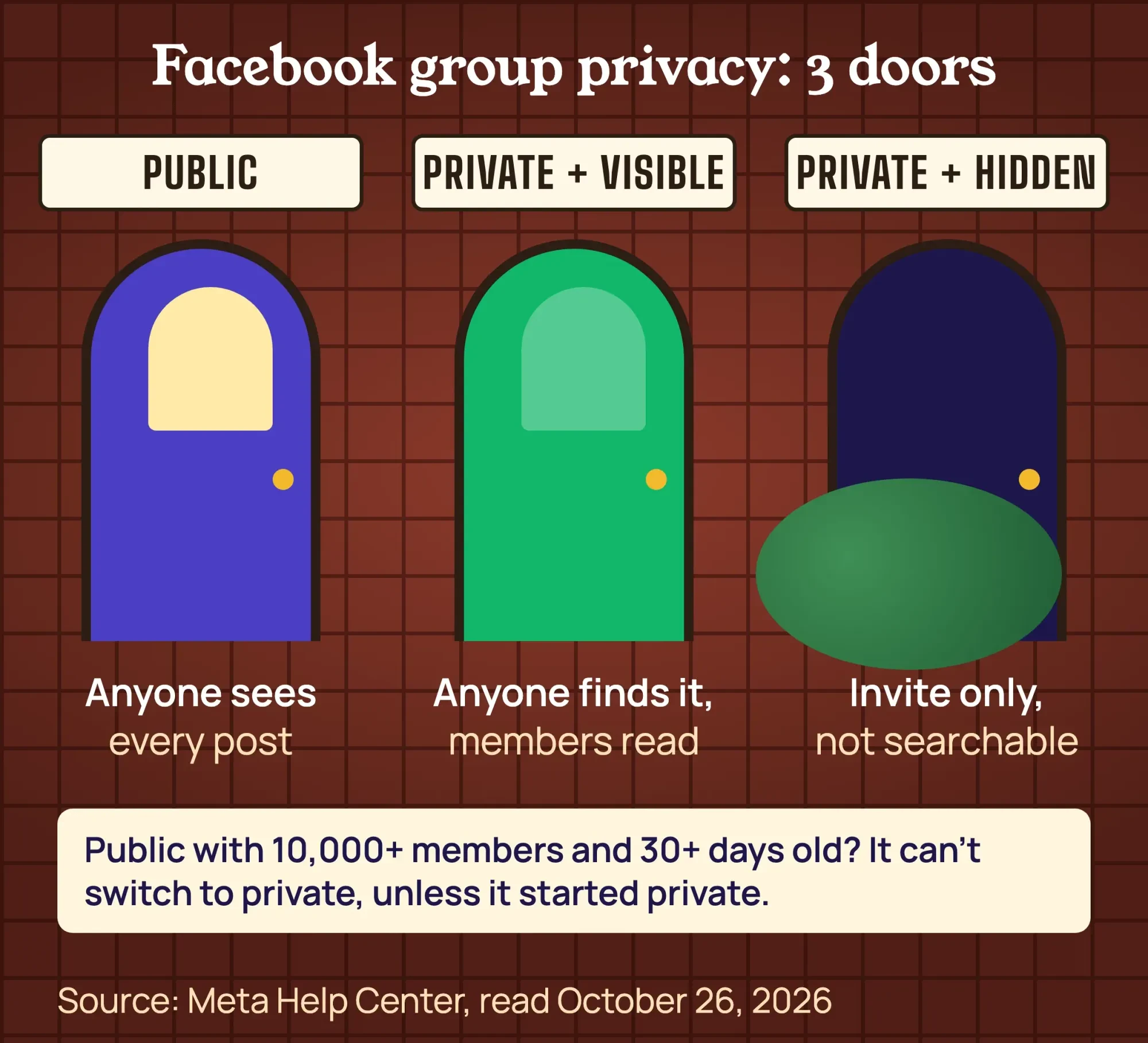 Diagram by DigitalTreed, based on Meta's "Differences between public and private Facebook groups," read October 26, 2026.
We checked how the ranking guides handle this. On October 26, 2026 we read the 7 top US results for "facebook group for business" that would load for us. The newest was from November 2023, and 3 dated from 2015 to 2018. One 2017 column still offers "closed" and "secret" groups, names Meta replaced on August 14, 2019, and our own 2023 page on this topic did the same. None of the 7 mentioned the 10,000-member lock.
Our take: start private and visible, created as the Page, because a private group can go public later and still switch back. A big public group may be stuck.
How do you link a Facebook group to your business Page?
If you created the group as your Page, it's already linked, and the Page is an admin. If you started it from your personal profile, make the Page an admin. The Page joins first, and then an admin invites it.
- Switch into the Page and ask to join the group. Meta says "Pages can't be sent an invitation to join a group," so the group's admins may need to allow Pages to join first.
- Switch back to your profile, open the group and click Members or People.
- Click Options next to the Page, choose Invite as admin, then Send invitation.
Those steps come from Meta's help page on how to make a Page an admin of a Facebook group. It's also where Meta notes that "only Page admins with Facebook access of a Page can act as the Page in a group." Staff without Facebook access to the Page can't post as the business. Meta's Business Help Center also describes a Linked Pages option in group settings. That page still uses the old "closed" and "secret" names, so check the label on your own screen.
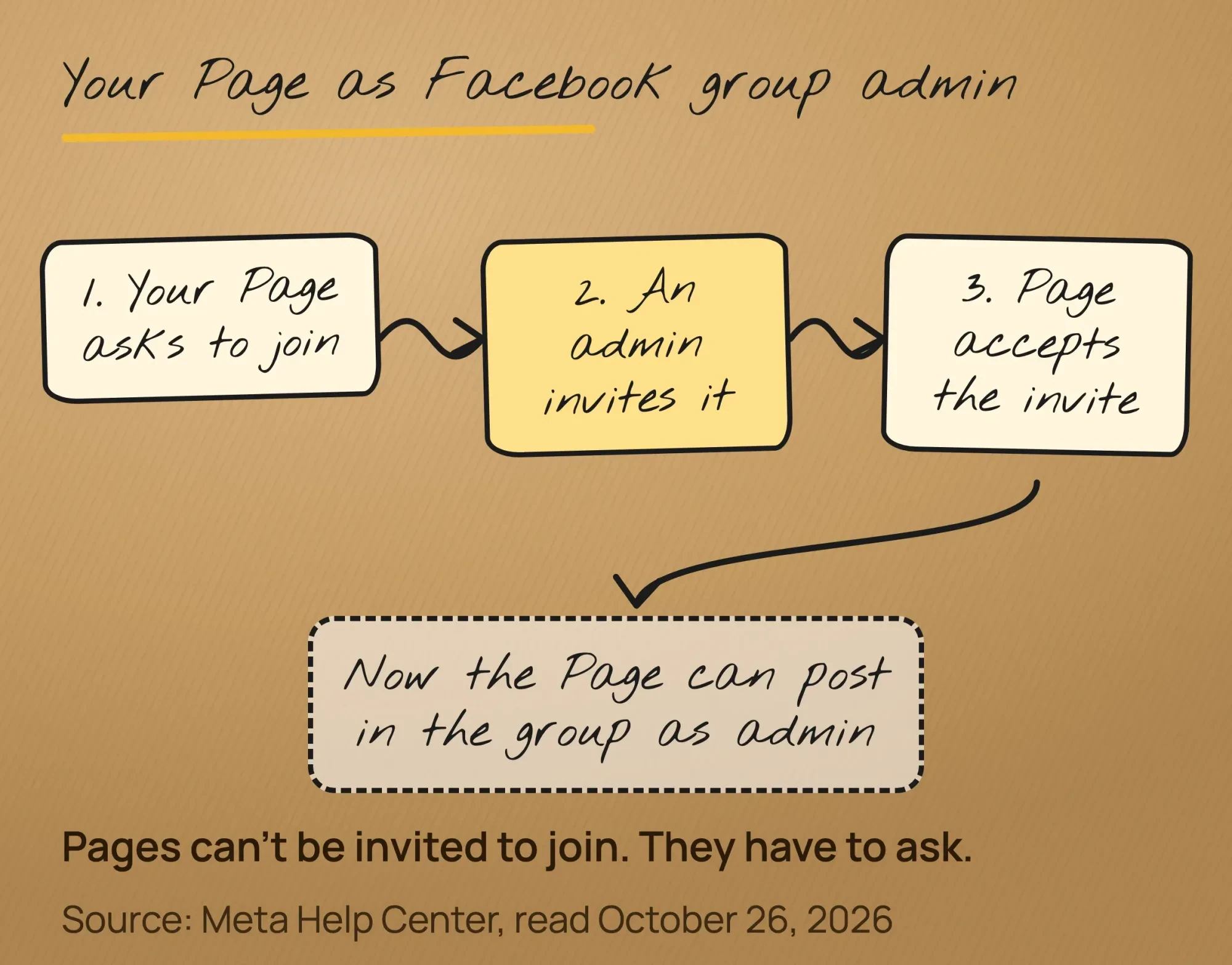 Drawn by us, from Meta's "Make a Page an admin of a Facebook group you manage," read October 26, 2026.
Once they're linked, let the Page feed the group. Meta's share-to-a-group steps are short: under a Page post, click Share, then Share to a group. Sharing is also how posts spread past your followers, and our post on seeing who shared your Facebook post explains what Facebook shows you.
Set rules and a front door before the first invite
Before anyone joins, write the rules and the questions people answer at the door. Rules are far easier to enforce from day one than they'd be after the first argument.
Keep the rules short, 4 to 6 lines, and put them where new members will read them. Meta's new member intro is "a message from the admins that automatically appears to new members," and you can choose to include the group rules in it.
Pinned posts are easy to miss.
Membership questions screen out spam accounts. Meta lets you ask people to "answer up to three questions," and each can be up to 200 characters, as checkboxes, multiple choice or a written answer. You'll find them under Manage in the left menu. They don't lock the door, though. Meta says responding "isn't mandatory," so use the answers to sort people.
When requests pile up, Admin Assist can approve or decline them against criteria you set. It's strict: it approves only when "all criteria have been met." A request that meets both your approve and decline criteria gets approved.
One trap is about data. If a question asks for an email or phone number, Meta's Pages, Groups and Events Policies (section 8) say people "must explicitly consent," and you must explain that you, not Meta, collect it. A plain line works: "We'll email our monthly menu. Leave it blank to skip." That's our reading of Meta's policy, not legal advice, and some state privacy laws ask for more.
Two admins at least, and moderators for the daily work
Once the rules exist, someone has to apply them, and one person isn't enough. If the only admin leaves, Meta says the group is automatically paused when no new admin accepts the invitation within seven days.
Meta splits the jobs cleanly in its admin and moderator comparison. Both roles can approve members and posts, remove posts and comments, ban people and pin posts. Only admins can make other admins or moderators, or change settings such as the name, cover photo or privacy.
So make the owner and one trusted manager admins, and give front-line staff the moderator role. Meta adds that members "must be active in the group" before they can become admins, so have your co-admin join and post first. Invites go out from Members or People, then Options, then Invite as admin or Invite as moderator.
Later, you can name group experts, members whose posts get a badge. Meta notes the feature "isn't available in all groups."
Getting your first 100 members
With admins and moderators in place, start with people who already like you. Meta's invite help page sets a few limits. Admins and members can invite Facebook friends from the + Invite button, but only a limited number each day. Only admins can invite by email, and those invite links expire after 28 days.
Hidden groups can also use an invite link, if admins allow it. It expires "after either 48 hours or 20 people click on it, whichever comes first," Meta says.
So don't paste a hidden-group link into a big newsletter.
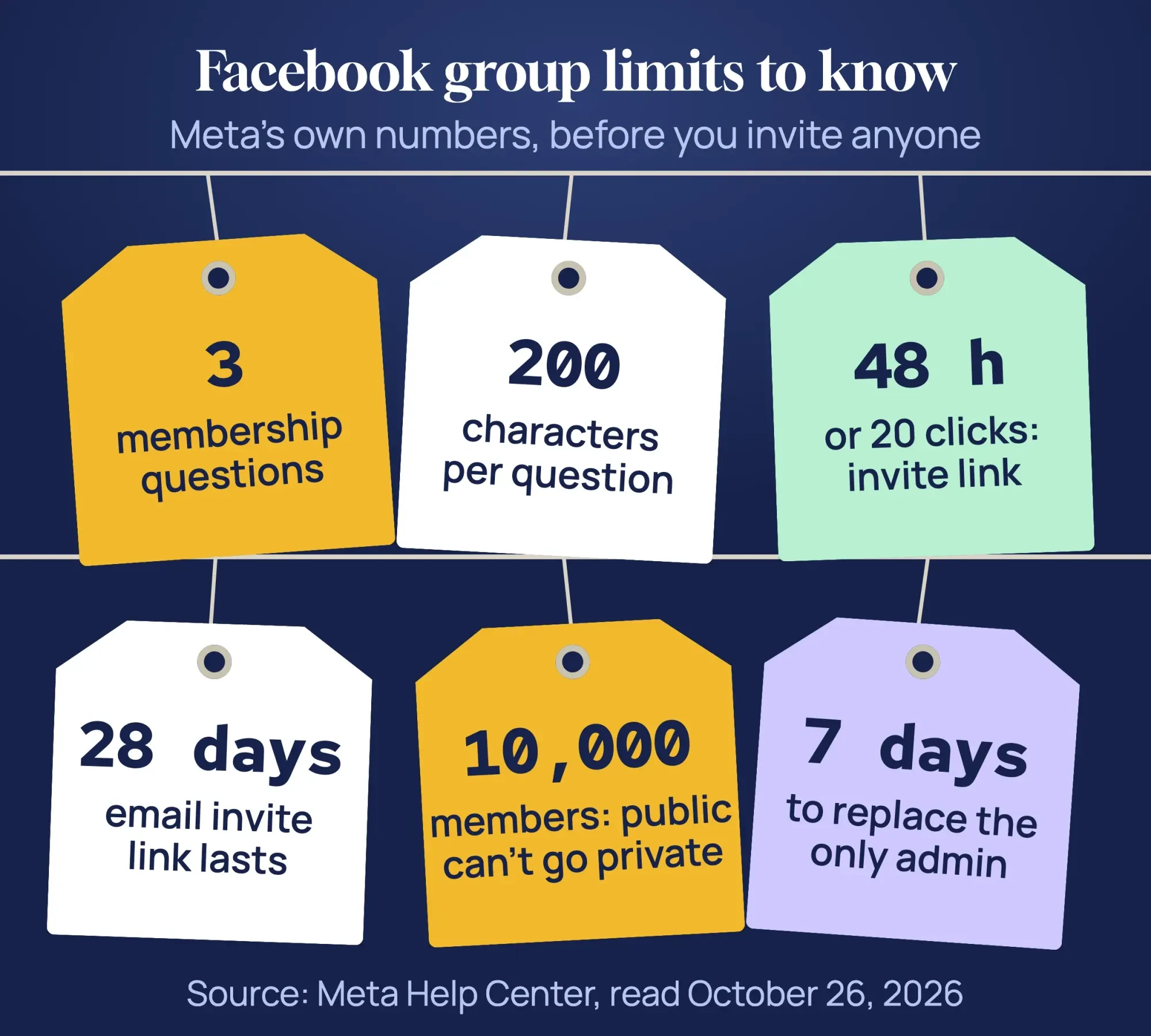 Source: Meta Help Center group pages, October 2026. Tags drawn by DigitalTreed.
For everyone else, put the group link where customers already look: your website, receipts, email footer and the counter. When the group sends people back to your site, tag those links in DigitalTreed's UTM builder so Google Analytics 4 shows the visits the group brings.
Then let the Page do some work. Post the invite when your followers are online; our Facebook timing guide helps you find that hour. Give a reason to join, not just a link. Our list of Facebook post ideas for small businesses has formats that suit an invite, and you can repeat it in Facebook Stories.
Neighbors help too. A Facebook collab post with the shop next door puts the invite in front of its followers. If a local creator promotes the group for pay, run it as a Facebook partnership ad, so the paid link is labeled.
Example: Maple & Main Bakery opens its insiders group
That's the theory. Here's how it looks for one shop. Example: Maple & Main Bakery is a made-up bakery with 2 locations in Kalamazoo, Michigan. The owner wants regulars to vote on seasonal bakes and to hear about sellouts first.
- Created as the Page: "Maple & Main Insiders," private and visible.
- Description: what members get, plus "Run by the team at Maple & Main Bakery."
- Rules (4): be kind; no selling by members; orders go through the shop, not comments; staff posts carry a "Staff" note.
- Questions (3): which location you visit (multiple choice); what you'd like to taste first (written); "May we email you our monthly menu?" (checkbox, optional).
- Roles: the owner and the head baker are admins, and 2 shift leads are moderators.
For launch, each counter gets a small sign with a QR code to the group, made with our free QR code generator.
For the first month, the Page posts the invite once a week.
The first group post asks members to vote between 2 pies for November. It's small, but it gives every new member a reason to comment in their first minute. Because the members are local, it pairs well with the rest of our hyperlocal marketing playbook.
Selling in your group without crossing Meta's or the FTC's lines
That bakery group sells pies, and that's allowed.
The lines are about honesty. Meta's policies for Pages, groups and events make you "solely responsible for including all necessary disclosures" in your group.
Staff and paid fans who praise your products in the group should say who they are. An FTC guide for influencers, Disclosures 101, puts it this way: "Disclose when you have any financial, employment, personal, or family relationship with a brand."
A "Staff" or "Owner" note on their posts does that job.
Two more rules trip owners up. Meta's policy says not to rename a group "in a manner that significantly alters its existing purpose," so a fan group can't become a sales flyer overnight. And a giveaway run in a group follows the same Meta rules as one on your Page. Our Facebook giveaway rules guide covers them.
The settings checklist we use (as of October 2026)
Before the first invite, run down this list. Each line is Meta's current setting or limit from the help pages linked above, read on October 26, 2026.
| Setting | What we pick | Meta's rule or limit |
|---|---|---|
| Created by | Your business Page | Age-restricted Pages can't be connected |
| Privacy | Private | Public groups with 10,000+ members, created 30+ days ago, can't go private (unless they started private) |
| Visibility | Visible (hidden for paid or client groups) | Hidden groups are found only by invite or by members |
| Membership questions | 3, one an optional consent question | Up to 3, 200 characters each, answers optional |
| Rules | 4 to 6, shown in the new member intro | The intro can include the group rules |
| Who approves members | Admins and moderators only | The other choice is anyone in the group |
| Admins | 2 people, plus the Page | Paused if no new admin accepts within 7 days |
| Description | Says the business runs it | Meta recommends sharing business affiliations |
| Invite link | Hidden groups only | Expires after 48 hours or 20 clicks |
Frequently asked
Do people have to answer membership questions?
No. Meta says responding "isn't mandatory." People who skip them get reminder notifications, which Meta says stop after three days.
What happens to old posts if a private group goes public?
They stay private. Meta says content from the private days stays visible only to people who were members when the group went public, plus admins and moderators.
Can group members invite their friends?
Yes. Admins and members can invite Facebook friends, up to a daily limit Meta doesn't publish. Only admins can invite by email.
Your next step
Create the group as your Page, set it to private and visible, and finish the rules, questions and second admin before anyone sees it.
Then invite your 20 best customers first, so the first stranger who joins finds a conversation already going.
If you'd like a hand running the group next to your Page, DigitalTreed's social media marketing service can set it up and moderate it with you. Full disclosure: groups like this are paid work for us, so keep that in mind as you read.
How we made this guide: the DigitalTreed team checked every setting, limit and click path against Meta's English Help Center pages on October 26, 2026. We didn't sign in to any account or create a test group; the screenshot is Meta's public help page. That same day we read the 7 ranking guides that loaded for us and compared their privacy names and limits with Meta's. Every source sits next to the claim it supports.
First published July 2023. Rewritten October 26, 2026: a new focus on starting the group as your Page and linking it, Meta's current privacy rules and limits, roles, invites, a worked example and a settings checklist.
Sources
- Meta Help Center: Create a Facebook group
- Meta Help Center: Create a Facebook group as your Facebook Page
- Meta Help Center: Differences between public and private Facebook groups
- Meta Newsroom: Making Groups Privacy Settings Easier to Understand (August 14, 2019)
- Meta Help Center: Make a Page an admin of a Facebook group you manage
- Meta Help Center: Add an admin or moderator to your Facebook group
- Meta Help Center: Difference between an admin and moderator of a Facebook group
- Meta Help Center: What happens when a Facebook group doesn't have any admins
- Meta Help Center: Add or edit membership/participation questions for a Facebook group
- Meta Help Center: Manage membership for your Facebook group
- Meta Help Center: Welcome new members to a Facebook group
- Meta Help Center: Invite someone to join a Facebook group
- Meta Help Center: Share a post from your Facebook Page to a Facebook group
- Meta Help Center: Add or remove a group expert
- Meta: Pages, Groups and Events Policies (sections 2, 8 and 12)
- Meta Business Help Center: Groups for News Publishers (older page, still uses pre-2019 privacy names)
- Meta Newsroom: Facebook Local tab and Groups figures (October 4, 2024)
- Pew Research Center: Americans' Social Media Use 2025
- FTC: Disclosures 101 for Social Media Influencers


Comments
No comments yet. Start the conversation below.