

What Yoast SEO is, who it's for, and when you don't need it
This guide is part of our "SEO tools explained" path. It's written for WordPress site owners who want their pages set up properly for search: a sweet shop, a clinic, a coaching centre, a D2C brand. It also suits freelancers and junior SEOs who meet Yoast on nearly every client site. You don't need to know any code.
By the end you'll be able to install and configure Yoast, write titles at template and page level, and keep the right pages out of Google. You'll read the traffic lights without chasing them, check your sitemap and redirects, and know whether to stay free, buy Premium or use Rank Math.
There are six chapters, about 40 minutes in all. Chapter 1 says what Yoast does and doesn't do. Chapters 2 to 5 follow the order you'd set up a site: install and settings, titles and indexing, the content analysis, then sitemaps, redirects and the other background features. Chapter 6 covers Premium, the AI tools, Local and WooCommerce SEO, prices, switching plugins and alternatives. Every chapter has step-by-step tasks, and each one ends with a check in one of our free tools. Prices were checked on Yoast's own site on 16 October 2026.
Quick answer
Yoast SEO is a WordPress plugin that writes your title and description tags, builds XML sitemaps and schema, and scores each post as you write it. The free version is enough for most small sites. You don't need it on Shopify-only or Wix sites, or if another SEO plugin already does the job.
WordPress on its own does very little for search. It doesn't give you a box for a meta description, it doesn't know your business name for schema, and its built-in sitemap is basic. An SEO plugin fills those gaps. Yoast SEO is the most installed one, and one of the oldest (All in One SEO came a year earlier, in 2007).[1]
10M+
active installations on WordPress.org[2]
96/100
rating from 27,819 ratings on the plugin page[2]
2 weeks
between updates; version 28.7 came out on 13 October 2026[2]
WordPress.org caps its counter at "10+ million", so the real figure could be higher. Yoast's own sales pages say it's "trusted on 13 million sites".[3] Either way, if you hire a developer in India to build a WordPress site, there's a good chance Yoast is already on it.
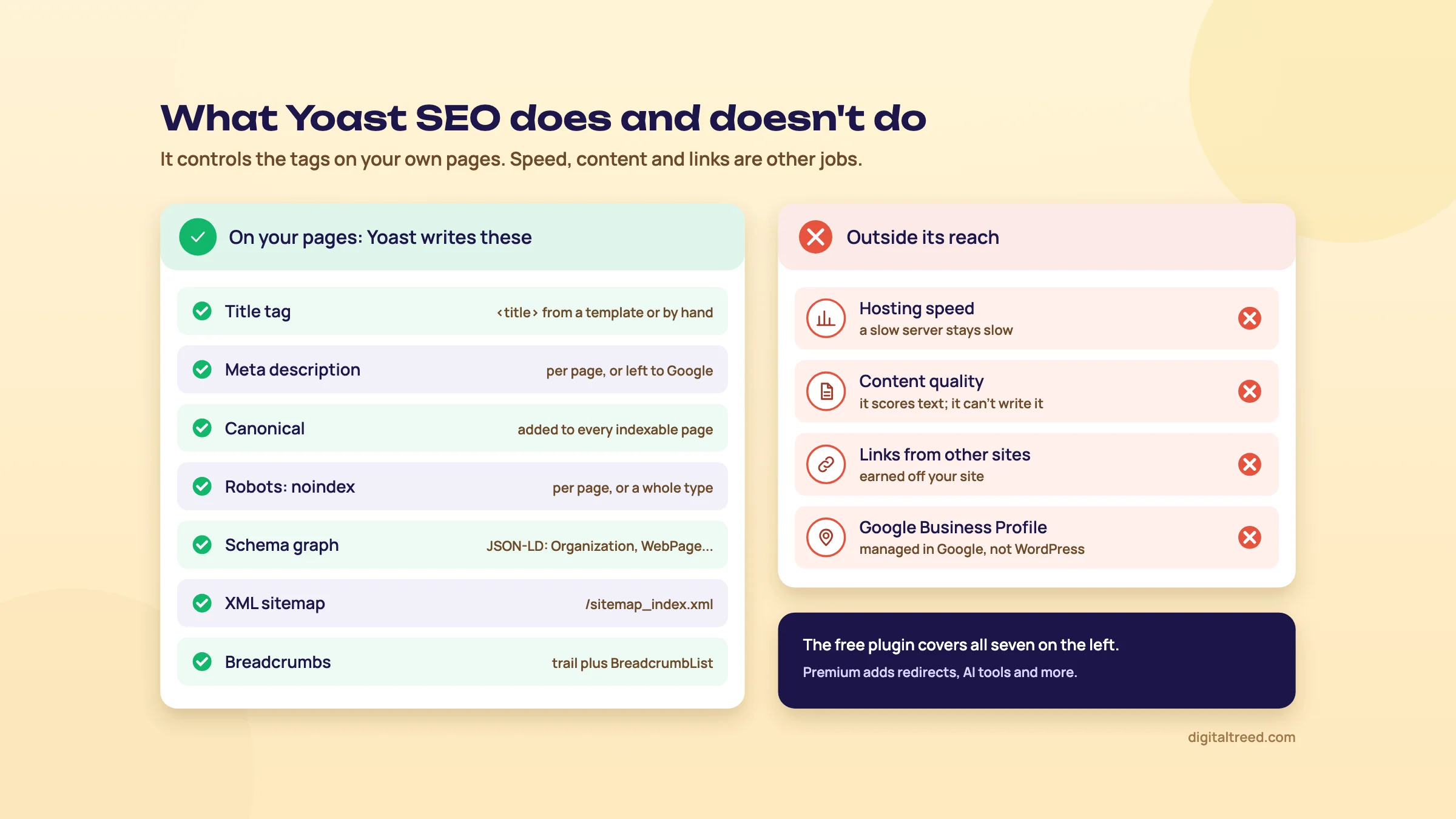 Yoast controls the tags on your own pages. Speed, content and links are separate jobs.
What it does, in plain words
Yoast works in two places. The first is the settings screen, where you set rules once for the whole site. The second is a sidebar next to every post and page you write.
- Tags Google reads: the title tag and meta description for every page, from templates you can override page by page. It also adds a canonical tag and lets you mark a page noindex (chapter 3).
- Schema: structured data that tells search engines who runs the site (an organization or a person), and what each page is. Yoast's shop page says the free version generates over 50 schema types.[4]
- XML sitemaps that update themselves as you publish (chapter 5).
- Content checks: an SEO analysis built around one focus keyphrase, a readability analysis and an inclusive language analysis (off by default), each with red, orange and green lights (chapter 4).[2]
- Breadcrumbs, llms.txt and social previews, plus a bulk editor for titles and descriptions.
Yoast SEO Premium adds redirects, up to five keyphrases per post, internal linking suggestions and the AI tools. It also bundles the Local, Video and News SEO plugins.[3] Chapter 6 covers what that costs and whether it's worth it.
Who it's for
Yoast suits anyone who runs a WordPress site and doesn't want to touch code. Think of a Kanpur sweet shop with a 15-page site, a Delhi dental clinic with a blog, or a content team publishing ten posts a week. Its strength is that it's predictable. The settings are few, the help centre is large, and most WordPress developers have used it.
It also works for people learning SEO. The sidebar turns the on-page basics from Guide 1, chapter 7 into a checklist you see while you write. Just don't treat its scores as rankings. Chapter 4 explains why.
When you don't need it
- Your site isn't on WordPress. Shopify, Wix and Squarespace have their own SEO fields. Yoast does have a separate Shopify app at $19 per 30 days,[4] but that's a different product from the plugin this guide covers.
- Another SEO plugin is already installed. If Rank Math or All in One SEO is running and set up, keep it. Two SEO plugins on one site output two sets of titles and schema. Guide 1 gives the same advice: switching plugins on a live site is more trouble than it's worth. Chapter 6 covers the exceptions.
- Your theme or page builder already does it all, and you've checked the output. Open a page, view the source, and look for a title, a meta description, a canonical tag and JSON-LD schema. If they're all there and correct, a plugin adds little.
What it won't fix
A plugin can only control what's on your pages. It can't make a slow host fast, write useful content for you, or get other sites to link to you. It also has no say over your Google Business Profile, which matters more than any plugin for a shop or clinic (Guide 2, chapter 10).
Note
From our work: teaching SEO. When I taught SEO, my students were already doing client work, and most of the local business sites they handled ran on WordPress with shared hosting. The problem they met most often was site speed, and no SEO plugin setting touches that. Install Yoast for the tags and the sitemap, and treat speed as a separate job.
Our Website Speed Test and Google's PageSpeed Insights both measure it, and Guide 3, chapter 3 covers the usual WordPress fixes in order.
Next, install the plugin and set up the handful of settings that matter on day one.
Install Yoast SEO and set it up on day one
Quick answer
Install Yoast from Plugins, Add Plugin, then run the First-time configuration. It optimises the plugin's data, asks whether the site is an organization or a person, and takes your logo and social profiles. Then check five settings: content types, archives, media pages, XML sitemaps and site connections. Allow 20 minutes.
The free plugin installs like any other WordPress plugin. The part people skip is the configuration afterwards, and that's where the schema and the search settings come from. Do it once, properly, and you rarely need to come back.
Install the free plugin
You need an administrator login to your WordPress dashboard. Then:[5]
- In the dashboard, go to Plugins and click Add Plugin.
- Search for "Yoast SEO".
- Click Install Now, then Activate.
Yoast also offers an automatic installer on its website and a .zip upload, but the Plugins screen is the simplest. If you bought Premium, you download a .zip from your MyYoast account, upload it under Plugins, Add Plugin, Upload Plugin, and then connect the site to your subscription in MyYoast.[6] Premium sits on top of the free plugin; keep both active.
Warning
If another SEO plugin is active, deactivate it before you configure Yoast, and import its data first if you're switching (chapter 6). Two plugins writing titles and schema at once gives Google two of everything, and it's an easy mess to avoid.
The First-time configuration
After you activate the plugin, a welcome screen offers "Start first-time configuration". If you missed it, go to Yoast SEO, General, First-time configuration.[7] It has four steps:
- SEO data optimization. Yoast scans your posts, pages and terms into its own tables (it calls them indexables) so it can see the site the way it reports on it. On a big site this takes a while; let it finish.
- Site representation. Organization or person, the name and the logo. This feeds the schema on every page.
- Social profiles. Links to your Facebook, Instagram, LinkedIn or X pages, which Yoast uses to give search engines more context about the site.
- Personal preferences. Whether to share usage data with Yoast. It's opt-in.[7]
Site representation: organization or person
This is the setting with the longest reach, because it decides what the schema on every page says about who's behind the site. Yoast's rule is simple. A business picks Organization; Yoast says a local business should choose Organization, and that it's the default when Yoast Local SEO is installed. A personal blog or portfolio picks Person.[8]
| Choice | What you fill in | Pick it for |
|---|---|---|
| Organization | Organization name, an alternate name (an acronym or short form), logo, social profile links | A sweet shop, clinic, coaching centre, agency or brand |
| Person | A WordPress user (their profile supplies the name and social links), a personal logo or avatar | A personal blog, a freelancer's portfolio, an author site |
Yoast says this information feeds Google's Knowledge Graph and may help you get a knowledge panel.[8] "May" is the right word. Google decides who gets a panel, and a plugin setting doesn't guarantee one. What the setting does guarantee is that your schema names the right business, with the right logo, on every page. Use the exact business name from your signboard and your Google Business Profile, not a keyword version of it.
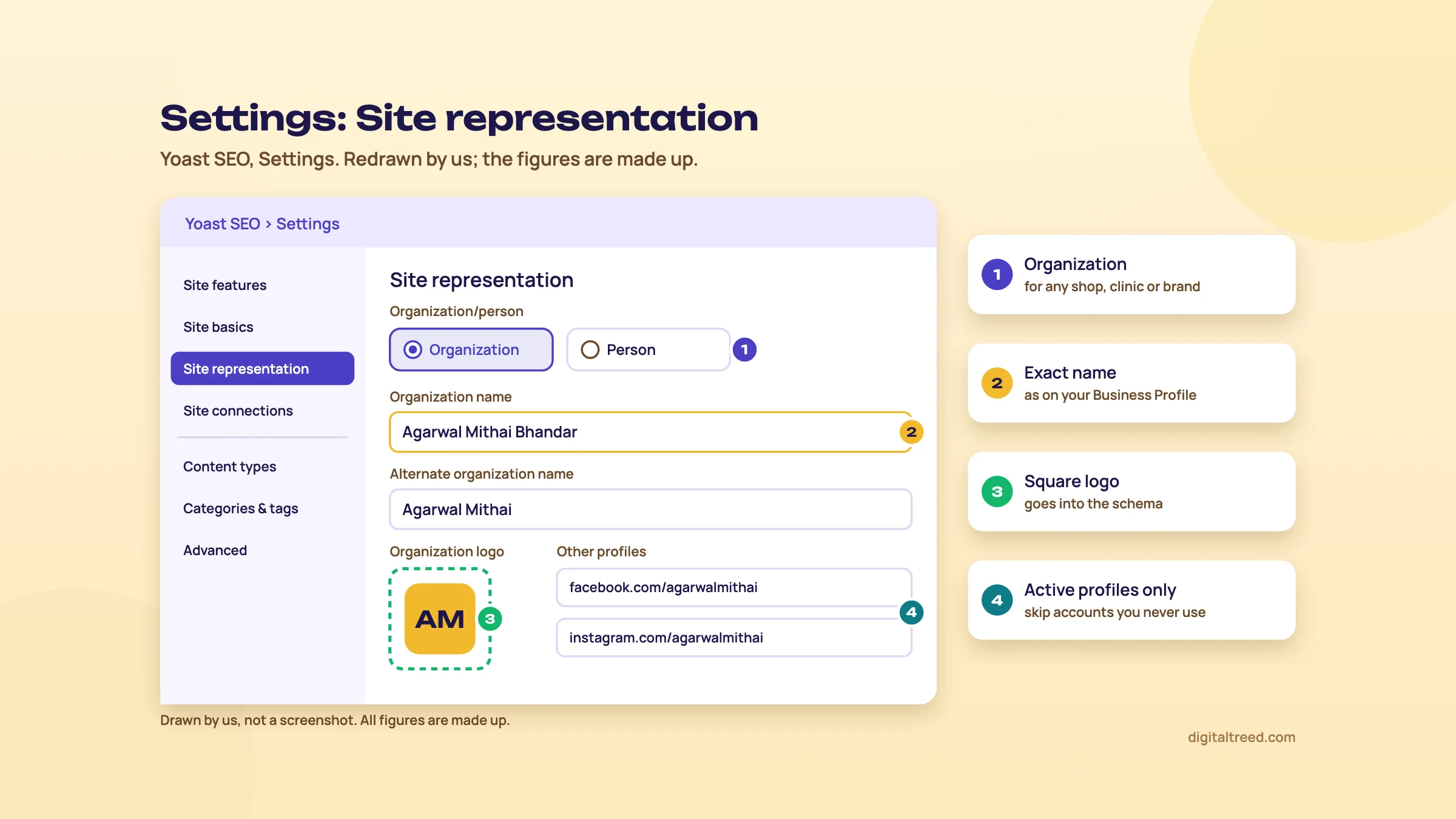 Site representation for a made-up Kanpur sweet shop. Drawn by us; names are made up.
If you pick Person, the details come from that user's WordPress profile, so update the profile too. Changing a social link in Yoast changes it in the user profile, and the other way round.[8]
Five settings to check after the wizard
Everything else lives under Yoast SEO, Settings.[9] Most defaults are fine. These five are worth a look on day one.
| Where | What it does | What we'd do |
|---|---|---|
| Content types | One toggle per type (posts, pages, products, and any type a theme or plugin adds) for whether it can appear in search results | Keep posts and pages on. Turn off types you never meant to be public, such as portfolio items or templates a page builder created |
| Categories & tags | The same toggle for category and tag archives, plus their title templates | Keep categories on. If you have dozens of tags with one post each, consider turning tags off |
| Advanced, Archives | Toggles for author, date and format archives | On a one-author site, the author archive repeats the blog page; date archives rarely help anyone |
| Advanced, Media pages | An "Enable media pages" toggle. It's off by default, which redirects WordPress's empty attachment pages to the image file itself[10] | Leave it off. Turn it on only if a developer built something on attachment pages, such as a photo gallery site |
| Site features, XML sitemaps | Builds sitemap_index.xml (chapter 5) | Check it's on, open it, and submit it in Search Console |
Turning a type off sets those pages to noindex[11] and drops them from the sitemap.[12] That's what you want for junk, and a disaster if you do it to your products by mistake. Before you save, read each toggle twice.
Site basics and Site connections
Under Site basics you set the website name, an alternate name, the tagline, the title separator and a default image for social shares. There's also a toggle that keeps the advanced per-post settings (noindex, canonical) for editors and administrators only.[9] Leave that on if guest writers or interns log in. A writer who can noindex a page will, sooner or later, by accident.
Site connections takes verification codes for Google Search Console, Bing Webmaster Tools, Baidu and Yandex.[9] It works, but we'd verify Search Console with a Domain property through your DNS instead, because it covers every version of your site and survives a plugin change. Our Search Console guide walks through it, and our Bing Webmaster Tools guide covers Bing's side.
Set up Yoast for a small business site
- Install and activate Plugins, Add Plugin, search "Yoast SEO", Install Now, Activate.
- Run the First-time configuration Let the data optimization finish. For a Kanpur sweet shop, choose Organization, type the shop's name exactly as on its Business Profile, and upload a square logo.
- Add social profiles Only the ones you actually post on, such as the shop's Instagram and Facebook pages.
- Check content types and archives Posts and pages on; anything you don't recognise off; author and date archives off on a one-author site.
- Check the media pages redirect Under Advanced, Media pages, leave "Enable media pages" off, so attachment pages redirect to the image.
- Open the sitemap Site features, XML sitemaps, View the XML sitemap. You should see a list of sitemaps for posts, pages and categories.
- Submit it In Search Console, go to Sitemaps and submit sitemap_index.xml.
- Check one page Run the home page through our Meta Tag Analyzer and Schema Markup Validator to see the title, description and Organization schema Yoast now outputs.
If the validator shows two Organization blocks, your theme or another plugin is adding its own. Switch one off. Guide 3, chapter 7 gives the rule: let one SEO plugin own the graph.
With the site-wide settings done, the next job is the templates that write a title and description for every page.
Titles, meta descriptions, noindex and canonicals
Quick answer
Yoast writes a title and meta description for every page from templates under Settings, built from snippet variables such as %%title%% and %%sitename%%. Override them on your important pages in the editor's Search appearance section. The Advanced tab on each post sets noindex and the canonical URL. Check the result with a live tag checker.
Templates are the reason a 300-post blog doesn't end up with 300 pages titled "Blog". Set them once, then spend your own time on the 10 or 20 pages that bring in business.
Templates and snippet variables
In Yoast SEO, Settings, each content type has a Search appearance section with an SEO title template and a meta description template. The same goes for the homepage, categories and tags, archives, and special pages such as internal search results and the 404 page.[9] The templates are built from snippet variables, which Yoast replaces with real text on each page.[13]
| Variable | Becomes | Good for |
|---|---|---|
| %%title%% | The post or page title | Every post and page template |
| %%sitename%% | The site title from WordPress's General settings | The end of most titles |
| %%sep%% | The separator you chose (a dash, a pipe and so on) | Between the page title and site name |
| %%primary_category%% | The post's primary category | Blogs where the category adds meaning |
| %%term_title%% | The category or tag name | Category and tag templates |
| %%excerpt%% | The excerpt, or an automatic one if there's none | A fallback meta description |
The default post title template puts the post title first and the site name last, which is what most sites want. Change it only with a reason. One we'd act on: a Pune coaching centre whose site name is "Shree Sai Academy for IIT-JEE, NEET and Foundation Classes" will lose half its title to the brand. Shorten the site title in WordPress, or drop %%sitename%% from the post template.
For meta descriptions, we'd leave the post template empty rather than fill it with %%excerpt%%. Google says snippets are "primarily created from the page content itself" and that it only sometimes uses the meta description.[14] An automatic excerpt is no better than what Google picks on its own. A written one, on pages that matter, is.
Writing them page by page
Open a post or page and click the Yoast icon at the top right of the editor to open the sidebar. In the classic editor, the meta box sits below the post.[15] Under Search appearance you get three fields (SEO title, slug and meta description) and a Google preview for mobile and desktop.[2]
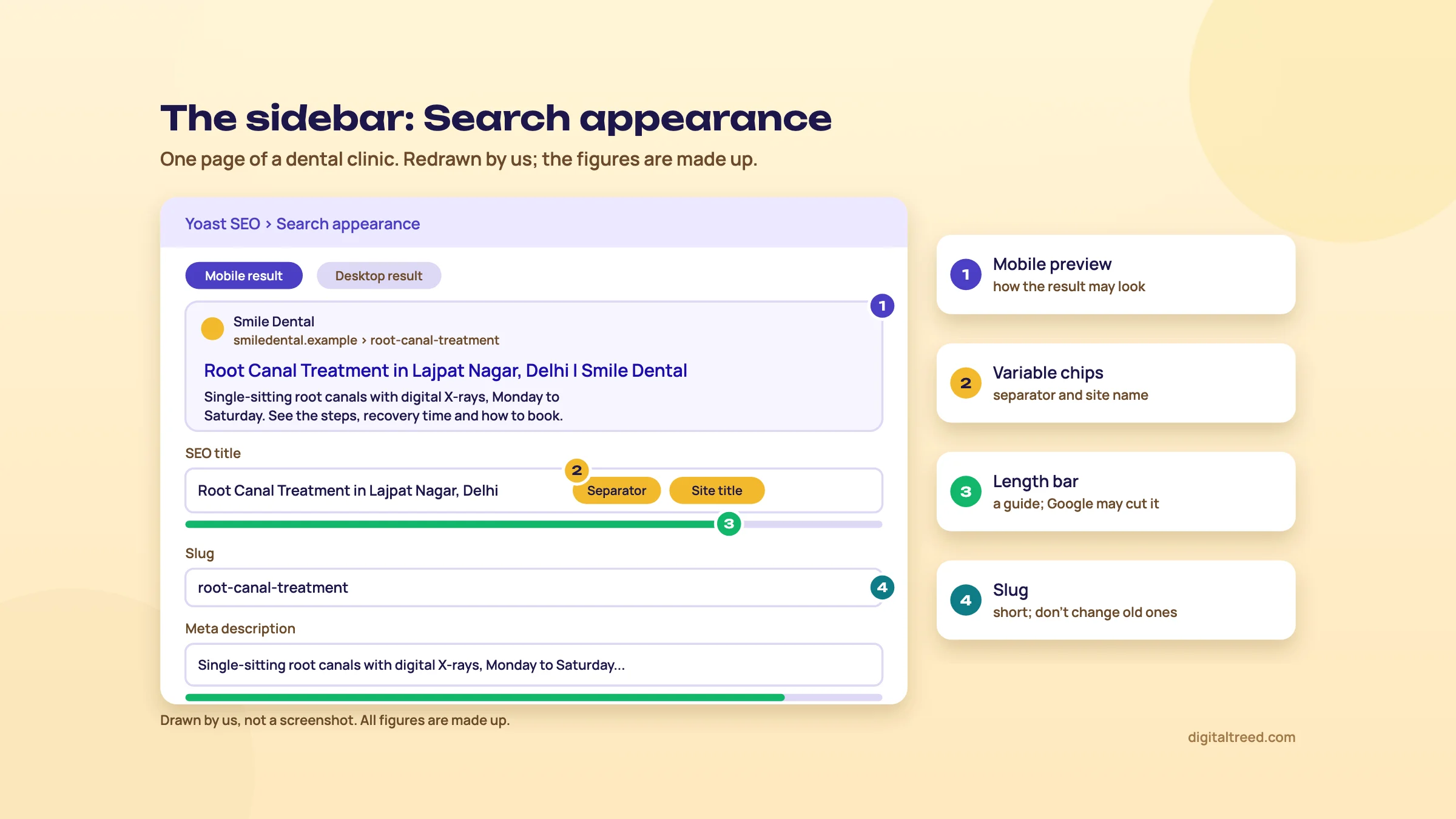 Search appearance for a made-up Delhi dental clinic. Drawn by us; the figures are made up.
The preview and Yoast's length bars are a guide, not a rule. Google says there's "no limit on how long a <title> element can be"; it cuts the title link to fit the screen as needed.[16] The same goes for meta descriptions.[14] Google also builds the title link from more than your title tag. It may use the main heading, other prominent text, or the words in links pointing at the page.[16] So a title that matches the page's H1 is more likely to be shown as written.
Write the title and description for a service page
- Open the page For example, a Delhi dentist's root canal page, in the WordPress editor. Open the Yoast sidebar and go to Search appearance.
- Write the title Service and place first, brand last: "Root Canal Treatment in Lajpat Nagar, Delhi | Smile Dental". Delete the template variables if you're writing it by hand.
- Check the slug Short and readable: /root-canal-treatment/. Don't change the slug of a page that already ranks unless you add a redirect (chapter 5).
- Write the description What the page offers, one real detail and a reason to click: "Single-sitting root canals with digital X-rays, Monday to Saturday. See the steps, recovery time and how to book."
- Look at the mobile preview If the title is cut before the place name, shorten the front, not the place.
- Update and check live Run the URL through our Meta Tag Analyzer. It reads the tags in the page's HTML, the way a crawler would, so you see what Google gets, not what the editor shows.
If you have hundreds of pages with no description, Yoast's bulk editor lists titles, descriptions and focus keyphrases for every page in one place. It's free for manual edits; Premium adds AI drafts you approve before they save.[2] Guide 2, chapter 7 has the full rules for writing both.
The Advanced tab: noindex
Some pages shouldn't be in Google: an order thank-you page, a login page, a landing page made for one WhatsApp campaign. To keep one out, open it in the editor, go to the Yoast sidebar's Advanced tab, and under "Allow search engines to show this content in search results?" choose No.[11] Only editors and administrators see this tab by default.
Keep a thank-you page out of Google
- Open the page For a D2C brand, the page buyers see after paying, such as /order-received/.
- Set noindex Advanced tab, "Allow search engines to show this content in search results?", No. Update the page.
- Check it live Paste the URL into our Noindex Tag Checker. It reads the meta tag, the X-Robots-Tag header and robots.txt, so you'll see if something else is overriding Yoast.
- Don't block it in robots.txt as well Google says a noindex only works if robots.txt doesn't block the page, because Google has to crawl it to see the tag.[17]
Noindex works on whole groups too. The toggles from chapter 2 (content types, categories, tags and archives) set every page of that type to noindex at once. Internal search results and 404 pages are already noindex by default.[11]
The Advanced tab: canonical URL
Yoast adds canonical tags to your pages automatically.[18] You only touch it when two pages carry the same content and you want Google to treat one as the original. Then enter the full URL of the original in the Advanced tab's Canonical URL field, with https and www or non-www exactly as your site uses them.
Two things trip people up. First, Yoast doesn't output a canonical on a noindexed page, so if the tag seems to be missing, check the noindex setting.[18] Second, don't use noindex to pick between duplicates. Google says it doesn't recommend that, because noindex "will completely block the page from Search"; use a canonical instead.[19] And a canonical is a strong signal, not an order. If your internal links all point at the other URL, Google may pick that one (Guide 3, chapter 4).
Run up to 10 URLs through the checker after any change. It flags missing, conflicting and chained canonicals and ones pointing at broken pages. Next, the part of Yoast everyone notices first: the coloured lights.
The SEO and readability analysis: focus keyphrase and traffic lights
Quick answer
Yoast checks each post against one focus keyphrase (five in Premium) and against readability rules, and shows a red, orange or green light per check. Green means "meets Yoast's rule", not "will rank". Act on the checks about titles, links and duplicate keyphrases. Treat density, text length and transition words as hints you can ignore.
The lights are the most visible part of Yoast and the most misread. A green dot feels like a pass mark. It isn't one. Google has never seen your Yoast score, and Yoast says plainly that not every light needs to be green.[20]
The focus keyphrase
The focus keyphrase is the search you want a page to rank for. You type it into the field at the top of the Yoast sidebar, and the SEO analysis checks the page against it. The field is there in both the free and Premium versions. A "Get related keyphrases" button below it shows related searches with their volume and trend, from Yoast's Semrush integration.[15]
Pick it from real keyword research, not a guess (Guide 1, chapter 6). Then google it and look at what ranks. If the results are all coaching centre listings and your page is a blog post, the keyphrase is wrong for that page, whatever colour the light turns.
Not every page needs one. Yoast's own advice is that a contact page or a temporary announcement can be left without a focus keyphrase.[15] The free version takes one keyphrase per post. Premium takes up to five, and also counts synonyms and other word forms, so "dentist" and "dentists" both match.[3]
What the lights mean
Each check shows a light. Here are Yoast's definitions. Green means the content meets Yoast's criteria for that check. Orange is a warning that something could be better, and red marks a problem it thinks needs attention now.[21] The light on the tab itself is the overall score for that analysis. A grey bullet appears for a few special cases, such as a keyphrase made only of words like "the" or "and".[15]
We often get this question: no, not every traffic light has to be green.[20]
The same article says an article "will still be able to rank even if it doesn't pass all of the tests". Another Yoast article has a section headed "Don't go chasing green traffic lights", warning that chasing them can lead to keyword stuffing.[21] We agree, and we'd go further. Use the lights as a checklist for things you might have forgotten, then decide each one yourself.
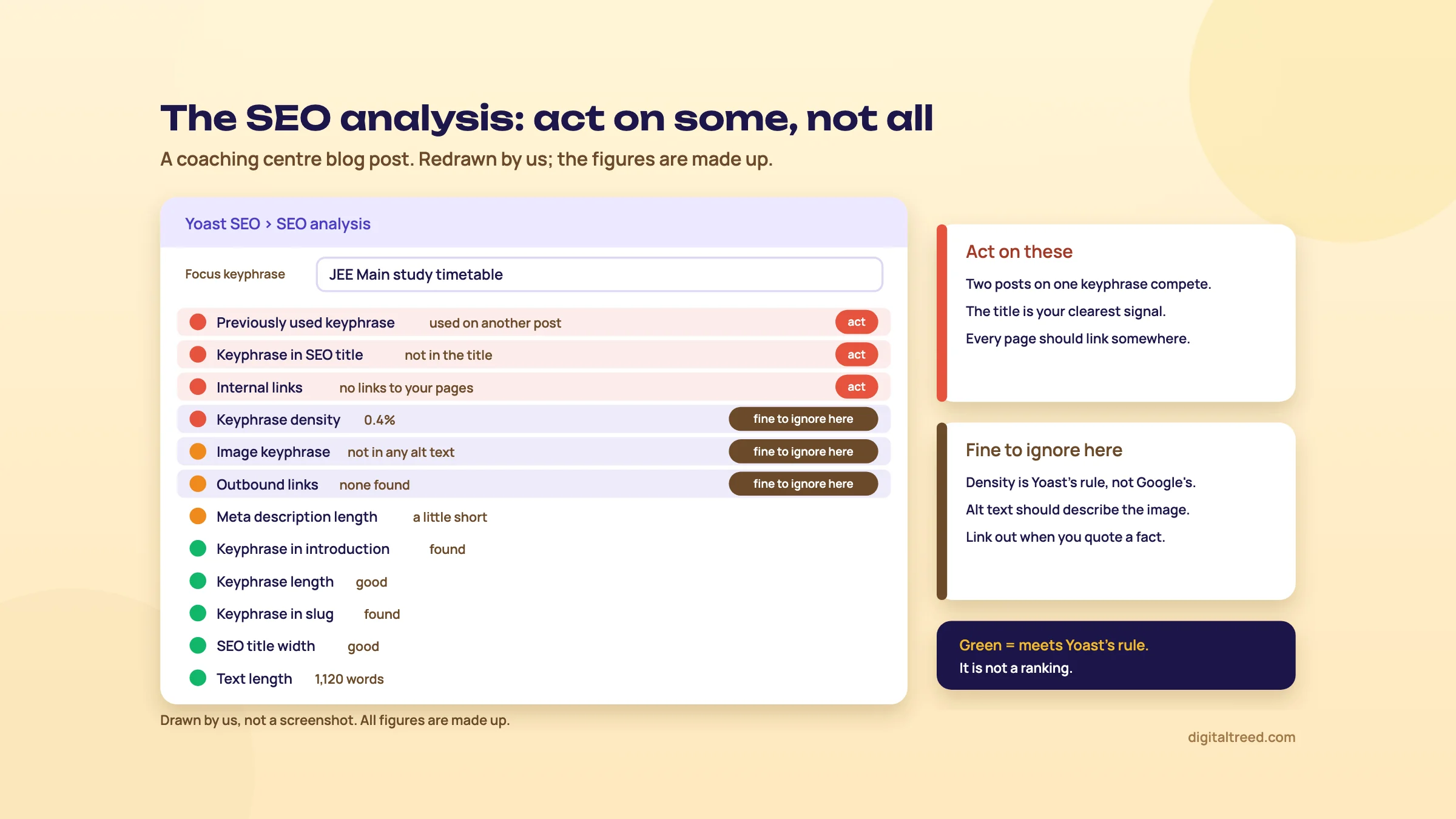 Act on the checks about titles, links and duplicate keyphrases. Drawn by us; the figures are made up.
The SEO checks, and which to act on
Yoast lists more than 15 checks in the SEO analysis.[22] Here they are, with our view on each for a normal business site.
| Check | What Yoast looks at | Our view |
|---|---|---|
| Keyphrase in title | The keyphrase in the SEO title | Act. It's the clearest signal of what the page is about |
| Keyphrase in introduction | Words from the keyphrase in the first paragraph | Act, if it reads naturally. Readers want the answer early too |
| Keyphrase in meta description | All keyphrase words in one sentence of the description | Act lightly. Write for the click first |
| Keyphrase in slug | The keyphrase in the URL | Act on new pages. Never change an old URL just for this |
| Keyphrase in subheadings | At least one keyphrase word in a subheading | Act where a subheading fits; skip forced ones |
| Keyphrase density | How often the keyphrase appears for the text length | Ignore the number. Act only when it says you've used it too often |
| Keyphrase length | Whether the keyphrase is too long | Act. A 9-word keyphrase is a sentence, not a search |
| Previously used keyphrase | Whether another post already uses the same keyphrase | Act. Two pages chasing one search compete with each other |
| Link focus keyphrase | Links in your text whose link text is your own keyphrase | Act. You're sending readers away with the words you want to rank for |
| Keyphrase in image alt attributes | The keyphrase or a synonym in alt text | Ignore if forced. Alt text should describe the image |
| Text length | Whether the text is long enough | Ignore on contact, product and short-answer pages |
| Internal links | Followed links to your own pages | Act. Every page should link somewhere useful |
| Outbound links | Followed links to other sites | Act when you quote a fact; otherwise optional |
| SEO title width, meta description length | Whether they're likely to be cut off | Act if the cut hides something important; otherwise relax |
| Keyphrase distribution, stale cornerstone content (Premium) | Keyphrase spread through the text; cornerstone pages not updated recently | The stale check is useful. Distribution is a hint |
Our two "ignore" calls come from Google, not just taste. On length, Google's SEO Starter Guide says "there's no magical word count target, minimum or maximum". On density, it says repeating the same words over and over is tiring for users, and that keyword stuffing is against its spam policies. It gives no ideal number.[23] Yoast's density check wants 0.5% to 3% for green, with all the keyphrase words in one sentence. On texts under 100 words it counts uses instead of a percentage.[24] That range is Yoast's rule, not Google's.
Our checker shows the count and percentage for each keyword and phrase, and colours each target phrase green, amber or red, where red risks looking like keyword stuffing. It's useful for drafts you write outside WordPress, and pasted text never leaves your browser.
The readability checks
The readability analysis looks at how easy the text is to read. In WordPress it checks sentence length (it flags a text when more than a quarter of its sentences run over 20 words), paragraph length, subheading distribution and passive voice. It also looks at transition words, runs of sentences that start with the same word, and word complexity. Word complexity is greyed out in the free version.[20] Click the eye icon next to an orange or red light to highlight the sentences it means.
Most of these help on a phone screen, where a 200-word paragraph looks like a wall. Two need judgement. Transition words ("therefore", "besides that") can turn into filler if you add them just for the light. And technical or medical pages often need longer sentences. Yoast itself says some industries use language that's different from what most people would use: "That's perfectly fine."[20] Aim for a green light on the Readability tab, not on every line.
The third analysis, inclusive language, flags words that may exclude or hurt readers.[21] It's off by default; switch it on under Settings, Site features.[25] It's worth a glance on public-facing pages; it has nothing to do with rankings.
Optimise a blog post with the Yoast sidebar
- Set the keyphrase For a Pune coaching centre's post, use the search you researched, for example "JEE Main study timetable".
- Fix the red SEO checks first Usually the keyphrase missing from the title or introduction, no internal links, or a previously used keyphrase. If another post already uses it, decide which page should rank and change or merge the other.
- Read the orange ones and decide Fix the ones that help a reader; leave density and image alt alone unless the fix reads naturally.
- Add two internal links One to the course page, one to a related post, with link text that says where the link goes.
- Open Readability Click the eye icon on long paragraphs and long sentences, and split the worst ones. Ignore the rest.
- Mark cornerstone pages If this is one of your most important posts, toggle Cornerstone content in the sidebar. Yoast then runs stricter SEO and readability checks on it, and Premium warns you when a cornerstone page hasn't been updated for six months.[25]
- Publish, then check the page live Use our Meta Tag Analyzer to confirm the title and description, as in chapter 3.
Do not
- Repeat the keyphrase to push density into the green
- Change an old, ranking URL to add the keyphrase
- Stuff alt text with the keyphrase
- Pad a 300-word answer to 1,000 words because "text length" is orange
Do
- Fix every red light that's about titles, links or duplicate keyphrases
- Use one keyphrase per page, and a different one on every page
- Split long paragraphs for phone readers
- Judge the page by Search Console clicks, not by its Yoast score
That last line matters most. Once a page is live, its Performance report in Search Console tells you whether the keyphrase was right (our Search Console guide). Next: the technical features that run without you looking at them.
Sitemaps, breadcrumbs, schema, redirects, internal links and llms.txt
Quick answer
The free plugin builds sitemap_index.xml, outputs breadcrumbs and a schema graph, and can create an llms.txt file. Premium adds a redirect manager, internal linking suggestions, IndexNow pings and a bot blocker for AI training crawlers. Submit the sitemap once, switch on breadcrumbs if your theme supports them, and test every redirect live.
These features mostly run in the background. That's the good news and the risk: when something goes wrong, nothing turns red. This chapter shows what each one does and how to check it.
XML sitemaps
Yoast's sitemap lives at yoursite.com/sitemap_index.xml. It's an index that links to one sitemap per content type: posts, pages, categories and so on. It updates itself when you publish or delete, and it leaves out any type you've set to noindex.[12] To check it, go to Yoast SEO, Settings, Site features, and under Technical SEO make sure XML sitemaps is on, then click View the XML sitemap.
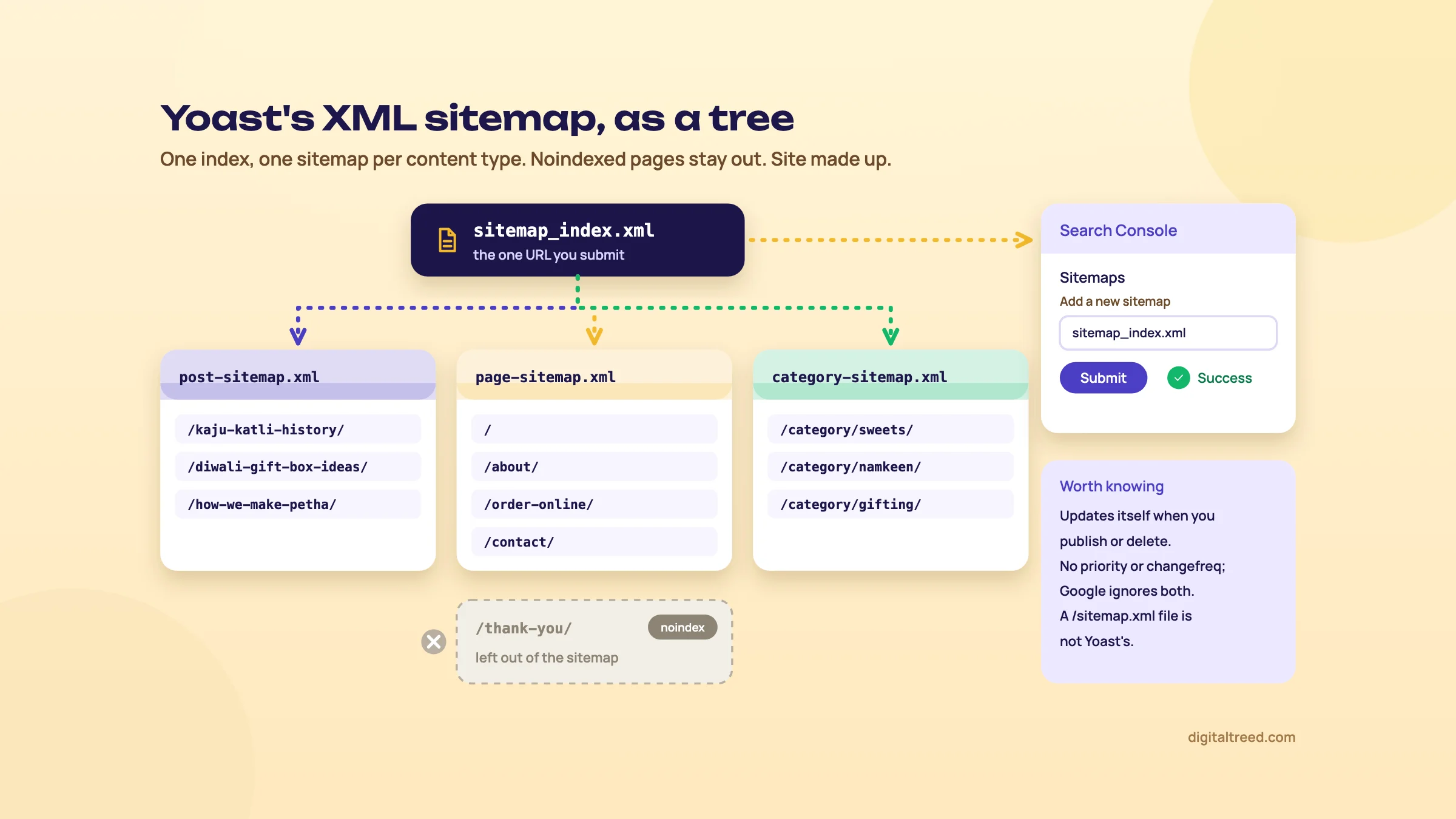 One index, one sitemap per content type, submitted once in Search Console. Site made up.
Three things worth knowing:
- Submit the index, not each file. In Search Console's Sitemaps report, submit sitemap_index.xml once. You can also add a Sitemap line to robots.txt; Google reads it the next time it crawls the file.[26]
- A file at /sitemap.xml isn't Yoast's. Yoast says it's probably from another plugin or WordPress core, and to switch other sitemap plugins off.[12]
- No priority or change frequency. Yoast removed priority in version 3.5,[12] and Google says it ignores both values anyway.[26] If a forum post tells you to set priority 1.0 on your home page, skip it.
Yoast also sends a noindex header on the sitemap files themselves, so the XML doesn't show up in search results.[12] That's intended. Search Console still reads them.
Breadcrumbs
Breadcrumbs are the "Home › Sweets › Kaju Katli" trail above a page title. They help visitors move up a level, and the matching BreadcrumbList schema tells Google where the page sits. Yoast outputs that schema as JSON-LD.[27] Google currently shows breadcrumb rich results on desktop.[28]
Yoast's visible breadcrumbs are off by default, because the trail needs your theme to call them.[27] The BreadcrumbList schema is in the page source either way.[29] You have three ways in:
- Theme support: Settings, Advanced, Breadcrumbs, turn on "Enable breadcrumbs inserted in your theme's template" and save. It only works if your theme calls Yoast's breadcrumbs.[29]
- The Yoast Breadcrumbs block, added to a single post or page in the block editor.
- A shortcode, [wpseo_breadcrumb], or a line of PHP in the theme. Leave that last one to a developer, and take a backup first, as Yoast advises.
If your theme already prints its own breadcrumbs with its own schema, use one set, not both. Check the page in our Schema Markup Validator for two BreadcrumbList blocks.
Schema
You set the most important part in chapter 2: the organization or person behind the site. From there Yoast builds one connected graph on each page, so the page, the article and its author all point back to your organization. Yoast's plugin page names the pieces developers can extend: Article, Organization, Person, Breadcrumb and WebPage.[2] You don't edit them by hand. If you need more, Premium outputs more schema types, and the add-ons cover local businesses, products, video and news (chapter 6).
The free plugin also ships FAQ and HowTo blocks with schema built in.[2] Google stopped showing FAQ rich results on 7 May 2026,[30] so don't add an FAQ block expecting the dropdowns in search. Add it only because the answers help readers.
Redirects (Premium)
A redirect sends anyone who asks for an old URL to the new one. You need one every time you change a slug or delete a page that had visitors or links. Yoast Premium's redirect manager is under Yoast SEO, Redirects, and supports five types: 301 Moved Permanently, 302 Found, 307 Temporary Redirect, 410 Content Deleted and 451 Unavailable for Legal Reasons.[31]
What makes it worth paying for is the prompt. When you change a slug, Premium creates the redirect for you, and when you move or delete a page it asks what to do with the old URL.[3] That's the step people forget on a busy day.
Redirect a renamed product page
- Open the redirect manager Yoast SEO, Redirects.
- Choose 301 Moved Permanently For a D2C brand that moved /cotton-kurta-blue/ to /women/kurtas/blue-cotton-kurta/, the move is permanent.
- Fill in the old URL Just the path is enough: cotton-kurta-blue. Yoast works with paths on your own site.
- Fill in the new URL The new path, or a full address.
- Click Add redirect
- Clear your cache Yoast's first troubleshooting step for a redirect that "doesn't work" is to clear every cache: theme, plugin, server, CDN and browser.[31]
- Test it live Paste the old URL into our HTTP Status Checker. You want one hop, a 301, ending in a 200. Two or more hops means a chain to fix.
- Update internal links Point menus and links at the new URL, so the redirect is only a safety net.
Premium can also import redirects from a CSV file, a .htaccess file or the Redirection, Safe Redirect Manager and Simple 301 Redirects plugins.[32] It can't redirect between domains or subdomains; it only handles paths on the site it's installed on.[31] No Premium? Use a free redirect plugin or a server rule in .htaccess (Guide 3, chapter 4 shows one).
Internal linking suggestions (Premium)
Premium reads your content and suggests related posts, pages, categories or tags to link to while you write. First run the SEO data optimization under Yoast SEO, Tools, and wait for the green check mark. Then open a post, go to the Internal linking suggestions tab in the Yoast sidebar, and copy a link. You get five suggestions at a time.[33] Premium also has an orphaned content workout that finds posts nothing links to.[3]
On the free version, the text link counter in your posts list shows how many internal links each post has and receives.[25] Sort by it and you've found your orphan pages without paying. Guide 2, chapter 8 covers what good internal links look like.
llms.txt, Bot Blocker and IndexNow
Yoast has an llms.txt feature, and it's free. Go to Settings, Site features, and under AI tools turn on llms.txt. You can let Yoast choose the pages or switch to manual selection. It isn't available on multisite installs.[34] Yoast describes the file as a map that guides AI tools to your key content.[35]
Turn it on if you like; it's harmless. Just don't expect it to get you cited. Google Search ignores llms.txt, and in Ahrefs' log study most llms.txt files got no requests at all (Guide 5, chapter 7). Our AI Crawler Checker shows whether your file is reachable, along with which AI crawlers your robots.txt allows.
Bot Blocker (Premium) adds toggles that block AI training crawlers such as GPTBot, CCBot and Google-Extended, by editing robots.txt for you.[36] Before you block Google-Extended, read Guide 5, chapter 6: it also stops the Gemini app from grounding answers on your pages, though it has no effect on Google Search.
IndexNow (Premium) pings Bing and the other search engines that use it whenever you publish, update or delete a post. Google doesn't take part.[25] Our view: switch it on if you have Premium, but it's not a reason to buy it.
Tip
Yoast's Tools menu has a file editor for robots.txt and .htaccess.[9] One wrong line in either can hide your site or take it down. Copy the file somewhere safe first, and after saving robots.txt, test your key URLs in our Robots.txt Tester.
Next: what Premium and the add-ons cost, and whether you need them.
Get the free checklist
Every step of this guide on one page, to print or tick off. We email you the PDF link.