

What All in One SEO is, who it's for, and when you don't need it
This guide is part of our "SEO tools explained" path. It's written for WordPress site owners who want their pages set up properly for search, such as a sweet shop, a clinic, a coaching centre or a D2C brand. It also suits freelancers and junior SEOs who find AIOSEO already installed on a client's site. You don't need to know any code.
By the end you'll be able to install the plugin and get through its setup wizard safely. Two mistakes hurt most: a wrong business name, and a live site left on Under Construction. You'll also write titles that override the templates, keep the right pages out of Google, and read the TruSEO score without chasing it. And you'll know which paid plan, if any, your site needs.
There are six chapters, about 34 minutes in all. Chapter 1 says what AIOSEO does and doesn't do. Chapters 2 to 5 follow the order you'd set up a site: install and wizard, titles and TruSEO, schema with local SEO and WooCommerce, then sitemaps, redirects, links and IndexNow. Chapter 6 covers Search Statistics, the AI tools, prices, switching from Yoast or Rank Math, and alternatives. Each chapter has step-by-step tasks and a check in one of our free tools. Prices were checked on AIOSEO's own pricing page on 18 October 2026.
Quick answer
All in One SEO (AIOSEO) is a WordPress plugin that writes your titles and meta descriptions, builds XML sitemaps and schema, and scores each post as you write. The free Lite version covers the basics. Redirects, local SEO and Search Console reports sit in paid plans. Skip it if another SEO plugin already does the job.
WordPress doesn't give you a box for a meta description, and it doesn't know your business name for schema. An SEO plugin fills those gaps. All in One SEO is the oldest of the big three. It calls itself "the original WordPress SEO plugin, founded in 2007",[1] and its WordPress.org listing dates from 30 March 2007. Yoast SEO came a little later (our Yoast SEO guide); on WordPress.org, its listing dates from October 2010[2] and Rank Math's from November 2018 (our Rank Math guide).[3]
2M+
active installations of the free plugin on WordPress.org[1]
94/100
rating, from 5,224 ratings on the plugin page[1]
5.0.3
the latest version, released 7 October 2026[1]
AIOSEO's own pages say it's used by "3,000,000+ professionals".[4] WordPress.org counts only the free plugin, so the two figures measure different things. For scale, the same directory shows Yoast at 10 million+[2] and Rank Math at 4 million+.[3] The plugin is made by the team behind WPForms, MonsterInsights and OptinMonster.[1]
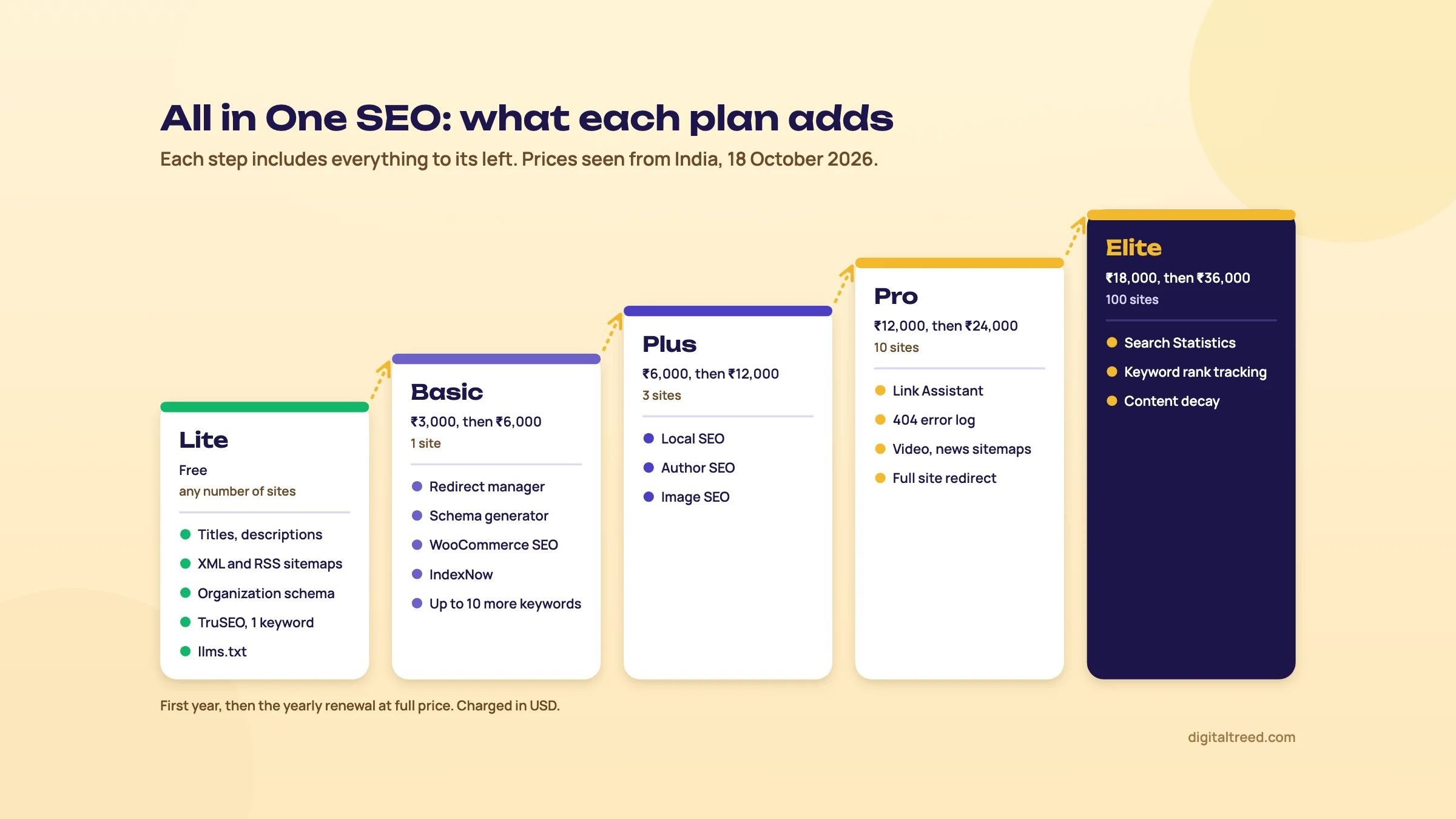 What each AIOSEO plan adds, with first-year and renewal prices seen from India on 18 October 2026.
What it does, in plain words
AIOSEO works in two places. The settings screens set rules for the whole site. The AIOSEO Settings panel under every post sets them for one page.
- Titles and descriptions from templates built with "smart tags", which you can override on any page (chapter 3).
- Robots settings and canonicals: noindex, nofollow and the rest, site-wide or per page (chapter 3).
- TruSEO, a score out of 100 with checks on keywords, basics, spelling, readability and the headline (chapter 3).
- Schema: who runs the site (a person or an organization) for free, and a schema generator for products, FAQs and other types in paid plans (chapter 4).
- Sitemaps: an XML sitemap and an RSS sitemap free, plus video and news sitemaps in Pro (chapter 5).
- llms.txt, a file for AI tools, which the free plugin can generate once you switch it on (chapter 5).[5]
The free plugin is called AIOSEO Lite. Paid plans are called AIOSEO Pro and come in four levels: Basic, Plus, Pro and Elite. AIOSEO's pricing FAQ puts the split simply: local SEO starts on Plus, Link Assistant and the deeper redirect tools start on Pro, and Search Statistics with keyword rank tracking are Elite-only.[4] Chapter 6 has the prices.
Who it's for
AIOSEO suits WordPress site owners who want a guided setup and don't want to touch code. Think of a Kanpur sweet shop with 15 pages, a Delhi dental clinic with a blog, or a WooCommerce store selling kurtis. Its setup wizard is the most hand-holding of the three big plugins, and it has a checklist of tasks after that.
It also suits agencies that want one paid plugin with many features in one place: redirects, local schema, internal linking and Search Console data inside WordPress. The catch is that those sit in different paid levels, and the renewal price is double the first year.
When you don't need it
- Your site isn't on WordPress. AIOSEO's FAQ says you need a self-hosted WordPress site.[4] Shopify, Wix and Squarespace have their own SEO settings.
- Yoast or Rank Math is already running and set up. Keep it. Two SEO plugins output two sets of titles and schema. Guide 1, chapter 7 says it plainly: switching plugins on a live site is more trouble than it's worth.
- You only want free redirects. AIOSEO's redirect manager is a paid feature from Basic up.[6] Rank Math's free version includes one.
What it won't fix
A plugin controls the tags on your pages. It can't make a slow host fast, write good pages for you or get other sites to link to you. And for a shop or clinic, your Google Business Profile matters more than any plugin setting (our Business Profile guide).
Note
From our work: a perfume brand. A perfume brand's WordPress site was slow enough to hurt crawling and indexing. With their developer we moved it to a lighter theme, added a caching plugin and optimised the images. We also wrote blog posts on the topics competitors covered and synced the products to Google Merchant Center. Results, including organic orders, came in five to six weeks. The lesson: an SEO plugin sets the tags, but theme, cache and images decide whether Google gets to read them.
So before you spend an afternoon on plugin settings, test the speed of your home page and one product or service page.
Next, install the plugin and run the setup wizard.
Install All in One SEO and run the setup wizard
Quick answer
Install the free plugin from Plugins, Add Plugin. The setup wizard opens on its own and takes under 10 minutes: site category and home page title, person or organization, features, search appearance, then Search Console. Afterwards check which content shows in search, the attachment redirect, the sitemap and Webmaster Tools.
The plugin installs like any other. What matters is the wizard and the checks after it. They decide your schema, your home page title and which pages Google may index.
Install the free plugin (Lite)
- Log in to WordPress as an administrator, go to Plugins and click Add Plugin.
- Search for "All in One SEO".
- Click Install Now, then Activate.
If another SEO plugin is active, import its data and then deactivate it (chapter 6). AIOSEO's own import guide says running two SEO plugins at once "can cause duplicate meta tags and other conflicts".[7]
If you buy a paid plan later, you don't reinstall anything by hand. Go to All in One SEO, General Settings, paste the licence key from your receipt email, click Activate, then Connect and Install AIOSEO Pro. AIOSEO says all settings and data move from the free plugin to Pro, and the free plugin is deactivated.[8]
The setup wizard, step by step
The wizard opens by itself the first time you activate the plugin. AIOSEO says it takes less than 10 minutes.[9] Click Let's Get Started and you get five steps:
- Site category. Pick the closest, such as Blog, Online Store or Small Offline Business. Then set the Home Page Title and Home Page Meta Description.
- Additional site information. Choose Person or Organization, then the name, a description, phone number, logo, a default social share image and your social profile links.
- SEO features. Toggles for sitemaps, the broken link checker, image SEO, schema and others. The recommended ones start switched on.
- Search appearance. A live preview of your result, Under Construction or Live Site, and options for post types, multiple authors, attachment pages and email reports.
- Google Search Console. Connect, or Skip this Step and do it later.
The last screen points you to the SEO Checklist. Everything the wizard sets can be changed later in the plugin's settings.[9]
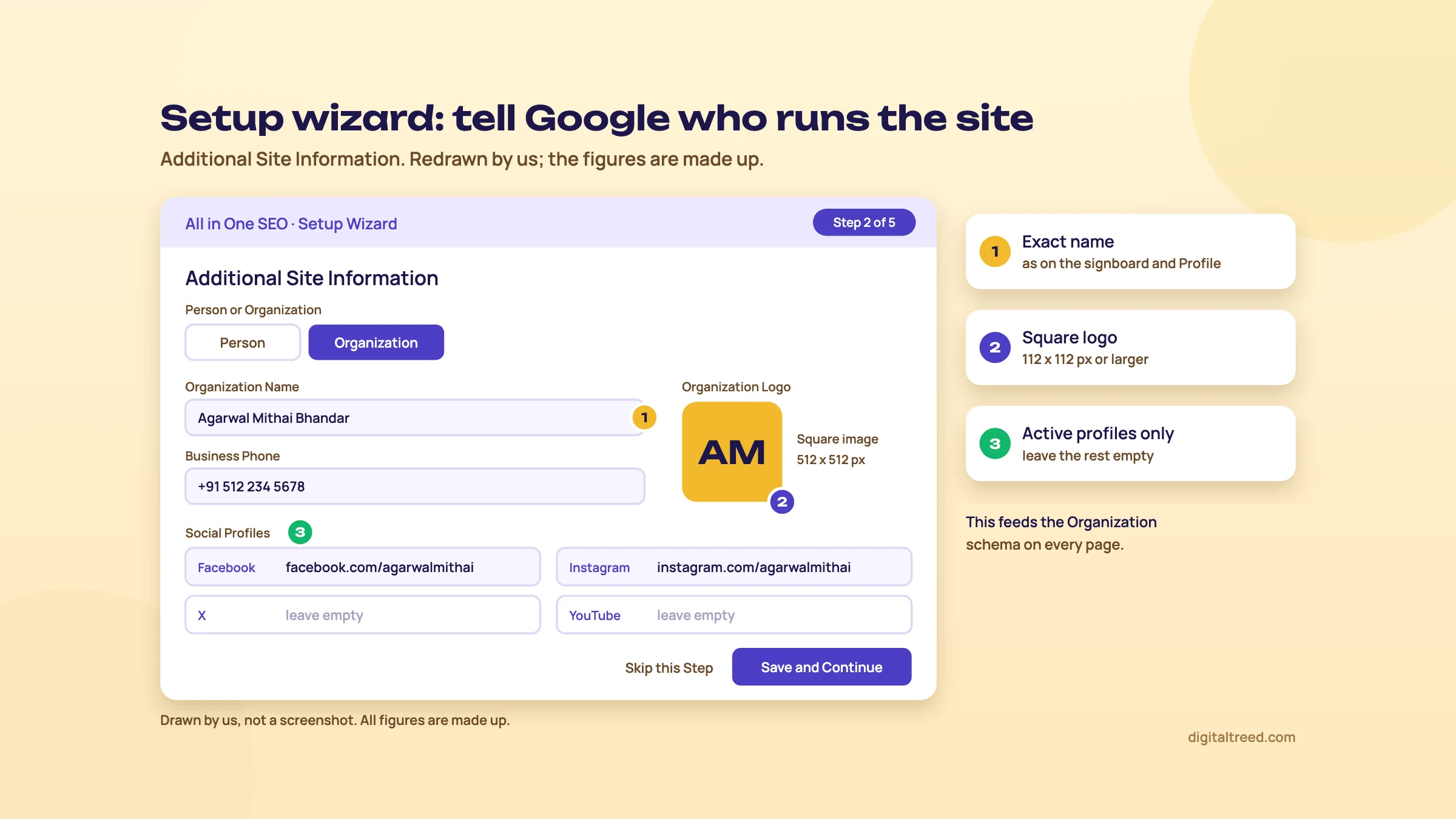 Exact name, square logo, active profiles only. Drawn by us; not a screenshot.
Three wizard choices that matter most
The home page title. The wizard fills it with tag buttons such as your site title and tagline. For a business, write it yourself: "Agarwal Mithai Bhandar, sweets and namkeen in Kanpur" says more than "Home - Just another WordPress site".
Person or organization. AIOSEO's advice is that most business and brand sites should choose Organization; pick Person for a personal blog, portfolio or freelancer site.[9] This feeds the schema on every page. Later you'll find it again under Search Appearance, Global Settings, Knowledge Graph, where the logo must be at least 112 by 112 pixels.[10] Use the exact name from your signboard and Business Profile, not a keyword version of it.
Under Construction or Live Site. AIOSEO says Under Construction keeps the site out of search results.[9] That's right for a new build on a staging address. On a live site it's a disaster, so read this screen twice before you click on.
Five checks after the wizard
| Where | What it does | What we'd do |
|---|---|---|
| Search Appearance, Content Types | A Show in Search Results switch and title templates for posts, pages, products and any other type[11] | Posts, pages and products on. Anything a theme or page builder added that you never meant to publish, off |
| Search Appearance, Archives | The same switch for author, date and search pages | On a one-author site, author and date archives add nothing; turn them off |
| Search Appearance, Image SEO tab, Redirect Attachment URLs | Disabled, Attachment or Attachment Parent. AIOSEO recommends Attachment, and it's the default[12] | Leave it on Attachment, so WordPress's empty image pages redirect to the image |
| Sitemaps | Enable Sitemap is on by default; Open Sitemap shows it[13] | Open it, check it lists your real pages, submit it in Search Console (chapter 5) |
| General Settings, Webmaster Tools | Verification for Google Search Console, Bing, Yandex, Baidu and Pinterest[1], plus an IndexNow block in paid plans (chapter 5) | Paste Bing's code here, or import from Search Console in Bing (our Bing guide) |
One more, if other people log in. AIOSEO's Access Control lets you choose which roles see which settings, but it's a paid feature. By default Editors can reach General Settings, Search Appearance and Social Networks.[14] On the free plugin, keep Editor accounts for people you trust with those settings.
Search Console: connect, but verify by DNS too
The Google Search Console block under Webmaster Tools signs you in with Google and, once you click Complete Connection, adds and verifies the site and submits AIOSEO's XML sitemap.[15] That's quick, and the pricing page lists it in every plan.[4]
We'd still verify a Domain property through your DNS as well. It covers every version of the site (http, https, www and not) and survives a plugin change. Our Search Console guide shows how, and our Bing Webmaster Tools guide covers Bing. Connecting Search Console doesn't give you Search Statistics reports inside WordPress; those are Elite-only (chapter 6).
Set up All in One SEO for a Kanpur sweet shop
- Install and activate Plugins, Add Plugin, search "All in One SEO", Install Now, Activate.
- Site category Choose Small Offline Business. Write the home page title and description by hand, with the shop's name and "Kanpur" in both.
- Site information Organization, the shop's name exactly as on its Business Profile, its phone number, a square logo, and only the social profiles it posts on.
- Features Keep the recommended ones. You can switch any of them off later.
- Search appearance Live Site, and check the preview shows the title you wrote.
- Search Console Connect, or skip and verify a Domain property in Search Console instead.
- After the wizard Turn off author and date archives, leave attachment redirects on Attachment, open the sitemap.
- Check the output Run the home page through our Meta Tag Analyzer and Schema Markup Validator. You want one title, one description and one Organization block with the shop's real name.
If the validator shows two Organization blocks, your theme or another plugin adds its own. Switch one off: Guide 3, chapter 7 explains why one plugin should own the schema.
Next, the templates that write every title, and the score you'll see under every post.
Titles, noindex and the TruSEO score: what to act on and what to ignore
Quick answer
Search Appearance writes every title and description from smart tag templates; the AIOSEO Settings panel overrides them per page and sets noindex and the canonical. TruSEO scores each post out of 100. Act on the title, description, links and cannibalisation checks. Treat keyword density, sentence beginnings and the headline score as hints.
This is the chapter you'll use every week: the templates that write titles across the site, the per-page overrides, and the score under each post.
Title and description templates
Go to All in One SEO, Search Appearance, Content Types. Each type (posts, pages, products) has a preview, a title field and a meta description field. You build them from smart tags: click a tag above the field, or type # to see the list. Tags pull in things like the post title, the site name or the date.[11] Taxonomies and Archives have their own tabs with the same fields.
Templates are a safety net, not the goal. AIOSEO's own help page warns that automatic titles and descriptions "can lead to poor quality titles and descriptions which will be ignored by search engines".[11] We'd keep the post template as post title plus a short site name. Then hand-write the pages that earn money: the home page, service pages, top products and categories.
Writing one page's title and description
Edit the page and scroll below the content to AIOSEO Settings. You'll see a SERP Preview, a Title field and a Meta Description field. Whatever you write there overrides the template.[16]
Don't expect Google to use them word for word. AIOSEO's help says search engines "don't have to use the SEO title and description you provide".[16] Google says there's no length limit on either, but it truncates both to fit the screen,[17] as its title link page also says,[18] so put the words that matter first. Guide 2, chapter 7 has the rules we use.
Write the title and description for a Delhi dentist's service page
- Open the page Edit "Root canal treatment" and scroll to AIOSEO Settings.
- Title Replace the template with "Root Canal Treatment in Lajpat Nagar, Delhi | Dr Mehta's Dental Clinic". Service and area first, clinic name last.
- Description One or two sentences with what a patient wants to know: "Single-sitting root canal with digital X-ray. Open Monday to Saturday, 10 am to 8 pm. Call or book online."
- Check the preview If the SERP Preview cuts the title, shorten the clinic name, not the service.
- Update Save the page.
- Check the live page Paste the URL into our Meta Tag Analyzer and confirm there's one title tag and one description.
Noindex and canonicals
In AIOSEO Settings, the Advanced tab has a Robots Setting toggle. Switch it to see No Index, No Follow, No Archive, No Snippet, Max Snippet and the other robots tags for that page.[19] The same settings exist per content type under Search Appearance, and site-wide under Search Appearance, Advanced, Global Robots Meta. AIOSEO says these are "meant for advanced users".[20] We agree. The only one most small sites need is No Index, for pages like a thank-you page, a login page or a campaign page that shouldn't appear in Google.
The same tab has a Canonical URL field. WordPress already outputs a canonical for every page. Use the field only when two pages carry the same content and you want Google to treat one as the main one.[21] Guide 3, chapter 4 explains when to use noindex, a canonical or a redirect.
What TruSEO measures
TruSEO sits on the Optimization tab of AIOSEO Settings. It gives an overall score out of 100 and splits its checks into five tabs: Keywords, Basics, Spelling, Readability and Headline. AIOSEO counts 80 or more as good, 50 to 79 as okay and under 50 as needing work.[22] The checks are sorted into Improvements and Good, and the scores update as you type. On paid plans, from version 5.0.1, it also scores category and tag pages, switched on by default for WooCommerce product categories.[23]
The free plugin gives you one focus keyword. Extra keywords are a paid feature, up to ten more per post.[24] For most pages one is enough. AIOSEO's own advice is that one main keyword "plus a couple of close variations is enough for most posts".[25]
AIOSEO is honest about what the score is. Its help page says following the recommendations "doesn't guarantee you'll rank for your keywords", and that you don't have to follow every one if it costs you writing quality.[22] Treat it as a checklist.
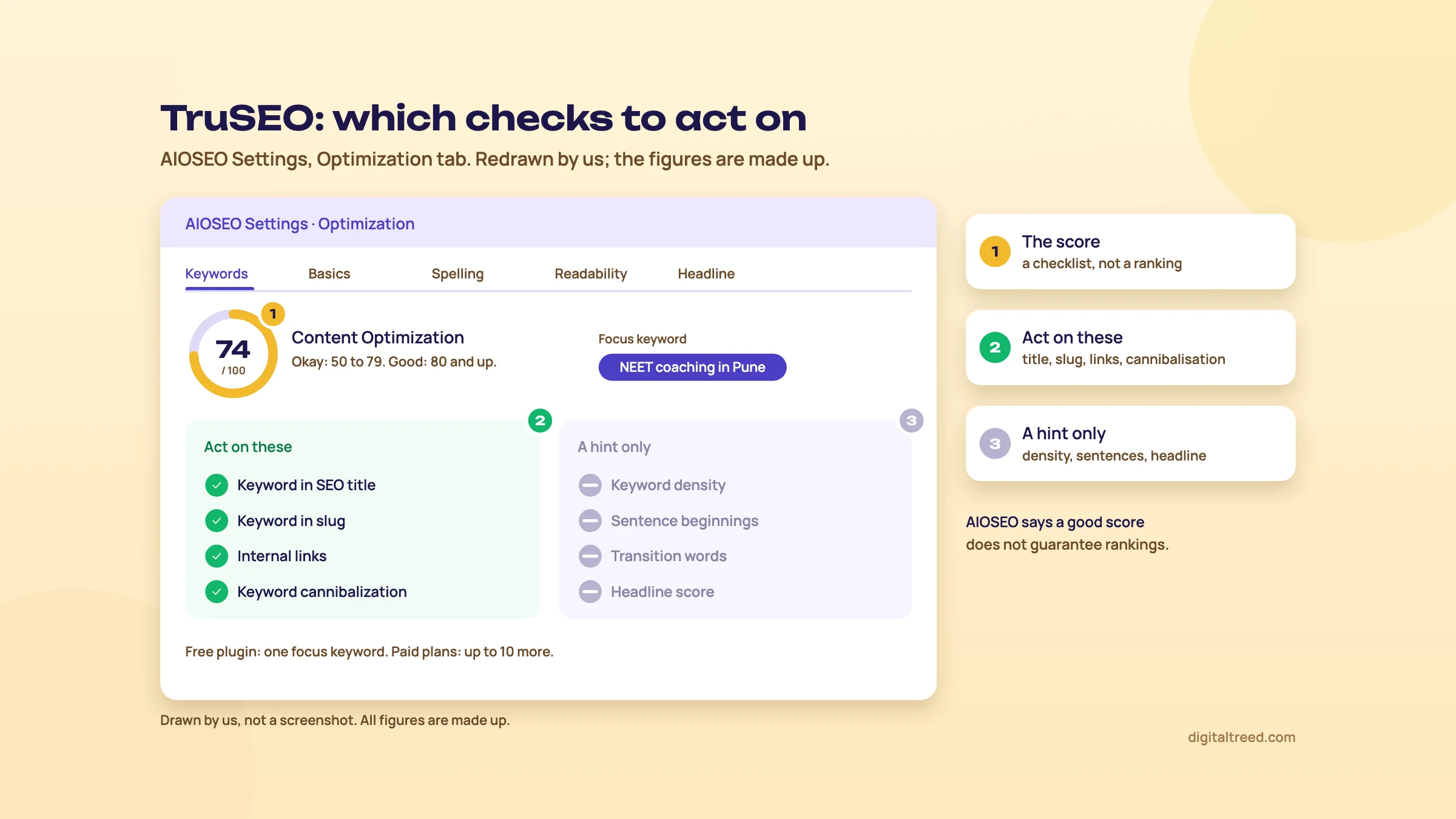 Act on the basics, treat density and headline checks as hints. Drawn by us; not a screenshot.
Which checks to act on and which to ignore
Do not
- Repeating the keyword to satisfy the Keyword density check. It compares your count with "what suits a post of that length",[26] a number Google doesn't use. Google's spam policies call filling a page with keywords to manipulate rankings keyword stuffing.[27]
- Padding text because of the Text length check. Google asks whether you're writing to a word count "(No, we don't.)"[28]
- Rewriting a good title just to raise the Headline score. "Root canal treatment in Lajpat Nagar" doesn't need a power word.
- Fixing every Sentence beginnings or Transition words flag in a list of services or prices.
- Adding a dozen keywords to turn rows green.
Do
- Keyword in the SEO title, near the start.
- Keyword in the slug, kept short.
- A meta description that fits, written for the searcher.
- One main heading per page (the Single title check).
- At least one internal link to a related page.
- The Keyword cannibalization check: it names other posts aimed at the same keyword, so give each a different one or merge them.
A page at 65 that answers the question beats a page at 95 that repeats the keyword 30 times. If the six checks in the Do list are green, we'd stop there.
Note
From our work: a women's wear manufacturer's online store. Its product pages targeted short, competitive keywords. We moved them to long-tail keywords, the longer phrases that match one product, and results started within a month. Pick the focus keyword the page can actually win; a green score on a keyword you can't rank for is worth nothing.
To check a page's words from outside WordPress, use our Word Counter and Keyword Density Checker. It counts words and shows how often a phrase repeats, so a page that says the same thing too often stands out.
Next: schema, local SEO and WooCommerce, where AIOSEO's paid plans start to differ from the free one.
Schema, local SEO and WooCommerce
Quick answer
The free plugin outputs site-wide schema for your person or organization. The schema generator, per-page schema types and WooCommerce SEO need a paid plan from Basic; local business details need Plus. Local Business schema appears only on the home page. Test every schema change, and don't add FAQ schema for a rich result Google no longer shows.
Schema is code that tells search engines what a page is about: who runs the site, what a product costs, when a clinic opens. AIOSEO writes it for you in JSON-LD. How much it writes depends on your plan.
What you get free, and what needs a plan
| Feature | Lite (free) | Paid plan needed |
|---|---|---|
| Organization or Person schema (Knowledge Graph settings) | Yes | None |
| Default schema type per content type, such as Article for posts | No | Basic[10] |
| Schema generator on a single page | No | Basic[29] |
| WooCommerce SEO, including product schema | No | Basic[4] |
| Local Business schema, opening hours, locations | No | Plus[30] |
| Event schema | No | Basic[31] (the pricing table lists it under Pro)[4] |
The Organization settings live under Search Appearance, Global Settings, Knowledge Graph: name, description, email, phone, founding date, number of employees and a logo of at least 112 by 112 pixels. Type the phone number as you'd normally write it; AIOSEO writes it into the schema in international format, with +91 in front.[10]
The schema generator (Basic and up)
On a paid plan, Search Appearance, Content Types has a Schema Markup tab for each type. Posts usually get Article, pages Web Page.[10] On a single page, open AIOSEO Settings, the Schema tab, and click Generate Schema. You can add more than one type, then edit or delete each.[29] The list includes Article, Course, Event, FAQ, How To, Job Posting, Person, Product, Recipe, Service, Software Application and Video, among others.[10]
Two warnings. First, schema must describe what's visible on the page. AIOSEO's own product schema help notes that what you fill in appears only in the source code, not on the page.[32] So if you add a price or a rating in the schema box, the same price or rating has to be on the page for visitors too. Second, think before adding FAQ schema. Google stopped showing FAQ rich results on 7 May 2026.[33] The markup is still valid, but don't expect it to change how your result looks.
Our Rich Results Test guide shows how to test a page and read Google's errors, and Guide 2, chapter 8 explains which schema types matter for a small business.
Local SEO (Plus and up)
Go to All in One SEO, Local SEO, and click Activate Local SEO if asked. For one branch, fill in Business Info: name, an image, the business type, address, contact details, tax ID if you have one, price range, currencies and payment methods accepted, and the areas you serve. Opening Hours has its own tab, with 24-hour and closed options per day. Placing the pin on the map needs a Google Maps API key.[30] For a chain of clinics or coaching branches, switch on Multiple Locations and add each one as its own location.[34]
Note where it goes. AIOSEO outputs Local Business schema and opening hours schema "ONLY" in the home page code.[30] And it can only describe your business; it doesn't touch Google Maps rankings. Those come from your Business Profile, reviews and listings (Guide 2, chapter 10 and our Business Profile guide).
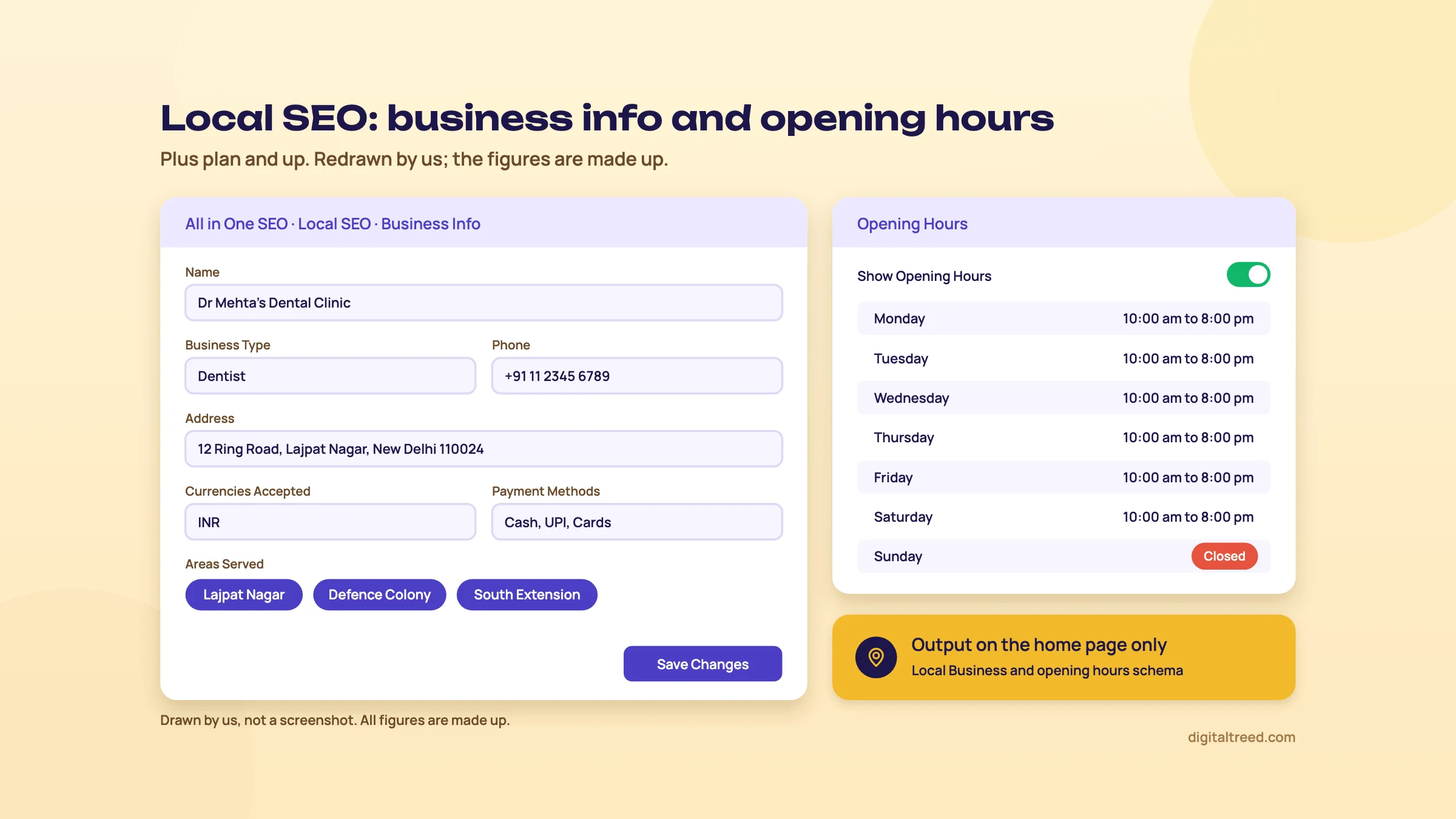 Local business details (Plus plan). Drawn by us; not a screenshot.
Add local business details for a Delhi dental clinic
- Match your Business Profile first Copy the clinic's name, address and phone exactly as they appear on its Google Business Profile.
- Open Local SEO All in One SEO, Local SEO, Activate Local SEO. Leave Multiple Locations off for one clinic.
- Business Info Name, the most specific type in the list, the full address with PIN code, phone, email.
- Payments and areas Currencies accepted INR; payment methods such as cash, UPI and cards; areas served such as Lajpat Nagar, Defence Colony and South Extension.
- Opening Hours Set Show Opening Hours to Yes, enter each day, mark Sunday closed if it is. Save Changes.
- Test Run the home page through our Schema Markup Validator. You want one LocalBusiness (or Dentist) block with the same name, address and phone as the Business Profile, and no second one from your theme.
WooCommerce (Basic and up)
With WooCommerce SEO on a paid plan, AIOSEO adds product schema with price, availability and reviews, shipping and return details, title templates that can use product attributes, and SEO settings for product categories, tags and attributes.[35] For a D2C brand selling 200 kurtis, the useful parts are the category templates and the product schema; set them once and every new product inherits them.
Two things to check on a store. Make sure the theme or WooCommerce itself isn't printing a second Product block. And keep the price in the schema the same as the price on the page and in Merchant Center, so all three tell Google the same thing. Our Rich Results Test guide covers the product fields Google asks for.
Next: sitemaps, llms.txt, redirects, 404s, internal links and IndexNow.
Sitemaps, llms.txt, redirects, 404s, Link Assistant and IndexNow
Quick answer
The free plugin builds an XML sitemap, an RSS sitemap and llms.txt. Video and news sitemaps, 404 logs and Link Assistant need Pro; the redirect manager and IndexNow start on Basic. Submit the sitemap in Search Console and Bing, add a 301 for every changed URL, and don't send all 404s to the home page.
These are the features that work in the background once they're set. Most need checking once, then again after a big change to the site.
The four sitemaps
Sitemaps lists all four under its own menu: General Sitemap, Video Sitemap, News Sitemap and RSS Sitemap, next to an HTML Sitemap tab (a page for visitors) and the LLMs.txt tab. Each has an Enable Sitemap switch and an Open Sitemap button. On AIOSEO's own site, which runs the plugin, robots.txt lists them at /sitemap.xml, /video-sitemap.xml, /news-sitemap.xml and /sitemap.rss.[36]
| Sitemap | Plan | What's in it | Who needs it |
|---|---|---|---|
| XML | Free, on by default | Every indexable post, page and term, 1,000 URLs per sitemap page; date and author archives left out by default[13] | Every site |
| RSS | Free, on by default | Only the latest 50 posts by default[37] | Sites that publish often |
| Video | Pro and up | Pages with supported video embeds[38] | Sites where video is the content |
| News | Pro and up | Only content from the last 48 hours; a 404 when there's none is normal[39] | News publishers only |
Anything you set to noindex or hide from search under Search Appearance stays out of the XML sitemap,[13] which is how it should be.
Two settings you can leave alone. AIOSEO lets you set priority and frequency for each section, but Google says it ignores both values.[40] And AIOSEO's help says it notifies Google when content changes.[13] Google retired its sitemap "ping" in 2023 and says such pings no longer do "anything useful".[41] So submit the sitemap yourself in Search Console's Sitemaps report and in Bing Webmaster Tools; that's what counts.
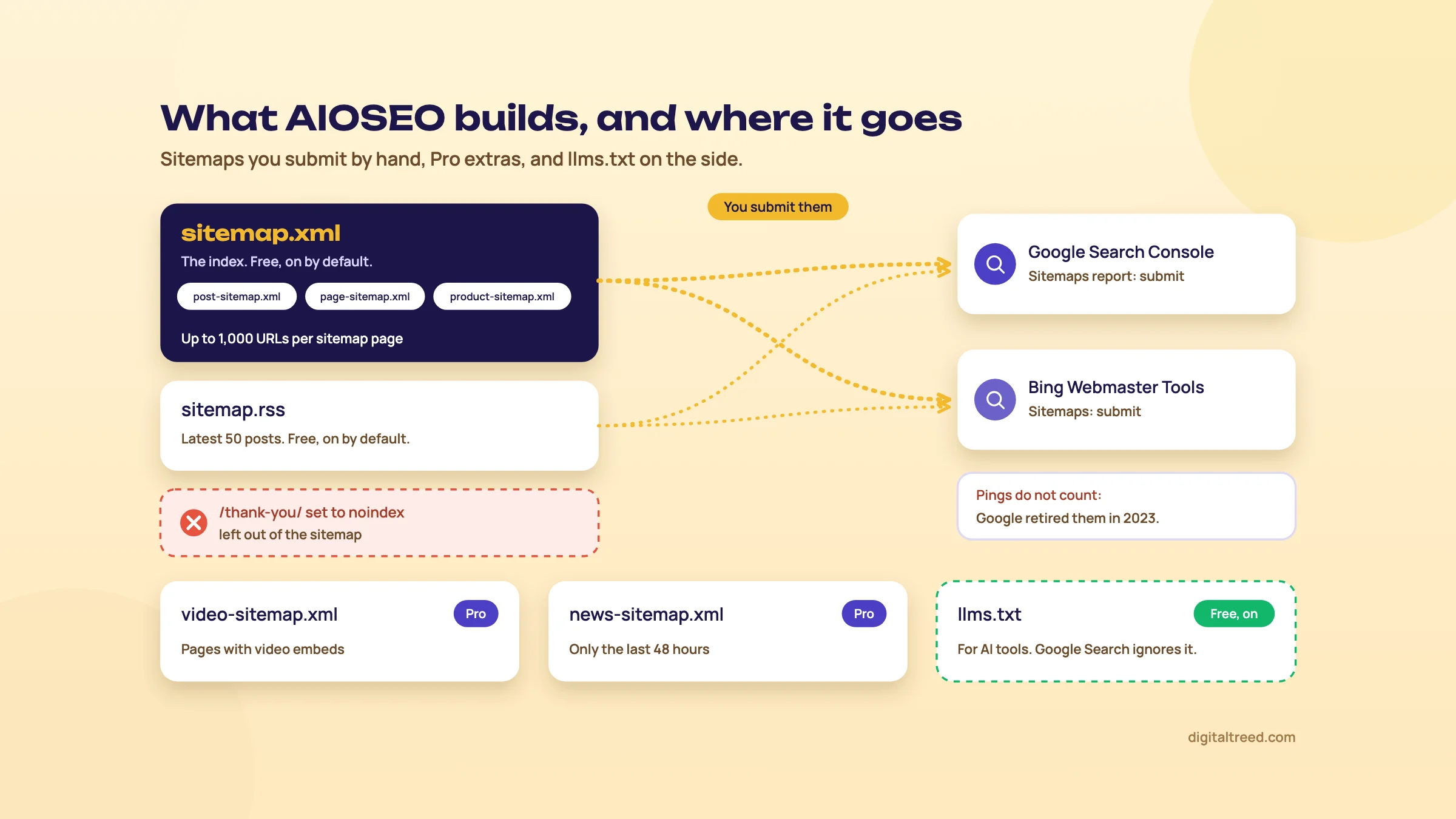 Submit the sitemaps yourself; Google retired sitemap pings in 2023.
llms.txt: off until you switch it on
AIOSEO can create an llms.txt file; switch it on or off under Sitemaps, the LLMs.txt tab. The same screen offers an llms-full.txt file and Markdown versions of posts (both on paid plans),[5] a title and description, and which post types and terms to include.[42] AIOSEO's docs say it's on by default,[42] but in the free plugin's code it starts off,[43] so open the tab and check the switch.
AIOSEO's plugin page says the file helps AI engines like Google AI Overviews "discover your content".[1] Google says the opposite for its own search: it ignores llms.txt, and the file "will neither harm nor help" your visibility in Google Search.[44] Having it on costs nothing. Just don't count it as AI optimisation. Guide 5, chapter 7 has the evidence, and our AI Crawler Checker shows whether AI crawlers can reach your pages at all, which matters far more.
Redirects (Basic) and 404 logs (Pro)
The Redirection Manager is a paid feature from Basic.[45] It has three habits worth knowing:
- Slug changes. When you change a published post's slug, AIOSEO shows a notice with an Add Redirect to Improve SEO button, with the old and new URLs filled in. Pick 301 Moved Permanently for a permanent change.[45]
- Deleted posts. With Monitor Trashed & Deleted Posts on, AIOSEO creates a redirect to the home page, switched off. You change the target to a better page, then turn it on.[46] Always change that target.
- Method. PHP needs no server setup; Web Server is faster but means editing Apache, NGINX or LiteSpeed files, and then AIOSEO can't count hits or show logs.[47] Stay on PHP unless your developer says otherwise.
404 logging (Redirects, Settings, Log 404 Errors) is a Pro-plan feature. The log shows each missing URL, its hits and when it was last visited, with an Add Redirect link beside it.[6] Check it monthly and redirect the URLs that real people or other sites still use.
Pro also has Advanced 404 Settings that redirect every 404 to the home page or to a parent page. AIOSEO itself warns that redirecting 404s "may negatively impact your SEO and confuse your visitors" and suggests a custom 404 page instead.[48] We'd leave those switches off. Redirect each old URL to its closest real replacement, or let it return a 404.
Rename a D2C brand's product page without losing its traffic
- Change the slug In the product editor, change "cotton-kurti-blue-01" to "blue-cotton-kurti" and update.
- Accept the redirect Click Add Redirect to Improve SEO, keep the source and target, choose 301 Moved Permanently, click Add Redirect.
- Fix your own links Update menus and other pages that link to the old URL, so visitors don't go through a redirect at all.
- Test it Paste the old URL into our HTTP Status Checker. You want one 301 hop and a 200 at the new address, not a chain.
Pro also adds Full Site Redirect, for moving to a new domain, site aliases, and forcing HTTPS or www. Make sure HTTPS works before you force it.[49] For a whole-site move, follow Guide 3, chapter 6, not a single switch.
Link Assistant (Pro)
Link Assistant crawls your posts and shows internal, external and affiliate link counts, orphaned posts (no internal links pointing in) and suggested links you can add with one click. AIOSEO says it works best with English content and the block editor.[50] The orphaned posts filter is the useful part: a post nobody links to is hard for Google and visitors to find. Read each suggestion before you add it; an automatic anchor text isn't always one a person would write. Guide 2, chapter 8 covers how to link by hand, which is free.
IndexNow (Basic)
IndexNow tells Bing, Yandex and the other engines that use it that a URL has changed. Google isn't one of them.[51] In AIOSEO it's included from Basic up.[4] To turn it on, open the plugin's Feature Manager[52] and activate IndexNow. AIOSEO then pings IndexNow whenever you publish or update. To check it, copy the key from General Settings, Webmaster Tools, IndexNow, and open yourdomain.com/your-key.txt; you should see the key.[53] Our Bing Webmaster Tools guide shows how to confirm Bing receives the pings.
Next: Search Statistics, the AI tools, prices, and how to switch from Yoast or Rank Math.
Search Statistics, AI tools, pricing, switching and alternatives
Quick answer
AIOSEO showed us rupee prices: Basic is ₹3,000 for the first year on one site, then ₹6,000 a year. Plus, Pro and Elite add local SEO, Link Assistant and Search Statistics. For most small sites the free plugin plus Search Console is enough. Switching from Yoast or Rank Math takes one import, then a careful check.
Search Statistics (Elite only)
Search Statistics puts Google Search Console data inside WordPress: impressions, clicks, average CTR and average position, keyword rankings with winners and losers, content performance, index status and content decay. It's on the Elite plan only, and it connects under Search Statistics, Settings, Connect.[54] AIOSEO says it reads only the Performance report from your Search Console account.[55]
It's the same data you get free in Search Console, presented next to your posts. That's handy for a team that never opens Search Console. For a single site, we'd use Search Console directly and save the Elite price. Our Search Console guide shows the reports, and Guide 2, chapter 6 shows how to find decaying pages there for free.
The AI tools
- AI content. Titles, meta descriptions, FAQs, social posts and images, from the AI Copilot tab in AIOSEO Settings. They run on AI credits.[56] Free users get trial credits[57] and can buy pay-as-you-go credits; paid plans include them.[58] The pricing page lists 10,000 credits with Basic, 25,000 with Plus, 50,000 with Pro and 200,000 with Elite.[4]
- Writing Assistant. Compares your post with the top-ranking pages for a keyword in a chosen region and language, and suggests terms to use. It runs on SEOBoost, a separate service you have to connect.[59] AIOSEO's pricing page says it needs a paid SEOBoost subscription. SEOBoost's cheapest plan, Essential, showed $30 a month (an introductory price; normally $75), or $22.50 a month billed yearly.[60]
- AI Insights. A beta report that shows which brands ChatGPT, Claude, Gemini, DeepSeek and Perplexity name for a keyword, for Pro customers.[61]
- MCP server. Lets AI agents such as Claude connect to your site and read or update its SEO data.[1] Only switch this on if you know exactly which agent gets access and what it may change.
Whatever the AI writes, read it before you save. Google says it's "critical to manually factcheck and review all AI-generated content", and that includes titles and meta descriptions.[62] An AI title that says "Best dentist in Delhi" for a clinic that can't prove it is a problem you created.
All in One SEO prices, checked 18 October 2026
AIOSEO's pricing page showed us rupee prices from India. All plans are billed yearly; the lower price is the first year, and "all renewals are at full price".[4] The prices were the same when we read them on 16 October.
| Plan | First year | Renewal, per year | Sites | What it adds |
|---|---|---|---|---|
| Lite | ₹0 | ₹0 | Any | Titles, sitemaps, Organization schema, TruSEO (one keyword), llms.txt |
| Basic | ₹250/mo, ₹3,000 | ₹6,000 | 1 | Redirect manager, schema generator, WooCommerce SEO, IndexNow, up to 10 extra keywords, 10,000 AI credits |
| Plus | ₹500/mo, ₹6,000 | ₹12,000 | 3 | Local SEO, Author SEO, image SEO, 25,000 AI credits |
| Pro | ₹1,000/mo, ₹12,000 | ₹24,000 | 10 | Video and news sitemaps, 404 logs, full site redirects, Link Assistant, 50,000 AI credits |
| Elite | ₹1,500/mo, ₹18,000 | ₹36,000 | 100 | Search Statistics, keyword rank tracking, content decay, 200,000 AI credits |
From the pricing page and its FAQ.[4] A few terms worth knowing before you pay:
- The FAQ gives the US price: Basic renews at $99 a year against $49.50 in the first year.
- There's a 14-day money-back guarantee, but renewals are non-refundable.
- The terms say fees and refunds are "issued in USD", and that you pay any currency exchange costs. So your card statement may differ a little from the rupee figure.
- Client sites are allowed: buy a plan with enough sites, or a licence per client.
For a Kanpur sweet shop or a Delhi clinic with 20 pages, we don't think you need a paid plan. The free plugin, Search Console and a little care with redirects cover it. If you change URLs often, Basic at ₹3,000 for the first year buys the redirect manager. Just budget ₹6,000 for every year after.
The alternatives showed us other currencies, read on 16 October 2026 for our other guides and again on 18 October. Yoast SEO Premium was $118.80 a year for one site (about ₹11,400 at ₹96 = US$1).[63] Rank Math PRO was €7.99 a month billed yearly (renewing at €8.99), for unlimited sites you own.[64] SEOBoost's $30 is about ₹2,900 a month at the same rate.
Switching from Yoast or Rank Math
AIOSEO imports from Yoast SEO, Rank Math and SEOPress under All in One SEO, Tools, Import/Export, Import Settings From Other Plugins. For Yoast and Rank Math it brings over titles, meta descriptions, schema settings and social meta. The old plugin must still be installed (it can be inactive) for the importer to see it.[7] Redirects come in separately, under Redirects, Import / Export, from the Redirection plugin and a few others,[65] or from a CSV file in AIOSEO's sample format.[66] Yoast and Rank Math aren't in the redirect importer's list on the plugin page,[1] so plan to move their redirects by CSV.
Move a Pune coaching centre's site from Yoast to All in One SEO
- Back up Take a full backup, or do this on a staging copy.
- Record the "before" Run your 10 most important URLs through our Meta Tag Analyzer and save the titles, descriptions and canonicals.
- Install AIOSEO Skip the setup wizard for now, or run it without changing titles.
- Import Tools, Import/Export, choose Yoast SEO in Import Settings From Other Plugins, tick the settings, click Import.
- Deactivate Yoast Only after the import finishes. Keep it installed until you've checked everything.
- Move redirects If you had Yoast Premium redirects, export them and bring them into AIOSEO as a CSV (needs Basic or above).
- Compare Run the same 10 URLs through the Meta Tag Analyzer and the Schema Markup Validator. Titles, descriptions and canonicals should match; schema should show one Organization.
- Watch for two weeks Check Search Console's Pages report and test old URLs with our HTTP Status Checker.
Moving away from AIOSEO works the same way in reverse: Rank Math's importer lists All In One SEO, as our Rank Math guide shows. Our Yoast vs Rank Math guide compares the other two side by side.
Pros and cons
Pros
- The friendliest setup wizard of the big three, plus an SEO Checklist after it.
- Rupee prices for Indian buyers, and Basic at ₹3,000 for the first year.
- TruSEO is candid: AIOSEO's own help says a good score doesn't guarantee rankings.
- Many features in one plugin on the higher plans: local schema, redirects, Link Assistant, Search Console reports.
- Imports from Yoast, Rank Math and SEOPress.
- Help pages show when they were last updated; the ones we read for this guide were from August to October 2026.
Cons
- No redirects in the free version; Rank Math gives them free.
- Renewal is double the first-year price on every plan.
- Key features are spread across four paid levels, so the plan you need depends on one feature.
- Upgrade prompts inside the plugin.
- A behaviour you may not want: once Monitor Trashed & Deleted Posts is on, every deleted post gets a redirect to the home page (created switched off until you edit it).
- Charges are made in USD despite rupee prices on the page.
Alternatives, and which one when
Start with tools that check what the plugin actually outputs, whichever plugin you use. Our Meta Tag Analyzer shows the title, description, canonical and Open Graph tags with a Google and social preview for up to 10 URLs. The Schema Markup Validator checks the JSON-LD. The HTTP Status Checker follows every redirect hop. The Free Website Audit runs 50+ checks across 25 pages, and a free sign-in ranks the fixes by the points they add.
| Your situation | Pick | Why |
|---|---|---|
| Site already runs Yoast or Rank Math and works | Stay where you are (Yoast, Rank Math) | Switching gains little |
| New small business site, no budget | Rank Math free, or AIOSEO Lite | Rank Math adds free redirects and a 404 log; AIOSEO has the gentler wizard |
| You want rupee billing on the page and one site | AIOSEO Basic | ₹3,000 first year, ₹6,000 after |
| Local business with several branches | AIOSEO Plus, or Rank Math PRO | Multiple locations need a paid plan in both |
| Agency with client sites | AIOSEO Pro or Elite, or Rank Math Business | Client licences; compare by site count |
| Search Console data inside WordPress for a team | AIOSEO Elite | Search Statistics is Elite-only |
| Serious keyword or backlink research | A suite like Semrush or Ahrefs | No WordPress plugin does this well |
| Site not on WordPress | Your platform's own SEO settings | AIOSEO needs self-hosted WordPress |
If you'd rather have someone set this up and keep it right, our SEO service does it for WordPress sites, and our web development team handles speed. For a price, get a quote.
Next, try the quiz below, then run the setup wizard on your own site with chapter 2 open.
Test yourself
Ten questions on the whole guide. Pick an answer, check it, and see your score at the end.
You got 0 of 10 right.
Frequently asked questions
Frequently asked
Is All in One SEO free?
Yes. The free version, AIOSEO Lite, writes titles and meta descriptions, builds an XML sitemap and an RSS sitemap, adds Organization or Person schema, connects Search Console and scores posts with TruSEO for one keyword. Redirects, the schema generator, WooCommerce SEO, local SEO and Search Statistics need a paid plan.
How much does All in One SEO Pro cost in India?
On 18 October 2026 AIOSEO's pricing page showed rupee prices from India: Basic ₹3,000 for the first year on one site (₹6,000 a year after), Plus ₹6,000 (then ₹12,000) for 3 sites, Pro ₹12,000 (then ₹24,000) for 10 sites and Elite ₹18,000 (then ₹36,000) for 100 sites. Renewals are at full price, and the terms say charges are made in USD.
Is All in One SEO better than Yoast?
Neither is better for every site. AIOSEO has the more guided setup wizard and shows rupee prices; Yoast has the bigger install base, 10 million+ against 2 million+ on WordPress.org. If one is already installed and working, keep it. Our Yoast SEO and Yoast vs Rank Math guides compare the details.
Can I use All in One SEO and Yoast or Rank Math together?
No. Two SEO plugins output two sets of titles, descriptions and schema. AIOSEO's own import guide says running two at the same time can cause duplicate meta tags and other conflicts. Import from the old plugin, then deactivate it.
What is a good TruSEO score?
AIOSEO counts 80 or more as good, 50 to 79 as okay and below 50 as needing work. Treat it as a checklist, not a ranking. AIOSEO itself says following the recommendations doesn't guarantee rankings. Fix the title, slug, link and cannibalisation checks, and treat keyword density and the headline score as hints.
Does All in One SEO have redirects in the free version?
No. The Redirection Manager starts on the Basic plan, and 404 logging needs the Pro plan. If you need free redirects, Rank Math's free version includes a redirect manager, or you can add redirects at the server.
Should I switch on AIOSEO's llms.txt file?
It's harmless, so you can. But don't count it as AI optimisation. Google says Google Search ignores llms.txt and that it neither helps nor harms visibility. Whether AI crawlers can reach your pages matters much more; check robots.txt with our AI Crawler Checker.
How do I switch from Yoast to All in One SEO?
Back up first. Keep Yoast installed, then in AIOSEO go to Tools, Import/Export and choose Yoast SEO under Import Settings From Other Plugins. After the import, deactivate Yoast. Move any Yoast Premium redirects separately, then compare your top 10 URLs before and after with our Meta Tag Analyzer.
How do I turn on IndexNow in All in One SEO?
IndexNow is included from the Basic plan. Open the plugin's Feature Manager and activate IndexNow; AIOSEO creates the key and pings IndexNow when you publish or update. To check, open your domain followed by the key and .txt. It reaches Bing and the other IndexNow engines, not Google.
Sources
References
- All in One SEO (plugin page and API data: version 5.0.3, last updated 7 Oct 2026, 2,000,000+ active installs, 94/100 from 5,224 ratings, added 30 Mar 2007), WordPress.org, accessed 18 Oct 2026
- Yoast SEO (plugin page and API data: 10,000,000+ active installs, listing added 11 Oct 2010), WordPress.org, accessed 18 Oct 2026
- Rank Math SEO (plugin page and API data: 4,000,000+ active installs, listing added 19 Nov 2018), WordPress.org, accessed 18 Oct 2026
- Pricing (plans, feature table, pricing FAQ and terms), AIOSEO, prices seen from India 18 Oct 2026, accessed 16 Oct 2026
- Control AI Indexing With the WordPress LLMs.txt Generator, AIOSEO, updated 9 Oct 2025, accessed 18 Oct 2026
- Logging 404 Errors in All in One SEO, AIOSEO docs, updated 14 Aug 2026, accessed 16 Oct 2026
- Importing Settings From Other Plugins, AIOSEO docs, updated 14 Aug 2026, accessed 16 Oct 2026
- How to Upgrade From All in One SEO Lite to Pro, AIOSEO docs, updated 14 Aug 2026, accessed 16 Oct 2026
- Setting Up All in One SEO with the Setup Wizard, AIOSEO docs, updated 14 Aug 2026, accessed 16 Oct 2026
- Configuring the Schema Settings in All in One SEO, AIOSEO docs, updated 14 Aug 2026, accessed 16 Oct 2026
- Setting the SEO Title and Description Format for Posts, AIOSEO docs, updated 14 Aug 2026, accessed 16 Oct 2026
- Redirecting Attachment Pages, AIOSEO docs, updated 14 Aug 2026, accessed 16 Oct 2026
- How to Create an XML Sitemap, AIOSEO docs, updated 14 Aug 2026, accessed 16 Oct 2026
- Access Control Settings, AIOSEO docs, updated 14 Aug 2026, accessed 16 Oct 2026
- How to Verify Your Site with Google Search Console, AIOSEO docs, updated 6 Oct 2026, accessed 16 Oct 2026
- Setting the SEO Title and Description for Your Content, AIOSEO docs, updated 6 Oct 2026, accessed 16 Oct 2026
- Control your snippets in search results, Google Search Central, updated 20 Apr 2026, accessed 16 Oct 2026
- Influencing title links in Google Search, Google Search Central, updated 10 Dec 2025, accessed 18 Oct 2026
- Setting the Robots Meta for Individual Content, AIOSEO docs, updated 14 Aug 2026, accessed 16 Oct 2026
- Using the Robots Meta Settings in All in One SEO, AIOSEO docs, updated 14 Aug 2026, accessed 16 Oct 2026
- Canonical URLs in All in One SEO, AIOSEO docs, updated 14 Aug 2026, accessed 16 Oct 2026
- What is TruSEO?, AIOSEO docs, updated 26 Aug 2026, accessed 16 Oct 2026
- TruSEO for Taxonomies: Get SEO Scores for Your Category Pages, AIOSEO Newsroom, 26 Aug 2026, accessed 16 Oct 2026
- Using Keywords to Analyze Your Content, AIOSEO docs, updated 26 Aug 2026, accessed 16 Oct 2026
- Using TruSEO Content Analysis to Optimize Your Content, AIOSEO docs, updated 26 Aug 2026, accessed 16 Oct 2026
- Understanding the TruSEO Page Analysis Recommendations, AIOSEO docs, updated 26 Aug 2026, accessed 16 Oct 2026
- Spam policies for Google web search, Google Search Central, updated 28 Aug 2026, accessed 16 Oct 2026
- Creating helpful, reliable, people-first content, Google Search Central, updated 5 Oct 2026, accessed 16 Oct 2026
- Setting the Schema Type for Individual Content, AIOSEO docs, updated 14 Aug 2026, accessed 16 Oct 2026
- Local Business SEO for a Single Location, AIOSEO docs, updated 14 Aug 2026, accessed 16 Oct 2026
- Setting Event Schema Markup in Your Content, AIOSEO docs, updated 11 Jun 2026, accessed 18 Oct 2026
- Setting Product Schema Markup in Your Content, AIOSEO docs, updated 14 Aug 2026, accessed 16 Oct 2026
- Latest Google Search documentation updates (FAQ rich result deprecated, no longer shown from 7 May 2026), Google Search Central, accessed 18 Oct 2026
- Local Business SEO for Multiple Locations, AIOSEO docs, updated 14 Aug 2026, accessed 16 Oct 2026
- Best SEO Plugin for WooCommerce (WooCommerce SEO feature page), AIOSEO, updated 5 Jan 2026, accessed 16 Oct 2026
- robots.txt of aioseo.com (sitemap lines: /news-sitemap.xml, /video-sitemap.xml, /sitemap.xml, /sitemap.rss), AIOSEO, accessed 18 Oct 2026
- How to Create an RSS Sitemap, AIOSEO docs, updated 14 Aug 2026, accessed 16 Oct 2026
- How to Create a Video Sitemap, AIOSEO docs, updated 14 Aug 2026, accessed 16 Oct 2026
- How to Create a Google News Sitemap, AIOSEO docs, updated 14 Aug 2026, accessed 16 Oct 2026
- Build and submit a sitemap, Google Search Central, accessed 18 Oct 2026
- Sitemaps ping endpoint is going away, Google Search Central Blog, 26 Jun 2023, accessed 16 Oct 2026
- How to Create an LLMS.txt Using All in One SEO, AIOSEO docs, updated 14 Aug 2026, accessed 16 Oct 2026
- all-in-one-seo-pack trunk: app/Common/Options/Options.php, WordPress.org plugin repository (SVN), revision 3752498, accessed 18 Oct 2026
- Google's guide to optimizing for generative AI features on Google Search (llms.txt note), Google Search Central, accessed 18 Oct 2026
- Automatic Redirects When Changing the Post Slug, AIOSEO docs, updated 14 Aug 2026, accessed 16 Oct 2026
- Automatic Redirects When You Delete Content, AIOSEO docs, updated 12 Aug 2026, accessed 16 Oct 2026
- Selecting the Redirect Method in Redirects, AIOSEO docs, updated 14 Aug 2026, accessed 16 Oct 2026
- Redirecting 404 Content Not Found Using All in One SEO, AIOSEO docs, updated 14 Aug 2026, accessed 16 Oct 2026
- How to Perform a Full Site Redirect, AIOSEO docs, updated 14 Aug 2026, accessed 16 Oct 2026
- Using the Link Assistant in All in One SEO Pro, AIOSEO docs, updated 14 Aug 2026, accessed 16 Oct 2026
- IndexNow participating search engines (searchengines.json: Bing, Yandex, Seznam, Naver, Yep, Internet Archive, Amazonbot), IndexNow.org, accessed 18 Oct 2026
- All in One SEO, stable strings: "Feature Manager", WordPress.org translation project, accessed 18 Oct 2026
- Integrating with IndexNow to Instantly Re-index Your Content, AIOSEO docs, updated 14 Aug 2026, accessed 16 Oct 2026
- Using the Search Statistics in All in One SEO, AIOSEO docs, updated 14 Aug 2026, accessed 16 Oct 2026
- Connecting Search Statistics to Google Search Console, AIOSEO docs, updated 14 Aug 2026, accessed 16 Oct 2026
- Generating SEO Titles and Meta Descriptions Using AIOSEO AI, AIOSEO docs, updated 14 Aug 2026, accessed 16 Oct 2026
- What happens after I use all my free credits?, AIOSEO docs, updated 14 Aug 2026, accessed 16 Oct 2026
- What are AI credits and who can use these?, AIOSEO docs, updated 14 Aug 2026, accessed 16 Oct 2026
- How to use the Writing Assistant in AIOSEO, AIOSEO docs, updated 14 Aug 2026, accessed 16 Oct 2026
- SEOBoost pricing, SEOBoost, prices seen 18 Oct 2026, accessed 16 Oct 2026
- Using AI Insights to Research Brand Performance in AI Search, AIOSEO docs, updated 14 Aug 2026, accessed 16 Oct 2026
- Google Search's guidance on using generative AI content on your website, Google Search Central, updated 1 Oct 2026, accessed 16 Oct 2026
- Yoast SEO Premium, Yoast, prices seen 18 Oct 2026, accessed 16 Oct 2026
- Rank Math SEO plugin pricing (plans and FAQ), Rank Math, prices seen 18 Oct 2026, accessed 16 Oct 2026
- Importing Redirects From Other Plugins, AIOSEO docs, updated 14 Aug 2026, accessed 16 Oct 2026
- Exporting and Importing Redirects, AIOSEO docs, updated 14 Aug 2026, accessed 16 Oct 2026
Get the free checklist
Every step of this guide on one page, to print or tick off. We email you the PDF link.