

What the Rich Results Test and the Schema Markup Validator check
This guide is for whoever adds or checks schema on a site: a freelancer looking after a Delhi clinic's WordPress site, a developer at a D2C brand shipping a new product template, or an SEO who's been told "the stars disappeared". You should know what structured data is. If you don't, read Guide 2's structured data basics first; the chapter takes about 11 minutes.
By the end you'll be able to pick the right test for the job, run a URL or code test and read every part of the result, tell an error from a warning, test a page that isn't live yet, and set up Search Console so a broken template doesn't go unnoticed for months.
There are five chapters, about 28 minutes of reading. Chapter 1 explains what each tool checks and which rich results still exist in October 2026. Chapter 2 walks through the Rich Results Test screen by screen. Chapter 3 covers the Schema Markup Validator and our own validator. Chapter 4 works through four real jobs: a product page, a missing field, a clinic's LocalBusiness markup and a WordPress plugin's output. Chapter 5 covers Search Console monitoring, cost and the alternatives. Every tool here is free; the one paid alternative's price was checked on 18 October 2026.
For markup across thousands of pages, see Guide 3's structured data chapter. For the Search Console reports in full, see our Google Search Console guide.
Quick answer
The Rich Results Test checks your markup only against the rich result types Google supports today, and tells you if a page is eligible. The Schema Markup Validator checks any schema.org type and property, with no Google rules. A page can pass the second and fail the first. Neither one guarantees a rich result.
Two free tools, two different questions. People mix them up because Google used to have one tool for both jobs. It split them in 2020 and 2021, and a lot of older advice still names the old tool.
Two tools, two questions
| Rich Results Test | Schema Markup Validator | |
|---|---|---|
| Question it answers | Can this page get a Google rich result? | Is this valid schema.org markup? |
| Address | search.google.com/test/rich-results | validator.schema.org |
| Types it knows | Only Google-supported rich result types | All schema.org types |
| Formats | JSON-LD, RDFa, Microdata | JSON-LD, RDFa, Microdata |
| Input | URL or pasted code | URL or pasted code |
| Preview of the result | Yes, for some types | No |
| Cost | Free | Free |
Google's own advice is to start with the Rich Results Test "to see what Google rich results can be generated for your page", and to use the Schema Markup Validator for generic schema validation, "without Google-specific validation".[1] The Rich Results Test supports JSON-LD, RDFa and Microdata.[2] So does the validator, which schema.org says checks all three formats.[3]
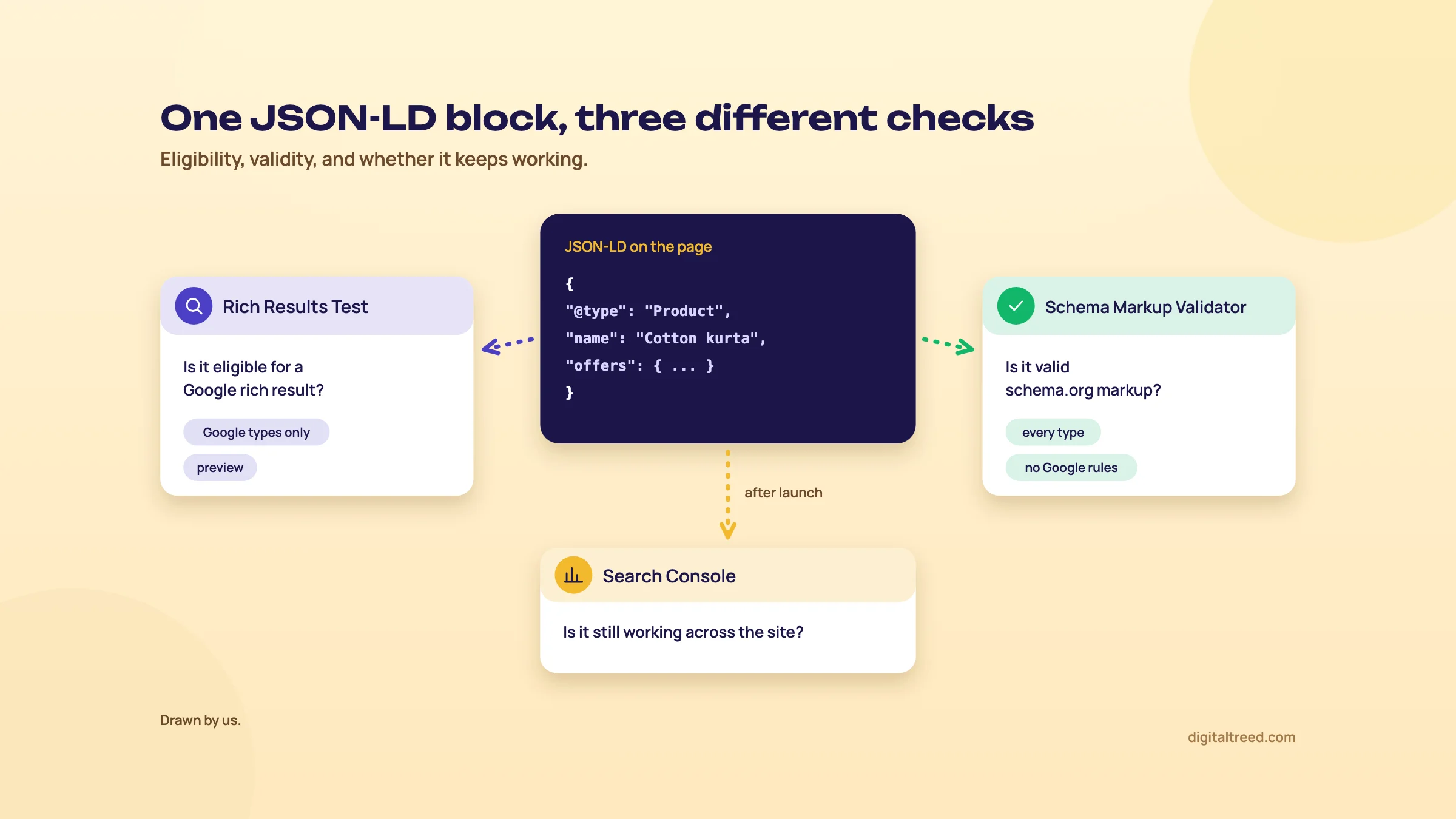 Eligibility, validity and monitoring are three different checks. Drawn by us.
Where the Schema Markup Validator came from
For years Google ran the Structured Data Testing Tool, which did both jobs. In December 2020 Google said it would move that tool to a new domain serving the schema.org community, and that it "will no longer check for Google Search rich result types".[4] Schema.org opened validator.schema.org in beta on 21 May 2021. It says the tool doesn't try to check your content against the needs of specific services. It runs on Google's structured data infrastructure, hosted by Google for the schema.org project.[3] In August 2021 Google said the validator had stabilised and began sending the old tool's visitors to a landing page to pick the right one.[4]
So when an old blog post tells you to "check it in the Structured Data Testing Tool", it means one of these two, depending on the question.
What the Rich Results Test can still find in 2026
The Rich Results Test is only as useful as the list of rich results Google still shows, and that list has shrunk. Google's search gallery listed 25 structured data features when we checked in October 2026, from Article and Breadcrumb to Product, Recipe, Review snippet and Video.[5] FAQ and HowTo aren't among them. The recent removals, from Google's changelog:
| When | What changed |
|---|---|
| August to September 2023 | FAQ rich results limited to well-known government and health sites; HowTo cut to desktop, then no longer shown from 13 September 2023, with Rich Results Test support dropped 30 days later[6] |
| September 2025 | Docs removed for course info, estimated salary, learning video, special announcement and vehicle listing, which no longer appear in results[7] |
| November 2025 to January 2026 | Practice problem markup phased out, including in the Rich Results Test from January 2026; Dataset markup used only by Dataset Search[7] |
| 7 May 2026 | FAQ rich results stop showing in Google Search; FAQ docs removed on 15 June 2026[7] |
The newest structured data entry in the changelog when we checked was 24 September 2026, a creator property for VideoObject.[7] Guide 2 has the full removal timeline, including the July 2026 rule on fake and incentivised reviews.
Warning
Don't trust a single list. On the day we checked, the Rich Results Test help page still listed Practice Problems among its supported types,[2] months after Google removed them. When the help page, the gallery and the changelog disagree, the changelog is the most recent word.
What a pass does and doesn't mean
A green result in the Rich Results Test means the markup meets Google's technical rules. That's all. Google says plainly that it "does not guarantee that your structured data will show up in search results, even if your page is marked up correctly according to the Rich Results Test". It lists the usual reasons: the algorithm picks another layout, the markup doesn't represent the main content, it describes hidden content, or it breaks a guideline the test can't catch.[8]
Neither tool affects rankings, either. Rich results change how a listing looks, not where it sits; Guide 2 has the evidence.
When you don't need either tool
- You haven't changed anything. If an SEO plugin writes your markup and Search Console's reports are clean, a weekly re-test is busywork.
- The type has no rich result. FAQPage, HowTo or a type Google never supported won't show anything useful in the Rich Results Test. Use a schema.org validator to check it's well-formed, then move on.
- You want site-wide numbers. These tools test one page at a time. For hundreds of URLs, use Search Console's reports (chapter 5) or a crawler.
Next, the Rich Results Test itself, screen by screen.
Running the Rich Results Test and reading the result
Quick answer
Test a live URL as a smartphone, the default, or paste code for a page that isn't public. Read the status line, the Crawling details and each detected item. Errors make an item ineligible; warnings only limit how it looks. View tested page shows the rendered HTML Google worked from, and the preview shows a possible layout.
URL or code
The start screen has two tabs. URL takes the full address of a public page. Code takes a pasted snippet, which you can edit and re-test with Run test as often as you like.[2]
Use URL whenever the page is live. It tests what Google actually gets from your server, after scripts run, including any markup a plugin or tag added. Google's page on JavaScript-generated markup recommends the URL input over the code input, because the code input has JavaScript limitations such as CORS restrictions.[9] Code is for markup you're still writing, or for a page that isn't public yet (more on that below).
Smartphone or desktop crawler
Under the input box you choose the user agent. Smartphone is the default, "as this is how the majority of users browse the web today".[2] Leave it. Google indexes the mobile version of a site; when it limited HowTo results to desktop in 2023, it reminded site owners that the mobile version still had to carry the markup.[6] Switch to desktop only to check a page that serves different HTML to desktop browsers.
Either way, the test fetches the page as Google-InspectionTool. It doesn't use your login, and a robots.txt rule can block it.[2]
The status line
The top of the result is one line. The help page lists these values, where N is a count of items:[2]
- N valid item(s) detected
- N valid item(s) with warnings detected (or "All have warnings", "Some have warnings")
- N items detected: Some are invalid
- N invalid item(s) detected
- No items detected
- Structured data with syntax errors detected
- URL cannot be crawled
When it works, you'll also see the message "Page is eligible for rich results".[9] Sometimes the page has markup, but none of it is a type the test knows, such as FAQPage or HowTo today. Then the test says "No items detected" and "No rich results detected in this URL" (what we saw in October 2026 for a page with only FAQPage markup). That's not an error in your markup. It means "nothing here for Google Search", and the Schema Markup Validator is the right place to check it instead.
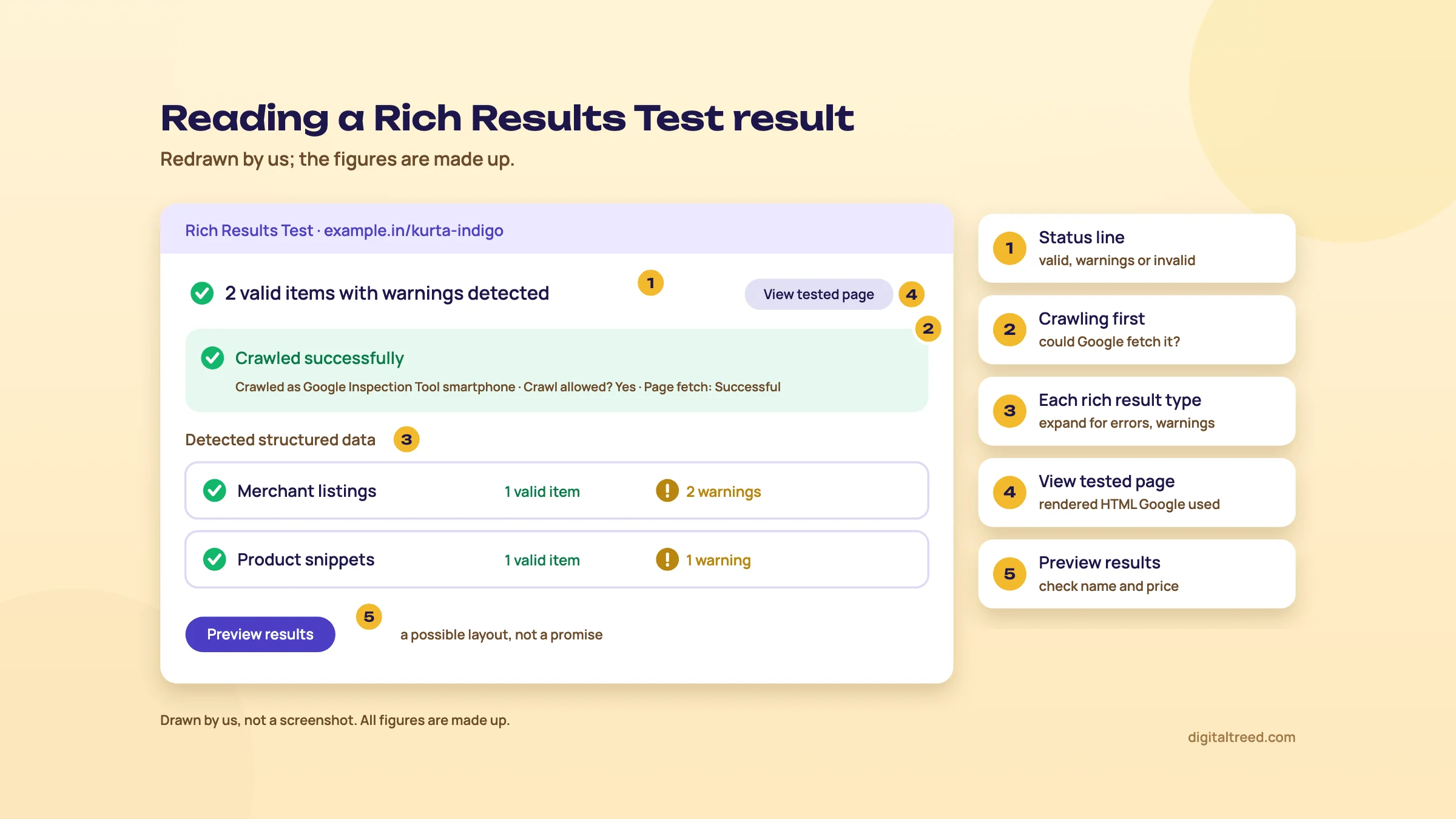 Read the status, then Crawling, then each rich result type. Drawn by us; the figures are made up.
Crawling: could Google get the page at all?
Open the Crawling details before anything else. They show whether the page was crawled successfully, which user agent it was "Crawled as", whether robots.txt allows the crawl ("Crawl allowed?") and whether the "Page fetch" worked.[2] A robots.txt block or a noindex means the page can't be tested. When the fetch fails, the help page lists the usual causes: DNS errors, a server that refuses the connection, an invalid SSL certificate, an unreachable robots.txt, or "Hostload exceeded".[2] Our Robots.txt Tester, HTTP Status Checker and SSL Checker cover the robots.txt, server and certificate causes.
A warning about unloadable resources is different. It means some images, CSS or scripts didn't load during the test, and the result can vary from one run to the next. Run it again; if it keeps happening, find out why the resource is slow or blocked.[2]
Detected items: errors and warnings
Below the status, each rich result type found gets a row. Expand it to see each item and its issues, and click an issue to jump to that line in the code explorer, which shows the rendered source.[2]
The difference between the two kinds of issue is the most useful thing to know about this tool. Google put it simply when the test left beta: errors "disqualify your page from showing up as a rich result", while with warnings "your page is still eligible". Its example was a missing image: the page could still get the rich result, just without the picture.[10] Search Console calls the same split critical and non-critical issues.[11]
| You see | What it means | What to do |
|---|---|---|
| Error (critical) | A required property is missing or wrong; the item can't get the rich result | Fix it before you publish |
| Warning (non-critical) | A recommended property is missing; the item is eligible but may show less | Fix it if the data is real and visible on the page; otherwise leave it |
| Syntax errors in items of unknown type | The parser stopped before it could tell what the block was, for example invalid JSON or a missing comma | Fix the syntax first; new warnings may appear once it parses |
Never add a property just to clear a warning. A product page without customer reviews will often show a warning about review or aggregateRating;[12] the fix is to collect real reviews, not to invent a rating. Google's guidelines treat fake reviews as grounds for a manual action.[8]
One more trap: the test ignores comments inside JSON-LD, but comments aren't valid JSON-LD and can cause errors in real use, so remove them before you publish.[2]
View tested page: rendered HTML and a screenshot
The View tested page button opens what Google worked from after rendering the page.[13] Google's JavaScript troubleshooting guide names the Rich Results Test, with URL Inspection, as the way to see how Google crawls and renders a URL: loaded resources, console output and exceptions, and the rendered DOM.[14] It has the same HTML, Screenshot and More info tabs as URL Inspection's live test.[15] This is the quickest way to answer "is my JSON-LD there after JavaScript runs?" for a page you don't own in Search Console. Guide 3's rendering chapter uses it the same way.
The preview
For some types, Preview results shows how the result might look in Google Search, with desktop and mobile layouts where they differ. Google says it doesn't guarantee your page will look like that, or that any of the views will be used.[2] Use it to sanity-check that the price and name come out right, not as a promise to a client.
Share and history
The Share button gives a link anyone can open, valid for about 90 days. Each run also has its own URL, which you can bookmark as a history; Google keeps those for about 90 days too, and anyone with the link can open them.[2] That's handy for sending a developer the exact failing test. It's also why a code test with anything private in it shouldn't be shared.
Testing a staging site or a page that isn't live
The URL test needs every page resource to be reachable by an anonymous user from the internet. Pages behind a firewall or a password won't work.[2] You have two ways round it:
- Paste the code. Open the staging page in your browser, copy the JSON-LD (or the whole rendered HTML from developer tools) and use the Code tab. Fast, and fine for checking properties. It won't show you what a crawler gets from the server.
- Open a tunnel. Google suggests a tunnelling tool such as ngrok, which gives a public URL that points at a page on your machine or behind a firewall.[16] Then run the URL test on that address. Close the tunnel when you're done, and keep staging out of the index with a password or noindex once testing is over.
A staging site behind HTTP authentication can't be URL-tested as it stands: paste the code, or point a tunnel at a copy that doesn't ask for a password. That's by design, and it's a good reason to keep staging locked.
Next, the other validator, and ours.
The Schema Markup Validator, and our own validator
Quick answer
Use the Schema Markup Validator for any schema.org type, including ones Google ignores, in JSON-LD, RDFa or Microdata. Use our Schema Markup Validator for a fast JSON-LD check: syntax, @context, @type and baseline fields for 18 common types, plus where each block sits. Neither tells you about Google eligibility; that's the Rich Results Test.
What validator.schema.org checks
Schema.org describes its validator as dedicated to checking that you use JSON-LD, RDFa and Microdata "in widely understood ways", and to warning you when you use schema.org types and properties in unusual combinations. It doesn't check your content against what specific services or products need.[3] Google's example of when to use it: you only want to confirm you're using valid schema.org properties, or you're testing a type Google doesn't consume, such as ExercisePlan.[4]
In practice, open validator.schema.org, choose Fetch URL or Code snippet, and click Run test. The result lists every item it found by type, with its properties and a count of errors and warnings, and flags anything it couldn't parse. It's the right tool for:
- FAQPage and HowTo markup that you keep for readers and other systems, now that Google shows neither (chapter 1).
- WebSite, WebPage and Person nodes, the parts of a plugin's graph that have no rich result of their own.
- Types such as Service or MedicalProcedure, which Google doesn't use for any rich result.
- Microdata or RDFa from an old theme.
What it can't tell you: whether Google will use the markup, which properties Google requires, or whether the page can be crawled. A page can be perfectly valid schema.org and still have no chance of a rich result.
Our Schema Markup Validator
Our free Schema Markup Validator has two modes, Fetch from URL and Paste markup. You click Validate Schema and get a summary of how many schemas it found and how many issues, then one card per block.[17] Each card shows:
- JSON syntax errors, with the parser's own error message;
- whether the block declares schema.org as its @context;
- every @type found, including items inside an @graph, and entities with no type at all;
- missing baseline fields for 18 common types, such as headline, image or offers;
- whether the block sits in the head or the body, and roughly where;
- the formatted JSON, so you can read the values.
The 18 types with a field checklist include Article, NewsArticle and BlogPosting (headline, author, datePublished, image), Product (name, image, offers), Organization (name, url), LocalBusiness (name, address), Event, Recipe, VideoObject, BreadcrumbList, JobPosting and FAQPage.[17] It's free with no sign-up. Pasted code can be checked as often as you like; fetching URLs is limited to 10 checks a minute and 100 an hour, and pasted code isn't stored.[17]
Know its limits, because the tool page lists them itself:[17]
- JSON-LD only. No Microdata or RDFa.
- No JavaScript. URL mode reads the raw HTML the server sends, so schema injected by a tag manager or app after load isn't seen. Copy the rendered code from your browser's developer tools and use Paste markup.
- Exact type names. A more specific type, such as Restaurant instead of LocalBusiness, is detected and its JSON checked, but its field list isn't. This matters for clinics (chapter 4).
- No Google eligibility. It doesn't check Google's recommended fields or rich result rules, and it can't guarantee a rich result.
The raw-HTML point cuts both ways. If our tool finds your Product block in URL mode, it's in the HTML your server sends, which is where a shop's Product markup is safest (Guide 3 explains why). If it finds nothing but the Rich Results Test does, your markup is most likely being added by JavaScript.
Which validator for which job
| Job | Our Schema Markup Validator | validator.schema.org | Rich Results Test |
|---|---|---|---|
| Is the JSON broken? | Yes, with the parse error | Yes | Yes |
| Which blocks and types are on the page, and where? | Yes, head or body | Types, not position | Google types only |
| Duplicate blocks from a theme and a plugin | Easy to spot: one card per block | Listed as separate items | Only for Google types |
| Microdata or RDFa | No | Yes | Yes |
| Markup added by JavaScript | Paste the rendered code | Not documented; the source it fetches is the raw HTML | Yes, URL test renders the page |
| Google rich result eligibility and preview | No | No | Yes |
| Page not public | Paste markup | Paste code | Paste code or tunnel |
Our order on a real job: our validator first to see every block and spot duplicates, the Rich Results Test for anything Google can show, and validator.schema.org for the rest. Chapter 4 puts that order to work.
Step by step: four real testing jobs
Quick answer
Test a product page by URL and read both Merchant listings and Product snippets. Fix a missing field at its source, then re-test by code and by URL. Mark up a clinic with the most specific LocalBusiness type and only facts shown on the page. On WordPress, check what the plugin prints and remove duplicate blocks.
Task 1: test a product page
A D2C kurta brand (made up for this example) has just moved to a new product template. Before it goes on every product, test one.
Test a product page in the Rich Results Test
- See every block first Paste the product URL into our Schema Markup Validator in Fetch from URL mode. Note how many blocks it finds and whether Product appears once, with name, image and offers.
- Run the URL test Open the Rich Results Test, paste the same URL, keep Smartphone and click Test URL.
- Check Crawling Expand the crawl details: crawled successfully, Crawl allowed? yes, Page fetch successful. If not, fix access before anything else.[2]
- Open both product types A shop's product page can show up under Merchant listings and under Product snippets. Merchant listings are for pages where the customer can buy from you; product snippets also cover review pages.[12] Read the errors and warnings in each.
- Compare with the page Price, currency, stock and name in the detected item must match what a shopper sees.
- Preview and share Click Preview results to check the name and price come out right, then use Share to send the result link to the developer.[2]
What the two types need is different, which is why one can pass while the other fails. For product snippets Google requires name plus one of review, aggregateRating or offers, and the test may warn if you give offers without a review or rating.[12] Merchant listings require name, image and an offers Offer with a price above zero, and priceCurrency is required there.[18]
Task 2: fix a missing field
Say the new template forgot the image and the currency. The block looks like this:
{
  "@context": "https://schema.org",
  "@type": "Product",
  "name": "Indigo block-print cotton kurta",
  "offers": {
    "@type": "Offer",
    "price": "1499",
    "availability": "https://schema.org/InStock"
  }
}
Product snippets may still pass with a warning, because priceCurrency is only recommended for them.[12] Merchant listings will report critical issues, because image and priceCurrency are both required there.[18]
Fix a missing required field and re-test
- Read the issue Expand the invalid item and click the issue; the code explorer jumps to the block.[2]
- Look the property up Open Google's documentation for that rich result type and check the property's expected value.
priceCurrencytakes a three-letter ISO 4217 code, so INR for rupees.[12] - Find the value on the page The product photo and the rupee price are already visible. If a value isn't on the page, don't add it to the markup.[8]
- Fix it at the source Change the template, plugin setting or product field that writes the markup, not one page by hand.
- Re-test as code Paste the new block into the Code tab and click Run test until the item is valid.
- Re-test the live URL After you deploy, run the URL test again, then check the Search Console report (chapter 5).
The fixed block:
{
  "@context": "https://schema.org",
  "@type": "Product",
  "name": "Indigo block-print cotton kurta",
  "image": "https://example.in/img/indigo-kurta-1x1.jpg",
  "offers": {
    "@type": "Offer",
    "price": "1499",
    "priceCurrency": "INR",
    "availability": "https://schema.org/InStock"
  }
}
Google recommends several high-resolution images, at least 50,000 pixels (width times height), in 16x9, 4x3 and 1x1 ratios.[18] Add them when the template can.
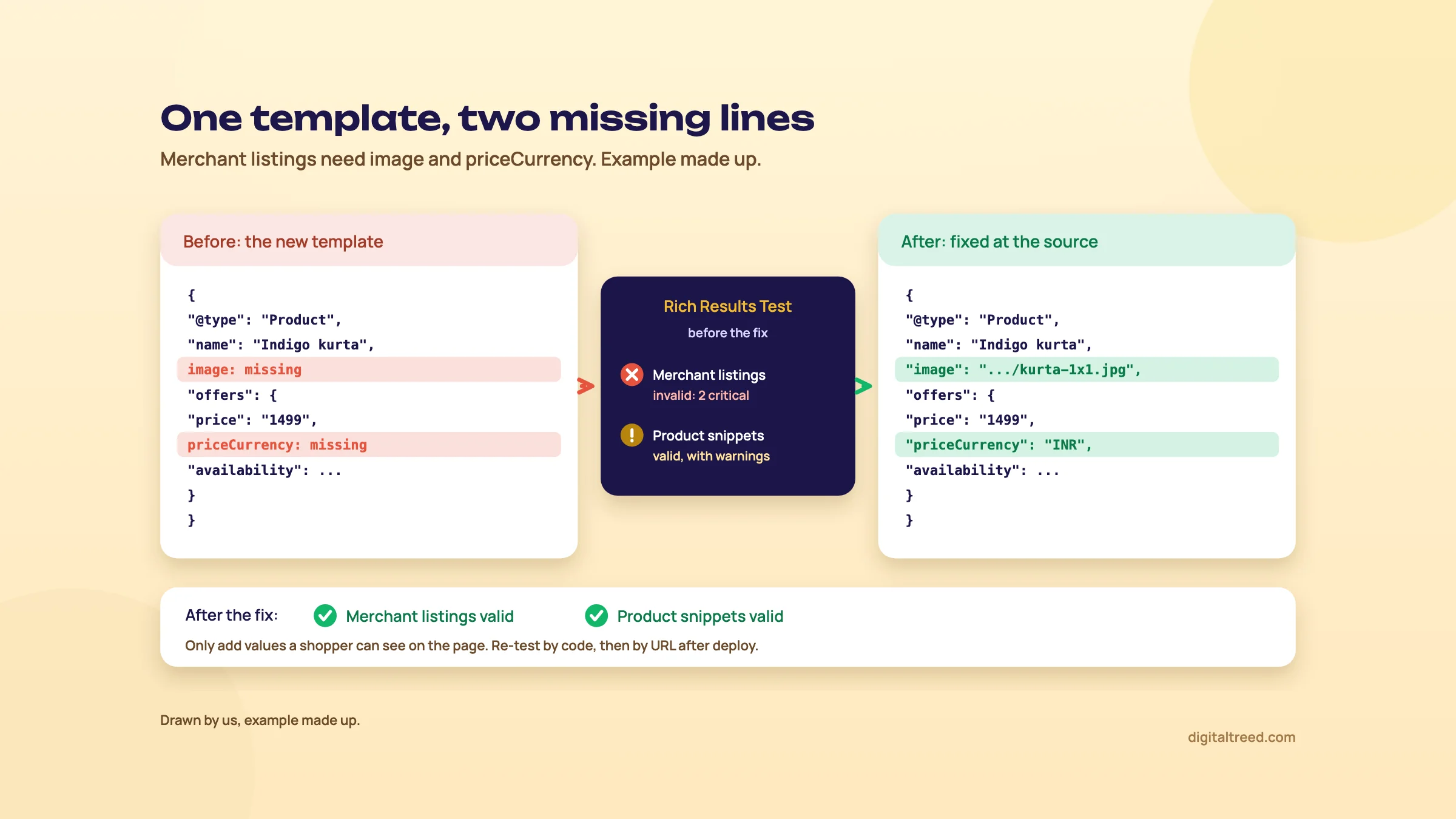 Merchant listings need image and priceCurrency; product snippets only recommend the currency. Drawn by us, example made up.
Task 3: LocalBusiness markup for a Delhi clinic
A dental clinic in Hauz Khas (name and details made up) wants its address, phone and hours in machine-readable form. Google asks for the most specific LocalBusiness subtype that fits;[19] on schema.org, Dentist sits directly under LocalBusiness,[20] and MedicalClinic sits under LocalBusiness through MedicalBusiness.[21] A dentist's practice uses Dentist; a multi-speciality clinic uses MedicalClinic.
Google requires only name and address. It recommends telephone (with country and area code), url, geo with at least five decimal places, openingHoursSpecification and priceRange under 100 characters.[19]
<script type="application/ld+json">
{
  "@context": "https://schema.org",
  "@type": "Dentist",
  "name": "Hauz Khas Dental Care",
  "url": "https://example.in/",
  "telephone": "+91-11-4000-0000",
  "address": {
    "@type": "PostalAddress",
    "streetAddress": "First floor, 14 Hauz Khas Village",
    "addressLocality": "New Delhi",
    "addressRegion": "Delhi",
    "postalCode": "110016",
    "addressCountry": "IN"
  },
  "geo": {
    "@type": "GeoCoordinates",
    "latitude": 28.55412,
    "longitude": 77.19406
  },
  "openingHoursSpecification": [{
    "@type": "OpeningHoursSpecification",
    "dayOfWeek": ["Monday", "Tuesday", "Wednesday", "Thursday", "Friday", "Saturday"],
    "opens": "10:00:00",
    "closes": "20:00:00"
  }]
}
</script>
Validate LocalBusiness markup for a clinic
- Match the page and the profile Name, address, phone and hours must be the same as on the contact page and the Google Business Profile.
- Check the JSON in our validator Paste the block into our Schema Markup Validator. It detects Dentist and checks the JSON, but its field checklist matches exact type names, so it won't list missing fields for Dentist the way it does for LocalBusiness.[17] Check name and address yourself.
- Run the Rich Results Test Test the live contact page by URL. Look for a "Local businesses" item and read its warnings. A Dentist block showed there when we tested in October 2026, with an Organization item beside it.
- Leave out reviews Don't add aggregateRating or review for the clinic's own testimonials. Google recommends those properties only for sites that capture reviews about other local businesses.[19]
- Check with URL Inspection Search Console has no Local business report (chapter 5), so after the next crawl, inspect the page there, open View crawled page and check that the JSON-LD block is in the HTML Google crawled. URL Inspection doesn't list Local business under Detected items.[15]
The point of the markup is consistency, not stars. Guide 2 covers local SEO in depth, and our Google Business Profile guide covers the profile itself.
Task 4: check the JSON-LD a WordPress plugin adds
Most small business sites in India don't write JSON-LD by hand; a plugin does. Yoast outputs a "base script" on every page: one @graph describing the WebPage, the WebSite and the Organization (or Person), extended with the page's main entity and linked by @id.[22] Rank Math sets a default schema type per post type and lets you change it per page.[23] The usual problem isn't missing markup. It's two sources printing the same thing: a theme or shop plugin adding its own Organization or Product next to the SEO plugin's.
Check a WordPress plugin's structured data output
- Pick three pages The home page, one post and one product or service page. Each gets different markup.
- Count the blocks Run each URL through our Schema Markup Validator. One card per block, with its position, makes a second Organization or Product easy to spot.[17]
- Find the source of each block View the page source near each script. A Yoast graph is one @graph with WebPage, WebSite and Organization nodes; a block outside it usually comes from the theme or another plugin.
- Run the Rich Results Test by URL This shows the rendered page, so it also catches markup added by JavaScript that our validator's URL mode can't see.
- Check the rest on validator.schema.org WebPage, WebSite and Person nodes have no Google rich result, so validate them there.
- Switch off the duplicate Turn off schema output in the theme or the second plugin, never the SEO plugin's graph, then re-test all three pages.
If you use Rank Math PRO, its Code Validation tab shows the page's JSON-LD and has a Test with Google button that opens the Rich Results Test with the code pasted in. Rank Math pastes code rather than the URL so it works before the page is live.[23] For the plugins themselves, see our Yoast SEO and Rank Math guides.
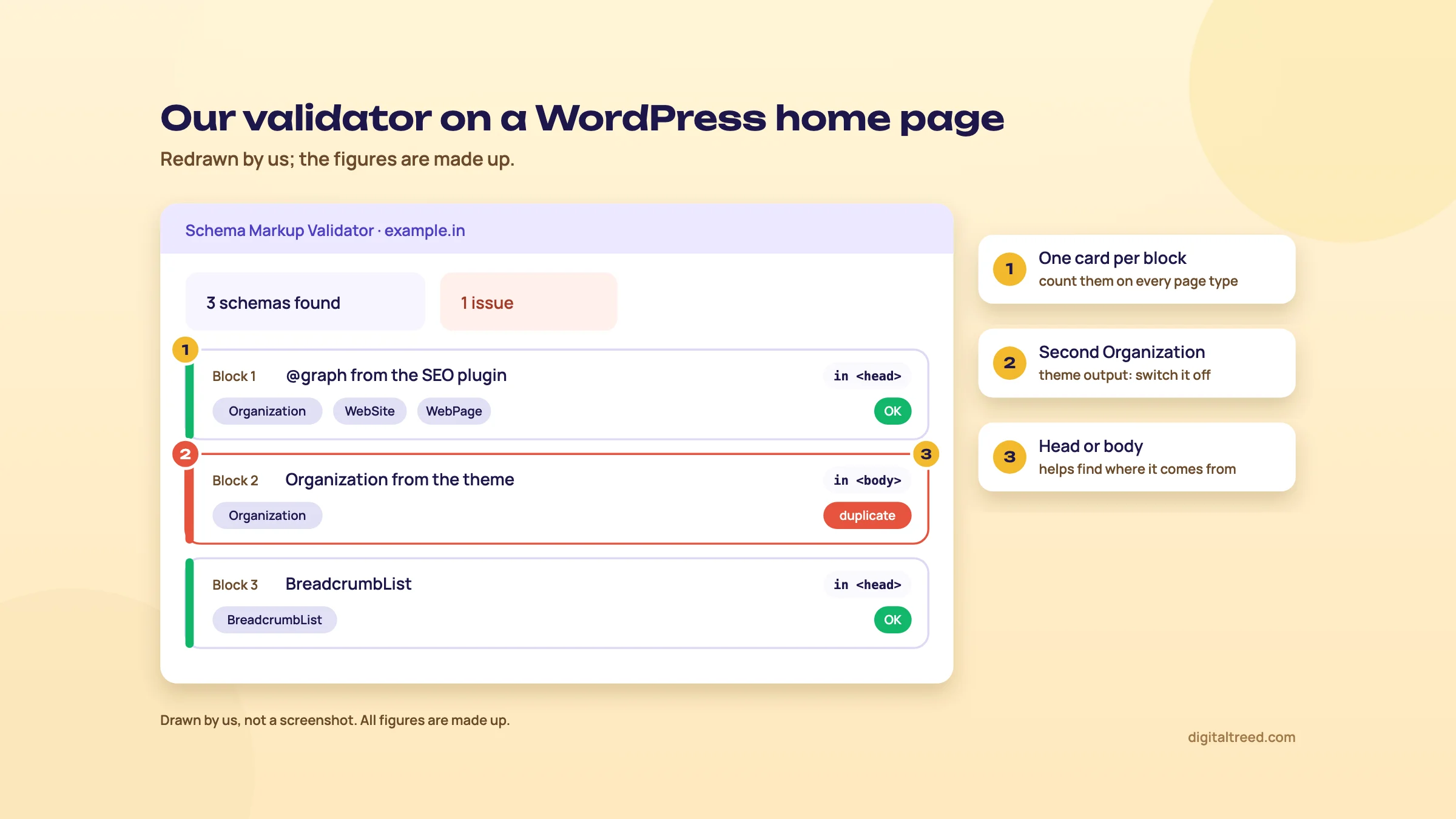 One card per block makes a theme's duplicate Organization easy to spot. Drawn by us; the figures are made up.
Note
From our work: when I taught SEO. My students were already doing client work, and technical SEO was the hardest part for them, because the local business sites they handled mostly ran on WordPress with shared hosting. Our view: on sites like those the plugin writes the markup, so the real skill is checking what it prints, page type by page type, not writing JSON-LD from scratch.
Once the markup is right on three pages, chapter 5 shows how to keep it right on all of them.
Monitoring in Search Console, cost and alternatives
Quick answer
After launch, watch Search Console: one rich result report per supported type under Enhancements, or Shopping for products, plus an Unparsable structured data report and URL Inspection for single pages. Fix, then click Validate fix. Every tool in this guide is free; a paid crawler only makes sense for checking thousands of pages.
The rich result reports
The two tests check one page at a time, once. Templates break later. Google's own advice is to use the Rich Results Test during development and the rich result status reports after you deploy. Templating or serving problems can break markup that was fine on day one.[24]
Search Console adds a report for each rich result type it finds, under Enhancements, or under Shopping for product snippets and merchant listings. A report appears only if Google finds valid markup of a supported type.[11] Each one has:
- a chart of valid and invalid items over time (items, not pages);
- "Why items are invalid", the critical issues that stop items appearing as rich results;
- "Improve item appearance", the non-critical ones;
- a list of valid items, under View data about valid items.[11]
Two limits to keep in mind. The reports show a sample of items, not every one. And the issue examples table stops at 1,000 rows.[11] For any single URL, inspect it, or run the Rich Results Test.
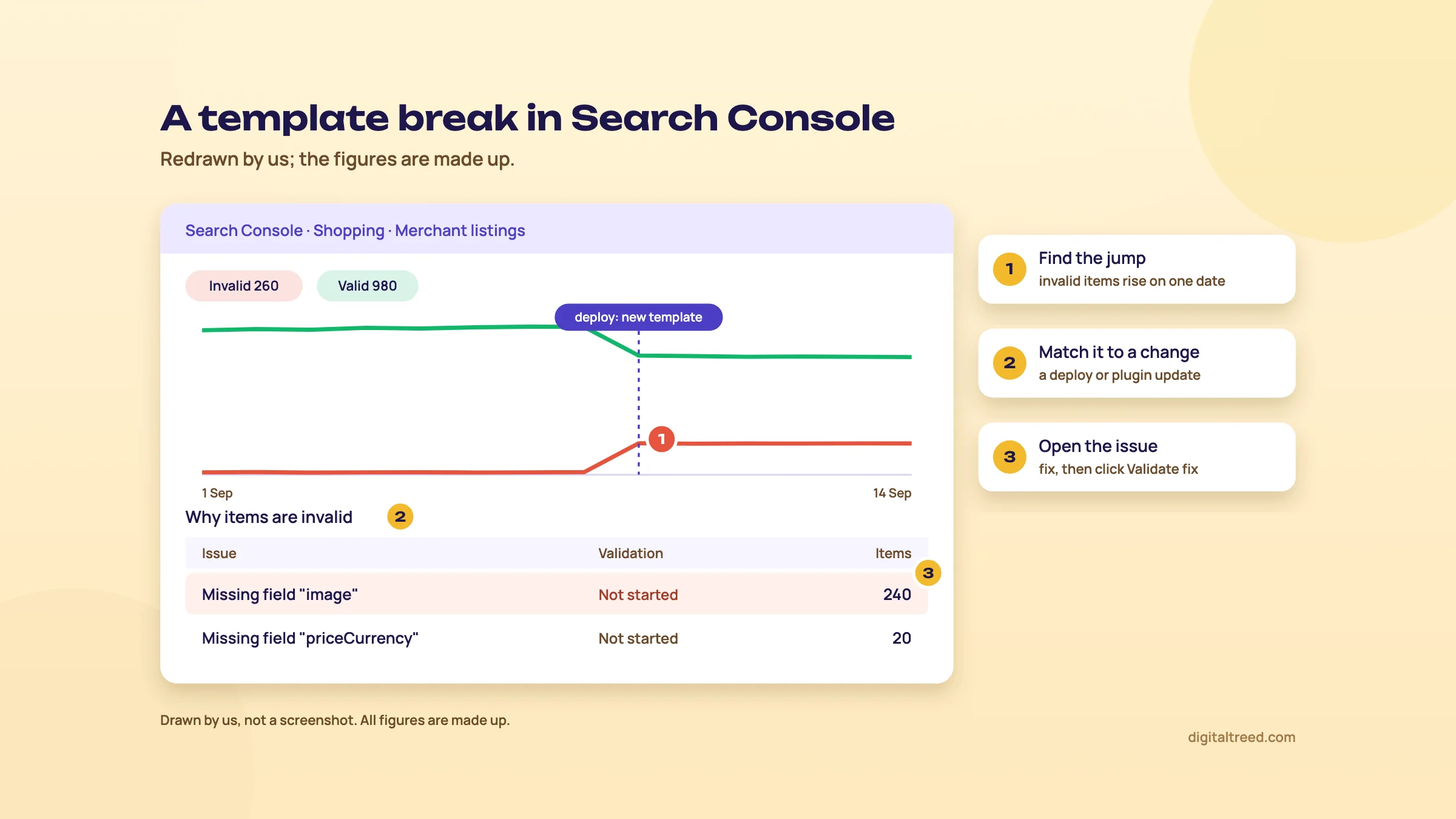 A jump in invalid items on a deploy date usually means a template. Drawn by us; the figures are made up.
Which types get a report, and which don't
The list is shorter than the Rich Results Test's. When we checked, Search Console had reports for breadcrumbs, datasets, discussion forum, education Q&As, events, hotels, image metadata, job postings, math solvers, merchant listings, product snippets, profile pages, Q&As, recipes, review snippets, subscribed content, vacation rentals and videos, plus practice problems, which the help page hadn't yet removed.[11] Local business, Organization and Article aren't on that list. For a clinic's LocalBusiness or a blog's Article markup, URL Inspection won't list them under Detected items either,[15] so re-test a sample of pages in the Rich Results Test after each deploy, and use View crawled page in URL Inspection to check the block is in the HTML Google crawled.
Unparsable structured data
If Google finds markup so broken it can't tell what type it was meant to be, it lists it in a separate Unparsable structured data report. Everything in it is a critical error, and a single error on many pages usually means a template.[25] Fix it, and don't be surprised by new warnings: once a block parses, issues that were hidden can show up.[25]
URL Inspection for one page
URL Inspection shows Google's indexed version of a page, including any rich results found, with a Live Test for the current version.[15] Expand Detected items to see the structured data and its issues. Not every rich result type is shown there yet, and for an editable debugger Google points you back to the Rich Results Test.[15] It only works for URLs in your own property; for anyone else's page, use the Rich Results Test.[15] The Google Search Console guide covers both tools screen by screen.
Fix a broken template and confirm it in Search Console
- Spot the jump In the report for that type, look for a date where invalid items rose. Match it to a deploy or plugin update.
- Open the issue Click the row in "Why items are invalid" and note the first detected date and the example URLs.[11]
- Test one example Run it through the Rich Results Test by URL and fix the template (chapter 4).
- Re-test three URLs One normal page and two edge cases, such as out of stock and no reviews.
- Validate Click Validate fix on the issue page. In the Page indexing report Google says validation typically takes up to about two weeks;[26] the rich result report shows the validation status for the issue.[11]
There's no "fix this issue" button, and Google explains why: the markup lives on your site, so the fix has to go into your source code.[11]
What it costs
Nothing. The Rich Results Test, validator.schema.org, Search Console and our Schema Markup Validator are all free, with no paid tier. The only paid option most small teams meet is a crawler that validates structured data across a whole site. Screaming Frog's SEO Spider is free up to 500 URLs. Structured data validation is a paid licence feature: £199 a year for one licence on its pricing page (checked 18 October 2026).[27] Our Screaming Frog guide has the rupee and dollar figures.
Pros
- Free, no sign-up for the tests
- Shows exactly which Google rich results a page can get, with a preview
- URL test renders JavaScript and shows the rendered HTML
- Works on any public page, including competitors'
- Errors and warnings use the same split as Search Console
Cons
- One page per test; no bulk mode
- Knows only Google-supported types, so FAQ, HowTo and many useful types show nothing
- A pass doesn't guarantee a rich result
- Can't reach staging or password-protected pages without a tunnel
- Help pages sometimes lag behind Google's changelog
Alternatives, and which one when
| Tool | Cost | Use it when |
|---|---|---|
| Our Schema Markup Validator | Free | You want every JSON-LD block on a page, its position, syntax errors and missing baseline fields, fast |
| Rich Results Test | Free | You need Google eligibility, a preview, or the rendered HTML |
| validator.schema.org | Free | The type has no Google rich result, or the markup is Microdata or RDFa |
| Search Console reports and URL Inspection | Free | The markup is live and you need to know when it breaks |
| Rank Math PRO Code Validation | Part of Rank Math PRO | You're on WordPress and want to test a draft before it's live |
| Screaming Frog SEO Spider (paid licence) | £199 a year | You need to validate markup on thousands of URLs in one crawl |
Writing the markup is a separate job. Our free Schema Markup Generator writes it for the types Google still supports, with the required and recommended fields marked, and hands the block to the validator with one click.
If you'd like us to set up and monitor structured data for you, see our SEO service or get a quote. Then take the 10-question quiz below.
Test yourself
Ten questions on the whole guide. Pick an answer, check it, and see your score at the end.
You got 0 of 10 right.
Frequently asked questions
Frequently asked
What is the Rich Results Test?
It's Google's free tool for checking a page's structured data against the rich result types Google Search supports. You test a public URL or paste code, and it shows which rich results the page is eligible for, with errors, warnings, crawl details and, for some types, a preview. It supports JSON-LD, RDFa and Microdata.
What is the difference between the Rich Results Test and the Schema Markup Validator?
The Rich Results Test checks only Google-supported types and tells you about Google eligibility. The Schema Markup Validator at validator.schema.org checks any schema.org type and property, without Google's rules. Google recommends starting with the Rich Results Test and using the validator for generic schema validation.
What happened to Google's Structured Data Testing Tool?
Google removed its Google-specific checks and moved it to schema.org, where it became the Schema Markup Validator in May 2021. Since August 2021 the old address sends you to a page that helps you pick between the Rich Results Test and the validator.
Why does the Rich Results Test say my page isn't eligible for rich results?
Usually because the page has no markup of a type Google still supports. FAQPage and HowTo are the common cases: Google no longer shows either. It can also mean the markup is in a type the test doesn't know, or that the page couldn't be crawled. Check the Crawling section, then validate the markup at validator.schema.org.
Are warnings in the Rich Results Test a problem?
Not for eligibility. Errors stop an item from getting a rich result; warnings mean a recommended property is missing, so the result may show less, such as no image. Fix a warning only if the real data exists and is visible on the page. Never invent a rating or review to clear one.
Can I test a page that isn't live yet?
Yes. Paste the code into the Code tab, or expose the page through a tunnelling tool such as ngrok so the URL test can reach it. The URL test can't open pages behind a firewall or password, because it fetches as Google-InspectionTool without your login.
Does passing the Rich Results Test guarantee rich results?
No. Google says it doesn't guarantee structured data will show up even if the test passes. The algorithm may choose another layout or a plain result, and markup that misrepresents the page or describes hidden content can be ignored. Structured data doesn't change rankings either.
Does the Rich Results Test see schema added by JavaScript or Google Tag Manager?
The URL test does, because it renders the page; View tested page shows the rendered HTML. Google recommends the URL input over pasted code for JavaScript-generated markup. Our Schema Markup Validator reads raw HTML only, so for script-added markup paste the rendered code into it.
How do I find structured data errors across my whole site?
Use Search Console. It has a rich result report for each supported type it finds, under Enhancements or Shopping, plus an Unparsable structured data report for markup it couldn't read. The reports show a sample of items, so use URL Inspection or the Rich Results Test for single pages. For thousands of URLs, a paid crawler can validate markup in bulk.
Is the Rich Results Test free?
Yes, and so are the Schema Markup Validator, Search Console and our own Schema Markup Validator. None of them has a paid tier. Test results you share by link stay viewable for about 90 days.
Sources
References
- Test your structured data, Google Search Central, accessed 18 Oct 2026
- Rich Results Test, Search Console Help, accessed 18 Oct 2026
- Announcing Schema Markup Validator: validator.schema.org (beta), Schema.org blog, 21 May 2021, accessed 16 Oct 2026
- An update on the Structured Data Testing Tool, Google Search Central Blog, 15 Dec 2020, updated 11 May and 9 Aug 2021, accessed 16 Oct 2026
- Structured data markup that Google Search supports, Google Search Central, last updated 16 Oct 2026, accessed 16 Oct 2026
- Changes to HowTo and FAQ rich results, Google Search Central Blog, 8 Aug 2023, updated 14 Sep 2023, accessed 16 Oct 2026
- Latest Google Search documentation updates, Google Search Central, accessed 18 Oct 2026
- General structured data guidelines, Google Search Central, accessed 18 Oct 2026
- Generate structured data with JavaScript, Google Search Central, accessed 18 Oct 2026
- The Rich Results Test is out of beta, Google Search Central Blog, 7 Jul 2020, accessed 16 Oct 2026
- Rich result report overview, Search Console Help, accessed 18 Oct 2026
- Product snippet (Product, Review, Offer) structured data, Google Search Central, accessed 18 Oct 2026
- How to Run Rich Results Test?, Rank Math Knowledge Base, accessed 18 Oct 2026
- Fix Search-related JavaScript problems, Google Search Central, accessed 18 Oct 2026
- URL Inspection tool, Search Console Help, accessed 18 Oct 2026
- Debugging your pages: testing locally-hosted or firewalled pages, Google Search Central, accessed 18 Oct 2026
- Schema Markup Validator, DigitalTreed, accessed 18 Oct 2026
- Merchant listing (Product, Offer) structured data, Google Search Central, accessed 18 Oct 2026
- Local business (LocalBusiness) structured data, Google Search Central, accessed 18 Oct 2026
- Dentist, Schema.org, accessed 18 Oct 2026
- MedicalClinic, Schema.org, accessed 18 Oct 2026
- Schema - Specification, Yoast developer portal, accessed 18 Oct 2026
- Configuring Schema Markup in Rank Math for rich snippets, Rank Math Knowledge Base, accessed 18 Oct 2026
- Introduction to structured data markup in Google Search, Google Search Central, last updated 10 Dec 2025, accessed 16 Oct 2026
- Unparsable structured data report, Search Console Help, accessed 18 Oct 2026
- Page indexing report, Search Console Help, accessed 18 Oct 2026
- SEO Spider pricing, Screaming Frog, accessed 18 Oct 2026
Get the free checklist
Every step of this guide on one page, to print or tick off. We email you the PDF link.