

What Screaming Frog is, who it's for, and when you don't need it
This guide is for people who already know what a canonical or a redirect chain is and want to run real audits with the crawler our advanced guide picks for hands-on technical work. That means freelancers, in-house SEOs, developers and agency teams. If you're new to technical SEO, read our advanced SEO guide alongside it; this one assumes the concepts and focuses on the tool.
By the end you'll be able to set the tool up for big crawls and configure a crawl that finds what you need without hurting the server. You'll read the tabs that matter, add Search Console, GA4 and PageSpeed data, and build your own checks with custom search and XPath. And you'll know whether the licence is worth it for you.
Chapters 1 and 2 cover what the tool is and how to install it. Chapters 3 to 6 go through configuration, the tabs, the integrations (AI included) and the advanced features. Chapter 7 is four jobs done step by step: a WordPress audit, a migration redirect check, orphan pages and XPath extraction. Chapter 8 has prices and alternatives. Screaming Frog's menus and prices were checked on 16 October 2026, against version 24.3.
Quick answer
Screaming Frog SEO Spider is a desktop crawler for Windows, macOS and Linux. It requests every URL it can reach on a site and lays out status codes, titles, canonicals, directives, links and more in sortable tables. The free version stops at 500 URLs. If your site has 25 pages, you don't need it yet.
A crawler does what Googlebot does on the first pass: it opens a start URL, reads the HTML, collects every link, and keeps going until it runs out of new URLs. Screaming Frog does this from your own computer and records what it found at each step. You end up with one row per URL and a column for nearly every on-page and technical signal you'd want to check.
Screaming Frog describes the SEO Spider as a crawler that "audits your site for over 300 SEO issues".[1] That number matters less than how the data is laid out. Everything is raw and filterable, so you can answer questions the tool's makers never thought of.
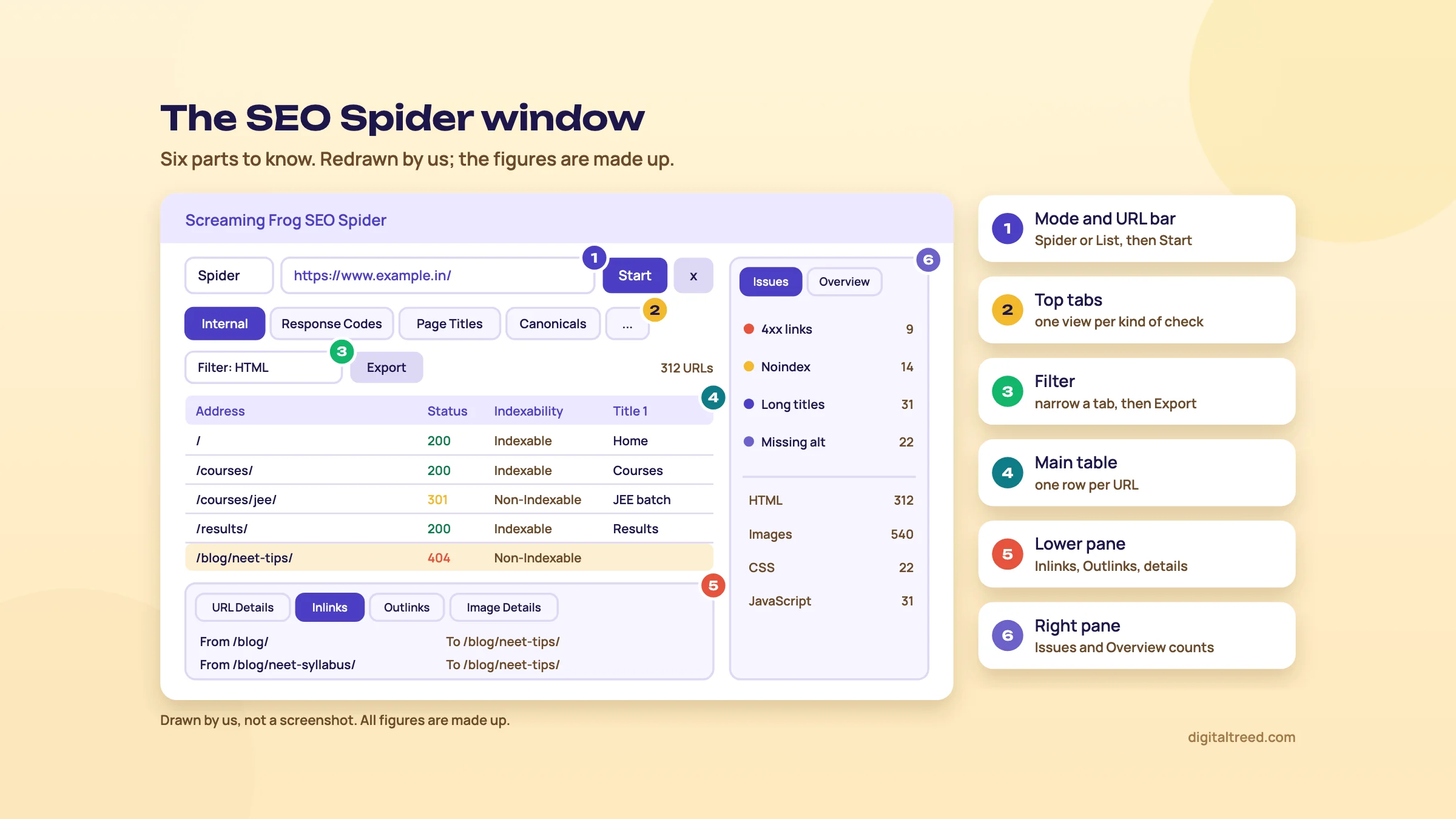 The six parts of the SEO Spider window. Drawn by us; figures made up.
What it does well
- Finds broken links, redirects, redirect chains and server errors, and tells you which pages link to them.
- Lists missing, duplicate, long and short titles, meta descriptions and headings.
- Reports canonicals, meta robots and X-Robots-Tag directives, hreflang and pagination.
- Crawls a pasted or uploaded list of URLs (list mode), which is how most people check redirects after a migration.
- With a licence: renders JavaScript, pulls Search Console, GA4 and PageSpeed Insights data against each URL, extracts any element with XPath, CSS Path or regex, compares crawls, and runs on a schedule.[2]
It runs on Windows, macOS and Ubuntu Linux,[3] with Fedora packages too; since version 24.0 (May 2026) there are Arm64 builds of both.[4] The current version on 16 October 2026 is 24.3, released on 29 June 2026.[5]
500
URLs per crawl in the free version[2]
£199
per licence per year, or US$279[2]
24.3
current version, released 29 Jun 2026[5]
Who it's for
Screaming Frog is a tool for people who are comfortable reading a spreadsheet and deciding for themselves what matters. It suits you if you are:
- A technical SEO or developer who audits sites over a few hundred URLs, or checks every release.
- Running a migration, where you need to test thousands of old URLs against their redirects in one pass.
- An agency or freelancer who wants the same crawler every other SEO uses, so exports and screenshots mean the same thing to your client's developer.
- Someone who wants to automate: scheduled crawls, command-line runs and exports straight to Google Sheets.[3]
Our advanced guide already picks it for hands-on technical SEOs and developers, and for anything you want to automate (see a full SEO audit step by step). This guide is the manual behind that recommendation.
When you don't need it
We'd skip it in three cases.
- Your site is small and you want a to-do list, not data. A Delhi dental clinic with 20 pages gets more from a tool that ranks fixes for it. Our Free Website Audit crawls up to 25 pages and scores SEO, speed, security and more, with fixes sorted by what they're worth.
- You need someone else to prioritise. Screaming Frog's own user guide says an export of its Issues tab is not in itself an SEO audit they'd recommend "without expert guidance and prioritisation".[6] If nobody on the team can do that prioritising, Sitebulb's explained hints are an easier start (see our Sitebulb guide).
- You want to know what Google did, not what a crawler can do. A crawl shows what is reachable. Search Console shows what Google crawled and indexed. Start with Search Console if you haven't set it up.
What it can't do
It has no keyword data, no backlink index of its own and no rank tracking. Link metrics come from outside APIs (Majestic, Ahrefs, Moz) if you pay for those.[7] It also crawls with your computer's bandwidth and memory, so a big site needs a decent machine, which chapter 2 covers.
The bigger limit is judgement. The tool flags "Over 60 characters" on a title because characters past that point "might be truncated".[6] It can't tell you whether that title is the reason a page doesn't rank. You still decide which of 40 warnings is worth a developer's day.
If that sounds like your kind of tool, chapter 2 installs it and sets the two settings that decide how big a site you can crawl.
Install it, add a licence, and set memory and storage
Quick answer
Download the installer for your system, run it, and start crawling: the free version needs no sign-up. With a licence, enter the key under Licence > Enter Licence Key. Then check two settings: Storage Mode should be Database Storage on a machine with an SSD, and Memory Allocation about 4GB for crawls up to 2 million URLs.
Install
Download the SEO Spider from screamingfrog.co.uk and run the installer. The download page offers Windows, macOS (Apple Silicon and Intel) and Linux builds for Ubuntu and Fedora,[2] each with a SHA-256 checksum you can verify. The free version doesn't ask for an email address or an account. Screaming Frog says it "does not require any form of email capture, or sign up".[8]
The minimum is a 64-bit operating system with at least 4GB of RAM available. For crawls under 200,000 URLs, 8GB of RAM "should generally be sufficient"; past 1 million URLs, the user guide recommends an SSD and 16GB of RAM or more.[3] By that guide, an 8GB laptop is plenty for a 300-page WordPress site or a 20,000-product D2C store.
JavaScript rendering uses a built-in Chromium browser. The user guide lists the systems it supports: Windows 10 and 11, Windows Server 2016 and 2022, 64-bit Ubuntu 14.04 or later, and macOS 11 or later.[7] An older Mac or Windows machine can still crawl, but may not render.
Add a licence
After buying, you get a username and licence key. Enter both under Licence > Enter Licence Key; the same menu is where you remove them later.[8] Two rules from the FAQ catch people out:
- A licence is per person, not per company. One user can install it on several devices, but two people need two licences.[8]
- Licences last a year. When one expires, the tool drops back to the free version: no configuration, 500 URLs, and you can't open saved crawls.[8]
Tip
Paying from India: if your card is declined, the FAQ says the most common cause is the bank blocking an international payment to the UK. Ask your bank to allow it, or use PayPal, or contact Screaming Frog support to pay by bank transfer.[8]
Storage mode: database, not memory
The SEO Spider can keep crawl data in RAM (memory storage) or write it to disk (database storage). Database storage is the default for new installs, and the user guide recommends it for anyone with an SSD.[3] It gives you three things:
- Bigger crawls on the same machine. As a rough guide, an SSD with 4GB of RAM allocated "should allow the SEO Spider to crawl approx. 2 million URLs".[3]
- Crawls save themselves as they run, and reopen quickly from File > Crawls.
- Crawl comparison needs it,[9] and so does the MCP server from chapter 5.[7]
Check it under File > Settings > Storage Mode on Windows and Linux, or Screaming Frog SEO Spider > Settings > Storage Mode on macOS.[3] Memory storage only makes sense on an older machine with a hard disk or very little free space.
Saved crawls pile up. Since version 23.0 there is File > Settings > Crawl Retention, which deletes old crawls automatically after a period you choose. It is set to "Never" by default, and you can lock a project so its crawls are kept.[10] The FAQ suggests a 500GB SSD will do, and 1TB if you crawl a lot.[8]
Memory allocation
By default the tool starts with 2GB of RAM allocated.[3] Raise it under File > Settings > Memory Allocation. The user guide's advice is 4GB for any crawl up to 2 million URLs in database mode. Leave the rest of your RAM for the operating system and the browser you'll have open next to it.
If you see "you are running out of memory for this crawl", save the crawl, switch to database storage or raise the allocation, then reopen and resume it.[3]
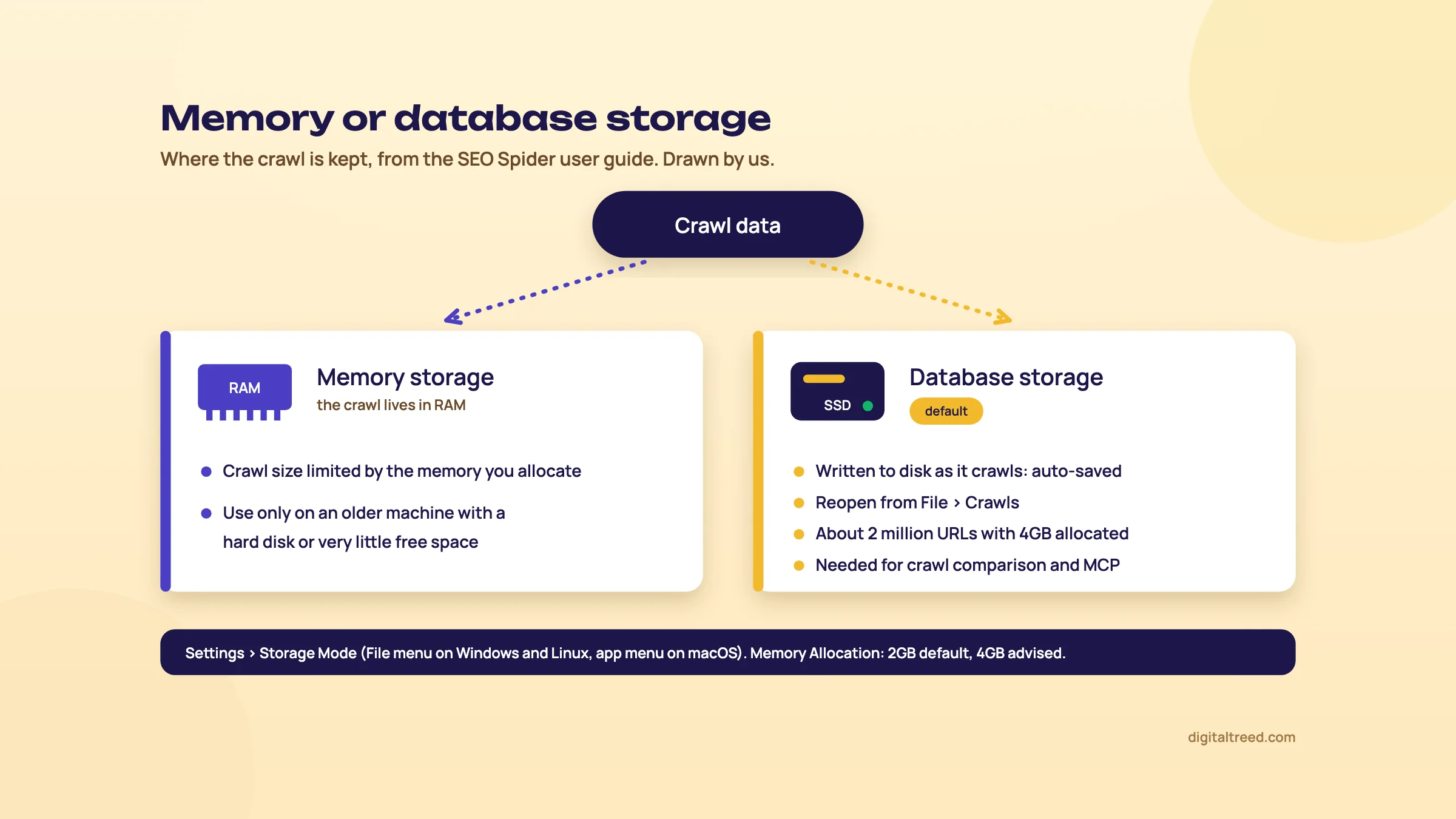 Memory or database storage, from the SEO Spider user guide. Drawn by us.
Settings to change on day one
| Setting | Where | What we'd set |
|---|---|---|
| Storage Mode | File > Settings | Database Storage (on an SSD) |
| Memory Allocation | File > Settings | 4GB, more only if you hit the warning |
| Crawl Retention | File > Settings | Delete after 90 days for client crawls you don't need; lock the projects you do |
| Speed | Configuration > Speed | Default 5 threads; 1 to 2 URLs a second on shared hosting (chapter 3) |
| User-agent | Configuration > User-Agent | Screaming Frog's own for most crawls; a Googlebot preset only when you need to see what Google gets |
The table's last two rows need a licence; in the free version the configuration is locked.[8] The 90-day retention figure is our habit, not a rule. Chapter 3 goes through the crawl configuration itself.
Configure the crawl: limits, user agent, robots.txt, rendering, include and exclude, list mode
Quick answer
Decide three things before you press Start: what to crawl (whole site, a subfolder, or a list), how to crawl (text only or JavaScript rendering, which user agent, robots.txt respected or not), and how hard (threads or URLs per second). Use include and exclude rules to keep the crawl on the pages that matter. Apart from picking the mode (whole site, subfolder or list), all of this needs a licence.
Default settings crawl most small sites well. The settings below are the ones that change your results, and the ones we see people get wrong. Every path here is from Screaming Frog's configuration user guide, which writes them as Configuration > ...; their blog posts shorten it to "Config".[7]
Spider mode or list mode
In the default Spider mode you type a URL and the tool follows links from there. It crawls the subdomain you enter and treats other subdomains as external, unless you switch the top filter to "All Subdomains". Start from the bare root domain and it crawls all subdomains by default.[3]
To crawl one section, enter the subfolder and pick "Subfolder". Two traps from the user guide. The start URL must return a 200 and link to other pages in that folder. And it needs its trailing slash, because /blog isn't treated as a folder the way /blog/ is.[3]
List mode (Mode > List) crawls only the URLs you paste or upload, or the URLs in an XML sitemap you point it at. It sets crawl depth to 0 automatically, so it won't wander off to linked pages, images or external links.[11] Two details matter for migrations. URLs without http:// or https:// are skipped on upload. And the Export button next to Upload and Start gives your results back in the order you uploaded them, duplicates included, so you can paste them next to your redirect map.[11]
What to crawl: Configuration > Spider > Crawl
This tab decides which resource types get stored and crawled: images, media, CSS, JavaScript, internal and external links, canonicals, pagination, hreflang, AMP, meta refresh, iframes and more.[7] Each type has a "store" and a "crawl" box. Untick "crawl" for images and the tool stops checking their status codes; untick "store" and they vanish from the tables.
Two boxes we'd tick on most audits:
- Crawl Linked XML Sitemaps, so URLs that only exist in your sitemap get crawled. It also fills the sitemap filters (in sitemap, not in sitemap, orphans) after crawl analysis.[12]
- Uncrawlable Links storage, new in version 24.0. It reports links Google may not treat as normal links, such as
<span href>or<a onclick>without an href, in a "Pages With Uncrawlable Internal Outlinks" filter on the Links tab.[4]
Google's own guidance: "Generally, Google can only crawl your link if it's an <a> HTML element" with an href attribute.[13] Screaming Frog's note on the new filter says its research suggests Google tries to parse anything that looks like a link, but that these formats "should not be relied upon".[4] We agree with both: fix them, and don't panic about them.
How much to crawl: Configuration > Spider > Limits
With a licence, Limit Crawl Total defaults to 5 million URLs.[7] The other limits are more useful day to day:
- Limit Crawl Depth: stop at, say, 5 clicks from the start page for a quick sample.
- Limit Number of Query Strings: set to 1 or 2 on a shop with filters, so
?colour=red&size=m&sort=pricecombinations don't eat the crawl. - Limit by URL Path: cap each section, for example 500 URLs under
/product/, to sample a big template. - Limit Max Redirects to Follow and Max Page Size (KB) to Crawl for edge cases.
Rendering: text only or JavaScript
Configuration > Spider > Rendering has three options. Text Only reads the raw HTML and ignores client-side JavaScript. JavaScript renders each page in a built-in headless Chromium, crawls the rendered HTML, and, "Like Google", also picks up links in the raw HTML. The third, Old AJAX Crawling Scheme, is for a scheme Google deprecated long ago.[7]
Use JavaScript rendering when the site is built on React, Vue or Angular, or when you suspect content or links only appear after scripts run. It's slower and heavier, so we keep Text Only for plain WordPress sites and switch on rendering for a sample to compare. Our advanced guide explains what to compare and why (see rendering and JavaScript SEO). With rendering on you also get the rendered page screenshots, a JavaScript tab, and a Window Size setting that includes Googlebot Smartphone.[7]
User agent
By default the tool identifies itself as the Screaming Frog SEO Spider. Configuration > User-Agent has presets for Googlebot, Bingbot and browsers, plus a custom option with two fields: the HTTP request user agent, and the robots user agent used to read robots.txt rules.[7]
We leave it on Screaming Frog's own for most crawls. It's honest, and a site's firewall or CDN may block or challenge anything claiming to be Googlebot from an IP that isn't Google's. Switch to a Googlebot preset when you need to see whether the server sends Googlebot something different, and tell the site owner first.
Robots.txt
Configuration > Robots.txt has three settings:[7]
- Respect robots.txt (default): blocked URLs aren't crawled. They show in the Internal tab with status code 0 and "Blocked by Robots.txt", and the Response Codes tab shows the exact disallow line that matched.
- Ignore robots.txt: the file isn't even downloaded. Only use this on a site you own or have permission to crawl.
- Ignore robots.txt but report status: crawls everything but still shows which URLs would be blocked. This is the one for staging sites and for checking what a disallow is hiding.
The Custom Robots option lets you edit and test a robots.txt inside the tool, per subdomain, and crawl as if it were live. It doesn't change the file on your server.[7] Test a new rule there before a developer uploads it. For a single URL and user agent, our Robots.txt Tester does the same check in the browser, including AI crawler user agents.
Include and exclude
Both take regular expressions matched against the URL-encoded address.[7]
- Include crawls only URLs that match. The start page must link to a matching URL, or nothing gets crawled. If you start at the home page with an include of
/news/and only one URL is crawled, the home page has no link into /news/. - Exclude stops matching URLs from being crawled at all, and anything reachable only through them is never found. It doesn't apply to the start URL or to URLs you upload in list mode.
Patterns from the user guide that we use most: \?price for one parameter anywhere, \? for every URL with a query string, and \Q...\E to escape a whole URL full of special characters.[7] Remember that ? is a special character in regex and needs the backslash.
Do not
- Exclude a folder to "save time" on a first audit; you'll miss everything only linked from it
- Crawl a client's live site at 20 threads without asking
- Leave "Ignore robots.txt" on for the next site you crawl
Do
- Run the first crawl wide, then narrow with include and exclude
- Agree a crawl rate and time with the site owner
- Use "Ignore robots.txt but report status" on staging
Speed
The default is 5 threads. Configuration > Speed lets you raise threads or cap Max URI/s (URLs per second); capping by URLs per second is the easier control.[7] Screaming Frog warns that too many threads can slow a site's responses and, in extreme cases, crash a server, and recommends agreeing a crawl rate with the webmaster first.[7]
Note
From our work: shared hosting. When I taught SEO, the students were already doing client work. Technical SEO was the hardest part for them, because most local business sites ran on WordPress with shared hosting. The most common issue was site speed. On that kind of hosting we'd start a crawl at 1 or 2 URLs a second and watch the Response Times tab before going faster.
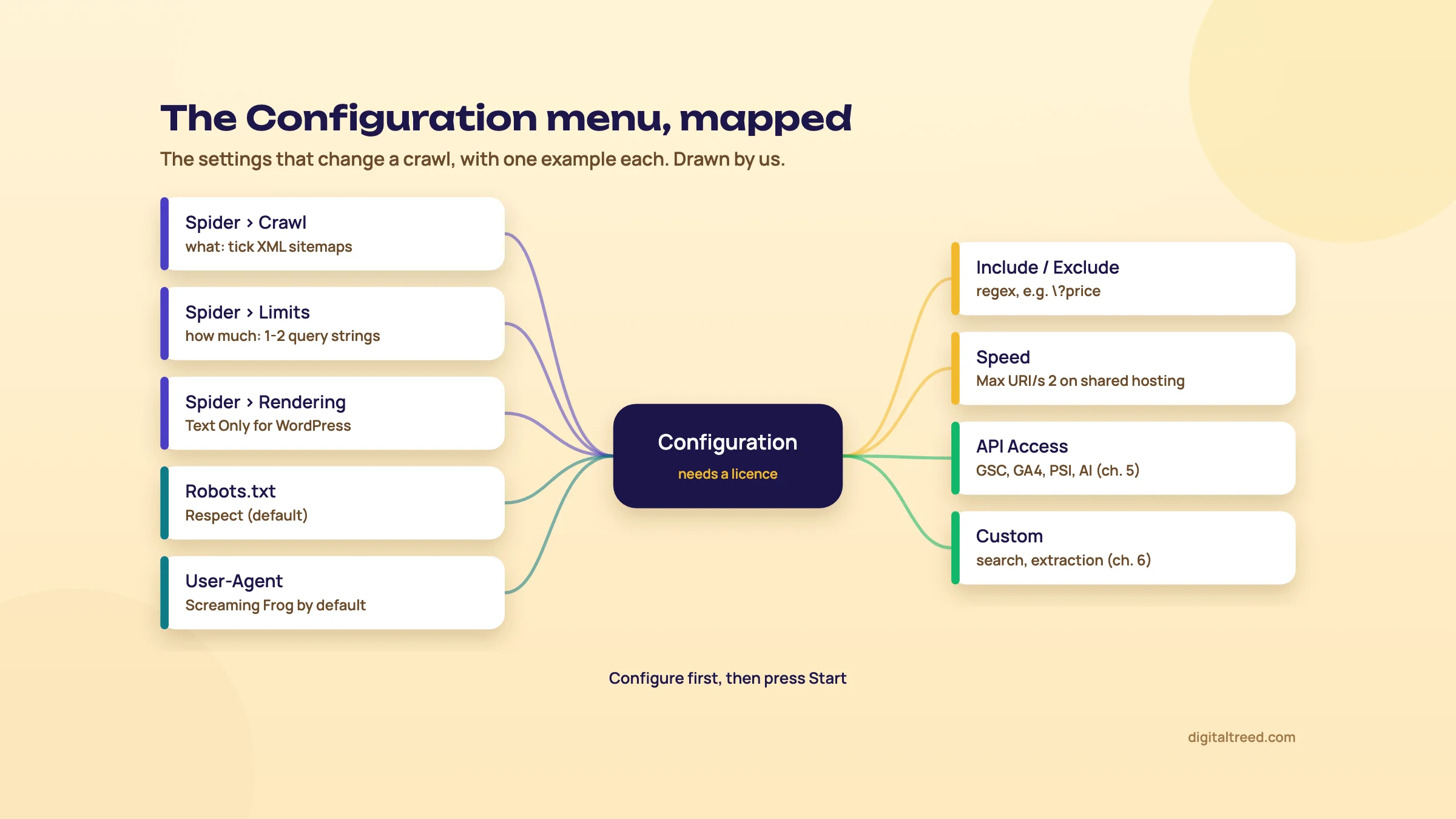 The Configuration settings that change a crawl. Drawn by us.
With the crawl configured, chapter 4 goes through what comes back: the tabs and filters worth your time.
The tabs and issues that matter, and what to do about each
Quick answer
Start in the Issues tab for a ranked list, then check six tabs by hand: Response Codes, Page Titles and Meta Description, Canonicals, Directives, Links (crawl depth and inlinks) and Images. Add Hreflang and Structured Data where the site uses them. Run Crawl Analysis at the end, or several filters stay empty.
Each top tab is a view of the same crawl, and each has filters. Click a URL and the lower pane shows its inlinks, outlinks, image details and more. The right-hand Overview pane counts URLs in every filter, and the Issues tab pulls the problems together.[6]
Issues: where to start, not where to stop
The Issues tab lists everything the tool considers a problem, with a type (Issue, Opportunity or Warning), a priority (High, Medium or Low), the number of URLs, and the share of the crawl.[6] "Directives: Noindex", for example, is a Warning with High priority: not always wrong, but expensive if it is.
Screaming Frog is frank about the limits. Priorities "are not hard rules", and the tab "does not substitute expertise".[6] Use it as a checklist of where to look. Bulk Export > Issues > All saves every issue as its own spreadsheet, which is handy for a developer but not a report a client should see raw.
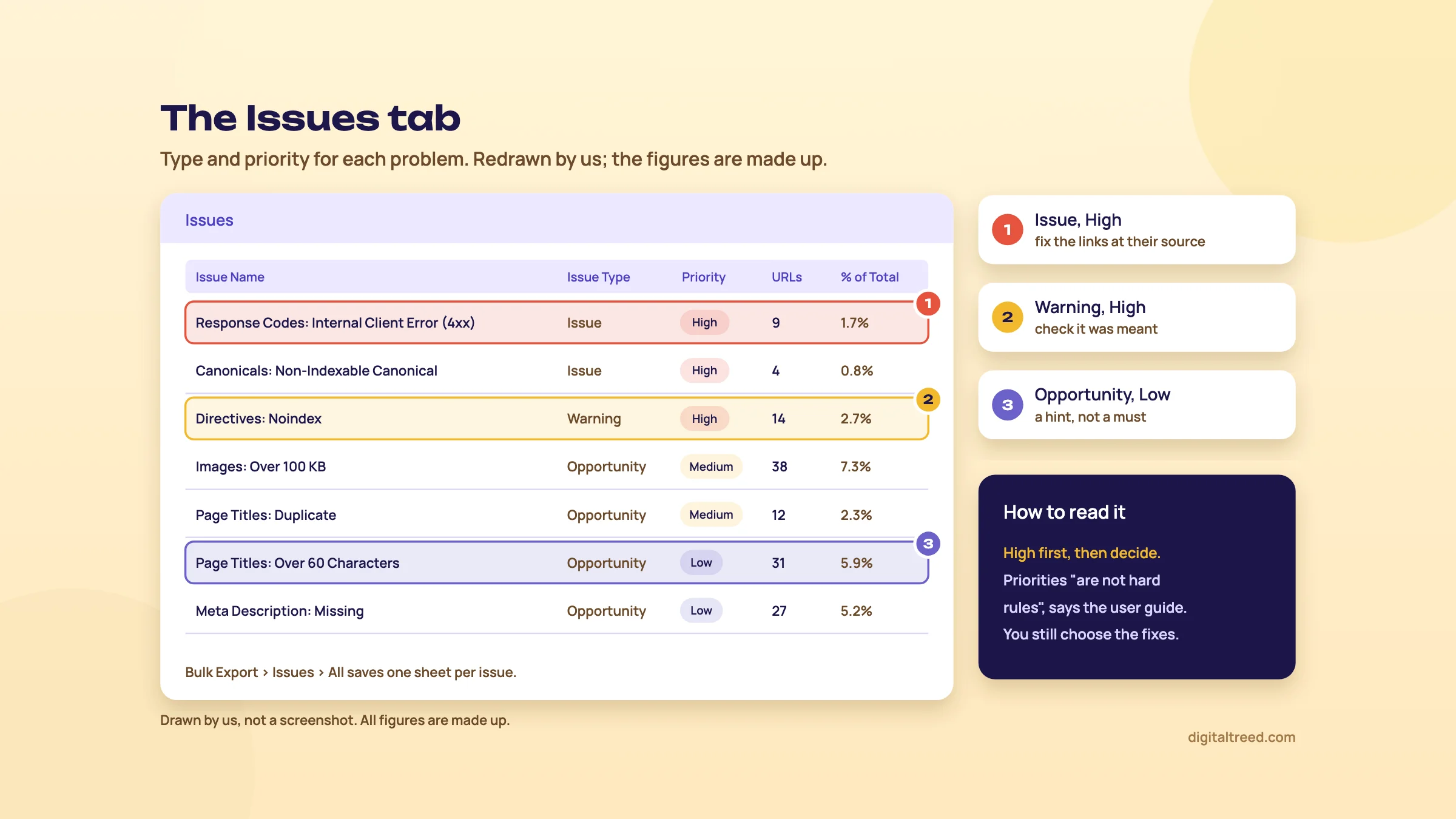 The Issues tab: read the High rows first, then decide. Drawn by us; figures made up.
Crawl Analysis: the step people forget
Most filters fill in during the crawl. Some only make sense once the whole site is known: orphan URLs from sitemaps, GA4 and Search Console, near duplicates, Link Score, and the sitemap filters. These show "(Crawl Analysis Required)" until you click Crawl Analysis > Start.[12] Make it a habit after every crawl.
Response Codes
Filters group URLs by status: Blocked by Robots.txt, Blocked Resource, No Response, Success (2XX), Redirection (3XX), Redirection (JavaScript), Redirection (Meta Refresh), Redirection (HTTP Refresh), Redirect Chain, Redirect Loop, Client Error (4xx) and Server Error (5XX).[6]
| Filter | What it means | What to do |
|---|---|---|
| Client Error (4xx) | Internal links point at pages that don't exist or are forbidden | Click a URL, open Inlinks in the lower pane, and fix the link at its source; redirect only if the old URL had traffic or links |
| Redirection (3XX) | Internal links point at URLs that redirect | Update links in menus and templates to the final URL; leave the redirect in place |
| Redirect Chain | A redirect leads to another redirect | Point the first URL straight at the last; Reports > Redirects > Redirect Chains lists every hop |
| Server Error (5XX) | The server failed on a valid request | Re-crawl those URLs slowly; if they still fail, it's a hosting or code problem for the developer |
| No Response | Timeouts, refused connections, malformed URLs | Often your crawl speed or a firewall; slow down before blaming the site |
Google advises redirecting straight to the final destination and, where that isn't possible, keeping chains "ideally no more than 3 and fewer than 5" hops.[14] Our advanced guide covers which status code to use when (see indexing controls). To check a handful of URLs from your phone or a client call, our HTTP Status Checker shows every hop for up to 10 URLs.
Page Titles and Meta Description
Filters include Missing, Duplicate, Over 60 Characters, Below 30 Characters, Over X Pixels, Below X Pixels, Same as H1, Multiple and Outside <head> for titles. Meta descriptions use 155 and 70 characters as their thresholds.[6]
Fix Missing, Duplicate and Multiple. Multiple titles or descriptions are "often caused by multiple conflicting plugins".[6] On WordPress that usually means two SEO plugins, or a theme printing its own title next to Yoast or Rank Math. Treat the length filters as hints. The tool itself calls its pixel limits "an approximation",[6] and Google builds the title link in results from several sources, of which your title tag is one.[15] Our Guide 2 chapter on on-page in depth explains what a good title looks like.
Canonicals
The filters to act on: Missing, Multiple, Multiple Conflicting, Non-Indexable Canonical, Canonical Is Relative, Unlinked, Contains Fragment URL and Outside <head>.[6]
- Non-Indexable Canonical is the serious one: the canonical points at a URL that redirects, errors, is blocked or is noindex. Canonical targets should be indexable 200 pages.
- Canonicalised isn't an error. It lists pages pointing elsewhere, which you should review to confirm they're meant to.
- Unlinked means a URL is only found through a canonical, never a normal link. Often a sign the canonical has the wrong URL.
A canonical is a hint. When Google ignores yours, the Search Console integration's "User-Declared Canonical Not Selected" filter shows it (chapter 5). For one page at a time, our Canonical Tag Checker reads the tag and flags common mistakes.
Directives
This tab reads both meta robots tags and X-Robots-Tag headers.[6] Sort the Noindex filter by Inlinks: a noindexed page with many internal links is either a mistake or a page that shouldn't be linked so often. Check this filter after every WordPress plugin change and every release. A single "Discourage search engines" tick or a staging setting copied to live shows up here first. Our Noindex Tag Checker does the same check for one URL, headers included.
Hreflang
Hreflang attributes are extracted by default, and auditing them is in the free version too.[2] The URLs inside them are only crawled if you tick Crawl under Configuration > Spider > Crawl > Hreflang, which you want for return-link checks.[7] The filters check what Google's rules need: Missing Return Links, Inconsistent Language and Region Return Links, Incorrect Language and Region Codes, Multiple Entries, Not Using Canonical, Missing X-Default and Outside <head>.[6] The Reports > Hreflang menu exports the problem pairs. Missing X-Default is optional, as the tool itself says. Our advanced guide's hreflang how-to uses this check on an English and Hindi site.
Structured Data
Enable it under Configuration > Spider > Extraction > Structured Data; it's a paid feature.[2] Filters: Missing Structured Data, Validation Errors, Validation Warnings and Parse Errors.[6] Validation can be against Schema.org, Google's rich result features, or both. Warnings are always for recommended properties, so fix errors first. Version 24.2 removed the retired FAQ rich result checks, in line with Google ending FAQ rich results.[4] Our advanced guide's structured data at scale chapter shows the template-by-template rollout this tab is good for checking. For a single page, use our Schema Markup Validator or Google's Rich Results Test.
Images
Filters: Over 100kb, Missing Alt Text, Missing Alt Attribute, Alt Text Over 100 Characters, Background Images and Missing Size Attributes.[6] "Missing Alt Attribute" means no alt at all; "Missing Alt Text" means alt="", which is correct for decorative images. Click an image, open Image Details in the lower pane, and you'll see which pages use it. For a Kanpur sweet shop's product photos, Over 100kb plus Missing Size Attributes is usually the quickest speed win on the site.
Links and crawl depth
The Links tab has Crawl Depth (clicks from the start page; redirects count as a level), Link Score (0 to 100, after crawl analysis), Unique Inlinks and outlink counts.[6] Its filters include Pages With High Crawl Depth, Pages Without Internal Outlinks, Internal Nofollow Outlinks, Non-Descriptive Anchor Text In Internal Outlinks, and Internal Nofollow Inlinks Only.[6]
Sort indexable pages by Unique Inlinks, lowest first. Service pages and best-selling products near the bottom are your internal linking job for the month. The Site Structure tab shows the same data as a folder tree, with URLs per crawl depth from 1 to 10+.[6] If most of a coaching centre's course pages sit at depth 5 or more, the navigation is the problem, not the content. Guide 3 explains why depth matters (see site architecture).
Content and the rest
The Content tab finds Exact Duplicates (an MD5 hash), Near Duplicates (minhash, after crawl analysis) and Low Content Pages (under 200 words by default).[6] We treat Low Content Pages as a list to read, not to pad: a contact page with 80 words is fine. Other tabs (Security, URL, JavaScript, Sitemaps, PageSpeed, Accessibility) matter on some sites and not others. The integration tabs, Analytics and Search Console, come in chapter 5.
Tip
Our Free Website Audit gives a ranked list for the first 25 pages. Run it first on a small site and you'll know which Screaming Frog tabs to open.
Chapter 5 adds data from Google's APIs to these tables, which is where the crawl starts telling you which problems cost traffic.
Search Console, GA4, PageSpeed Insights and the AI integrations
Quick answer
Under Configuration > API Access you can pull Search Console clicks and index status, GA4 sessions and key events, and PageSpeed Insights data into the crawl, so every URL carries its traffic next to its problems. Since version 21 it also sends prompts on crawl data to OpenAI, Gemini, Ollama and now Anthropic, and version 24 added an MCP server.
A crawl tells you a page is broken. The APIs tell you whether anyone was using it. That second fact decides your fix order, so we connect at least Search Console on every audit. All the integrations need a licence.[2]
Google Search Console
Go to Configuration > API Access > Google Search Console, connect the Google account that has access to the property, and pick the property.[7] It pulls from two Google APIs:
- Search Analytics: clicks, impressions, CTR and position, for the last 30 days by default. Change the date range and dimensions on the Search Analytics tab of that window.
- URL Inspection, if you tick "Enable URL Inspection": Google's own verdict for each URL, including whether it is on Google, coverage, last crawl, the user-declared and Google-selected canonical, and rich result status.[7]
URL Inspection is capped by Google at 2,000 queries a day and 600 a minute per site.[16] Screaming Frog queries the first 2,000 HTML URLs it finds, breadth-first from the start page. On a bigger site, run it in list mode on your key templates, or tick "Use Multiple Properties" if you have folder-level properties verified.[7]
The Search Console tab then has 11 filters.[7] The four we read first:
| Filter | What it tells you |
|---|---|
| Non-Indexable with Search Analytics Data | Pages you noindexed or canonicalised that still get impressions. Check each one was meant to go. |
| Indexable URL Not Indexed | Pages you want indexed that Google hasn't indexed. Compare with the Page indexing report in Search Console. |
| User-Declared Canonical Not Selected | Google picked a different canonical from yours. Look at internal links and duplicates. |
| Orphan URLs | Pages with impressions that no internal link reaches (chapter 7 task). |
Our Search Console guide explains the reports these filters come from.
Google Analytics 4
In Configuration > API Access > Google Analytics 4, connect, then choose the account, property and data stream. By default the tool fetches seven metrics: Sessions, Engaged Sessions, Engagement Rate, Views, Conversions, Event Count and Total Revenue. You can choose up to 65.[7]
Two settings matter. First, set each metric's dimension to landing page or full page path, which give quite different numbers. Second, use the Filters tab to limit data to a channel, such as a session channel group of Organic Search, when you only care about search traffic.[7] The API returns the top 100,000 URLs by sessions by default.
Don't expect the numbers to match the GA4 interface exactly. Screaming Frog matches URLs on trailing slashes and case, and when several match, it takes the one with the most sessions rather than adding them up.[7] Use it to sort pages by value, not to report traffic. Our GA4 guide covers the reports themselves.
PageSpeed Insights
Get a free API key from Google's PageSpeed Insights getting started page, paste it under Configuration > API Access > PageSpeed Insights, choose metrics and device, and crawl.[7] There are two sources:
- Remote runs Lighthouse on Google's servers and also returns Chrome UX Report (CrUX) field data, the real-user Core Web Vitals.
- Local runs Lighthouse on your machine. It works behind a login and isn't capped by the API's daily limit, but has no CrUX data.
The API allows 25,000 queries a day at 60 per 100 seconds. That works out to at best 36 URLs a minute, so 10,000 URLs take "just over 4.5 hours".[7] We run it on one or two URLs per template, not the whole site. Version 23.0 updated the integration to Lighthouse's new insight audits, so names you knew changed: "Eliminate Render-Blocking Resources" is now "Render Blocking Requests", and four image audits became "Improve Image Delivery".[10] Read the field data in our PageSpeed Insights guide. For one URL, our Website Speed Test measures server response time, page weight and request count, with compression, caching and render-blocking checks.
Note
Where does the data go? Screaming Frog says data fetched through Google's APIs "is only accessible locally on your machine" and that it can't view or store it.[7] Client data still sits on your laptop, so encrypt the disk.
Link metrics
Majestic, Ahrefs and Moz connect the same way under API Access, with your own paid account for each.[7] Version 23.0 moved to version 3 of the Ahrefs API, which any paid Ahrefs plan can use, enterprise or not.[10] Useful for spotting a page with strong backlinks that now returns a 404. Our Ahrefs guide covers the data.
The AI integrations
They've grown fast. The timeline from Screaming Frog's release notes:
- 20.0 (May 2024)[5]: custom JavaScript snippets, which could already connect to LLMs and query crawl data.[17]
- 21.0 (November 2024): direct OpenAI, Gemini and Ollama connections under Configuration > API Access > AI, with up to 100 custom prompts per crawl. Results land in a new AI tab.[17] The user guide now lists Anthropic as a fourth provider.[7]
- 22.0 (June 2025): embeddings for semantic similarity, low relevance content, semantic search and a content cluster diagram.[18]
- 24.0 (May 2026): an MCP server, so Claude, LM Studio and other AI assistants can run crawls, analyse and export data in plain language.[4]
Each prompt picks a model, the content to send (body text, HTML or a custom extraction) and your instruction. For page text or HTML, you must enable Store HTML under Configuration > Spider > Extraction.[7] You pay the AI provider, not Screaming Frog. OpenAI needs a funded API account, which "is different to a ChatGPT subscription", and Screaming Frog calls the Gemini free tier "extremely limited".[7] Ollama runs models on your own machine, which needs a powerful computer.
The embeddings feature is the one we find most useful. Pages scoring above 0.95 are flagged as semantically similar by default, and you can lower that to 0.5. The Low Relevance Content filter finds pages far from the site's average topic.[18] On a blog with 300 posts, that is a quick shortlist of likely cannibalisation pairs. Guide 2 explains how to judge them (see topic clusters and cannibalisation). The same embeddings can suggest redirect targets when you crawl an old and a new site together.[18]
The MCP server needs version 24 (the FAQ advises 24.1 or later, which fixed a 24.0 bug)[8] and database storage mode. With Claude Desktop, the MCP extension starts it; in Streamable HTTP mode you start it under File > Settings > MCP Server or from the MCP menu.[7] Screaming Frog's own words on it: "This is not a replacement for an experienced SEO professional, obviously."[4]
Warning
AI prompts can draft 400 alt texts or meta descriptions in one crawl. Google calls it "critical to" fact-check AI output, including titles, meta descriptions, structured data and alt text, before it's published.[19] Treat the AI tab as a draft column a person edits, and estimate token costs before you run a prompt on 50,000 URLs.
Our AI tools for SEO guide covers assistants outside the crawler. Chapter 6 moves on to the features that make Screaming Frog worth the licence for most of us: custom search, extraction, comparison and scheduling.
Custom search, custom extraction, crawl comparison, scheduling and the Log File Analyser
Quick answer
Custom search finds pages that contain, or don't contain, any text or regex. Custom extraction pulls any element into a column with XPath, CSS Path or regex. Crawl comparison shows what changed between two crawls, and scheduling runs crawls on their own. Server logs need a separate product, the Log File Analyser, at £99 a year.
With these four you write your own checks instead of only running Screaming Frog's. All of them need a licence.[2]
Custom search: does this page contain it?
Open Configuration > Custom > Search and click Add. Each filter has a name, "contains" or "does not contain", text or regex, your query, and where to look: the HTML, the page text, a specific element or an XPath. You can set up to 100 filters, and results land in the Custom Search tab.[7] Since version 21.0, Bulk Add uploads many at once.[17]
Jobs we use it for:
- Does not contain your GA4 measurement ID or GTM container ID: pages missing tracking after a theme change.
- Contains "Out of stock" on a D2C store: product pages to redirect, keep or noindex, depending on whether stock returns.
- Contains the old phone number or the old brand name after a rebrand.
- Page Text No Anchors with a phrase like "root canal treatment" on a Delhi dental clinic's blog: posts that mention the service but don't link to its page. Screaming Frog suggests exactly this use for finding unlinked keywords.[17]
By default it searches the raw HTML. Switch to JavaScript rendering if the text only appears after scripts run.[7] For an exact word, wrap it in word boundaries, as in \bexample\b.
Custom extraction: put any element in a column
Open Configuration > Custom > Custom Extraction. You can run up to 100 extractors, with a limit of 1,000 extractions across them all.[7] Each one uses one of three methods:
- XPath: versions 1.0, 2.0, 3.0 and 3.1 are supported since version 21.0.[17]
- CSS Path, with an optional attribute.
- Regex, for things outside HTML elements, such as JSON inside a script tag.[20]
For XPath and CSS Path you choose what to return: the HTML element, its inner HTML, its text, or a function value such as count(//h1).[7] If you don't write XPath, click the browser icon next to the extractor, load a page, and click the element. The tool suggests expressions and previews the result.[7] Extraction runs on internal HTML pages that return a 2XX, on the raw HTML unless rendering is on.
Some expressions from Screaming Frog's own examples:[20]
| What you want | XPath | Return |
|---|---|---|
| Every H3 | //h3 | Extract Text |
| Number of H3s | count(//h3) | Function Value |
| Open Graph title | //meta[starts-with(@property, 'og:title')]/@content | Extract Text |
| hreflang values | //*[@hreflang]/@hreflang | Extract Text |
| Schema types in microdata | //*[@itemtype]/@itemtype | Extract Text |
| YouTube embeds | //iframe[contains(@src ,'www.youtube.com/embed/')] | Extract HTML Element |
Results show in the Custom Extraction tab and as extra columns in the Internal tab. Chapter 7 has a full task: pulling price, SKU and author from a D2C store.
Tip
Don't copy an XPath from Chrome's "Copy XPath" and trust it across the site. Screaming Frog's guide warns that copying expressions straight from the browser is not the best way to build them, because they depend on the element's exact position in the code.[20] Browser paths like /html/body/div[3]/div[2]/span break on the next template that has one more div. Anchor on a class or attribute instead.
Crawl comparison: what changed since last time
Comparison needs database storage mode and a licence.[9] In File > Crawls, select two crawls with Ctrl (Cmd on macOS) and click "Select To Compare", or use Mode > Compare. Click Compare, and the Overview and Issues tabs show each filter with four columns:[9]
- Added: URLs in both crawls that moved into this filter.
- New: URLs only in the current crawl, and in this filter.
- Removed: URLs in both crawls that left this filter.
- Missing: URLs in this filter last time that aren't in the current crawl at all.
A title can change completely without tripping any filter. For that, turn on change detection under the compare configuration, and pick the elements to watch: titles, meta descriptions, H1s, word count, crawl depth, internal links, structured data, content.[9] Content change needs stored HTML in both crawls and takes longer.
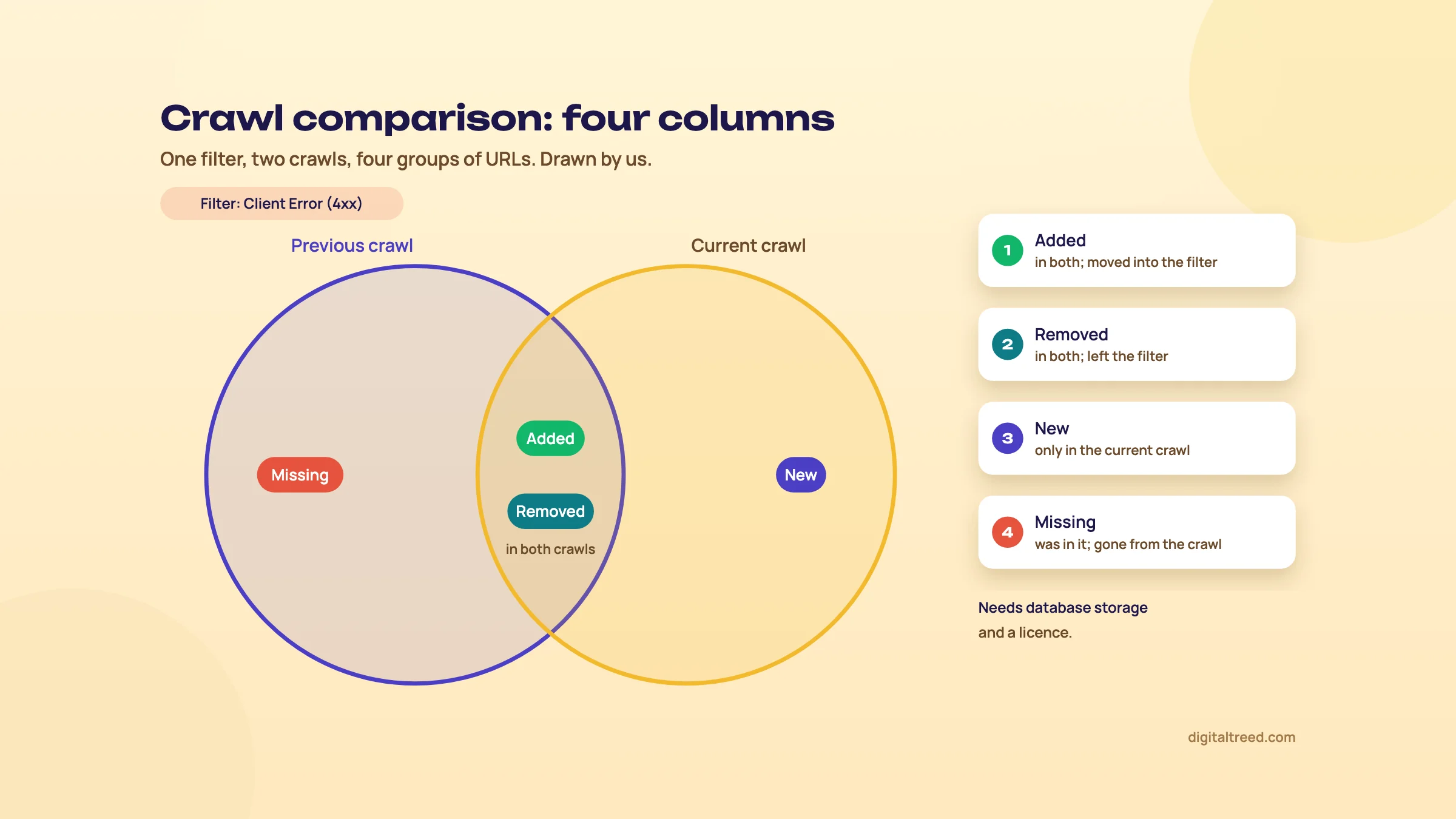 Added, New, Removed and Missing in a crawl comparison. Drawn by us.
The obvious use is before and after a release or a migration: crawl staging, crawl live, compare. Over a month, it also tells you whether last month's fixes stuck.
Scheduling and the command line
File > Scheduling > Add sets up a crawl that runs once or at an interval, in spider or list mode, with a saved configuration and the APIs you choose. Exports need headless mode, ticked on the Spider tab, and can go to local files, Google Sheets or a Looker Studio crawl report.[3] Since version 24.0 a scheduled task can also:
- Auto-compare the last two crawls in the project.
- Email a summary listing every issue and, with auto-compare on, what changed.
- Email export attachments, such as a weekly broken-links file for the developer.[4]
The command line does the same from a server or a cron job, with options such as --crawl, --crawl-list, --headless, --export-tabs, --crawl-comparison and --project-crawl-comparison.[3] Our advanced guide has a ready weekly command (see automating at scale), so we won't repeat it here.
Note
Scheduled crawls run on your machine. If the laptop is asleep at 2 a.m. on Monday, the crawl doesn't run. For dependable weekly crawls, use an always-on office PC or a small cloud server.
The Log File Analyser, a separate product
The SEO Spider shows what can be crawled. Your server logs show what Googlebot and AI bots actually requested. For that, Screaming Frog sells the Log File Analyser as a separate download with its own licence.[21] It verifies search engine and AI bots, shows crawl frequency, most and least crawled URLs and folders, and the errors bots hit. Import a crawl, and it matches log data against your URLs to find orphans and pages bots never request.[22]
| Free | Paid | |
|---|---|---|
| Log events | 1,000 lines | Unlimited |
| Projects | 1 | Unlimited |
| Price per year | Free | £99 or US$139 (about ₹13,300) |
Prices from Screaming Frog's Log File Analyser pricing page, checked 16 October 2026.[21] The current version is 7.1.[2] Our advanced guide walks through a full log analysis with this tool and says why 1,000 events is only enough to learn on (see crawling at scale and log files).
Chapter 7 puts all of this to work on four real jobs.
Four jobs, step by step: a WordPress audit, a migration check, orphan pages and XPath extraction
Quick answer
Four real jobs: audit a 300-page WordPress site in an afternoon, check every old URL after a migration in list mode, find orphan pages with your sitemap, GA4 and Search Console, and pull prices, SKUs and authors into a sheet with XPath. Each takes one to three hours, and the last three need a licence.
The examples use Indian businesses we made up for the guide, on example.in addresses. Swap in your own site.
1. Audit a 300-page WordPress site
A Pune coaching centre has a WordPress site with about 300 pages: courses, batches, results, a blog, and the tags and categories WordPress adds. It's on shared hosting. The owner wants to know what's broken before the admission season.
Audit a 300-page WordPress site
- Get a quick baseline Run our Free Website Audit on the home page. It crawls up to 25 pages and gives you speed, security and on-page scores, so you know which problems to expect.
- Check the machine Storage Mode set to Database Storage and Memory Allocation at 4GB (chapter 2).
- Slow the crawl down Configuration > Speed, Max URI/s at 2. Shared hosting is where crawlers cause 5XX errors that aren't really the site's fault.
- Add the sitemap Configuration > Spider > Crawl, tick Crawl Linked XML Sitemaps and let it find the sitemap from robots.txt, or paste the sitemap URL.[12]
- Connect Search Console Configuration > API Access > Google Search Console, last 3 months, with URL Inspection on. 300 pages is well under the 2,000-a-day limit.[7]
- Crawl, then run Crawl Analysis Enter https://www.example.in/, press Start, wait for 100%, then Crawl Analysis > Start.[12]
- Count the HTML pages In the Internal tab, filter to HTML. If you expected 300 and see 900, sort by address and look for the pattern: tag and author archives, paginated archives, or parameter URLs. Decide which should exist before fixing anything else.
- Work the Issues tab, High first Typical WordPress finds: 4xx links from old blog posts, internal links to http:// or non-www URLs that redirect, duplicate or multiple titles from a theme plus an SEO plugin, noindexed pages that are still linked, and images over 100kb.
- Cross-check with Search Console Sort the Search Console tab by clicks. Any page with clicks that also has an issue goes to the top of the fix list.
- Hand over Export the filters you'll act on, one sheet per fix, with the source pages (Inlinks) for every broken link. Re-crawl after the fixes and compare (chapter 6).
Warning
Can the free version do this? Partly. It stops at 500 URLs, and you can't change the configuration, connect Search Console or save the crawl.[8] Images, CSS and JavaScript files are crawled by default too and show up as URLs, and the free version can't switch them off, so a 300-page site may hit the cap before every page is reached. If the free crawl stops at 500, you've outgrown it.
Our advanced guide lists everything a full audit covers beyond the crawler (see a full SEO audit).
2. Check a migration's redirects in list mode
A Kanpur sweet shop is moving its online store from old .html product URLs to a new WooCommerce site. The developer has a redirect map. Your job on launch day is to prove every old URL lands on the right new page in one hop.
Audit migration redirects in list mode
- Build the old URL list Start from a full crawl of the old site taken before launch. Add Search Console's top pages, GA4 landing pages, URLs with backlinks, and the old sitemaps, then remove duplicates. Screaming Frog recommends this mix, plus log files.[23]
- Switch to list mode Mode > List. Make sure every URL starts with http:// or https://, or it won't upload.[11]
- Follow redirects to the end Configuration > Spider > Advanced, tick Always Follow Redirects. List mode crawls at depth 0, and this setting lets it follow each chain to its final URL.[23]
- Upload and start Click Upload, choose the file, then Start and wait for 100%.
- Export All Redirects From the Reports menu, export the All Redirects report. It lists every uploaded URL with Number of Redirects, Redirect Loop, Temp Redirect in Chain, Final Address and Final Status Code, then each hop.[23]
- Flag the failures In the sheet, filter for: Final Status Code not 200, Number of Redirects above 1, Temp Redirect in Chain TRUE, Redirect Loop TRUE, and Final Address equal to the home page.
- Match against the map Look up each old URL's Final Address against the target in the redirect map. Any mismatch is a redirect to the wrong page, even if it returns 200.
- Send and re-run Give the developer one sheet of failures the same day, and re-run the same list after each fix.
Why these filters? Google recommends permanent redirects such as 301 or 308, going straight to the final URL. It also warns that redirecting many old URLs to one irrelevant page like the home page "might be treated as a soft 404".[14] Our advanced guide has the full site migration plan this check belongs to. For spot checks on launch day, the HTTP Status Checker shows every hop for up to 10 URLs.
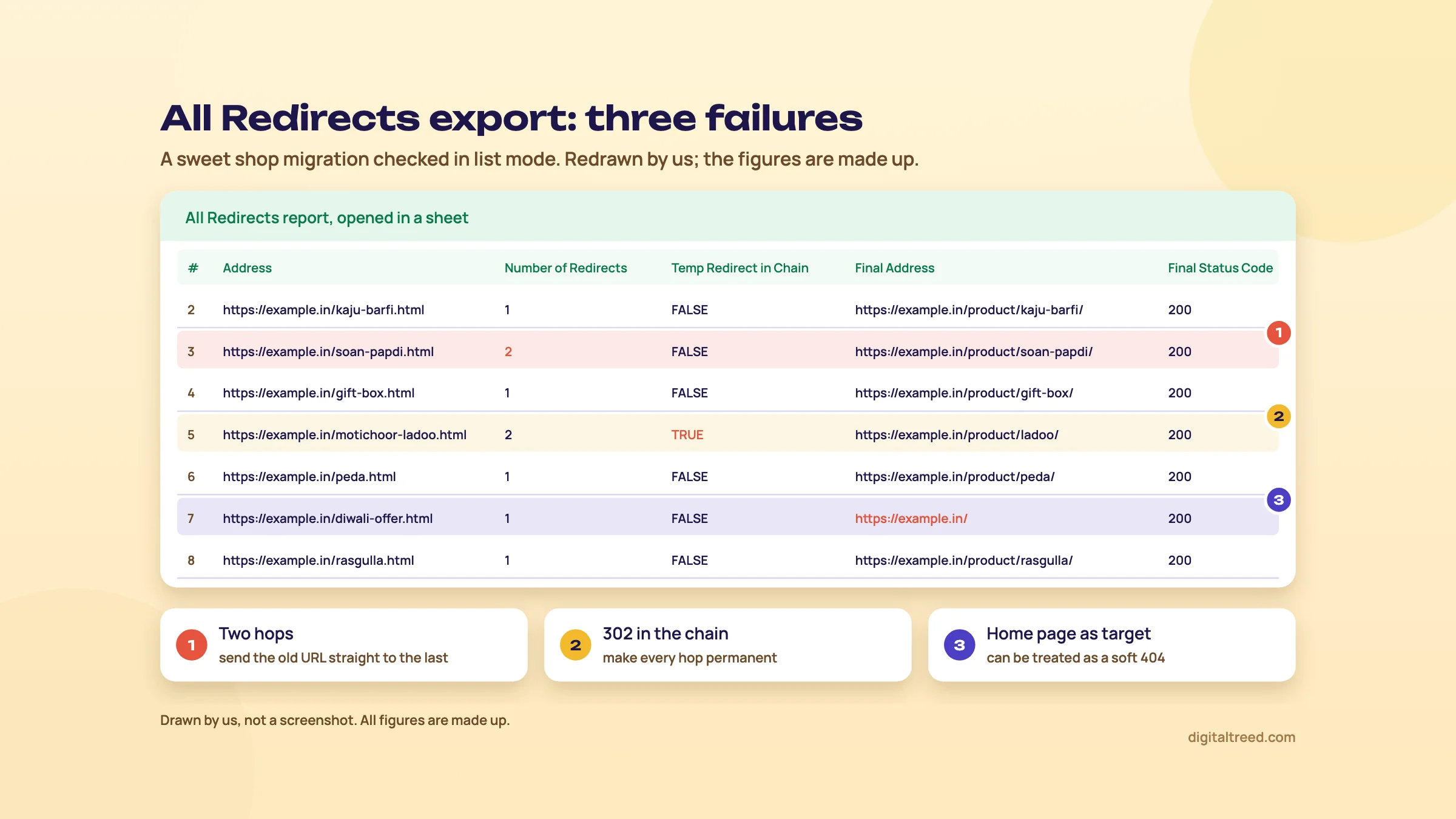 Three failures to look for in the All Redirects export. Drawn by us; figures made up.
3. Find orphan pages
A Delhi dental clinic's site has grown over five years. Old treatment pages and offer pages were dropped from the menu but never deleted. Some still get impressions. You want the list.
Find orphan pages with sitemaps, GA4 and Search Console
- Crawl the sitemap too Configuration > Spider > Crawl, tick Crawl Linked XML Sitemaps.[12]
- Connect GA4 Configuration > API Access > Google Analytics 4. Choose the property and data stream, set at least the last month, and on the General tab tick Crawl New URLs Discovered in Google Analytics.[7]
- Connect Search Console Configuration > API Access > Google Search Console. Choose the property and a date range of at least a month, and tick Crawl New URLs Discovered In Google Search Console (the user guide puts it on the General tab; the older orphan pages tutorial says Search Analytics).[7]
- Crawl the site Start from the home page and wait for both the crawl and the API progress bars to reach 100%.
- Run Crawl Analysis Crawl Analysis > Start. The three Orphan URLs filters stay empty until you do; under Crawl Analysis > Configure, make sure Sitemaps, Analytics and Search Console are ticked.[12]
- Read the filters Sitemaps, Analytics and Search Console tabs, Orphan URLs filter in each. Or export everything at once from Reports > Orphan Pages; its Source column says GA, GSC or Sitemaps.[12]
- Decide per page 200 and still useful: link to it from a relevant page. 200 and outdated: redirect it to the closest current page, or let it return 404 or 410. Already redirecting or erroring: take it out of the sitemap.
A quick extra check from the same tutorial: in the Internal tab, a URL with a blank Crawl Depth wasn't reached by any internal link.[12] Screaming Frog also notes that a few orphans are common and not a big issue; at scale they add to index bloat and wasted crawling.[12] Our advanced guide adds a fourth source, your server logs (see site architecture). Without a licence, Guide 2 shows a manual way to compare a crawl with your sitemap (see internal linking basics).
4. Extract data with XPath
A D2C skincare brand wants a sheet of every product page with its price, SKU and review count, and every blog post with its author. The goal: find products with missing data and posts without a named author.
Extract price, SKU, reviews and author with XPath
- Read one page's source Open a product page, right-click and view source (or Inspect). Find the element that holds each value: a price span with a class, an SKU span, a reviews count, an author link.
- Add extractors Configuration > Custom > Custom Extraction, click Add for each value and choose XPath.[7]
- Write expressions that anchor on classes or attributes For example
//span[contains(@class,'sku')]with Extract Text for the SKU,//a[@rel='author']for the author, andcount(//div[contains(@class,'review')])with Function Value for a review count. Your theme's class names will differ. - Test before crawling Click the browser icon next to an extractor, load a product URL, and check the preview shows the right value.[7] If the value only appears after JavaScript runs, switch rendering to JavaScript.
- Crawl only what you need Use list mode with the product sitemap, or an include rule such as
/product/plus/blog/. - Read and export The Custom Extraction tab shows one column per extractor; the values also appear in the Internal tab.[7] Export, sort by blank values, and you have your fix list.
If the data lives in JSON-LD rather than visible HTML, use a regex extractor instead. Screaming Frog says regex is needed for anything that isn't part of an HTML element, such as JSON in the code.[20] Something like "sku":\s*"(.*?)" pulls the SKU from the markup, with or without a space after the colon. Check the full markup on a sample with our Schema Markup Validator before trusting a site-wide extraction.
Chapter 8 covers what the licence costs and the alternatives if you decide you don't need one.
Free vs paid, pricing, pros and cons, and alternatives
Quick answer
The free version crawls 500 URLs with fixed settings. A licence costs £199 or US$279 a year per user (about ₹26,800), checked 16 October 2026, and unlocks unlimited crawling, configuration, saved crawls, JavaScript rendering, the APIs, extraction, comparison and scheduling. Small sites can start with our Free Website Audit; Sitebulb suits people who want explained findings.
What the free version does and doesn't do
The free version needs no account and is a real tool for small sites. Per Screaming Frog's pricing page, these are in both versions: broken links, errors and redirects; page titles and meta data; meta robots and directives; hreflang; exact duplicate pages; XML sitemap generation; and site visualisations.[2]
Everything else on the page is licence-only:[2]
| Feature | Free | Licence |
|---|---|---|
| URLs per crawl | 500 | Unlimited (memory and storage bound) |
| Crawl configuration, custom robots.txt | No | Yes |
| Save and open crawls | No | Yes |
| JavaScript rendering | No | Yes |
| Search Console, GA4, PageSpeed Insights | No | Yes |
| Custom search and custom extraction | No | Yes |
| Structured data validation | No | Yes |
| Crawl comparison and scheduling | No | Yes |
| Near duplicates, spelling and grammar, accessibility | No | Yes |
| Crawl with OpenAI and Gemini | No | Yes |
| Technical support | No | Yes |
Pricing, checked 16 October 2026
Screaming Frog sells an annual licence per user, priced in pounds, dollars or euros; it shows no rupee price. Rupee figures below are the US dollar price at ₹96 = US$1, the X-Rates average for 1 to 16 October 2026.[24]
| Licences bought at once | GBP per licence a year | USD per licence a year | About in INR |
|---|---|---|---|
| 1 to 4 | £199 | $279 | ₹26,800 |
| 5 to 9 | £189 | $265 | ₹25,400 |
| 10 to 19 | £179 | $249 | ₹23,900 |
| 20 or more | £169 | $235 | ₹22,600 |
Source: Screaming Frog pricing page in GBP and USD.[2] The euro price for one licence is €245. A few things the FAQ makes clear:[8]
- It's an annual purchase, not an auto-renewing monthly subscription.
- Apart from bulk discounts, everyone pays the same price. No discount codes, no Black Friday deals, and no old pricing kept for existing users at renewal.
- The price has risen twice since launch in November 2010: £99, then £149 in August 2016, then £199 in January 2023. In May 2025 the dollar price moved to $279 for exchange rates, while £199 stayed.
The Log File Analyser is a separate £99 or $139 a year (chapter 6).[21]
Is it worth ₹26,800 a year? If you crawl more than one site over 500 URLs a month, we think so: it works out to about ₹2,230 a month, with no limit on the number of sites.[8] If you look after one 40-page site, no: the free version and our audit cover it.
Pros and cons
Pros
- A generous free version: 500 URLs, no sign-up
- One flat yearly price, with no per-site or per-crawl caps
- Raw, exportable data for nearly every on-page and technical signal
- Custom extraction and custom search turn it into your own checker
- Search Console, GA4 and PageSpeed data per URL
- Scheduling, command line, crawl comparison, and an MCP server for AI assistants
- Frequent releases with dated notes
Cons
- Steep learning curve; the interface is a wall of tables
- You do the prioritising; the Issues tab is a guide, not an audit
- Runs on your machine: big crawls need RAM, an SSD and a computer left on
- Licence per user, so a team of five pays five times
- No keyword, backlink or rank data of its own
- Free version locks every setting, even crawl speed
Alternatives, and which one when
Start with what you already have. Our Free Website Audit crawls up to 25 pages and scores ten areas including on-page SEO, speed and security, with fixes ranked by how many points they add. For a 20-page clinic or shop site, that's the right first tool.
Sitebulb is the closest paid alternative: a desktop or cloud crawler that explains its findings as prioritised hints. On 16 October 2026 its pricing page showed Lite at $18 a month (about ₹1,730) with 10,000 URLs per audit, and Pro at $42 a month (about ₹4,030) with 500,000 URLs per audit. Yearly plans save 15%, and there's a 14-day free trial of Pro with no card.[25] Read our Sitebulb guide, and Screaming Frog vs Sitebulb for the side-by-side.
The SEO suites have cloud site audits too. Ahrefs Free gives verified site owners a Site Audit that checks for 170+ technical and on-page issues,[26] and a free Semrush account runs Site Audit on 100 pages a month;[27] see our Ahrefs and Semrush guides. Bing Webmaster Tools has a free Site Scan audit for sites you've verified[28] (see Bing Webmaster Tools). Our best free SEO tools guide lists the free limits side by side.
| Situation | Our pick | Why |
|---|---|---|
| Local business site under 25 pages | Free Website Audit | Ranked fixes, no install, no crawl settings to learn |
| Site of 25 to 500 URLs, quick check | Screaming Frog free | Covers broken links, titles, directives and hreflang at no cost |
| Freelancer or agency auditing many sites | Screaming Frog licence | One price, any number of sites, exports every developer recognises |
| Migration with thousands of old URLs | Screaming Frog licence | List mode and the All Redirects report |
| Client reports for owners who won't read tables | Sitebulb | Explained, prioritised hints and visual crawl maps |
| You already pay for Ahrefs or Semrush | Their site audit first | No extra cost; add Screaming Frog when you need extraction or list mode |
| What did Googlebot actually crawl? | Search Console, then the Log File Analyser | A crawler shows what's possible, logs show what happened |
You don't have to pick one for ever. If you're not sure, crawl the same site with the free Screaming Frog and a Sitebulb trial in the same week, as our advanced guide suggests. If you'd rather hand the whole job over, our SEO service starts with a technical audit, or get a quote.
Test yourself
Ten questions on the whole guide. Pick an answer, check it, and see your score at the end.
You got 0 of 10 right.
Frequently asked questions
Frequently asked
Is Screaming Frog free?
Yes, up to 500 URLs per crawl, with no sign-up. The free version finds broken links, redirects, title and meta problems, directives and hreflang issues, but the configuration is locked and you can't save crawls, render JavaScript or connect Google's APIs. A licence removes those limits.
How much does a Screaming Frog licence cost in India?
Screaming Frog doesn't show rupee prices. On 16 October 2026 one licence cost £199 or US$279 a year, about ₹26,800 at ₹96 to the dollar. It's per user, with lower prices from five licences up. If your card is declined, the FAQ suggests asking your bank to allow international payments, or paying by PayPal or bank transfer.
Is the licence a subscription?
It's an annual purchase rather than an auto-renewing monthly subscription. When it expires, the tool goes back to the free version, and crawls you saved can't be opened until you renew.
How many URLs can Screaming Frog crawl with a licence?
There's no fixed cap; it depends on your memory and storage. The default crawl limit with a licence is 5 million URLs, and Screaming Frog says an SSD with 4GB of RAM allocated in database storage mode should crawl about 2 million.
Can Screaming Frog crawl JavaScript websites?
Yes, with a licence. Set Configuration > Spider > Rendering to JavaScript and it renders each page in a built-in Chromium browser, then crawls the rendered HTML as well as links in the raw HTML. It's slower, so many people render a sample first.
How do I find orphan pages with Screaming Frog?
Tick Crawl Linked XML Sitemaps, connect GA4 and Search Console with "Crawl New URLs Discovered" ticked, crawl the site, then run Crawl Analysis. The Orphan URLs filters on the Sitemaps, Analytics and Search Console tabs list pages no internal link reaches. This needs a licence.
Does Screaming Frog have AI features?
Yes. Since version 21.0 it connects to OpenAI, Gemini and Ollama, and now Anthropic, for up to 100 custom prompts on crawl data. Version 22.0 added embeddings for semantic similarity, and version 24.0 added an MCP server so AI assistants such as Claude can run crawls and exports. You pay the AI provider separately.
What is the Screaming Frog Log File Analyser?
A separate product that reads your server access logs to show what Googlebot and other bots actually requested. The free version handles 1,000 log events and one project; a licence is £99 or US$139 a year. It's not included in the SEO Spider licence.
Screaming Frog or Sitebulb: which is better?
Screaming Frog is better for raw data, custom extraction, list mode and automation. Sitebulb is better if you want explained, prioritised findings and visuals for clients. Try both on the same site: Screaming Frog is free to 500 URLs and Sitebulb has a 14-day free trial. Our comparison guide goes through each job.
Sources
References
- SEO Spider Tool (overview), Screaming Frog, accessed 16 Oct 2026
- SEO Spider pricing (free vs paid features, licence prices in GBP, USD and EUR, download versions), Screaming Frog, prices seen 16 Oct 2026, accessed 16 Oct 2026
- SEO Spider user guide: general (installation, crawling, storage, memory, scheduling, command line), Screaming Frog, accessed 16 Oct 2026
- Screaming Frog SEO Spider Update: Version 24.0 (with 24.1 to 24.3 notes), Screaming Frog, Dan Sharp, 19 May 2026, accessed 16 Oct 2026
- SEO Spider release history, Screaming Frog, accessed 16 Oct 2026
- SEO Spider user guide: tabs, Screaming Frog, accessed 16 Oct 2026
- SEO Spider user guide: configuration, Screaming Frog, accessed 16 Oct 2026
- SEO Spider FAQ (licences, payment, pricing history, free version), Screaming Frog, accessed 16 Oct 2026
- How To Compare Crawls, Screaming Frog, accessed 16 Oct 2026
- Screaming Frog SEO Spider Update: Version 23.0, Screaming Frog, Dan Sharp, 20 Oct 2025, accessed 16 Oct 2026
- How To Use List Mode, Screaming Frog, accessed 16 Oct 2026
- How To Find Orphan Pages, Screaming Frog, accessed 16 Oct 2026
- Link best practices for Google, Google Search Central, updated 10 Dec 2025, accessed 16 Oct 2026
- Site moves with URL changes, Google Search Central, updated 20 Aug 2026, accessed 16 Oct 2026
- Influencing title links in search results, Google Search Central, updated 10 Dec 2025, accessed 16 Oct 2026
- Search Console API usage limits, Google for Developers, updated 28 Aug 2025, accessed 16 Oct 2026
- Screaming Frog SEO Spider Update: Version 21.0, Screaming Frog, Dan Sharp, 12 Nov 2024, accessed 16 Oct 2026
- Screaming Frog SEO Spider Update: Version 22.0, Screaming Frog, Dan Sharp, 10 Jun 2025, accessed 16 Oct 2026
- Google Search's guidance on using generative AI content on your website, Google Search Central, updated 1 Oct 2026, accessed 16 Oct 2026
- Web Scraper Tool: custom extraction tutorial and XPath examples, Screaming Frog, accessed 16 Oct 2026
- Log File Analyser pricing, Screaming Frog, prices seen 16 Oct 2026, accessed 16 Oct 2026
- Log File Analyser, Screaming Frog, accessed 16 Oct 2026
- How To Audit Redirects In A Site Migration Using The SEO Spider, Screaming Frog, accessed 16 Oct 2026
- Monthly average USD to INR, 2026, X-Rates, average for 1-16 Oct 2026, accessed 16 Oct 2026
- Sitebulb pricing, Sitebulb, prices seen 16 Oct 2026, accessed 16 Oct 2026
- Ahrefs Webmaster Tools (now Ahrefs Free), Ahrefs, accessed 16 Oct 2026
- Site Audit, Semrush Knowledge Base, accessed 16 Oct 2026
- Start Using Bing Webmaster Tools to Improve Your Site Visibility, Bing Webmaster Blog, 17 Jun 2025, accessed 16 Oct 2026
Get the free checklist
Every step of this guide on one page, to print or tick off. We email you the PDF link.