

What Google Trends is, and what its 0 to 100 number means
This guide is for anyone who plans what goes on a website and when. Think of a Kanpur sweet shop deciding when to put up its Diwali gift box page, a Pune coaching centre planning posts around exam results, or a D2C clothing brand choosing between "kurti" and "kurta for women" for a category title. You don't need an account or any technical skill.
By the end you'll be able to read the 0 to 100 number without being misled by it, compare terms and topics across Indian states and cities, use related queries and "Breakout" searches for content ideas, and turn a five-year chart into a content calendar.
There are five chapters, about 23 minutes of reading. Chapter 1 explains what the number means. Chapter 2 walks through the Explore page and its filters. Chapter 3 covers related queries, Trending now and the Trends API. Chapter 4 works through four common SEO jobs, step by step. Chapter 5 covers cost, limits and the alternatives, with prices checked on 16 October 2026.
Trends is one of several free Google tools in this path. For search volumes, read it with our Google Keyword Planner guide; for the searches your own site already shows up for, see Google Search Console.
Quick answer
Google Trends shows how interest in a search changes over time and from place to place. Its numbers run from 0 to 100, but they aren't search counts. Each point is a share of all searches in that place and time, scaled so that 100 is the highest point on your chart.
What the tool is for
Google Trends is a free website from Google at trends.google.com. You type a word, and it draws a line showing how interest in that search rose and fell, plus a map of where it was searched most. Its data goes back to 2004, though the tool itself went live in the summer of 2006.[1]
It answers "when?" and "where?" questions well. When do people in Uttar Pradesh start searching for Diwali sweets? Which states search "CA" more than "chartered accountant"? Is interest in a product you sell still growing? It doesn't answer "how many?". For that you need a volume tool such as Keyword Planner.
It suits shop owners planning festive pages, bloggers and content teams building a calendar, D2C brands checking whether a product is rising or fading, and journalists following the news. You can skip it if every search you care about is tiny. A dentist in one Delhi neighbourhood will mostly see flat lines or zeros, because Trends only shows data for searches that enough people make.[2]
How the 0 to 100 number is made
Google's own FAQ describes three steps.[2] The third step works per chart: Trends rescales every time you change what's on it.[3]
- Sample. Trends uses a sample of Google searches, not every search. Google says the sample is enough because it handles billions of searches a day.
- Divide. Each data point is divided by the total searches in that place and time. Without this, the places with the most people would always come top.
- Scale. The results are scaled from 0 to 100. The highest point on your chart becomes 100, and everything else is measured against it.
So a 50 means "half as popular, as a share of all searches, as the peak on this chart". It doesn't mean 50 searches, or 50% of anything you can count. Change the dates, the place or the terms you compare, and the whole chart is rescaled. A 100 in one chart and a 100 in another are not the same amount.
The divide step also explains a surprise many people get. Google notes that two regions showing the same interest don't always have the same total search volume.[2] A smaller state can score higher than Maharashtra for a term simply because that term is a bigger share of what its people search.
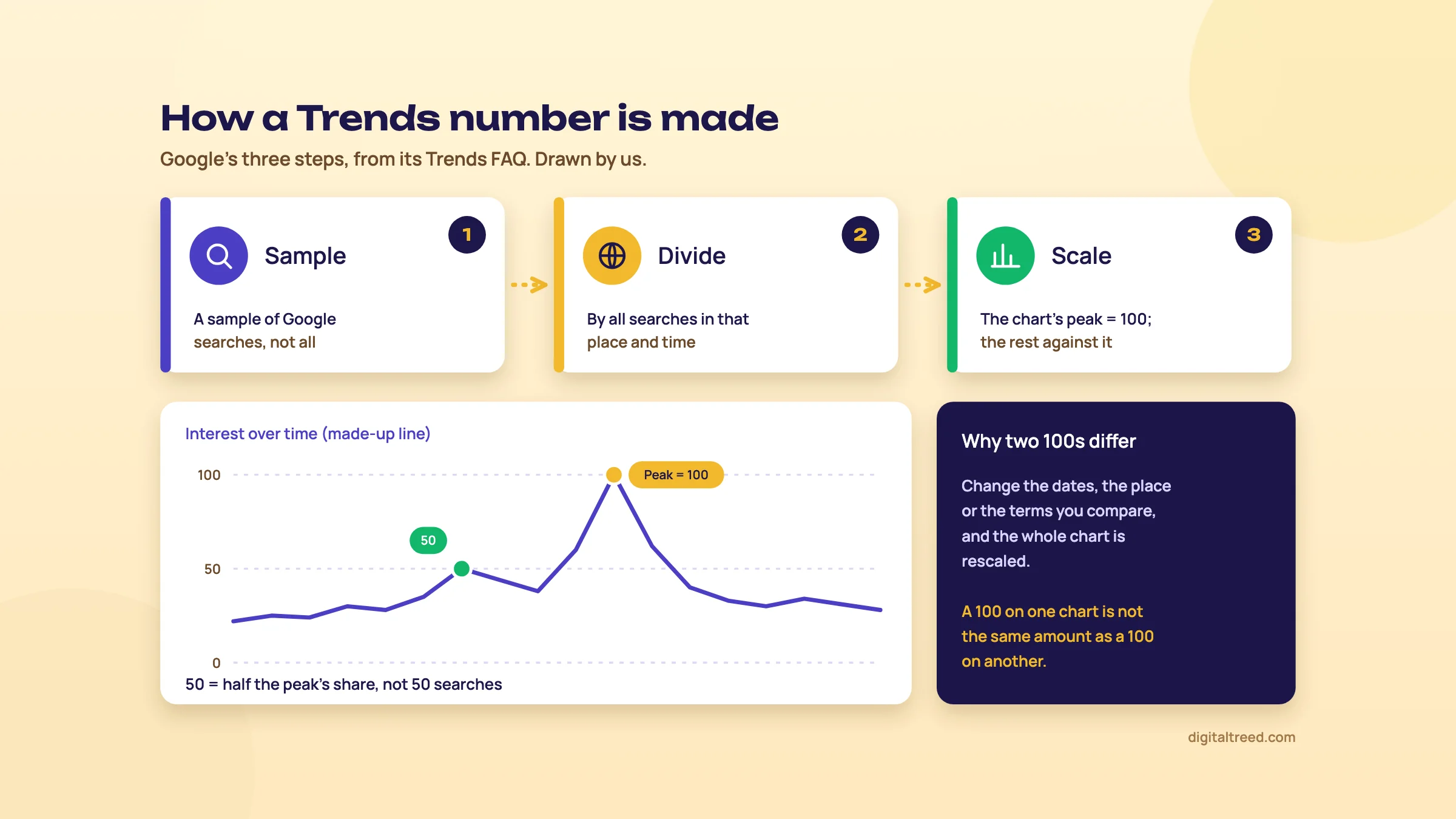 Every Trends point is a share of all searches, scaled to the chart's peak. Drawn by us from Google's Trends FAQ.
What Trends leaves out
Google filters some searches before they reach the chart:[2]
- Searches made by very few people. Low-volume terms show as 0.
- Repeated searches by the same person over a short time.
- Queries with apostrophes and other special characters.
- Searches made by Google's own products and services, which Google says includes internal searches made by AI Mode and AI Overviews.
Google also adds a small amount of random noise to protect privacy. It's always there, but it shows most on searches with little or no interest, where you'll sometimes see a one-off spike that isn't real.[2] If a tiny term jumps for a single week and drops back, ignore it.
Warning
Trends is not a poll and not a sales forecast. Google's FAQ says a spike only means many people searched about a topic "for some unspecified reason", and that Trends data should be "one data point among others".[2] A rise in "gold rate" searches doesn't tell you people are buying gold.
Days, weeks and time zones
How fine the line is depends on the period you pick. For 30 days or longer, each point is a day, a week or a month, and the times are in UTC. For 7 days or shorter, the data is usually hourly and shown in your own time zone.[2] For festival planning, that means a five-year chart shows weekly points, which is precise enough to see "the second week of October" but not a single day.
2004
The year Trends data starts[1]
0
What a term with too few searches shows[2]
5,000%
Growth above which a rising search shows as "Breakout"[4]
How to get a sense of scale
Since there are no counts, Google suggests comparing your term with something common, such as a type of food or the weather.[2] If "eggless cake" barely shows next to "weather", it's a small search. If it holds its own, it's big. For a real monthly number, take the phrase to Keyword Planner. Google's help page on exporting data asks you not to cite Trends and Google Ads figures together, because they are different data sources.[5]
Next, chapter 2 opens the Explore page and goes through every filter that changes this number.
The Explore page: terms, topics, places, dates, categories and search types
Quick answer
Type a word into Explore and choose a search term (the exact words) or a topic (every way of searching for one thing). Add more to compare: five in Classic Explore, eight on the new Explore page. Then set the country or state, the dates, a category for words with two meanings, and the search type.
Classic Explore and the new Explore page
There are two versions of the Explore page right now. Google announced a redesigned one on 14 January 2026, launching on desktop first and rolling out gradually. It gives each term its own icon and colour, shows twice as many rising queries per timeline, and adds a Gemini side panel.[6] Signed out on 16 October 2026, trends.google.com invited us to try the new Explore page and to sign in for Gemini and "advanced capabilities", with an option to remain on Classic Explore.[7]
The main practical difference is how many things you can compare. Google's help page says the new page compares up to 8 groups of terms, with up to 50 terms in each group. Classic Explore takes up to 5 groups of 25 terms.[8] A "group" is several spellings joined with a plus sign, which we cover below.
The Gemini panel opens from a "Suggest search terms" button. You describe an area of interest and it fills the chart with up to eight suggested terms. Google calls these features experimental and says they "may display inaccurate information".[9] Google may keep what you type for 55 days, and human reviewers may read it; anything they review is kept, unlinked from your account, for up to 3 years. So don't paste client names or private plans into it.[9] We treat the panel as a brainstorm and check every suggestion on the chart itself.
Search term or topic
As you type, a drop-down offers two kinds of result.[10]
- A search term is the exact words people typed, in the language you typed them. "Latte" as a search term doesn't include "milk coffee".
- A topic groups all the searches about one thing, across spellings and languages, using Google's Knowledge Graph. Topics show a short description under the name, such as "Politician" or "Internet company".
Google recommends a topic whenever one is available, for the fullest picture of interest in a person, brand or idea.[10] For SEO we'd add one exception. When you're choosing the words for a title or a page, use search terms, because the whole point is to see which exact wording people type. Topics hide that difference.
Search operators that change the result
Trends doesn't add misspellings, plurals or synonyms for you. Each version is a separate search.[11] Use these to control what's counted:[11]
| You type | Trends counts | Indian example |
|---|---|---|
| gift hamper | Searches with both words, in any order, with other words around them | "diwali gift hamper", "hamper gift for diwali" |
| "gift hamper" | Only the exact phrase, possibly with words before or after | "corporate gift hamper" |
| rasgulla + rasgolla | Either word (OR), so you can add spellings together | Both spellings of the sweet in one line |
| hamper -basket | Searches with "hamper" but not "basket" | Leaves out "hamper basket" searches |
Script matters too. If you type a word in a non-Latin script, Trends shows data from the places that use that script. To combine scripts, join them with a plus sign.[8] So "मिठाई + mithai" puts Devanagari and Roman searches for sweets in one line. Our How India searches chapter explains when Hindi-script and mixed-language searches matter.
Country, state and city
Pick a country, and the "Interest by subregion" map shades the places where your term is a bigger share of searches. Darker means a higher share. For India, the list beside the map ranks states, and you can switch it to cities.[12] Google's FAQ says data goes "down to city-level geography".[2]
A state that isn't shaded doesn't mean nobody searched there. Google says the term may still be used, it's just more popular elsewhere.[12] When you compare two terms on the map, both must use the same location, and when you compare them over time, both must use the same length of period.[13]
Time range
The date menu runs from the past hour to the past 5 years, plus single calendar years and a custom range that can go back to 2004.[14] For seasons, pick the past 5 years: you need several cycles to tell a yearly pattern from a one-off. The newer quick comparison chips above the chart add a reference line, for example the past year against the year before, or a month against the same month last year.[14]
Category
Some words mean two things. Google's example is "jaguar", the animal or the car maker. Click "All categories" under the search box and pick the one you mean.[15] In India, "mango" is a fruit and a clothing brand, and "Apple" is a fruit and a phone company. A category keeps your chart about the right one.
Search type: web, images, news, shopping or YouTube
Trends defaults to Web Search. It also has Image Search, News Search, Google Shopping and YouTube Search.[10] A D2C brand planning product pages should look at Google Shopping as well as web. A coaching centre planning videos should look at YouTube Search, where the peaks can sit in different weeks.
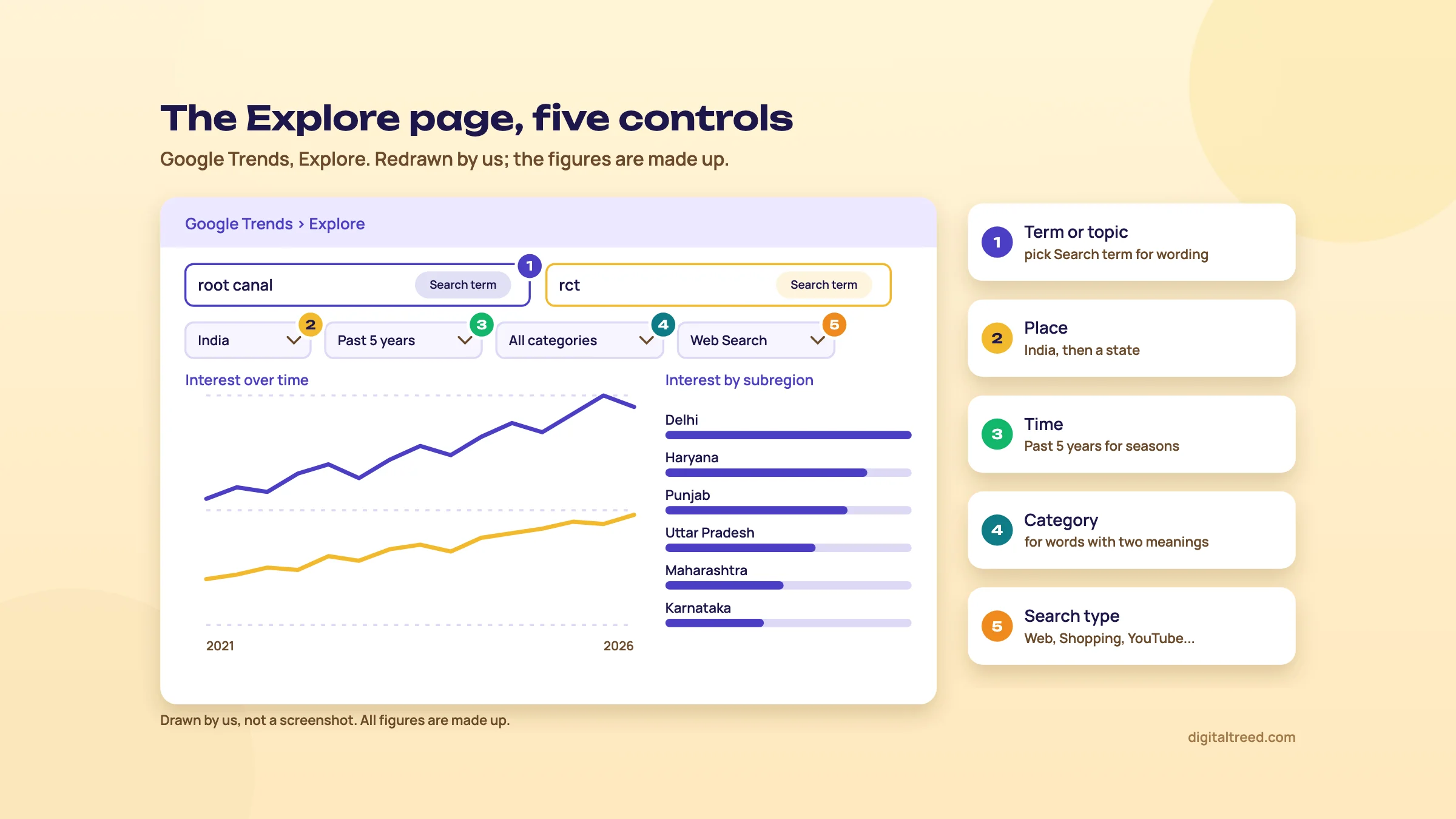 The five controls that change every Trends chart. Drawn by us; the figures are made up.
Compare two phrasings for a Delhi dental clinic
- Open Explore Go to trends.google.com and click Explore.
- Enter the first phrase Type root canal and pick the option labelled Search term, not the topic.
- Add the second Add rct as a second search term.
- Set the filters Choose India, Past 5 years, Web Search, and the Health category.
- Read the lines Note which line sits higher most of the time. If one is near 0, it's too small to compare.
- Check Delhi In Interest by subregion, find Delhi and see which phrase leads there.
- Decide Use the leading phrase in the page title, and the other one naturally in the text.
Next, chapter 3 covers the tables under the chart: related topics, related queries and the searches marked "Breakout".
Related queries, "Breakout", Trending now and the Trends API
Quick answer
Under every chart, Trends lists related topics and related queries. Top shows what's searched most often with your term; Rising shows what grew fastest, and "Breakout" means growth of more than 5,000%. Trending now lists searches surging in the last hours or days. The Trends API is still an alpha you apply for.
Top and Rising
Scroll below the chart and the map, and you'll find two tables: related topics and related queries. Each has two views.[4]
- Top lists the searches most often made together with your term in the same search session, within your chosen category and place.
- Rising lists the searches that grew the most in your chosen period, each with its growth against the period before as a percentage.
When a rising search shows "Breakout" instead of a percentage, it grew by more than 5,000%.[4] That usually means something new: a product launch, a new exam rule, a festival offer everyone is talking about.
Two limits to know. Google's troubleshooting page says top and rising searches need dates at least a week in the past, so if a range that ends today shows nothing there, move the end date back a week.[13] And Google removes sexually explicit searches from these lists but says it doesn't filter controversial topics.[4]
How we use the two lists
Top queries are your evergreen list. Run "coaching centre Pune" over five years in Maharashtra, and the Top list shows what people keep searching alongside it. Each useful one can become a section or an FAQ on a page you already have.
Rising queries are your "write this soon" list. A Breakout that's still there when you rerun the same search a few weeks later is worth a page. One that vanishes was probably a one-day news story. We'd check any rising query in Google itself before writing a word, to see what already ranks and whether the interest is from a news event you can't serve.
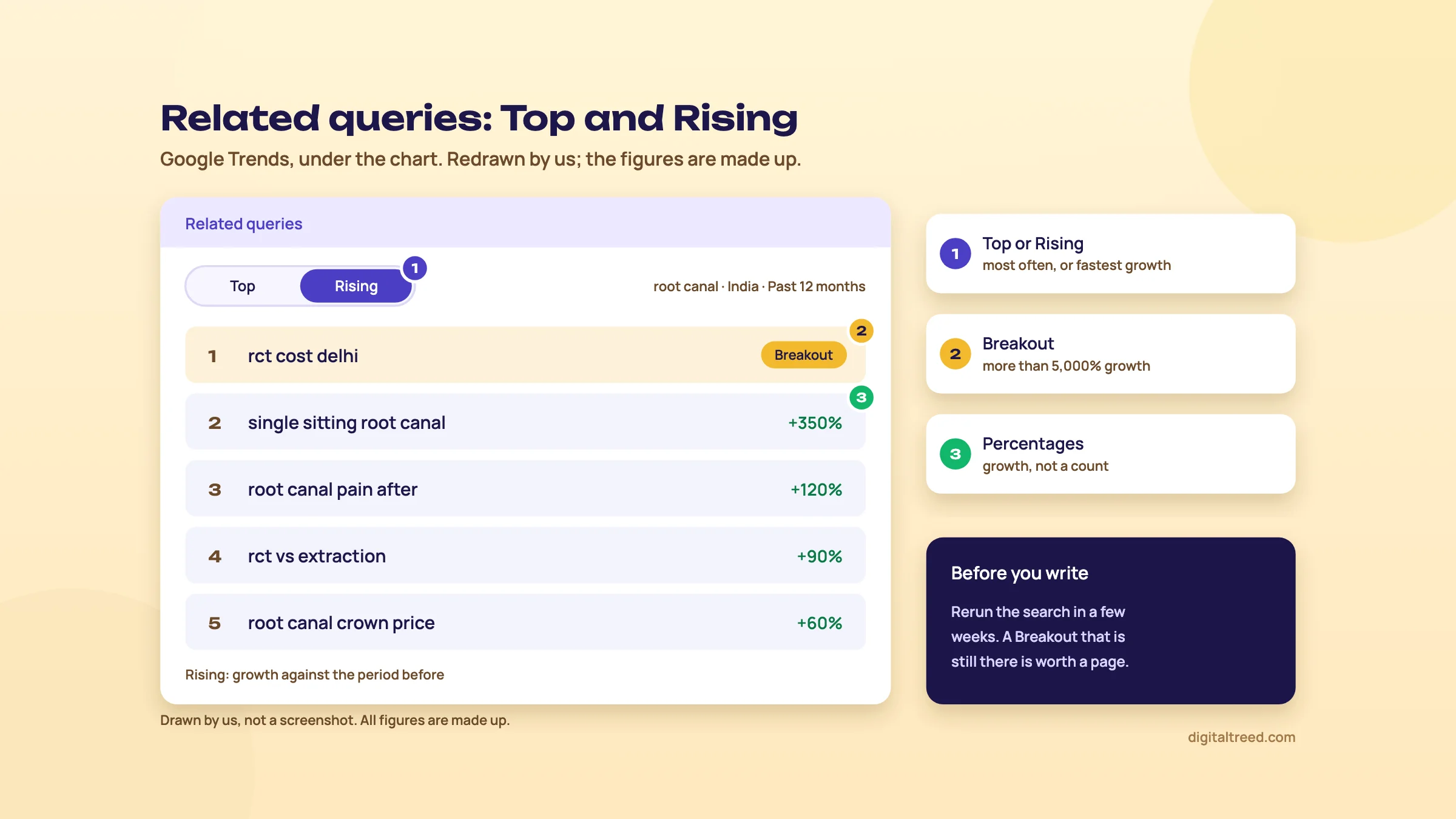 Rising queries show growth, and Breakout means more than 5,000%. Drawn by us; the figures are made up.
Trending now
Trending now is a separate page that lists searches with a sudden surge, mostly linked to news. Google's help page says it covers 100+ countries and regions and refreshes on average every ten minutes. You can filter to trends that started in the past 4 hours, 24 hours, 48 hours or 7 days.[16] Each row shows a bucketed search volume, the growth against a predicted baseline, when it started, and whether it's still Active or has Ended. You can compare up to five trends, and export them as CSV or an RSS feed.[16]
One detail catches people out. The chart on Trending now counts the exact query, while the Explore chart is broad match, so the same words can draw two different lines.[16]
Is it useful for SEO? For a news site or a cricket blog, yes, daily. For a Kanpur sweet shop or a Delhi clinic, rarely. Pages built for a two-day spike are gone from Google's interest before they're indexed, unless you publish within hours.
Download, embed and cite
Every Explore chart has a download button for a CSV file, and some charts can be embedded on a web page. If you reuse Trends data, Google asks for a credit line such as "Data source: Google Trends (https://www.google.com/trends)".[5] The CSV is the easiest way to line up five years of weekly points in a spreadsheet and mark where each Diwali fell.
The Google Trends API (alpha)
For years there was no official Trends API. Google announced one on 24 July 2025, as an alpha open only to "a very limited number of testers" who apply.[17] On 16 October 2026 the API page still invites developers to apply for early access.[3]
What it offers, according to Google:[17]
- A rolling window of 1,800 days, about 5 years, up to two days ago.
- Daily, weekly, monthly and yearly figures.
- Region and sub-region breakdowns, as defined in the ISO 3166-2 standard.
- Consistently scaled data. On the website every request is rescaled from 0 to 100; the API's scale stays the same across requests, so you can join results together. The numbers are still search interest, not counts.
There's also a free public dataset in Google BigQuery. It holds the top 25 and top 25 rising queries from the past 30 days, for the US and about 50 other countries.[18] BigQuery's free tier covers 1 TB of queries a month.[18] Both are for developers. A small business doesn't need either; the website does everything in this guide.
Next, chapter 4 puts all of this to work on four real SEO jobs.
Using Trends for SEO: seasons, wording, content dates and fading topics
Quick answer
Use Trends to time pages and choose words, not to size a market. Look at five years of data to find the yearly peaks, publish or refresh a page a month or two before the rise, compare two phrasings before you write a title, and check each year whether a topic you depend on is fading.
The four jobs Trends does well
Most of what an SEO needs from Trends comes down to four questions. When does interest rise each year? Which wording do people use? What should we publish, and when? Is this topic growing or shrinking? Each task below answers one of them with free data and 15 to 20 minutes.
A rule for all four: Trends tells you about searching, not about Google's results. Once you know when and what, search the phrase on Google to see what kind of page ranks, and check your own clicks in Search Console.
1. Find the season
Seasonal searches in India follow festivals, weddings, exams and the weather. The trap is that festivals move. Diwali doesn't fall in the same week every year, so line up your peaks by festival, not by calendar date.
Find when a Kanpur sweet shop's Diwali searches start
- Set up In Explore, choose India, then narrow to Uttar Pradesh. Set Past 5 years and Web Search.
- Add the searches Enter diwali sweets, sweets box and mithai + मिठाई as three search terms.
- Find each peak Hover over the highest week in each of the five years and write down its date.
- Find each start For each year, note the week where the line first climbs clearly above its usual level. That's when people start looking.
- Download Click the download button above the chart for a CSV, and mark that year's Diwali date beside each peak in the sheet.
- Set your date Take the earliest start week you found and plan to have the Diwali page live and linked from your home page a month or two before it.
Why a month or two early? A new or updated page needs time to be crawled and indexed. Our keyword research chapter gives the same rule. The same steps work for wedding season (try "banquet hall", "bridal lehenga" or "mehendi artist"), for summer ("AC service"), or for the monsoon.
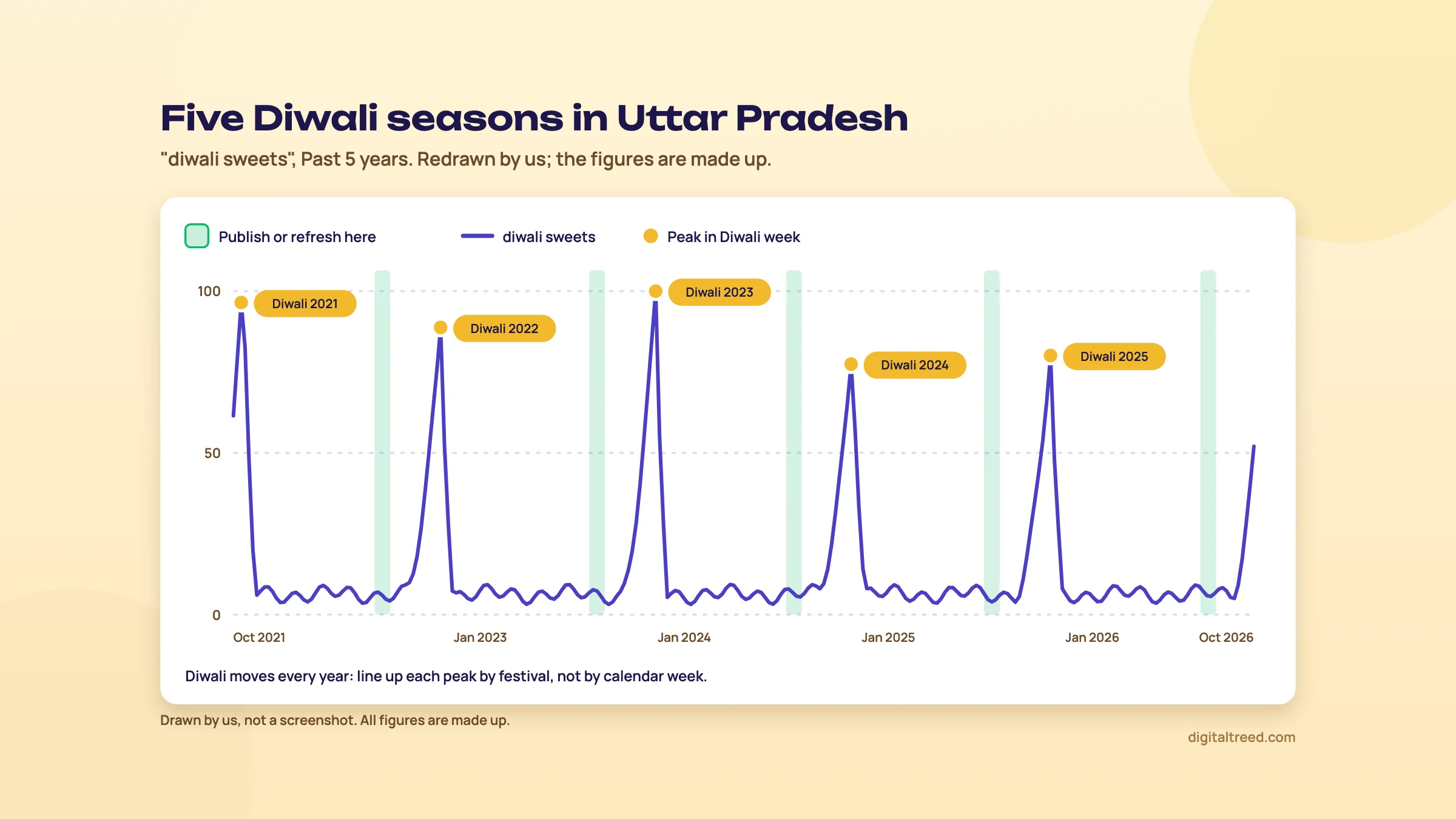 Publish or refresh before each yearly rise, not in the peak week. Drawn by us; the figures are made up.
2. Pick between two phrasings
Before you write a category title, check which words people actually use. Use search terms, not topics, and the same place and dates for both. Trends won't draw the map unless both use the same place, or the line chart unless both cover the same length of time.[13]
Choose the category title for a D2C women's wear brand
- Enter the options Add kurti, kurta for women and kurta set as search terms.
- Set the filters India, Past 12 months, then repeat with Google Shopping as the search type.
- Read the lines Note which term leads on web and which on Shopping. They can differ.
- Check the states Open Interest by subregion and note where your best-selling states lean.
- Check the length Write the title with the leading term first. Then run the page through our Meta Tag Analyzer to see it as a Google result, and shorten it if it's cut off.
Trends tells you which wording is more popular, not how many people search it. If both lines hug zero, the phrase is too small for Trends to judge; check it in Keyword Planner instead.
3. Plan content dates around a calendar
Coaching centres, colleges and education blogs live by the exam calendar. Searches for results, cut-offs and counselling come in sharp, predictable bursts. A content calendar built from Trends puts each post up before its burst, not during it.
Build a results-season calendar for a Pune coaching centre
- List the exams Write down the exams your students take, for example JEE Main, NEET and MHT CET.
- Chart them Enter each exam name with "result" as a search term, set Maharashtra and Past 5 years.
- Note the peaks For each exam, write the month its result searches peak, every year.
- Mine the questions Open Related queries for each, switch between Top and Rising, and copy questions such as cut-offs or college predictors into your sheet.
- Date the posts Schedule each guide 4 to 6 weeks before its searches start to climb, and a quick refresh the week the official date is announced.
- Check after After each season, compare your page's clicks in Search Console with the Trends peak, and move next year's date if you were late.
4. Spot topics that are fading
Some topics die slowly. Each year the peak is a little lower, and the traffic to your old post falls with it. Trends shows this before your own analytics make it obvious, because it covers the whole market, not just your site.
Set the period to Past 5 years and compare the height of each year's peak. The quick comparison chips can also show the past 5 years against the 5 years before.[14] If each peak is lower than the last, the topic is fading. If the shape changes from one sharp peak to a flat line, interest may have moved to a new name; look at Rising queries for what replaced it.
What to do about a fading topic:
- Don't delete the page if it still gets clicks. Keep it accurate and stop spending new effort on it.
- If a newer phrase has taken over, update the page to use it, or write a new page and link to it from the old one.
- For a D2C brand, treat a fading product search as an early signal for stock and ad plans, then confirm it with your own sales data.
Do not
Do
- Use five years to see a season, and twelve months to compare wording.
- Keep the place, dates and search type identical when comparing.
- Get volumes from Keyword Planner and your own clicks from Search Console.
- Publish or refresh one to two months before the rise.
If you'd like a content calendar like this built and written for you, our content marketing service plans posts from real search data. Next, chapter 5 covers what Trends costs, where it falls short, and the alternatives.
Cost, limits, pros and cons, and the alternatives
Quick answer
Google Trends is free and has no paid plan. Its limits are no search counts, zeros for small terms, and a fresh 0 to 100 scale on every chart. Pair it with Keyword Planner for volumes and Search Console for your own searches. Paid trend tools such as Exploding Topics start at $39 a month.
What Trends costs, checked 16 October 2026
Nothing. There's no paid tier. Classic Explore opens without signing in; Google asks you to sign in to use Gemini and the "advanced capabilities" of the new Explore page.[7]
| Part of Trends | Cost | Who it's for |
|---|---|---|
| Explore, Trending now, Year in Search | Free | Everyone |
| Gemini side panel on the new Explore page | Free, with a Google account | Brainstorming terms |
| Google Trends API (alpha) | By application, limited testers | Developers and researchers[3] |
| Trends dataset in BigQuery | Free up to 1 TB of queries a month, then BigQuery pricing | Data teams[18] |
The limits that matter for SEO
- No counts. Every number is relative. You can't say "1,000 people a month search this" from Trends.[2]
- Small terms show 0. Most local, long-tail phrases (the ones small businesses rank for first) are too small to chart.[2]
- Each chart has its own scale. Change one setting and every point is rescaled, so you can't stitch two charts together on the website.[17]
- Noise on small terms. Google adds random noise for privacy, which can make fake spikes.[2]
- Weekly points over long ranges. A five-year chart can't show you a single day.[2]
- Exact spellings only. Plurals, misspellings and synonyms aren't added unless you join them with a plus sign.[11]
Pros and cons
Pros
- Free, with no account needed for Classic Explore.
- Data back to 2004, so you can see many years of seasons.
- Breaks interest down by Indian state and city.
- Covers web, image, news, shopping and YouTube searches.
- Topics group spellings and languages, including Hindi script.
- Rising queries and "Breakout" give early content ideas.
- CSV download for every chart.
Cons
- No search volumes at all.
- Zeros for most local and long-tail phrases.
- Rescaled on every request, which confuses beginners.
- Google says related queries need dates at least a week old.
- Gemini suggestions are experimental and can be wrong.
- The API is a limited alpha, not open to everyone.
Alternatives, and which one when
We don't have a trends tool of our own yet. For the step after Trends, use our Meta Tag Analyzer. It draws your new or refreshed page's title and description as a Google result, plus the social share card.
Free tools that do what Trends can't:
- Google Keyword Planner gives monthly search volumes and ad costs. It's free, but you need a Google Ads account with billing information entered, and very low-volume keywords can't be found.[19] Our Keyword Planner guide covers it.
- Google Search Console shows the searches your own site already appears for, with clicks. See our Search Console guide.
- AnswerThePublic lists the questions people ask around a topic. See our AnswerThePublic guide.
Paid trend tools, with prices from their own pages, checked 16 October 2026. Neither showed rupee prices, so rupees are at ₹96 = US$1, the X-Rates average for 1 to 16 October 2026.[20]
| Tool | Price | What it adds to Trends |
|---|---|---|
| Exploding Topics | Entrepreneur $39 a month (about ₹3,750), Investor $99 (about ₹9,500), Business $249 (about ₹23,900); 7-day free trial[21] | A curated database of trends it says it spots early, trend tracking and forecasts. Its page says it's a trademark of Semrush Inc.[21] |
| Glimpse | Free sign-up; no prices on its website[22] | A trends platform that, by its own description, adds absolute search volumes, growth figures, forecasts and alerts; its Chrome extension adds them to Google Trends itself[22] |
| Your situation | Pick | Why |
|---|---|---|
| Planning festival or exam-season pages | Google Trends | Five years of seasons, by state, for free |
| Choosing between two phrasings | Google Trends, then Keyword Planner | Trends picks the winner; Keyword Planner says if it's worth a page |
| You need monthly search numbers | Keyword Planner | Trends has no counts |
| You want to know what your site already ranks for | Search Console | Your own queries and clicks |
| Hundreds of keywords with volumes and difficulty | Semrush or Ahrefs | Paid suites built for keyword lists |
| A D2C brand hunting new product ideas | Exploding Topics or Glimpse, after a free look in Trends | Curated trend lists and forecasts, at a monthly cost |
For most small businesses in India, we don't think a paid trend tool is worth it. Trends plus Keyword Planner plus Search Console answers when, how many and how you're doing, at no cost. For a full list of free tools, see our best free SEO tools guide.
Next, test yourself with the quiz below, then chart your three most important searches for the past five years and write the start of each season in your calendar.
Test yourself
Ten questions on the whole guide. Pick an answer, check it, and see your score at the end.
You got 0 of 10 right.
Frequently asked questions
Frequently asked
Is Google Trends free?
Yes. There's no paid plan, and Classic Explore works without signing in. Gemini and the new Explore page's advanced features need you to sign in with a Google account. The Trends API is a separate alpha that developers apply for.
What does 100 mean in Google Trends?
100 is the highest point on the chart you're looking at. Each point is the term's share of all searches in that place and time, scaled from 0 to 100. It's not a number of searches, and a 100 on one chart isn't the same amount as a 100 on another.
Can Google Trends show the number of searches?
No. Trends only shows relative interest. For monthly search estimates, use Google Keyword Planner, which is free with a Google Ads account that has billing details entered. For searches your own site appears for, use Search Console.
Why does my keyword show 0 in Google Trends?
Trends only shows data for terms that enough people search, so low-volume terms appear as 0. Try a broader term, a longer date range, a larger region, or fewer terms in the comparison.
What's the difference between a search term and a topic?
A search term is the exact words people typed, in one language. A topic groups every search about one thing, across spellings and languages. Use topics to measure interest in a brand or idea, and search terms to choose between two wordings.
How many terms can I compare in Google Trends?
Google's help page says the new Explore page compares up to 8 groups of terms, with up to 50 terms per group. Classic Explore compares up to 5 groups of 25 terms. Join spellings into one group with a plus sign.
Can I see Google Trends for Indian states and cities?
Yes. Set the country to India, and the "Interest by subregion" map and list rank states by interest; you can also view cities. You can also narrow the whole chart to one state, such as Maharashtra or Uttar Pradesh.
What does "Breakout" mean in Google Trends?
In the Rising list of related topics or queries, "Breakout" replaces the growth percentage when a search grew by more than 5,000% in your chosen period. It often marks something new, but check it again a few weeks later before you build a page on it.
Is there an official Google Trends API?
Yes, as an alpha. Google announced it in July 2025 for a very limited number of testers who apply. It gives about five years of consistently scaled data by region and sub-region. It's still interest, not search counts.
How far back does Google Trends data go?
To 2004. The tool itself went live in 2006. For SEO planning, the past five years is usually enough to see each season repeat.
Sources
References
- Best Trends forever: 15 years of Google Trends, Google, The Keyword, 11 Aug 2021, accessed 16 Oct 2026
- FAQ about Google Trends data, Google Trends Help, accessed 16 Oct 2026
- Google Trends API Alpha, Google Search Central, accessed 16 Oct 2026
- Find related searches, Google Trends Help, accessed 16 Oct 2026
- Export, embed, and cite Trends data, Google Trends Help, accessed 16 Oct 2026
- Google Trends Explore page uses Gemini, Google, The Keyword, 14 Jan 2026, accessed 16 Oct 2026
- Explore - Google Trends (seen signed out, India), Google Trends, accessed 16 Oct 2026
- Compare Trends search terms, Google Trends Help, accessed 16 Oct 2026
- Understanding How the Google Trends Explore Page uses Gemini models, Google Trends Help, accessed 16 Oct 2026
- Compare search terms and topics, Google Trends Help, accessed 16 Oct 2026
- Search tips for Trends, Google Trends Help, accessed 16 Oct 2026
- Explore results by region, Google Trends Help, accessed 16 Oct 2026
- Troubleshooting, Google Trends Help, accessed 16 Oct 2026
- Compare search interest over time with quick comparisons, Google Trends Help, accessed 16 Oct 2026
- Refine Trends results by category, Google Trends Help, accessed 16 Oct 2026
- Explore the searches that are Trending now, Google Trends Help, accessed 16 Oct 2026
- Introducing the Google Trends API (alpha): a new way to access Search Trends data, Google Search Central Blog, 24 Jul 2025, accessed 16 Oct 2026
- Get started with the Google Trends dataset, Google Trends Help, accessed 16 Oct 2026
- Use Keyword Planner, Google Ads Help, accessed 16 Oct 2026
- Exchange Rate Average (US Dollar, Indian Rupee), X-Rates, accessed 16 Oct 2026
- Exploding Topics Pro pricing, Exploding Topics (Semrush Inc), prices seen 16 Oct 2026, accessed 16 Oct 2026
- Glimpse - Discover Trends Before They're Trending, Glimpse, accessed 16 Oct 2026
Get the free checklist
Every step of this guide on one page, to print or tick off. We email you the PDF link.